TABLE OF CONTENTS
- What is cannibalization?
- Where you set it up
- How the impact is calculated
- Which sales figures are used
- When the impact applies
- End of Life
- Where to see the result
- Usecases
- What should I watch out for?
What is cannibalization?
Cannibalization is when a new product takes sales away from a product you already sell. For example, you launch a new flavour of a drink, and some customers who used to buy the old flavour switch to the new one. The total may not grow as much as you hoped, because part of the new product's sales simply moved over from the old one.
In an NPI plan, you can tell the application which existing products will lose sales, how much they will lose, and for how long. The application then works out a lower, revised forecast for those products.
Where you set it up
You set cannibalization in the Cannibalization section of the Create/Edit NPI Plan screen. It is optional. For the full steps, see How to create NPI plan?.
Click + Add impacted product and fill in one row for each existing product that will lose sales:
| Field | What to enter |
|---|---|
| Impacted product* | The existing product that will lose sales. |
| Customer / Location* | Appears only if your plan is narrowed to a customer or location level. Pick the value (for example, the country) whose sales of this product will be reduced. |
| Impact %* | How much of its sales it will lose, above 0 and up to 100. For example, 20 means a fifth of its sales. |
| Start* | The first month the loss applies. The list only shows months of your NPI period. |
| End* | The last month the loss applies. The list only shows months of your NPI period. You can also choose End of Life, which is available only when you plan at the lowest product level (Product). |
Cannibalization only happens inside your NPI period. The Start and End lists therefore show only the months of your NPI period. You cannot pick a month before the NPI Start or after the NPI End.
Example. Your NPI period is Jan 2026 to Dec 2026. In the Start list, the only year you can choose is 2026, and the months are Jan to Dec. The End list works the same way. Years such as 2025 or 2027 are not offered. If your NPI period is Oct 2026 to Sep 2027, you can choose 2026 (Oct to Dec) or 2027 (Jan to Sep) and nothing else.

How the impact is calculated
The idea is simple. For every month in the impact period, the application takes the older product's forecast for that month, works out the percentage you entered, and subtracts it.
Impact           = Input × Impact %
Revised forecast = Input − Impact
Months outside the Start–End window are left alone, so the revised forecast equals the input. The numbers are rounded to whole units. The impact is shown as a negative number, because it is a reduction.
In numbers. The older product sells 70 units a month. You enter an impact of 20%. Each month in the window, the impact is 70 × 20% = 14 units, so the revised forecast is 70 − 14 = 56 units.
Which sales figures are used
The older product's sales are read from the Cannibalization Input measure. Your Firstshift Implementer sets this measure when the NPI Publish settings are set up, for example "Demand Plan Units". It is not the same as the NPI Input Measure you chose for the plan, which is only used for the like products. The grey text under the Cannibalization section title names the measure in use.
If this measure has not been set up, the plan cannot be run, and you see a message saying so. Ask your Firstshift Implementer to set it.
Sales are matched by calendar month. March 2027 of the older product is reduced in March 2027. This is different from like products, whose history is lined up by position in the plan.
When the impact applies
- The impact starts in the Start month and stops after the End month. Both months are included.
- The impact can only happen inside the NPI period. The Start and End lists only offer months of your NPI period, so a month before the NPI Start or after the NPI End cannot be chosen.
- A new product often does not hurt the older one on day one. Setting a later Start lets you model that.
- Cannibalization does not change the new product's own forecast. It only lowers the forecast of the older product. It is also not affected by the ramp up curve.
- You can add several impacted products. Each row is worked out on its own.
- A product that is also a like product is still used to build the new product's forecast as normal. Choosing it as an impacted product does not remove it from the like products.
End of Life
Choose End of Life as the End when the loss should continue for as long as the older product stays on sale, and you don't want to type a month yourself.
Availability. End of Life is only offered when you plan at the lowest product level, Product. It needs one real product to read an End of Life date from. If your NPI Planning Level is a higher product level, such as Family or Sub Family, the End list does not show End of Life. Cannibalization still works at those levels. Pick an end month instead.
Where the End of Life date comes from
The date comes from the product master. Each product can have an EOL attribute:
- End of Life: the date the product reaches the end of its life.
When you choose End of Life, the application reads the cannibalized product's End of Life date from the product master and ends the impact in that month. The month is included.
- When an End of Life date is selected: the product is still active, but the date is the planned (potential) point where it will reach its end of life. The impact ends in the month of that date.
Special cases
- The product has no End of Life date. The application has no date to stop at, so the impact runs to the end of the NPI period.
- The End of Life date in the product master is later than the end of your NPI period. The impact still stops at the end of the NPI period, because cannibalization only happens inside the NPI period.
- The End of Life date in the product master is earlier than your Start (for example, the product reached its end of life before the NPI period begins). There is nothing left to reduce, so no impact is applied for that row.
For more on discontinued items, see Discontinued and End of Life (EOL) items.

Where to see the result
After you run the plan, open the results. In the planning grid, each impacted product appears as its own group, marked Cannibalized Item, with three rows:
- The sales row, named after the Cannibalization Input measure (for example "Demand Plan Units"). This is the older product's forecast before the impact.
- Cannibalization Impact: the units removed in each month, shown as negative numbers in red.
- Revised Forecast: the sales row minus the impact.
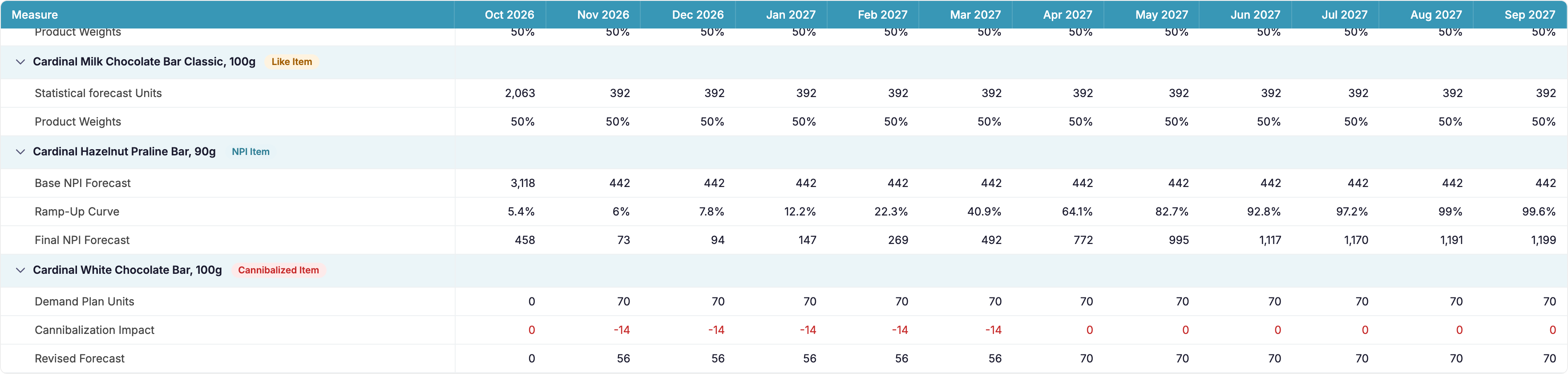
The results also have a Cannibalized Items Plan section, which shows the revised forecast of the impacted product split by customer and location. For how to read these screens, see How to read and understand NPI plan results?. To send the revised forecast to your planning data, see Publish NPI.
Usecases
Use case 1: The basic case
A new product launches, and an older product, Cardinal White Chocolate Bar, is expected to lose 20% of its sales for five months. It sells 70 units a month. You add it as an impacted product with an Impact % of 20, a Start of Nov 2026, and an End of Mar 2027.
| Oct 2026 | Nov 2026 | Dec 2026 | Jan 2027 | Feb 2027 | Mar 2027 | Apr 2027 | May 2027 | Jun 2027 | |
|---|---|---|---|---|---|---|---|---|---|
| Input (Demand Plan Units) | 0 | 70 | 70 | 70 | 70 | 70 | 70 | 70 | 70 |
| In the impact window? | No | Yes | Yes | Yes | Yes | Yes | No | No | No |
| Cannibalization Impact | 0 | −14 | −14 | −14 | −14 | −14 | 0 | 0 | 0 |
| Revised Forecast | 0 | 56 | 56 | 56 | 56 | 56 | 70 | 70 | 70 |
The application shows a total reduction of 70 units for this product. From April, the forecast returns to its normal 70 units.
Usecases 2 to 5 use another older product with this forecast. The impact is 30% and the Start is Dec 2026. Your NPI period runs until Sep 2027.
| Dec 2026 | Jan 2027 | Feb 2027 | Mar 2027 | Apr 2027 | May 2027 | Jun 2027 | |
|---|---|---|---|---|---|---|---|
| Input | 800 | 800 | 700 | 600 | 500 | 400 | 400 |
| Usecase 2: End = Feb 2027, impact | −240 | −240 | −210 | 0 | 0 | 0 | 0 |
| Usecase 3 and 4: End of Life with an End of Life date of Mar 2027, impact | −240 | −240 | −210 | −180 | 0 | 0 | 0 |
| Usecase 5: End of Life with no End of Life date, impact | −240 | −240 | −210 | −180 | −150 | −120 | −120 |
Usecase 2: You choose the end month
You set the End to Feb 2027. The impact stops in the month you chose. Across these months it totals 690 units.
Usecase 3: End of Life, for a discontinued product
The older product has Is Discontinued = Yes and an End of Life date of 31 Mar 2027 in the product master. You choose End of Life as the End. The impact runs until March 2027, which is the End of Life month, and then stops. It totals 870 units. You did not have to know the date yourself.
Usecase 4: End of Life, for a product that is still active
The older product has Is Discontinued = No, so it is still on sale, but its product master has an End of Life date of 31 Mar 2027. This is the planned date it will reach the end of its life. You choose End of Life as the End. The result is the same as Usecase 3: the impact runs until March 2027.
Usecase 5: End of Life, but the product has no End of Life date
The older product has no End of Life date in the product master. The application has nothing to stop at, so the impact continues to the end of the NPI period. Through June 2027 alone it totals 1,260 units, and it keeps going until Sep 2027. If you see this, check that the End of Life date is filled in for the product.
Usecase 6: A plan for one country
Your plan is narrowed to Location = Country. In the impacted product row, pick the country, for example United States. Only the United States sales of the older product are reduced. Its sales in other countries are left alone.
Usecase 7: Planning at a higher product level
Your NPI Planning Level is Family. The impacted product list now shows families, and the End list does not offer End of Life, because a family has no single End of Life date. You pick an end month yourself, for example Mar 2027. The impact is worked out for that family from the Start month to the End month, as in Usecase 2.
Usecase 8: Two products lose sales
You add two rows, one for an old chocolate bar with an impact of 20% and one for an old biscuit with an impact of 10%. Each one has its own percentage, dates and revised forecast.
What should I watch out for?
- Impact % must be above 0, and you can't enter more than 100.
- Both the Start and End must be inside your NPI period. If you later change the NPI dates, any date that no longer fits is cleared and you need to pick it again.
- End of Life is only available when your NPI Planning Level is the lowest product level (Product). At a higher level, such as Family or Sub Family, choose an end month instead.
- If a plan can't run because the Cannibalization Input measure is not set, ask your Firstshift Implementer to set it in the NPI Publish settings.
- If you choose End of Life, check that the older product has an End of Life date in the product master. Without it, the impact runs to the end of the NPI period.
- After you edit a plan, run it again to see the updated revised forecast. See How do you edit and re-run the NPI plan?.
Was this article helpful?
That’s Great!
Thank you for your feedback
Sorry! We couldn't be helpful
Thank you for your feedback
Feedback sent
We appreciate your effort and will try to fix the article