TABLE OF CONTENTS
- Overview
- Before you publish
- How to publish
- What is written, and what is not
- Worked example
- After you publish
- Publishing again after a change
- Usecases
- FAQ
- What should I watch out for?
Overview
When you run an NPI plan, the system works out a forecast for your new product. But that forecast stays inside the plan, as a preview, until you publish it. Publishing is the step that copies the numbers into the Planner Workbench, where planners can see them and work with them alongside the rest of their plan.
Publishing is done for one NPI item at a time. For each item, two sets of numbers are copied:
- The Final NPI Forecast of the new product, spread across its customers and locations.
- If the plan has cannibalization, the Revised Forecast of each existing product that loses sales to the new one.
The names of the Workbench measures that receive these numbers are chosen by your Firstshift Implementer when the application is set up. In the standard setup, the Final NPI Forecast goes to Demand Plan Units and the Revised Forecast goes to Sales Manager Units.
In the Publish window and in the message afterwards, the Planner Workbench is called Demand Planning.
Before you publish
A plan can only be published when it is ready. Check these points first:
- The plan has been run and the results look right on the Results screen. See How to read and understand NPI plan results?.
- You have set up the disaggregation for the item and clicked Regenerate Disaggregated Plan. Publishing copies the regenerated numbers, so without this step there is nothing to publish. See Disaggregating the NPI forecast by customer and location, and regenerating the plan.
- If the plan has more than one NPI item, you have done the above for each item you want to publish. Each item is published on its own.
How to publish
The Publish NPI Plan button is at the top of the Results screen, next to Plan info and Edit Parameters.

- Open the plan from the NPI Planning list so that you are on the Results screen.
- If the plan has more than one NPI item, choose the item you want to publish using the item switcher at the top of the screen.
- Click Publish NPI Plan.
- Read the summary that appears (see the table below), then click Publish.
- A message confirms how many values were written, and how many were skipped or set to zero. The button changes to Published, and the tag on the Regenerated Disaggregated Plan changes from Draft, not published to Published.
The summary shows you what is about to happen before anything is written:
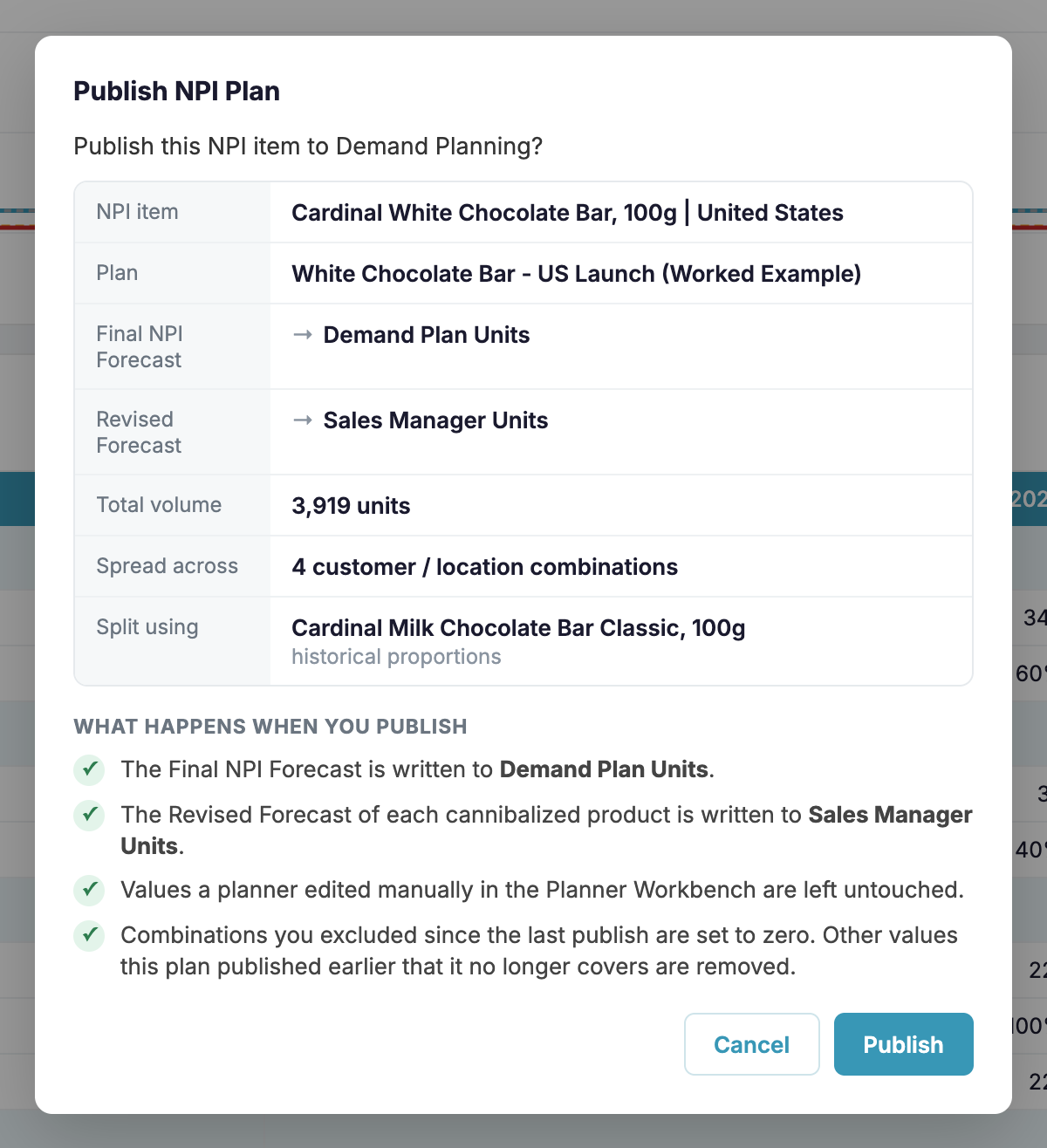 [Screenshot placeholder: Screenshot 3 - the Publish NPI Plan window, showing Total volume 3,919 units (03_publish_window.png)]
| What you see | What it means |
|---|---|
| NPI item and Plan | The new product and the plan you are publishing. |
| Final NPI Forecast → | The Workbench measure that will receive the new product's forecast. |
| Revised Forecast → | The Workbench measure that will receive the revised forecast of the cannibalized products. Shown only when the plan has cannibalization. |
| Total volume | The total units of the new product's forecast over the whole plan period. |
| Spread across | The number of customer and location combinations the forecast is split over. |
| Split using | The reference product whose historical proportions decide how the forecast is split. |
The window also lists what happens when you publish: values a planner has edited (overridden) in the Workbench are left untouched, combinations you excluded since the last publish are set to zero, and values published earlier for months outside the current plan are left as they are.
What is written, and what is not
Two sets of numbers are published to the Workbench. Planners can see and use them there:
| What is published | Where it goes (standard setup) | What is written |
|---|---|---|
| Final NPI Forecast | Demand Plan Units | The new product's forecast, for every customer and location combination and every month. |
| Revised Forecast | Sales Manager Units | The reduced forecast of each cannibalized product, only for the months where the impact changes something. Shown only when the plan has cannibalization. |
If the plan is made for a product group, such as a Sub Family, the Final NPI Forecast is first allocated across the individual products, and the values of each product are published. See Allocating the NPI forecast across products (Product allocation).
Everything else the plan works out stays inside the plan. It helps you check the numbers on the Results screen, but it is never copied to the Workbench:
- Base NPI Forecast
- Ramp-Up Curve
- Product Weights
- Cannibalization Impact
Every value that is published is tagged with the plan and the item that published it, and is recorded in the audit as "NPI Plan Published". That is how a later publish knows which values are its own.
Worked example
This example shows only what publishing does. It starts at the point where the plan has already been run and the disaggregated plan has been regenerated, so the numbers the plan holds are the starting point. How those numbers are calculated is explained in other articles: How Base NPI Forecast & Final NPI Forecast are calculated, Disaggregating the NPI forecast by customer and location, and regenerating the plan, What is Cannibalization Impact, and how does it work? and How the cannibalization impact is spread across customers and locations.
The tables show Oct 2026 to Jun 2027.
| The plan | Value |
|---|---|
| NPI item (the new product) | Cardinal White Chocolate Bar, 100g |
| Plan period | Oct 2026 to Jun 2027 (9 months) |
| Cannibalized product | GoldenCrisp Butter Cookies Tin, 454g (Canada), impact 20% |
| Published to (standard setup) | Final NPI Forecast to Demand Plan Units, and Revised Forecast to Sales Manager Units |
| Values in the plan (before publishing) Item | Measure | Oct 2026 | Nov 2026 | Dec 2026 | Jan 2027 | Feb 2027 | Mar 2027 | Apr 2027 | May 2027 | Jun 2027 |
|---|---|---|---|---|---|---|---|---|---|---|
| Cardinal Dark Chocolate Bar 85% Cacao, 100g (Like Item) | Statistical forecast Units | 3,430 | 346 | 346 | 346 | 346 | 346 | 346 | 346 | 346 |
| Product Weights | 60% | 60% | 60% | 60% | 60% | 60% | 60% | 60% | 60% | |
| Cardinal Milk Chocolate Bar Classic, 100g (Like Item) | Statistical forecast Units | 232 | 33 | 33 | 33 | 33 | 33 | 33 | 33 | 33 |
| Product Weights | 40% | 40% | 40% | 40% | 40% | 40% | 40% | 40% | 40% | |
| Cardinal White Chocolate Bar, 100g (NPI Item) | Base NPI Forecast | 2,151 | 221 | 221 | 221 | 221 | 221 | 221 | 221 | 221 |
| Ramp-Up Curve | 100% | 100% | 100% | 100% | 100% | 100% | 100% | 100% | 100% | |
| Final NPI Forecast | 2,151 | 221 | 221 | 221 | 221 | 221 | 221 | 221 | 221 | |
| GoldenCrisp Butter Cookies Tin, 454g (Cannibalized Item) | Demand Plan Units | 234 | 65 | 65 | 65 | 65 | 65 | 65 | 65 | 65 |
| Cannibalization Impact | -47 | -13 | -13 | -13 | -13 | -13 | -13 | -13 | -13 | |
| Revised Forecast | 187 | 52 | 52 | 52 | 52 | 52 | 52 | 52 | 52 |
Step 1: What the plan holds before you publish
The Final NPI Forecast of the new product is 2,151 units in Oct 2026 and 221 units in each month after that. The plan has already split it across 4 customer and location combinations. These numbers are inside the plan only:
| Final NPI Forecast by Customer | Location | Oct 2026 | Nov 2026 | Dec 2026 | Jan 2027 | Feb 2027 | Mar 2027 | Apr 2027 | May 2027 | Jun 2027 |
|---|---|---|---|---|---|---|---|---|---|
| Target Corporation| Columbus Central DC | 395 | 45 | 45 | 45 | 45 | 45 | 45 | 45 | 45 |
| Amazon.com Inc. | Seattle Regional Warehouse | 656 | 61 | 61 | 61 | 61 | 61 | 61 | 61 | 61 |
| Walgreens Boots Alliance | Columbus Central DC | 683 | 77 | 77 | 77 | 77 | 77 | 77 | 77 | 77 |
| Sprouts Farmers Market | Phoenix West DC | 417 | 38 | 38 | 38 | 38 | 38 | 38 | 38 | 38 |
| Total | 2,151 | 221 | 221 | 221 | 221 | 221 | 221 | 221 | 221 |
The plan also holds a Revised Forecast for the cannibalized product: its normal sales less the 20% impact, which is 187 units in Oct 2026 and 52 units in each month after that. It has been shared across the 3 customer and location combinations where that product sells. These numbers are also inside the plan only:
| Revised Forecast by Customer | Location | Oct 2026 | Nov 2026 | Dec 2026 | Jan 2027 | Feb 2027 | Mar 2027 | Apr 2027 | May 2027 | Jun 2027 |
|---|---|---|---|---|---|---|---|---|---|
| Loblaw Companies Limited | Montreal Regional Warehouse | 38 | 7 | 7 | 7 | 7 | 7 | 7 | 7 | 7 |
| Sobeys Inc. | Toronto Distribution Center | 77 | 16 | 16 | 16 | 16 | 16 | 16 | 16 | 16 |
| Sobeys Inc. | Montreal Regional Warehouse | 72 | 29 | 29 | 29 | 29 | 29 | 29 | 29 | 29 |
| Total | 187 | 52 | 52 | 52 | 52 | 52 | 52 | 52 | 52 |
Nothing from this plan is in the Planner Workbench yet. Until you publish, the Workbench holds nothing from this plan for these combinations.
Step 2: You click Publish
The Publish window shows what is about to be written: a total volume of 3,919 units over the 9 months, spread across 4 customer and location combinations, with the Final NPI Forecast going to Demand Plan Units and the Revised Forecast going to Sales Manager Units. When you click Publish, each row of the two tables above is copied to its own row in the Workbench:
| Product, customer and location | Measure | Oct 2026 | Nov 2026 | Dec 2026 | Jan 2027 | Feb 2027 | Mar 2027 | Apr 2027 | May 2027 | Jun 2027 |
|---|---|---|---|---|---|---|---|---|---|---|
| Cardinal White Chocolate Bar, 100g Target Corporation, Columbus Central DC | Demand Plan Units | 395 | 45 | 45 | 45 | 45 | 45 | 45 | 45 | 45 |
| Cardinal White Chocolate Bar, 100g Amazon.com Inc., Seattle Regional Warehouse | Demand Plan Units | 656 | 61 | 61 | 61 | 61 | 61 | 61 | 61 | 61 |
| Cardinal White Chocolate Bar, 100g Walgreens Boots Alliance, Columbus Central DC | Demand Plan Units | 683 | 77 | 77 | 77 | 77 | 77 | 77 | 77 | 77 |
| Cardinal White Chocolate Bar, 100g Sprouts Farmers Market, Phoenix West DC | Demand Plan Units | 417 | 38 | 38 | 38 | 38 | 38 | 38 | 38 | 38 |
| GoldenCrisp Butter Cookies Tin, 454g Loblaw Companies Limited, Montreal Regional Warehouse | Sales Manager Units | 38 | 7 | 7 | 7 | 7 | 7 | 7 | 7 | 7 |
| GoldenCrisp Butter Cookies Tin, 454g Sobeys Inc., Toronto Distribution Center | Sales Manager Units | 77 | 16 | 16 | 16 | 16 | 16 | 16 | 16 | 16 |
| GoldenCrisp Butter Cookies Tin, 454g Sobeys Inc., Montreal Regional Warehouse | Sales Manager Units | 72 | 29 | 29 | 29 | 29 | 29 | 29 | 29 | 29 |
The Workbench now holds exactly the numbers the plan held. Planners see them at product, customer and location level, and can work with them like any other values. The copy is for all 9 months, so the count of values written is:
| What is published | Workbench measure | Combinations | Months | Values written |
|---|---|---|---|---|
| Final NPI Forecast | Demand Plan Units | 4 | 9 | 36 |
| Revised Forecast | Sales Manager Units | 3 | 9 | 27 |
| Total | 63 |
Step 3: You exclude a combination and publish again
Later you decide that the new product should not be sold to Target Corporation at Columbus Central DC. You exclude that combination in the Disaggregation section, click Regenerate Disaggregated Plan, and publish again. For how to exclude combinations, see Disaggregating the NPI forecast by customer and location, and regenerating the plan.
Inside the plan, the same Final NPI Forecast is now shared by 3 combinations instead of 4, so each remaining combination gets a bigger share. The total in each month is unchanged:
| Final NPI Forecast by Customer| Location | Oct 2026 | Nov 2026 | Dec 2026 | Jan 2027 | Feb 2027 | Mar 2027 | Apr 2027 | May 2027 | Jun 2027 |
|---|---|---|---|---|---|---|---|---|---|
| Amazon.com Inc. |Seattle Regional Warehouse | 803 | 76 | 76 | 76 | 76 | 76 | 76 | 76 | 76 |
| Walgreens Boots Alliance | Columbus Central DC | 837 | 97 | 97 | 97 | 97 | 97 | 97 | 97 | 97 |
| Sprouts Farmers Market | Phoenix West DC | 511 | 48 | 48 | 48 | 48 | 48 | 48 | 48 | 48 |
| Total | 2,151 | 221 | 221 | 221 | 221 | 221 | 221 | 221 | 221 |
When you publish again, the Workbench is updated to match. The excluded combination is not left with its old numbers. It is set to 0, so the new product forecasts nothing there:
| Product, customer and location | Measure | Oct 2026 | Nov 2026 | Dec 2026 | Jan 2027 | Feb 2027 | Mar 2027 | Apr 2027 | May 2027 | Jun 2027 |
|---|---|---|---|---|---|---|---|---|---|---|
| Cardinal White Chocolate Bar, 100g Target Corporation, Columbus Central DC (excluded) | Demand Plan Units | 0 | 0 | 0 | 0 | 0 | 0 | 0 | 0 | 0 |
| Cardinal White Chocolate Bar, 100g Amazon.com Inc., Seattle Regional Warehouse | Demand Plan Units | 803 | 76 | 76 | 76 | 76 | 76 | 76 | 76 | 76 |
| Cardinal White Chocolate Bar, 100g Walgreens Boots Alliance, Columbus Central DC | Demand Plan Units | 837 | 97 | 97 | 97 | 97 | 97 | 97 | 97 | 97 |
| Cardinal White Chocolate Bar, 100g Sprouts Farmers Market, Phoenix West DC | Demand Plan Units | 511 | 48 | 48 | 48 | 48 | 48 | 48 | 48 | 48 |
The Revised Forecast of the cannibalized product did not change, so its 3 rows in Sales Manager Units are left exactly as they were. This is what the publish did with the 9 months of every row:
| What happened | Values | Why |
|---|---|---|
| Set to zero | 9 | Target Corporation at Columbus Central DC (1 combination × 9 months). It is excluded, so the item no longer forecasts anything there. |
| Rewritten | 27 | The other 3 combinations × 9 months, with their new, bigger shares. |
| Left alone | 27 | The Revised Forecast. Its values were already correct, so nothing was written. |
After you publish
- The Publish NPI Plan button shows Published and cannot be clicked for that item. Regenerating the disaggregated plan for that item, editing the plan or running it again clears the published mark, so the item can be published again.
- Publishing is the only step that changes the Workbench. Saving, running or regenerating the plan does not.
- Publishing cannot be undone. To change what is in the Workbench, change the plan and publish again. What happens to the values you published earlier is explained in What happens to published values when you edit, exclude or republish an NPI plan.
- To see the published values, open the Planner Workbench, find the new product, and look at the measure (Demand Plan Units in the standard setup) by customer and location. To see what a publish changed, right-click a published cell and open the audit.
This is how the button and the tag look after publishing:


Publishing again after a change
A published plan is not locked. You can change it and publish again, and the Workbench is updated to match. What happens for each kind of change is explained in a separate article: What happens to published values when you edit, exclude or republish an NPI plan. Read it before you republish a plan that planners are already using.
The most common case is excluding customers or locations after you have published. Here is what to do:
- Exclude the customers and locations you no longer want in the Disaggregation section. The exclusion applies to the NPI item you have selected.
- Click Regenerate Disaggregated Plan. Until you do, the regenerated plan is empty and the item cannot be published. Regenerating also clears the Published mark, so the Publish NPI Plan button becomes clickable again.
- Click Publish NPI Plan and then Publish.
When you publish again, the application does four things for the item:
| What it does | When it applies |
|---|---|
| Replace | The new values replace the values this item published earlier. |
| Set to zero | A Final NPI Forecast value this item published earlier for a customer and location combination that you have since excluded is set to 0, because the item no longer forecasts anything there. If a planner has edited (overridden) a value in that combination, it keeps that value. |
| Leave other months alone | A publish updates only the months of the current plan. Values published earlier for months outside the plan, for example Jul to Sep 2027 after you shorten the plan to Jun 2027, are not changed and stay in the Workbench. |
| Leave alone | A value a planner edited (overridden) in the Workbench is skipped, never overwritten. The message after publishing tells you how many were skipped. |
Example. Step 3 of the Worked example above shows this with real numbers: the excluded combination is set to 0, and the other combinations are rewritten.
Other NPI items in the same plan keep their own exclusions and are not affected. Nothing in the Workbench changes until you publish: excluding, regenerating, or running the plan again does not touch it.
Usecases
Usecase 1: Publishing a plan with one NPI item
You have checked the results, regenerated the disaggregated plan and clicked Publish NPI Plan. The Final NPI Forecast is written to the Workbench for every customer and location combination, and the button changes to Published.
Usecase 2: Publishing a plan with several NPI items
Each NPI item is published separately, so you publish the items one by one using the item switcher. The Revised Forecast of cannibalized products belongs to the whole plan. The first item you publish writes it, and when you publish the other items it is already there, so it is left as it is.
Usecase 3: The plan is not ready
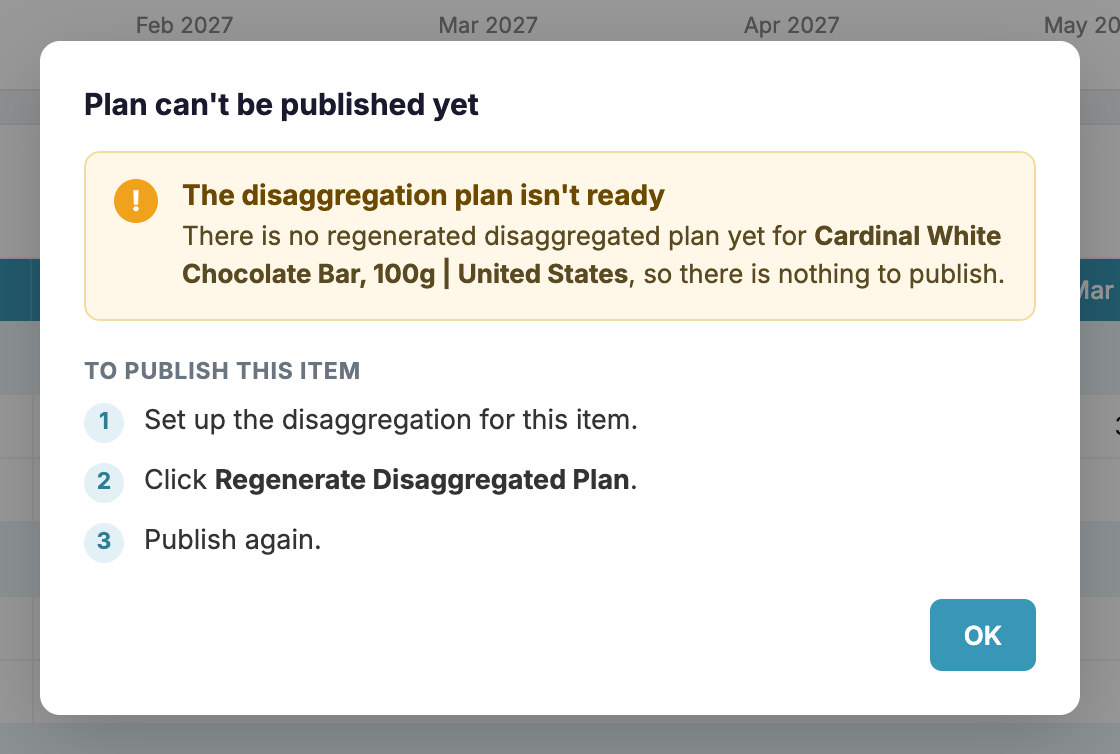
You click Publish NPI Plan and see the message "The disaggregation plan isn't ready". This means no regenerated disaggregated plan exists yet for that item. Set up the disaggregation for the item, click Regenerate Disaggregated Plan, and publish again.
Usecase 4: A planner has edited a value in the Workbench
The application skips those edited cells and retains their edited values. All other cells are written, and the message tells you how many were skipped.
Usecase 5: You exclude customers or locations after publishing
You published the item, then decided to leave out some customers and locations. Exclude them, click Regenerate Disaggregated Plan and publish again. The excluded combinations are set to zero in the Workbench and the remaining combinations are rewritten. For all the cases, see What happens to published values when you edit, exclude or republish an NPI plan.
FAQ
Which measure do the numbers go to?
The measures are set by your Firstshift Implementer. In the standard setup, the Final NPI Forecast goes to Demand Plan Units and the Revised Forecast goes to Sales Manager Units. The Publish window shows the exact names.
At what level are the numbers written?
For each product, customer and location combination, for each month. This is why you regenerate the disaggregated plan first: it is the regenerated plan that is copied.
Can I publish again after I exclude customers or locations?
Yes. Exclude them in the Disaggregation section, click Regenerate Disaggregated Plan, then publish. The excluded combinations are set to zero in the Workbench. See "Publishing again after a change" above.
Why is the Publish NPI Plan button greyed out?
That item is already published. Regenerating the disaggregated plan for the item, editing the plan or running it again clears the published mark and makes the button clickable again. After you exclude customers or locations you regenerate the plan anyway, so the button comes back at that point.
Can I publish all NPI items at once?
No. Publishing works on one NPI item at a time. Use the item switcher to move from one item to the next.
Can I undo a publish?
No. Change the plan and publish again. See What happens to published values when you edit, exclude or republish an NPI plan.
Will publishing overwrite values my planners have edited?
No. Values a planner has edited (overridden) in the Workbench are skipped.
How can I see what a publish changed?
In the Planner Workbench, right-click a published cell and open the audit. Each change is recorded as "NPI Plan Published".
Was this article helpful?
That’s Great!
Thank you for your feedback
Sorry! We couldn't be helpful
Thank you for your feedback
Feedback sent
We appreciate your effort and will try to fix the article