TABLE OF CONTENTS
- Overview
- How the forecast is split across products
- The Product Hierarchy Disaggregation section
- Set up the allocation
- Discontinued products and End of Life
- Examples
- Usecases
- Messages you may see
- FAQ
- What should I watch out for?
Overview
You can create an NPI plan for a group of products, such as a Sub Family called "Chocolate Bars", instead of for one product. The plan then produces one forecast for the whole group. Before you can use it, the application has to split that forecast across the real products in the group. This is product allocation, and you decide which products receive a share and how big each share is.
- When it applies: only when your plan's product level is above the lowest level (for example, Family, Sub Family, or Style). If your plan is at the lowest level (Product), this section does not appear, and you can skip this article.
- Where you do it: in the Product Hierarchy Disaggregation section of the Results screen. You set it up once for each NPI item. Every NPI item has its own allocation.
- How it fits: it works together with the customer/location split. Both are combined when you click Regenerate Disaggregated Plan. See Disaggregating the NPI forecast by customer and location, and regenerating the plan.
How the Final NPI forecast is split across products
For each month, the application:
- Splits the Final NPI Forecast across customers and locations, as described in Disaggregating the NPI forecast by customer and location, and regenerating the plan. This gives one value for each customer / location combination.
- Splits each of those values across the products you ticked, either equally or by the percentages you entered.
- Rounds to whole units so that the products add up exactly to the customer / location value, and the whole plan adds up to the Final NPI Forecast.
The Product Hierarchy Disaggregation section
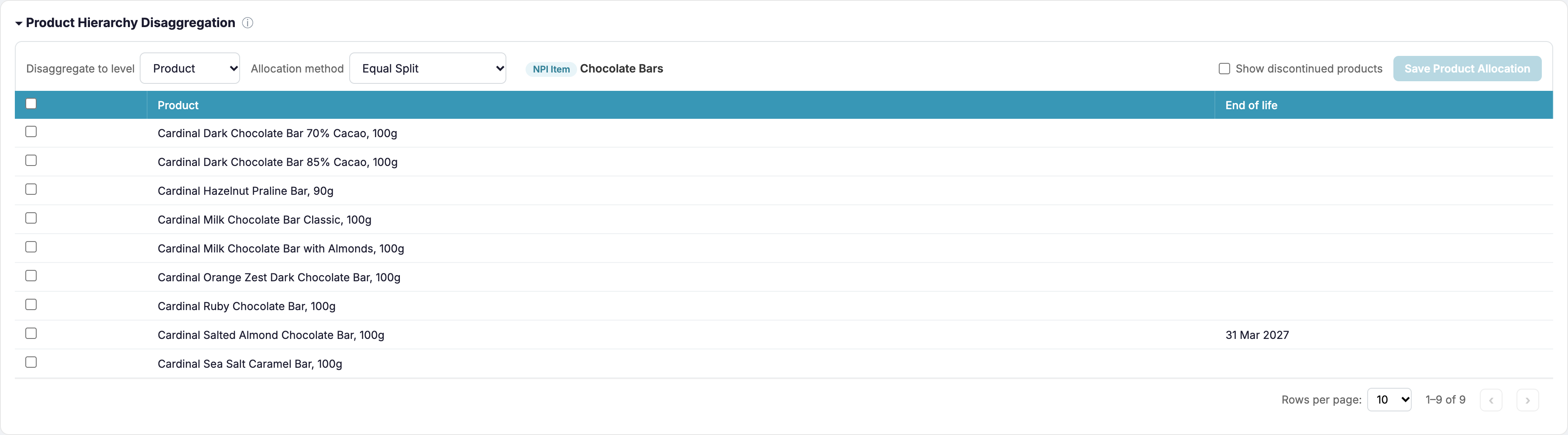
The section starts collapsed. Click its title to expand it.
| What you see | What it is |
|---|---|
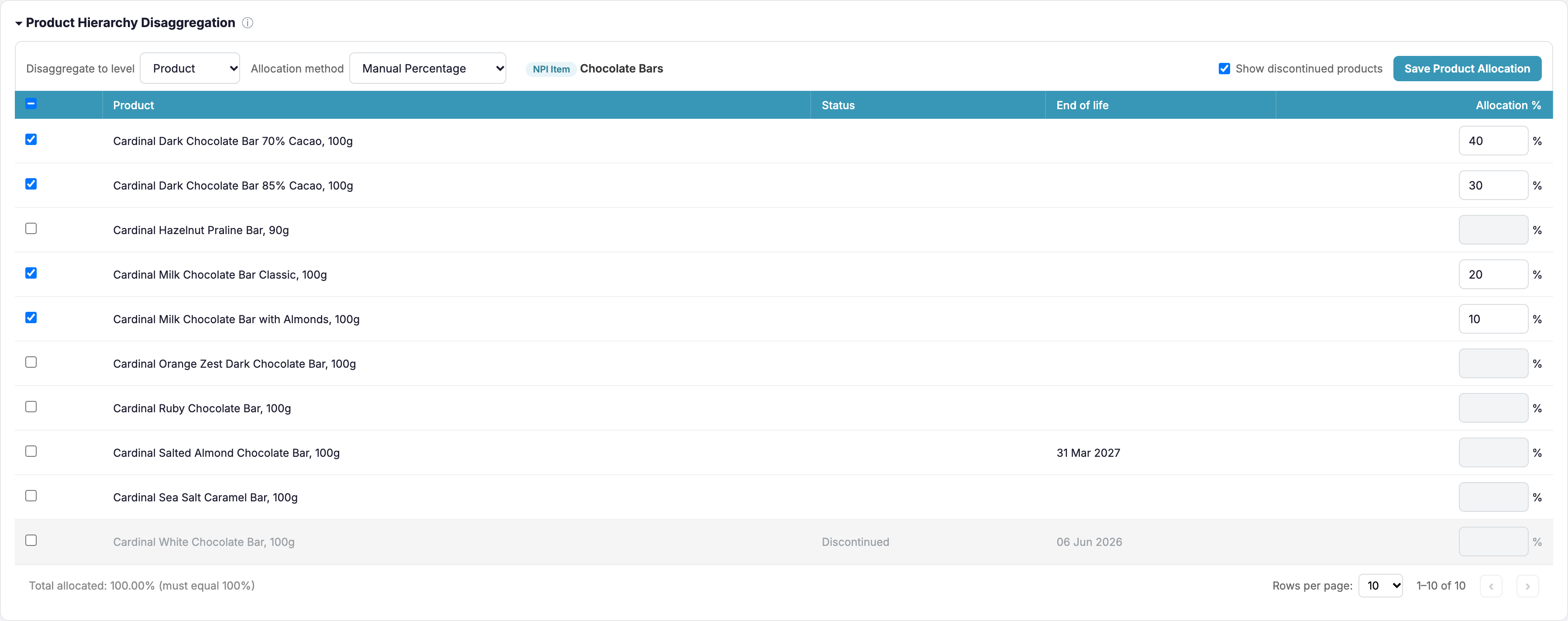
| Disaggregate to level | The level the forecast is split down to. It only lists levels below your plan's level. For a Sub Family plan, the only choice is Product. |
| Allocation method | Equal Split or Manual Percentage. |
| NPI Item | The item this setup is for. |
| Show discontinued products | A tick box. It appears only if some products in the group are discontinued. |
| Save Product Allocation | Saves your setup. It is available only when the setup is complete. |
| The product list | One row per product in the group, with a tick box, the product name, an End of life date when the product has one, and an Allocation % box in Manual Percentage mode. The box in the header ticks all active products. |
Set up the allocation
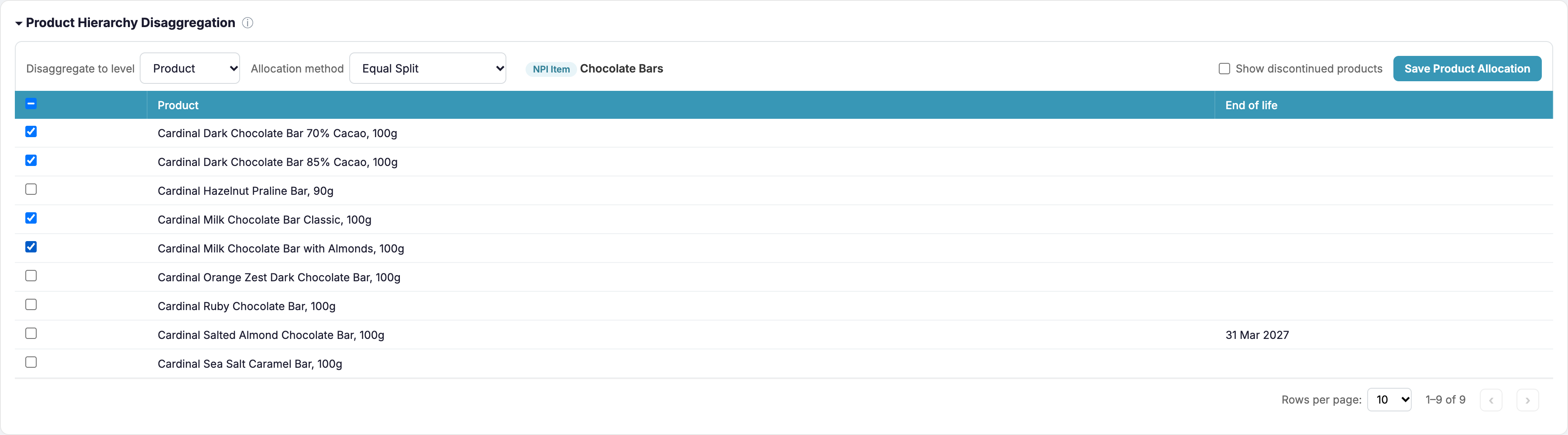
Equal Split
- Expand Product Hierarchy Disaggregation.
- Check that Disaggregate to level shows the level you want.
- Leave Allocation method as Equal Split.
- Tick the products that should receive a share.
- Click Save Product Allocation. You see "Product allocation saved for [item]".
- Click Regenerate Disaggregated Plan. See Disaggregating the NPI forecast by customer and location, and regenerating the plan.
Every ticked product receives the same share.
Manual Percentage
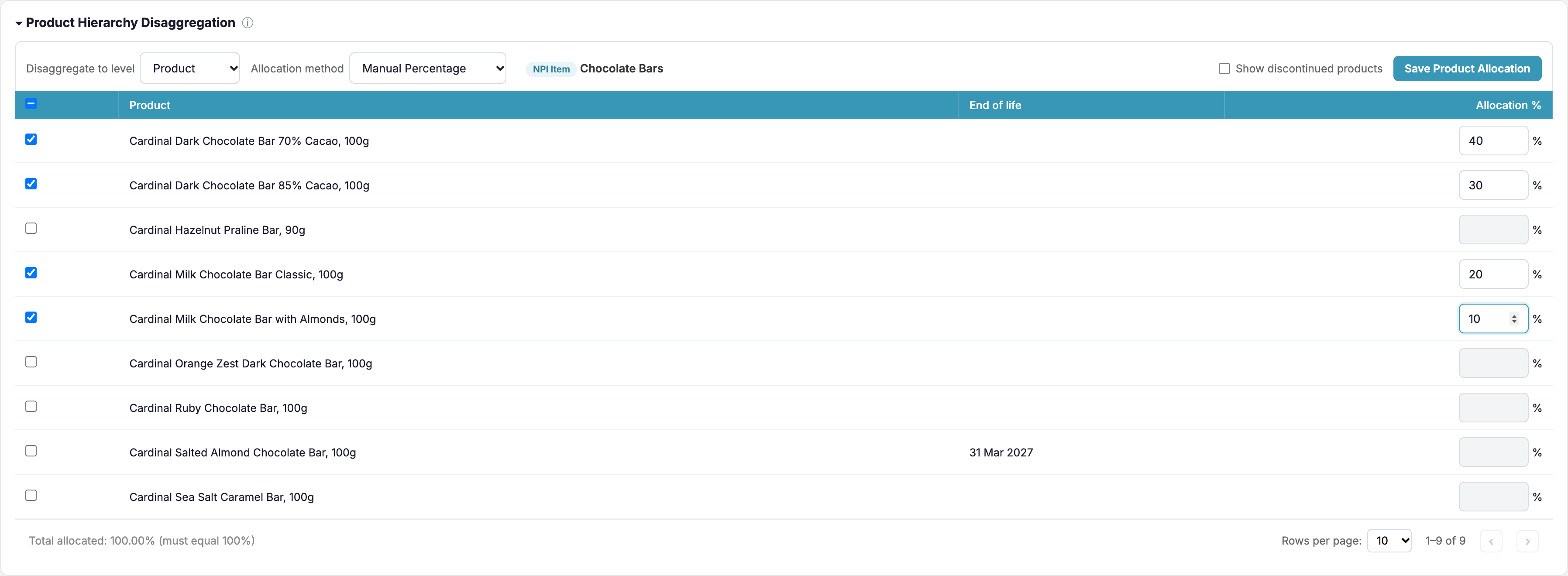
- Choose Manual Percentage in Allocation method. Switching clears any percentages you had typed, and keeps your ticked products.
- Tick the products that should receive a share.
- Type a percentage in the Allocation % box of each ticked product.
- Check the line below the table: "Total allocated: 100.00% (must equal 100%)". The percentages must add up to exactly 100.
- Click Save Product Allocation, then Regenerate Disaggregated Plan.
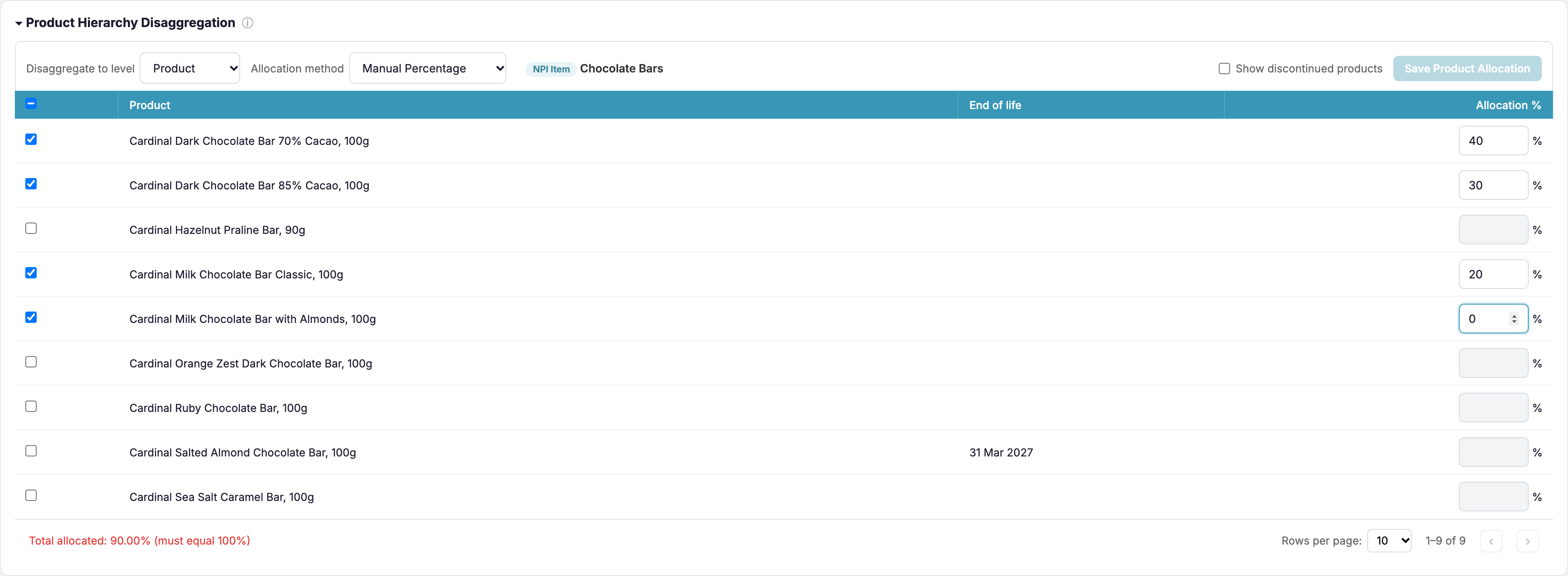
If the total is not 100%, the total shows in red and Save Product Allocation is greyed out.
Discontinued products and End of Life
- Discontinued products are hidden from the list until you tick Show discontinued products. They then appear greyed out, with Discontinued in a Status column and their End of life date.
- The header box never ticks discontinued products. You can still tick one yourself, and it will receive a share. The screen warns you with a note listing the discontinued products you ticked.
- End of life dates are for information only. The allocation does not stop at a product's End of Life date. A product that is still active but has an End of Life date in the future keeps receiving its share after that date. So, if a product will have ended before the plan does, untick it.
- If you tick only discontinued products, regenerating fails. See "Messages you may see".
Examples
All the numbers come from one plan, set up as follows.
| Setting | Value |
|---|---|
| Plan | Chocolate Bars (a Sub Family) |
| Period | Oct 2026 to Sep 2027 |
| Final NPI Forecast | Oct 2026: 2,176 units Nov 2026: 1,760 units |
| Customer / location combinations | 36 |
You tick four products:
| # | Product ticked |
|---|---|
| 1 | Cardinal Dark Chocolate Bar 70% Cacao |
| 2 | Cardinal Dark Chocolate Bar 85% Cacao |
| 3 | Cardinal Milk Chocolate Bar Classic |
| 4 | Cardinal Milk Chocolate Bar with Almonds |
Example 1: Equal Split. Take one customer / location combination, Tesco PLC | Manchester Distribution Center. Its forecast for Nov 2026 is 226 units, and 226 ÷ 4 = 56.5. The application cannot give half units, so two products get 57 and two get 56.
| Product | Share | Nov 2026 | Oct 2026 (85 units) |
|---|---|---|---|
| Dark Chocolate Bar 70% Cacao | 25% | 57 | 22 |
| Dark Chocolate Bar 85% Cacao | 25% | 57 | 21 |
| Milk Chocolate Bar Classic | 25% | 56 | 21 |
| Milk Chocolate Bar with Almonds | 25% | 56 | 21 |
| Total | 226 | 85 |
Example 2: Manual Percentage (40 / 30 / 20 / 10). The same row, Nov 2026, with 226 units:
| Product | Percentage | 226 × percentage | Allocated |
|---|---|---|---|
| Dark Chocolate Bar 70% Cacao | 40% | 90.4 | 90 |
| Dark Chocolate Bar 85% Cacao | 30% | 67.8 | 68 |
| Milk Chocolate Bar Classic | 20% | 45.2 | 45 |
| Milk Chocolate Bar with Almonds | 10% | 22.6 | 23 |
| Total | 100% | 226.0 | 226 |
The rounding works as in Disaggregating the NPI forecast by customer and location, and regenerating the plan: round everything down (90 + 67 + 45 + 22 = 224), then give the 2 missing units to the largest decimals (.8 and .6).
Across all 36 combinations, the 1,760 units of Nov 2026 split into 702, 530, 352 and 176 units, which is 39.9%, 30.1%, 20.0% and 10.0%. The result has 144 rows (36 combinations × 4 products), and they add up to exactly 1,760.
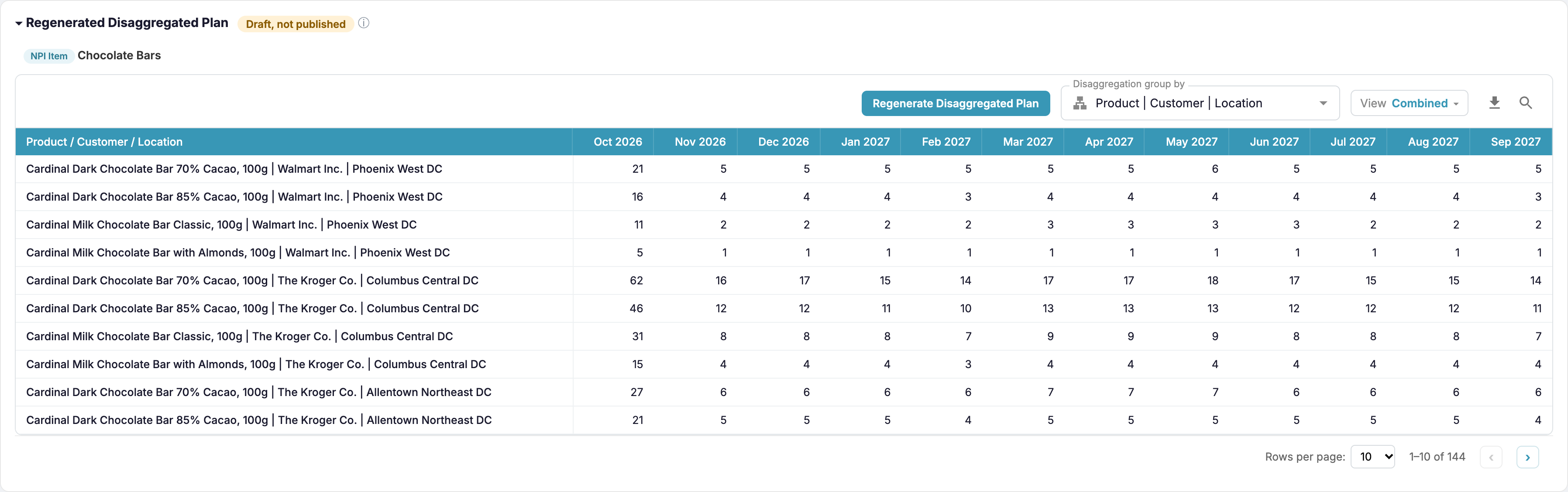
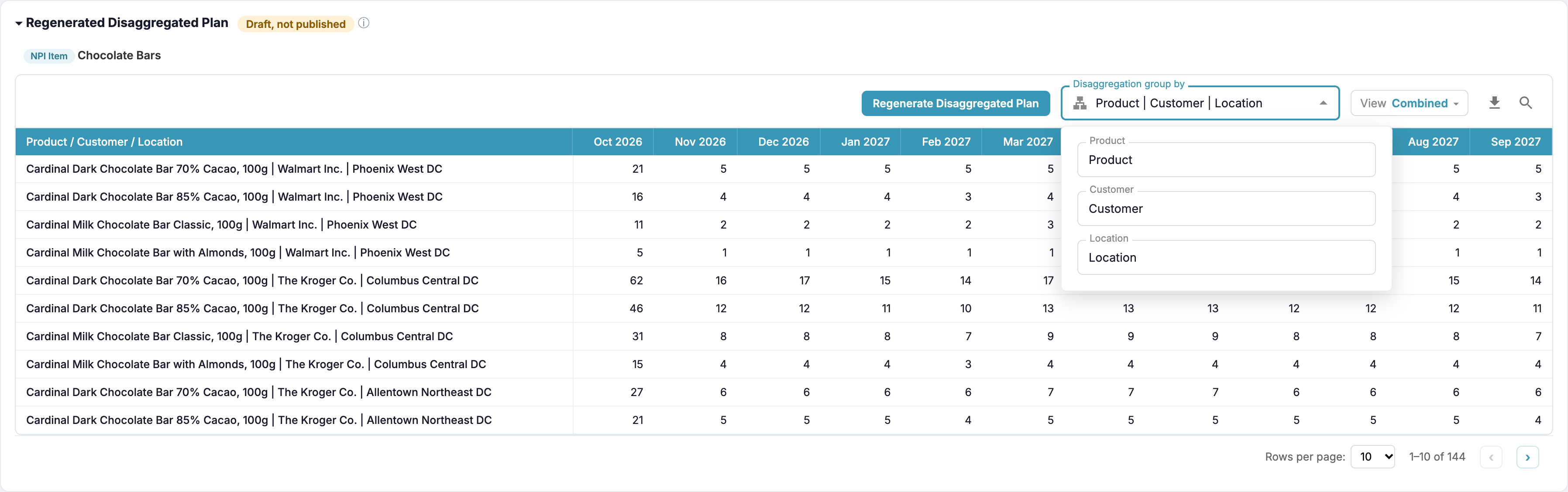
In the Regenerated Disaggregated Plan you can also group the table by product level with Disaggregation group by, to see the totals for each product or for the whole group.
Usecases
Usecase 1: Equal Split across four active products
The rows add up exactly to the Final NPI Forecast every month. See Example 1.
Usecase 2: Manual Percentage 40 / 30 / 20 / 10
See Example 2.
Usecase 3: The percentages don't add up to 100
You type 40, 30 and 20 and leave the last at 0, so the total is 90%. The total shows in red and you can't save. If a setup with a wrong total were ever regenerated, you would see: "Manual percentages for NPI item [item] total 90% — they must equal 100% in Product Hierarchy Disaggregation before regenerating."
Usecase 4: A discontinued product receives a share
You tick Cardinal White Chocolate Bar (discontinued, End of life 06 Jun 2026) and one active product, with Equal Split. In Jan 2027, the discontinued product receives 757 of the 1,528 units and the active one 771. Discontinued products still receive their share. Tick them only when you want that.
Usecase 5: An active product with a future End of Life date
You tick Cardinal Salted Almond Chocolate Bar (End of life 31 Mar 2027) and one other product. The Salted Almond bar keeps receiving units after March 2027, for example 1,124 of the 2,262 units in Apr 2027, because the End of Life date doesn't stop the allocation.
Usecase 6: You save a new allocation after regenerating
The item's product rows disappear (from 72 rows to 0 in our test), but its customer / location rows stay. Click Regenerate Disaggregated Plan again. Until you do, the item can't be published.
Usecase 7: A plan at the lowest product level
The Product Hierarchy Disaggregation section doesn't appear, and no allocation is needed.
Usecase 8: A plan with several NPI items
Each NPI item has its own allocation: its own level, method and ticked products. Saving a new allocation for one item removes the product rows of that item only. Use the NPI item switcher at the top to choose the item.
Messages you may see
| Message | What to do |
|---|---|
| Select the level to disaggregate NPI item [item] to in Product Hierarchy Disaggregation before regenerating. | Save an allocation first. Choose the level, tick the products and click Save Product Allocation. |
| Select at least one [level] child product for NPI item [item] in Product Hierarchy Disaggregation before regenerating. | Tick at least one product and save. |
| Every product ticked for NPI item [item] is discontinued. Tick at least one active product in Product Hierarchy Disaggregation before regenerating. | Tick at least one active product and save. |
| Manual percentages for NPI item [item] total [x]% — they must equal 100% in Product Hierarchy Disaggregation before regenerating. | Change the percentages so they add up to 100. |
| Plan can't be published yet. The disaggregation plan isn't ready. | Click Regenerate Disaggregated Plan for this item, then publish again. |
These messages show the item's ID where this article shows its name.
FAQ
Why don't I see the Product Hierarchy Disaggregation section?
Your plan is at the lowest product level, so no allocation is needed.
Does the allocation change the total forecast?
No. It only decides how the forecast is shared across products. The total stays the same.
Do I have to regenerate after saving an allocation?
Yes. Saving removes the item's product rows. Click Regenerate Disaggregated Plan to rebuild them.
Does saving an allocation publish anything?
No. Nothing is published until you publish. See Publish NPI.
Why are some products hidden?
They are discontinued. Tick Show discontinued products to see them.
Will the allocation stop when a product reaches its End of Life date?
No. End of life dates are for information only. Untick products that will have ended.
Can I set a different allocation for each NPI item?
Yes. Each NPI item has its own setup.
What should I watch out for?
- Save, then regenerate. Saving an allocation clears the item's product rows until you regenerate.
- The percentages must add up to exactly 100. The screen shows the total as you type.
- Discontinued products still receive a share if you tick them.
- End of life dates don't stop the allocation. Untick products that will have ended before the plan does.
- A published item can still say "Published" after you save a new allocation, even though its product rows are gone. Regenerate before you publish again.
- See also How to read and understand NPI plan results?, What happens to published values when you edit, exclude or republish an NPI plan and How to create NPI plan?.
Was this article helpful?
That’s Great!
Thank you for your feedback
Sorry! We couldn't be helpful
Thank you for your feedback
Feedback sent
We appreciate your effort and will try to fix the article