TABLE OF CONTENTS
- The purpose of the UOM
- Out of Scope — UOM Feature
- Classification of UOM’s
- Any-to-Any UOM Conversion
- How it works
- Key Points
- UOM Feature Toggle
- Important Notes
The purpose of the UOM
The purpose of the Unit of Measure (UOM) feature is to enable viewing and working with planning data across different units of measure while maintaining the underlying data's consistency and accuracy within the system.
In the application, all planning data is stored and processed in the base unit of measure defined at the product level in the master data. This ensures that calculations, aggregations, and reporting remain consistent across the organization, regardless of the unit in which the data is viewed or entered.
Different teams across an organization often need to work with the same planning data in different units. For example, a demand plan may be expressed in units sold, while a warehouse team may need the same data in pallet volume, and a transportation team may need it in weight in pounds or kilograms. The UOM feature eliminates the need for manual conversions by allowing users to dynamically switch the displayed unit of measure directly in the UI — without affecting the stored data.
The UOM feature supports both standard units (such as kilograms, liters, and meters) and custom, product-specific units (such as each, pack, box, case, and pallet). Since packaging and unit definitions can vary from product to product, the system supports product-specific conversion factors, ensuring accuracy even in complex hierarchical packaging scenarios — for example, each → small pack → box.
This capability is available across planning views, dashboards, the planner workbench, replenishment planning, production planning, and network optimization, making it a cross-functional tool that improves usability and supports better planning decisions across the organization.
Out of Scope — UOM Feature
The following items are explicitly outside the current UOM development scope and will be addressed in subsequent releases.
UOM in Dashboard.
UOM in replenishment
Overrides in Base and Non-Base UOMs
Audit for UOM
Interaction Between UOM and Multi-Currency
Classification of UOM’s
Units of Measure in the application are classified into two types — Standard and Custom, based on how their conversion relationships are defined.
Standard Unit of Measure (UOM)
A Standard Unit of Measure follows universally accepted conversion relationships that are consistent across products and tenants. These units are pre-configured in the application and can be enabled as needed.
Weight: Used to measure the mass of a product. Common in logistics, shipping, and inventory planning. Examples: grams, kilograms, tons, pounds, ounces, e.g., 1 kilogram = 1,000 grams)
Volume: Used to measure liquid or bulk quantities. Examples: milliliters, liters, gallons (e.g., a liquid product such as ink or soda measured in liters)
Length / Distance: Used to measure product dimensions or shipping distances.
Examples: millimeter, centimeter, meter, kilometer, feet, inch (e.g., a rope measured in meters)
Volume & Dimensional Units: Used primarily in freight, shipping, and warehousing to measure space occupied.
Cubic Meters (CBM) — standard for air and ocean freight
Cubic Feet (ft³) — used in US-based shipping and warehousing
Cubic Centimeters (cm³) — used for smaller packages
Dimensions (Length/Width/Height) — typically expressed in Centimeters (cm) or Inches (in)
Volumetric Weight — calculated weight based on space occupied rather than actual mass
Custom Unit of Measure (UOM)
Custom UOMs are tenant- and product-specific units defined to meet business needs. They are not assumed by the application and must be explicitly configured.
Examples: Each, Pack, Small Pack, Large Pack, Box, Case, Pallet, Container
Custom UOMs can vary across products and require defined conversion factors
Product-specific behavior
The meaning of a custom unit depends on the product. For example, for a pen product:
1 Each = 1 pen
1 Small Pack = 5 pens
1 Large Pack = 10 pens
Hierarchical packaging
Custom UOMs can form hierarchical relationships where one unit contains multiple units of another:
1 Small Pack = 5 Each
1 Large Pack = 10 Each
1 Box = 10 Small Packs = 50 Each
1 Box = 5 Large Packs = 50 Each
This hierarchy allows the application to convert between different units in any direction — for example, from Each to Box or from Large Pack to Small Pack — provided the required conversion factors are defined. This is referred to as any-to-any UOM conversion.
Any-to-Any UOM Conversion
The application supports any-to-any UOM conversion, meaning you can switch between any two supported units of measure directly in the UI—in either direction—provided the required conversion relationships are defined in the system.
This means conversion is not limited to a fixed direction (e.g., only from base UOM to another unit). You can convert from Each to Box, Box to Small Pack, Large Pack to Each, or any other valid combination.
How it works
For a single product with four supported UOMs, the total possible conversion combinations (excluding same-to-same) are:
4 × 3 = 12 combinations
The system supports all these combinations either directly (via defined conversion factors) or indirectly (via derivable relationships between units).
Example — Hauser XO – 5 Set (Small Pack product)
Example — Hauser XO – 10 Set (Large Pack product)
Note: Since the two product variants (Hauser XO – 5 Set and Hauser XO – 10 Set) are separate products, the conversion factors are defined independently for each. This results in a total of 24 possible conversion combinations (12 per product).
Key Points
The application does not assume or auto-create conversion factors.
Conversion works only when:
A direct conversion factor exists, or
A valid conversion path can be derived
If neither direct nor derivable conversion exists, the conversion cannot be performed.
UOM Feature Toggle
The Unit of Measure (UOM) capability is a feature-controlled functionality in Firstshift. It is not enabled by default for all tenants and must be explicitly configured by an implementer or administrator.
Enabling or Disabling the UOM Feature
The UOM feature is managed from the Admin application at:
“General Settings → Plan Settings → Unit of Measure (UOM).”
These settings are completed as part of the implementation, so you do not need to enable or configure anything yourself. If UOM is not available to you, or a unit you expected is missing after go-live, please contact Firstshift Support to have it reviewed.
When the feature is enabled
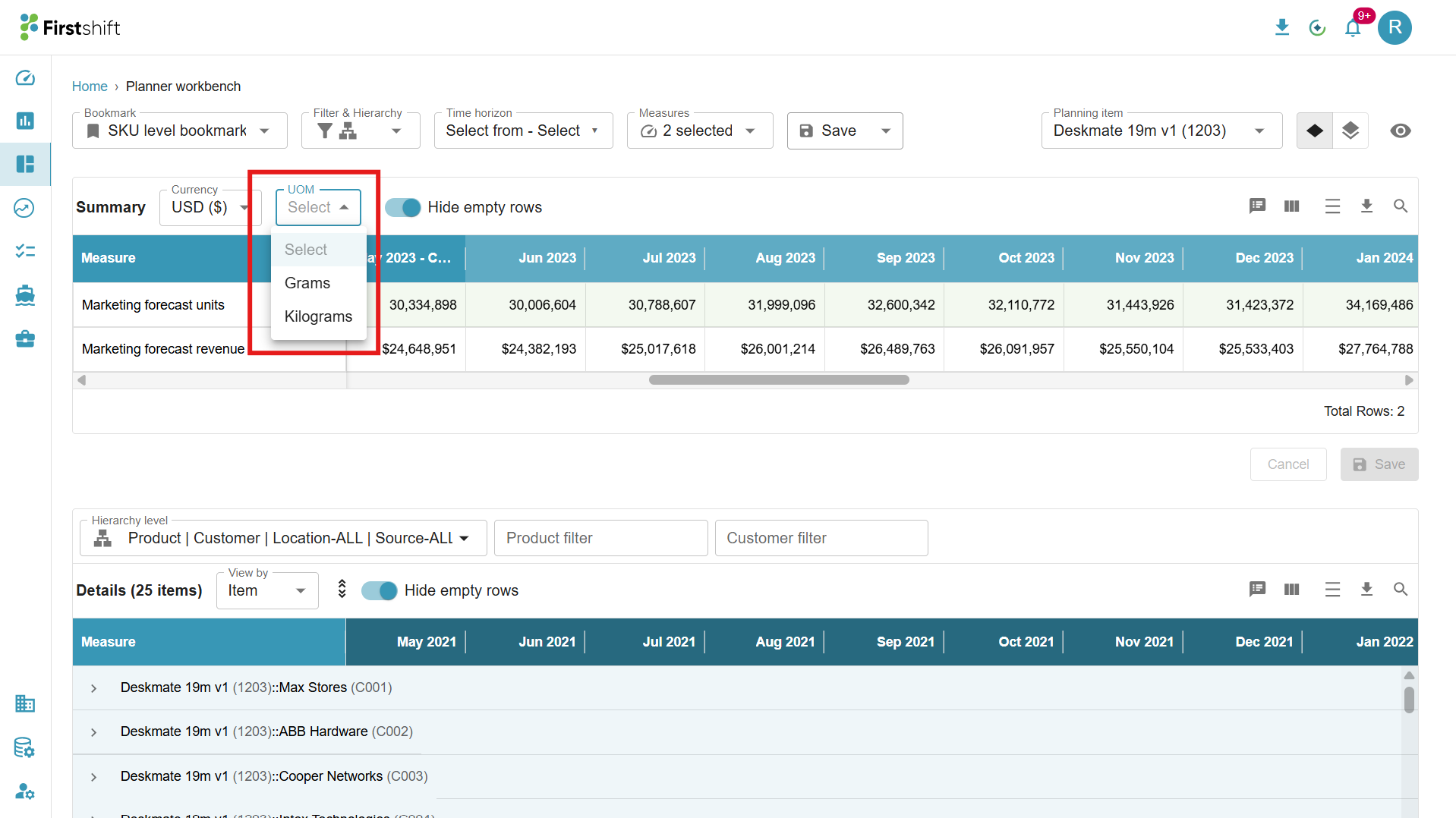
The UOM drop down becomes available in planning views, dashboards, and the planner workbench.
You can switch between supported units of measure for applicable measures and metrics.
UOM-related configurations — including supported units and conversion mappings — become active.
When the feature is disabled
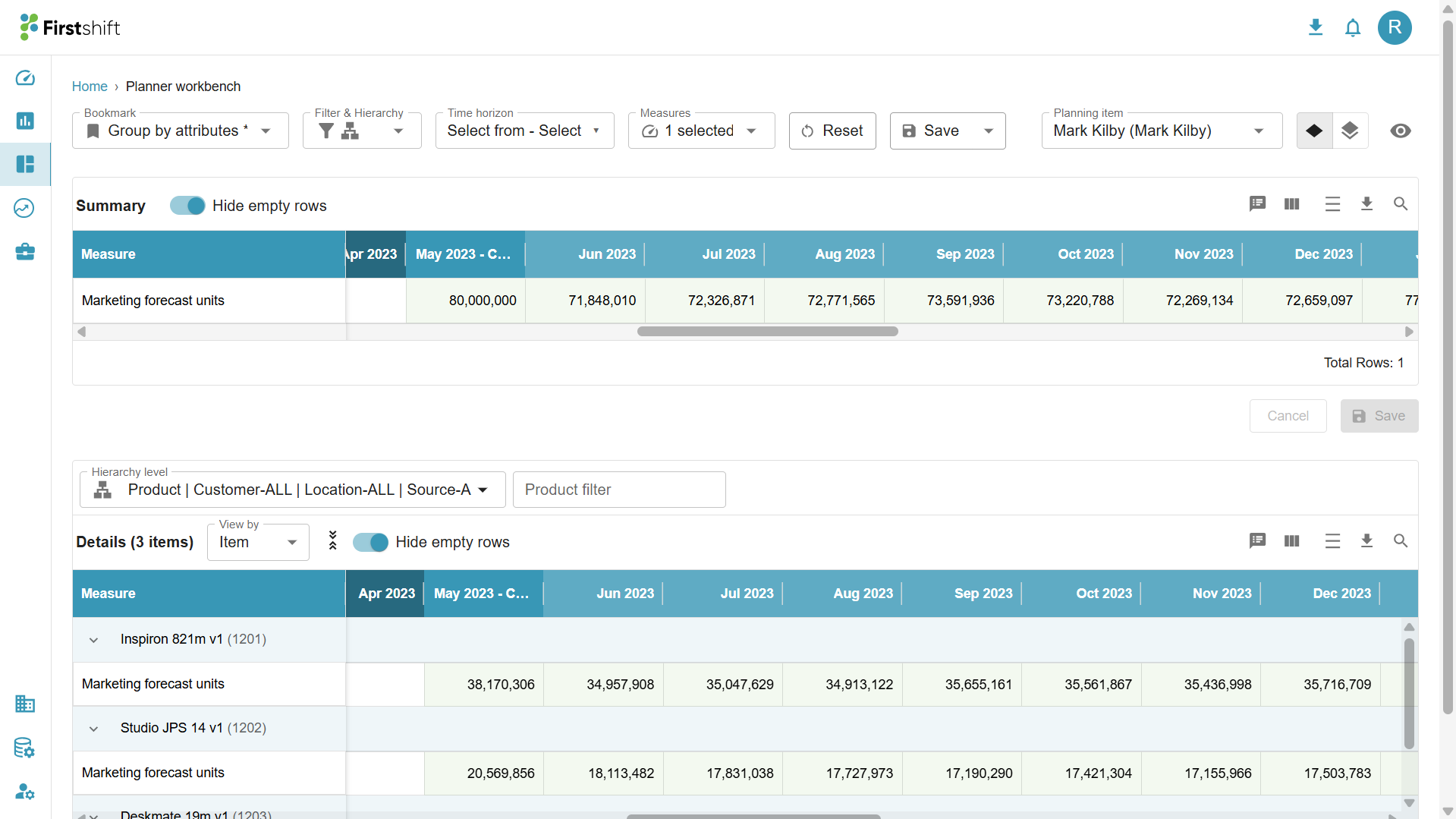
The UOM drop down is not visible anywhere in the UI.
All values are displayed only in the base UOM defined in the product master.
No unit conversion functionality is applied anywhere in the application.
Important Notes
UOM applies only to unit-based measures such as quantity, volume, and weight.
It does not affect revenue or cost measures — monetary values are handled separately by the multi-currency feature.
If the UOM feature is enabled but not fully configured, certain unit conversions may not be available or may fall back to displaying values in the base UOM.
Was this article helpful?
That’s Great!
Thank you for your feedback
Sorry! We couldn't be helpful
Thank you for your feedback
Feedback sent
We appreciate your effort and will try to fix the article