Introduction
The Unit of Measure (UOM) capability allows you to view and interact with data in different units directly within Planning Views and the Planner Workbench, without changing the underlying stored data.
UOM Selector (Drop-down Behavior)
A UOM drop-down is available at the view level in both Planning Views and the Planner Workbench (only when the UOM feature is enabled).
The selected UOM acts as a display selector for the entire view
Applies consistently across:
Summary view
Drill-down view
Aggregate view
All tables, metrics, and charts update dynamically based on the selected UOM
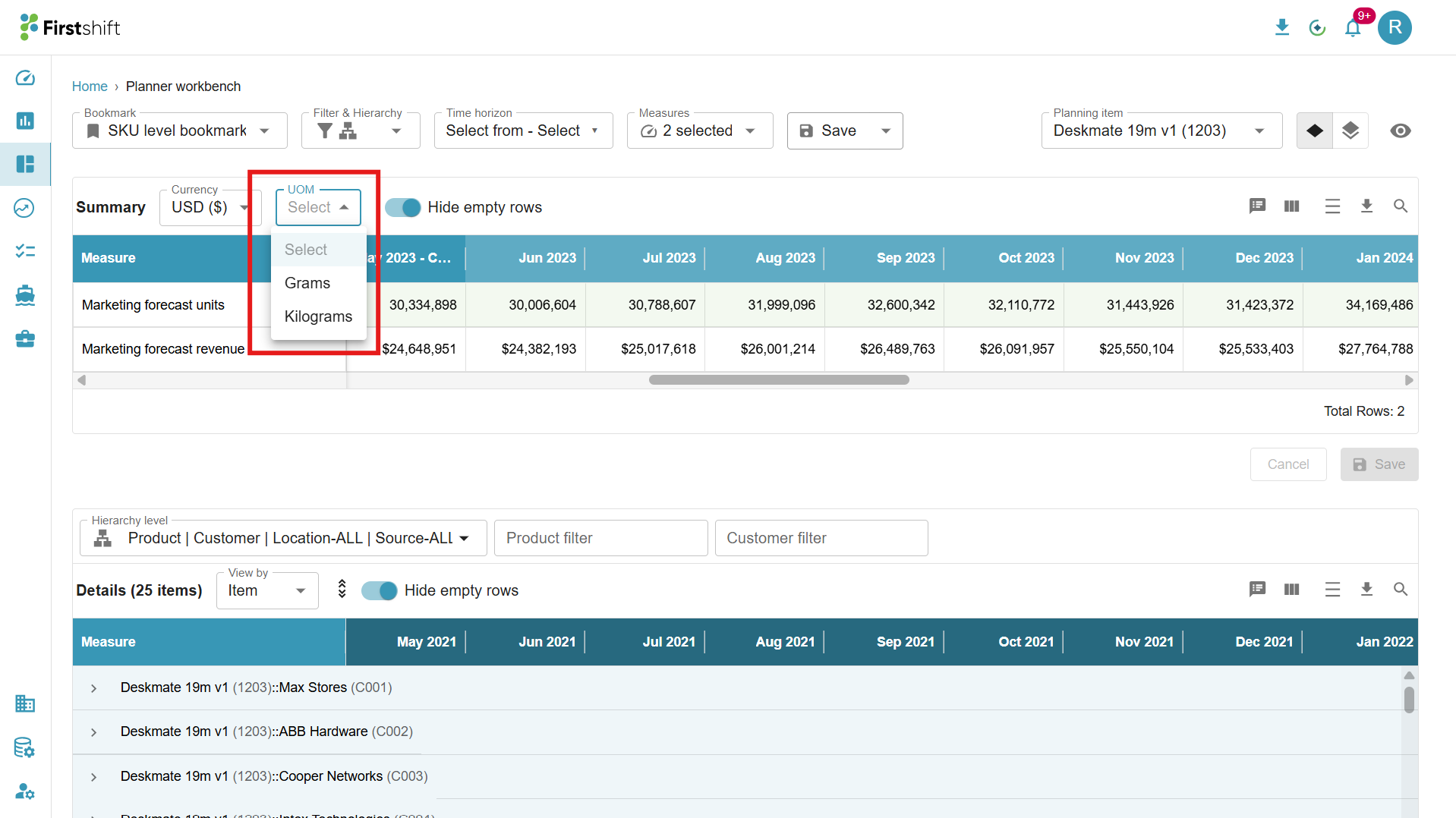
When you select a different UOM:
All unit-based measures (e.g., forecast, demand, inventory) are automatically converted
Conversion is performed using configured UOM conversion factors
The data is displayed in the selected UOM in real time
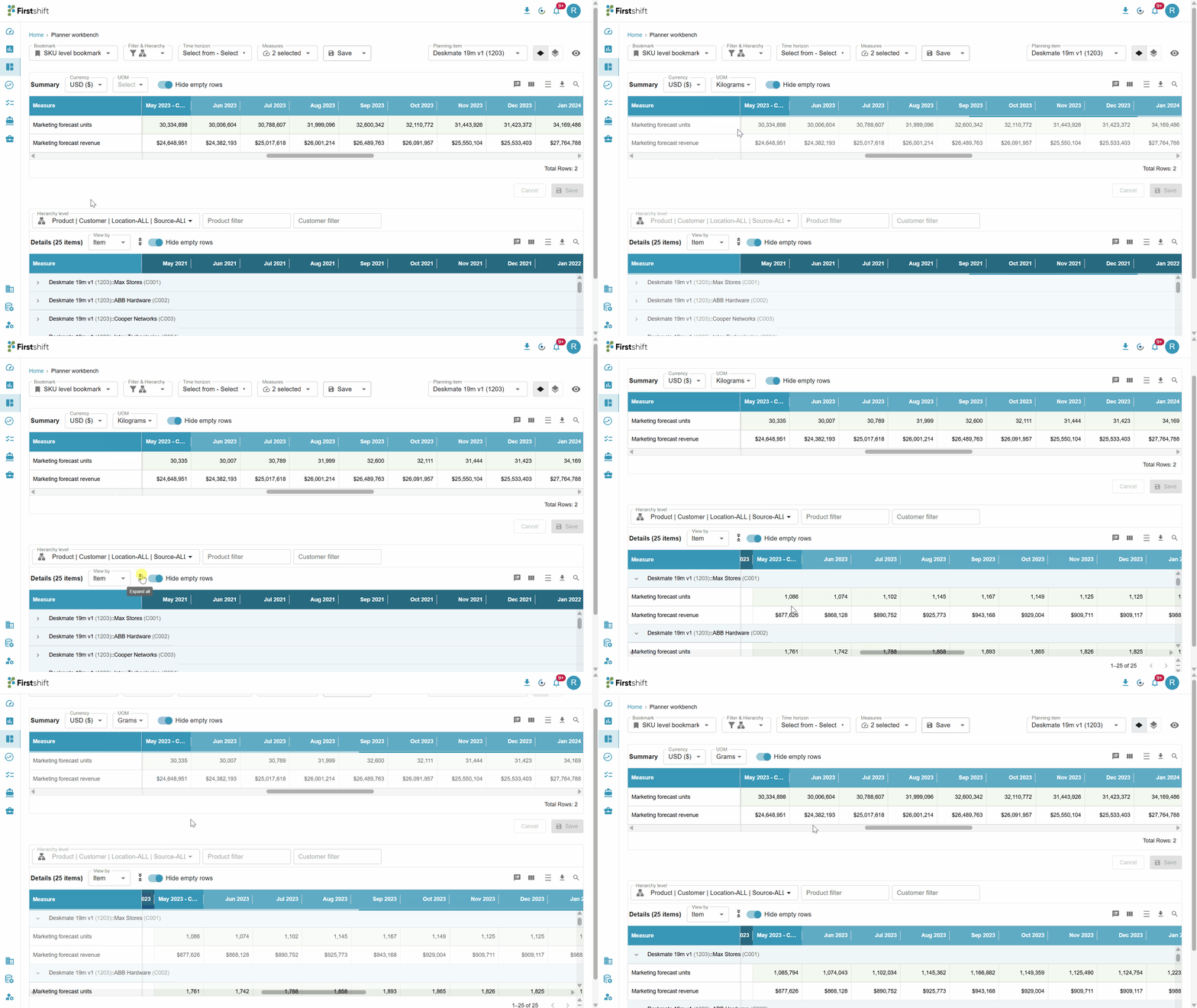
UOM conversion in Planning Views and Planner Workbench:
Applies only to unit-based measures and revenue per unit measures (e.g., ASP)
Does not impact revenue or cost measures (handled by multi-currency)
Can be applied only at the product hierarchy level.
Per-product UOM options in the dropdown
The UOM dropdown in the planner workbench is not a fixed tenant-wide list — it is computed for the currently selected planning item. Switching from one product to another can make the dropdown longer or shorter, because Firstshift only offers UOMs for which a valid conversion path exists for that specific product.
All planning data is stored in the product's Base UOM; any other UOM shown in the workbench is a display-only conversion applied at render time.
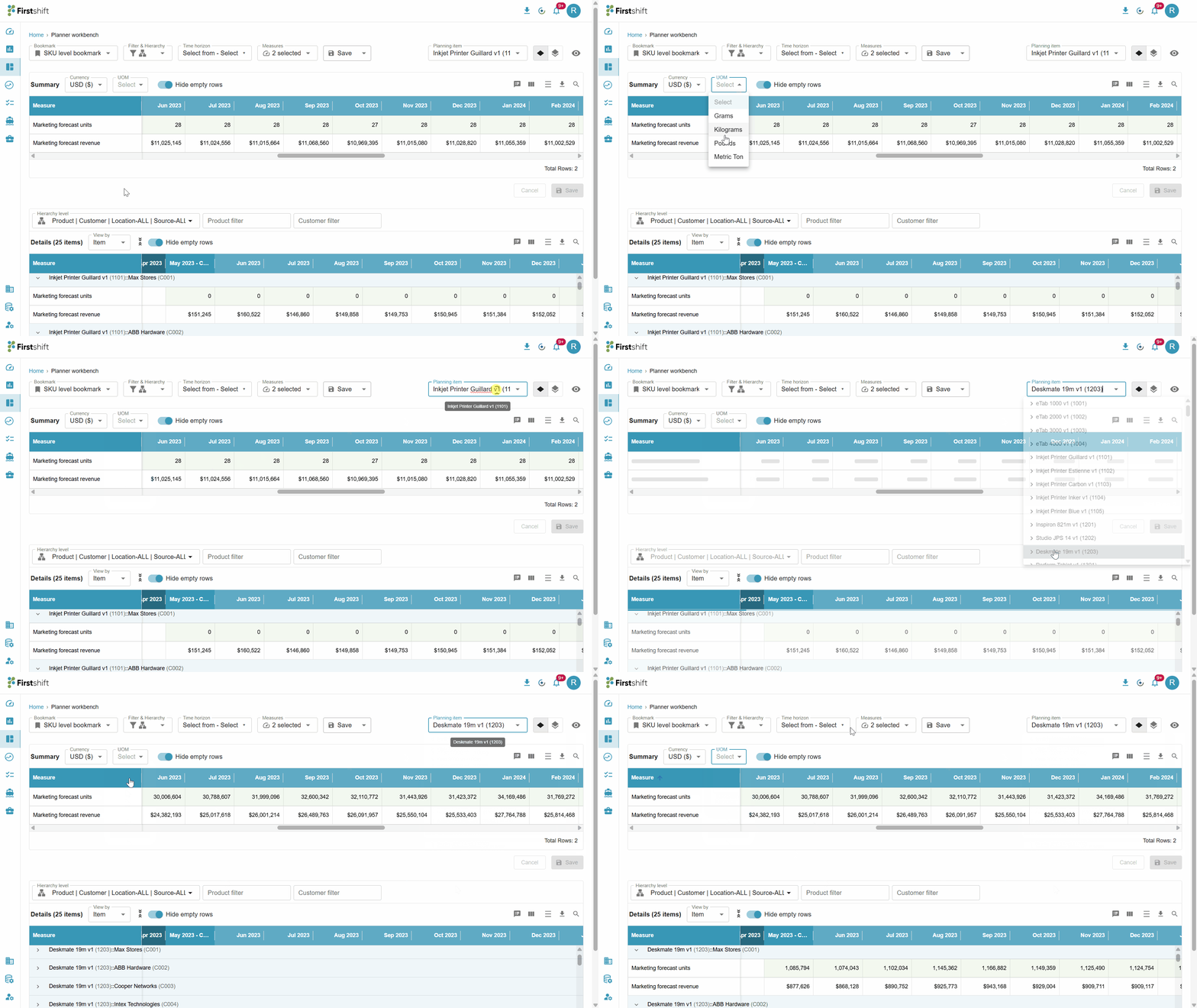
UOM behavior for mixed products in planning view
In a planning view, you often work with multiple products from different products. These products may operate in fundamentally different units of measure — for example, one product may include ropes measured in meters, while another may include chemical products measured in liters. When no unit-of-measure conversion is applied, or no conversion data is available, all values are displayed in the base unit of measure defined for each product in the product master.
How the application handles mixed UOMs
When a planning view contains products with different base units of measure, the application follows this behavior:
All values are initially displayed in their respective base units of measure
When you select a UOM from the dropdown, the application checks whether a valid and consistent conversion is possible across all products in the current view
If a valid conversion exists for all products → values are converted and displayed in the selected UOM
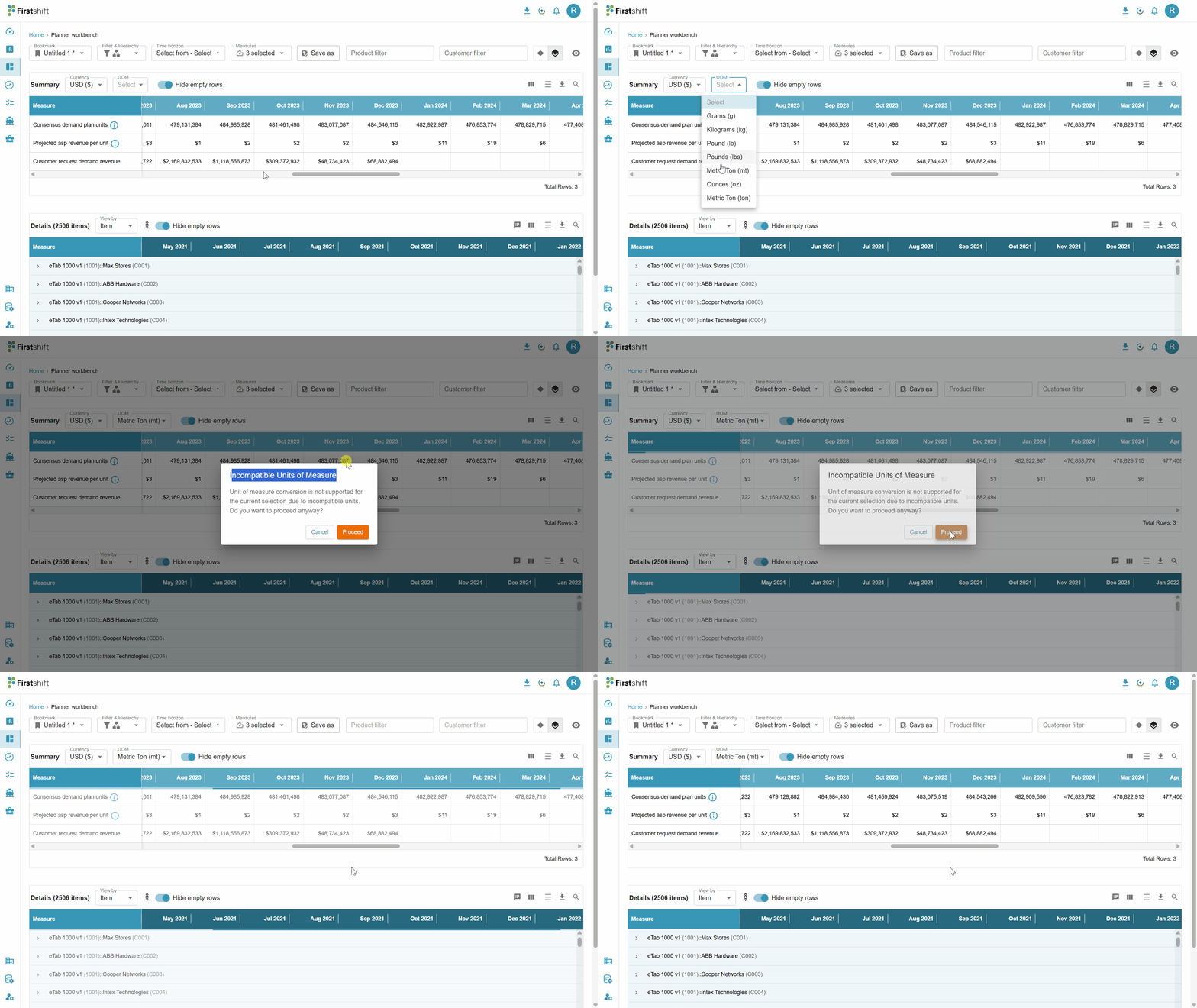
If a valid conversion does not exist for one or more products → the application does not convert automatically. Instead, it displays an incompatible unit of measure warning.
Why a conversion may apply to some products and not others
A single UOM cannot always be applied across every product in a mixed view. Whether a product can be converted to the UOM you selected depends on whether a valid conversion path exists for that specific product:
A conversion is possible only when the products share the same measurement dimension (for example, volume to volume), and a conversion factor is defined for that product. Liters to milliliters is possible because both are volume units.
A conversion is not possible when the units belong to different measurement dimensions. Converting liters to meters is not possible because volume and length are unrelated—no logical conversion exists between them.
Because conversion factors are defined per product, some products in the view may have a valid conversion factor to the selected UOM while others do not. When this occurs, the system supports partial UOM conversion.
When a partial conversion is possible:
Items with a valid conversion will be displayed in the selected UOM, while the remaining items will continue to be displayed in their existing UOM.
The system displays a confirmation message indicating that the selected UOM applies only to a subset of items in the current view or bookmark.
You can proceed with the partial conversion to display the applicable items in the selected UOM while keeping the remaining items in their existing UOM.
If you want all items to be displayed in the same UOM, refine your filter to include only items that support the selected UOM, or select a single item before applying the conversion.
If you do not want to apply the partial conversion, select Cancel.
This behavior allows UOM conversion to be applied where a valid product-specific conversion exists, without preventing users from viewing or working with products that do not support the selected UOM.
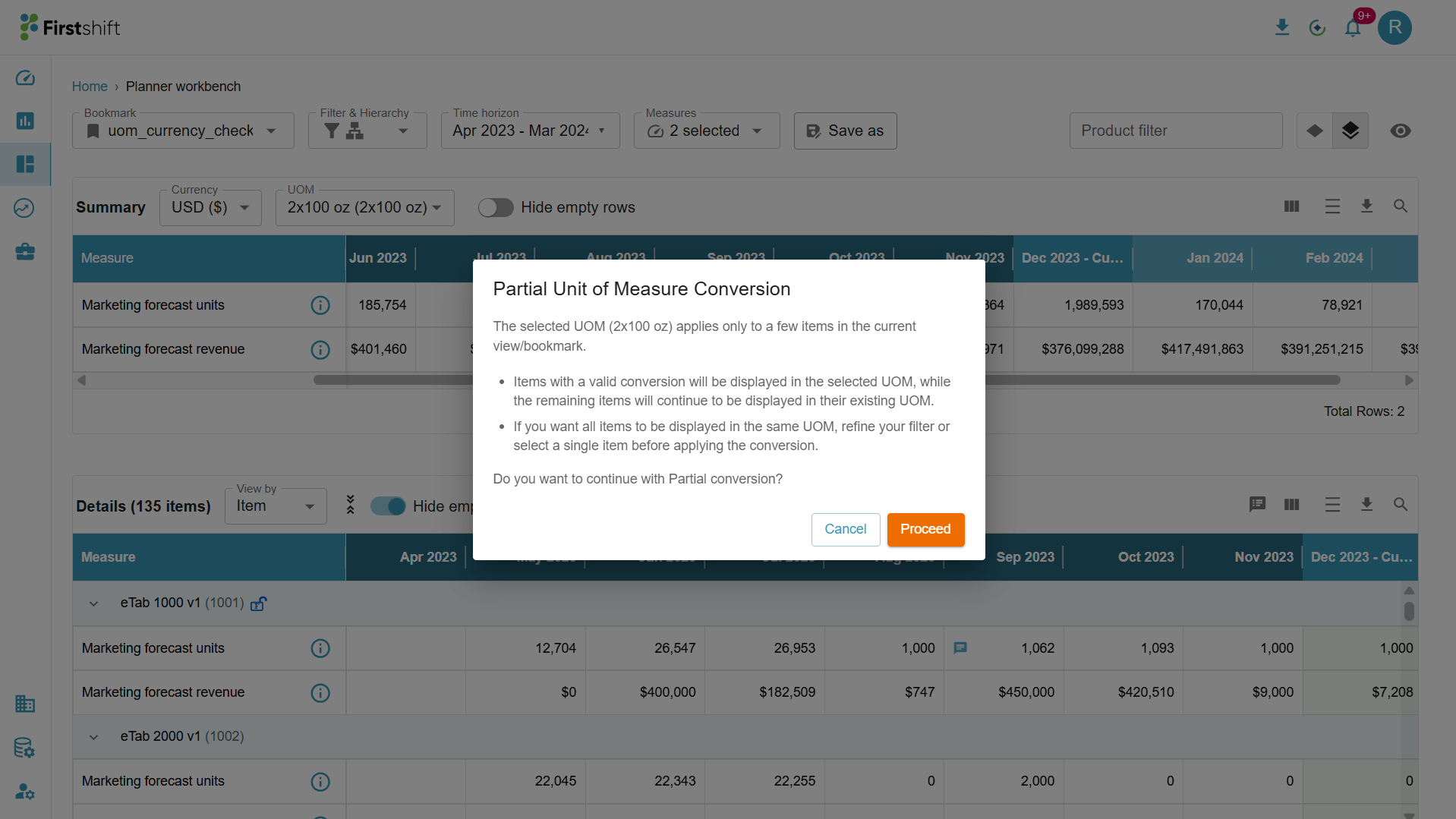
The Partial Unit of Measure Conversion prompt
When the UOM you select cannot be applied to every product in the view, the application displays the Partial Units of Measure prompt before changing any value:
“The selected UOM (2x100 oz) applies only to a few items in the current view/bookmark.
Items with a valid conversion will be displayed in the selected UOM, while the remaining items will continue to be displayed in their existing UOM.
If you want all items to be displayed in the same UOM, refine your filter or select a single item before applying the conversion.
Do you want to continue with Partial conversion?”
The prompt offers two actions:
Proceed — apply the conversion to every product that supports it, and leave the remaining products in their base unit of measure.
Cancel — close the prompt without converting anything; all values stay in their current (base) unit of measure.
When you click Proceed
The application performs a partial conversion:
Every product that has a valid conversion factor to the selected UOM is converted and displayed in that UOM.
Every product that does not have a conversion factor to the selected UOM remains in its base unit of measure.
The view, therefore, shows a mix of units — converted products in the selected UOM and non-convertible products in their original base UOM
When you click Cancel
No conversion is applied. The planning view returns to its previous state, with every product shown in its base unit of measure exactly as before you changed the UOM selection.
What you can do
If you want a single, consistent unit across the whole view rather than a mixed display, you can:
Adjust the filter criteria — modify the planning view filter to include only products that share compatible units of measure, so the selected UOM applies to every product.
Switch to a single-item view — apply UOM conversion at an individual product level, where all values share the same measurement dimension.
Was this article helpful?
That’s Great!
Thank you for your feedback
Sorry! We couldn't be helpful
Thank you for your feedback
Feedback sent
We appreciate your effort and will try to fix the article