TABLE OF CONTENTS
- Introduction
- Enable UOM for forecast
- ----
- Forecast restriction to Product/SKU level
- Forecast results display
- Forecast: Run and Publish
- Demand Planning integration
Introduction
Forecast creation using the selected Unit of Measure (UOM): This capability allows you to generate, publish, and analyze a forecast in a selected Unit of Measure other than the Base UOM. Forecast calculation, publishing, disaggregation, and Demand Planning views stay consistent in the forecast's chosen UOM, while you can still switch to other supported UOMs to view converted results on demand.
Enable UOM for forecast
The UOM dropdown on the forecast creation screen appears only after you enable the UOM for the forecast in the admin application.
Once you enable the UOM for the forecast in the admin application, you can create a forecast based on the conversions available for the selected items.
Steps to create the forecast with the UOM
On the forecast creation page, select the required items.
Select the hierarchy
Select the input and output measure.
Click the ‘Run forecast’ button.
The forecast name is auto-generated.
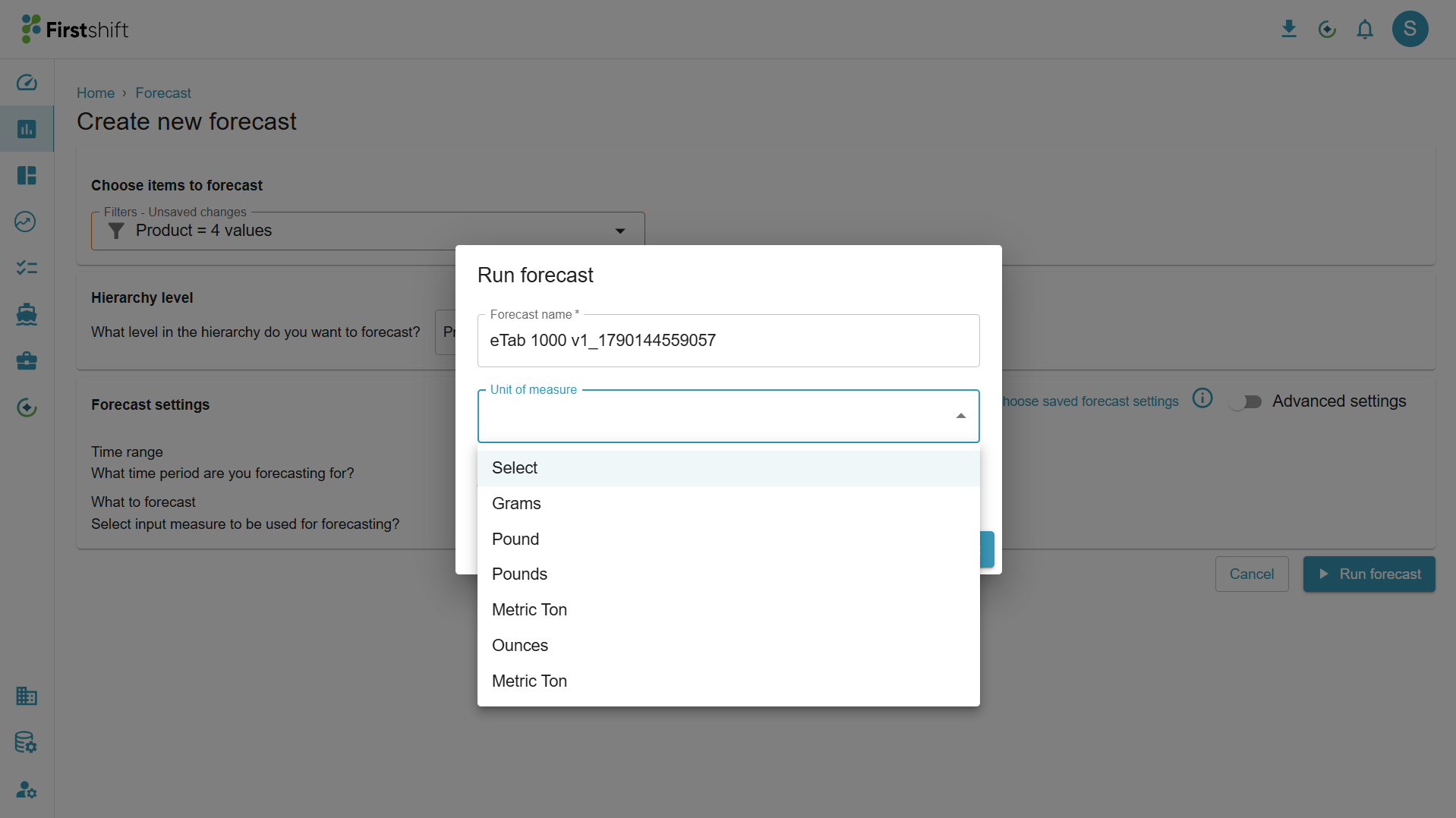
Select the UOM from the dropdown.
When UOM-based forecasting is enabled, a Unit of Measure dropdown appears on the Create forecast screen.
The dropdown lists only the units of measure that are common and valid across all the selected planning items.
The UOM selected here is used as the forecast generation UOM for every item included in the forecast run.
Missing UOM conversions
Before generating the forecast, the application checks that a valid conversion factor exists between each selected item and the selected forecast UOM.
Items with no valid conversion factor cannot be converted into the selected UOM.
Those items cannot participate in forecast generation in that UOM.
Warning and confirmation for excluded items
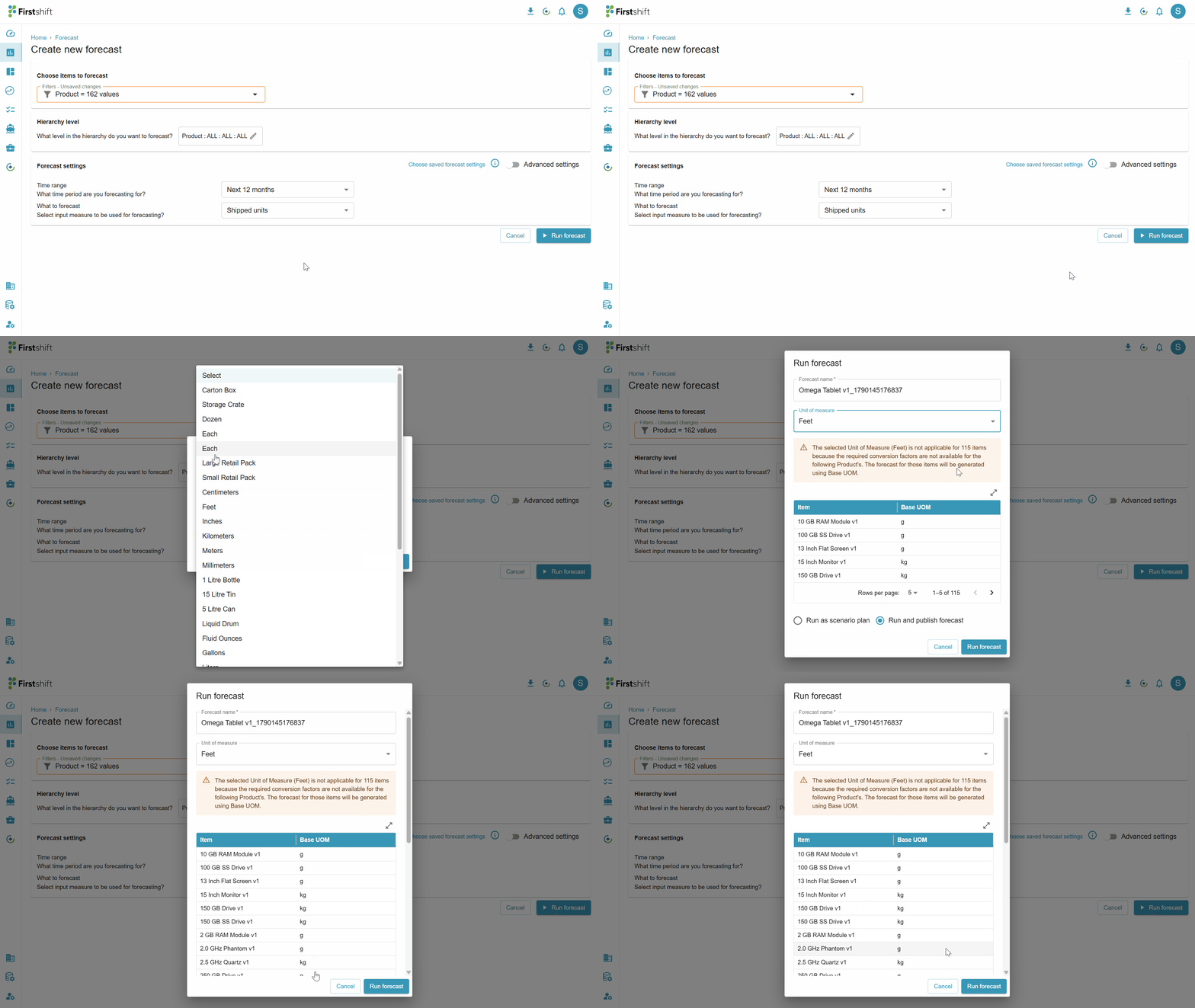
If one or more selected items lack a valid conversion factor, the application shows a warning before the forecast job starts and lists the affected items in a table.
“The selected Unit of Measure (Square Feet) is not applicable for 3 selected items because the required conversion factors are not available. The forecast for these items will be generated using Base UOM.”
The planner can then choose to:
Continue — proceed with forecast generation using only the valid items, or
Cancel — return to forecast setup and modify the selected UOM or item selection.
Forecast generation does not start until the planner explicitly confirms this action.
Note: No conversion factors available at all
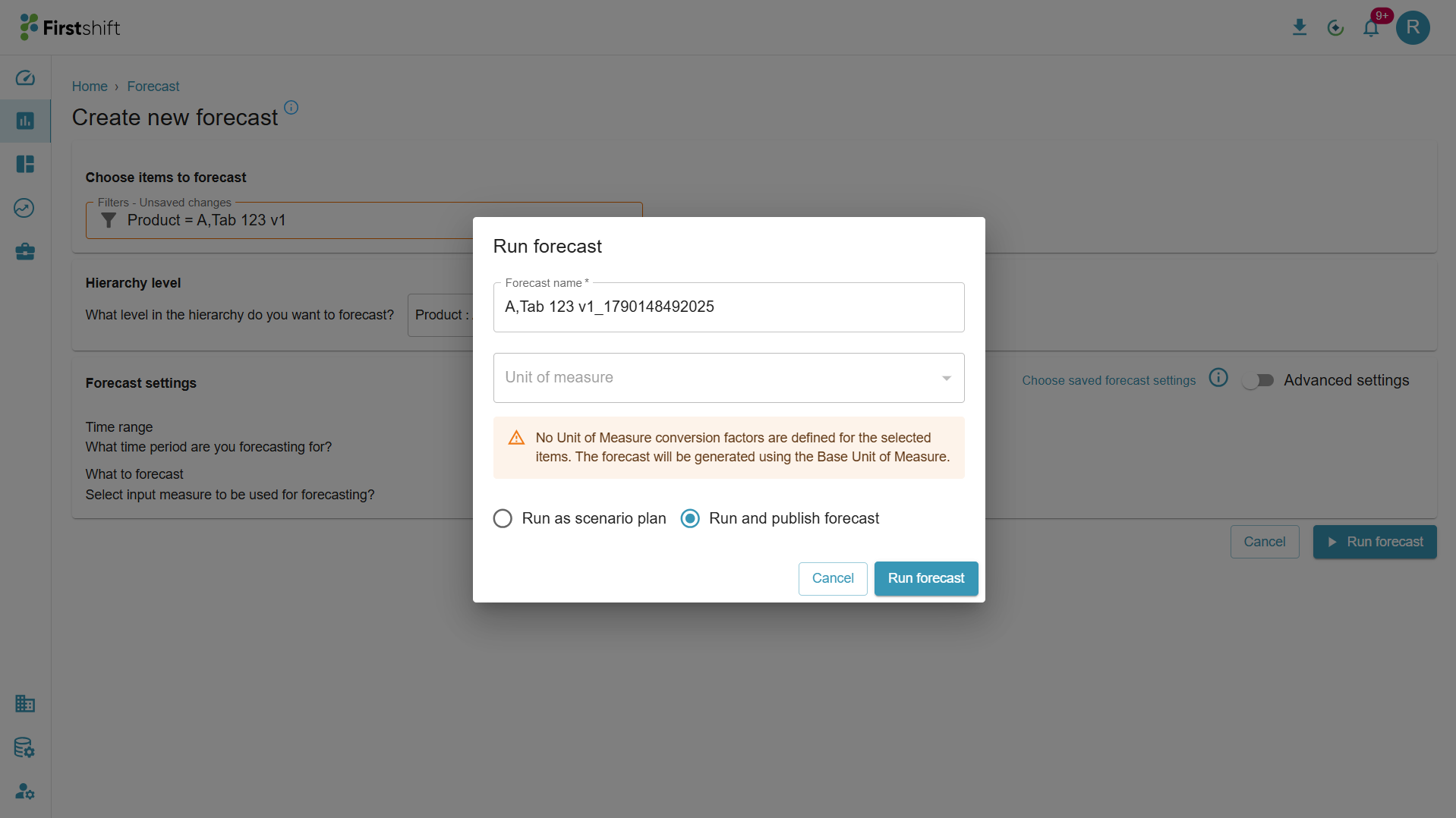
If none of the selected items have a conversion factor defined for any alternate UOM, the Unit of Measure dropdown is disabled, and the application informs the planner that the forecast will be generated using the Base Unit of Measure and displays the warning message.
“No Unit of Measure conversion factors are defined for the selected items. The forecast will be generated using the Base Unit of Measure.”
Forecast restriction to Product/SKU level
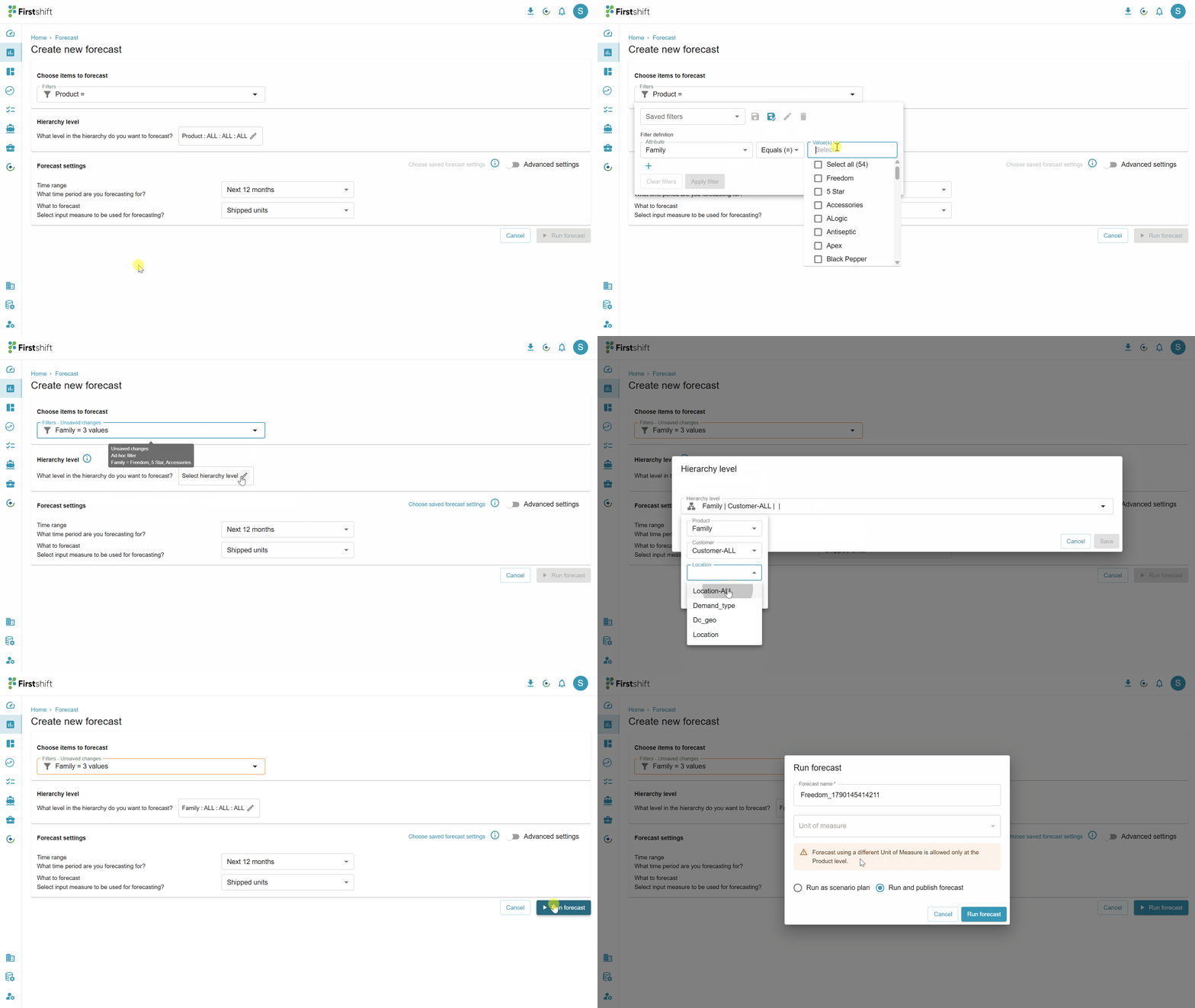
The Unit of Measure option is available at forecast creation only when the forecast is created at the Product/SKU level — the leaf level of the Product hierarchy. This restriction applies only to the Product dimension; you can still create the forecast at any supported level for Customer, Location, and Source without selecting a UOM.
If a higher Product hierarchy level (e.g., Family, Sub-family, or Style) is selected, the application does not allow a UOM to be selected and shows a message such as:
“Forecast using a different Unit of Measure is allowed only at the <Product/SKU> level.”
Forecast results display
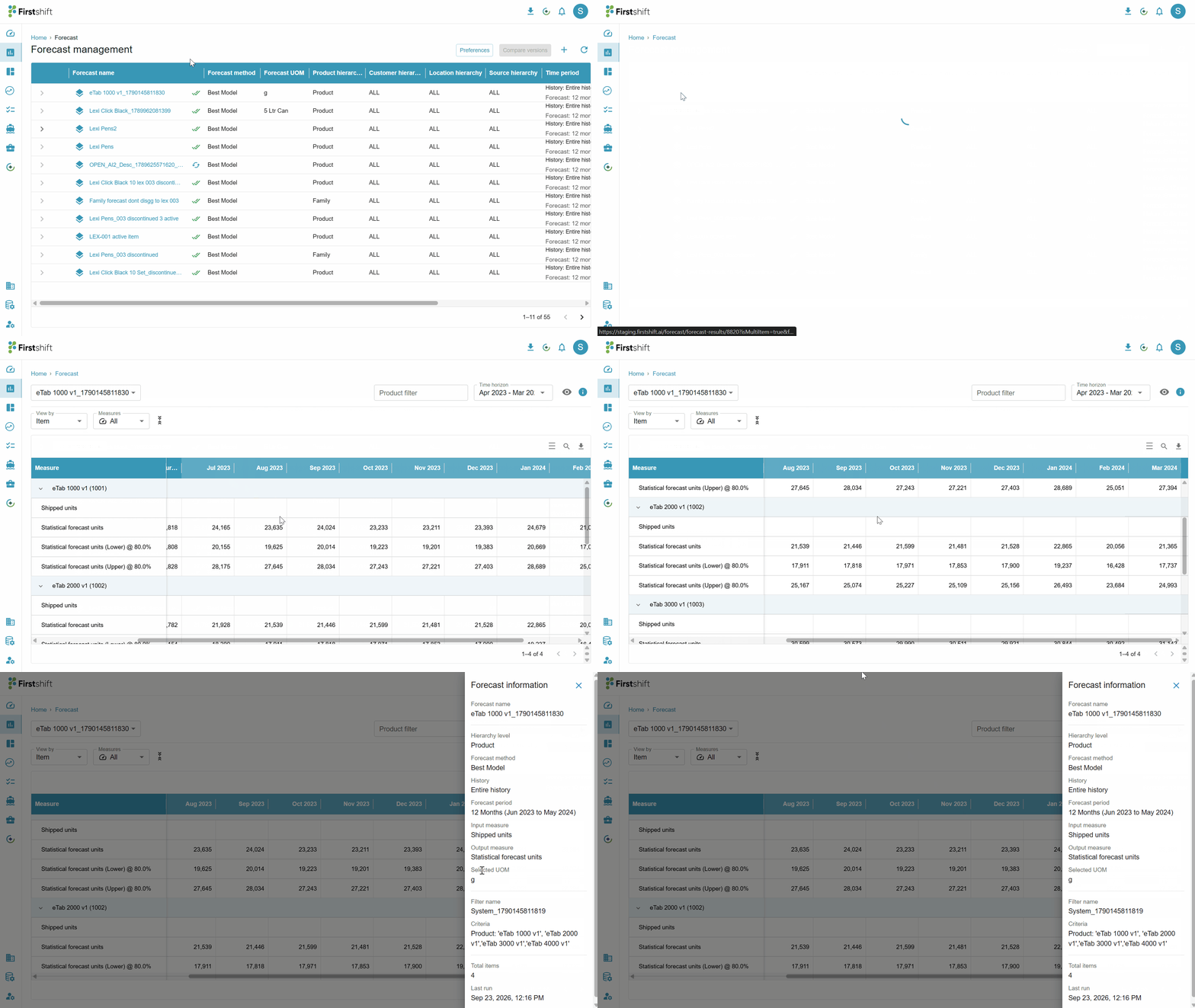
The forecast engine generates the forecast using the converted data and returns results in the same UOM selected for creation.
The Forecast Management screen clearly indicates the UOM used for generation, for example: “Grams g.”
Planners can switch between supported units of measure directly on the forecast results screen.
When a different UOM is selected for viewing:
The application dynamically converts and displays the forecast values using the configured conversion factors.
The forecasting engine's underlying forecast remains unchanged.
Only the displayed values are converted to the selected UOM.
Forecast: Run and Publish
When you select Run and Publish during forecast creation, the application preserves the UOM in which it was generated and publishes the values to Demand Planning using the same forecast generation UOM.
Example: If the forecast was generated in Square Feet, the published values are stored and applied in Demand Planning as Square Feet.
The application does not automatically convert and publish the forecast into the Base UOM.
Demand Planning integration
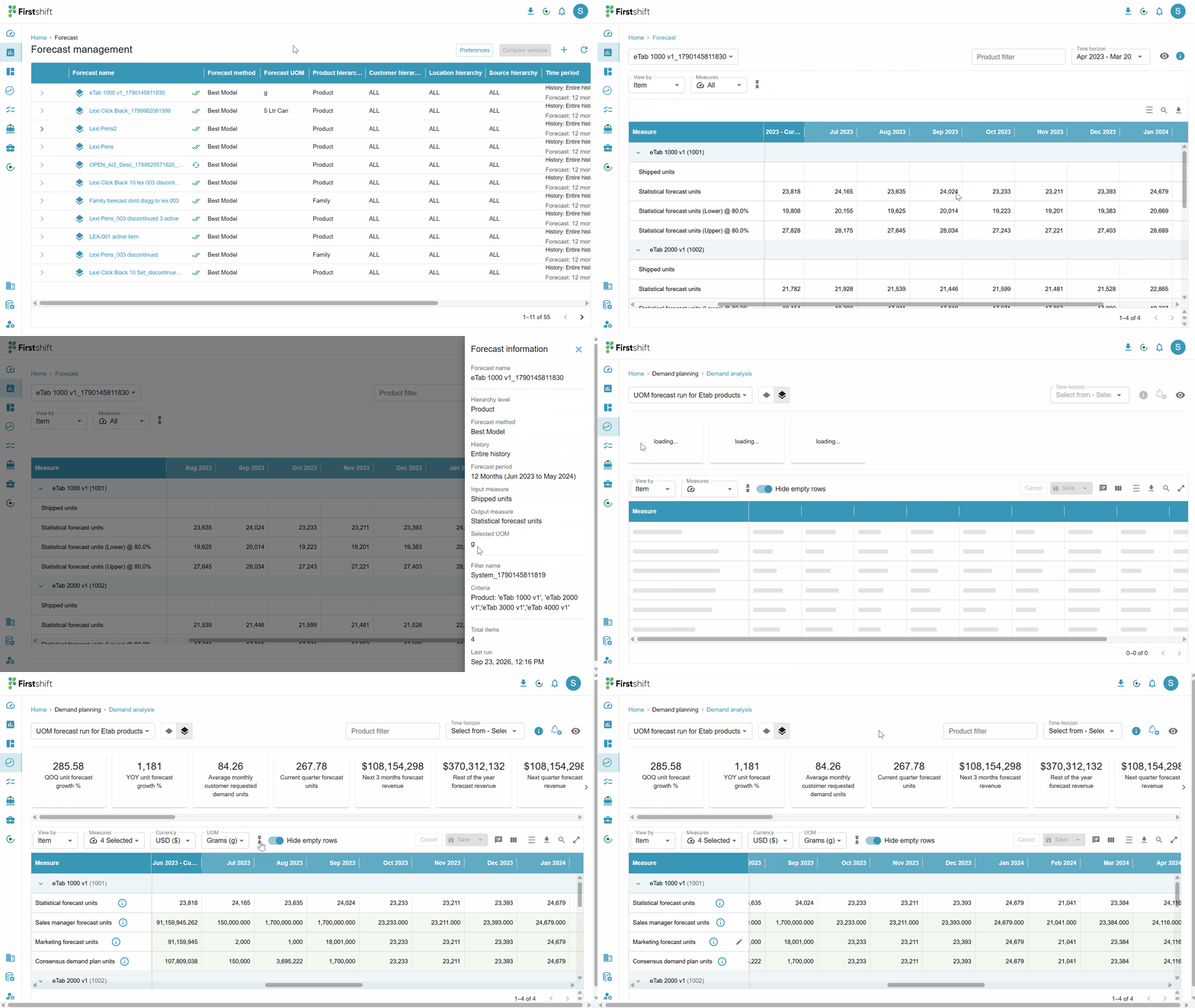
When the forecast with the selected UOM is published, the values in the demand planning views match the published forecast exactly, and the UOM dropdown in the planning views displays the UOM selected during the forecast run.
Was this article helpful?
That’s Great!
Thank you for your feedback
Sorry! We couldn't be helpful
Thank you for your feedback
Feedback sent
We appreciate your effort and will try to fix the article