Overview
When the Unit of Measure feature is enabled, planners can view and enter forecast overrides in another UOM of their choice (e.g., dozens, cases, pallets) rather than the Product's base UOM (e.g. each/EA). The system automatically converts values to the Product's base UOM before storing them.
This article explains how UOM selection affects overrides, the audit trail, and ASP.
1. Performing Overrides with another UOM Selected
How it works
When a planner selects a non-base UOM from the UOM picker in the planning grid:
- The displayed values in the grid are shown in the selected UOM (e.g., if the base UOM is EA and you select "DOZEN", a value of 120 EA displays as 10 DOZEN)
- When you submit an override, you enter the value in the selected UOM (e.g., type 15 meaning 15 DOZEN)
- The system converts the entered value to the base UOM using the conversion factor before saving:
- Conversion Factor: The Per-item conversion factor is stored in the UOM Conversion table.
- Stored value = entered value × conversion factor (e.g. 15 DOZEN × 12 = 180 EA stored)
What the planner sees vs. what is stored
Note: The UOM based Edits are supported only when the planning view/bookmark is created at the Product Level.
- The possible combinations include
- Product| ALL| ALL| ALL
- Product | Customer | ALL | ALL
- Product ALL | Region| ALL,
- Product | Customer | Location | ALL
- Product| ALL| Location | ALL
2. ⚠ Unconvertible Items — Behaviour & UI Appearance
What is an unconvertible item?
An item is unconvertible when no conversion factor has been defined for the selected UOM pair (e.g. EA → CASE) for that specific product. This occurs when:
- The item is missing from the UOM Conversion table (per-item factors).
- Moreover, a planning view may contain products from different categories. Each category can use a different type of unit of measure. For example, the selected products may include grains measured in kilograms and cooking oil measured in liters.
- By default, all products are displayed in their respective base unit of measure. However, when you select a different UOM from the dropdown (for example, liters), the application checks whether the selected UOM is applicable to each product. (In the case of Planner workbench, it evaluates the drilldown views as well)
- Items that support the selected UOM will be converted and displayed accordingly. Items that do not support the selected UOM will continue to display in their existing UOM.
- Before applying the conversion, the application displays a confirmation message informing the user that the selected UOM applies only to a few selected items and that the remaining items will continue to display in their existing UOMs.
The following is the message.
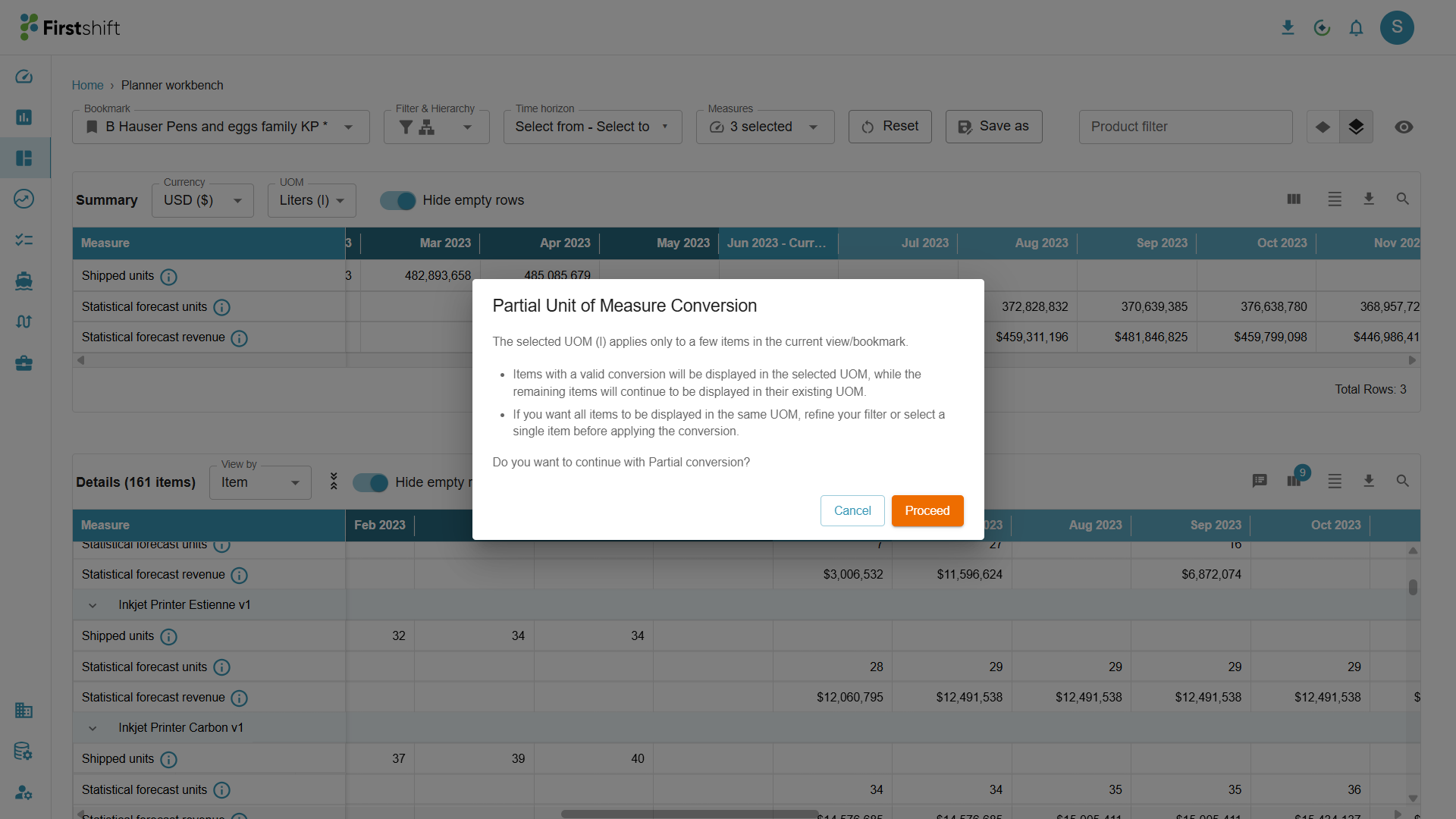
How the UI signals unconvertible items — step by step
Step 1 — UOM selection warning banner: When a planner selects a UOM from the UOM picker and some items in the current grid view cannot be converted, the planning grid displays a warning banner at the top of the grid before any edit is made:
⚠️ "The selected UOM <Uom Code> applies only to a few items in the current view/bookmark."
Step 2 — Override entry on an unconvertible item: If a planner edits a value into an unconvertible cell:
- The value is accepted and stored as entered, with no multiplication applied (factor = 1)
- The audit trail records the entered value as both the "entered UOM value" and the "base UOM value" — they are identical
- No error is thrown — it is a silent passthrough, which is why the upfront warning banner (Step 1) is critical
⚠️ Key risks with unconvertible items
- Silent data error risk: If a planner intends to enter 15 CASE (= 150 EA) but the item is unconvertible, the system stores 15 EA — a 10× understatement of intended demand. This can cascade into significantly understated revenue, projected inventory, and replenishment signals.
- Bulk edits are most dangerous: When editing at an aggregate level (family, BU), unconvertible SKUs buried within the rollup may silently receive wrong values without the planner noticing at the individual SKU level.
- No retrospective correction: The audit trail will show the stored value (15 EA) as the "new value" with no flag that conversion was missing — retrospective review requires cross-referencing the UOM conversion tables.
Best practice recommendations
- Before performing bulk UOM overrides: Check the warning banner count. If it says unconvertible items exist, navigate to the UOM configuration and load the missing conversion factors before proceeding or refine the filter criteria to select the correct products.
3. How the Audit Trail Looks When UOM is Enabled
What is captured
Every UOM override is recorded in the planning system's audit log. The following information is stored per edit:
⚠️ Critical audit nuance
Previous value(old) and Changed to(new) in the audit are always stored in base UOM — not the UOM the planner selected.
This means:
- If a planner typed
15 DOZand the old value was120 EA, the audit will show old = 120, new = 180 (both in EA) - When reviewing the audit trail, planners and managers need to be aware that the displayed delta is in base UOM, not the UOM the planner worked in
- To understand the override in the planner's context, divide the base UOM values by the applicable conversion factor
- For unconvertible items, the audit will show identical entered and stored values (factor = 1) — there is no flag in the audit record itself to indicate conversion was missing. The only way to identify this retrospectively is to cross-check whether a conversion factor exists for that item and UOM pair.
Audit trail example
4. How the ASP Time Series Behaves When UOM is Enabled
What ASP represents
The Projected ASP (Average Selling Price) per unit is a derived measure calculated as:
ASP = Total Revenue ÷ Total Units
It is a weighted average measure — it cannot be summed directly. It is always re-derived from its revenue and units components.
UOM impact on ASP
ASP is a revenue-per-unit ratio. When UOM conversion is enabled, the following applies:
⚠️ What this means for planners
- If you select DOZ as your UOM, the planning grid shows ASP as $ per DOZ (whereas base UOM is EA).
ASP per DOZ = ASP per EA × 12 (conversion factor)
Was this article helpful?
That’s Great!
Thank you for your feedback
Sorry! We couldn't be helpful
Thank you for your feedback
Feedback sent
We appreciate your effort and will try to fix the article