TABLE OF CONTENTS
Introduction
Job Notifications lets you receive email alerts when jobs complete, fail, or get stuck. You can choose which job types to monitor, how often to be notified, and whether to track only your own jobs or all jobs in the system.
Navigation
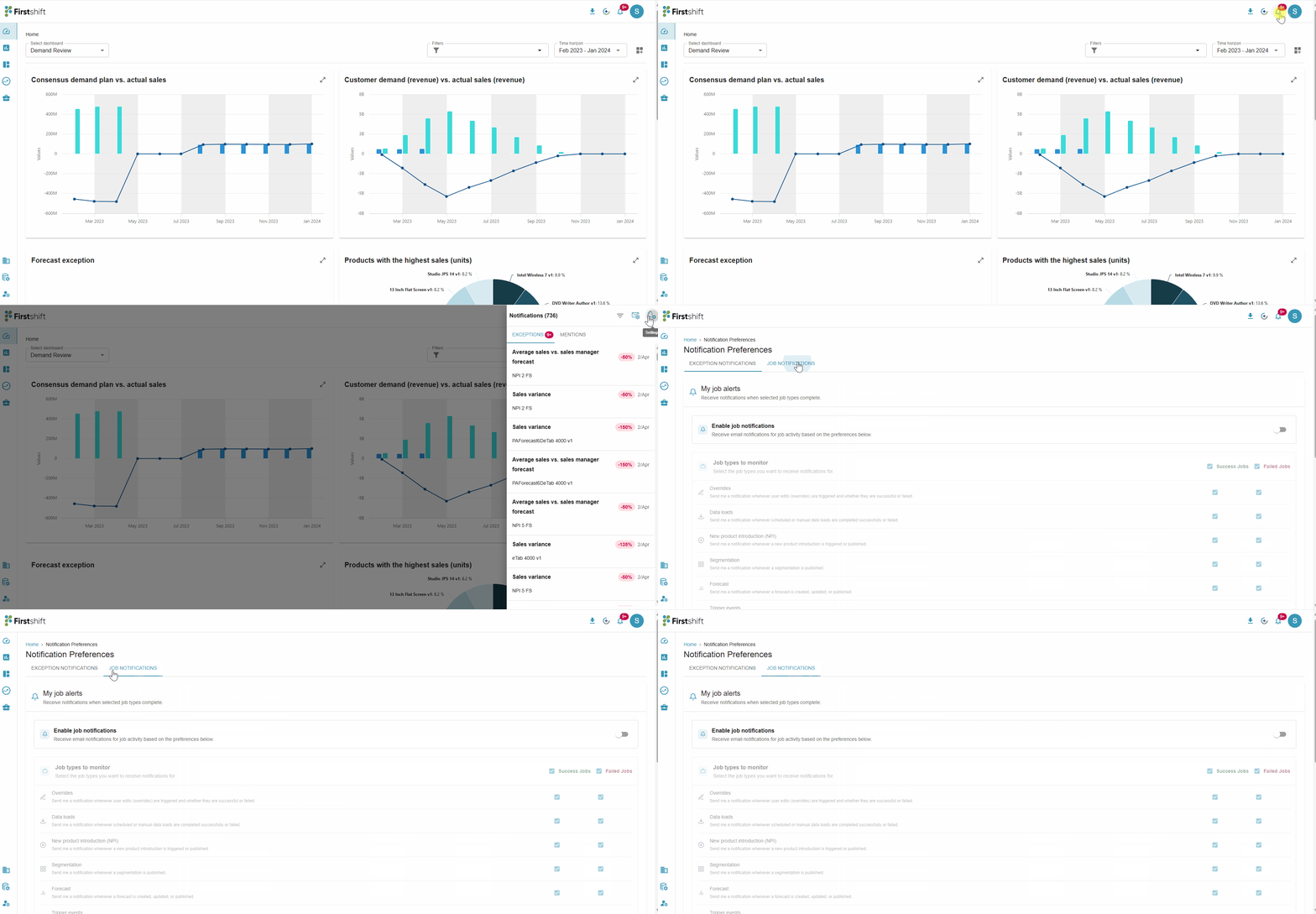
Click the bell icon in the right-side of the Firstshift Business App after login. This opens the Notifications side panel. Clicking the Settings opens the Notification Preferences page. Select the Job Notifications tab to configure your job alert settings.
Enabling Job Notifications
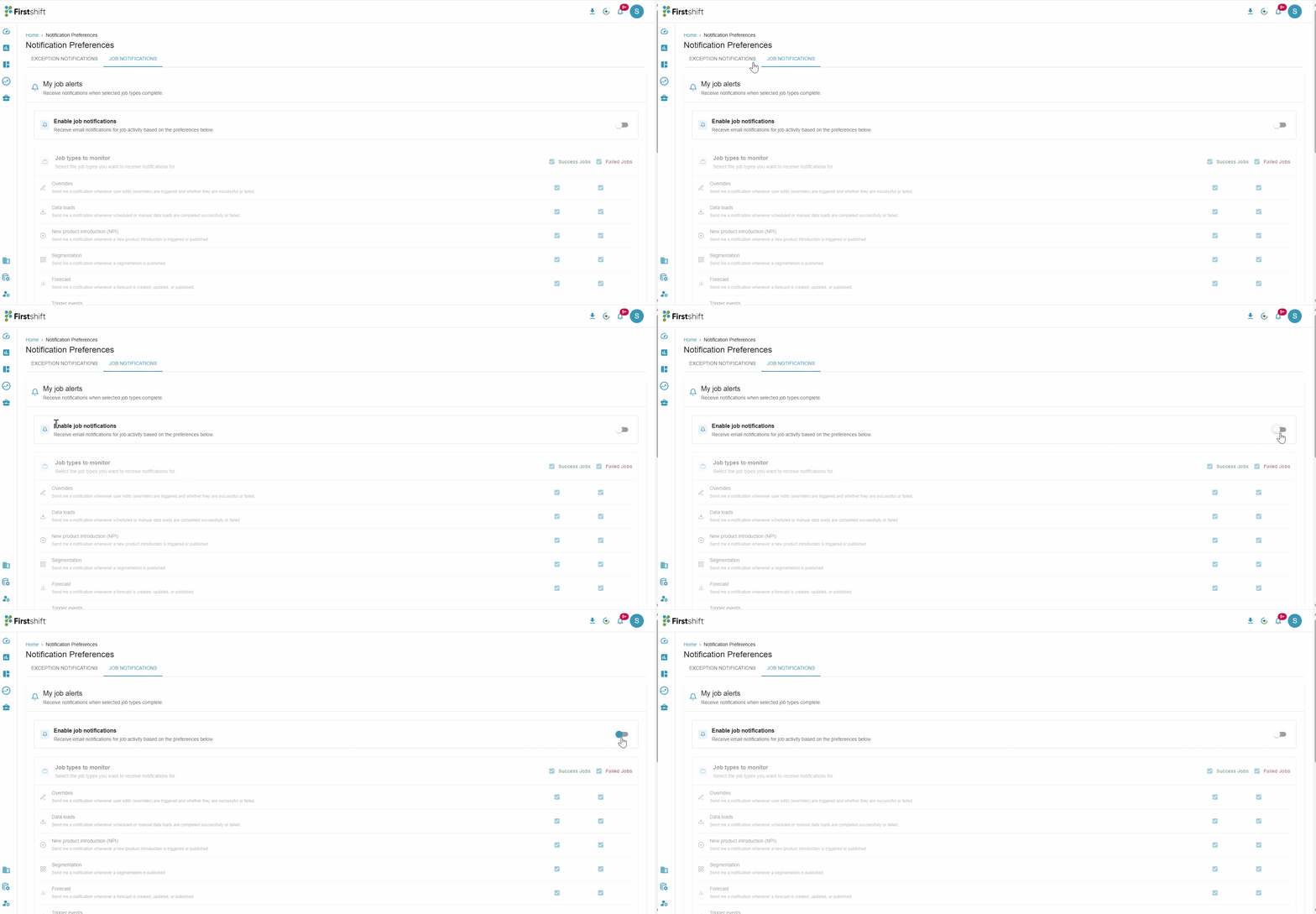
The Job Notifications tab includes a master toggle — "Enable job notifications — Receive email notifications for job activity based on the preferences below." By default, this toggle is off. Turn it on to start receiving job notification emails based on your configured preferences. When this toggle is off, no job notification emails are sent, regardless of other settings.
Selecting Job Types
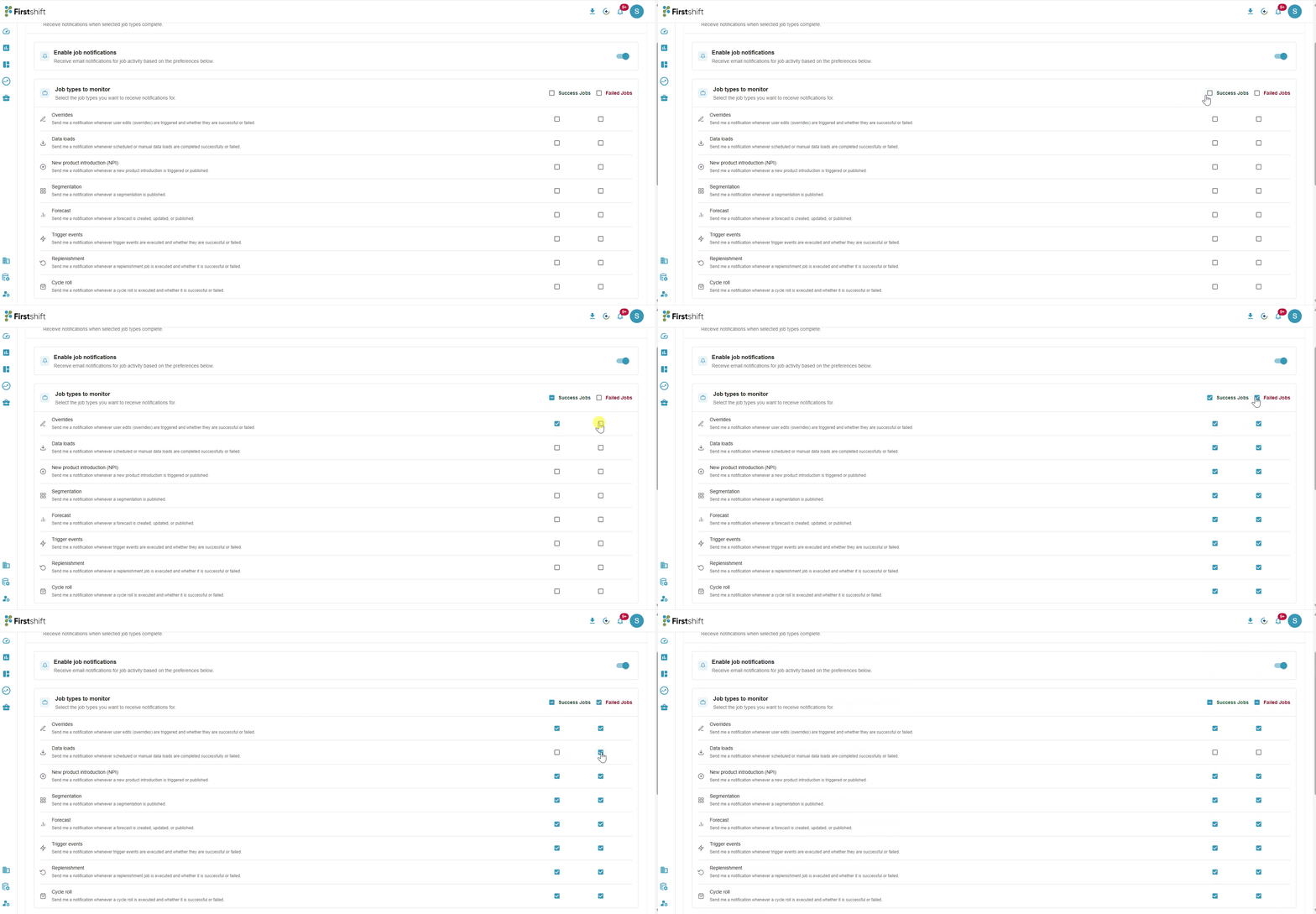
The Job Notifications tab displays a list of available job types: Overrides, Data Loads, NPI, Segmentation, Forecast, Trigger Events, Replenishment, and Cycle Roll.
For each job type, you can check Success, Failure, or both to choose which outcomes trigger a notification. Use the Select All row at the top to select all job types at once for a given status column.
Job Step Delay Alerts
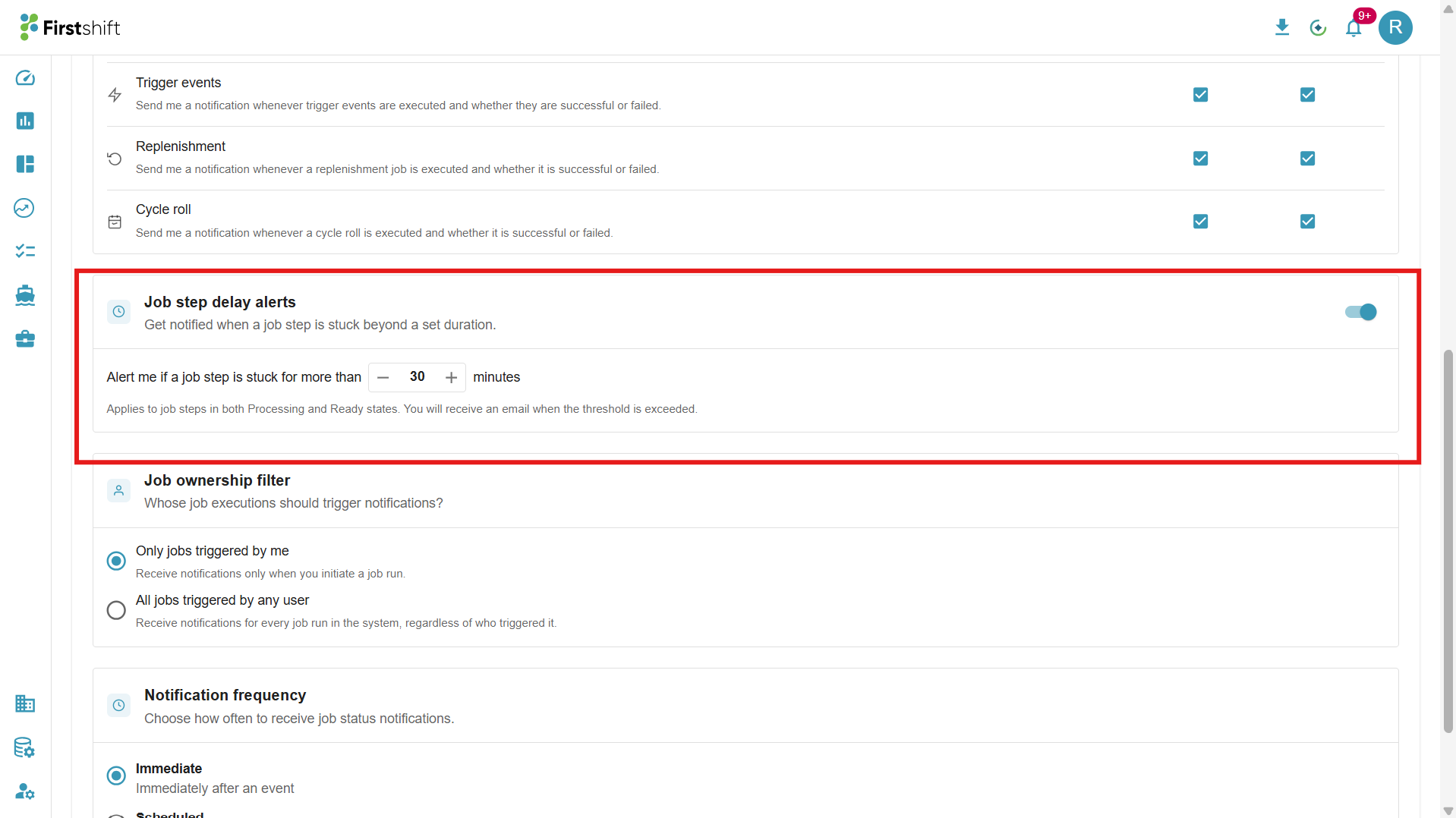
Enable the Job Step Delay Alerts toggle to receive an email when a job step remains in the processing or Ready state for more than your configured threshold.
Set the threshold using the minutes selector (e.g., "Alert me if a job step is stuck for more than 60 minutes"). When the toggle is off, no delay alerts are sent.
Job Ownership Filter
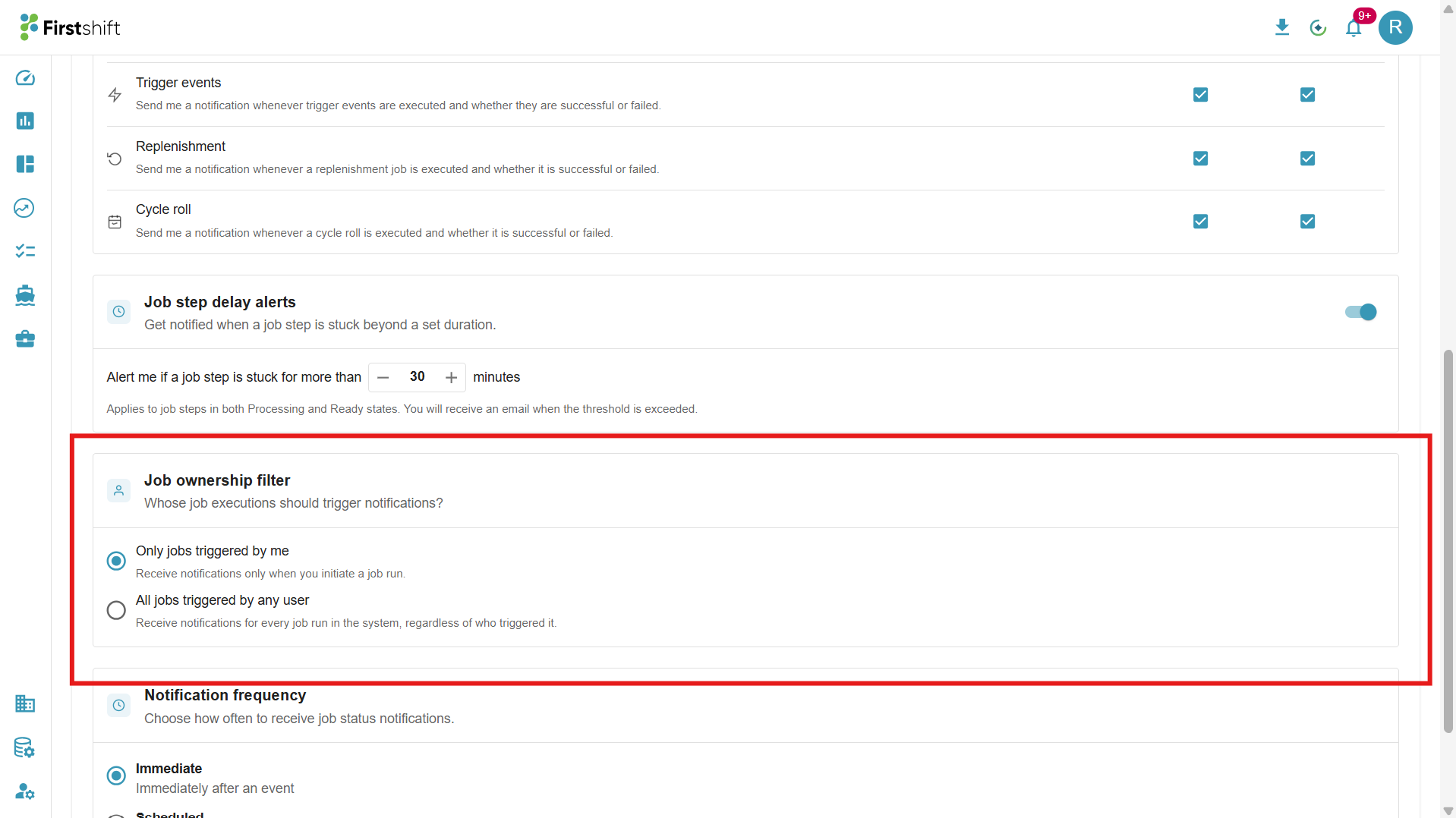
Choose whose jobs trigger your notifications:
Only jobs triggered by me (default) — you are notified only for jobs you started.
All jobs triggered by any user — you are notified for all matching jobs regardless of who triggered them.
Notification Frequency
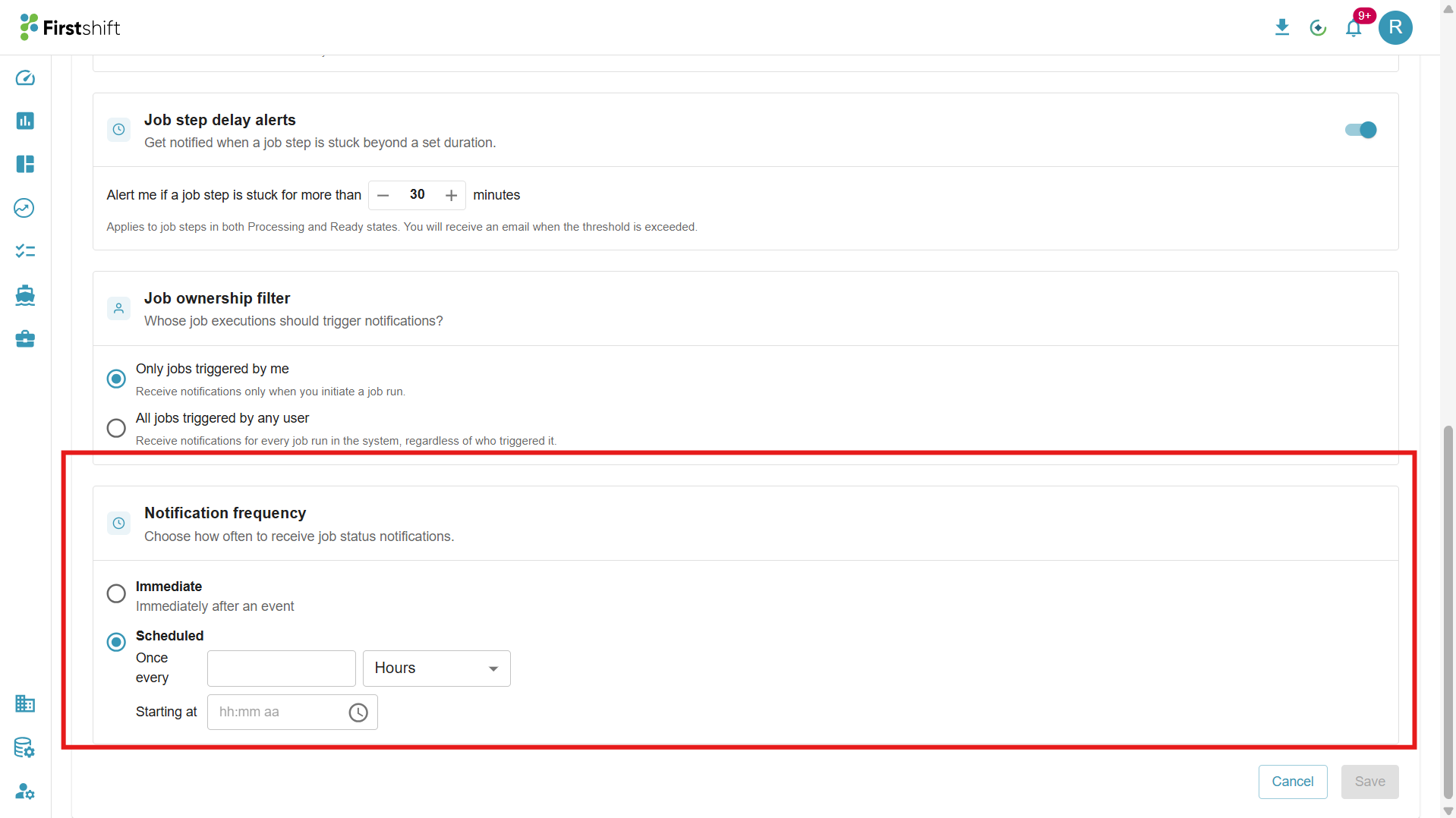
Choose how notifications are delivered:
Immediate (default) — one email per job completion. You receive a separate email for each job that matches your selection.
Scheduled (Digest) — job results are batched and sent at a regular interval. Configure the interval in hours (e.g., every 6 hours) or days (e.g., every 2 days), and set the start time (e.g., 08:00 AM). If no matching jobs run during a period, no digest email is sent.
Saving Your Preferences
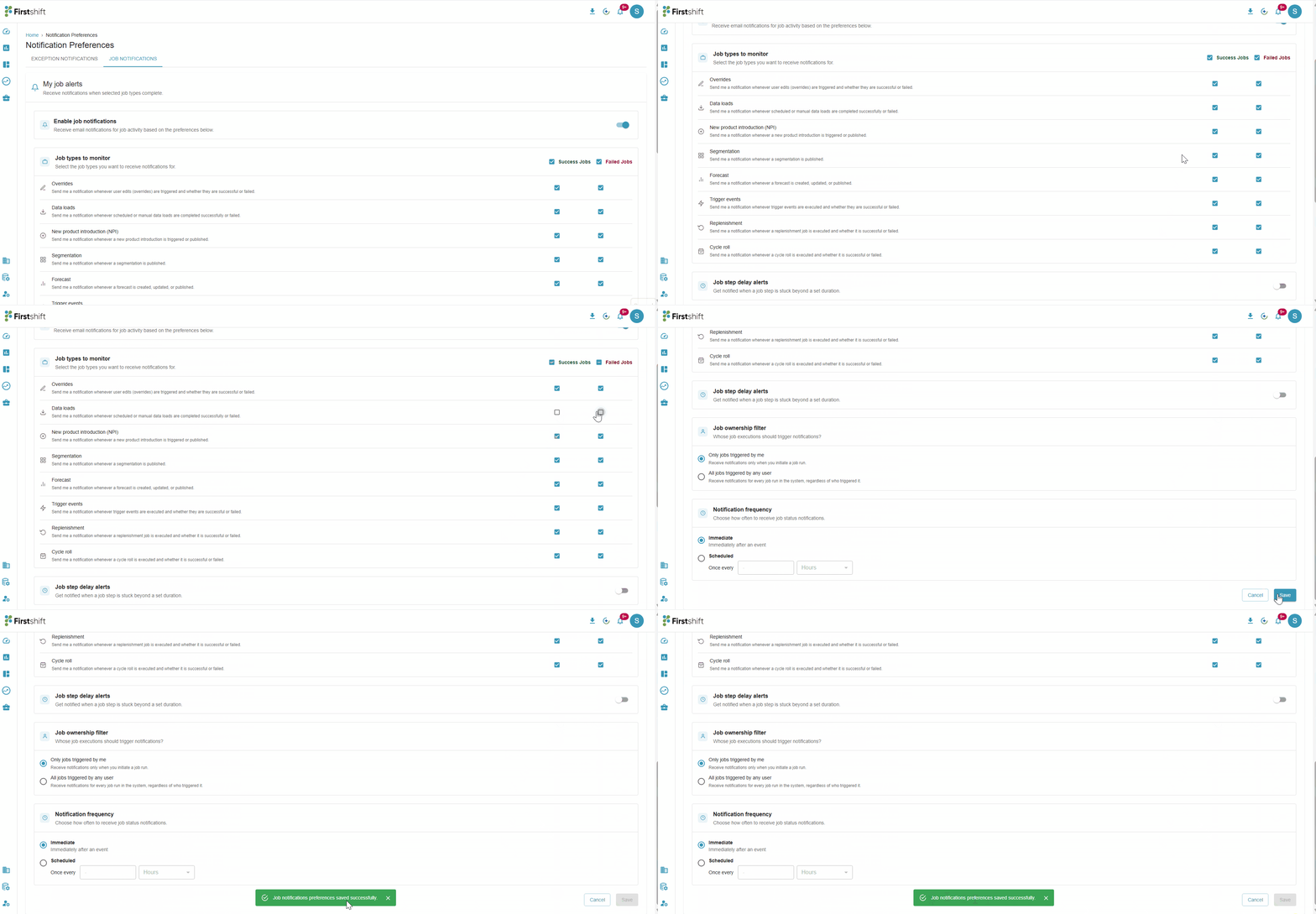
Click Save to apply your settings. A success message confirms your preferences are saved.
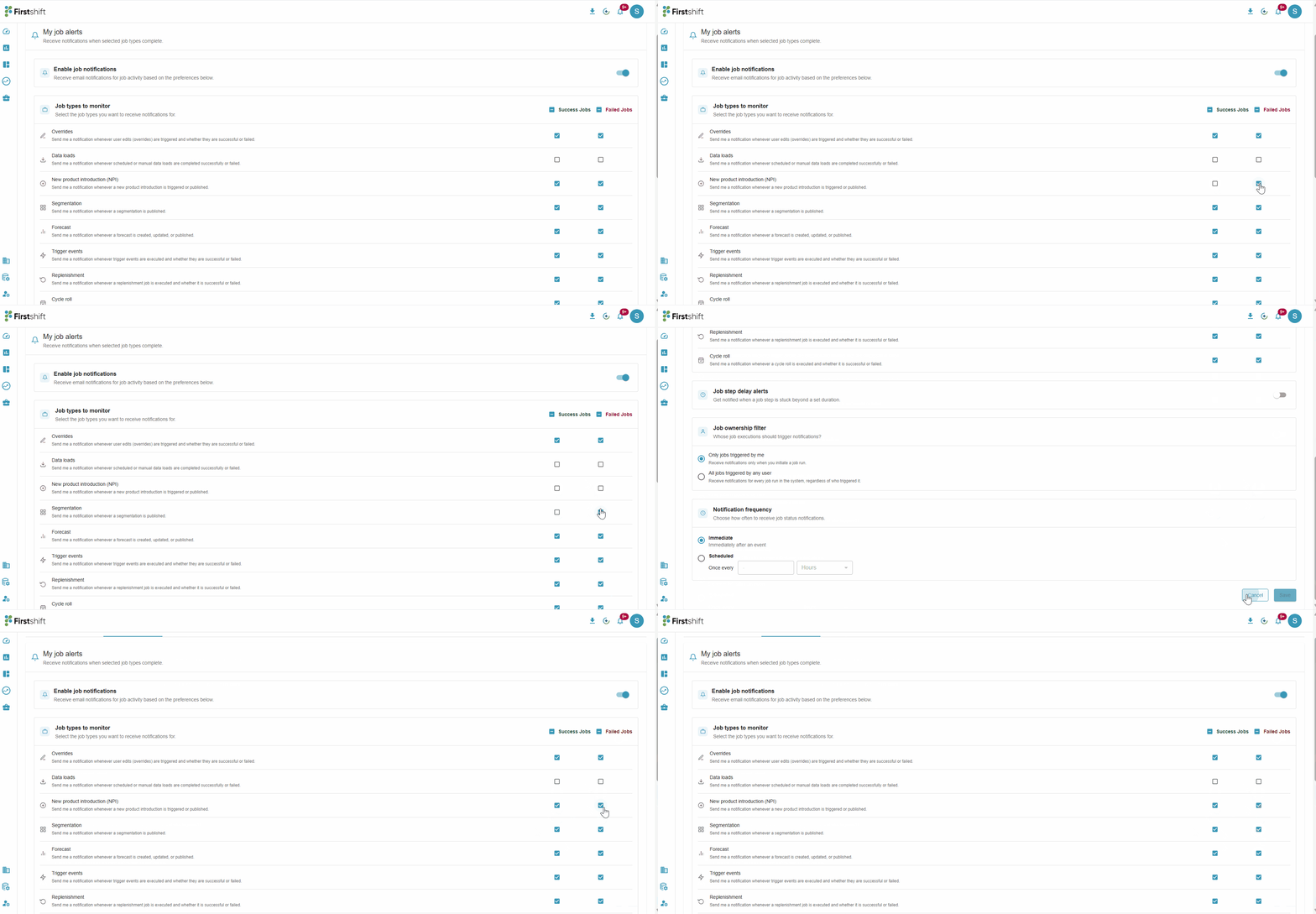
Click Cancel to discard unsaved changes and revert to the last saved state.
Email Notifications
All notification emails are sent from Firstshift Notifications (notifications@firstshift.ai) and include a footer link to update your preferences directly.
Immediate Notification
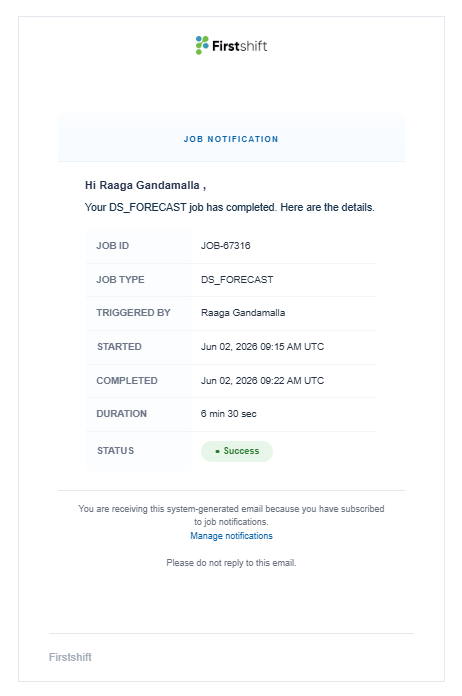
Sent once per job completion. The email includes Job ID, Job Type, Triggered By, Started Time, Completed Time, Duration, and Status (green for Success, red for Failed). Failed jobs include the error message.
Scheduled Digest
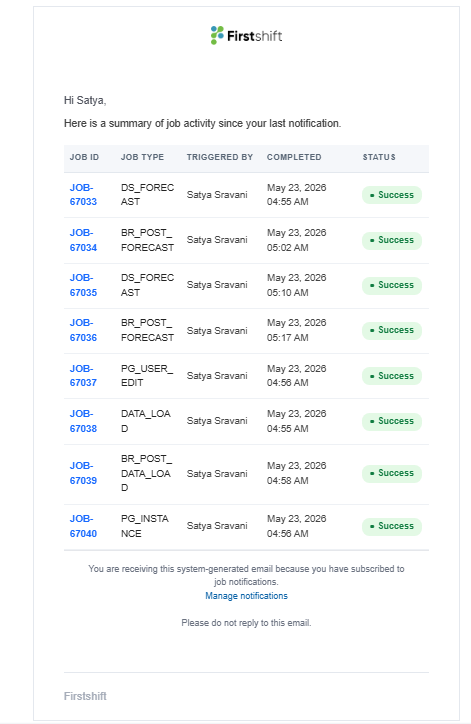
Sent at your configured interval. Contains a summary table of all job events since your last digest, showing Job ID, Job Type, Triggered By, Completed time, and Status(green for Success, red for Failed).
Job Step Delay Alert
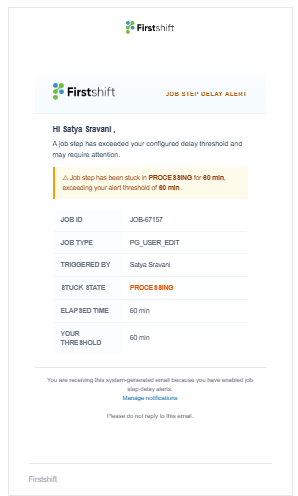
Sent immediately when a job step exceeds your delay threshold. Includes an amber alert box highlighting the stuck step, along with Job ID, Job Type, Triggered by, Stuck State, Elapsed Time, and your configured threshold.
Only Jobs Triggered by Me Alert
Sent when a job triggered by you completes, fails, or changes state. Includes a status indicator (green for success, red for failure, amber for warnings) along with Job ID, Job Type, Triggered By (You), Started time, Completed time, Duration, and Status. Notifies only the user who triggered the job.
All Jobs Triggered by Any User Alert
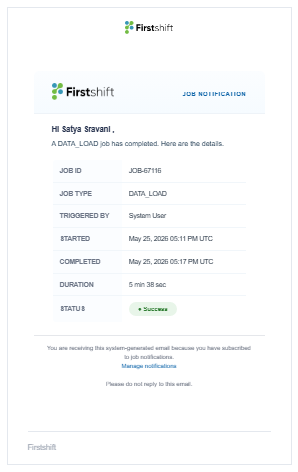
Sent when any job across the tenant completes, fails, or changes state — regardless of who triggered it. Includes a status indicator (green for success, red for failure, amber for warnings) along with Job ID, Job Type, Triggered By (User Email), Tenant Name, Started time, Completed time, Duration, and Status. Useful for administrators monitoring all job activity across users.
Tips
You can select job types without enabling any frequency — no emails are sent until at least one job type is selected.
Delay alerts are always sent immediately, regardless of your frequency setting.
Each user's preferences are independent — your settings do not affect other users.
Was this article helpful?
That’s Great!
Thank you for your feedback
Sorry! We couldn't be helpful
Thank you for your feedback
Feedback sent
We appreciate your effort and will try to fix the article