TABLE OF CONTENTS
Introduction
Usage Analytics provides customer admins with a consolidated view of how your employees are using the Firstshift application. As a Customer Admin, you can monitor user engagement, page-level activity, identify top users, various actions that users performed, and export detailed event logs for auditing or reporting from a single dashboard.
Navigation
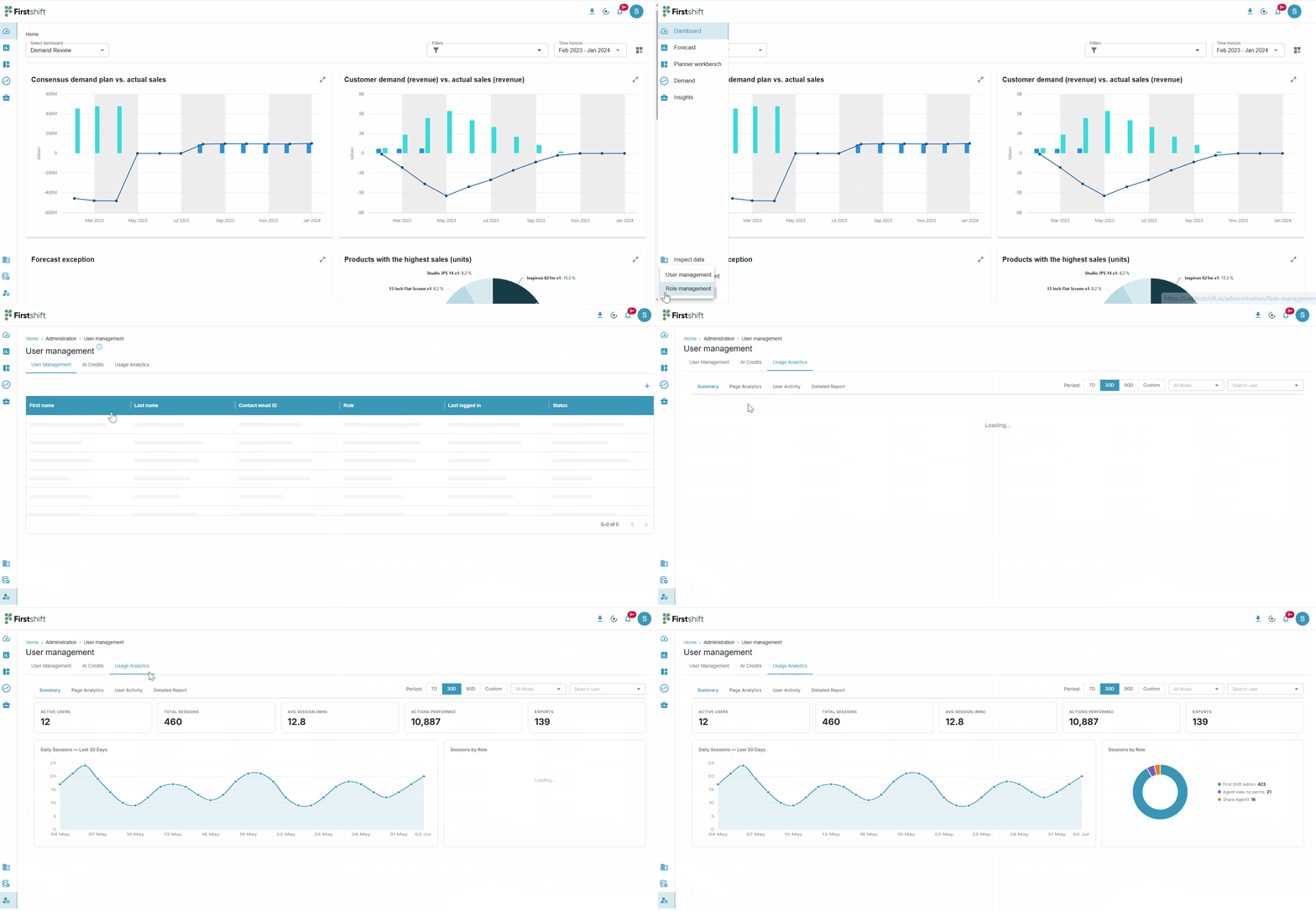
Go to Administration → User Management → Usage Analytics from the left-side menu.
Clicking on Usage Analytics navigates to the dashboard, which opens on the Summary sub-tab by default. Use the sub-tab navigation at the top to switch between Summary Dashboard, Page Analytics, User Activity, and Detailed Report.
Global Filters
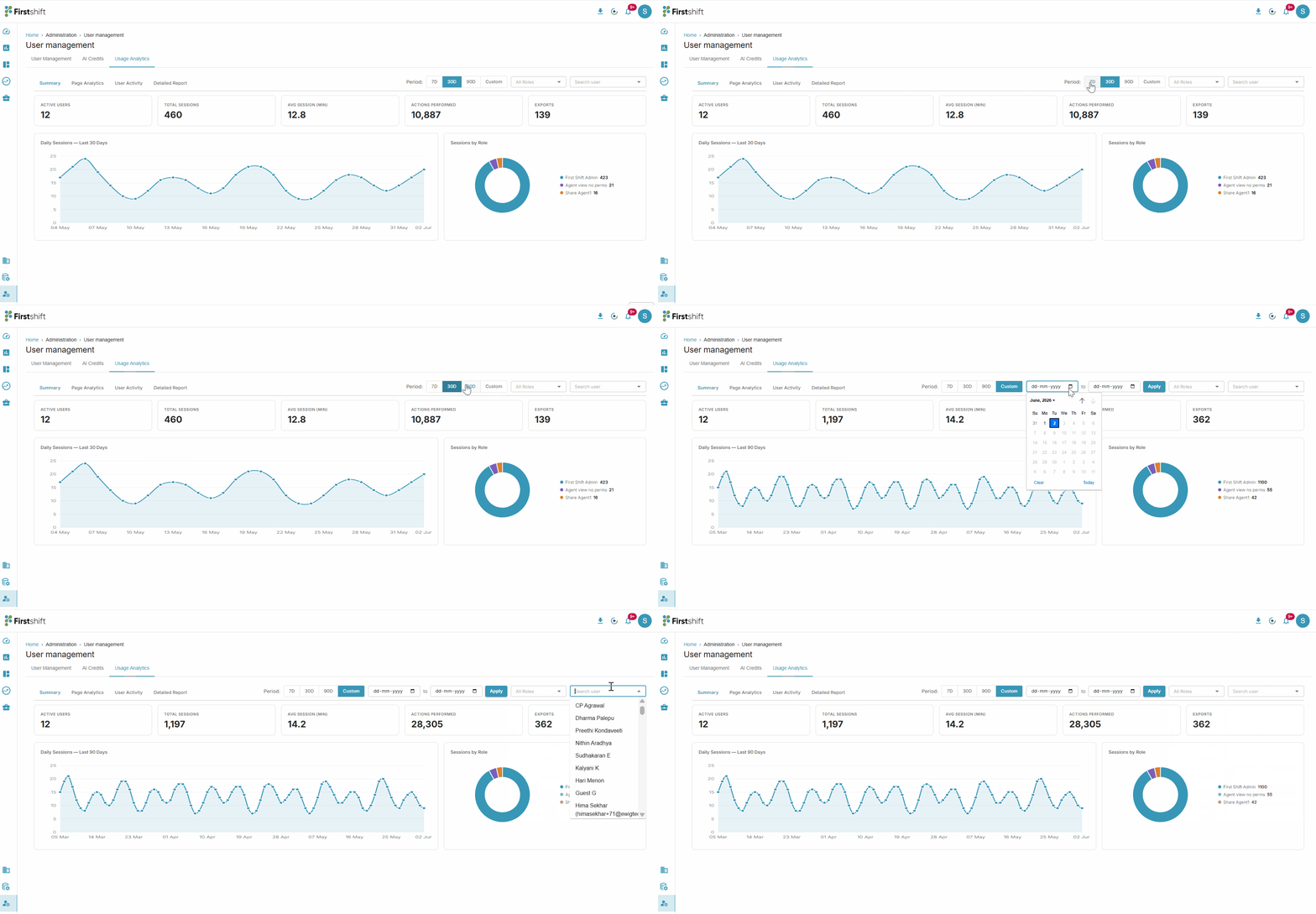
The following filters appear at the top of the dashboard and apply across all sub-tabs. Changing any filter recalculates and re-renders all values, charts, and tables without a page reload.
Period
Choose 7D, 30D (default), or 90D. All metrics on the dashboard are recalculated for the selected period whenever you switch presets.
Custom Date Range
Click Custom to reveal From/To date inputs (dd-mm-yyyy) and an Apply button. Existing data remains unchanged until Apply is clicked. Invalid ranges (missing dates or end-before-start) do not trigger a re-render.
Role
The Role dropdown limits the dashboard to users belonging to a specific role. Available options are All Roles (default), First Shift Admin, Customer Admin, and any custom roles configured on the tenant.
User
Dropdown listing every individual user in the tenant. The default is All Users. When both Role and User filters are active, only users satisfying both conditions are included.
Dashboard Tabs
The analytics dashboard has four tabs:
Summary Dashboard - High-level view of platform usage with KPI cards and visual charts.
Page Analytics — Shows page-level engagement, including most-visited pages, average time on page, and actions performed per page.
User Activity — Ranks users by engagement and provides drill-down access to detailed activity logs.
Detailed Report — A searchable, exportable, row-level action log for troubleshooting and auditing.
Summary Dashboard
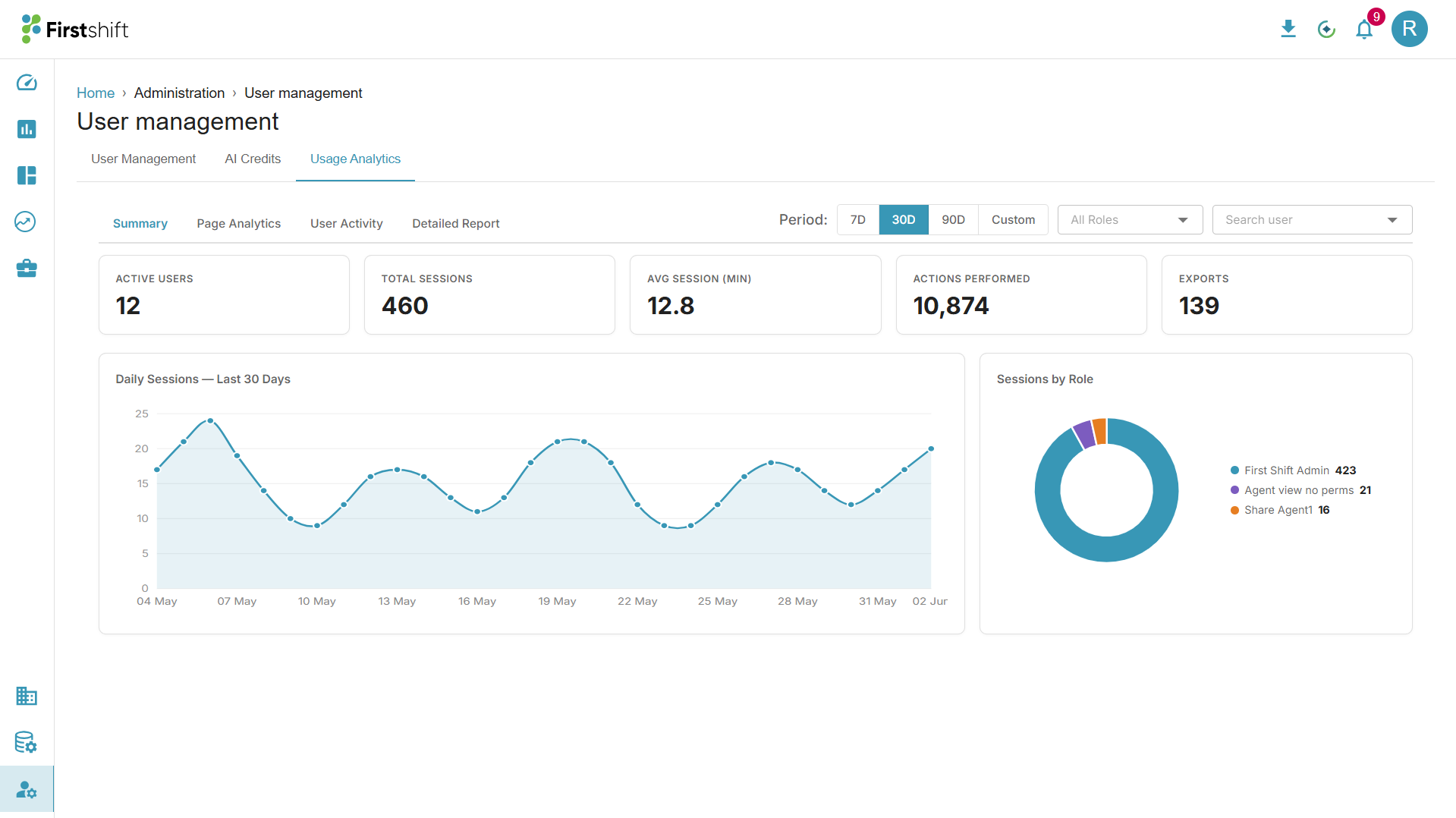
After navigating to the Usage analytics dashboard, the Summary Dashboard tab is displayed by default. It shows five KPI cards. Active Users, Total Sessions, Avg Session (min), Actions Performed, and Exports, along with a Daily Sessions line chart and a Sessions by Role donut chart.
When any filter changes, each KPI card animates from its previous value to the new value.
KPI Cards
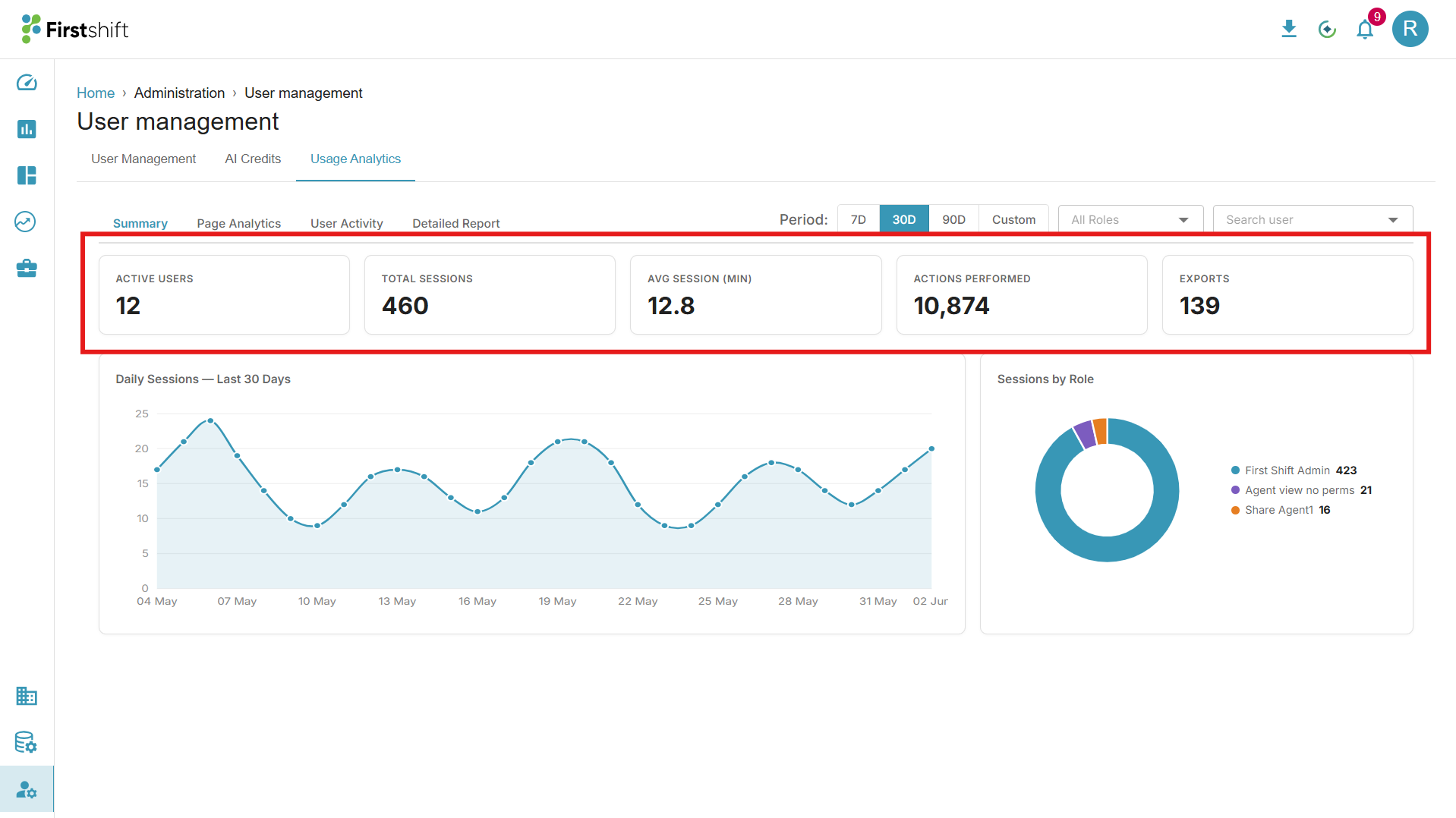
Active Users — Count of users after the Role/User filter is applied.
Total Sessions — Total number of sessions across filtered users for the selected period.
Avg Session (min) — Average session duration in minutes for the selected period. This value is independent of the Role/User filters.
Actions Performed — Total actions performed across the filtered users for the selected period.
Exports — Total exports (CSV / Excel downloads) across the filtered users for the selected period.
Daily Sessions Line Chart
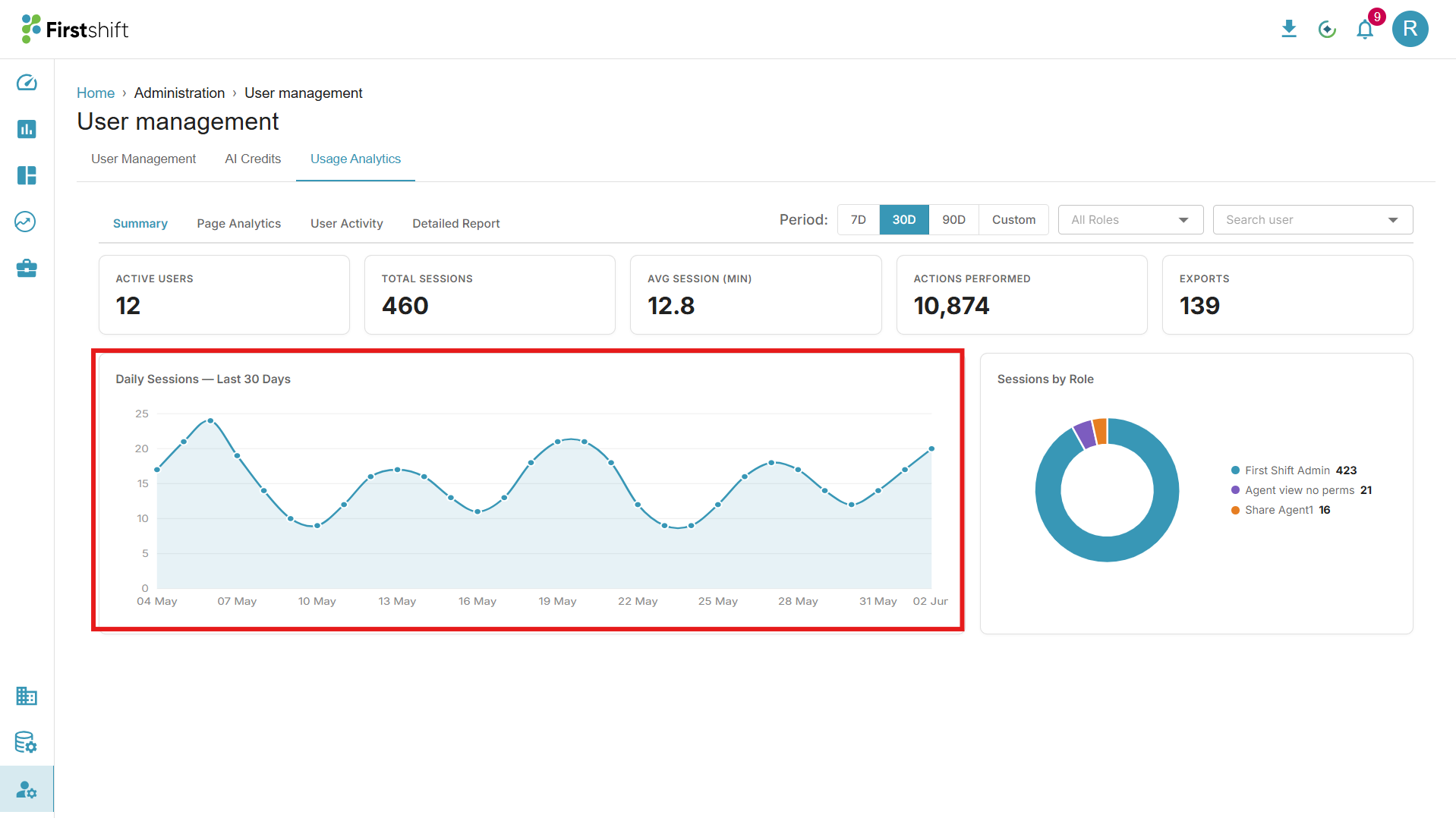
Daily Sessions Line Chart displays session counts per day within the selected period. The X-axis shows one label per day in DD MMM format; the Y-axis starts at zero. The total of all daily values equals the total sessions in the KPI card for the period. Hover over any data point on the line to display a tooltip showing the date and session count for that day.
Sessions by Role Donut Chart
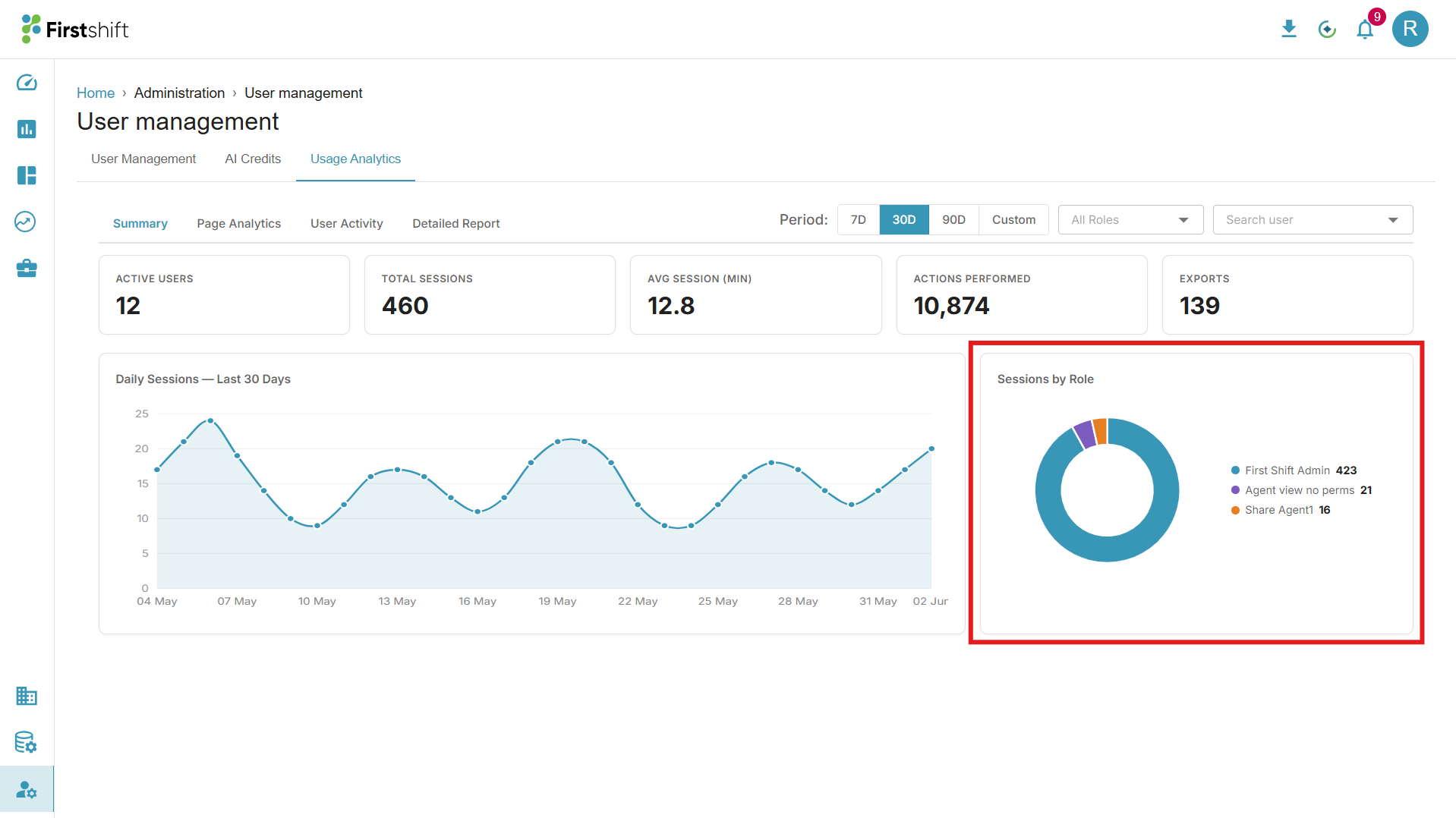
The 'Sessions by Role' donut chart displays session distribution across different roles. Values are computed from the filtered set of users. When filtered to a single role, the donut shows a single full-circle segment. Hover over any segment to display a tooltip showing the role name, session count, and percentage share.
Page Analytics
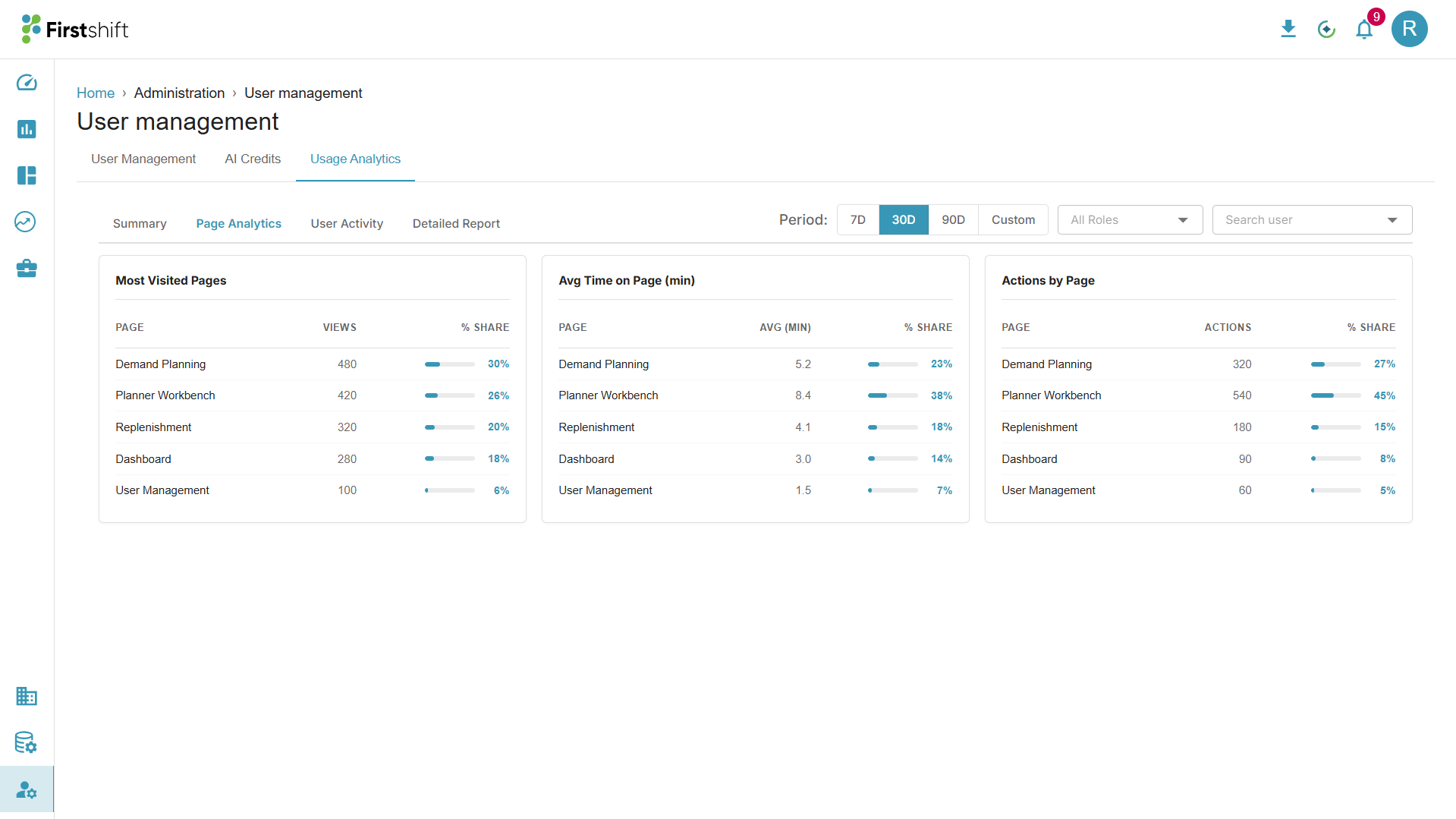
Click the Page Analytics tab to view page-level engagement for the platform's main pages: Demand Planning, Planner Workbench, Replenishment, Dashboard, and User Management.
Three side-by-side tables are displayed: Most Visited Pages, Avg Time on Page, and Actions by Page. Each table displays the page name, value, and % share. All tables update immediately on any filter change.
Most Visited Pages — Shows Page Name, View Count, and % Share.
Avg Time on Page — Shows Page Name, Avg Time in minutes (one decimal place), and % Share.
Actions by Page — Shows Page Name, Action Count, and % Share.
The % Share is calculated as round((row_value / total_value) × 100) for all rows except the last. The last row's % Share is 100 − the sum of all other rows' shares, ensuring the column always totals 100%. Rows are displayed in a fixed, predetermined order.
User Activity
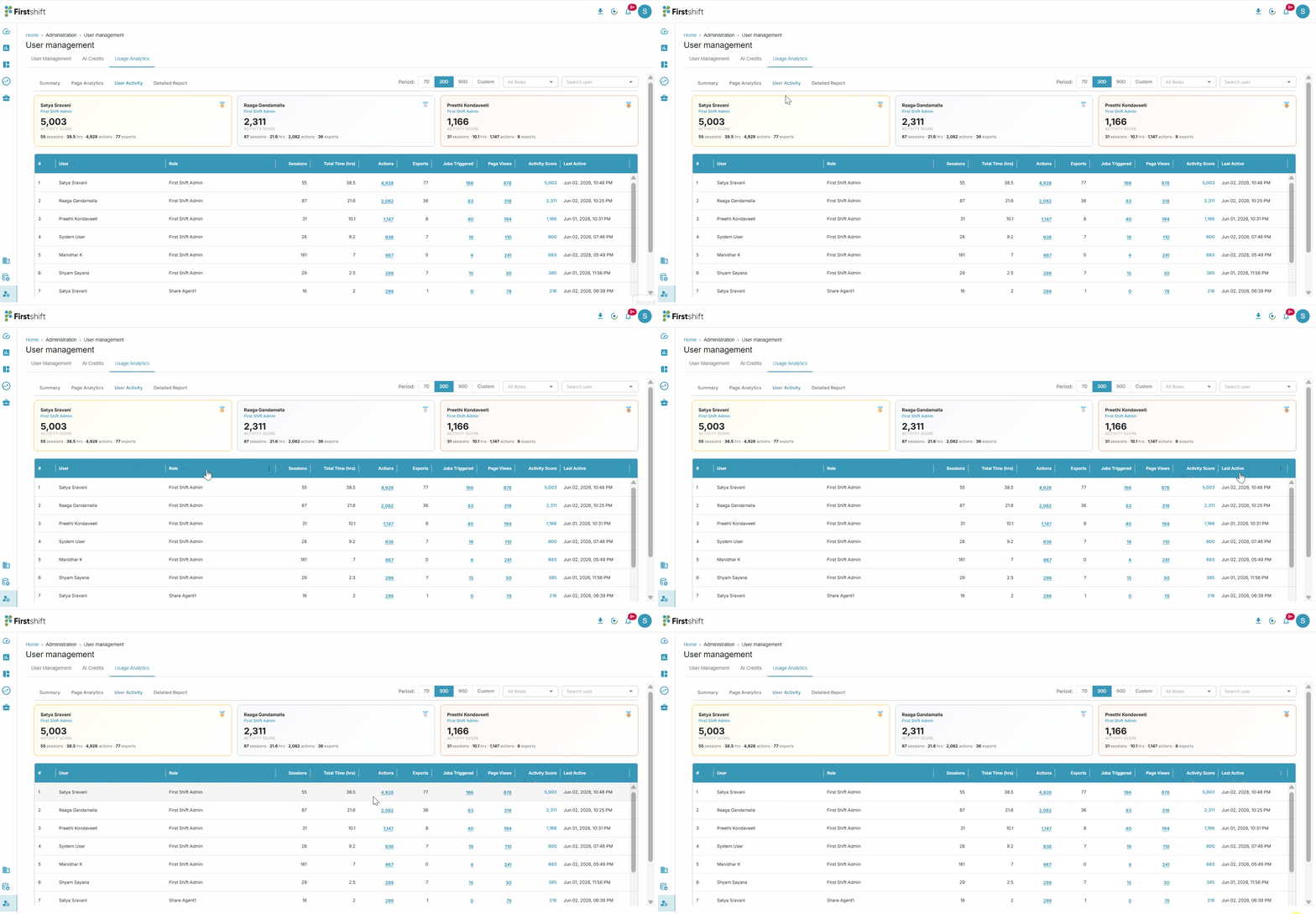
Click the User Activity tab to view users ranked by engagement. Three rank cards at the top represent the 1st, 2nd, and 3rd-highest Activity Score users. Each card shows a rank label, the user's full name, role, Activity Score, and a summary line (sessions · total time · actions · exports). If fewer than three users match filters, unfilled positions are left empty.
User Activity Table: Lists all users ranked by Activity Score (descending) with the following columns:
# — Rank position
User — User's full name
Role — Assigned role
Sessions — Total sessions for the period
Total Time (hrs) — Total time spent in hours
Actions — Clickable; opens the Action Breakdown modal
Exports — Total exports count
Jobs Triggered — Clickable; opens the Jobs Triggered modal
Page Views — Clickable; opens the Pages Visited modal
Activity Score — Composite engagement score
Last Active — Last activity timestamp
Activity Score Formula
| Activity Score = round((Actions × 0.5) + (Jobs Triggered × 10) + (Total Time hrs × 4) + (Sessions × 1) + (Exports × 3) + (Page Views × 0.5)) |
The score is recomputed on every filter change. Weights reflect engagement value: Jobs Triggered carries the highest weight (10) as it indicates intentional, high-value use, while Actions and Page Views carry lower weights (0.5) to normalize for higher raw counts.
Drill-Down Modals
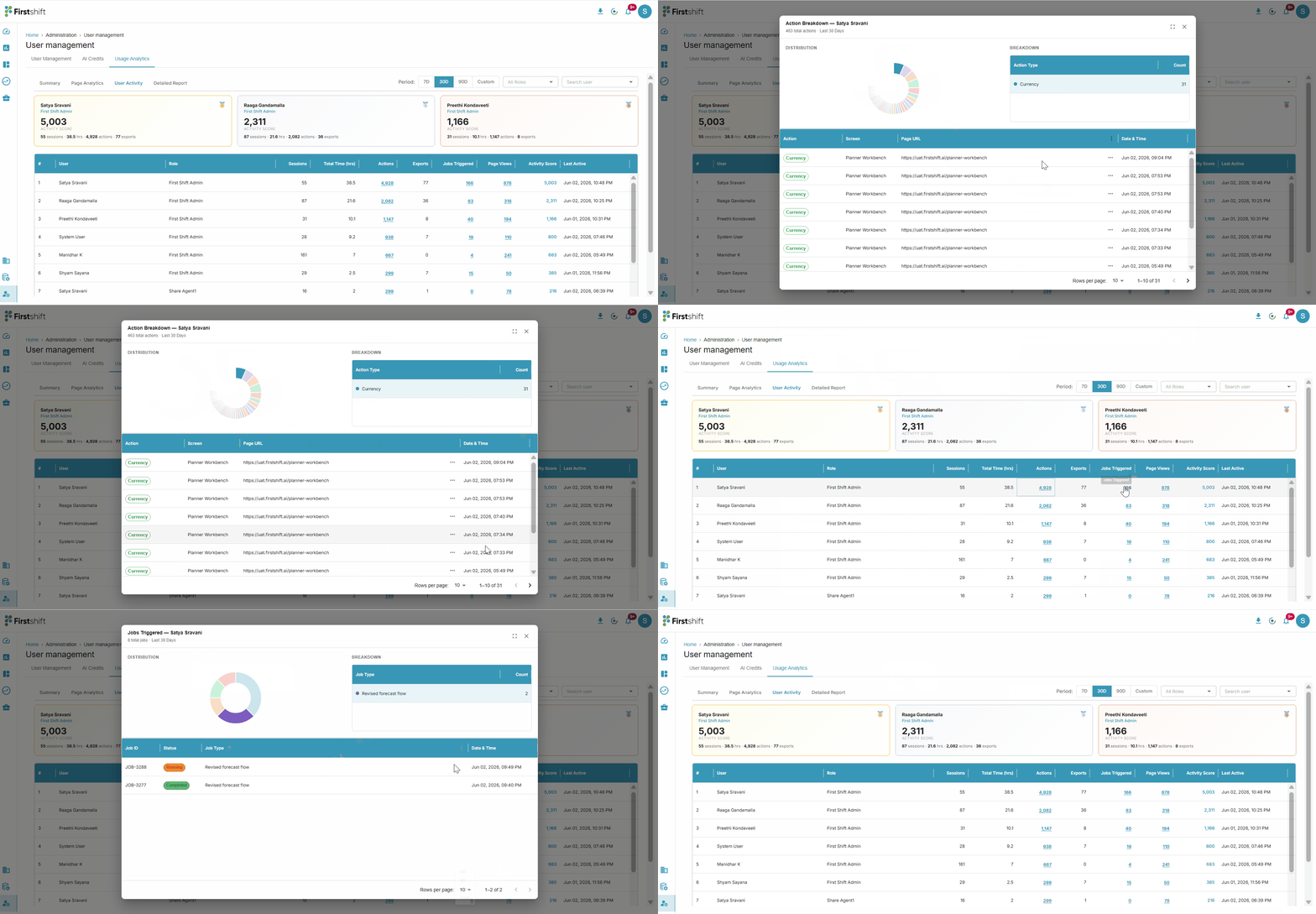
Clicking the Actions, Jobs Triggered, or Page Views values in the User Activity table opens a detail modal. Each modal shows a donut chart of distribution on the left, a breakdown table on the right, and a row-level detail table below.
Action Breakdown Modal — Header shows "Action Breakdown — {User Full Name}" with the total actions count and period label. Detail table columns: Action (pill badge), Screen, Page URL, Date & Time. Clicking a breakdown row filters the detail table to that action type.
Jobs Triggered Modal — Header shows "Jobs Triggered — {User Full Name}" with total jobs count and period label. Detail table columns: Job ID (JOB-XXXX format), Status (color-coded badge — green for Completed, amber for Running), Job Type, Date & Time.
Pages Visited Modal — Header shows "Pages Visited — {User Full Name}" with the total view count and period label. Detail table columns: Page Title, URL, Date & Time.
All modals are paginated. Rows per page: 10 (default), 20, 50. A range indicator shows the current view (e.g., "1–10 of 47 events"). The Previous and Next buttons are disabled at the boundaries.
Fullscreen Mode: Every modal includes a full-screen toggle in the header. Activating it expands the modal to 100% viewport width and height; the icon changes from expand to compress. Closing the modal resets it to the default 900 px width.
Full Page URL Modal: Clicking the ··· button on any truncated URL cell opens a modal showing the complete URL in a monospace code block. Copy URL copies to the clipboard and shows a success toast; Open URL opens the URL in a new browser tab. Close via the X icon or by clicking outside.
Detailed Report
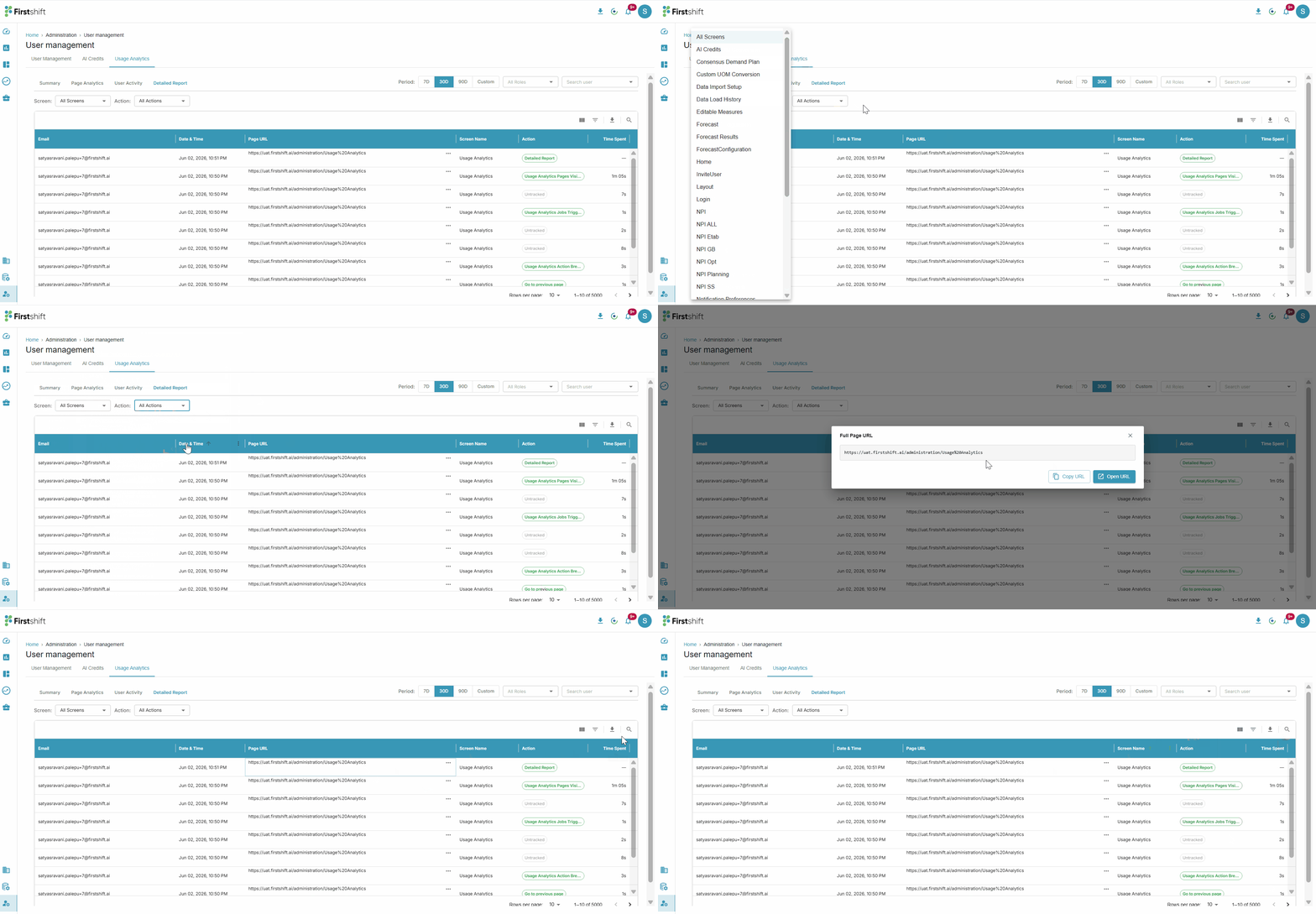
Click the Detailed Report tab to view a searchable, row-level action log of every user activity.
Columns: Includes Email, Date & Time (MMM DD, YYYY HH: MM 24-hour), Page URL, Screen Name, Action (outlined pill badge — light green background, green border, dark green text), and Time Spent (format "Xs" for under 60 seconds, "Xm XXs" for 60 seconds or more).
Platform-Specific Screens and Actions: The actions captured for each screen are dynamically recorded based on actual user interactions within the application. Any screen a user navigates to (e.g., Forecast, Forecast Results, Forecast Configuration, Planner Workbench, Sales Order Detail, Segmentation, Data Import Setup, Role Management, Custom UOM, AI Credits, etc.) and any action a user performs on that screen (e.g., Create Bookmark, Add Comment, Apply Filter, Assign User, Add Measure, Add Drilldown Levels, Advanced Settings, etc.) is logged and made available for filtering.
Filters:
Search — Free-text, case-insensitive substring match across the Email and Screen Name columns. Filtering is live — the table resets to page 1 on every keystroke.
Screen Filter — Dropdown listing All Screens (default) followed by every screen name that has been recorded in the system, sorted alphabetically. The list dynamically grows as users access new screens (e.g., Home, Forecast, Forecast Results, Planner Workbench, Sales Order Detail, Segmentation, Role Management, Data Import Setup, Custom UOM, AI Credits, etc.).
Action Filter — Dropdown listing All Actions (default) followed by every action name that has been recorded in the system, sorted alphabetically. The list grows dynamically as users perform new actions (e.g., Create Bookmark, Add Comment, Apply Filter, Assign User, Add Measure, Add Drilldown Levels, Advanced Settings, etc.).
All filters apply together using AND logic — a record must satisfy every active filter simultaneously. Any filter change resets the table to page 1.
Full Page URL Modal: Clicking the ··· button on any truncated Page URL opens a modal that displays the full URL. Two buttons are available: Copy URL (copies the URL to the clipboard with a success notification) and Open URL (opens the URL in a new browser tab). Close via the X icon or by clicking outside.
Export: Click the Download icon in the toolbar above the table to open a dropdown with the following options:
Download as CSV — Exports the currently filtered dataset as a .csv file.
Download as Excel — Exports the currently filtered dataset as an .xlsx file.
The export reflects all active filters and search criteria applied at the time of export (not just the current page). Exported columns match the table columns. A success toast "Report exported successfully" appears and auto-dismisses after 2.8 seconds.
Empty State: When no records match the selected filters, the message "No records match the selected filters" appears across all columns. The range indicator shows "0 events" and both pagination buttons are disabled.
Pagination: The Detailed Report table supports pagination. Applying any filter or search resets the view to page 1. Rows per page can be configured to 10 (default), 50, 100, or 1000. The range indicator shows "X–Y of Z events" or "0 events" when no records match.
Toast Notifications
A global success toast appears at the bottom-center of the viewport for URL copy and CSV export events. Each toast auto-dismisses after exactly 2.8 seconds. Only one toast is shown at a time — a new trigger replaces the current toast.
Points to consider
All filters work together — combine Period, Role, and User filters to drill into specific user segments.
The Activity Score is a composite metric — a user with fewer sessions but more Jobs Triggered may rank higher than a user with many sessions but no jobs.
Custom date ranges are useful for sprint or release-window analysis beyond the fixed 7D/30D/90D presets.
The CSV export reflects your current filter state — apply filters first, then export to get a targeted dataset.
Use the full-screen mode in detail modals when reviewing long activity logs.
Was this article helpful?
That’s Great!
Thank you for your feedback
Sorry! We couldn't be helpful
Thank you for your feedback
Feedback sent
We appreciate your effort and will try to fix the article