TABLE OF CONTENTS
- Introduction
- How AI Credits Work
- Purpose of the AI credits
- Summary widgets in the AI credits
- Manage AI Credits
- Assign AI Credits to a User
Introduction
The AI Credits tab is a dedicated section within the User Management screen that allows administrators to view, allocate, and manage AI credit usage across users.
This tab provides:
A centralized view of credit distribution
User-level credit tracking
Administrative controls to assign, add, and remove credits
It is designed to ensure transparency and controlled usage of AI-powered features within the application.
AI Credits represent the consumption units used when interacting with AI-powered capabilities, such as the Supply Chain Canvas.
How AI Credits Work
AI Credits follow a lifecycle-based model:
Step 1: Credit Purchase (Tenant Level)
Credits are purchased and added to the tenant’s total credit pool
These credits are initially unassigned
Step 2: Credit Assignment (User Level)
Admins assign credits to users from the unassigned pool
Assignment defines how many credits a user can consume
Step 3: Credit Consumption
Users consume credits when interacting with AI features such as:
Running Supply Chain Canvas queries
Generating insights
Executing AI-driven workflows
Step 4: Real-Time Tracking
The system continuously tracks:
Total credits assigned
Credits consumed
Remaining credits per user
Unassigned credits at the tenant level
Step 5: Credit Reallocation
Admins can remove unused credits from users
Removed credits are returned to the tenant’s unassigned pool
Consumed credits cannot be reclaimed
Purpose of the AI credits
AI Credits are a business-friendly abstraction layer built on top of AI token consumption within Supply Chain Canvas. Every Canvas interaction, such as generating SQL, analyzing planning data, processing uploaded documents, correlating external factors, or generating AI insights, consumes underlying LLM tokens and compute cost, which are internally converted into credits based on Firstshift Business logic.
The purpose of AI Credits is to provide controlled tenant-level governance, usage tracking, and scalable cost management for AI operations without directly exposing complex token-level consumption or raw AI API costs to end users.
Summary widgets in the AI credits
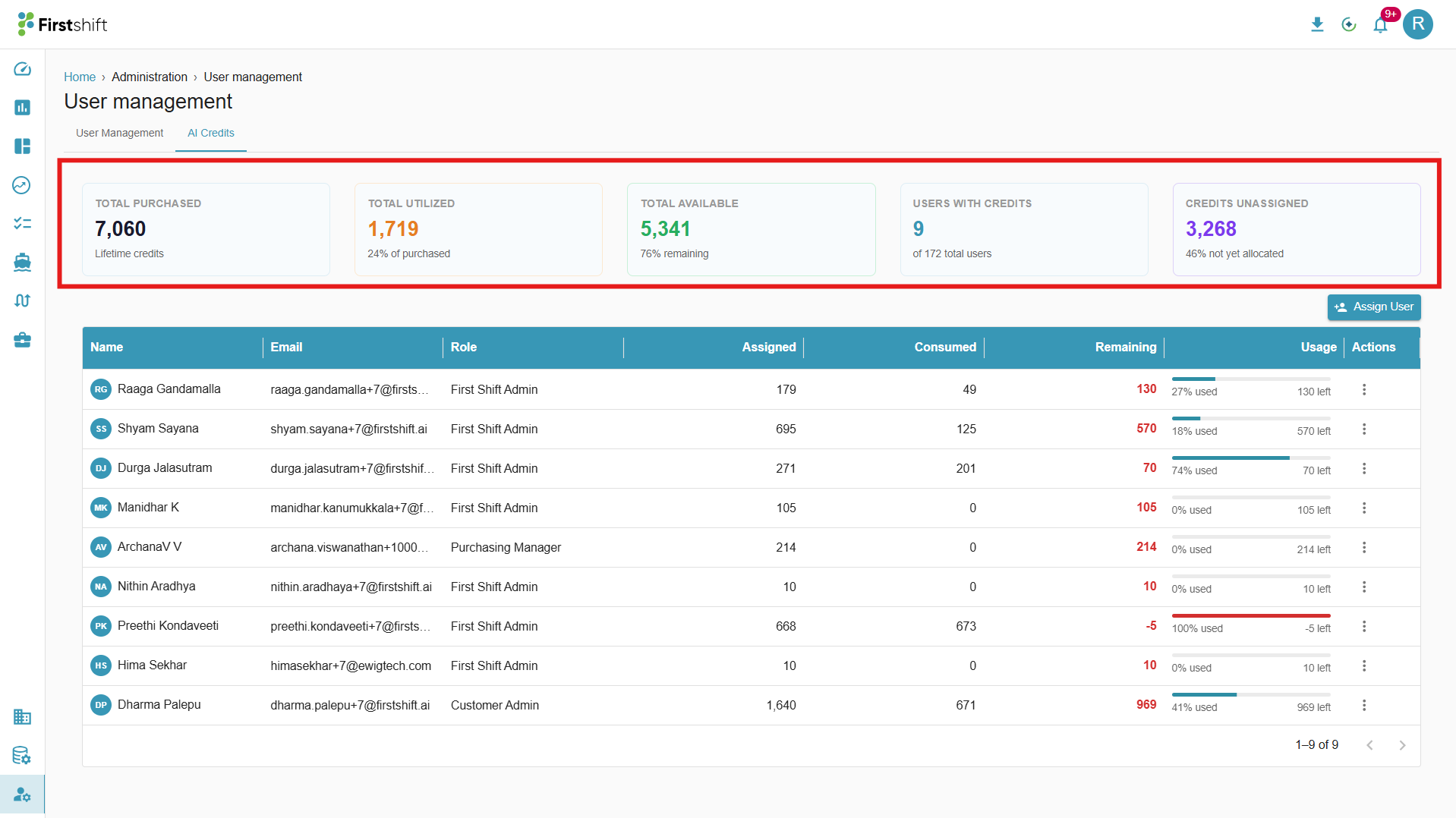
Total Purchased: The "Total Purchased" card shows the cumulative number of AI credits the tenant has acquired over time. This value includes all credit purchases made and represents the organization's overall credit capacity.
Total Utilized: The "Total Utilized" card shows the total number of AI credits consumed by all users through interactions with AI-powered features, along with the percentage consumed.
Total available: The "Total Available" card shows the number of AI credits remaining for use at the tenant level. It is calculated as the difference between Total Purchased and Total Utilized, representing the credits that can still be consumed. The application displays the percentage of the available credits.
Users with Credits: The "Users with Credits" card shows the total number of users assigned AI credits. This count includes all users with an active credit allocation, regardless of whether they have consumed any credits. This card also displays the total number of users available in the tenant.
Credits Unassigned: The "Credits Unassigned" card shows the number of AI credits available at the tenant level but not yet allocated to any user. It is calculated as the difference between Total Purchased and the total credits assigned to users, indicating how many credits can still be distributed.
Manage AI Credits
The table in the AI credits tab provides a detailed breakdown of credit allocation at the user level.
Name: The "Name" column displays the user's full name, allowing administrators to easily identify the individual to whom the credits are assigned.
Email: The "Email" column shows the user's registered email ID, which serves as a unique identifier within the system.
Role: The "Role" column indicates the user’s assigned role (e.g., Admin, Planner, Viewer), helping administrators understand the user’s level of access and responsibility within the application.
Assigned: The "Assigned" column represents the total number of AI credits allocated to the user by the administrator. This defines the maximum credits the user can consume.
Consumed: The "Consumed" column shows the number of AI credits that the user has already used while interacting with AI-powered features such as the Supply Chain Canvas.
Remaining: The "Remaining" column indicates the number of AI credits still available to the user. It is calculated as the difference between assigned and consumed credits.
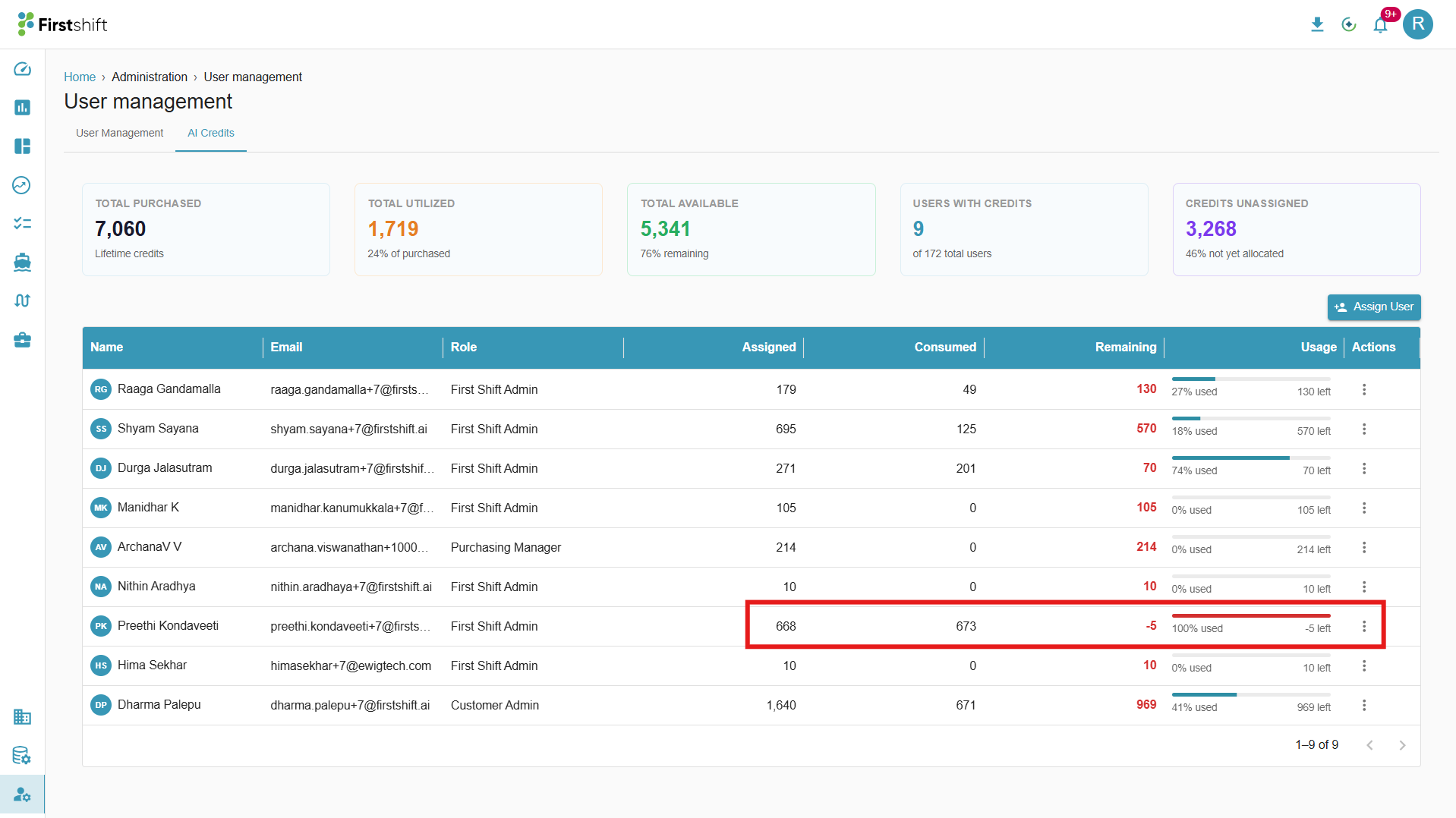
Usage: The Usage column provides a visual and numerical representation of credit consumption. It displays:
The percentage of credits used, and
The number of credits remaining,
helping administrators quickly assess how much of the allocated credits have been utilized.
Actions: The Actions column includes administrative options to manage user credits. After adding or removing the credits for the user, the supply chain canvas updates the AI credits availability for the user immediately.
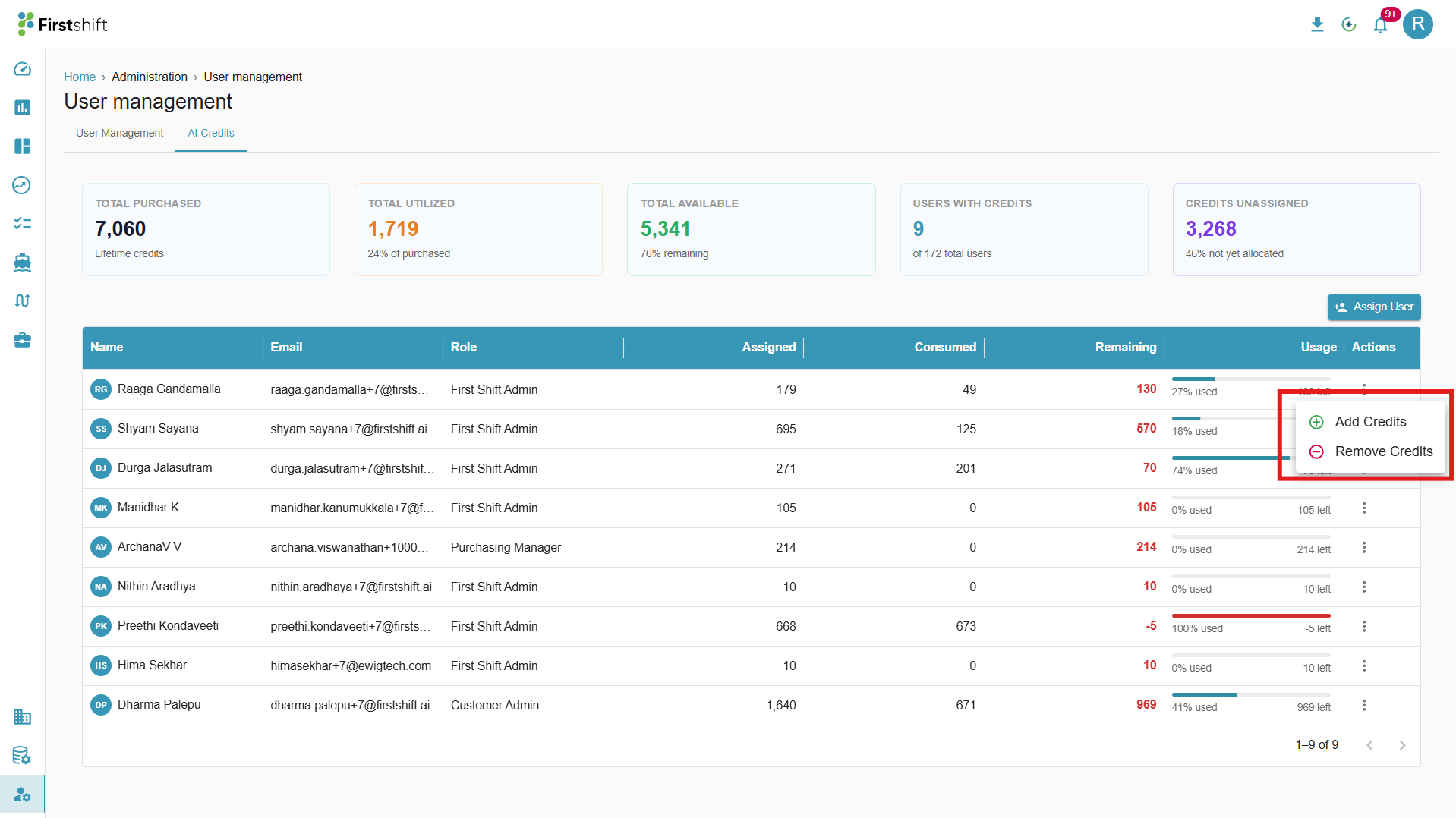
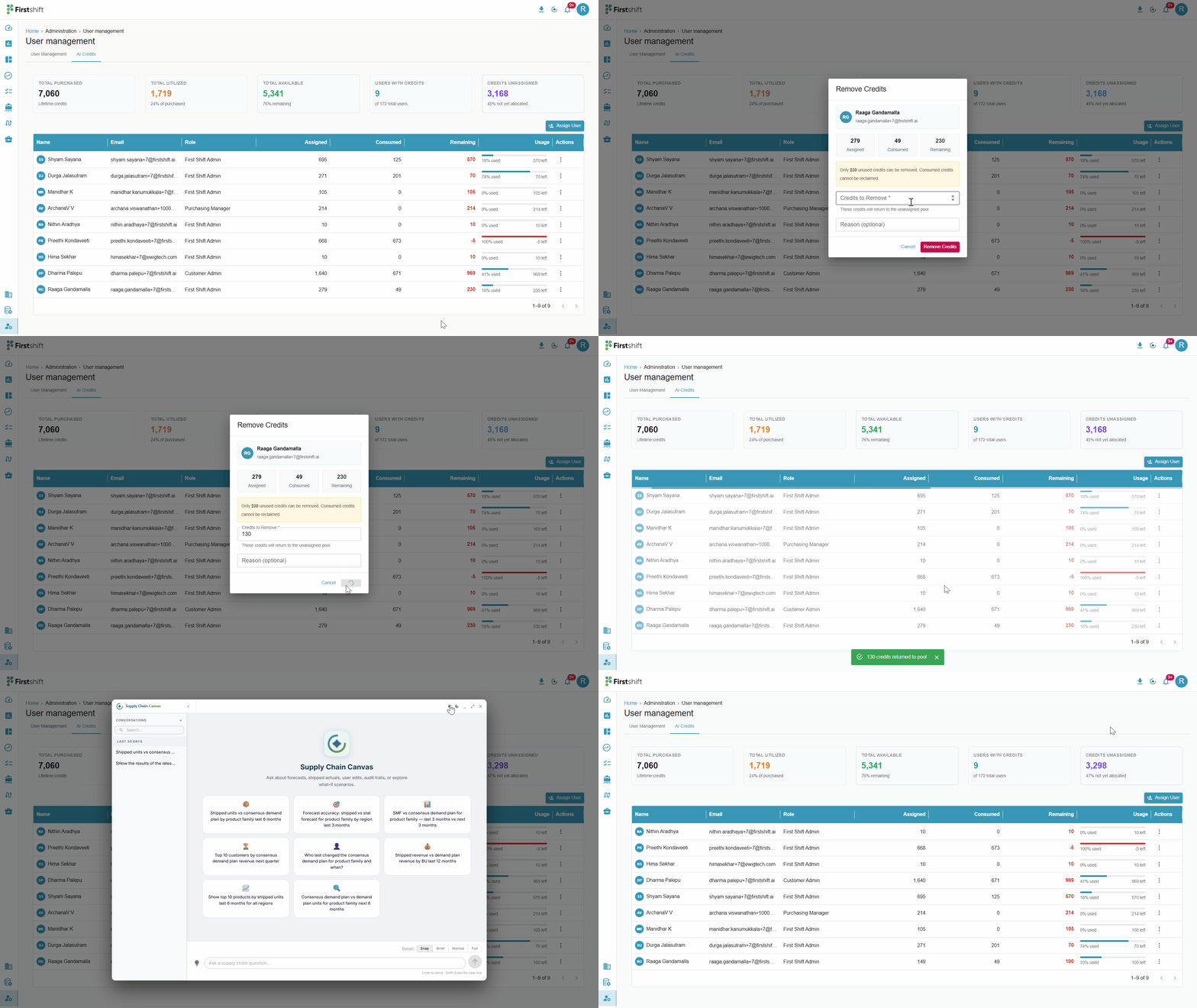
Add Credits → This action allows the administrator to increase the number of credits assigned to an existing user. The additional credits are deducted from the tenant’s unassigned credit pool.
Remove Credits → This action allows the administrator to remove unused credits from a user. Only the remaining (unused) credits can be removed, and the removed credits are returned to the tenant’s unassigned credit pool. Consumed credits cannot be reclaimed.
Note: The application removes the user from the table if all the credits available for the user are removed.
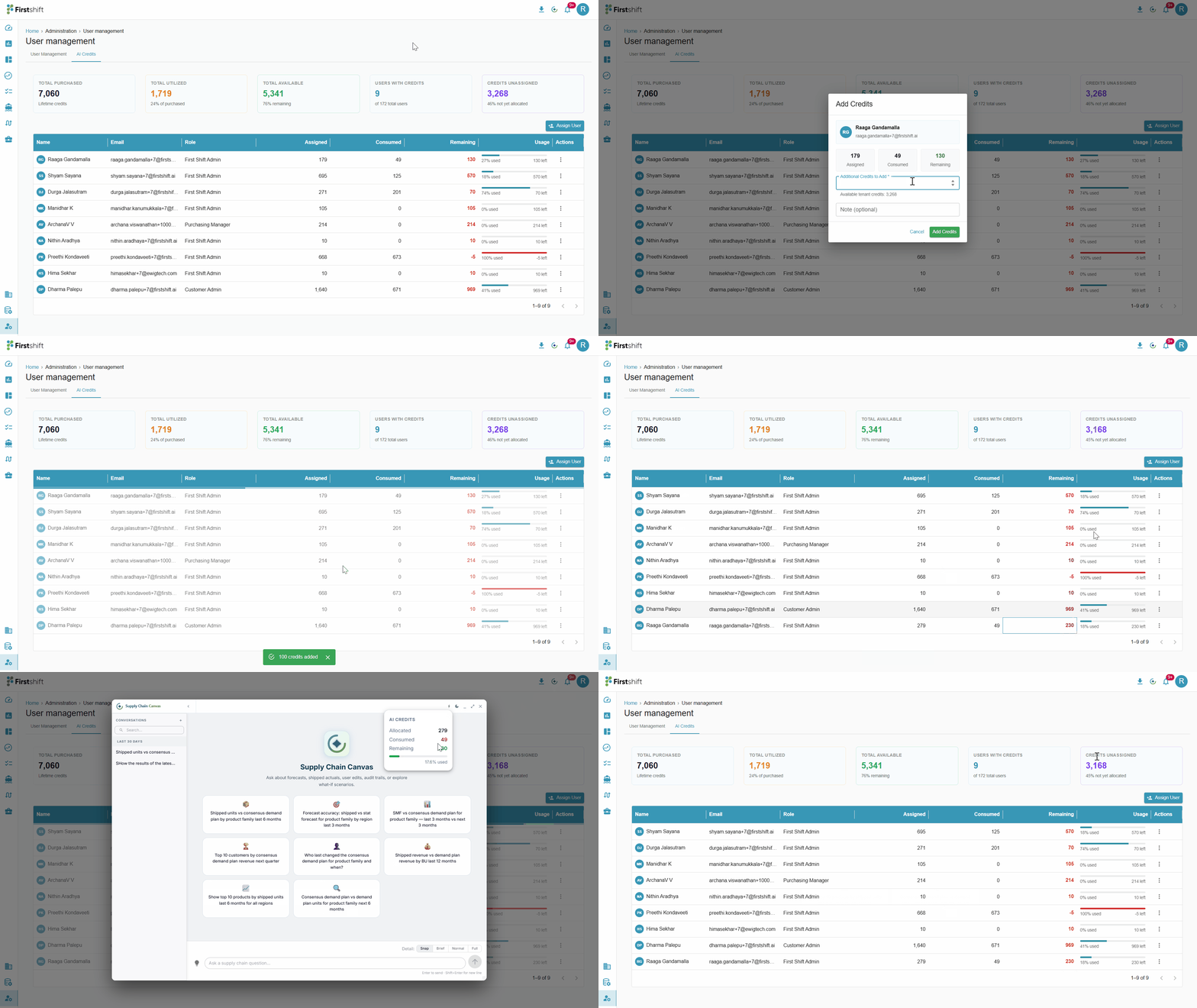
The screen GIF below shows how credits can be added at the User level and how the balance appears under Supply Chain Canvas.
Assign AI Credits to a User
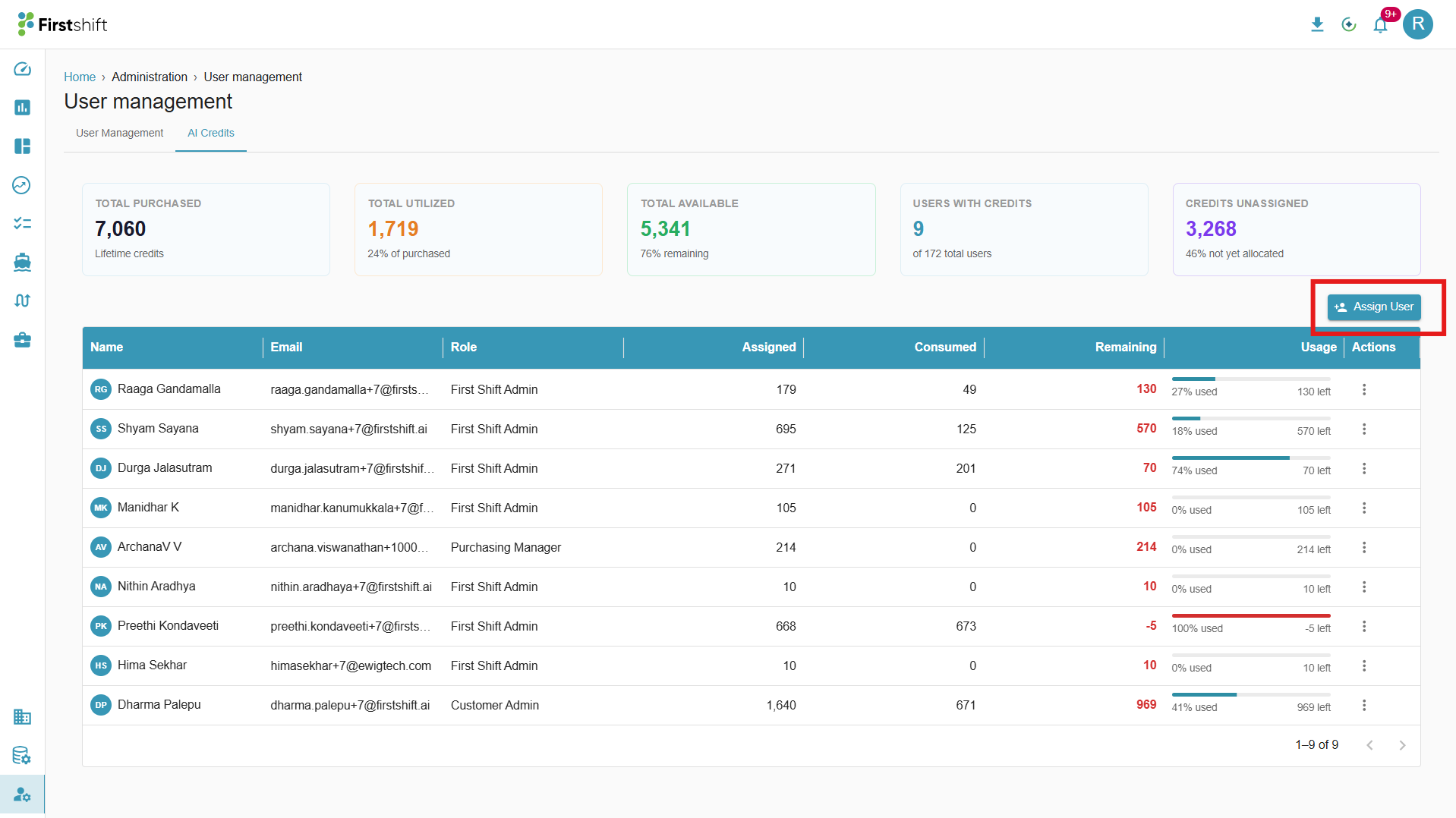
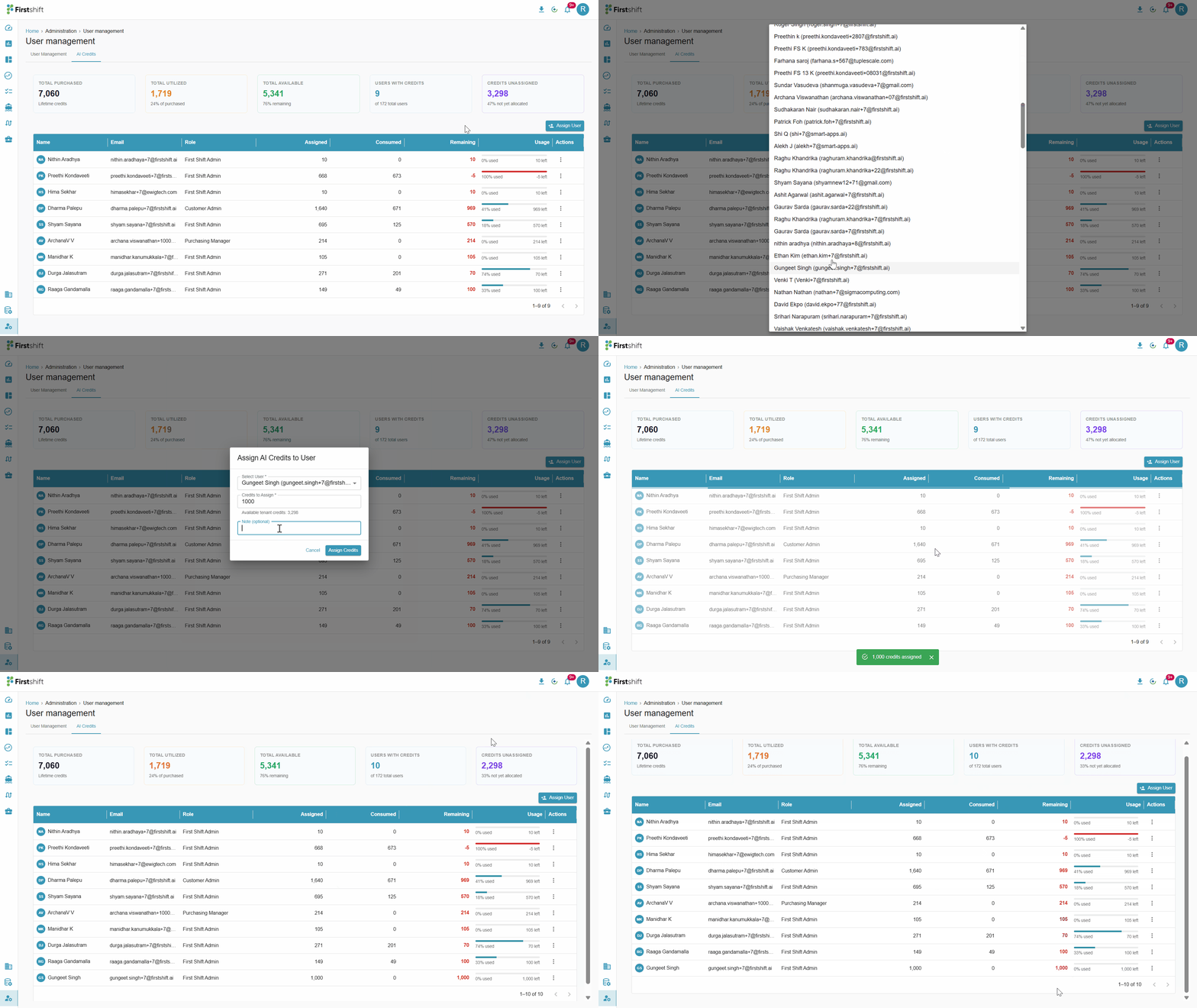
This option allows the Customer Admin to invite the registered users to access Firstshift AI/Agentic capabilities. You can invite a registered user by clicking on the “Assign User” button in the AI Credits tab. This action opens a pop-up that lets you allocate credits to a selected user.
The pop-up contains the following fields:
Select User (Dropdown)
Allows you to select a user from the available user list. Each option displays the user’s name and email ID.Credits to Assign (Input Field)
A numeric-only field where you enter the number of credits to be assigned to the selected user.Note (Optional)
An optional text field where you can provide additional context or comments on the credit assignment. This note is stored for audit and tracking purposes.
Once the required details are entered, clicking “Assign Credits” will allocate the specified credits to the user, deducting them from the tenant’s unassigned credit pool.
The table updates automatically to show the newly added credits for the user. The summary cards, Total available credits, Users with credits, and Credits unassigned get updated as soon as the credits are assigned to the user.
The GIF below shows how to invite the user to access Firstshift AI capabilities that require credits.
What happens if AI Credits are fully consumed
Once the AI Credits are fully consumed, the Supply Chain Canvas will prevent the user from posting new questions. However, the User can still access all the previous conversations.
Handling Credit Over-Consumption (Negative Credits Scenario)
A user may initiate an AI request when they have sufficient credits at the time of submission, but the actual credit consumption for processing the request may exceed the available balance.
For example, A user has 12 credits available. The user submits a request in the Supply Chain Canvas
The request is successfully accepted since sufficient credits were available at initiation
However, the total cost of processing the request is 17 credits
The system allows the request to be completed since the user had sufficient credits at the start. After processing, the total consumed credits are deducted from the user’s balance
This results in a negative credit balance (-5 credits in this case)
Was this article helpful?
That’s Great!
Thank you for your feedback
Sorry! We couldn't be helpful
Thank you for your feedback
Feedback sent
We appreciate your effort and will try to fix the article