TABLE OF CONTENTS
Overview
This guide explains the functionality of the Single-Item Planning View. This view provides a detailed analysis of a selected item, presenting its data through a dedicated table, graphical visualization, and key performance indicators (KPIs).
Single-item planning view
The Single-Item Planning View is similar to the Multi-Item Planning View, but it provides detailed information about a single item at a time. It displays the item's data in a table, graph, and Key Performance Indicators (KPIs) for a more focused analysis.
To access the Single-Item Planning View, click on the name of the created planning view. This will open a detailed view of a single item.
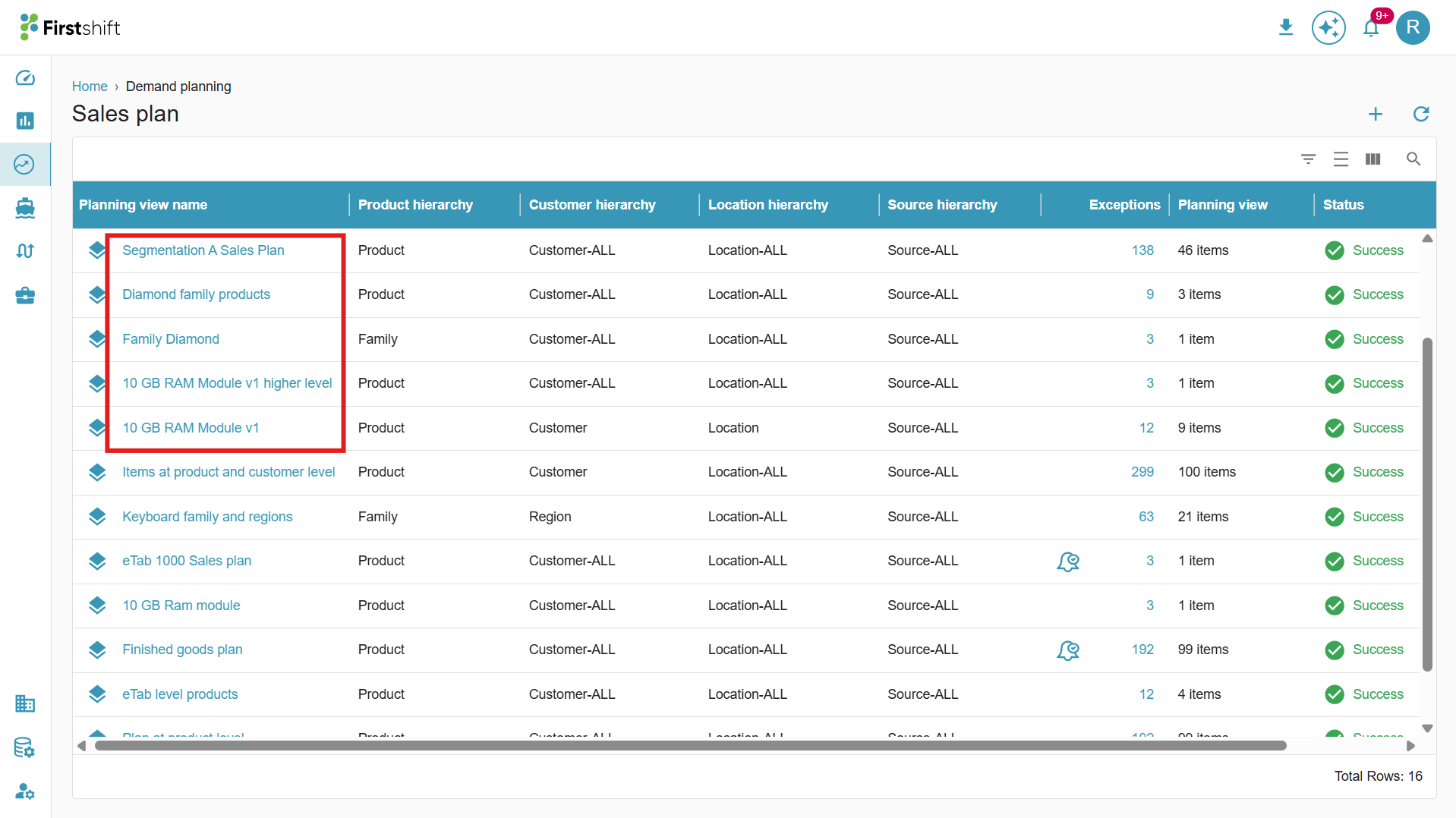
Clicking the planning view name opens a detailed page that displays the single-item planning view, as shown below.
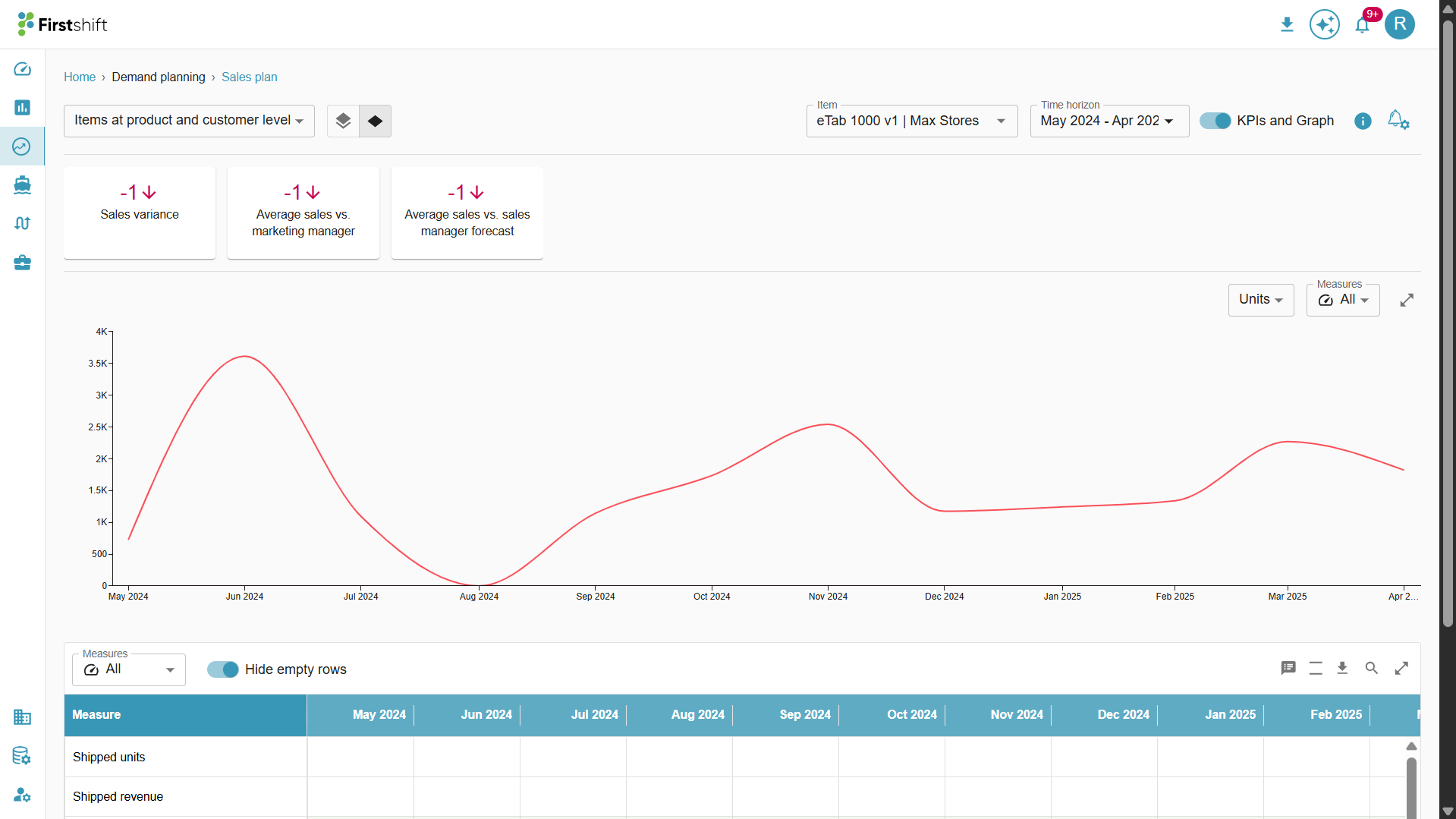
The features in the single-item planning view are the same as those in the multi-item planning view, but they provide a detailed focus on a single item at a time.
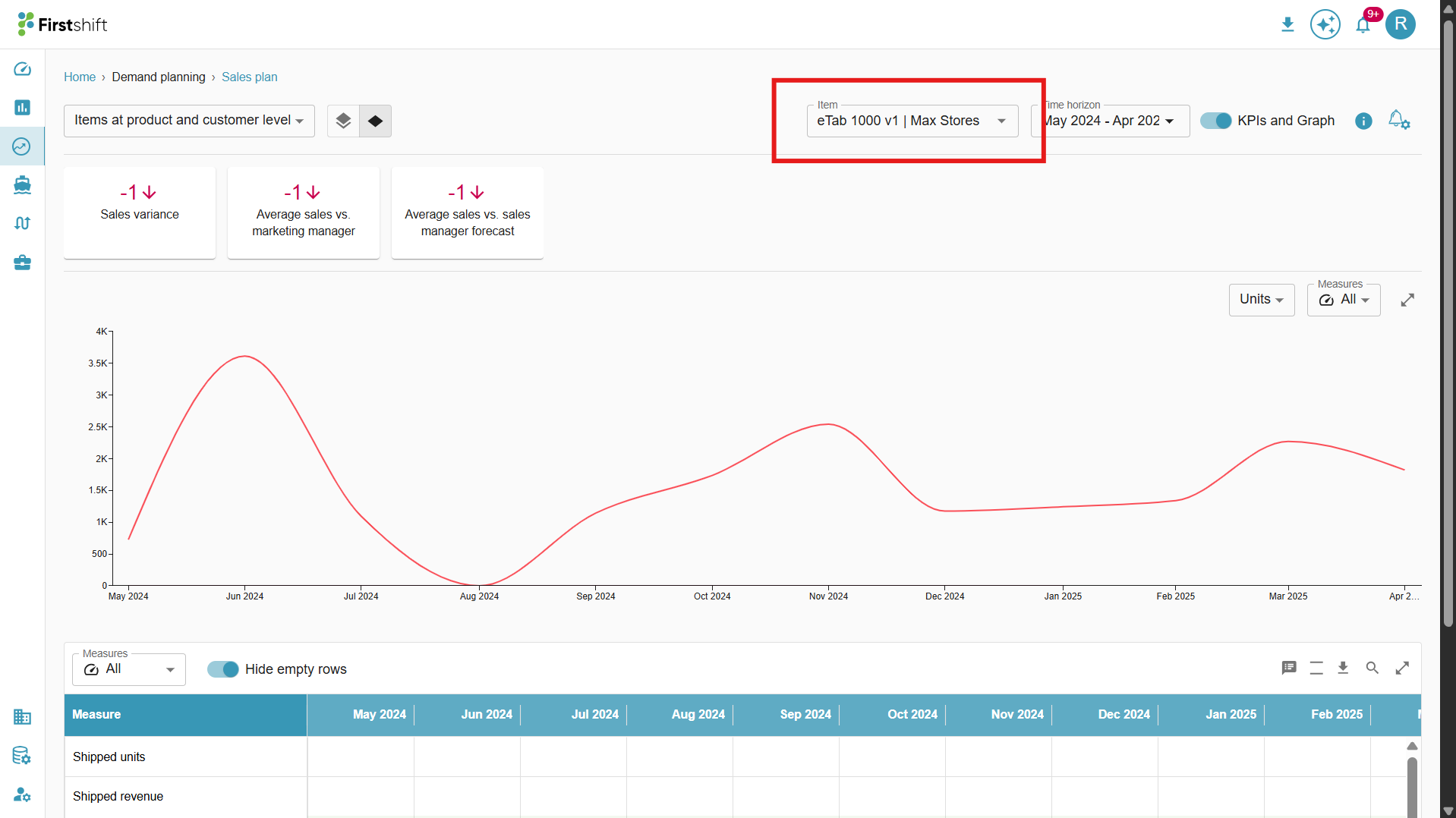
Select item dropdown
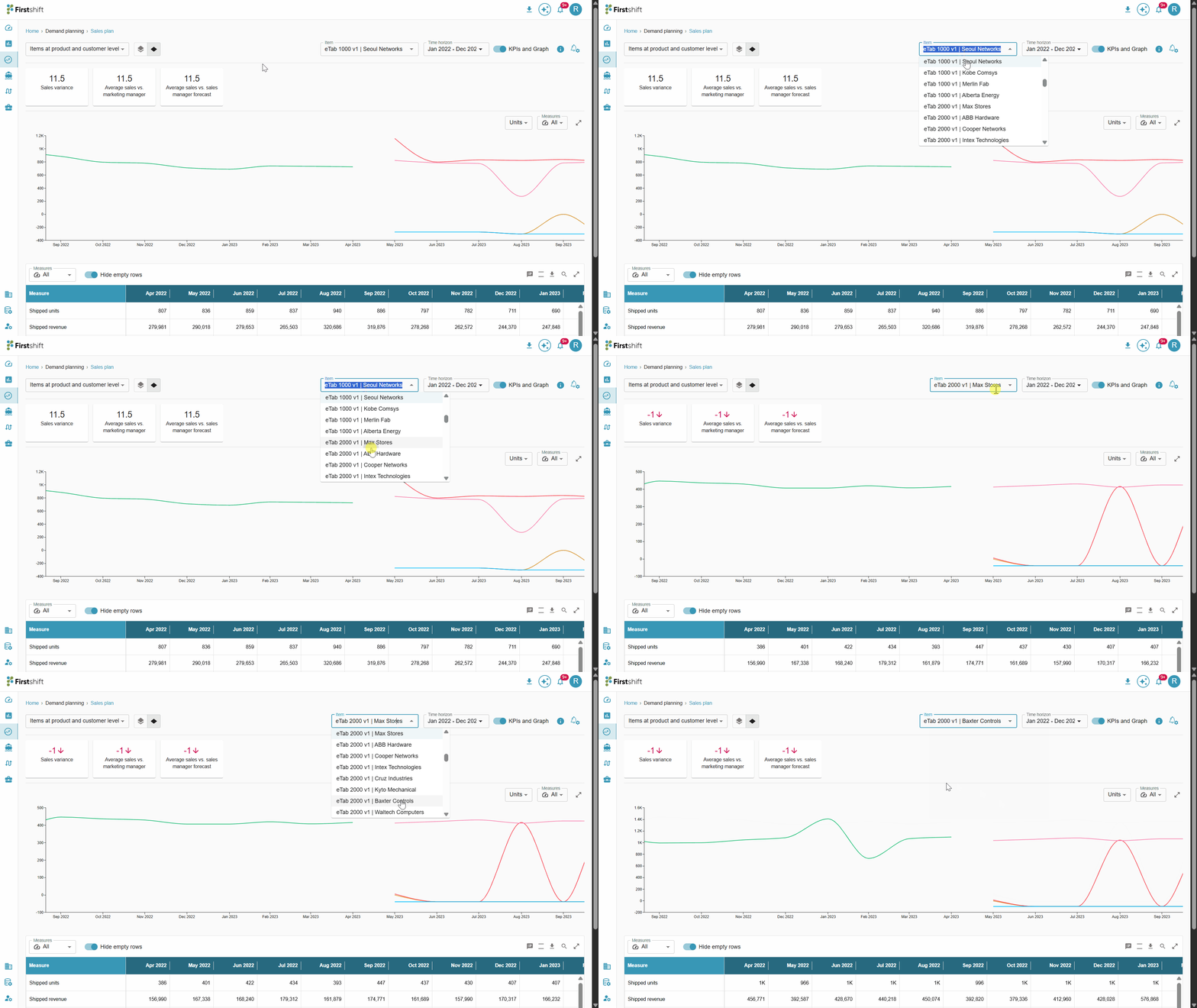
Using the Select Item dropdown, you can easily navigate between different planning items within the single-item planning view. Clicking the Select Item field opens a drop-down containing all selected items in the planning view. This allows you to switch between items without exiting or reloading the page.
Clicking the Select Item field opens a drop-down that displays all selected items in the planning view, allowing you to switch between them seamlessly.
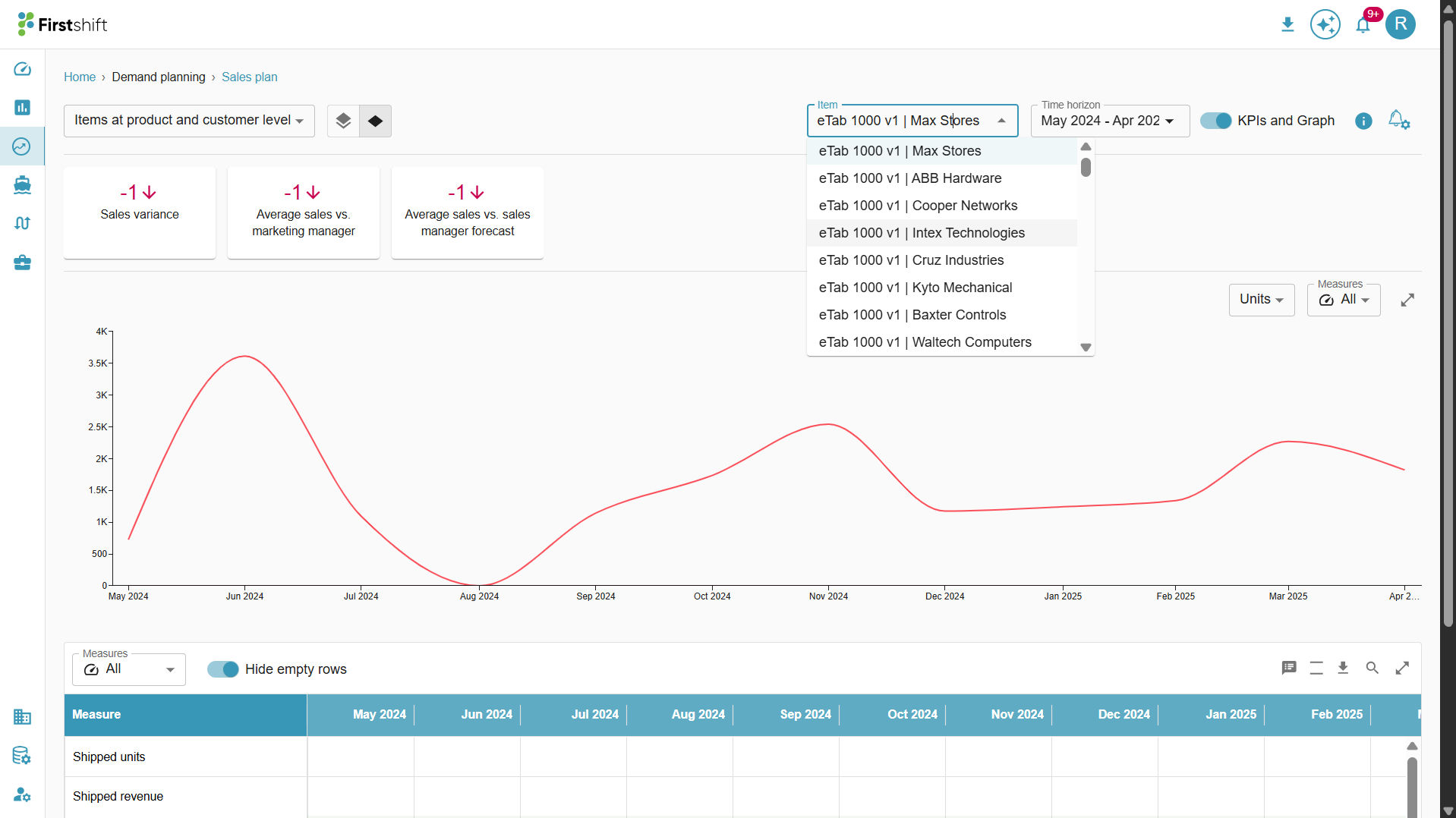
A search option is available within the Select Item dropdown, allowing you to quickly find a specific item by typing its name or relevant keywords.
Toggle to switch between Multi-item and Single-item view
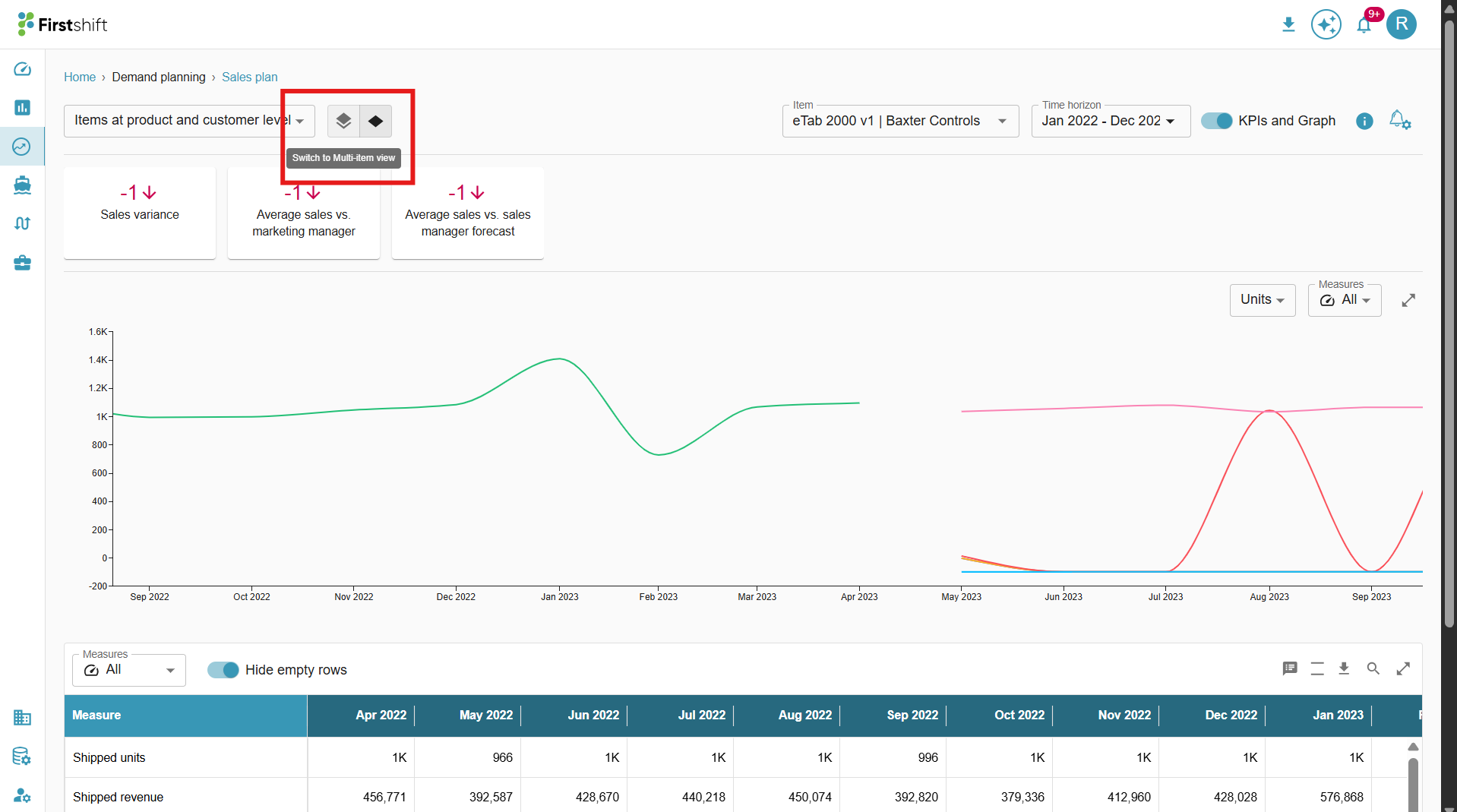
A toggle will help to switch between multi-item and single-item views seamlessly.
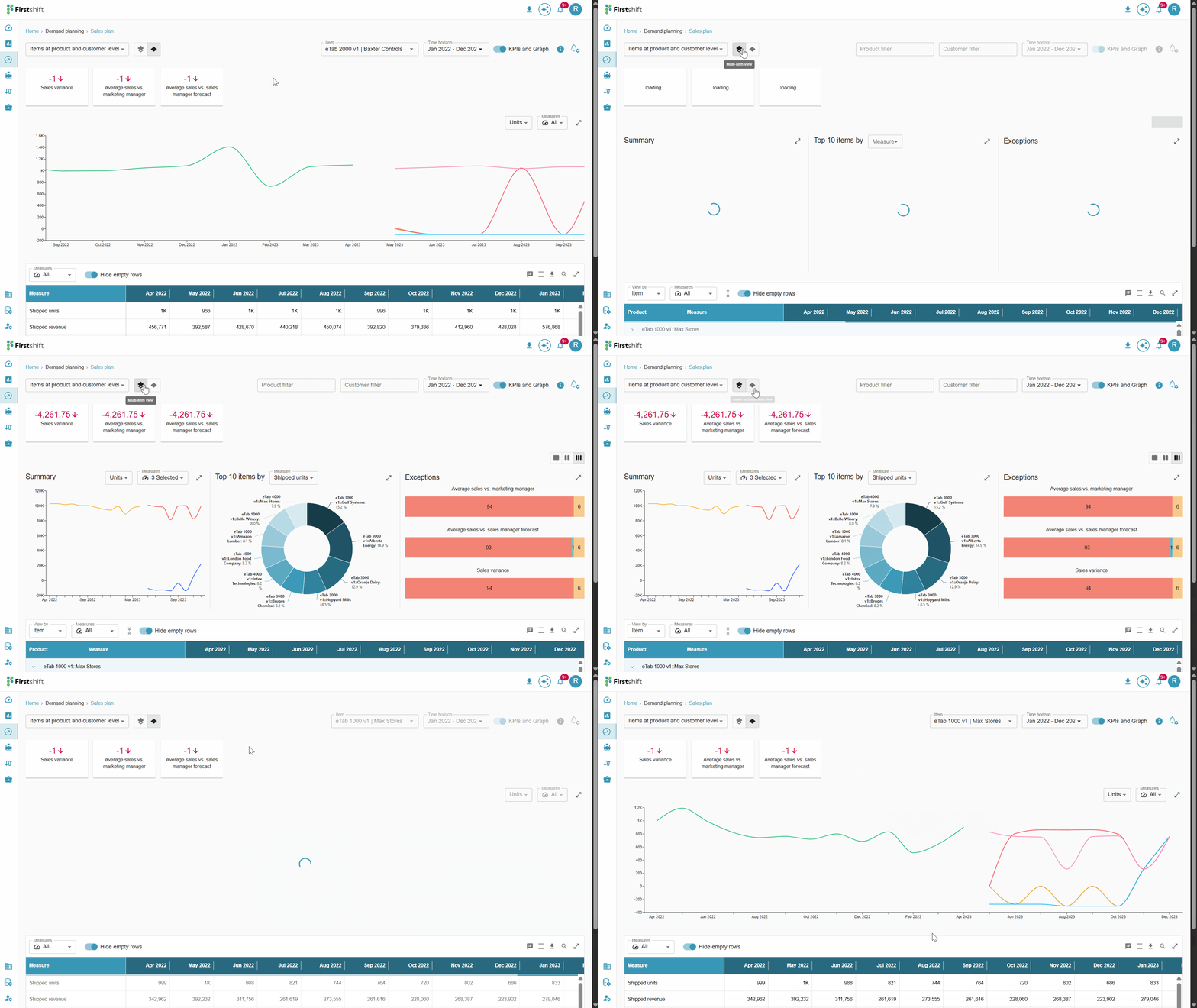
In the Multi-Item Planning View, a toggle is available to quickly navigate to the Single-Item Planning View for more focused analysis.
Similarly, in the Single-Item Planning View, a corresponding toggle is provided to switch back to the Multi-Item Planning View whenever needed.
You can dynamically switch between the two views without reselecting the planning view filters.
When switching between views, the application automatically retains the selected planning view and filter criteria, including:
Active filters
Applied search terms
Was this article helpful?
That’s Great!
Thank you for your feedback
Sorry! We couldn't be helpful
Thank you for your feedback
Feedback sent
We appreciate your effort and will try to fix the article