Edit
The selected bookmark is displayed in the planner workbench and can be edited. The Save and Save as options appear depending on whether you are the original creator of the planning view.
- Save and Save As: If you are the original creator of the bookmark, the application displays two options when changes are made to the bookmark configuration:
Save – Updates the existing bookmark with the latest changes.
Save As – Saves the current configuration as a new bookmark, leaving the original bookmark unchanged.
- Save As: If you are not the original creator of the bookmark, the application displays only the Save As option. This allows you to create your own copy of the selected public bookmark.
- After modifying the configuration, click Save As to store the bookmark with a new name.
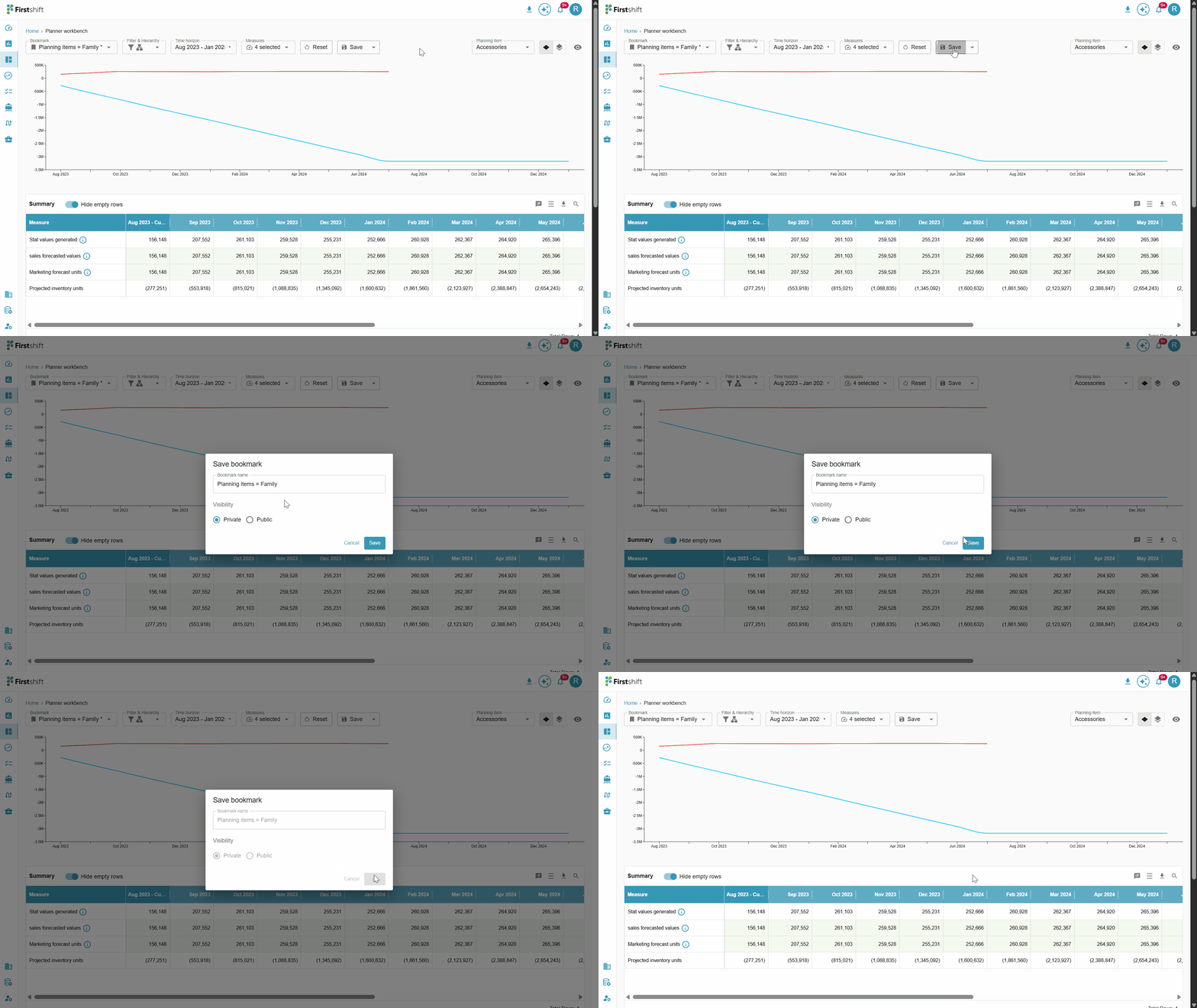
Save as: The Save as option allows the planner to save the modified planning view as a new bookmark. Clicking Save as opens the same pop-up used for saving a new planning view, allowing the planner to:
Enter a new planning view name
Select the Public or Private sharing option.
If a planner opens a Public planning view created by another user, they cannot use the Save option. The planner can only use Save As to create a new planning view. In other words, if the user is not the original creator of the planner view, only the Save As option will be enabled, even if they make edits to the public planning view.
The created bookmark is displayed in the bookmark list.
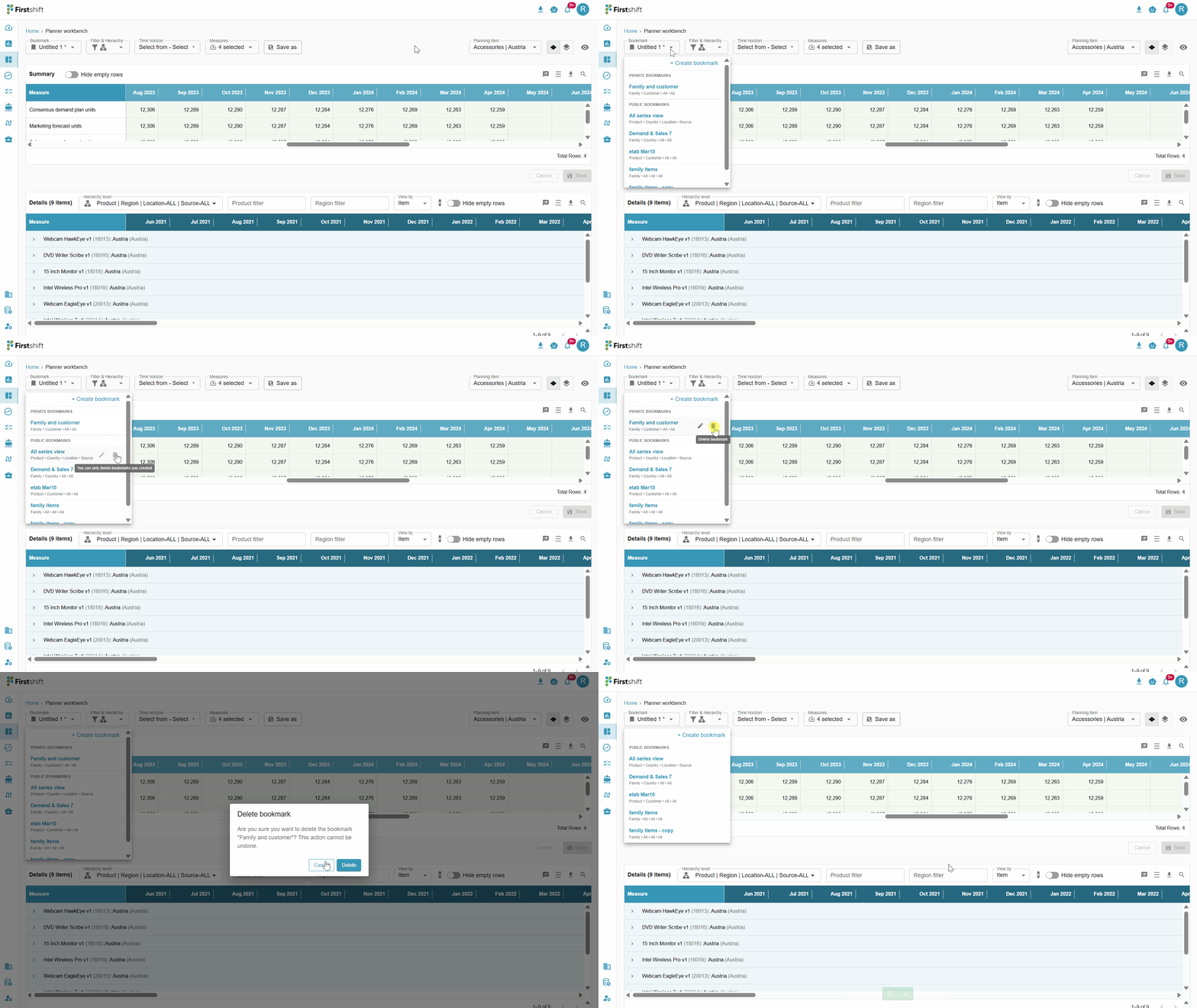
Delete
The Delete option is available only for Private bookmarks. When you click the Delete icon, the application displays a confirmation pop-up with the message:
"Are you sure you want to delete this bookmark?"
The confirmation dialog provides the following options:
Yes – Deletes the selected bookmark and displays the success message:
"Bookmark deleted successfully."No – Closes the pop-up and cancels the delete action.
Note:
You cannot delete the currently active (open) bookmark.
The Delete option is available only for other private bookmarks listed in the bookmarks dropdown.
Was this article helpful?
That’s Great!
Thank you for your feedback
Sorry! We couldn't be helpful
Thank you for your feedback
Feedback sent
We appreciate your effort and will try to fix the article