TABLE OF CONTENTS
Introduction
This article helps to understand how to save the bookmark as public or private allowing you to quickly access and reuse a preferred planning view with the selected configuration.
Save
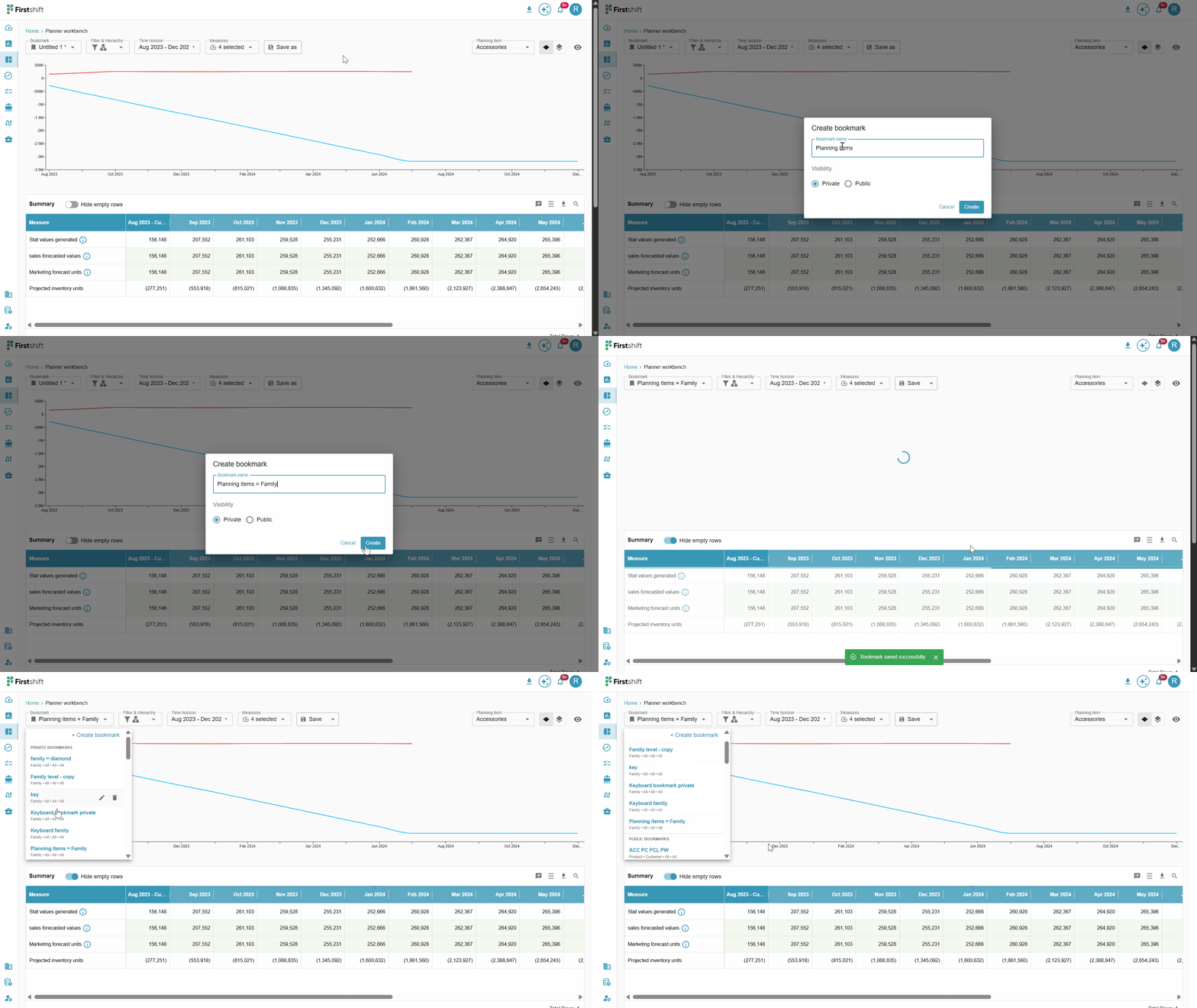
Save the bookmark: Click the Save button to save a configured bookmark for future reference. This action opens a pop-up window where you must enter a name for the bookmark and select a sharing option. The bookmark name can be up to 40 characters in length.
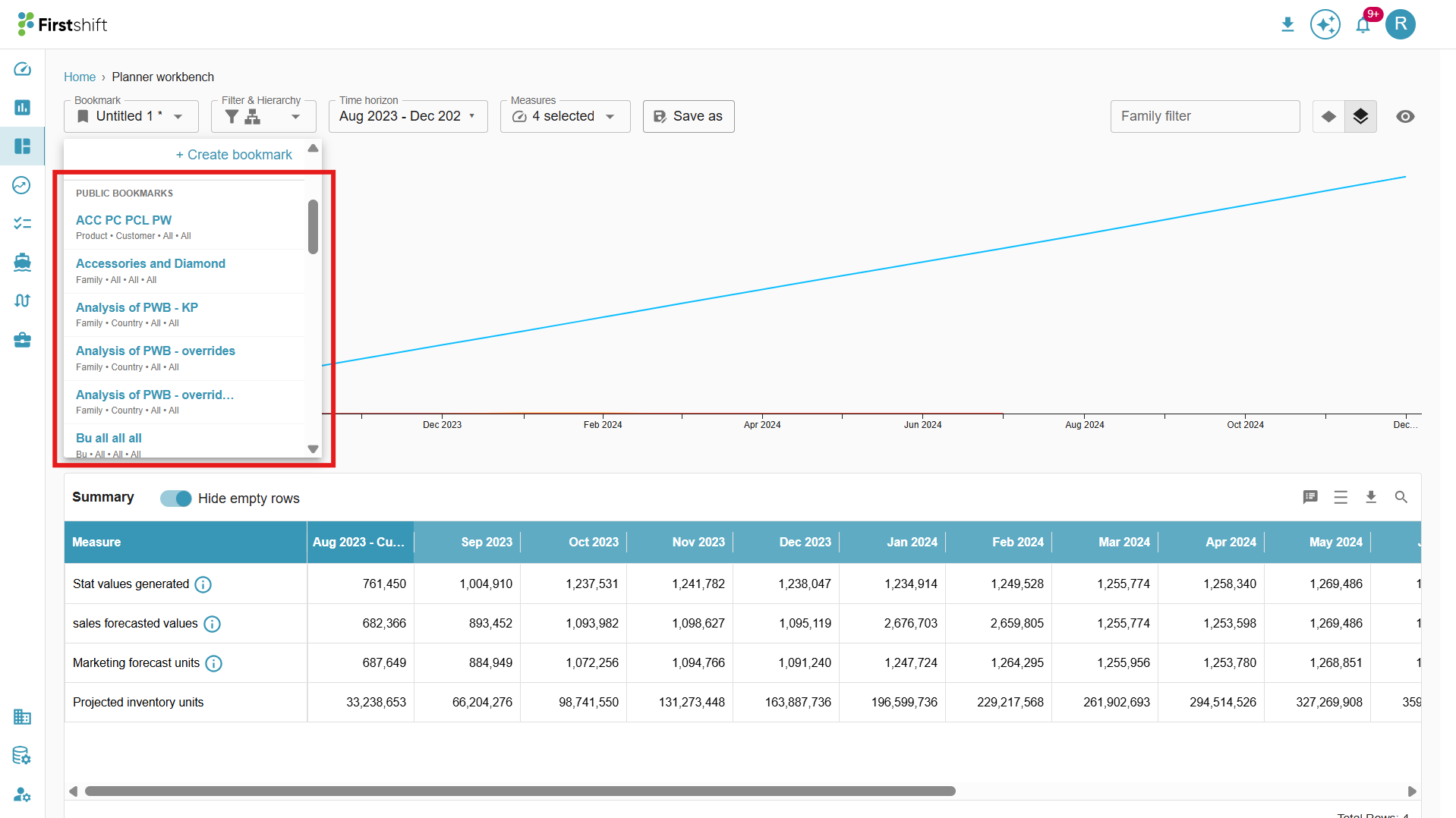
Public: If the bookmark is set to Public, the bookmark is visible to all users in the tenant via the bookmarks list. For public bookmarks, the name must be unique across all users in the tenant. When saving a public bookmark, the Save option is unavailable for other users; only Save As is available to edit and save. The public bookmark will be seen under the Public bookmark list.
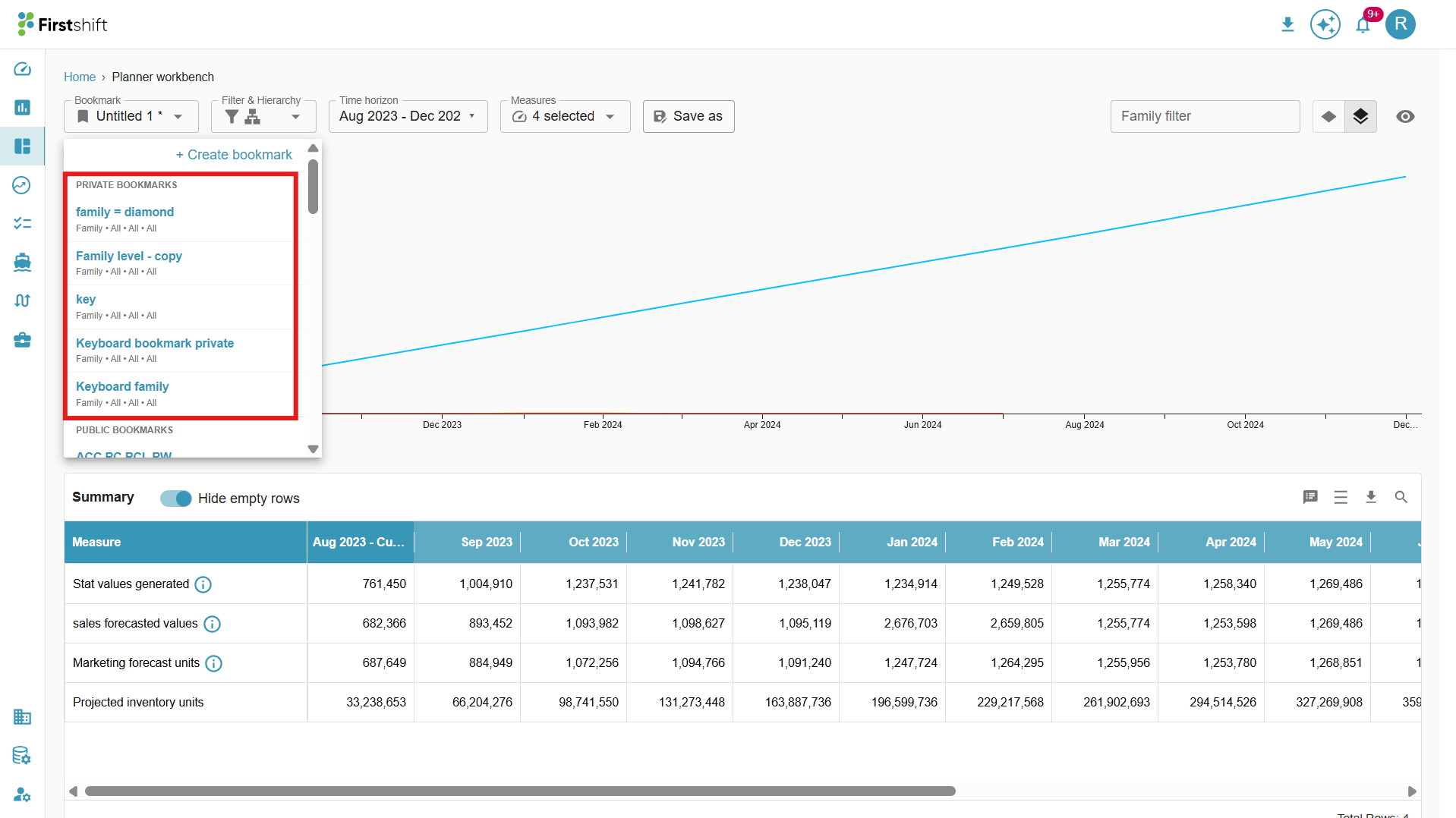
Private: If the bookmark is saved as Private, it is visible only to the user who created it and appears exclusively in that user’s bookmarks list. For private bookmarks, the bookmark name must be unique within a user’s bookmarks, allowing different users to have private bookmarks with the same name. The private bookmark will be seen under the private bookmark list.
After entering a name and selecting the desired sharing option, click Save. The application will display the message: “Planning view saved in the Bookmarks.”
When saving a planning view as a bookmark, the application should capture and store the following details:
Filter Criteria
Hierarchy Level Selection
Measure Selection
Metric Selection
Attribute Selection
Time Range
Was this article helpful?
That’s Great!
Thank you for your feedback
Sorry! We couldn't be helpful
Thank you for your feedback
Feedback sent
We appreciate your effort and will try to fix the article