Multi-currency in the planner workbench
To convert the monetary time series values in the bookmark, the multi-currency should be enabled for the tenant, and monetary measures should be selected for the bookmark.
Once multi-currency is enabled and a bookmark is created with the monetary measures, the application displays the currency selector dropdown as shown below. All the enabled currencies in the admin app are displayed in the currency dropdown.
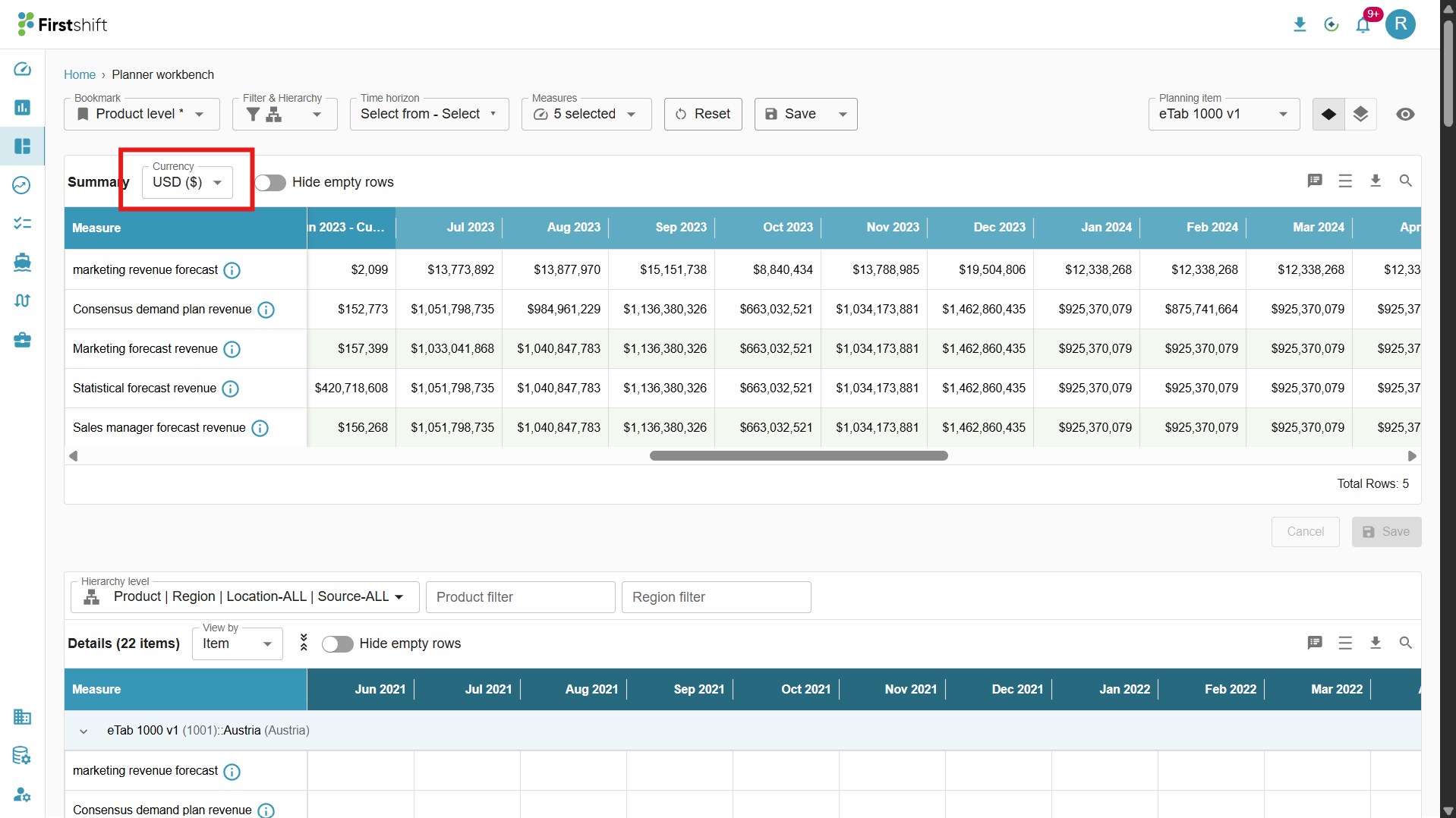
Converting the monetary values:
Select the currency required to convert the monetary values.
The application converts all monetary values to the selected currency and performs an automatic refresh to update the results.
GIF
How does the conversion happen for the monetary values?
After enabling the multi-currency for the tenant, the data load should be performed for the selected currency. The data load contains the conversion rates from one currency to another for different time periods.
For example, consider the base currency selected for the tenant is USD and the enabled currencies are INR, SDR, etc. The table below consists of the conversion rates from one currency to another.
The application uses the conversion rates loaded in the application to convert
From $275236 to ₹2,29,70,310.850.
From ₹2,29,70,310.850 to € 2,06,273.3914.
You can convert the values from one to another any time, the application performs the conversion based on the exchange rates loaded in the application.
Perform the overrides in the user-selected currency.
You can edit the values in the user-selected currency and save. Once the changes are saved, the value sticks to the cell and does not get updated even if there is a change in the exchange rates.
Audit trail when multi-currency is enabled for the tenant
When multi-currency is enabled for the tenant, the audit trail displays values based on the user-selected currency.
This means that any changes or overrides reflected in the audit trail are shown in the currency currently selected by the user in the Planner Workbench, ensuring consistency with the values displayed in the planning view.
Gif
The Audit Trail pop-up displays detailed information about the Planning Item, Measure, and Period for which the audit was selected. This helps users understand the context and history of changes made to a specific cell.
Was this article helpful?
That’s Great!
Thank you for your feedback
Sorry! We couldn't be helpful
Thank you for your feedback
Feedback sent
We appreciate your effort and will try to fix the article