TABLE OF CONTENTS
Overview
Multi-factor authentication (MFA) or Two-Factor authentication is a security process that requires users to provide two or more different types of evidence (factors) to verify their identity before gaining access to an account or application.
Login — With MFA Enabled
After successful primary authentication (password, SSO), if MFA is enabled on the user's account, the system shall redirect the user to an MFA screen before granting access to the application.
The MFA screen displays the user's configured MFA method (Authenticator App or Email).
The screen prevents the user from proceeding until verification is complete.
Two Factor Authentication (2FA) - Email Verification Code
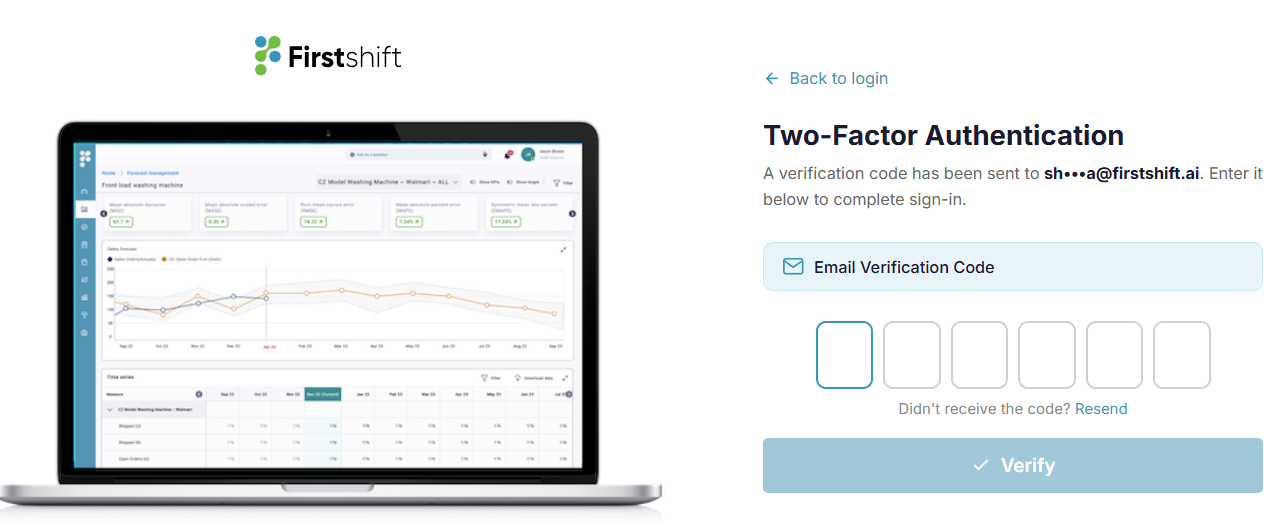
If the user's 2FA method is Email, the system automatically sends a 6-digit code to the user's registered email address when they reach the 2FA screen.
The screen shall display: the email method badge, the masked email address, and a 6-digit code entry field (individual digit boxes).
A "Resend code" link will be available. Clicking it will send a new code and show a success toast notification.
The "Verify" button is disabled until all 6 digits are entered.
Two-factor authentication using Authenticator App
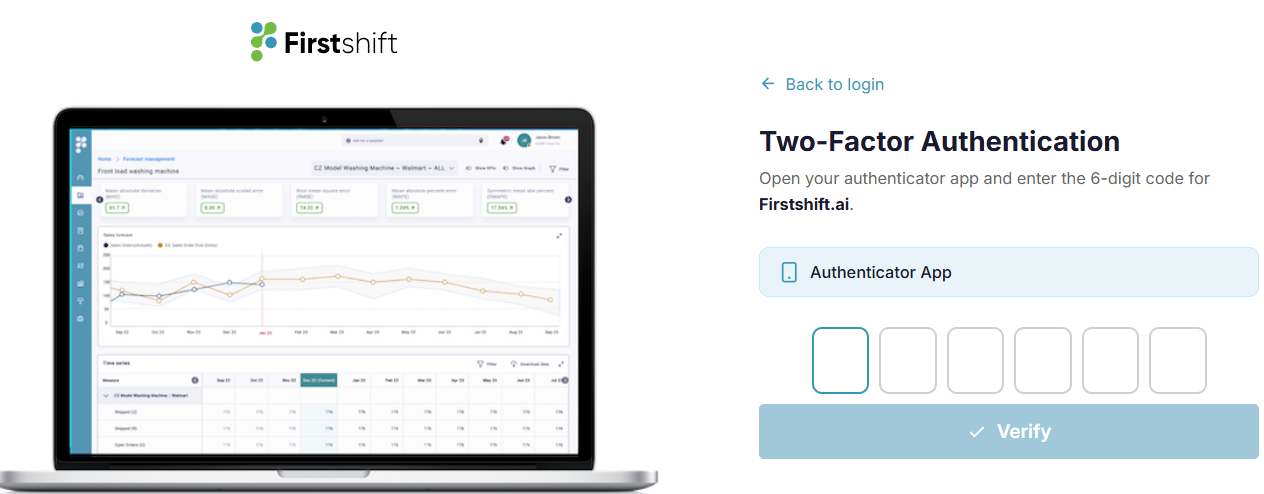
If the user's MFA method is Authenticator App, the screen displays the method badge and a 6-digit code entry field.
The user shall enter the current TOTP code from their authenticator app.
The "Verify" button shall be disabled until all 6 digits are entered.
Invalid Code Handling
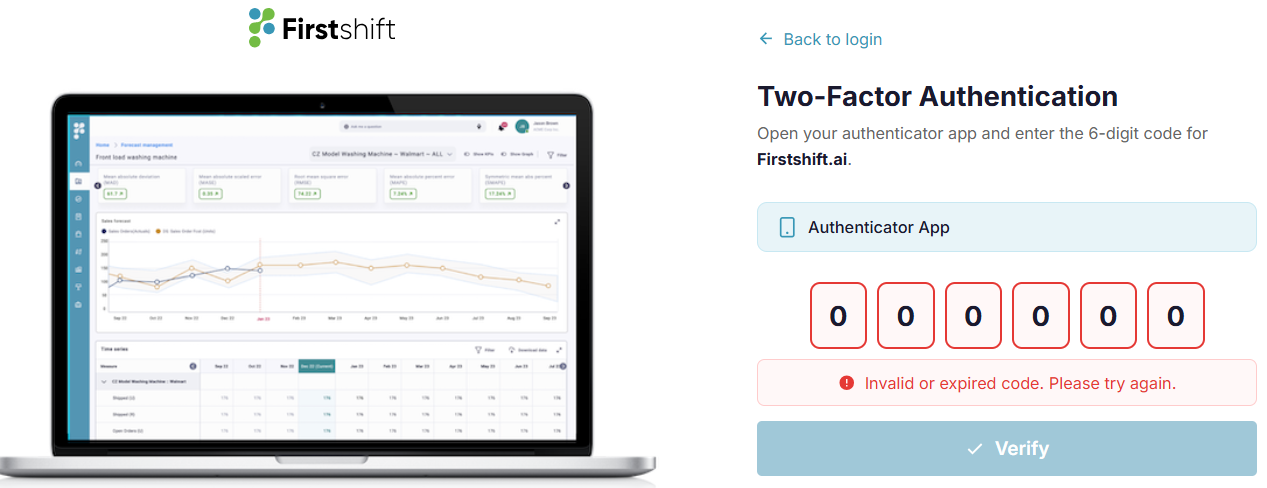
If the entered code is invalid or expired, the system:
Highlights all digit input fields in red
Displays an inline error message: "Invalid or expired code. Please try again."
Disables the "Verify" button
As soon as the user starts re-typing, the error state clears automatically.
Back to Login
The MFA screen provides a "Back to login" link.
Clicking it shall return the user to the login screen and clear the MFA state.
Was this article helpful?
That’s Great!
Thank you for your feedback
Sorry! We couldn't be helpful
Thank you for your feedback
Feedback sent
We appreciate your effort and will try to fix the article