TABLE OF CONTENTS
- Introduction
- The purpose of 2FA in the activation flow
- Login Method Selection
- 2FA Setup — Tenant in Mandatory Mode
- 2FA Setup — Tenant in Optional Mode
- 2FA Method Selection
- Authenticator App verification
- Email verification
- Invalid Code Handling
- Successful Activation
Introduction
This article explains how Two-Factor Authentication (2FA) is handled when a new user is invited to Firstshift and activates their account for the first time. The activation flow now includes a dedicated 2FA setup step that behaves differently based on the tenant's 2FA policy (Mandatory or Optional) configured by the administrator.
The purpose of 2FA in the activation flow
When a new user is invited to the Firstshift business app from User Management › Add User, the application sends an activation email containing a single-use activation link. After clicking the link, the user is taken through the onboarding flow where they create their password and, depending on the tenant's policy, set up Two-Factor Authentication.
Login Method Selection
After the welcome step, the user shall be presented with the setup password step.
Set a password — "Create a username & password to sign in."
Password Setup
The application takes the user to the password creation form (existing functionality — includes complexity rules: minimum 8 characters, uppercase, lowercase, number, special character).
After the password is successfully set, the application automatically navigates to the 2FA setup screen (Security step).
SSO login
Two-Factor Authentication is not applicable for SSO-enabled tenants. Firstshift does not prompt SSO users to set up 2FA — at activation or on subsequent logins. The tenant 2FA policy (Mandatory or Optional) applies only to users who activate via the Set a password method.
2FA Setup — Tenant in Mandatory Mode
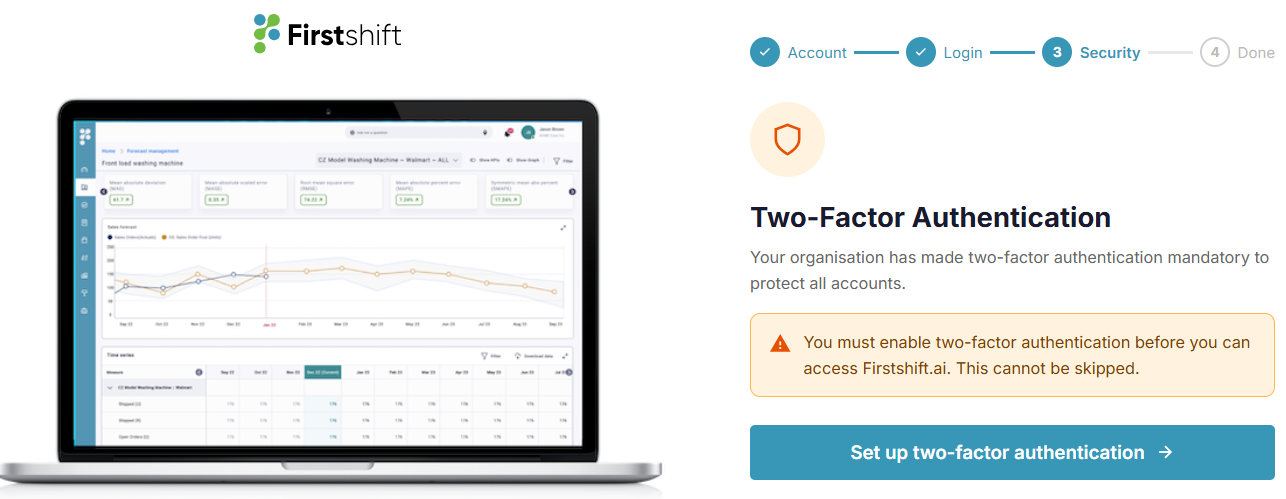
When the tenant administrator has configured 2FA as Mandatory (Enforced), the activation flow forces every new user to set up 2FA before granting access.
The Security step displays:
Title: "Two-Factor Authentication" with an orange shield icon — signaling that setup is required.
Description: "Your organization has made two-factor authentication mandatory to protect all accounts."
Warning banner: "You must enable two-factor authentication before you can access Firstshift.ai. This cannot be skipped."
Primary action: Set up a two-factor authentication button. No skip option is available.
Enforcement:
The user cannot bypass this step.
The user cannot access any application feature until 2FA setup is completed successfully.
Closing the browser and returning later still takes the user to the same screen until setup is complete.
2FA Setup — Tenant in Optional Mode
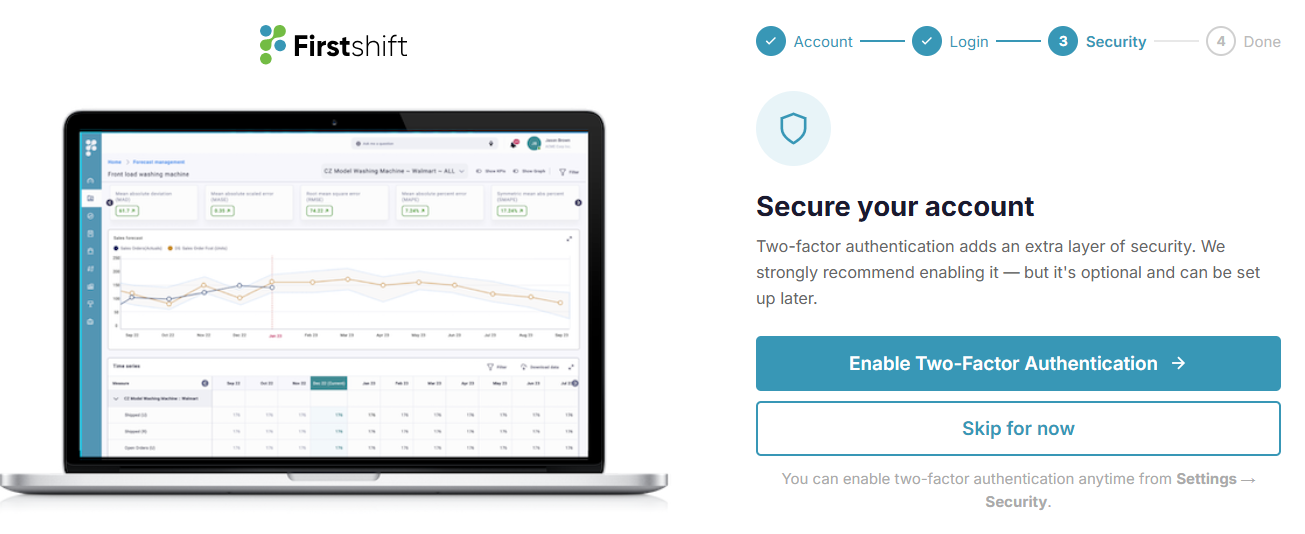
When the tenant administrator has configured 2FA as Optional (Flexible), the activation flow prompts the user to enable 2FA but does not enforce it.
The Security step displays:
Title: "Secure your account" with a blue shield icon — signaling recommendation, not enforcement.
Description: "Two-factor authentication adds an extra layer of security. We strongly recommend enabling it — but it's optional and can be set up later."
Primary action: Enable the Two-Factor Authentication button.
Secondary action: Skip for now button. Clicking "Skip for now" shall proceed directly to the Done/completion screen.
Note: "You can enable 2FA anytime from Settings → Security."
2FA Method Selection
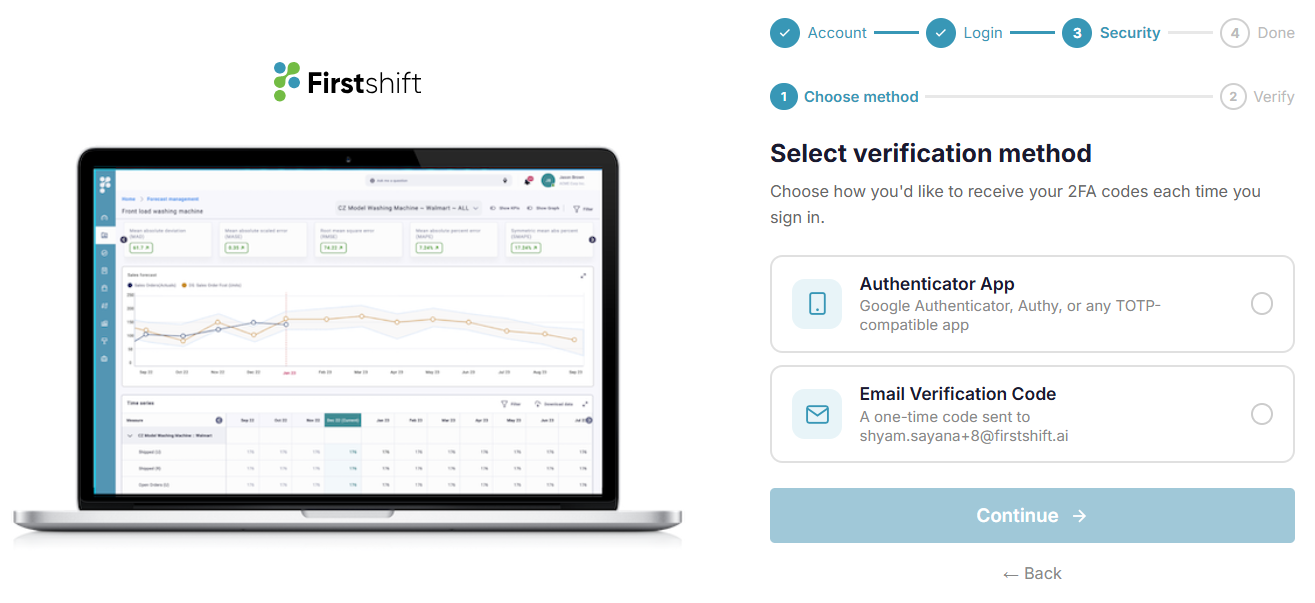
If the user proceeds with 2FA setup (either because the tenant is Mandatory, or they clicked Enable Two-Factor Authentication in Optional mode), they are taken to the method selection screen.
A 2-step sub-progress bar appears within the Security step:
The user selects from the following methods:
The Continue button is disabled until a method is selected.
Authenticator App verification
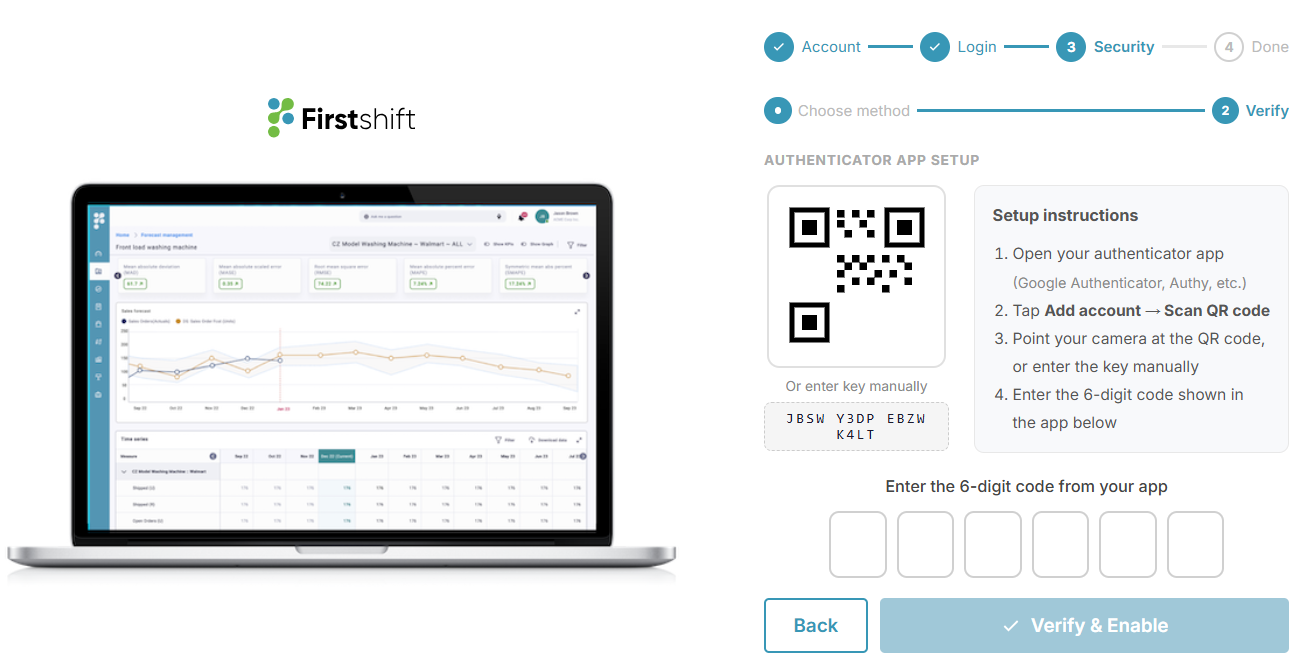
If the user selected the Authenticator App, the Verify sub-step displays:
A QR code that the user can scan from their authenticator app.
A manual setup key (in the format JBSW Y3DP EBZW K4LT) for users who cannot scan the QR.
Step-by-step setup instructions:
Open your authenticator app (Google Authenticator, Authy, etc.)
Tap Add account → Scan QR code
Point your camera at the QR code, or enter the key manually
Enter the 6-digit code shown in the app below
A 6-digit code entry field with individual digit boxes.
A Verify & Enable button (disabled until all 6 digits are entered).
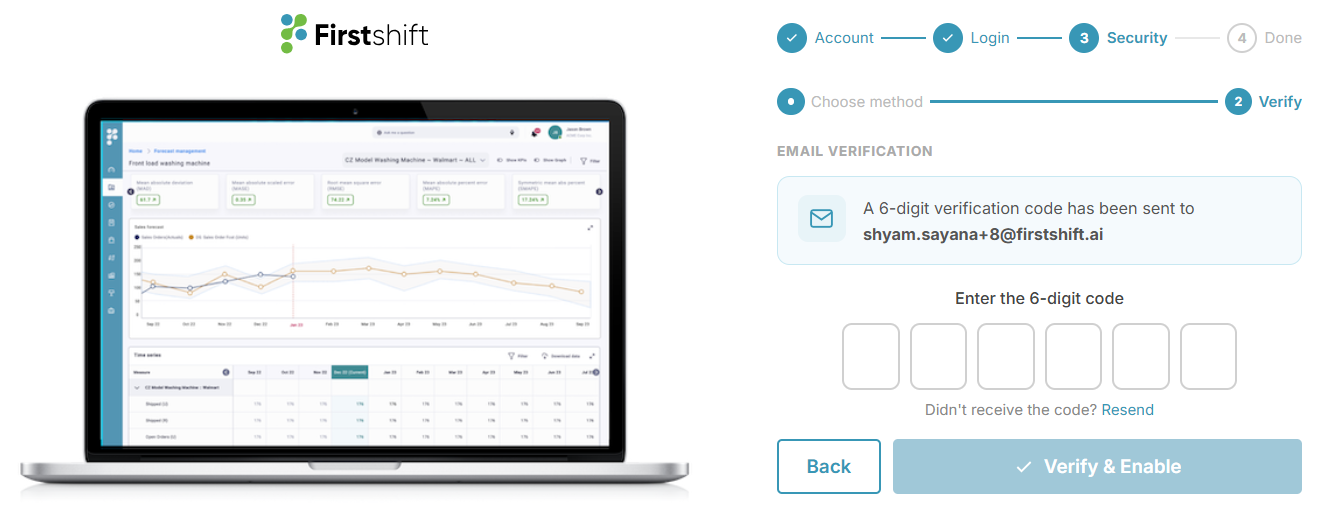
Email verification
If the user selected Email Verification Code, the Verify sub-step:
Automatically sends a 6-digit code to the user's registered email address when the user reaches the screen.
Displays a confirmation card that shows the destination email address (e.g., raaga.gandamalla+8@firstshift.ai).
Provides a 6-digit code entry field with individual digit boxes.
Provides a Resend code link to request a new code if the original was not received.
The Verify & Enable button is disabled until all 6 digits are entered.
Invalid Code Handling
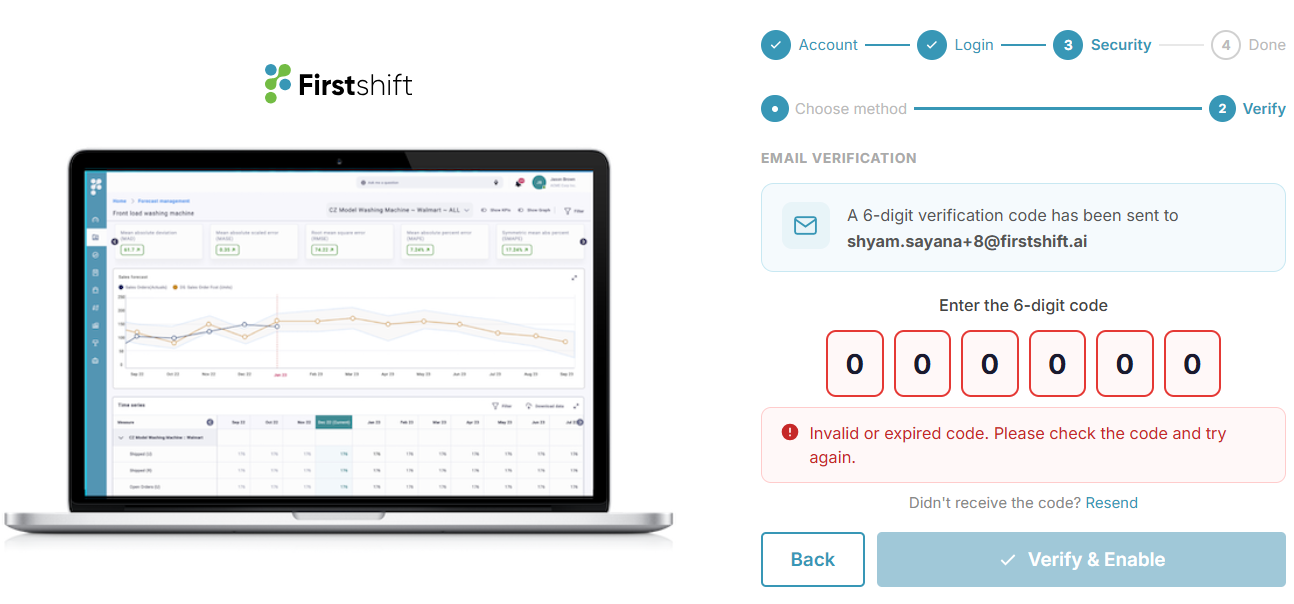
If the user enters an incorrect or expired code on either verification screen, the system:
Highlights all 6-digit input fields in red.
Displays an inline error message: "Invalid or expired code. Please try again."
Disables the Verify & Enable button.
As soon as the user starts re-typing, the error state clears automatically, and the digit boxes return to their default state. The user can request a new code.
Successful Activation
On successful verification:
The selected 2FA method is saved to the user's account.
The progress bar advances to the Done step.
The user is granted full access to the Firstshift.ai application.
From this point onwards, the user will be prompted for the configured 2FA method on every login (per Login — With MFA Enabled).
Was this article helpful?
That’s Great!
Thank you for your feedback
Sorry! We couldn't be helpful
Thank you for your feedback
Feedback sent
We appreciate your effort and will try to fix the article