TABLE OF CONTENTS
Overview
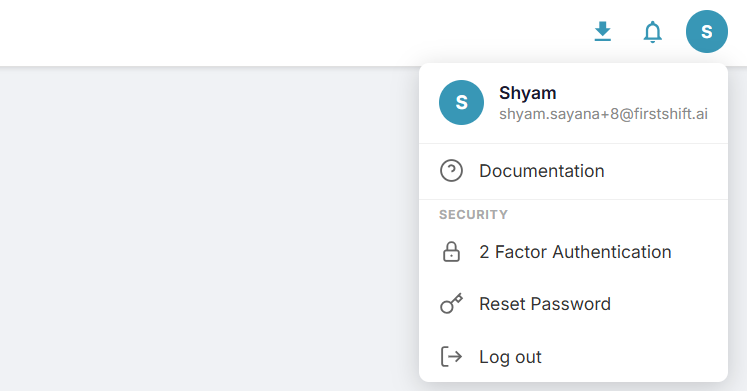
Multi-Factor Authentication(MFA) or Two-Factor Authentication(2FA) settings can be accessed from:
The user avatar menu under the "Security" section → "Two-Factor Authentication."
Clicking "Two-Factor Authentication" opens an MFA management modal dialog.
Two-Factor Authentication Status Display
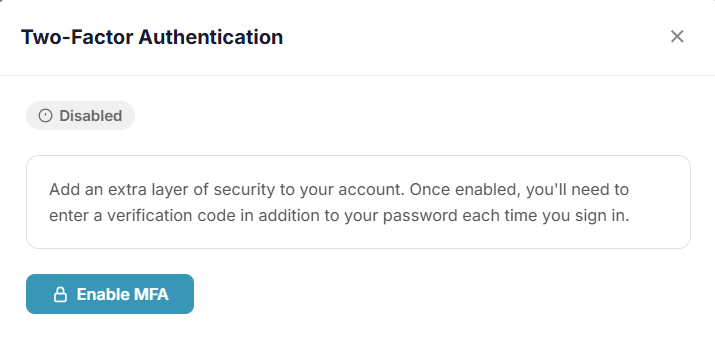
The 2FA modal always displays the current 2FA status as a badge:
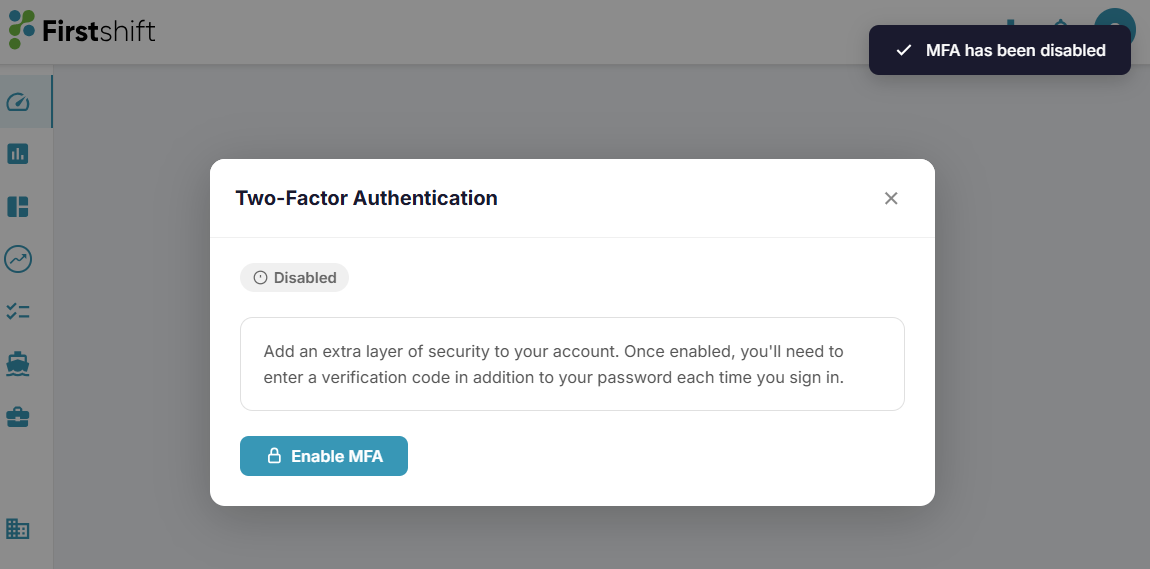
When disabled, the modal shows an informational description of MFA and an "Enable MFA" button.
"Disabled" badge in grey when MFA is inactive
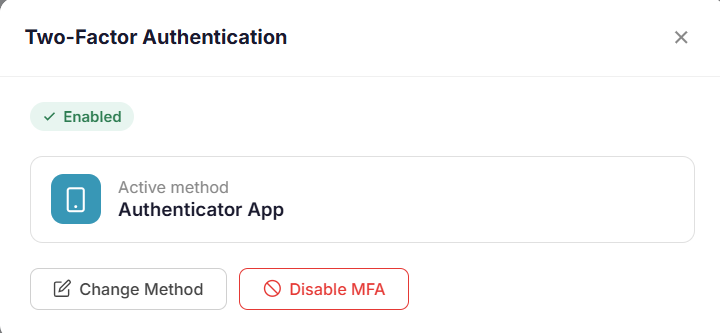
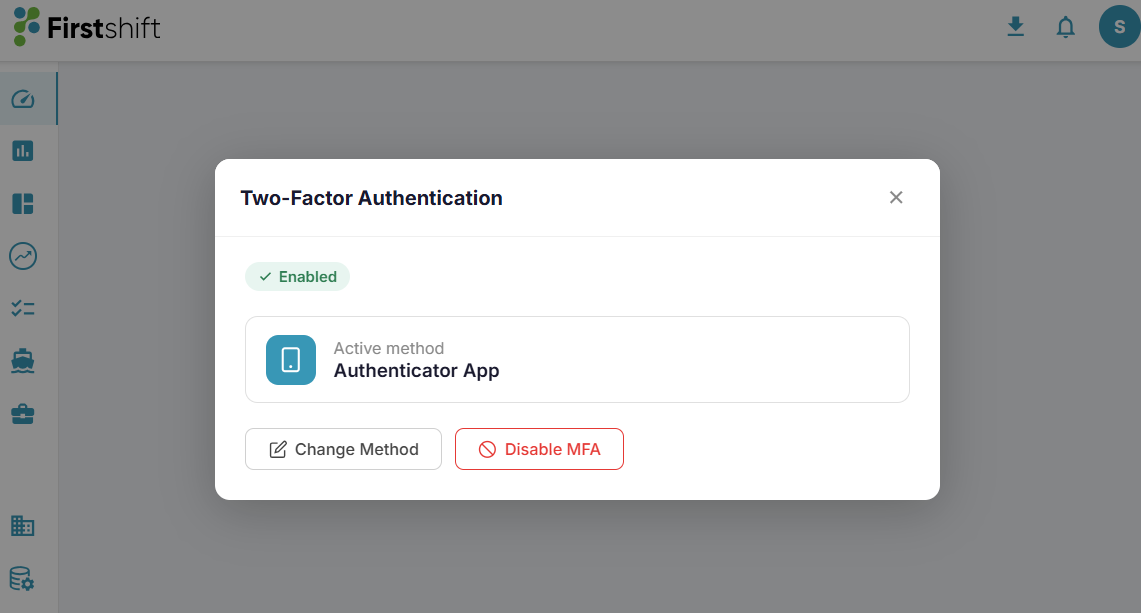
When enabled, the modal displays the currently active method in an "Active method" card along with buttons for "Change Method" and "Disable MFA".
"Enabled" badge in green when MFA is active
Enable MFA
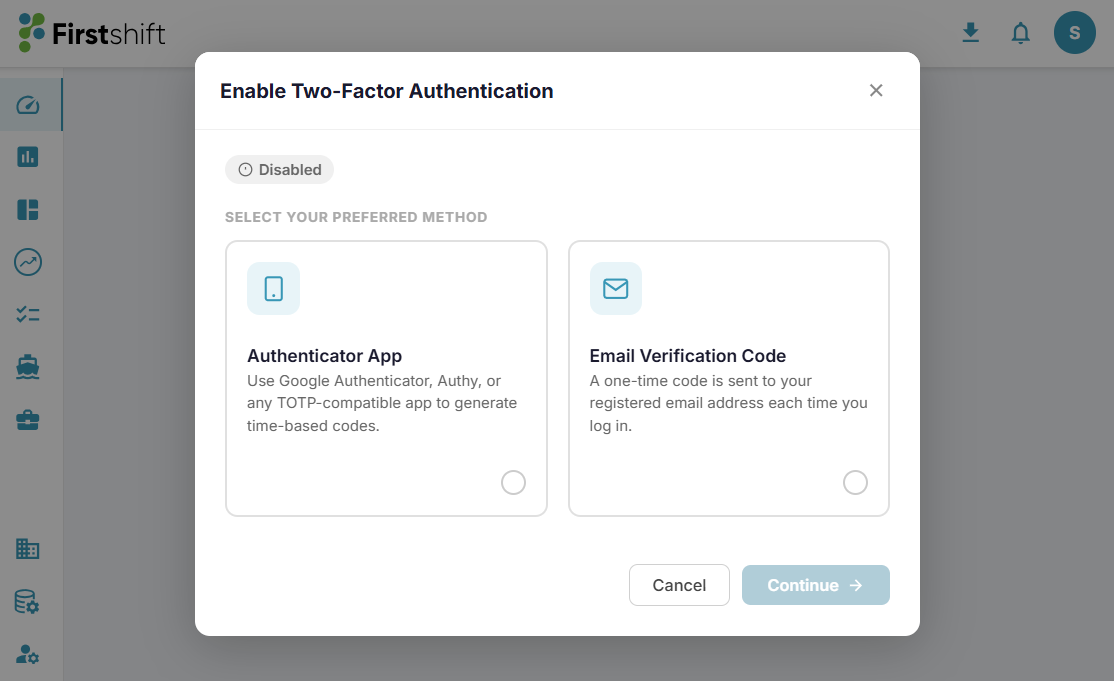
Clicking "Enable MFA" displays the method selection cards (Authenticator App / Email Verification Code) inline within the same modal, without navigating to a new page.
The "Continue" button will be disabled until a method is selected.
A "Cancel" button returns the user to the status view without making changes.
Verify and activate MFA using the authenticator app
After selecting a method and clicking "Continue", the modal shall advance to the verification step with a 2-step sub-progress indicator (Choose method → Verify).
For Authenticator App:
The application displays a QR code,
Manual setup key (Example format: JBSW Y3DP EBZW K4LT format), and
Step-by-step setup instructions.
Code entry with 6 individual digit boxes.
Using the Authenticator app
You can either use the 'Google Authenticator' or 'Microsoft Authenticator' app for this purpose.
You can click the 'Plus" icon in the Authenticator app and scan the QR code.
The Authenticator app then generates the 6-digit code for activating firstshift login.
Enter the 6-digit code on the screen below to enable 2FA for the account.
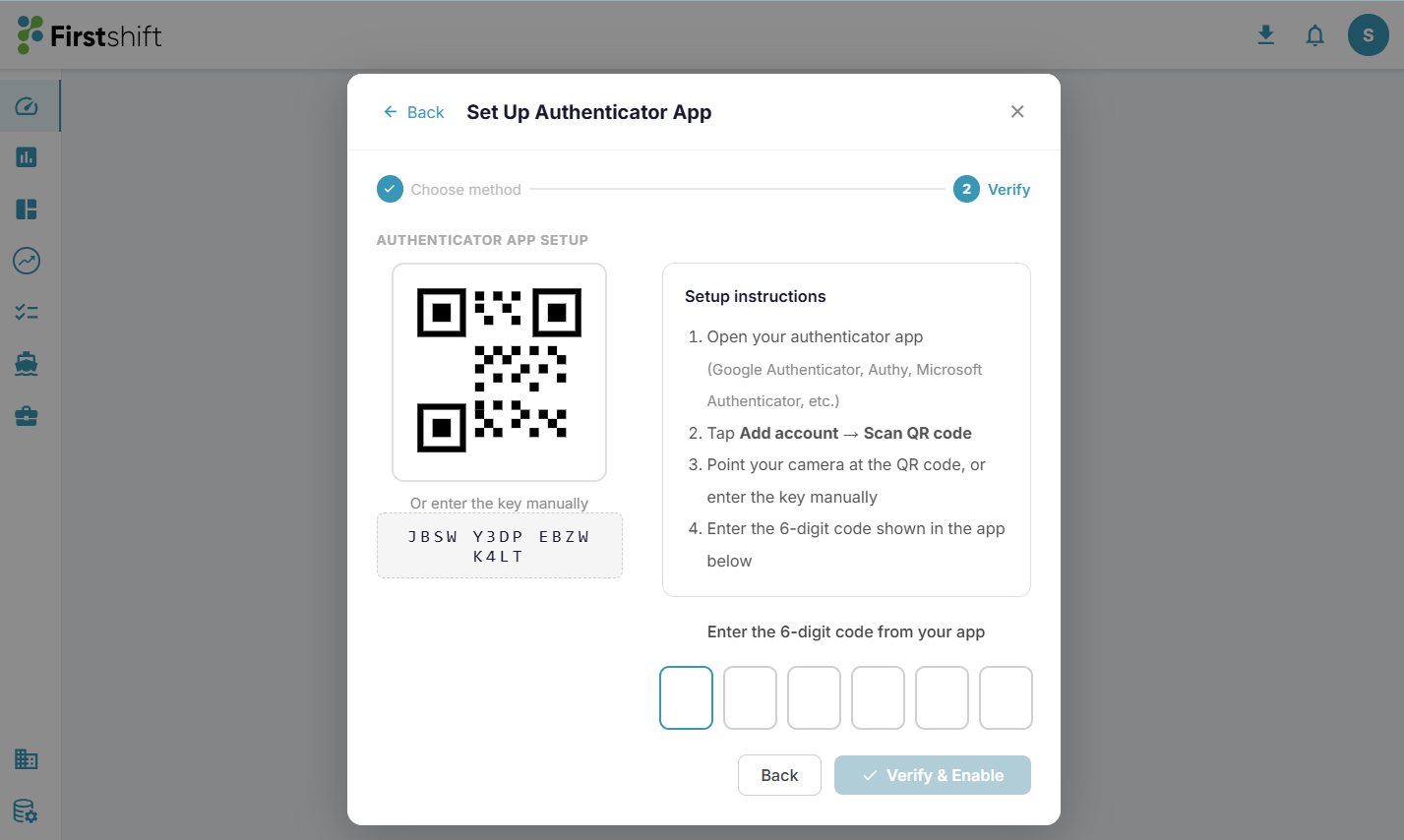
Note: If you don't have the authenticator app on your mobile device, you can download/install it from the Play Store (Google or Android phones) or the App Store (Apple). You can activate the authenticator app by signing in with the Store account.
Verify and activate MFA using the registered email
If you select email as your two-factor authentication method, the application automatically generates a code and sends it to your registered email.
It also shows a card confirming the destination email. Code entry with 6 individual digit boxes.
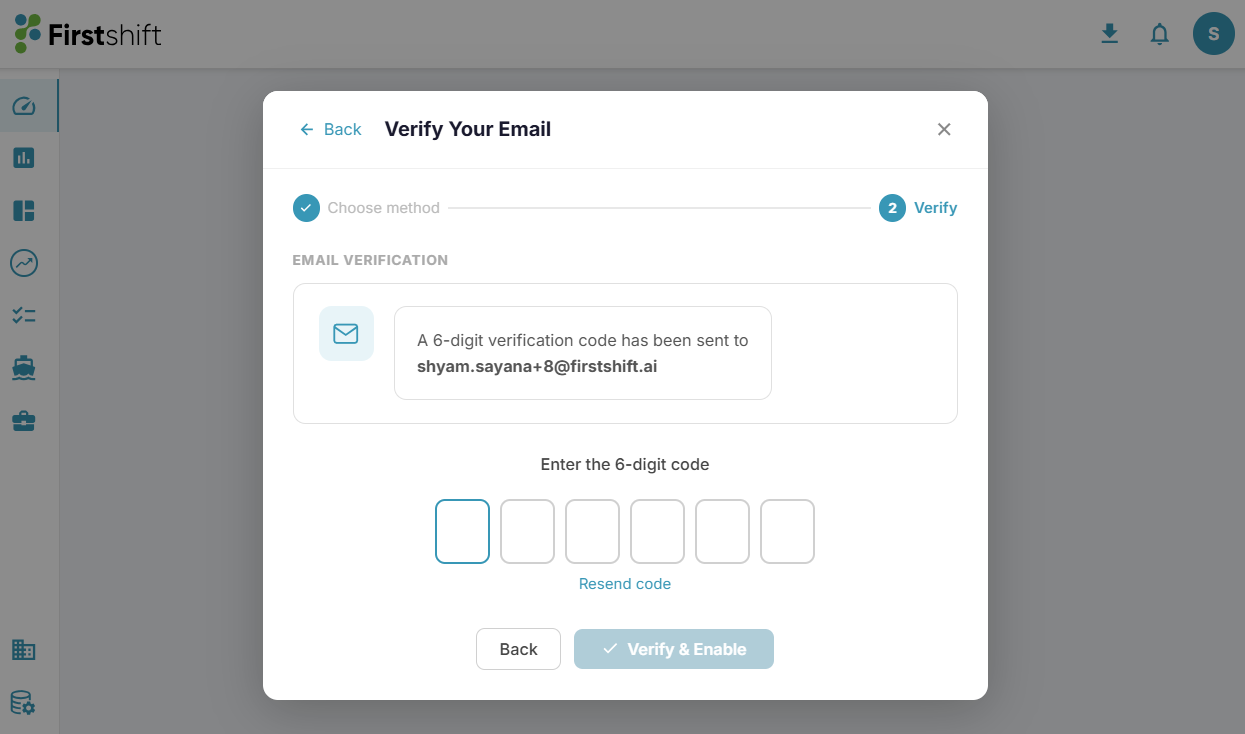
The "Verify & Enable" button will remain disabled until all 6 digits are entered.
Invalid Code Handling
If the entered code is invalid or expired, the system:
Highlights all digit input fields in red
Displays an inline error message: "Invalid or expired code. Please try again."
Disable the "Verify" button
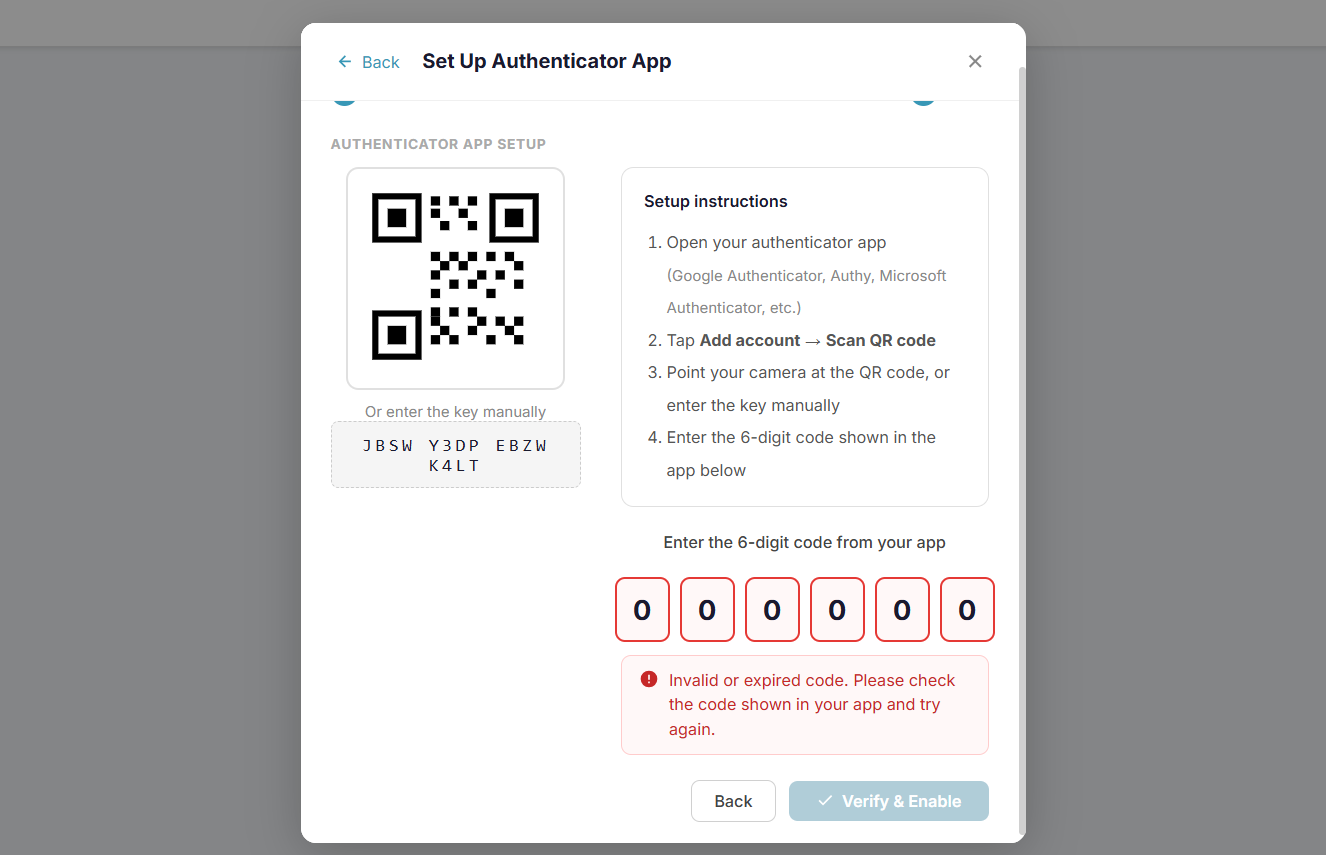
As soon as the user starts re-typing, the error state shall clear automatically.
On successful verification, the MFA status shall update to "Enabled" and a success screen shall appear within the modal.
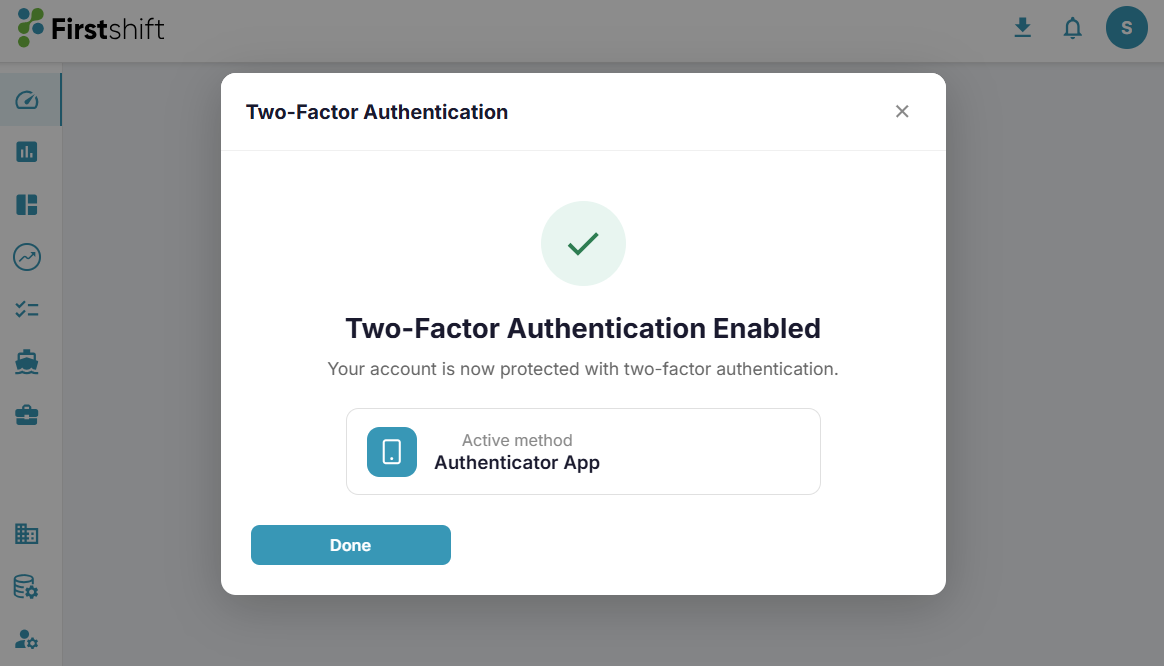
The modal title shall remain "Two-Factor Authentication" throughout (not change to "2FA Enabled").
The success screen shall show the active method and a "Done" button that closes the modal.
Change MFA Method
You can change the MFA method at any time.
Clicking "Change Method" shall start the method selection flow (same as Enable), pre-selecting the current method.
The user shall select the new method and complete the verification step.
Upon successful verification, the MFA method shall update, and the success screen shall reflect the new method.
Disable MFA
Clicking "Disable MFA" shall immediately disable MFA and restore the modal back to the disabled state.
A toast notification "MFA has been disabled" shall appear.
If MFA is mandatory at the tenant level, the "Disable MFA" button shall not be available.
Tenant-Level MFA Policy Enforcement
The system shall respect the tenant's MFA configuration. This configuration is done in Admin app > General Settings> Two Factor authentication section
Mandatory: users cannot disable MFA; the "Disable MFA" button is hidden. During onboarding, the 2FA step cannot be skipped.
Optional: users may enable or disable MFA at will. During onboarding, the 2FA step can be skipped.
The tenant MFA configuration shall be set by the organization administrator.
Activation Tokens Security Requirements
Activation tokens shall be single-use and expire after a configurable time period.
MFA codes shall expire after 30 seconds (TOTP)
The codes sent via email will expire in 10 minutes
All authentication requests shall be transmitted over HTTPS.
Definitions
MFA / 2FA — Multi-Factor Authentication / Two-Factor Authentication
SSO — Single Sign-On (SAML-based)
TOTP — Time-based One-Time Password (used by Authenticator Apps)
Activation Token — A secure URL token sent via email for account activation
Was this article helpful?
That’s Great!
Thank you for your feedback
Sorry! We couldn't be helpful
Thank you for your feedback
Feedback sent
We appreciate your effort and will try to fix the article