TABLE OF CONTENTS
Overview
The Cycle Roll function is found in the First Shift application under:
Data Management → Cycle Roll
From this screen, planning administrators can advance the planning horizon forward by one month. This is one of the most impactful actions in the system — it should only be triggered after actuals have been validated and the planning team is ready to close the current period.
Who Should Trigger a Cycle Roll?
The Cycle Roll is a planning administrator function. It should not be triggered by individual planners without coordination with the broader planning team. Always ensure:
- ✅ Planning data has been finalized and validated by the planners
- ✅ The planning team has been notified that the period is closing
- ✅ Any critical forecast reviews for the closing month are complete
How to Trigger a Cycle Roll
Step 1 — Navigate to Data Management
From the main navigation menu, go to: Data Management → Cycle Roll
Step 2 — Review the Current Period
On the Cycle Roll screen, you will see the current active planning period displayed. Confirm this matches the period you intend to close before proceeding.
For example, if the Planning bucket is Week. It shows the week and the week count. (Varies from 1 to 52)
Similarly, if the Planning bucket is Month, it shows 'Month' and the month count. (Varies from 1 to 12)
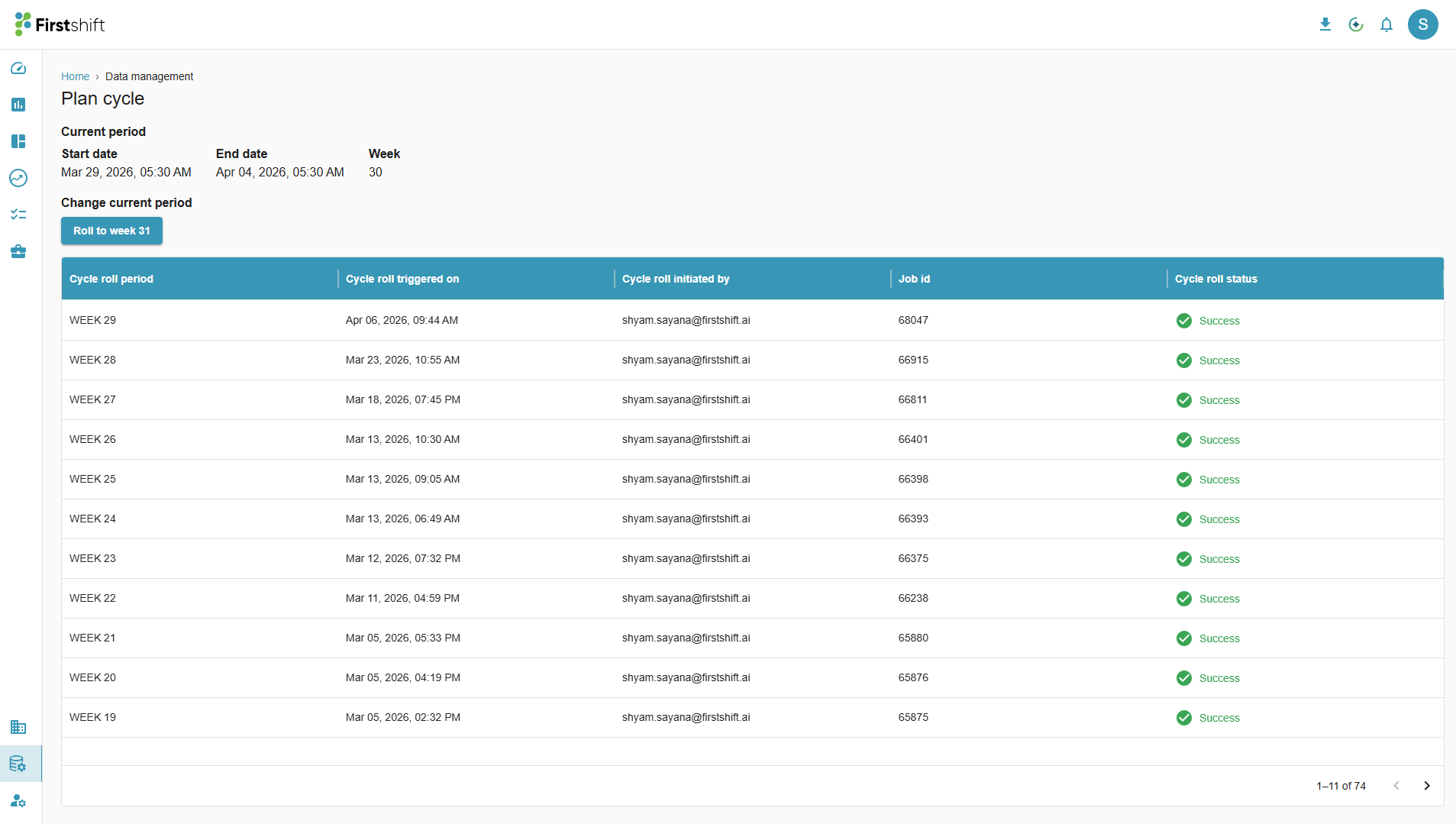
⚠️ Double-check the current period before proceeding. Triggering a Cycle Roll on the wrong period cannot be undone.
Step 3 — Select "Roll to Next Period"
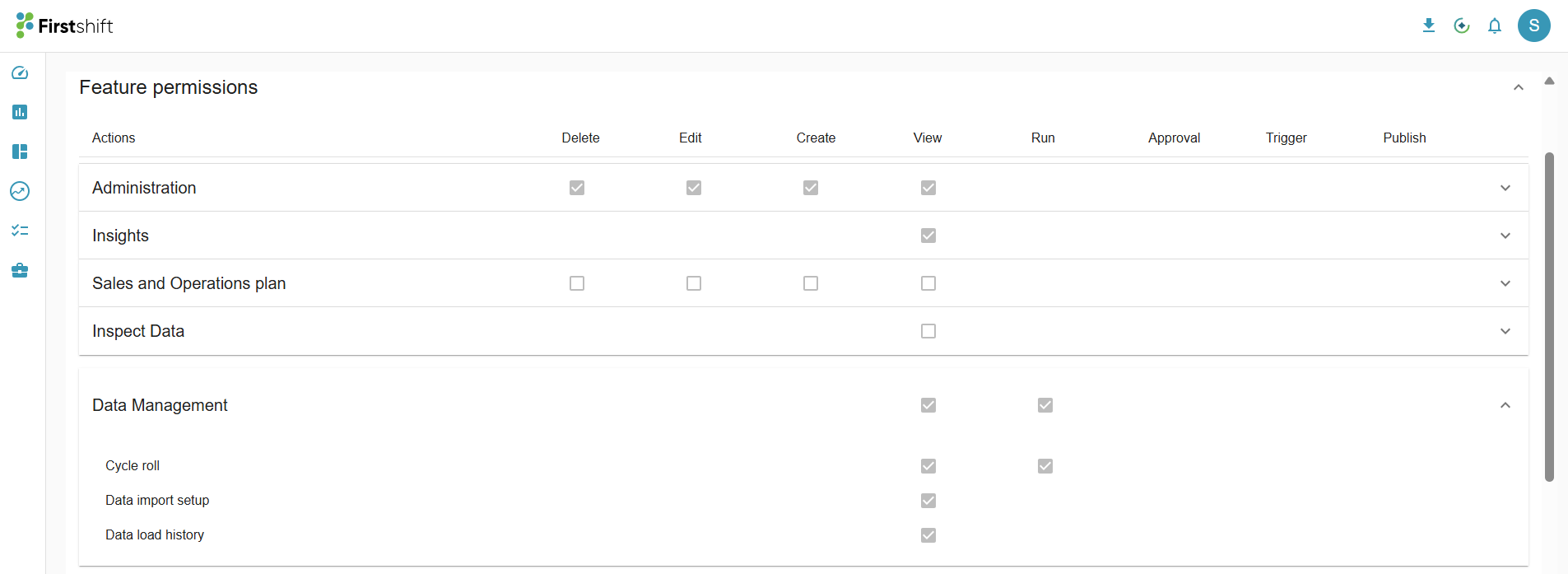
Click the "Roll to Next Period" button to initiate the Cycle Roll process. Only the Admin with related 'Roles & Permissions" can perform this action.
The Screenshot below from Administration > Roles & Permissions > View Role shows that the role has View and Run permissions for the "cycle roll".
View --> The User can view the Cycle roll screen
Run --> The user sees the "Run to Next Period" button.
Clicking on the 'Roll to Next Period' button will:
- Close the current period and mark it as historical
- Advance the planning boundary to the next month
- Add a new far-future month to the forecast horizon
- Trigger automatic recalculation of all time series, variance metrics, and downstream planning measures
Step 4 — Confirm the Action
The system will display a confirmation prompt before executing. This is your final checkpoint.
Review the confirmation details carefully:
Click Confirm to proceed or Cancel to go back.
Step 5 — Wait for the Roll to Complete
Once confirmed, the system will process the Cycle Roll in the background. Depending on the volume of data, this may take a few minutes.
While the Cycle Roll job is in progress, the application displays a banner on the UI. It displays "Cycle roll job is in progress. Other jobs will resume once the cycle roll completes."
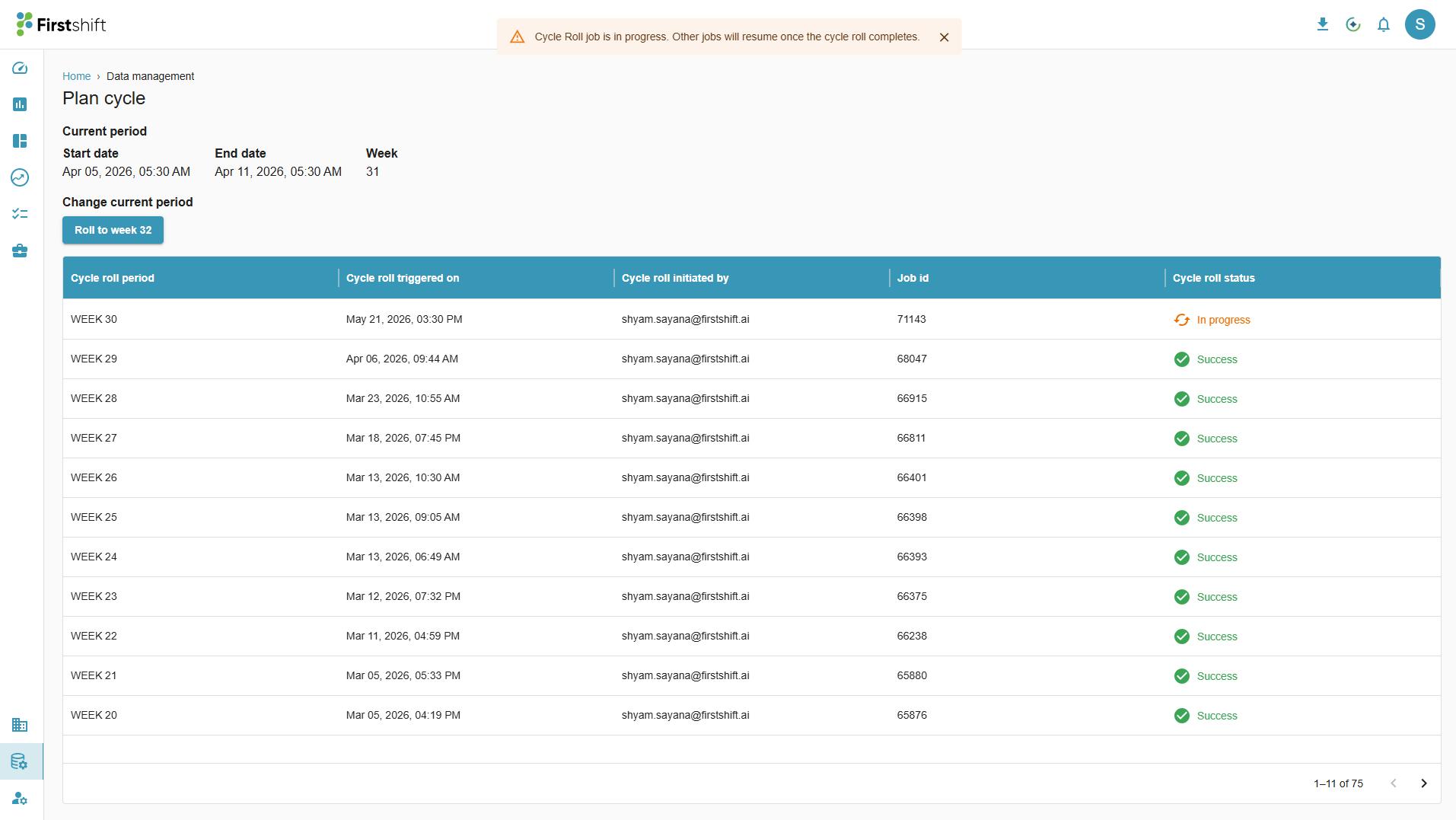
The application will not process any new jobs while the Cycle roll is in process. This includes jobs related to Dataload, Overrides, Trigger Events, Forecast Jobs, NPI, etc.
⚠️ Do not trigger any other system jobs while the Cycle Roll is processing.
Step 6 — Verify the Roll Completed Successfully
Once the process finishes, confirm the following:
- ✅ The current period has advanced by one month
- ✅ A new month has appeared at the far end of the forecast horizon in planning grids
- ✅ All downstream time series and forecast accuracy metrics have been updated for the closed period
- ✅ Planner overrides on future periods are intact
⚠️ Important Warnings
⚠️ The Cycle Roll cannot be reversed. Once confirmed, the period boundary moves permanently.
⚠️ Do not trigger during active jobs. If a forecast run or data load is in progress, wait for it to complete before initiating a Cycle Roll to avoid data conflicts.
⚠️ Coordinate with your team. Planners actively working in the planning grid during a Cycle Roll may see unexpected changes mid-session. Communicate the roll timing in advance.
⚠️ Bottom line for admins: The "Roll to Next Period" button is straightforward — but what happens behind the scenes is significant. Use the pre-roll and post-roll checklists every time, without exception, to ensure a clean period transition for your entire planning team.
Was this article helpful?
That’s Great!
Thank you for your feedback
Sorry! We couldn't be helpful
Thank you for your feedback
Feedback sent
We appreciate your effort and will try to fix the article