TABLE OF CONTENTS
- What this feature does
- Generate Plan workflow
- Expected behavior by filter combination
- Replenishment scope options
- Status and triggered items
This article explains how planners can generate a replenishment plan for either the full dataset or a filtered subset of items from the Proposed Orders page.
What this feature does
The Generate Plan action supports two planning modes:
- Generate plan for all items. It rebuilds the replenishment plan for the full dataset.
- Generate plan for specific items lets you narrow the scope using filters from Product, Location, and Supplier dimensions before triggering the replenishment engine.
When filters are used, only the matching scope is intended for regeneration. Proposed orders outside that scope are expected to remain unchanged.
Important: Filter-based generation is a partial regeneration. It is not the same as running a full plan for all items.
Where to find it
- Open Inventory planning.
- Navigate to Replenishment.
- Open Proposed Orders.
- In the top action bar, click Generate Plan.
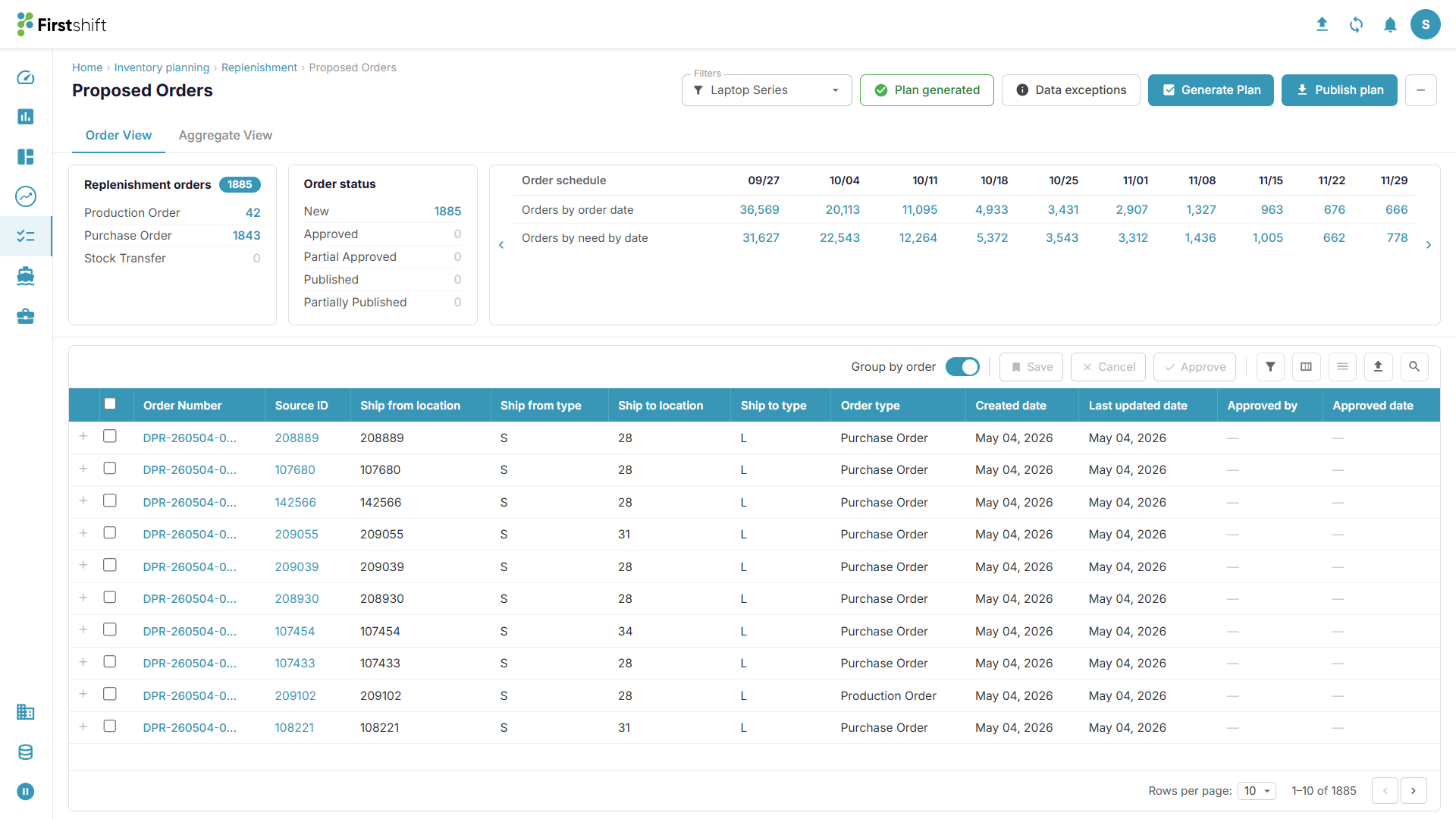
Generate Plan workflow
When you click Generate Plan, the application opens the Generate Replenishment Plan modal.
The modal presents two mutually exclusive options:
- Generate plan for all items
- Generate plan for specific items
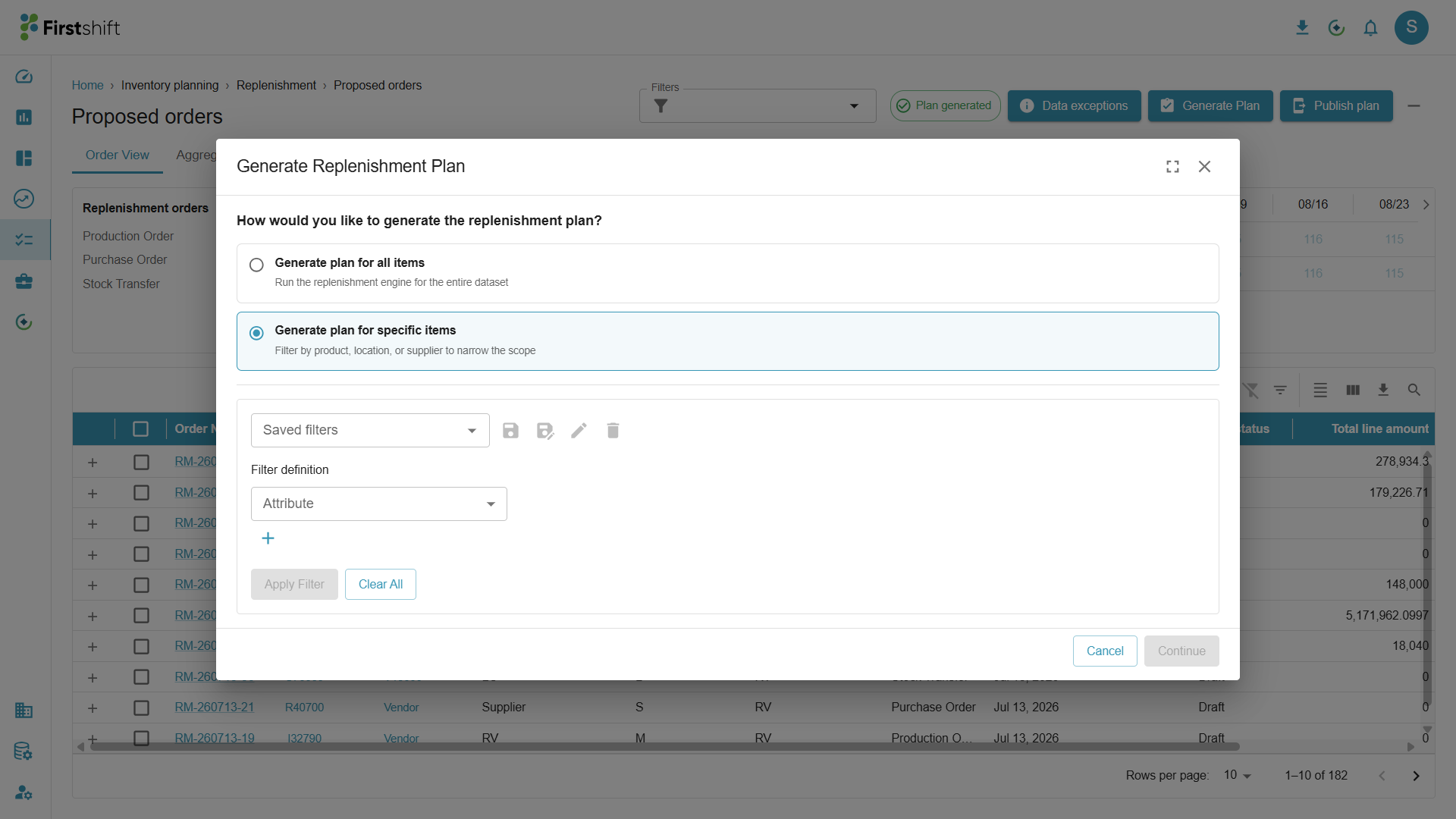
Option 1: Generate plan for all items
This is the existing full-run behavior.
- The replenishment engine runs for the entire dataset.
- Existing proposed orders are replaced by a newly generated full plan.
- No filter configuration is required.
Use this option when you want a complete regeneration across all items, locations, and valid supply relationships.
Option 2: Generate plan for specific items
Select Generate plan for specific items to limit the planning scope using filters.
Once selected, the modal expands to show:
- Saved filters
- Filter definition rows
- Apply Filter and Clear All actions
- A preview grid of matching combinations
- Replenishment scope options
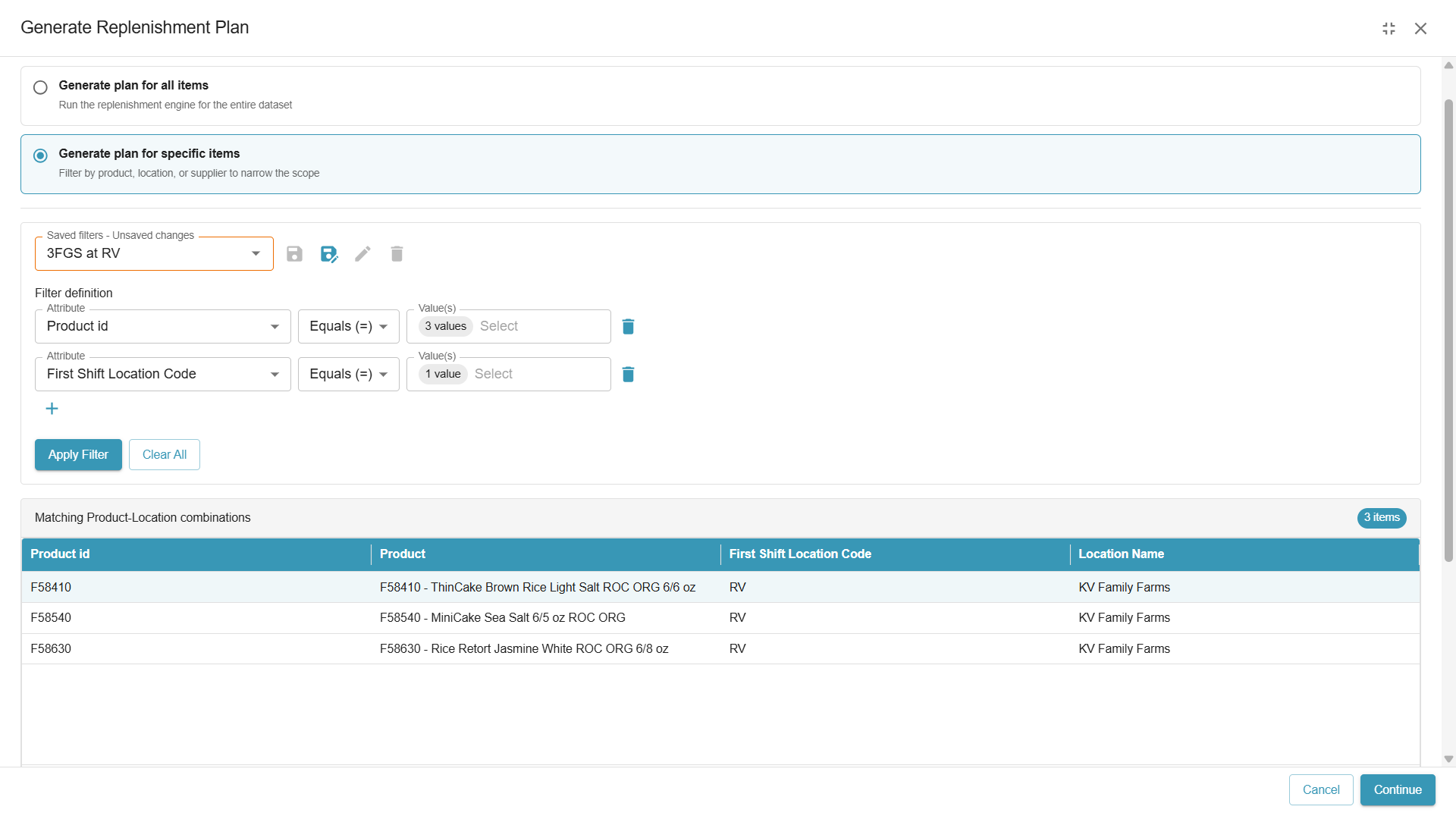
How filtering works
You can create one or more filter clauses from dimensions grouped under Product, Location, and Supplier-related data.
| Filter group | Examples visible in the UI | Typical use |
|---|---|---|
| Product | Product, Sub Family, Family, Category, Business Units | Narrow the run to a product family, category, or selected products. |
| Location | Region, Country, Warehouse, Distribution Center, Zone | Limit generation to specific operational locations. |
| Supplier | Supplier Name, Supplier Type, Lead Time Group, Country of Origin | Run a focused refresh for selected sourcing relationships. |
You can create a custom filter by selecting a dimension attribute and values or you can use any existing saved filters
Previewing matching combinations
After defining the filters, click Apply Filter.
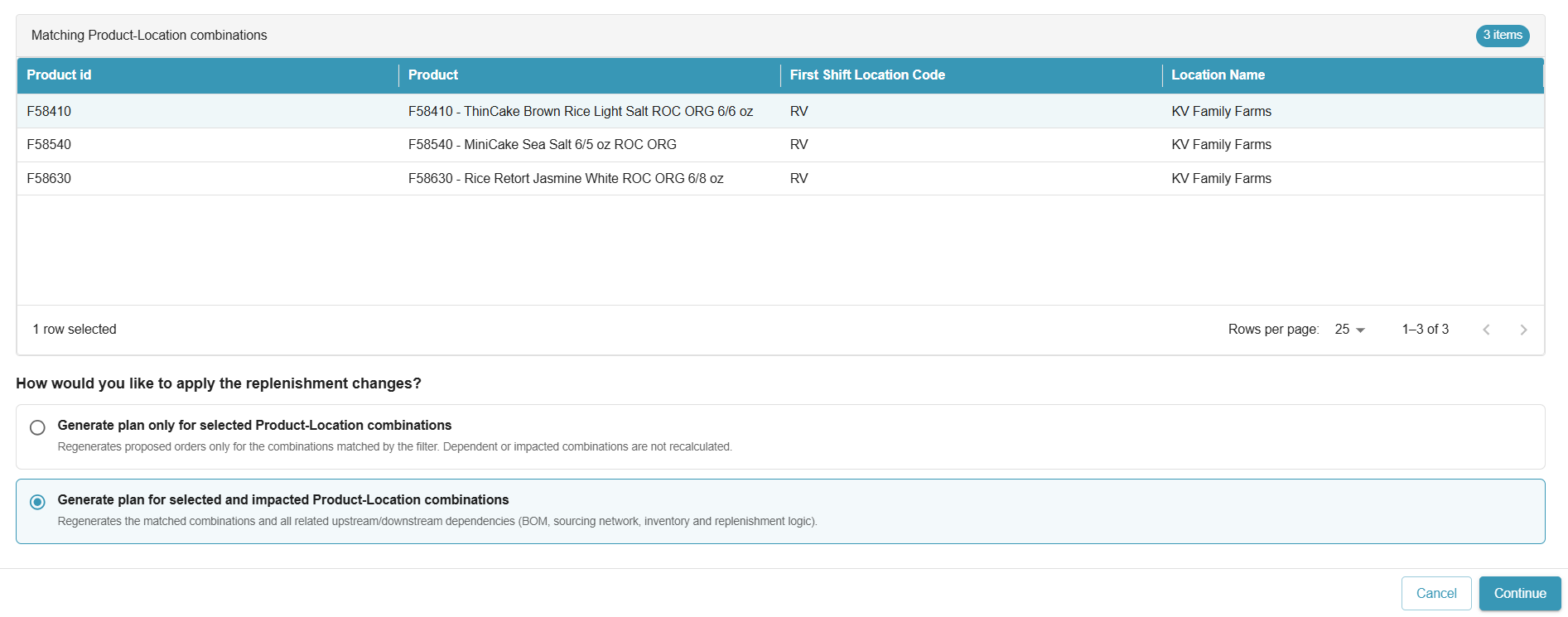
The application displays a preview section labeled Matching Product–Location combinations.
- If the selected filter scope is based on Product and/or Location, the preview shows Product and Location columns.
- If any Supplier dimension is part of the filter, the preview also shows Supplier and Supplier Description.
This preview helps confirm exactly what will be included before continuing.
| Preview behavior | What to expect |
|---|---|
| No supplier filter used | Preview focuses on Product and Location combinations. |
| Supplier filter used | Preview includes Supplier columns in addition to Product and Location. |
| Large result sets | Preview supports pagination and rows-per-page controls. |
Supported filter combinations
You can select filters across the following combinations.
| Combination | Expected scope | Primary data entity used |
|---|---|---|
| Product only | All relevant combinations for the selected product(s) | Product Location Master |
| Location only | All relevant combinations for the selected location(s) | Product Location Master |
| Supplier only | All relevant combinations for the selected supplier(s) | Product Sourcing Network |
| Product + Location | Matching product-location combinations | Product Sourcing Network |
| Product + Supplier | Matching product relationships across valid locations | Product Sourcing Network |
| Location + Supplier | Matching location-supplier relationships across valid products | Product Sourcing Network |
| Product + Location + Supplier | Exact matching product-location-supplier combinations | Product Sourcing Network |
Expected behavior by filter combination
- Product only
- If only the Product filter is selected:
- The application identifies all proposed orders related to the selected product(s).
- All existing proposed orders for those products are deleted.
- New proposed orders are generated for those products across all applicable locations and suppliers.
- Considerations: The system includes all valid product-location-supplier combinations where the selected product exists.
- If only the Product filter is selected:
- Location only
- The system identifies all Product & Location combinations associated with the selected location scope. Orders outside those locations are expected to remain unchanged.
- All existing proposed orders for those locations are deleted.
- New proposed orders are generated for all valid product-location-supplier combinations associated with those locations.
- Orders for locations outside the selected filter must remain unchanged.
- Supplier only
- The system identifies all combinations associated with the selected supplier scope. The preview should include Supplier details because supplier relationships are part of the selected filter.
- Product + Location
- The system narrows the scope to the matching product-location combinations and then regenerates the applicable replenishment subset for those matches.
- Product + Supplier
- The system identifies matching product-supplier relationships and includes all valid locations associated with that scope. The preview includes Supplier columns.
- Location + Supplier
- The system identifies matching location-supplier relationships and includes all valid products within that scope. The preview includes Supplier columns.
- Product + Location + Supplier
- This is the most specific scenario. The system identifies the exact matching product-location-supplier combinations and limits the run strictly to that defined scope.
Replenishment scope options
After filter results are shown, the modal displays a second decision area for how the replenishment changes should be applied.
- Generate plan only for selected Product–Location combinations
- Generate plan for selected and impacted Product–Location combinations
Selected Product-Location Combinations only
This option limits recalculation to the combinations explicitly represented in the filtered results.
Caution: The UI warns that choosing only the selected combinations may cause discrepancies in the replenishment plan.
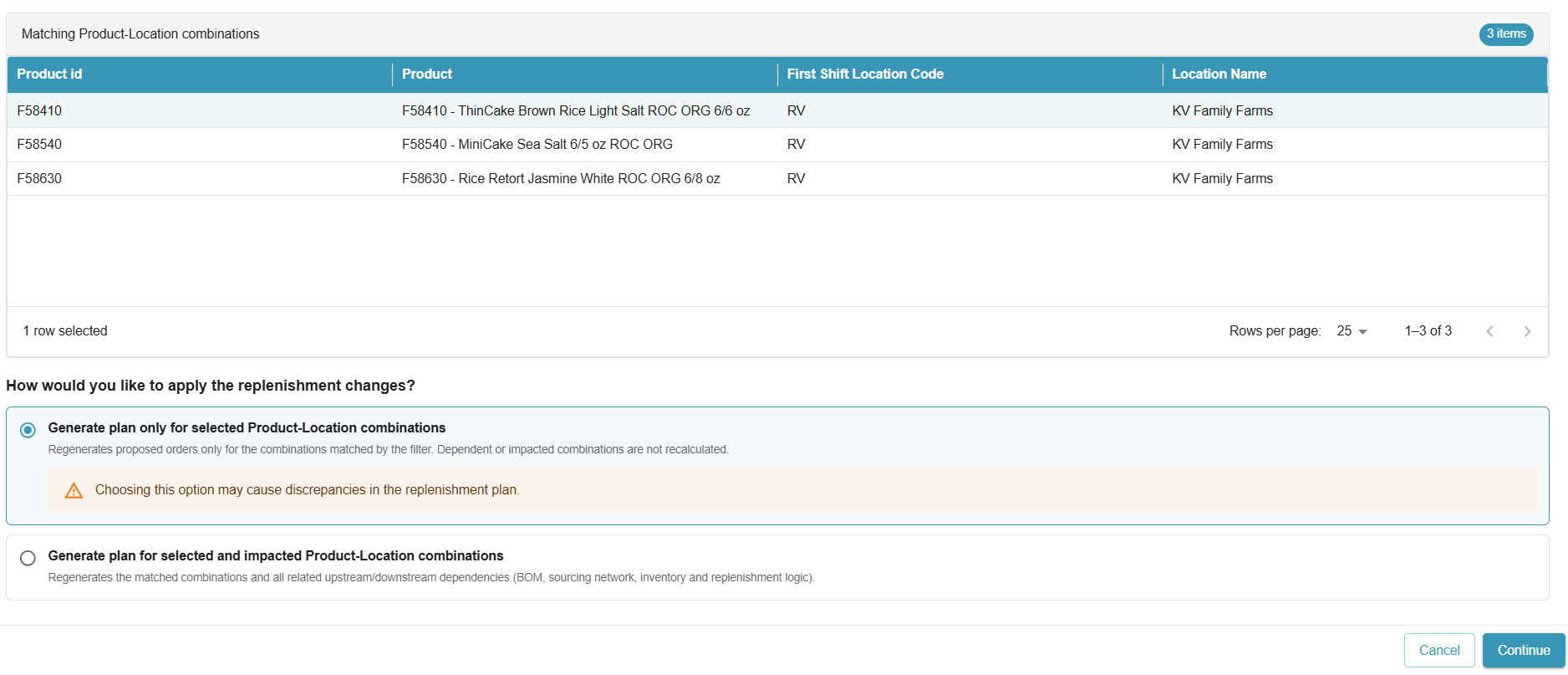
When you select Selected Product-Location Combination, the replenishment engine recalculates only the selected product-location combination. It does not recalculate or update any dependent product-location combinations or downstream supply relationships.
What's the limitation with this option?
- Existing dependent supply orders (such as transfer orders, production orders, or other linked replenishment orders) are not re-evaluated.
- Example:
- A transfer order was previously created because the source location had excess inventory.
- Later, additional demand is added at the source location, reducing the available supply.
- Running replenishment with Selected Combination creates a new proposed replenishment order for the selected source location.
- However, the previously created transfer order is not canceled or adjusted, even though it may no longer be valid.
- This can result in inconsistent replenishment plans, as outdated dependent orders continue to exist.
Why is this option needed?
The Selected Combination scope is primarily intended for scenario planning and what-if analysis. It allows users to evaluate the replenishment recommendations for a specific product-location combination without recalculating or modifying any dependent or downstream product-location combinations.
Since the replenishment run is intentionally restricted to the selected combination, existing dependent orders (such as transfer, production, or purchase orders) are not created, updated, or canceled. This enables users to simulate changes and analyze the impact on the selected combination in isolation before performing a full replenishment run using Selected and Impacted Combinations or another broader replenishment scope.
Selected and impacted combinations
When you select Selected and Impacted Product-Location Combinations, the replenishment engine recalculates the selected product-location combination along with all impacted dependent combinations.
The engine:
- Re-evaluates existing transfer, purchase, and production orders affected by the change.
- Creates, updates, or removes dependent replenishment orders as required.
- Propagate changes across all impacted product-location combinations to maintain a consistent and valid replenishment plan.
This option ensures that any changes made to the selected combination are reflected throughout the dependent supply network, preventing stale or invalid replenishment orders from remaining in the plan.
After confirmation, the application shows a success toast indicating that the replenishment engine has been triggered.
Status and triggered items
After the job is triggered, the plan status badge in the Proposed Orders page can reflect execution state such as In Progress.
- The application replaces the old orders with the new orders.
- It deletes the existing orders that are no longer valid.
- It creates new orders based on the new demand & supply, or based on the BOM Explosion or based on the Internal stock transfer requirements.
What remains unchanged
For filter-based generation, the intended business rule is that only the matching subset is regenerated.
- Matching proposed orders are the subset targeted for replacement.
- Non-matching proposed orders remain unchanged.
- The generated result replaces only the deleted subset within the selected scope.
Key principle: Filter-based generation should be accurate, traceable, deterministic, and limited to the intended scope.
Important notes and limitations
- If filters produce no valid combinations, the intended behavior is that no proposed orders should be deleted and the user should be informed that no matches were found.
- Supplier-based filters rely on sourcing relationships and therefore show supplier information in the preview.
- Product-only and location-only scenarios derive matching combinations differently from supplier-based scenarios, as described in the linked stories.
- The filter logic is intended to be consistent regardless of the order in which filters are applied.
Was this article helpful?
That’s Great!
Thank you for your feedback
Sorry! We couldn't be helpful
Thank you for your feedback
Feedback sent
We appreciate your effort and will try to fix the article