TABLE OF CONTENTS
- Overview
- How It Works — Functional Logic
- Frequently Asked Questions
Overview
When would a planner use this?
There are several legitimate business scenarios where you want to suppress the statistical engine for a specific item:
- End-of-life (EOL) products — the item is being discontinued, and a system-generated forward forecast would be misleading or cause unintended replenishment signals.
- New Product Introduction (NPI) — the product has insufficient history for statistical modeling; the planner prefers to enter a manual launch curve instead.
- Superseded / replaced items — an older SKU has been replaced by a newer one. The history of the old SKU should not drive a new forecast.
- Seasonal or one-off items — products sold only during a specific window (e.g. a promotional bundle) where statistical patterns are irrelevant.
- Data quality hold — historical data is known-corrupt; pausing prevents bad forecasts until the data is corrected.
Prerequisites & Configuration
The Forecast Disallow flag is a master data attribute. Before planners can use it, it must be enabled and configured by a Firstshift Implementer via the admin application. Planners cannot enable this feature themselves.
Which entities can hold the flag?
The Forecast Disallow flag can be enabled on any of the following types of entity:
- Single-dimension master data entities — e.g. Product Master, Customer Master, Location Master. The flag applies universally across all planning combinations that include that dimension value.
- Cross-dimension (intersection) entities — e.g. Product Customer Master, Product Location Master. The flag applies only at the specific intersection, so the same SKU can be forecasted in one customer segment and paused in another.
One-Entity-Only Rule
The platform enforces a single source of truth for the Forecast Disallow flag: it can only be active on one entity per tenant at a time. The admin app does not allow selecting multiple entities simultaneously.
| Configuration choice | Scope of the flag | When to use |
|---|---|---|
| Single dimension (e.g. Product Master) | Applies to all planning combinations that include that product. Example: Pausing Product A suppresses forecast for Product A | Customer X | Location-ALL | Source-ALL — every combination. | Most tenants. Simpler to maintain, easier to audit, covers 95% of real-world use cases. |
| Cross-dimension intersection (e.g. Product Customer Master) | Applies only at the specific intersection. Example: Pausing Product A × Customer X still allows Product A × Customer Y to be forecasted. | Only when you have a proven business need for intersection-level suppression. |
Where to Find It
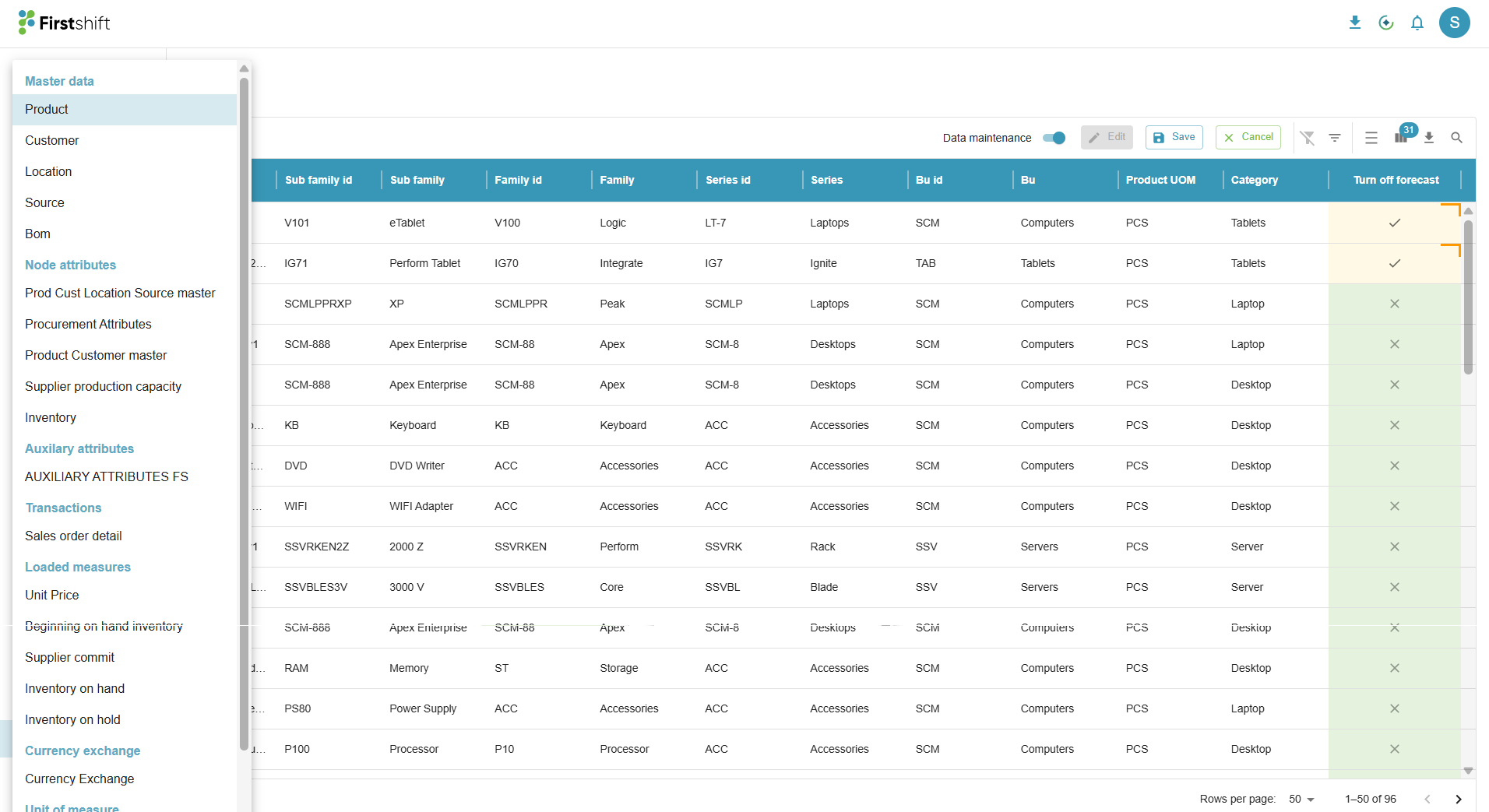
After logging in, click the Inspect data icon in the left navigation bar. The sidebar expands showing all available data entities, grouped by category. Under Master data, click Product.
Note: This document covers the Forecast Disallow functionality under Product Master. (i.e. this functionality is enabled in the Product Master)
The Inspect Data sidebar is divided into category groups. The full structure visible after expanding the section is shown below, along with the screenshot:
Data Maintenance Mode
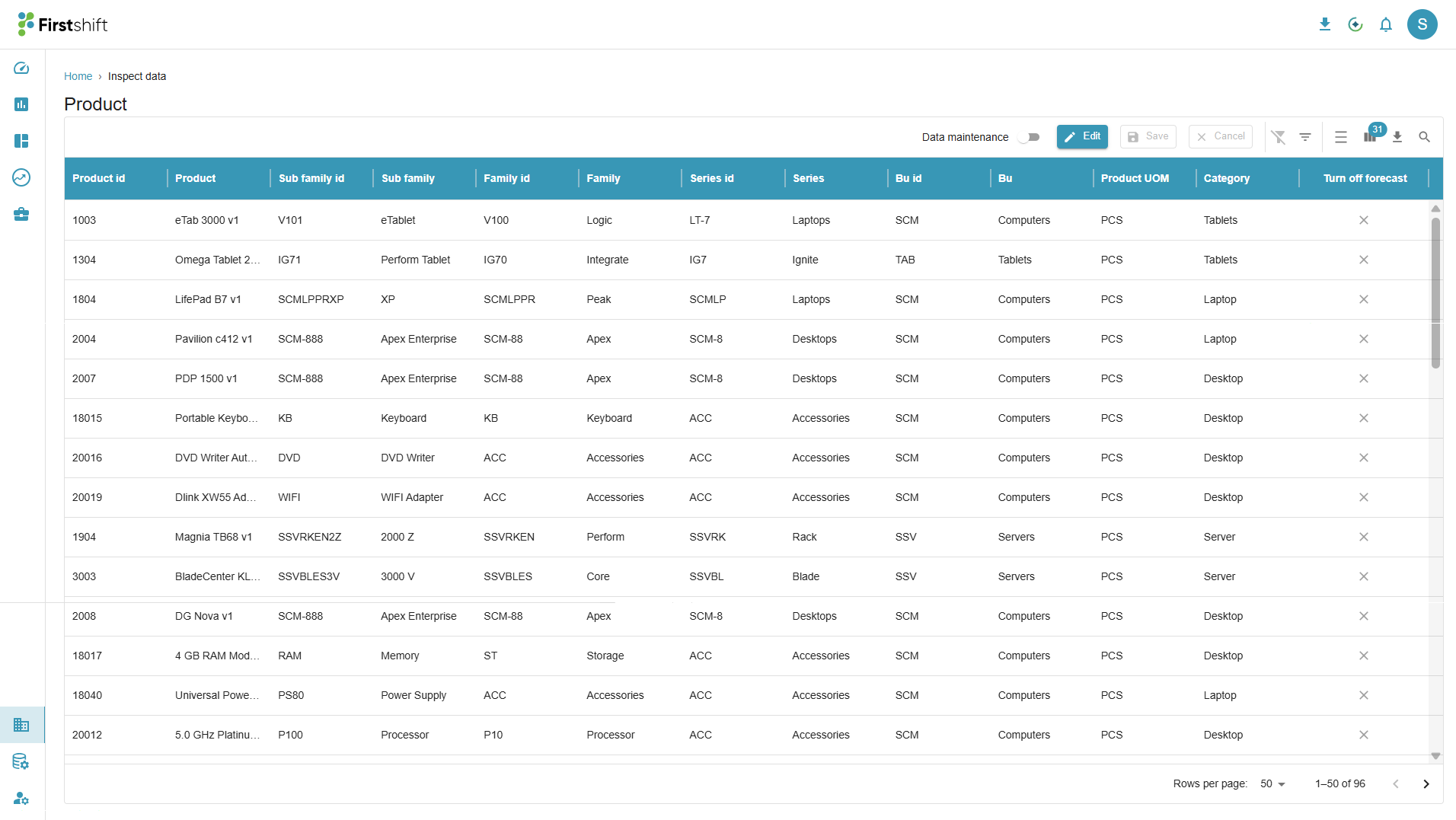
The "Turn off forecast" column is always visible in the Product grid, but it is read-only by default. To make it editable, you must enable Data Maintenance Mode using the toggle in the toolbar.
Default State — Data Maintenance OFF
Enabling Data Maintenance Mode
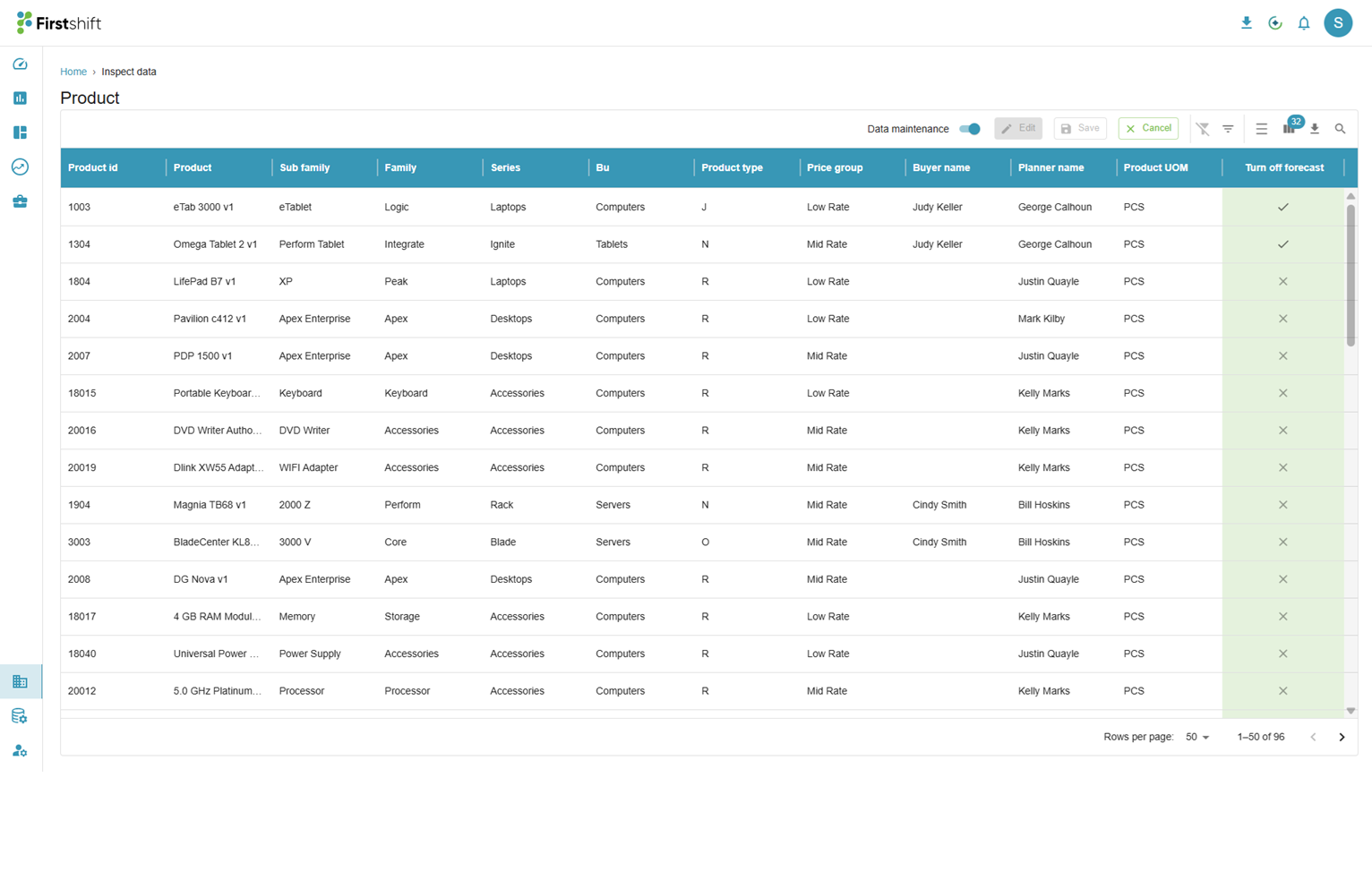
Click the Data maintenance toggle in the toolbar to switch it ON (turns blue).
| Toolbar element | Toggle OFF (default) | Toggle ON (DM mode) |
|---|---|---|
| Data maintenance toggle | Grey / off | Blue / on |
| "Turn off forecast" column | Visible, read-only (× for all) | Editable checkbox — green column highlight, ✓ for paused items |
| Save button | Greyed out | Active when any checkbox is changed |
| Cancel button | Greyed out | Active — discards unsaved changes |
Pausing Forecast for a Product
Step-by-step
- 1Navigate to Inspect data › ProductUse the left sidebar: click the Inspect data icon, then selectProductunder the Master data group.
- 2Enable Data maintenance modeClick theData maintenancetoggle in the top-right toolbar area. It turns blue, the "Turn off forecast" column gets a green highlight, and Save/Cancel activate.
- 3Find the product(s) to pauseUse the grid's column filters or the search icon to narrow the list. The grid is server-side paginated (10 rows per page by default) — use filters to locate specific SKUs.
- 4Check the "Turn off forecast" checkboxClick the cell in theTurn off forecastcolumn for the target row. The checkbox toggles to✓(checked = forecast paused). The cell is highlighted with an orange border to indicate an unsaved change. You can pause multiple products in one session before saving.
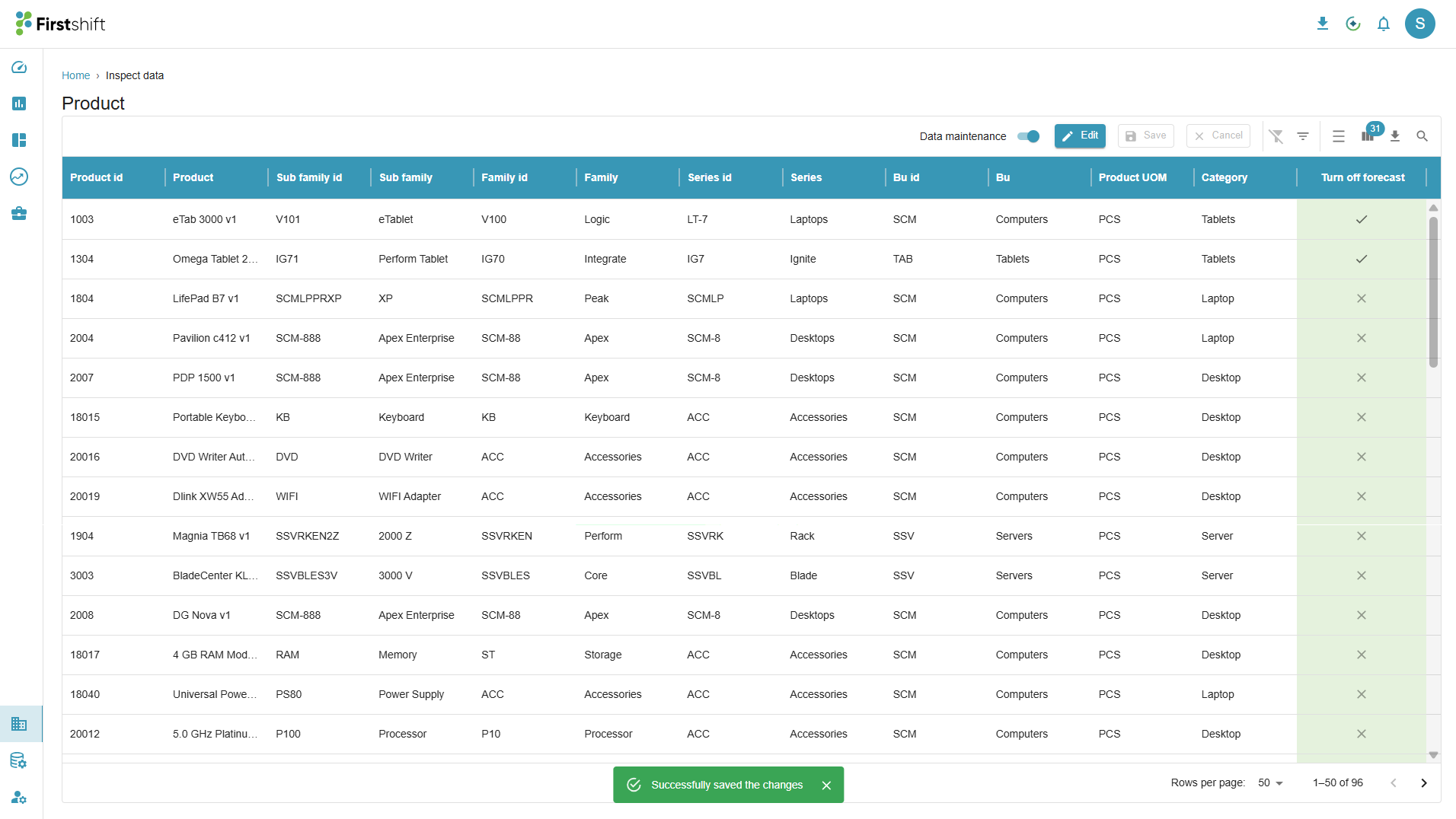
- 5Click SaveClick theSavebutton in the toolbar. All changes are saved together in one operation. A green confirmation message appears at the bottom of the screen. The application triggers the USER EDIT Job.
Save Confirmation
Removing the Pause Forecast Flag
Re-enabling forecasting for a paused product uses the same flow — just uncheck instead of check.
- 1Navigate to Inspect data › Product and enable Data maintenanceFollow the same navigation and toggle steps as above.
- 2Identify currently paused productsWith Data maintenance ON, paused products display a✓in the "Turn off forecast" column with a green column highlight. Use filters to find them: filter the "Turn off forecast" column for true / checked values.
- 3Uncheck the "Turn off forecast" checkboxClick the ✓ cell — it toggles back to an unchecked state (×). An orange border indicates the pending change.
- 4Click SaveThe backenddeletesthe disallow record for that product. The product is immediately re-eligible for forecasting. The next forecast run that covers this product will generate fresh forecast values for it.
How It Works — Functional Logic
How the Pause Forecast State is Stored
When you open the Product grid, the system loads each product's current pause status from the backend alongside the rest of the product data. Products with Pause Forecast enabled are shown with a ✓ in the "Turn off forecast" column; all others show ×. The Data maintenance toggle only appears for users and roles that have been granted access to manage pause settings.
What Happens When You Click Save
When you click Save in Data Maintenance mode, the system reviews every row you changed and takes one of two actions:
| What you did | What the system does |
|---|---|
| ✓ Checked a product (Pause Forecast ON) | Creates a pause record for that product — it will be skipped in all future forecast runs. |
| × Unchecked a product (Pause Forecast OFF) | Removes the pause record for that product — it becomes eligible for forecasting again immediately. |
All changes from a single session are saved together in one operation. You can pause or re-enable as many products as needed before clicking Save.
Engine Behaviour When the Flag Is Set
When a forecast workbench runs, the engine follows these steps for every product in scope:
- 1Read the product listThe engine loads the list of products defined by the workbench's filter.
- 2Check the Pause Forecast flag for each itemFor every product in the list, the engine checks whether the Forecast Disallow flag is active.
- 3Act on the resultIf the flag isactive: the engine skips that product entirely — no statistical forecast values are generated for that SKU.
If the flag isnot set(default): the engine proceeds normally and generates a statistical forecast.
If all products in the scope are paused, the run is blocked. At least one eligible product must exist. See the Forecast Wizard View section for how this is surfaced before a run is triggered.
Impact on Downstream Planning Measures
Because the statistical forecast is the starting point of the planning cascade, pausing it has a ripple effect on all downstream measures for that item:
| Planning measure | Impact when Pause Forecast is ON |
|---|---|
| Statistical Forecast | Not updated — engine generates no new values. The previous value is retained or the cell goes blank depending on configuration. |
| Sales Manager Forecast | Not overwritten — retains whatever the planner had entered manually. Planners remain in full control. |
| Demand Plan | Not overwritten — inherits from Sales Manager Forecast as-is. |
| Consensus Demand Plan | Not overwritten — inherits from Demand Plan as-is. |
| Forecast Accuracy Metrics (MAPE, WMAPE) | Not generated — no engine output means no accuracy record for that item in that run. |
When Pause Forecast is removed (set back to OFF)
- The product is immediately re-eligible for forecasting — there is no delay.
- The next forecast run that covers this product will generate new statistical forecast values for it.
- Existing planning values (Sales Manager Forecast, Consensus Plan) in the grid remain unchanged until a new forecast is run and published.
- No historical recalculation is triggered — only forward-looking forecast runs are affected.
Forecast Wizard View
When creating or editing a forecast in Forecast › Create new forecast, planners can see which products in their selected scope are paused before running the forecast.
Where to see the disallow status
After selecting a filter in the "Choose items to forecast" section, click the pencil icon next to Hierarchy level. The dialog shows a preview grid of all products in scope. This grid includes a "Forecast Disallowed" column showing the pause status for each item.
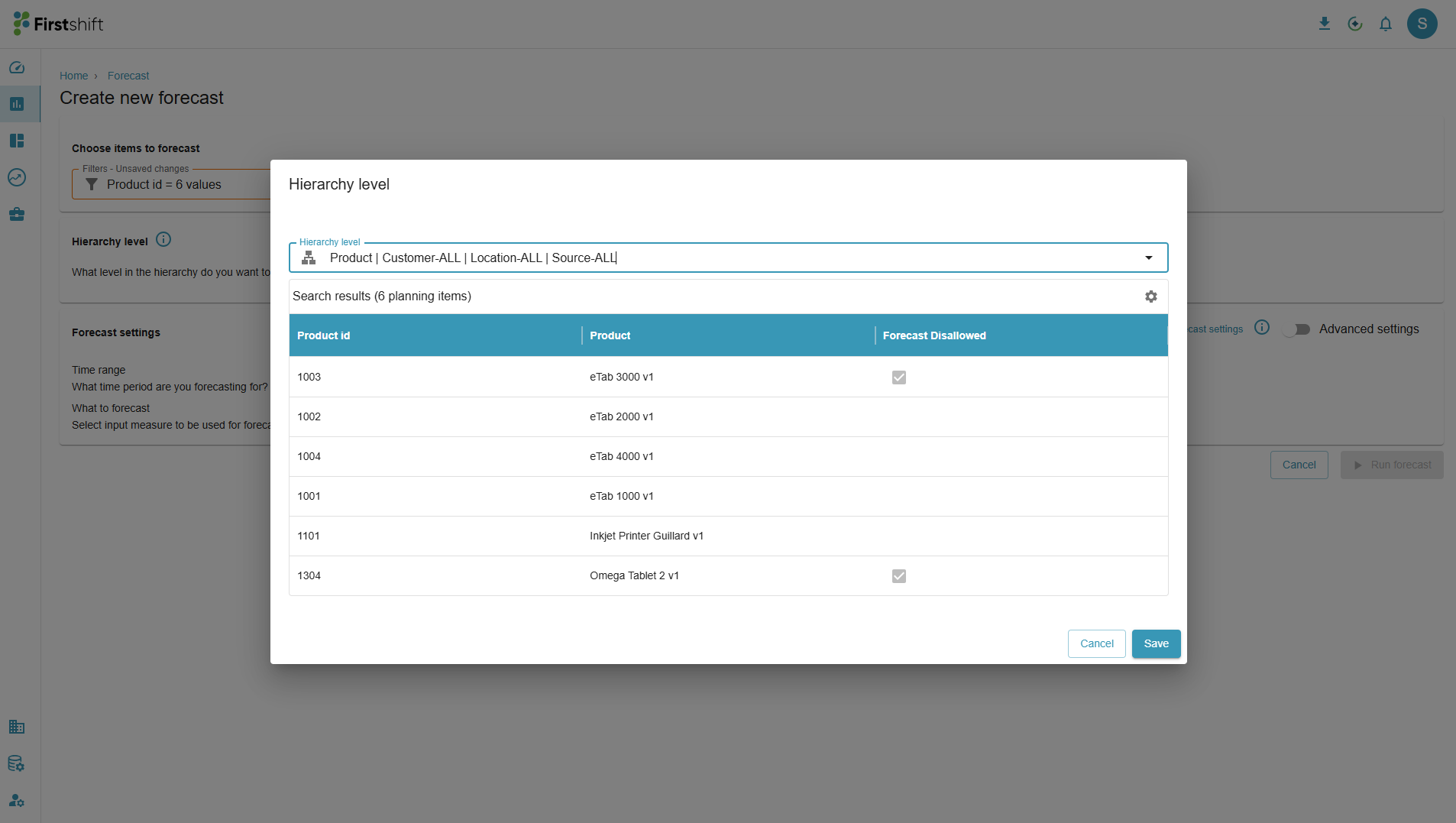
Forecast Disallowed column values
| Column display | Backend value | Meaning |
|---|---|---|
| ☑ Checked checkbox | All items at this node are paused | The product node is fully paused. The forecast engine will skip it entirely. |
| Text: "Forecast disallowed for a few combinations" | Some items at this node are paused | Some product–location combinations under this node are paused, but not all. The forecast runs for eligible combinations and skips paused ones. |
| Empty / unchecked | No items paused | Forecast is fully active for this product. No restrictions. |
Common Scenarios
Scenario 1 — Phase out a discontinued product
- Go to Inspect data › Product.
- Enable Data maintenance.
- Filter or search for the discontinued SKU.
- Check its Turn off forecast checkbox.
- Click Save.
From the next forecast run onwards that product is skipped. Its existing published forecast values remain in the planning grid until replaced by a subsequent run that does not include it.
Scenario 2 — Re-enable after a data fix
- After fixing the bad historical data in the ETL source, go to Inspect data › Product.
- Enable Data maintenance.
- Find the previously paused product (it shows ✓). Uncheck it.
- Click Save.
- Run a new forecast — fresh values will be generated.
Scenario 3 — Partial product–location pause
This scenario is applicable only when the Product Location Master entity is enabled for Pause Forecast feature in the admin app.
If a product is sold at 10 locations but should only be paused at 2.
- Go to Inspect data › Product Location Master.
- Enable Data maintenance.
- Filter or search for the discontinued SKU.
- Check its Turn off forecast checkbox.
- Click Save.
Those 2 combinations appear in the Forecast wizard item preview as "Forecast disallowed for a few combinations" at the product node, while the other 8 locations continue to receive forecasts normally.
Scenario 4 — Check which products are currently paused
Without enabling Data Maintenance Mode, open the Product grid, click the column filter on Turn off forecast, and filter for true (checked). This gives a read-only list of all currently paused products across your tenant.
Frequently Asked Questions
Will pausing a forecast delete existing forecast values?
No. Existing values in the planning grid remain untouched. Pausing only prevents new values from being generated in future forecast runs.
Does pausing take effect immediately?
Yes — from the very next forecast run. The moment you save, the backend record is written. Any forecast job triggered after that save will exclude the paused items. There is no delay or sync lag.
What if a forecast is already running when I save the pause flag?
The running job completes based on the items it loaded at startup (DS_INMEMORY_SETUP step). The pause takes effect from the next job triggered after the save. There is no way to interrupt a running job mid-flight.
Can I sort the grid by the "Turn off forecast" column?
No. Server-side sorting is intentionally disabled for that column. Use the column filter (filter for true) to see paused vs active items.
Does pausing affect error metrics (MAPE)?
Indirectly, yes. Because paused products are excluded from the forecast run entirely, they do not appear in that run's error metrics. Historical metrics from previous runs where the product was included remain unchanged.
Who can pause or un-pause forecasts?
Access is controlled by a backend configuration on the Product entity. If the Data maintenance toggle does not appear in your toolbar, your role does not have access. Contact your Firstshift administrator.
Is there an audit trail for pause / un-pause actions?
Every save action is recorded in the backend. Whether a full audit trail (who changed it and when) is available depends on your tenant's configuration. Check with your Firstshift administrator.
Why is the toggle called "Data maintenance" rather than "Pause forecast"?
Data maintenance mode is a general-purpose grid capability that could support additional per-row flags beyond "Turn off forecast" in the future. Currently its only function is to make the "Turn off forecast" checkbox editable, but the toggle name was kept generic by design.
Was this article helpful?
That’s Great!
Thank you for your feedback
Sorry! We couldn't be helpful
Thank you for your feedback
Feedback sent
We appreciate your effort and will try to fix the article