TABLE OF CONTENTS
- Overview
- External influence factors
- Other influence factors
- Example: forecast Beverages demand with influence factors
- Choose a forecasting method yourself
- How the factors are used in the forecast
- Related articles
Overview
Sales don't move on their own. Prices, income and the wider economy push demand up or down. An influence factor is a series of numbers, one value for each month, that you add to a forecast so the forecast can take these outside effects into account.
There are two kinds. Your FirstShift administrator or implementer sets up both:
- External influence factors are market-wide, so the values are the same for every item. FirstShift gets them from third-party sources.
- Other influence factors are your own business data, and the values can differ from item to item.
External influence factors
These are market numbers such as the economy, prices and spending. FirstShift collects them from third-party sources and keeps them up to date, so you never upload anything.
Not every tenant sees all of them. External influence factors are enabled for your tenant only when you ask for them. Your FirstShift implementer switches on the ones you need. Many tenants don't use all of them, so the list you see in the app may be shorter than the one below.
The external factors FirstShift can provide:
- Consumer Price Index
- Gross Domestic Product
- Industrial Production
- Labor Market and Wages
- Oil / Gas Prices
- Raw Material Costs
- Real Disposable Personal Income
- Residential Real Estate Market
- Retail Sales
- Strength of the Dollar
- Trade Balance
To learn where each factor comes from, and how often the data is updated, see Standard external influence factors and their data sources.
Other influence factors
These are specific to your tenant. They come from your own data, such as your marketing, pricing or customers.
How they get into FirstShift
- You provide the factor as a time series, a value for each month.
- Your FirstShift administrator or implementer sets it up. You can't add one yourself on the forecast screen.
- Each factor is set up at a hierarchy level. The level says what the numbers belong to: a product, or a customer and product together.
Examples
- At Product level: Advertising spend, Competitor activity index, Seasonality index, List price index, Raw material cost index, Product age in months.
- At Customer and Product level: Customer marketing spend, Customer promo discount percentage, Customer store count, Customer POS sell-out units, Contract price, Retailer weeks of cover.
Which forecasts can use them
- A factor can be used only in a forecast built at the same level as the factor or a finer one. For example, Advertising spend (Product level) works in a forecast by Product. A Customer and Product level factor such as Customer marketing spend needs a forecast by Customer and Product.
- If a forecast is at a higher level than a factor, FirstShift combines the factor's values using the rule set for it (for example Max).
- Factors that don't fit your forecast's level aren't offered in the list. If you change the level after picking one, FirstShift removes it from your selection and tells you.
Want one added?
Ask your FirstShift administrator or implementer. Tell them what the factor is, share its values as a time series, and say at what level it applies.
Example: forecast Beverages demand with influence factors
In this example, we forecast demand for the Beverages business unit. We want the forecast to take the economy and our own marketing into account, so we use four influence factors: two external ones (Gross Domestic Product and Oil / Gas Prices) and two other ones (Advertising spend and Competitor activity index).
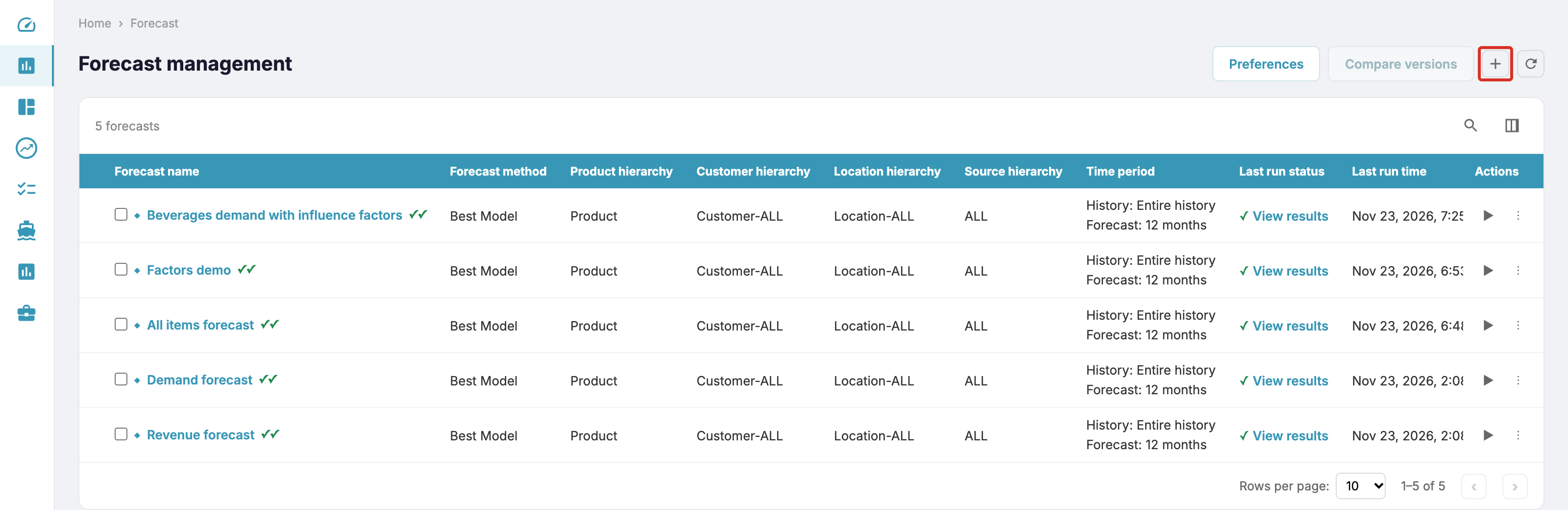
Step 1: Click Create forecast
On the Forecast screen, click the + (Create forecast) button at the top right of the list.
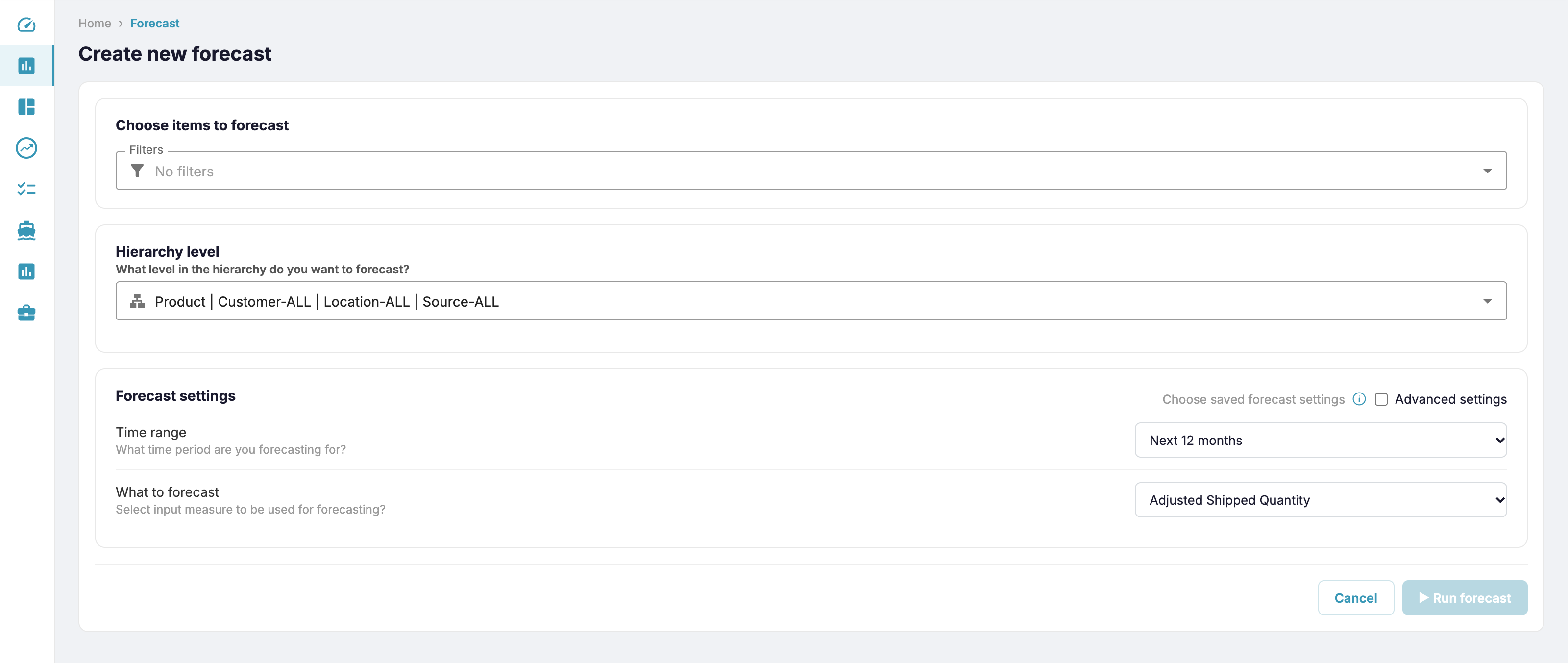
Step 2: The Create new forecast screen
The screen has three parts: the items to forecast, the hierarchy level, and the forecast settings.
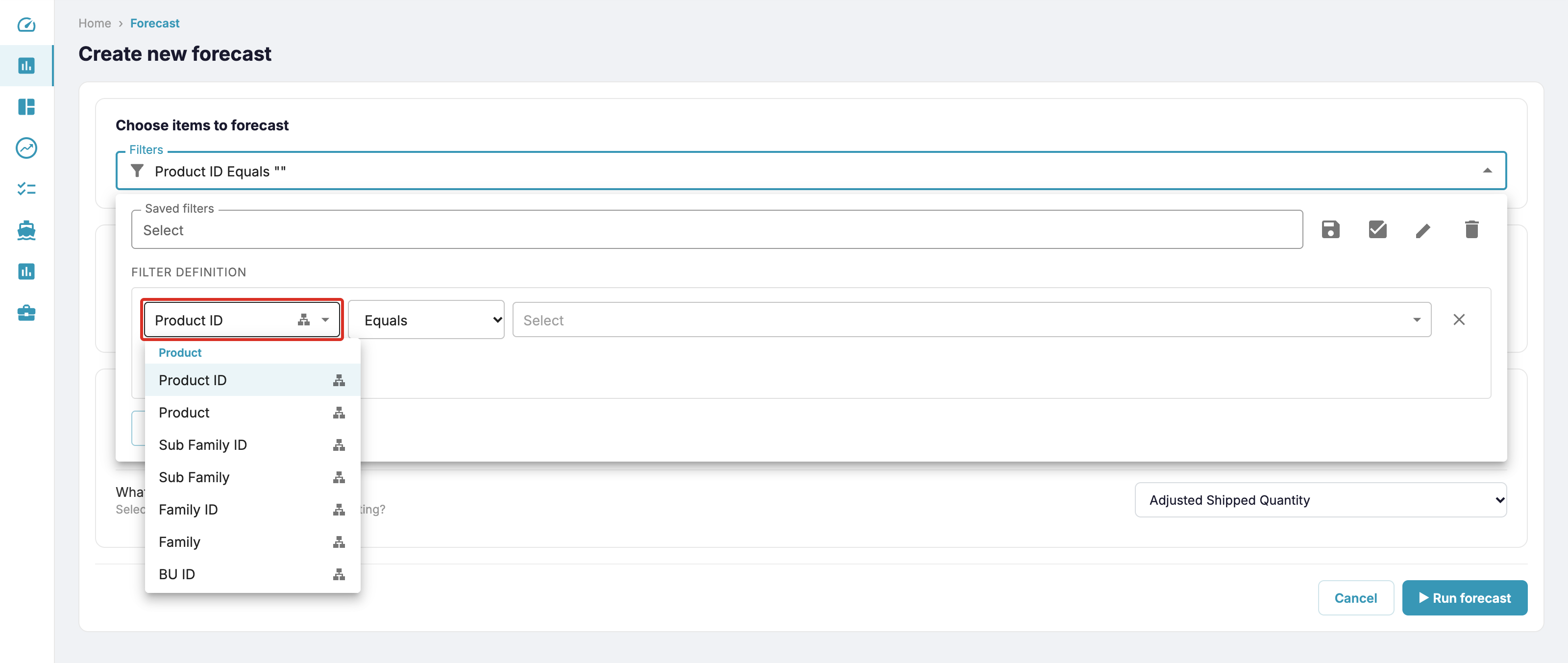
Step 3: Choose the items
Click Filters, then + Add filter, and open the first dropdown to pick what to filter on. Here we pick BU, the business unit.
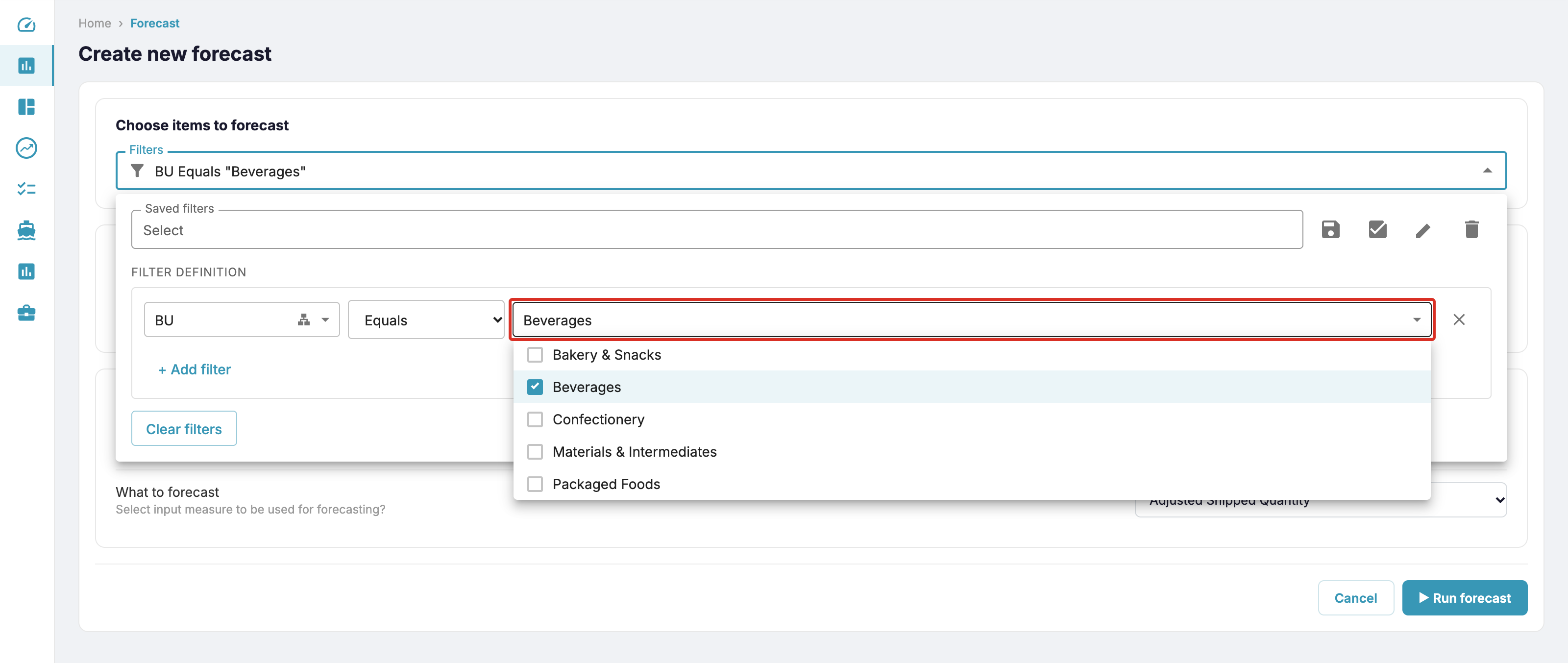
Step 4: Pick the value
Open the value box and select Beverages. The filter now reads BU Equals "Beverages", so only beverage items are forecast.
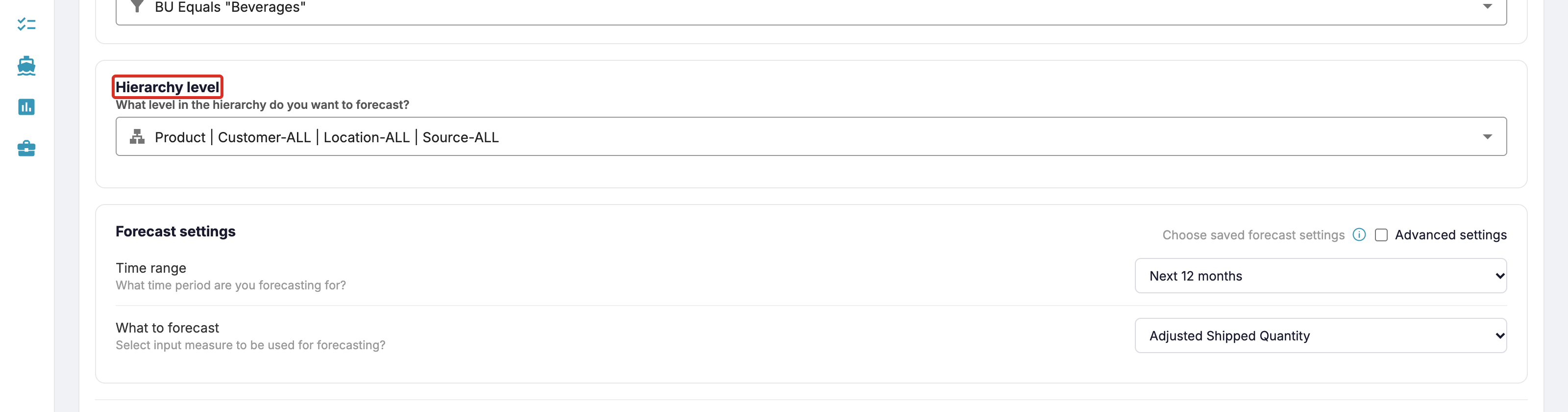
Step 5: Check the hierarchy level
The hierarchy level is Product, so each product gets its own forecast. This also decides which of your own factors you can use: factors set at Product level work here.
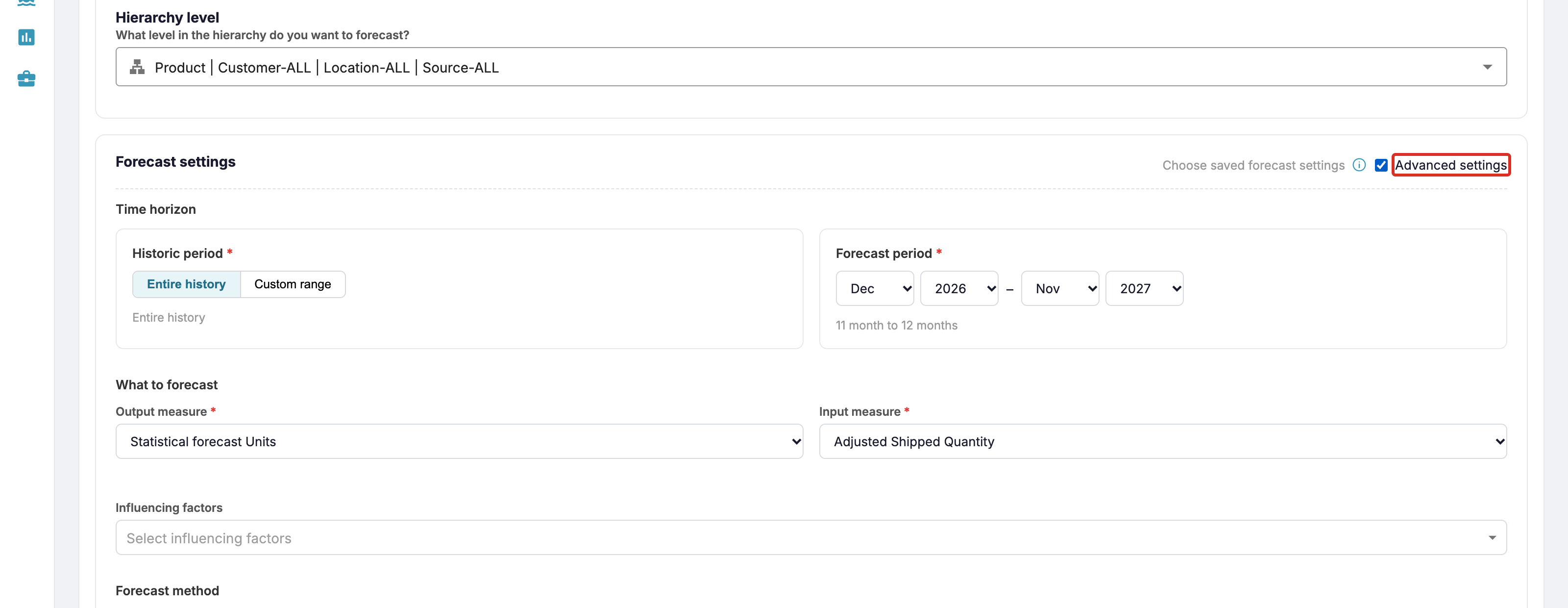
Step 6: Turn on Advanced settings
Switch on Advanced settings. The influence factors option is part of it.
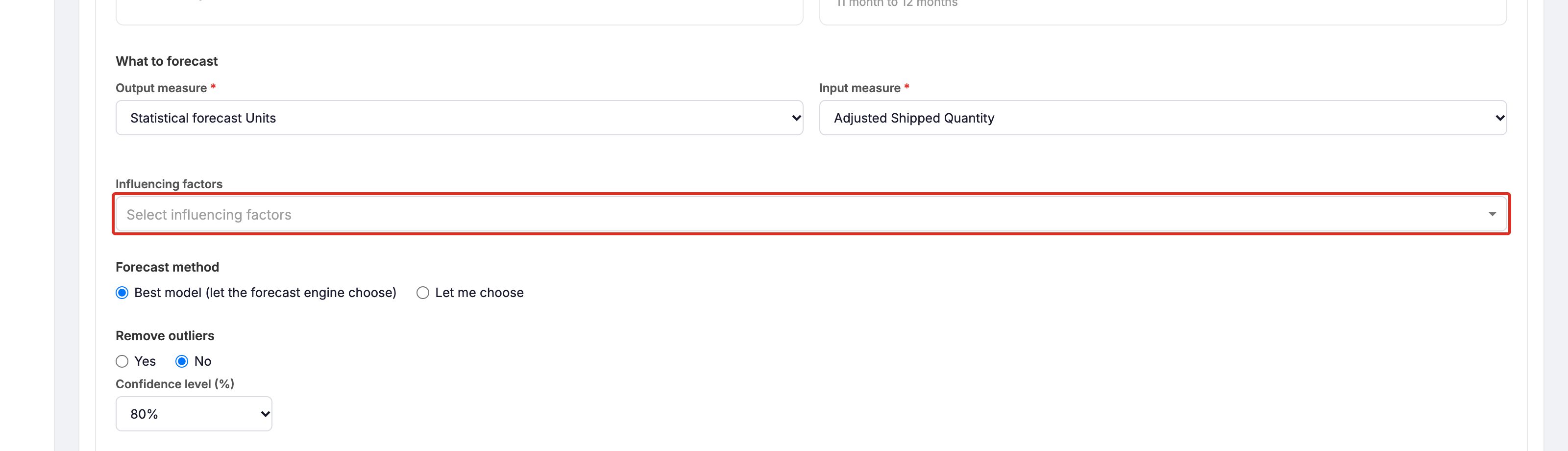
Step 7: Find the Influencing factors field
Under What to forecast, you will see the Influencing factors field. It is empty until you pick something.
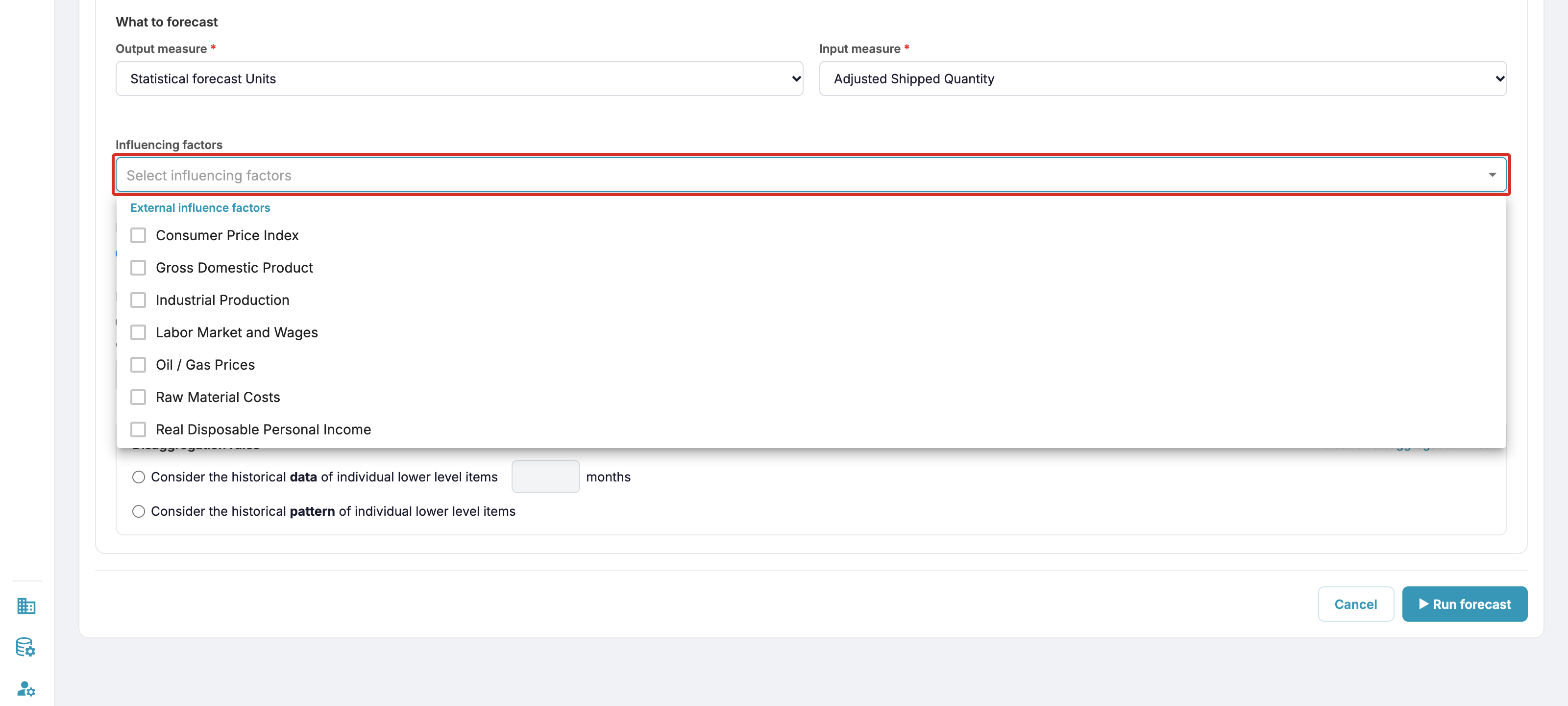
Step 8: Pick the external factors
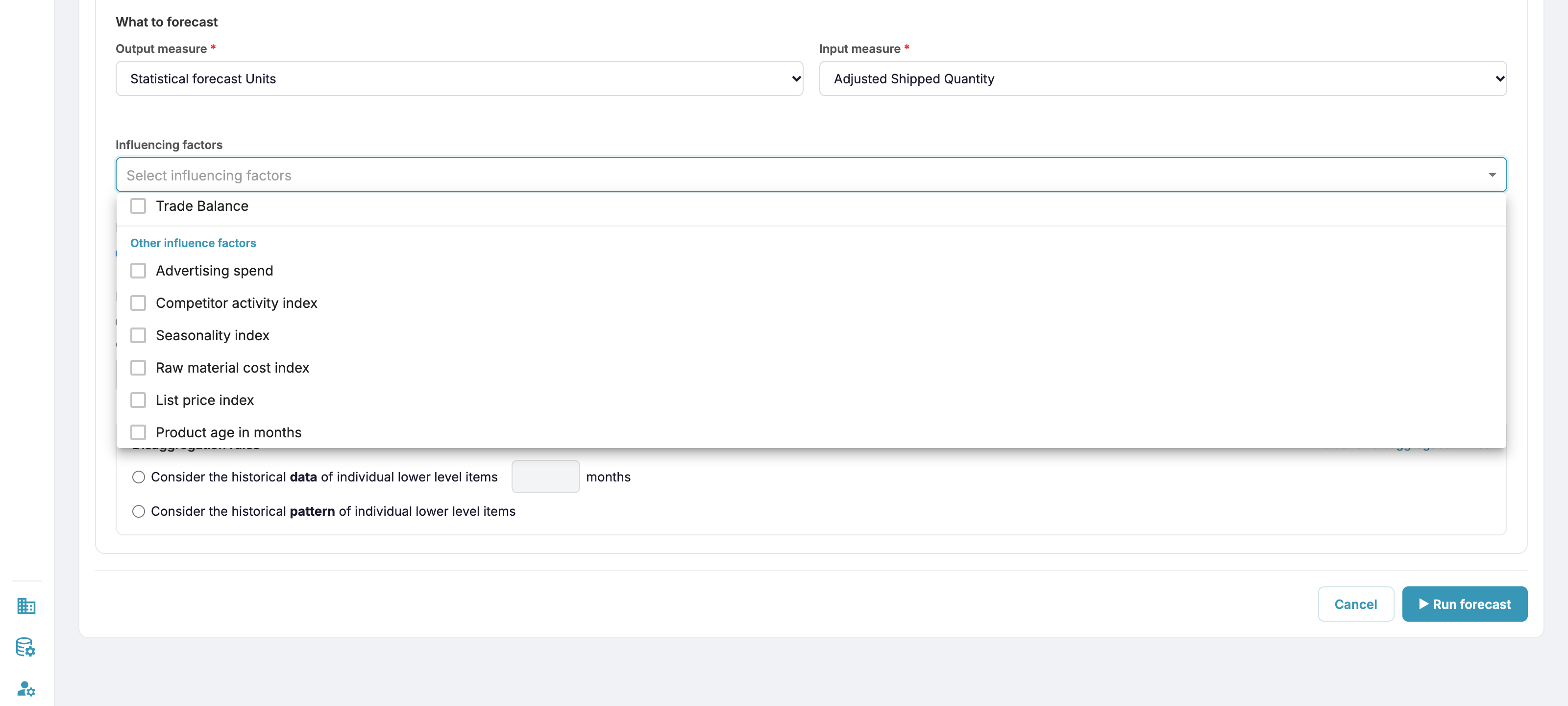
Click the field. The list starts with the External influence factors enabled for your tenant. Select Gross Domestic Product and Oil / Gas Prices.
Step 9: Pick the other factors
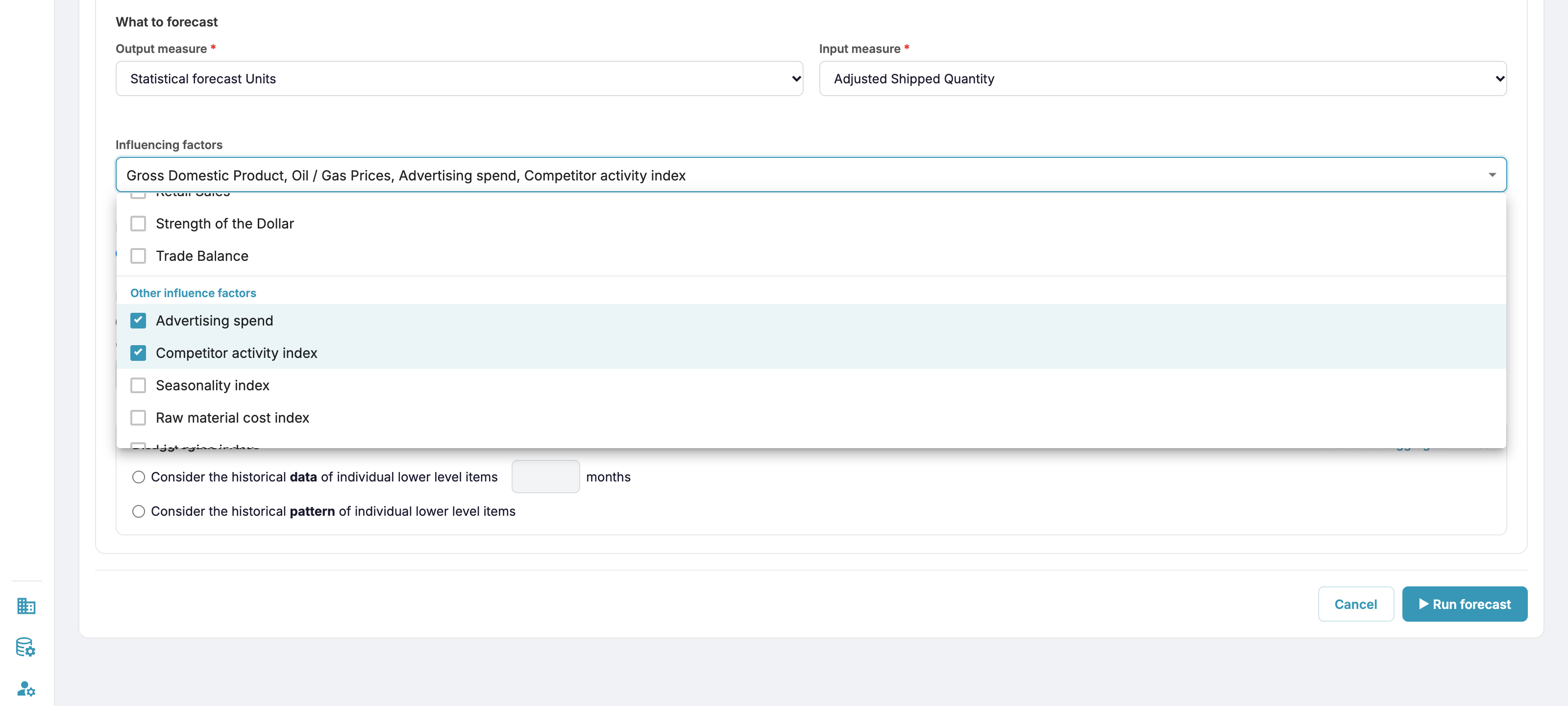
Scroll down to the Other influence factors group. It shows your own factors that fit this forecast's level. Select Advertising spend and Competitor activity index. The Customer and Product level factors aren't listed, because this forecast is at Product level.
Step 10: Check your selection
The four factors show in the field, separated by commas. You can mix external and other factors.
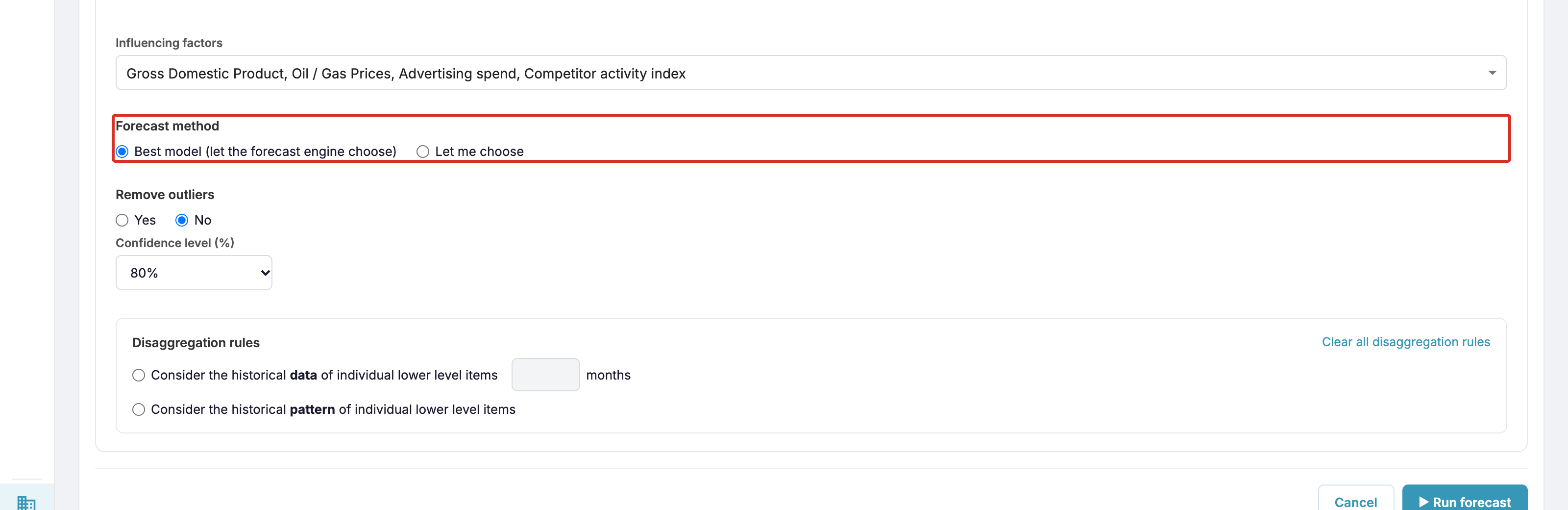
Step 11: Leave the forecast method on Best model
With Best model, the engine picks a method for each item, and it only picks methods that work with your factors. This is the simplest choice.
Prefer to choose the method yourself? See Choose a forecasting method yourself below, then come back here.
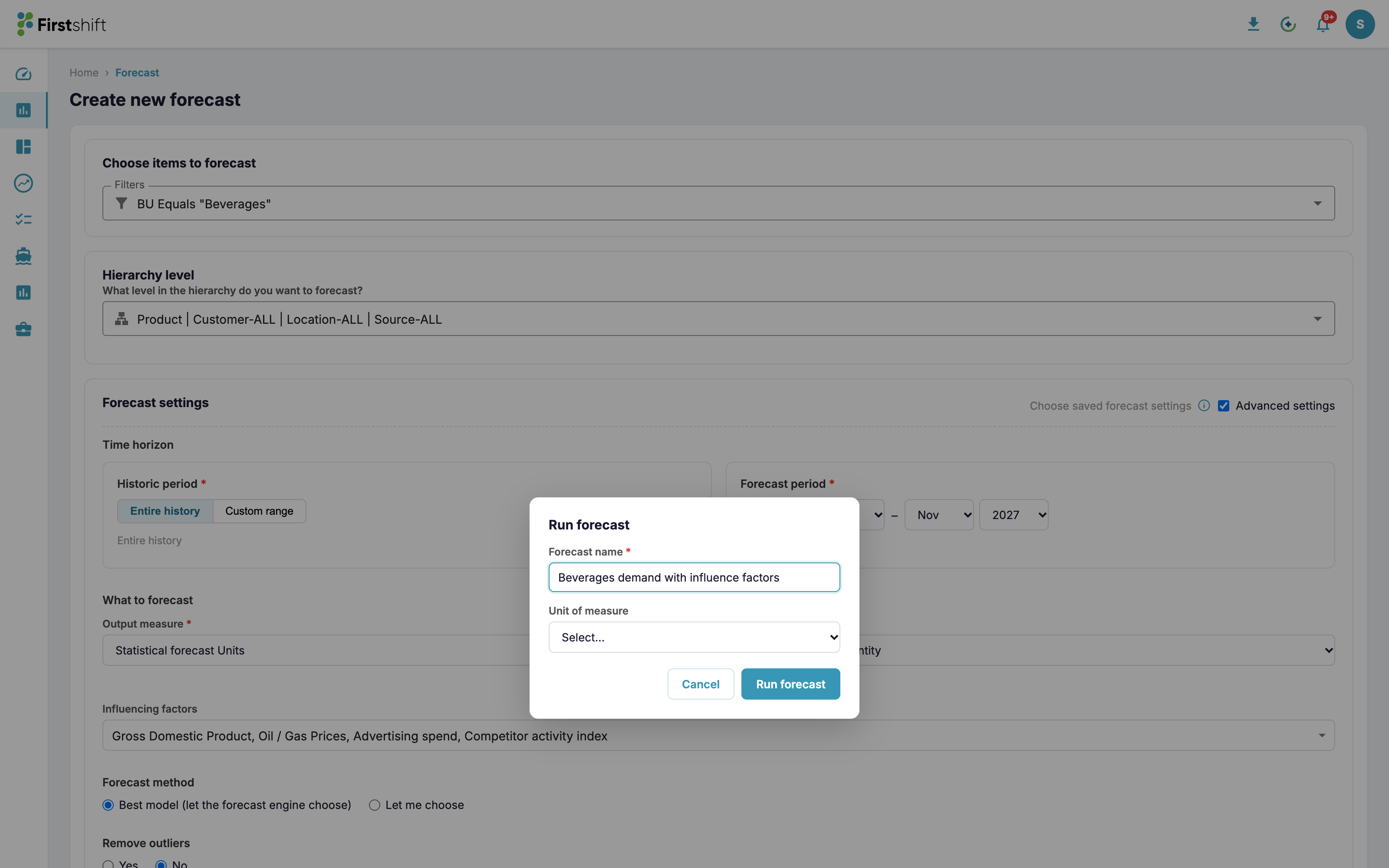
Step 12: Run the forecast
Click Run forecast, type a name for the forecast, and click Run forecast again.
Step 13: Wait for it to finish
The forecast appears in the list. When it is done, the last run status shows View results.
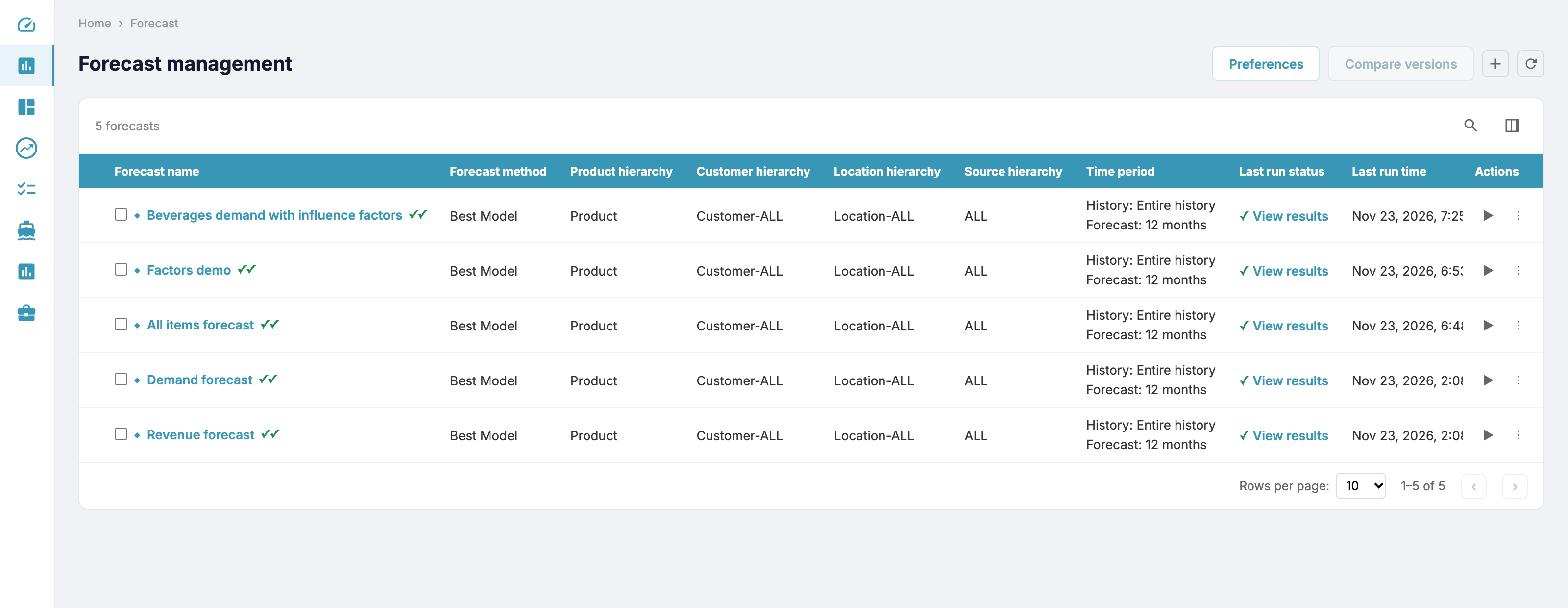
See the results
Step 14: Open the results
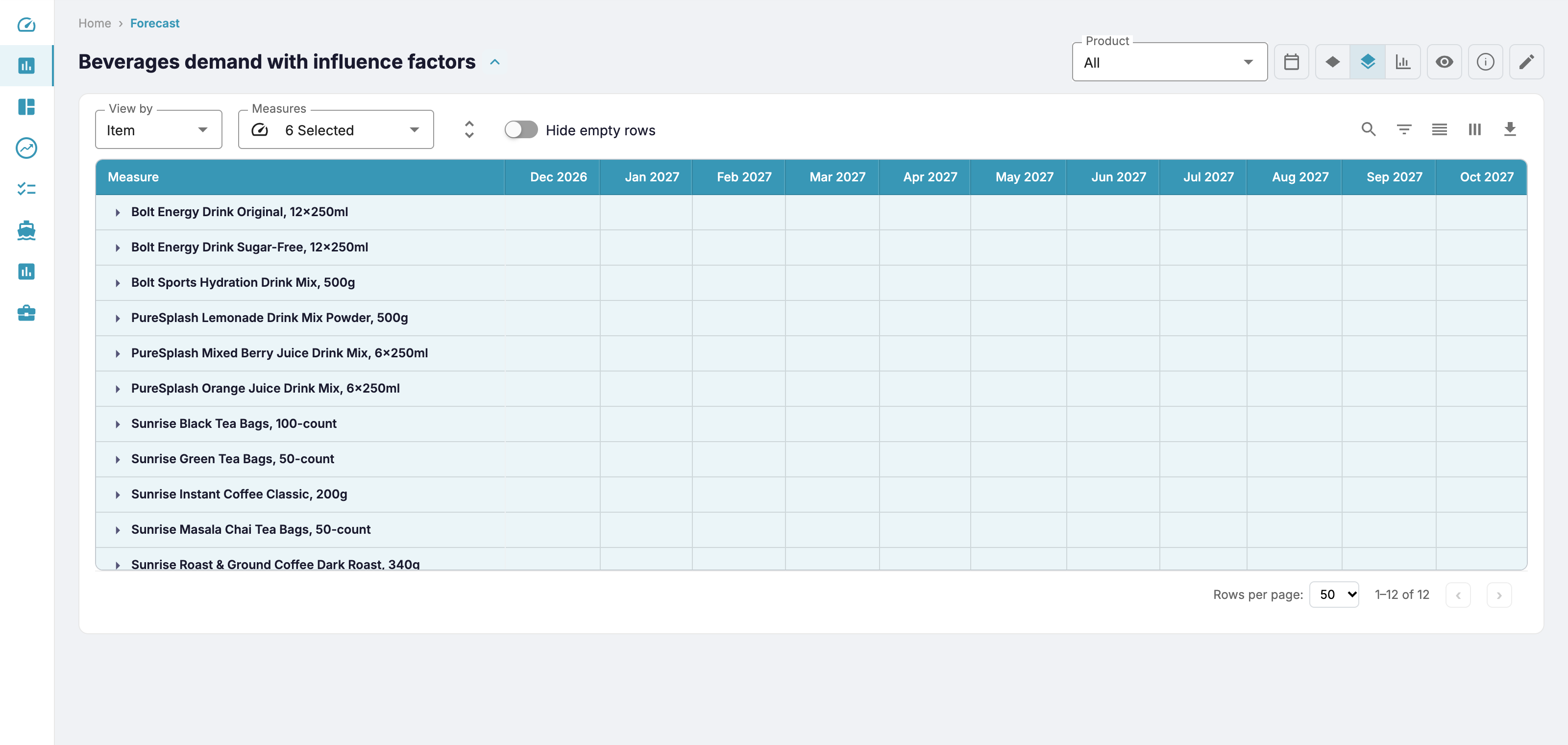
Click View results. The results open with the items in rows and the forecast months in columns.
Step 15: Find the factors in Measures
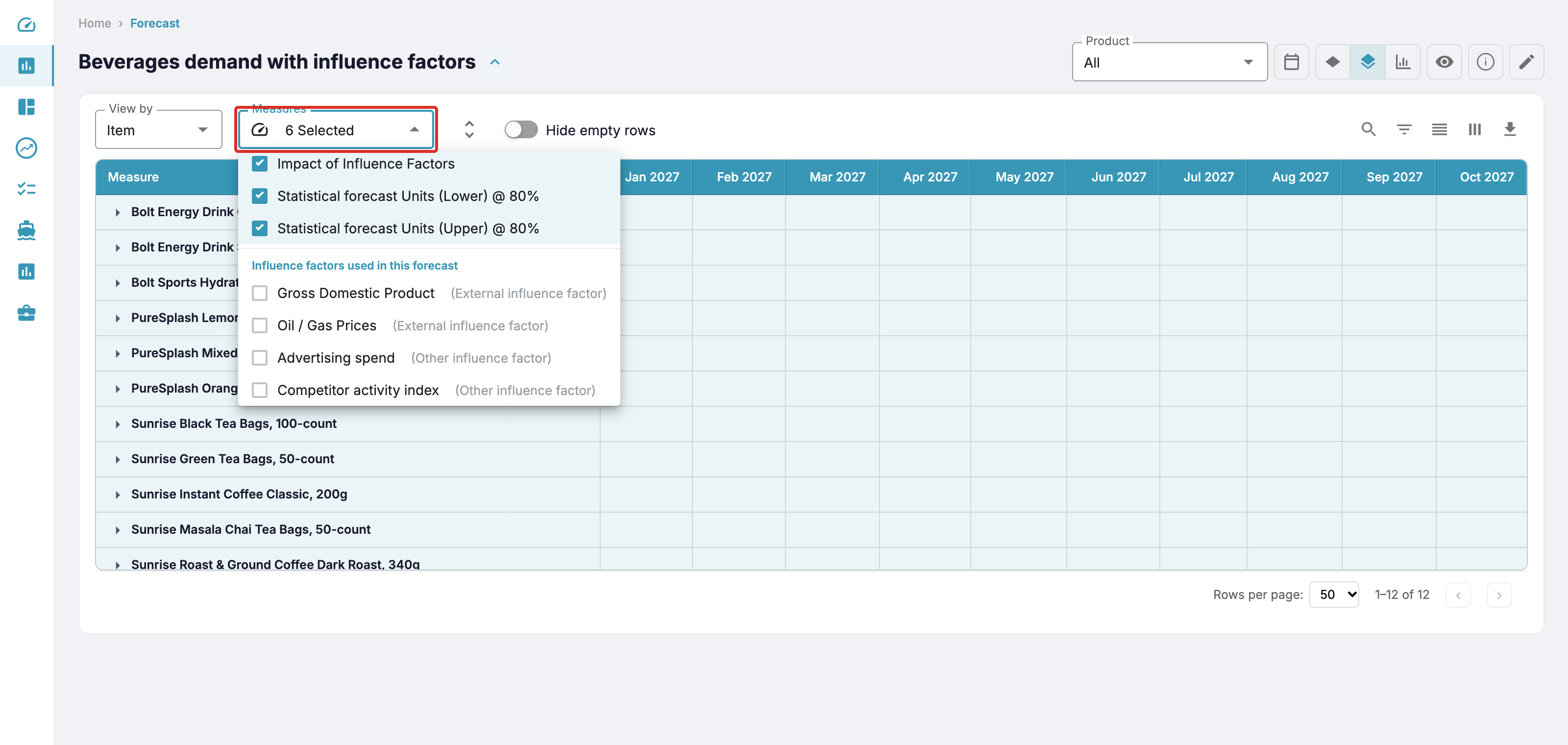
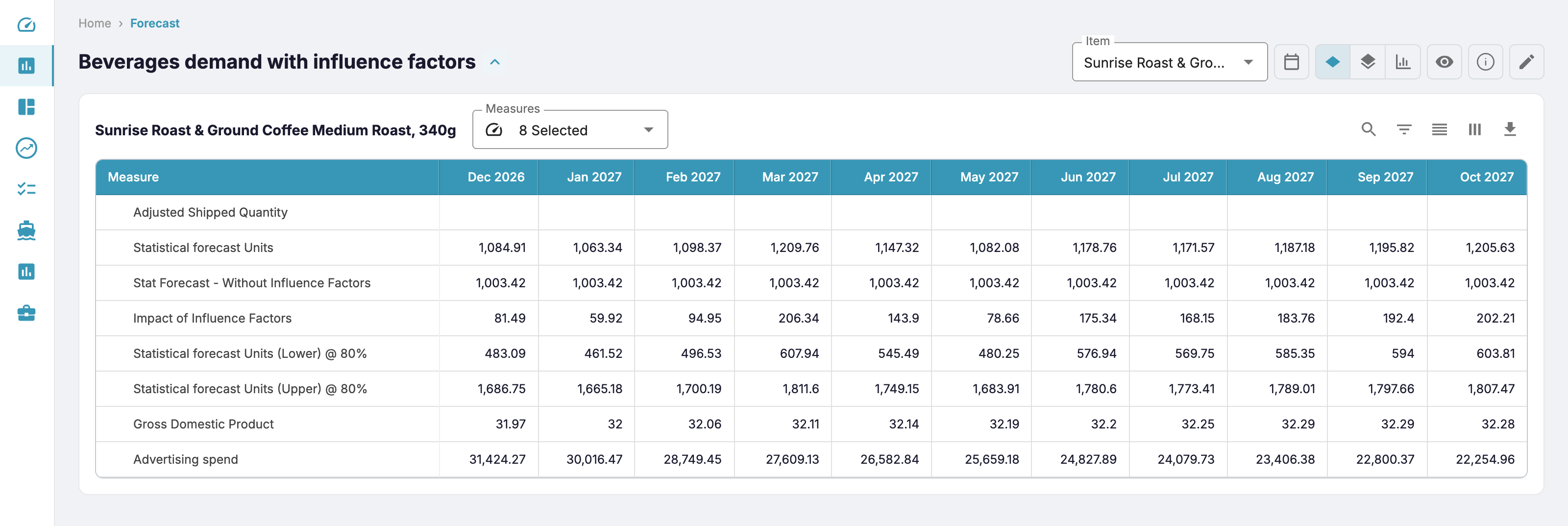
Open the Measures list. The forecast measures come first, including Stat Forecast - Without Influence Factors and Impact of Influence Factors. Below them, a group called Influence factors used in this forecast lists your four factors, each marked External or Other. None of the factors is selected to begin with.
Step 16: Show the factor values next to the forecast
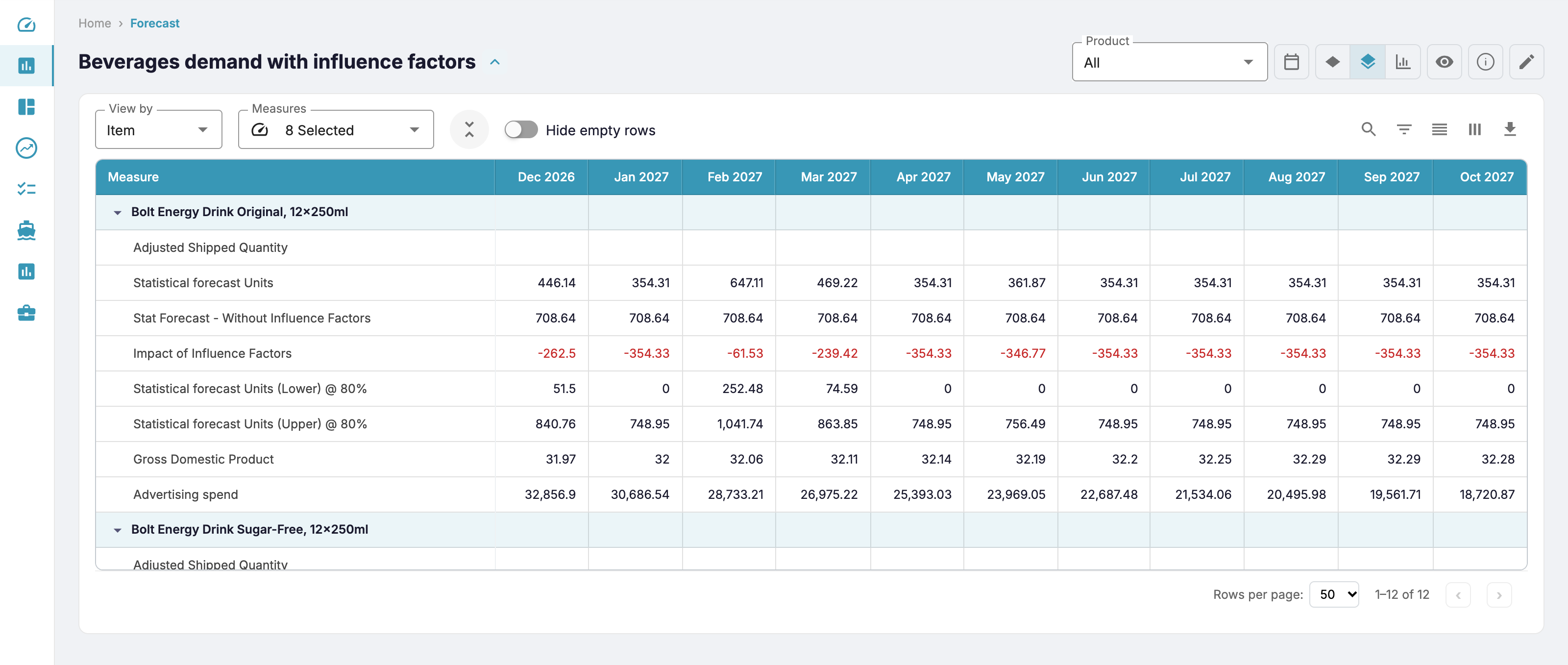
Select a factor to add its row to the table. Each factor has a value for every month, so you can see what the forecast was built on. If a factor has no values yet for the future months, FirstShift forecasts them from the factor's own history. To learn more, see View the impact of influence factors in forecast results.
Step 17: Read the impact
Switch to the single-item view to see one item. For Sunrise Roast & Ground Coffee Medium Roast, 340g, the forecast with factors for Dec 2026 is 1,084.91 and without them it is 1,003.42. The Impact of Influence Factors row shows the difference, 81.49. A positive impact means the factors pushed the forecast up. A negative impact, shown in red, means they pulled it down.
Choose a forecasting method yourself
Not every forecasting method can use influence factors. This only matters if you choose Let me choose instead of Best model.
See which methods work
Open the method list. While factors are selected, methods that can't use them show a light grey note: (not supported with influence factors).
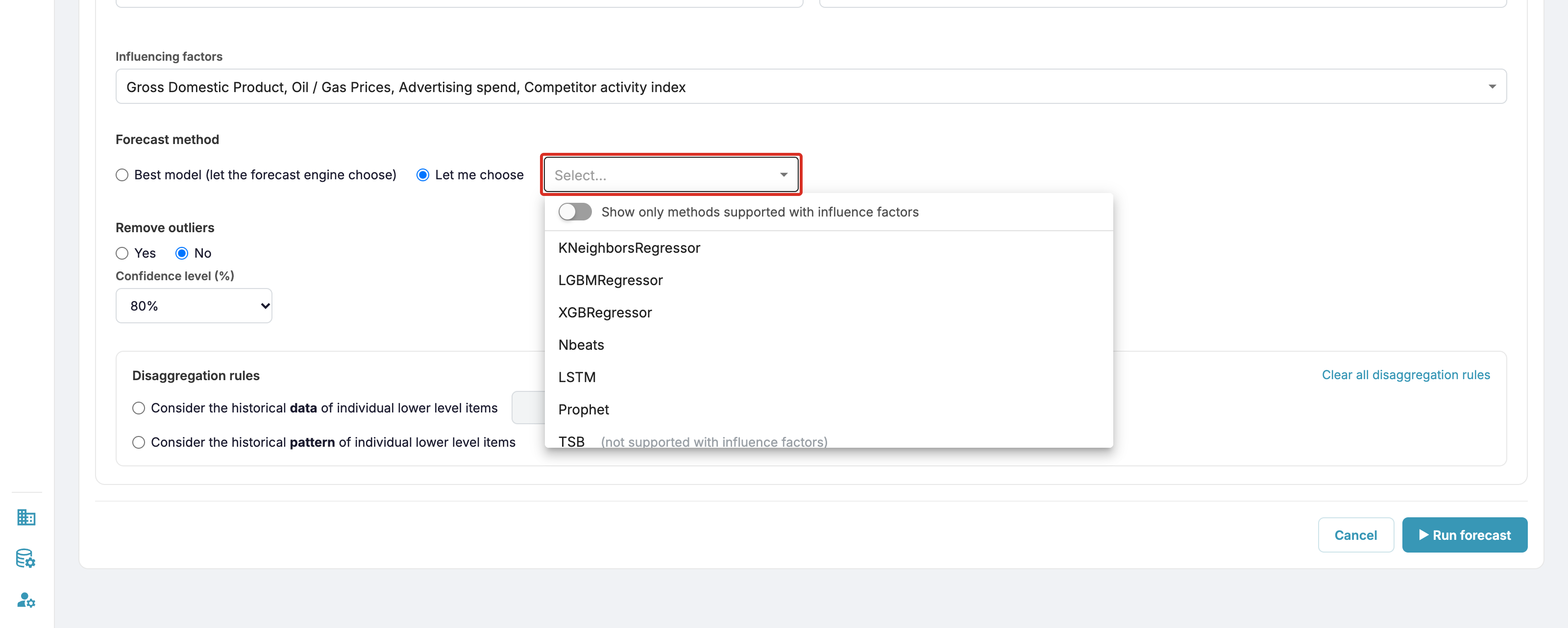
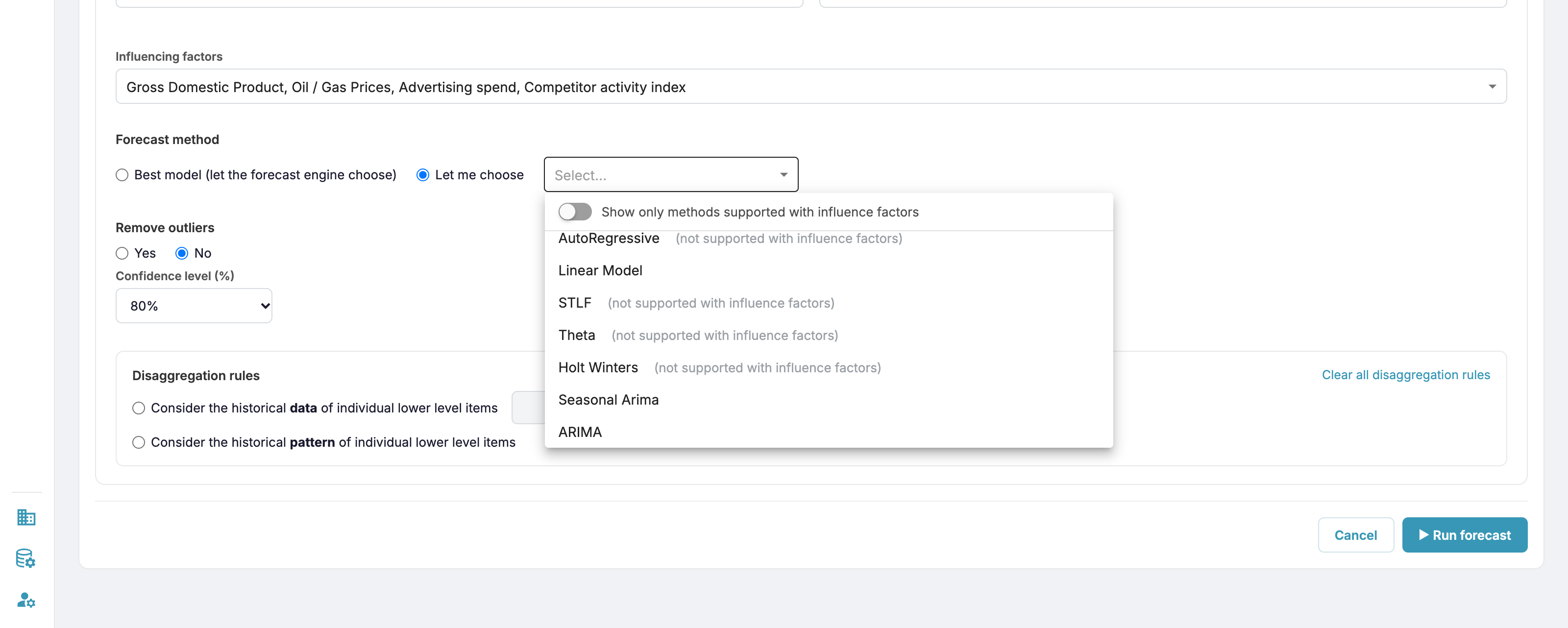
Scroll to the unsupported methods
Methods such as STLF, Theta and Holt Winters carry the note. You can still select them.
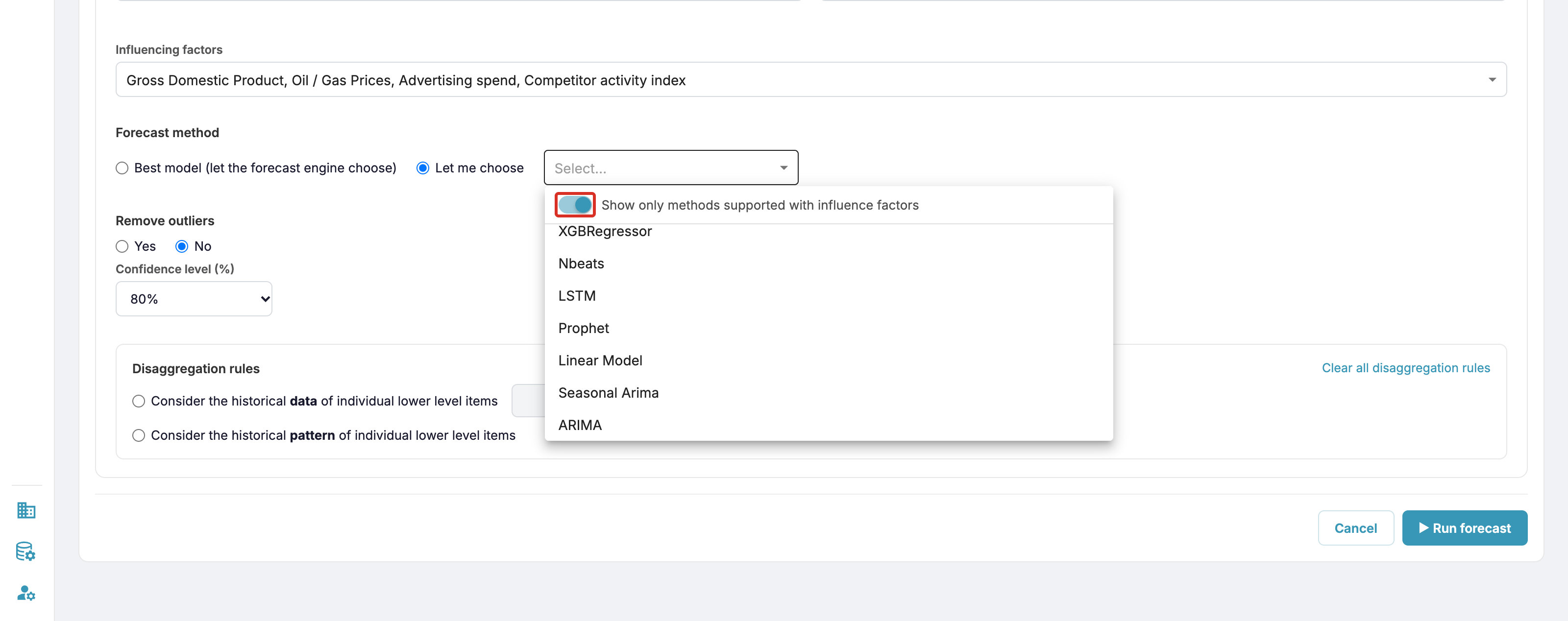
Show only methods that work
Turn on Show only methods supported with influence factors to hide the ones that don't work. Turn it off to see them all again.
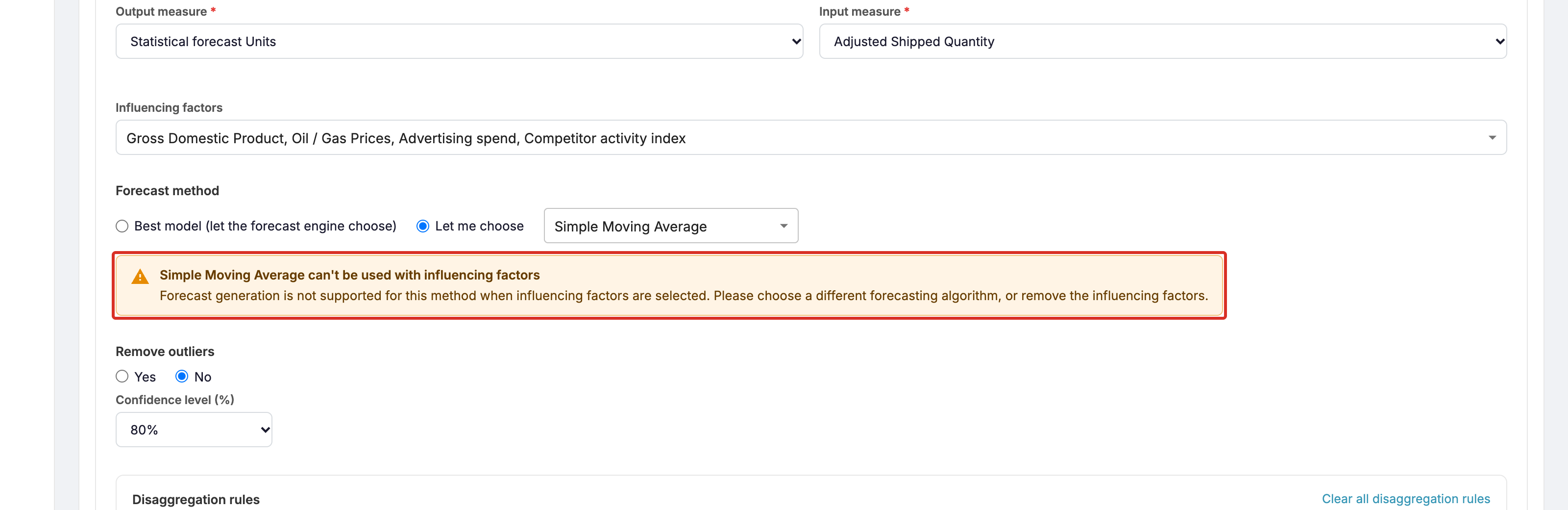
If you pick a method that can't use factors
FirstShift shows a warning right under the method. It names the method and explains why it can't be used. Choose a different method or remove the factors.
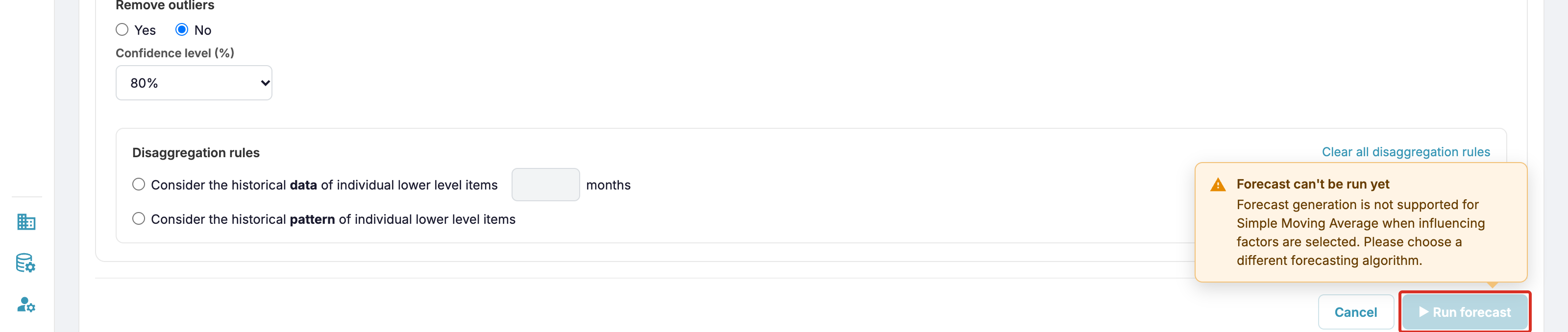
Run forecast stays disabled
While the warning shows, the Run forecast button is disabled. Hover over it to see why. FirstShift never removes your selections for you.
Pick a method that works
As soon as you choose a supported method, remove the factors, or switch to Best model, the warning goes away and you can run the forecast.
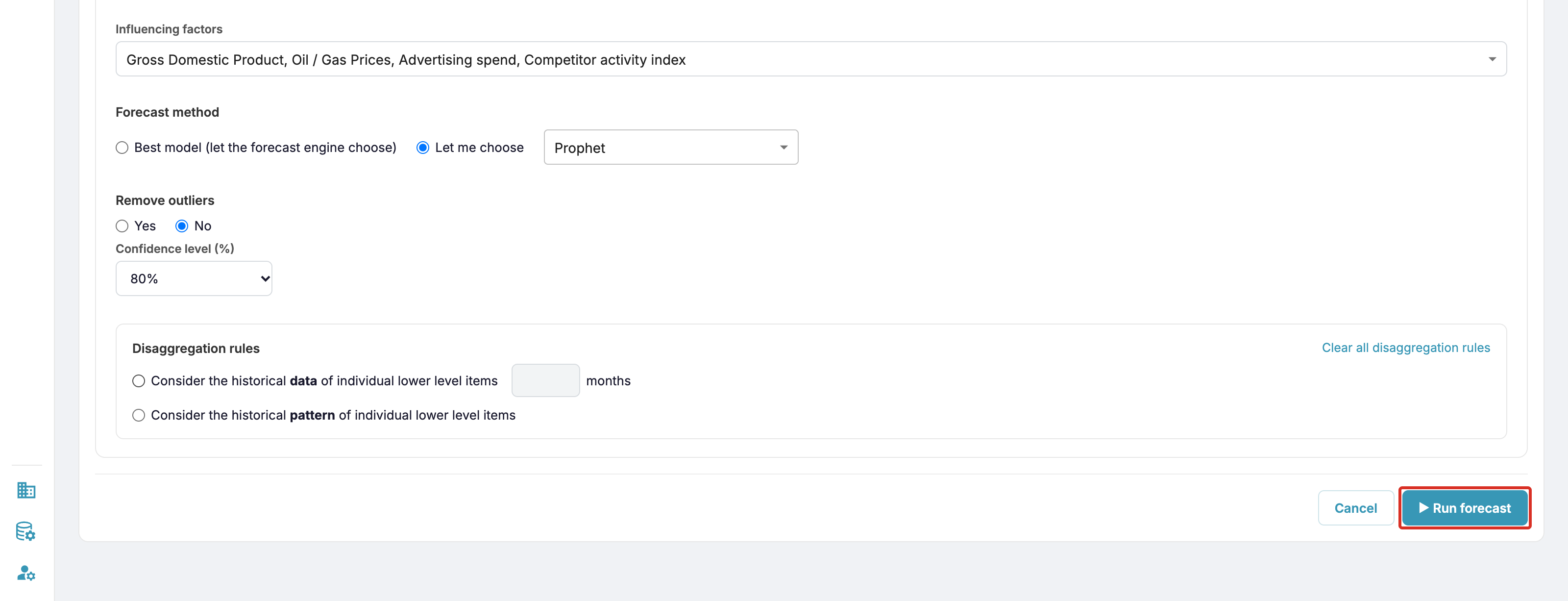
Methods that work with influence factors: KNeighborsRegressor, LGBMRegressor, XGBRegressor, Nbeats, LSTM, Prophet, Linear Model, Seasonal Arima and ARIMA.
Methods that don't: STLF, Holt Winters, Theta, AutoRegressive, Moving Average, AutoRegressive Moving Average, Simple Exponential Smoothing, Average of History, Simple Moving Average, Exponential Moving Average and TSB.
How the factors are used in the forecast
- FirstShift looks at how each item's past sales moved together with your factors, and uses that to adjust the forecast.
- If a factor has no values yet for the future months, FirstShift forecasts those months from the factor's own history, so the factor has a value in every month.
- For an item the factors can't be applied to (for example, too little history), the forecast is created without them.
Related articles
Was this article helpful?
That’s Great!
Thank you for your feedback
Sorry! We couldn't be helpful
Thank you for your feedback
Feedback sent
We appreciate your effort and will try to fix the article