TABLE OF CONTENTS
- Overview
- Cross-hierarchy dimensions at a glance
- Find them in a filter
- Basic and advanced attributes
- Use them in a filter
- Combine them with other filters
- Which attributes can you use?
- Where you can use them
- Related articles
Overview
Some planning data belongs to a combination of dimensions rather than to one. We call these cross-hierarchy dimensions. Two common ones are:
- Product Location master: data about a product at a location, such as its safety stock or whether it is fast or slow moving there. The same product can behave differently in each warehouse, so these values only make sense for the combination.
- Product Customer master: data about a product sold to a customer, such as the customer's priority.
You can use these attributes as filters, along with the usual Product, Customer, Location and Source ones. For example, you can pick only the products that are class A at a location, or only your high-priority customers. This works in Planner Workbench, forecast creation, segmentation, planning views, dashboards and security filters.
If an attribute you need isn't in the filter list, ask your FirstShift implementer to enable it for your tenant.
Cross-hierarchy dimensions at a glance
| Cross-hierarchy dimension | What it holds | Examples |
|---|---|---|
| Product Location master | A product at a location | Safety stock, ABC class |
| Product Customer master | A product sold to a customer | Customer priority |
| Product source master | Sourcing details of a product | Lead time |
| Product sourcing network | Where a product ships from and to | Ship from location |
Find them in a filter
Which cross-hierarchy attributes you see is set up for your tenant by your FirstShift implementer.
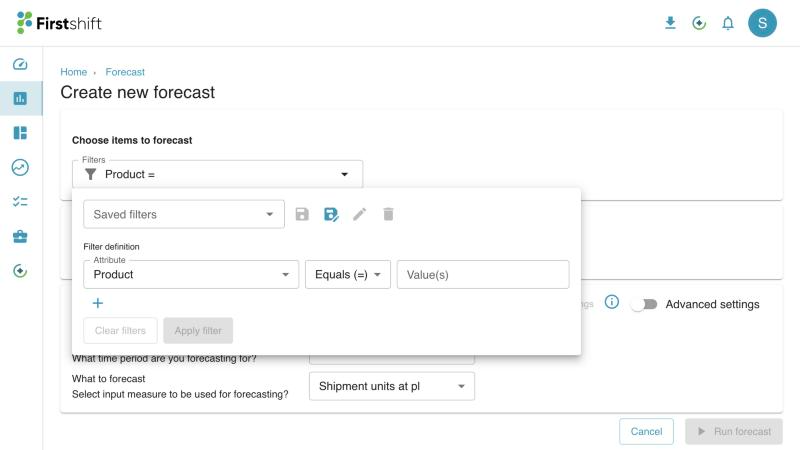
Open the filter
Open any filter, for example when you create a bookmark or a forecast. Click the filter area to see the filter definition.
Open the Attribute list
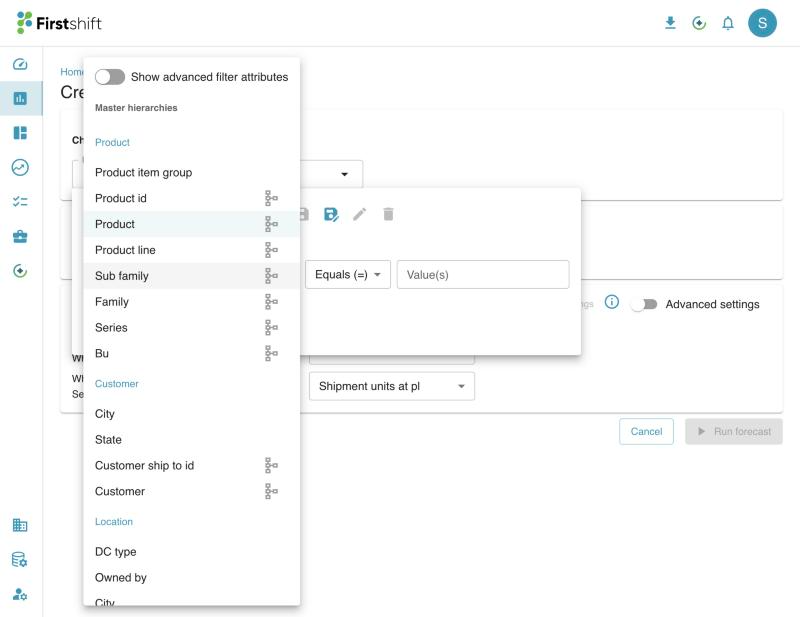
Click Attribute. The list has two parts: Master hierarchies at the top (Product, Customer, Location and Source), then Cross hierarchies.
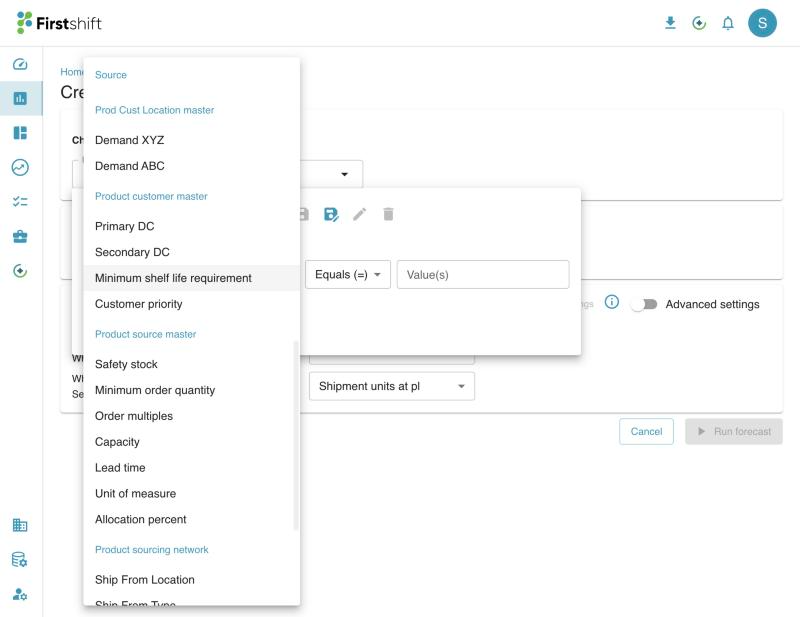
Scroll to Cross hierarchies
Each cross-hierarchy dimension has its own heading with its attributes underneath. Choose the attribute you want.
Basic and advanced attributes
Basic attributes are shown by default. Switch on Show advanced filter attributes at the top of the list to see the advanced ones as well. Your FirstShift implementer sets which attributes are basic and which are advanced.
Use them in a filter
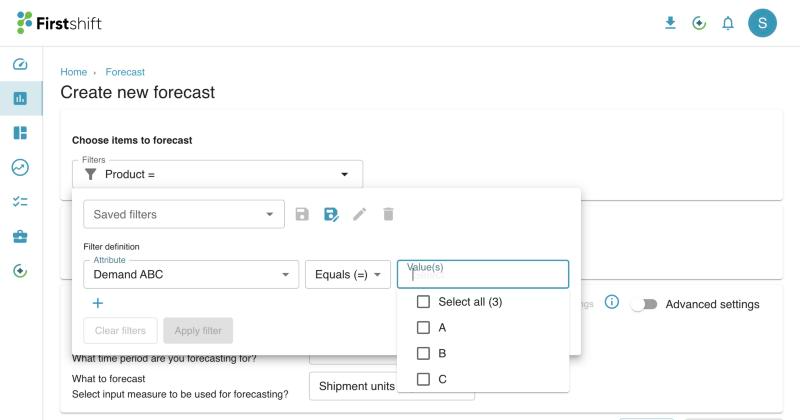
Choose a value
After you choose the attribute, open Value(s) and select one or more values, for example the ABC class A.
Combine them with other filters
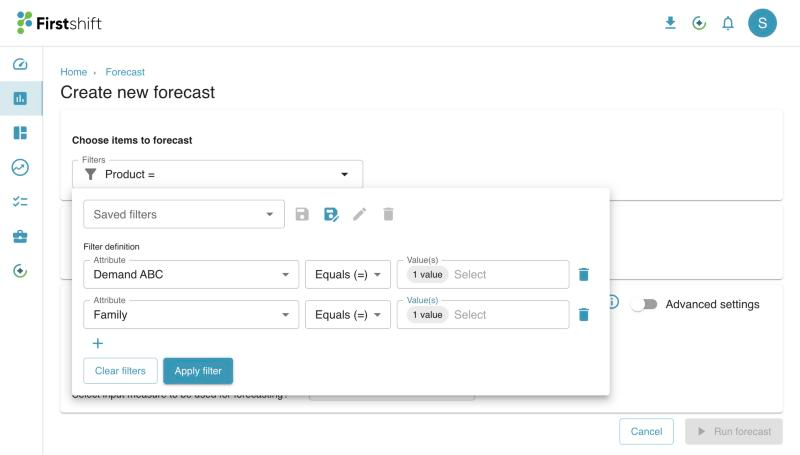
Add another filter
Click + to add a row, and choose a regular attribute such as Family. All the rows apply together, so you only get the items that match every one. Here, you get the items in the chosen family that also have Demand ABC = A.
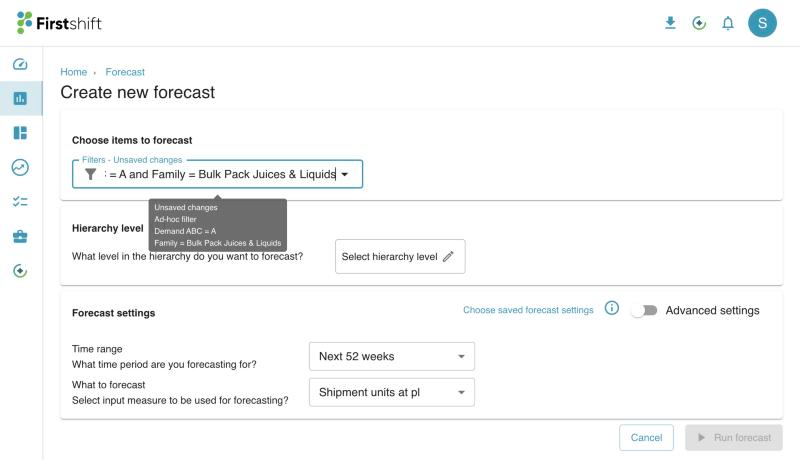
Apply the filter
Click Apply filter. The filter bar shows your conditions. Hover over it to see them listed.
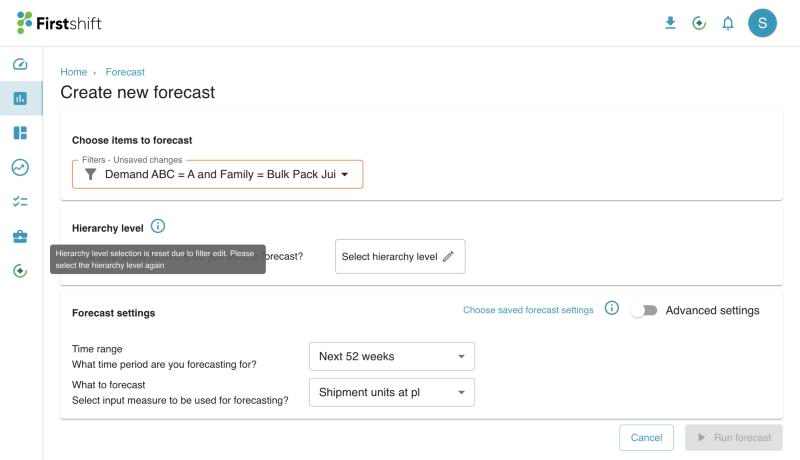
Choose the hierarchy level again
When you change a filter, the hierarchy level resets. Choose it again.
Which attributes can you use?
A cross-hierarchy attribute works only when it matches the level of your data, or is more summarised than it. If it is more detailed, you can't use it, because one row of your data would match many rows of the attribute.
For example: if your data is by Product only, a Product Customer master attribute can't be used. A product has many customers, so there is no single answer for the filter. Your data would need to include the customer too.
| Your data is at level | Product customer master | Product location master | Prod Cust Location master | Product sourcing network | Sourcing network |
|---|---|---|---|---|---|
| Product, Customer, Location | Works | Works | Works | Doesn't | Doesn't |
| Product, Customer | Works | Doesn't | Doesn't | Doesn't | Doesn't |
| Product, Location | Doesn't | Works | Doesn't | Doesn't | Doesn't |
| Product only | Doesn't | Doesn't | Doesn't | Doesn't | Doesn't |
| Product, Location, Source | Doesn't | Works | Doesn't | Works | Works |
| Location, Source | Doesn't | Doesn't | Doesn't | Doesn't | Works |
An attribute that can't be used is either not offered or shows a message, depending on the screen. A filter without cross-hierarchy attributes works as before.
Where you can use them
- Planner Workbench: when you create a bookmark.
- Forecast creation: to choose the items to forecast.
- Segmentation: in the segmentation filters.
- Planning views and dashboards: wherever you pick items with a filter.
- Security filters: a customer administrator can use them to limit what a user sees.
- Saved filters, and editing a saved filter, work the same way with cross-hierarchy attributes.
Related articles
Was this article helpful?
That’s Great!
Thank you for your feedback
Sorry! We couldn't be helpful
Thank you for your feedback
Feedback sent
We appreciate your effort and will try to fix the article