TABLE OF CONTENTS
Overview
An NPI plan is where you forecast demand for a product that has no sales history yet. You choose the new product, say how many months you want to forecast, and the system builds the forecast for you. The NPI Planning screen lists all your NPI plans. From it, you can see how each plan is doing, run it, open it, and create new ones.
NPI plans are used when a new product has no history of its own, for example:
- A brand extension, where a new product is introduced under an existing brand.
- A new product category, where you have nothing similar in your portfolio today.
- A new product in an existing category, where similar products are already sold.
- A line extension, where a new version or variant of an existing product is introduced.
- A product replacement, where an updated version replaces an older model.
Open the NPI plan list
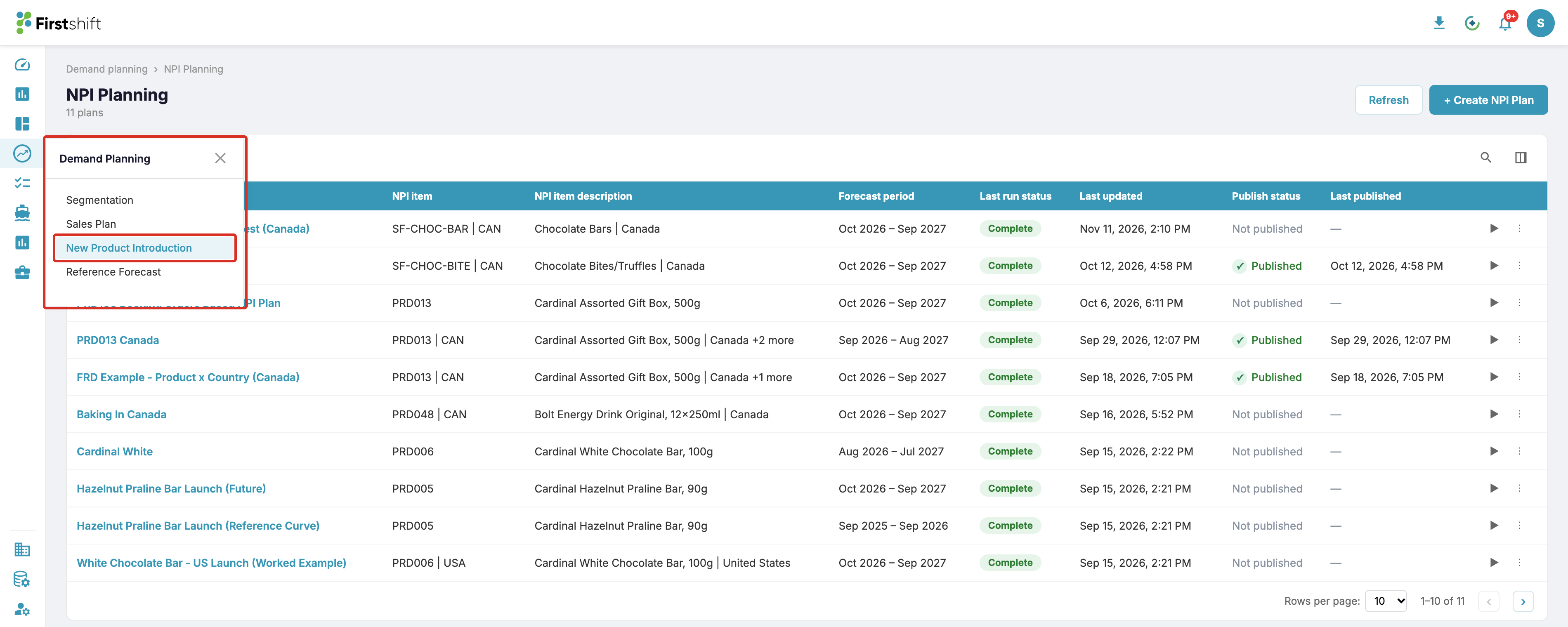
- Go to Demand Planning.
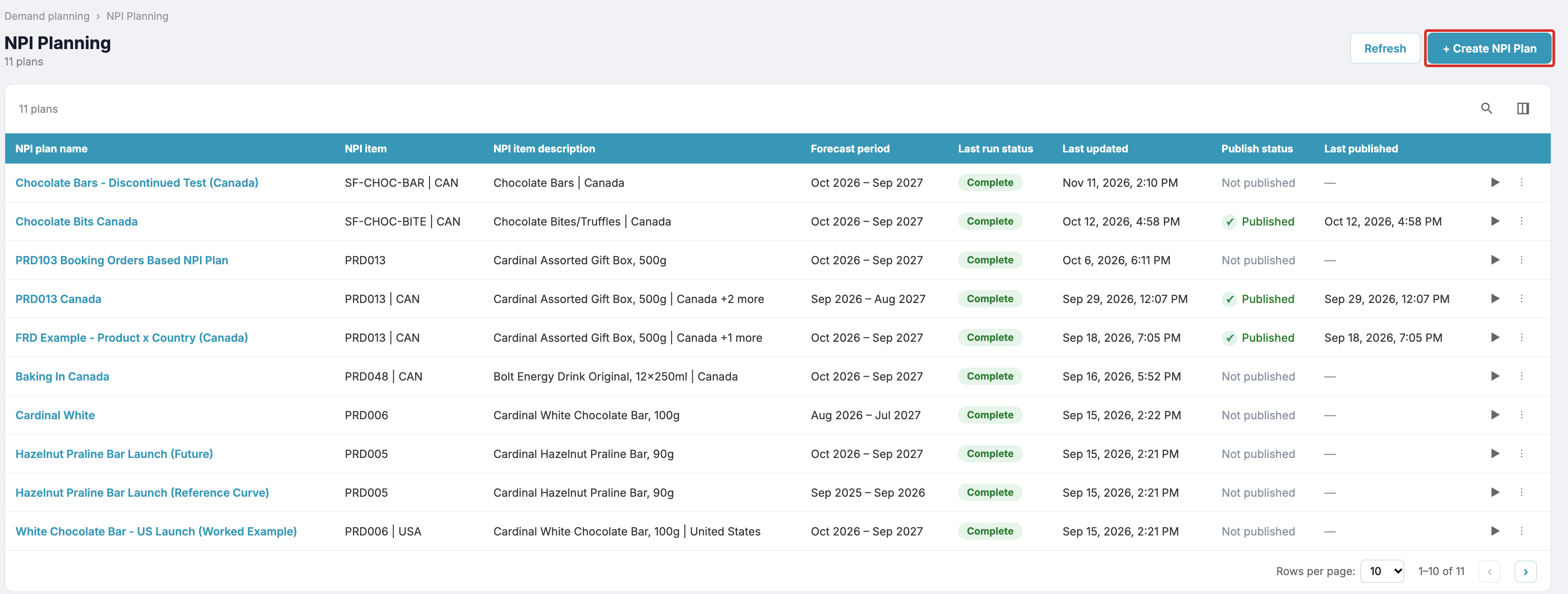
- Click New Product Introduction. The NPI Planning screen opens with the list of your NPI plans.
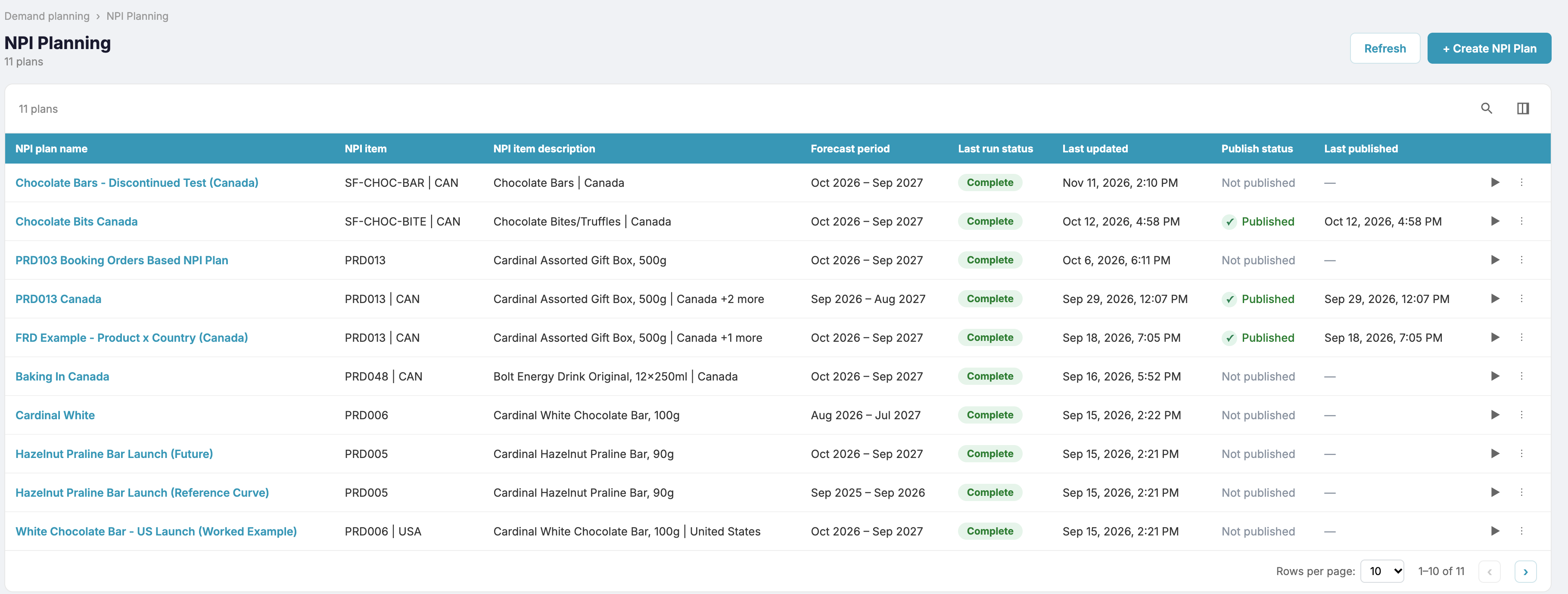
Each row is one NPI plan. A plan with more than one NPI item is still one row (see NPI item below).
Columns in the list
NPI plan name
The name you gave the plan when you created it. Every plan name must be unique.
NPI item
The new product the plan forecasts. If the plan has more than one NPI item, the list shows the first item here.
NPI item description
The description of that first item. When the plan has more items, the list adds "+N more", for example "+2 more". Open the plan to see all its items.
Forecast period
The months the plan forecasts, shown as a start month and an end month (e.g., Oct 2026 – Sep 2027). This is the stretch of time the forecast covers, starting from the launch of the product.
Last run status
Tells you whether the NPI forecast has been generated and whether it worked.
| Status | What it means |
|---|---|
| Not Started | The plan is created but has not been run yet. |
| Processing | The plan is running. Click Refresh to see when it finishes. |
| Complete | The NPI forecast is generated, and you can open the results. |
| Error | The plan could not be generated. |
Last updated
The date and time the plan was last created or edited. It changes when you edit the plan, and when you run it again.
Publish status
Shows whether the forecast has been sent to the Planner Workbench.
| Status | What it means |
|---|---|
| ✓ Published | 1 or more NPI items in the plan have been published. |
| Not published | The plan has not been published. |
If you regenerate the disaggregated plan of an NPI item after publishing, that item goes back to unpublished until you publish it again. The plan shows Not published only when none of its items is published. To learn how publishing works, see Publish NPI.
Last published
The date the plan was most recently published. When a plan has several items, it shows the latest publish date among them. It shows "—" while the plan is not published.
Actions on each plan
| Action | What it does |
|---|---|
| Run | Runs the plan, or runs it again to pick up the latest data. |
| Edit | Opens the plan so you can change its setup. |
| Rename | Opens a small window to change the plan name. The new name shows right after you save. |
| Delete | Removes the plan. To know what happens to the data that was already published, see Delete NPI Plan. What happens if I delete an NPI Plan? |
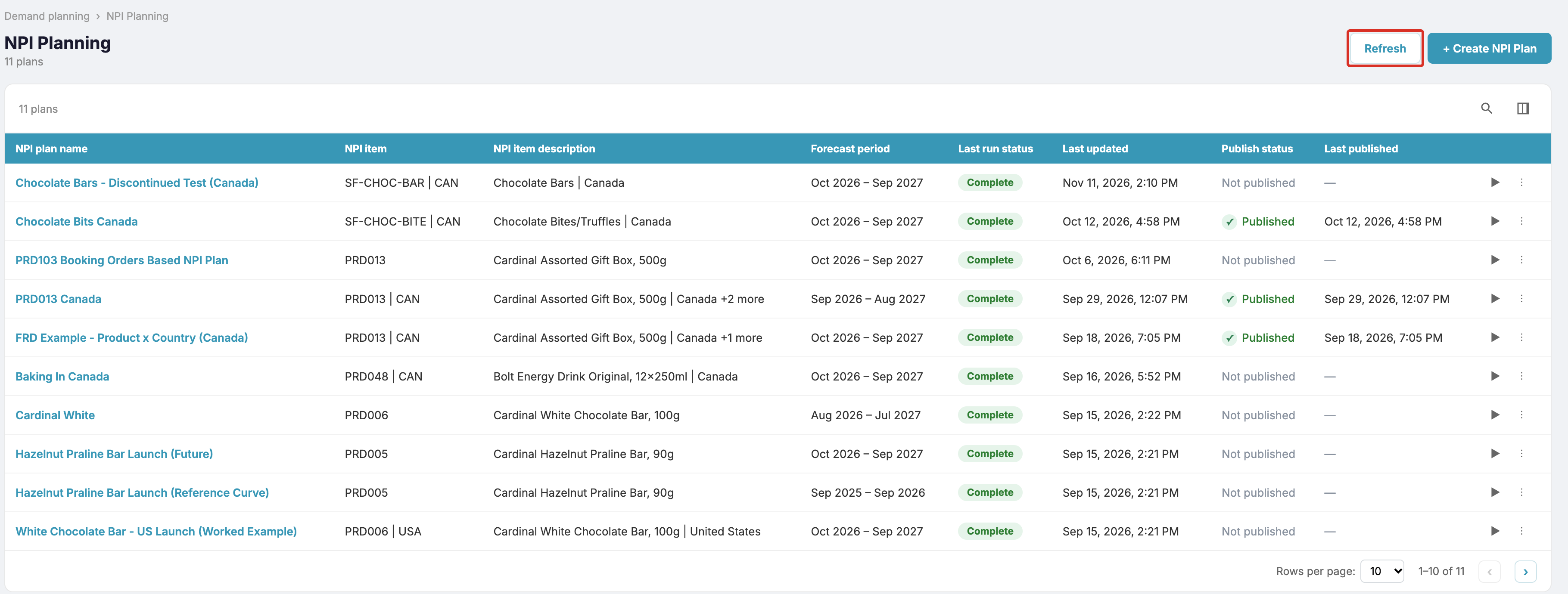
| Refresh | Reloads the list so you see the latest status of new or edited plans. |
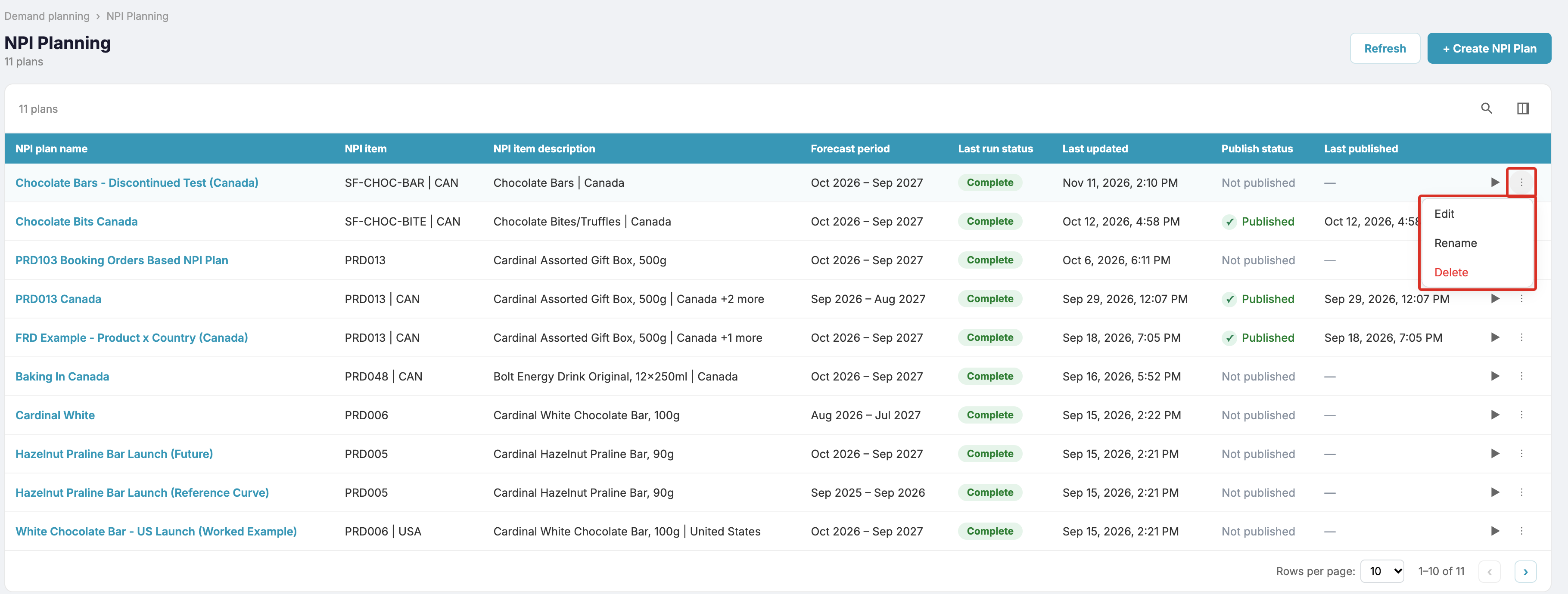
Edit, Rename, and Delete are under the More menu on each row.
To start a new plan, click Create NPI Plan. For the steps, see How to create NPI plan?.
Related articles
Was this article helpful?
That’s Great!
Thank you for your feedback
Sorry! We couldn't be helpful
Thank you for your feedback
Feedback sent
We appreciate your effort and will try to fix the article