TABLE OF CONTENTS
- Overview
- How to delete an NPI plan
- What happens when you delete a plan
- What you will see in the Planner Workbench
- Several plans for the same product
- Related articles
Overview
When you delete a plan from the NPI Planning list screen, the application removes only that plan from the list. It does not delete any data in the Planner Workbench, even if the plan was already published there.
For example, say you published a plan some time ago and now you want to remove that old plan from the list. You can delete it. The data that was already published to the Planner Workbench will not be removed. Delete removes only the plan record from the NPI Planning list screen, and nothing else.
How to delete an NPI plan
- Open NPI Planning from Demand Planning. You will see the list of your NPI plans. If you need help with this screen, see Manage New Product Introduction (NPI) Plans.
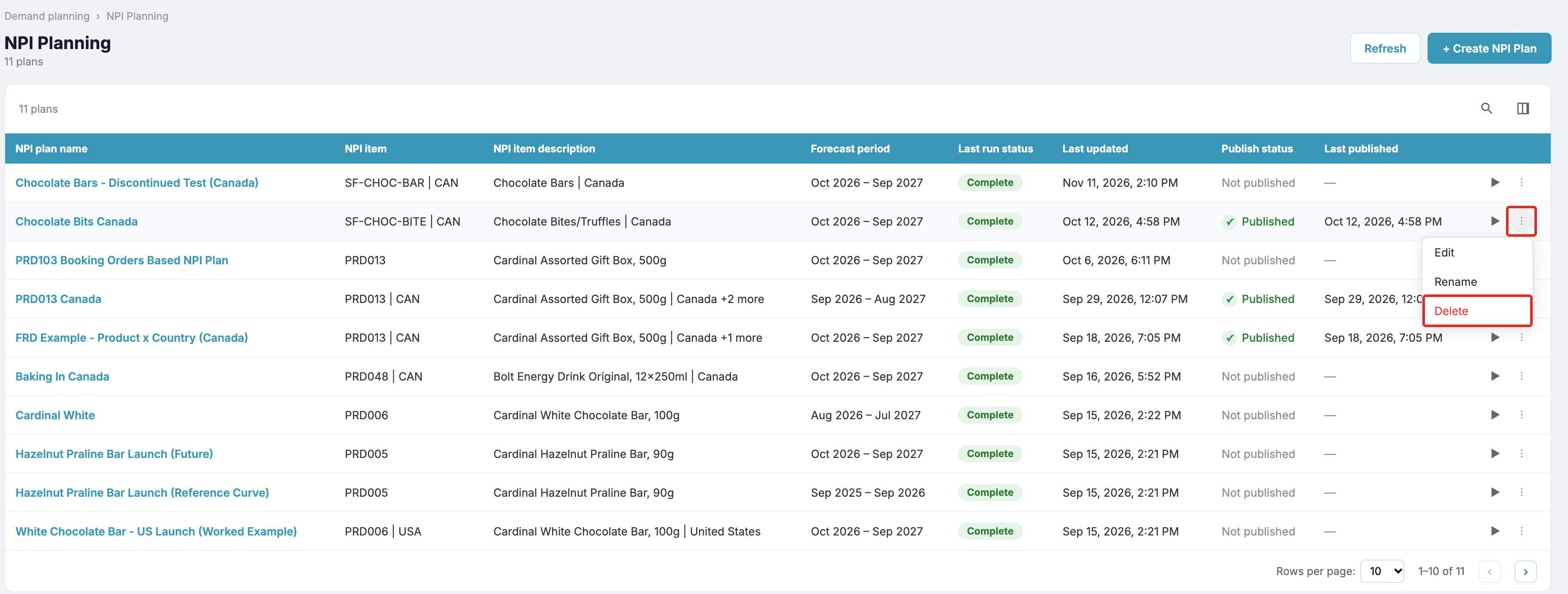
- Find the plan you want to remove, click the three dots (⋮) at the end of its row, and choose Delete.
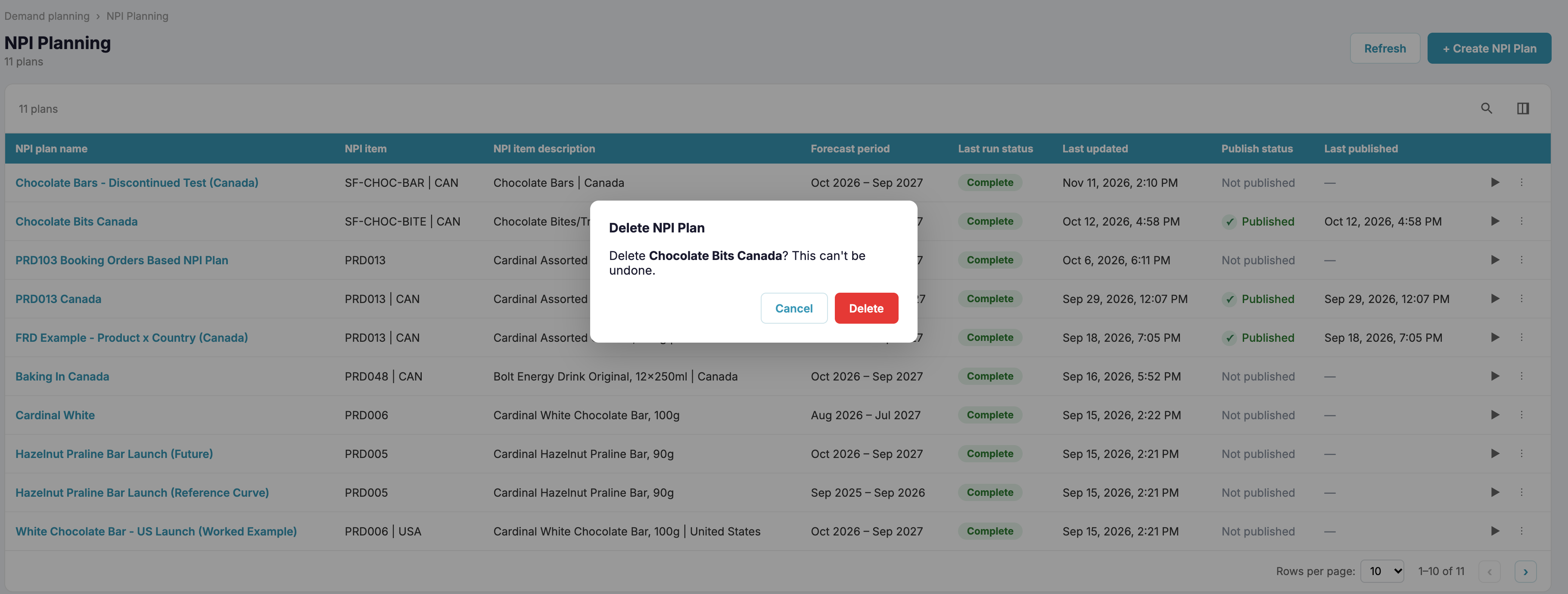
- The application will not delete the plan straight away. It opens a pop-up that asks you to confirm, and it says "Delete [plan name]? This can't be undone." If you are sure, click Delete. If you change your mind, click Cancel and the plan stays as it is.
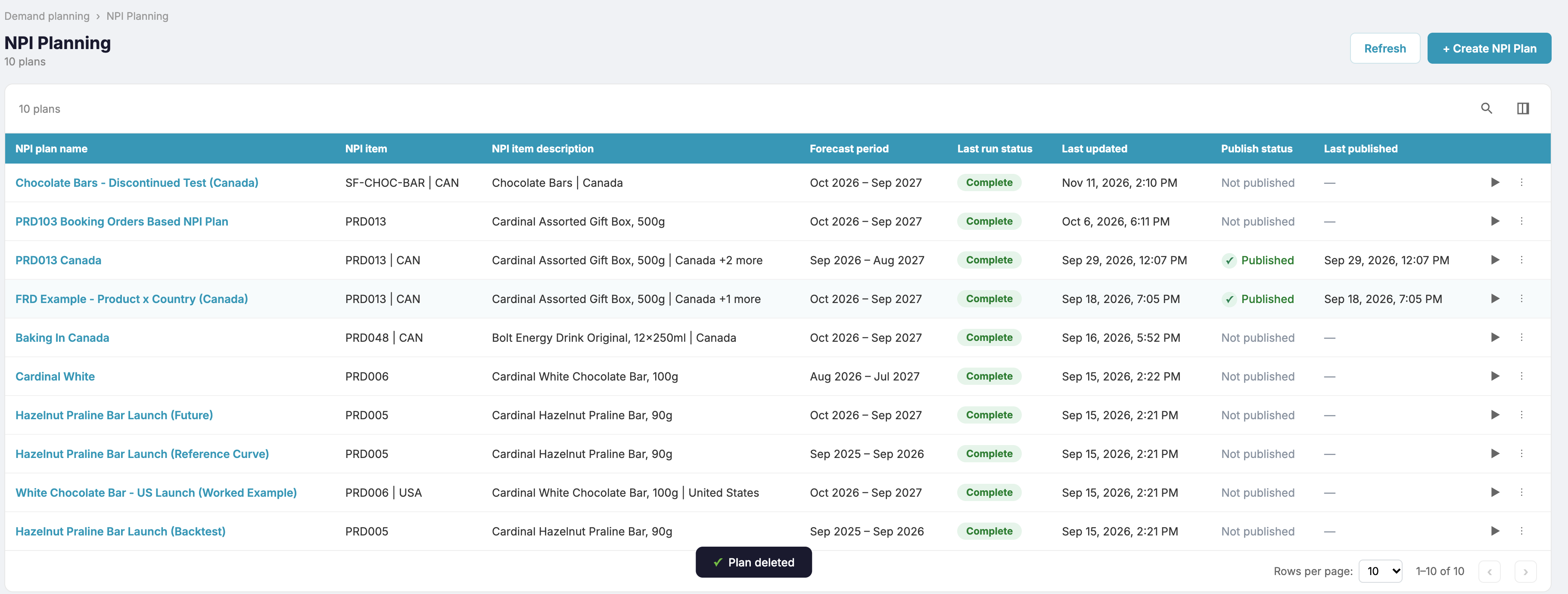
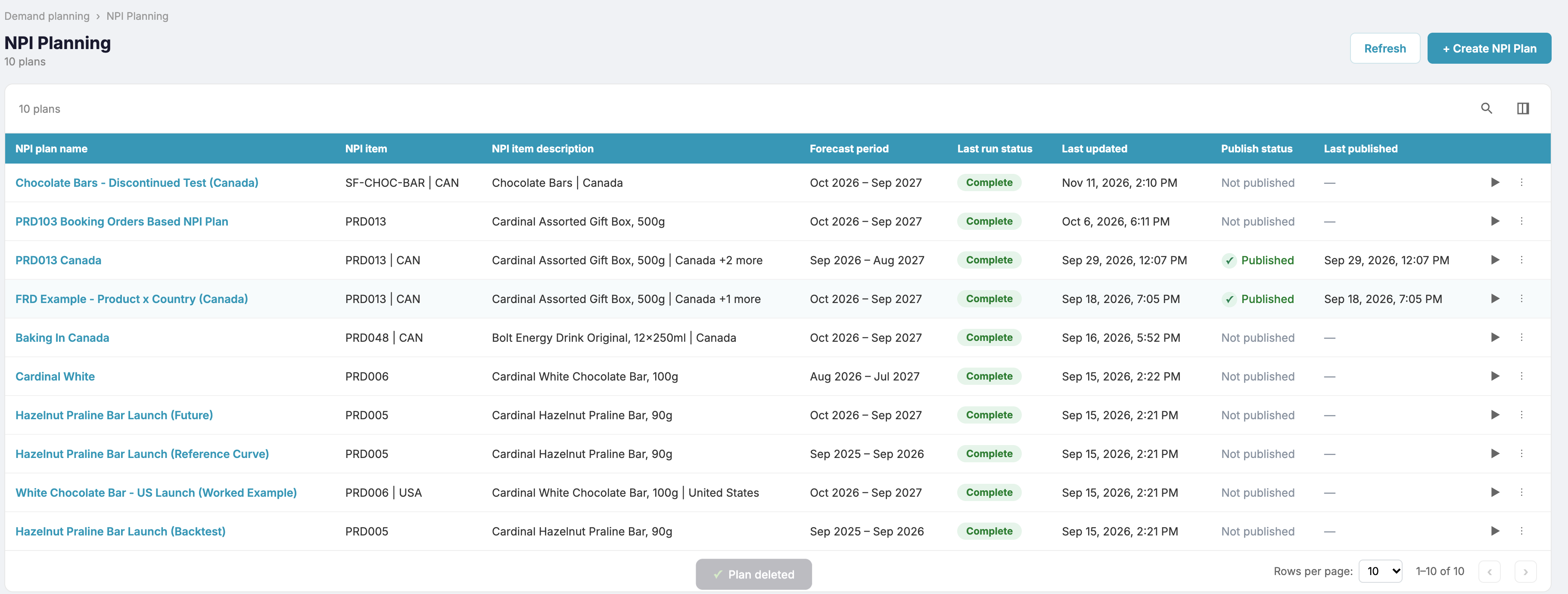
- Once you confirm, you will see the message Plan deleted, and the plan is gone from the list.
You will see the same pop-up for every plan. It does not tell you whether the plan was published or not, so check the Publish status column before you delete if you are not sure.
What happens when you delete a plan
When you delete a plan, the plan itself is removed. That means its row in the list, the settings you gave it (like the NPI item, the forecast period, the like products, the ramp-up curve and the cannibalization setup), and the results it calculated are all gone. You can no longer open the plan to look at them. If you want to plan the same item again, you will have to create a new plan.
If the plan was never published, nothing else is affected, because the plan never sent anything to the Planner Workbench. It simply disappears from the list.
If the plan was already published, the plan disappears from the list, but the numbers it published stay in the Planner Workbench exactly as they were. The application does not remove them, change them or take them back. Deleting a plan only removes the plan record from the NPI Planning list screen.
The same goes for the relations that were created for the NPI item, for example the combinations of product, customer and location. Delete does not touch any of them.
What you will see in the Planner Workbench
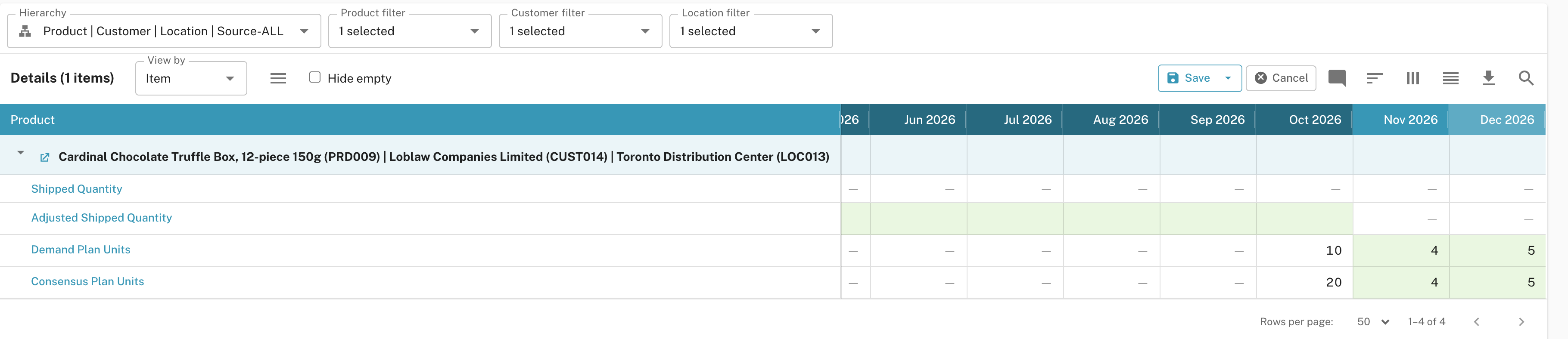
To show you this, here is a published plan that was deleted. Before the plan was deleted, the Planner Workbench showed these numbers for one product, customer and location. After the plan was deleted, the numbers are exactly the same.
| Oct 2026 | Nov 2026 | Dec 2026 | |
|---|---|---|---|
| Before the plan is deleted | 10 | 4 | 5 |
| After the plan is deleted | 10 | 4 | 5 |
This is the Planner Workbench before the plan was deleted.
And this is the same place after the plan was deleted. Nothing has changed.
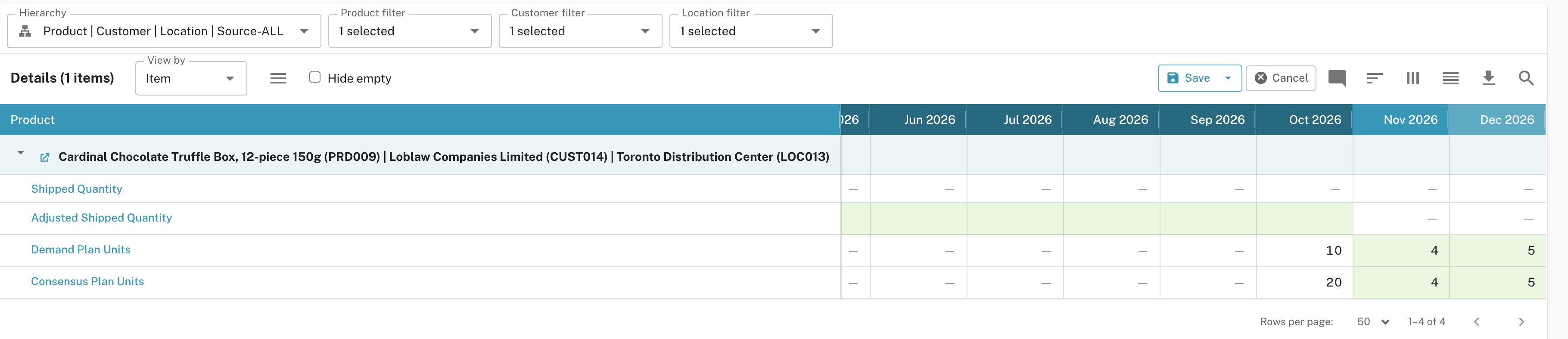
Which measure shows these numbers depends on how your Firstshift Implementer set up the application. In the standard setup, the Final NPI Forecast goes to Demand Plan Units. To check it yourself, open the Planner Workbench, pick the product, customer and location in the Details section, and look at the row for that measure.
Several plans for the same product
The application lets you create more than one NPI plan for the same new product. Each plan works like a separate scenario with its own results, and a new plan never overwrites the results of another plan, even if you use the same item. So if you have created a few scenarios and you don't need some of them any more, you can delete those and keep the rest.
Related articles
Was this article helpful?
That’s Great!
Thank you for your feedback
Sorry! We couldn't be helpful
Thank you for your feedback
Feedback sent
We appreciate your effort and will try to fix the article