TABLE OF CONTENTS
Overview
This section explains how to create a Planning View and configure it with the appropriate filters and hierarchy levels. It guides you through selecting the required entities, applying filters, choosing hierarchy levels, and customizing the view to help you analyze planning data effectively.
Planning view creation
To create a Planning View, click on the Create Plan button in the list screen. This will navigate you to the Planning View Creation page, where you can configure the view by filling in all the mandatory fields before proceeding.
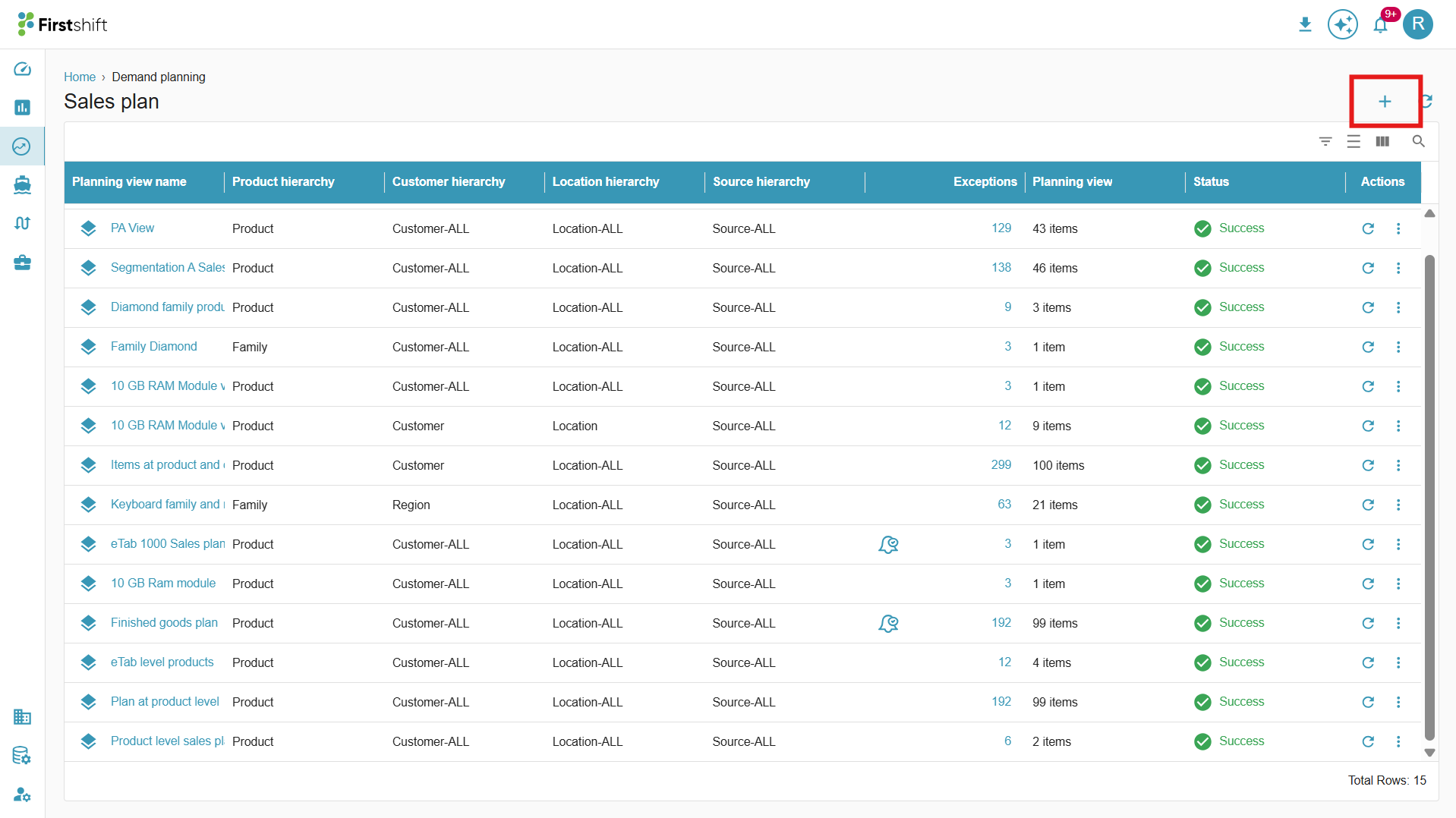
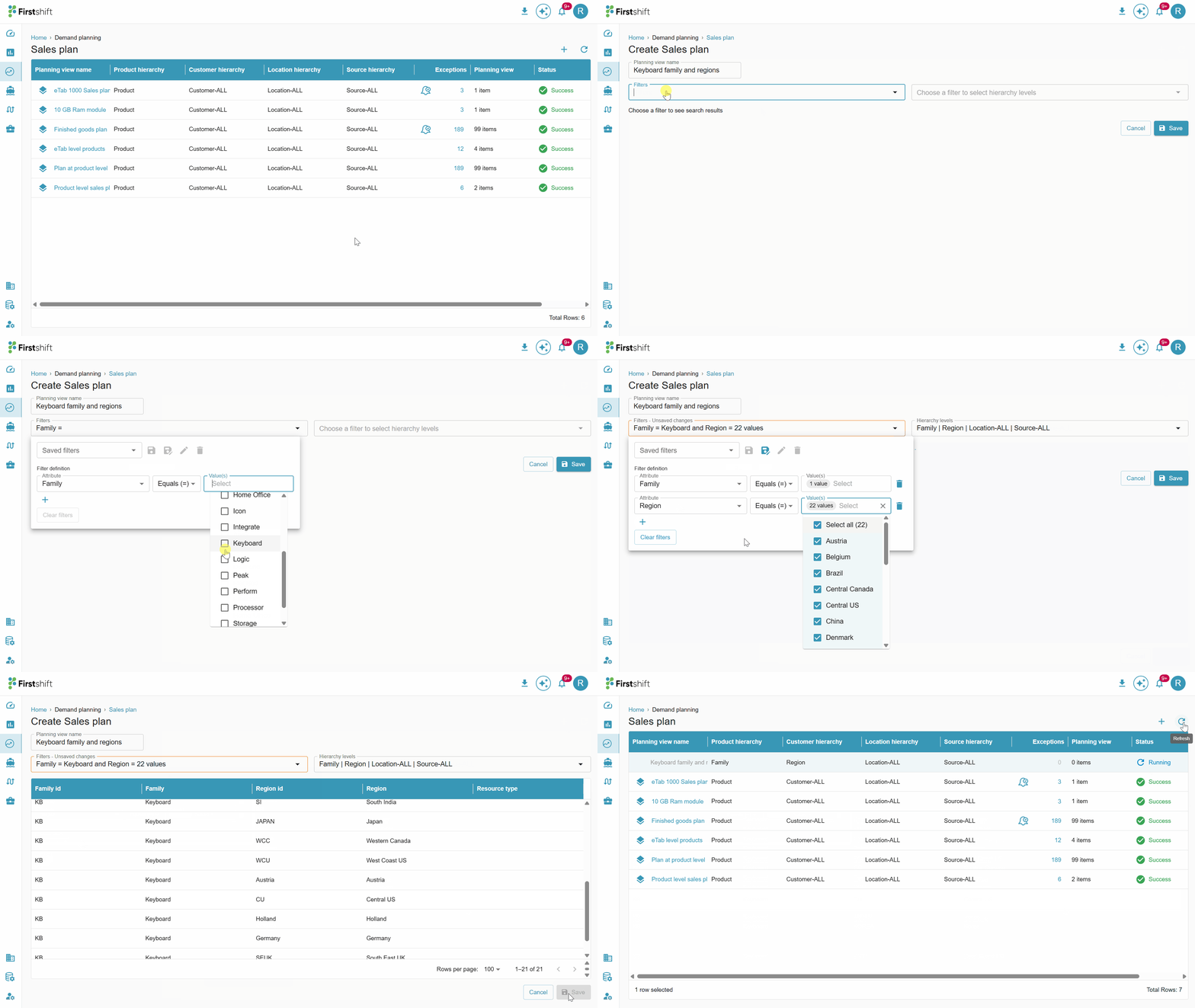
Clicking on Create Plan will open a page like the one shown below, where you can configure the planning view by selecting items and filling in the required fields.
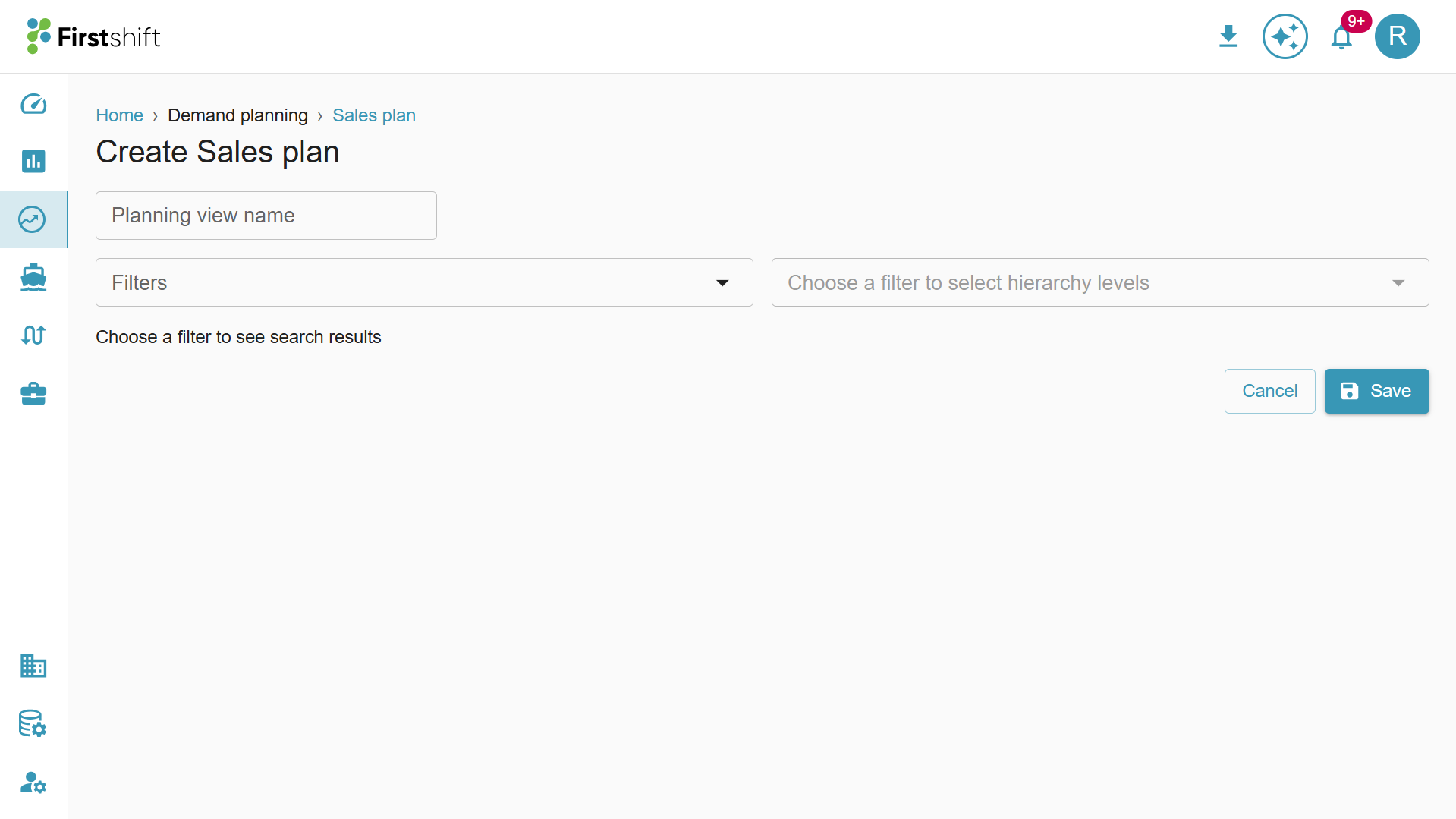
You can create multiple Planning Views to analyze the results of selected items. Follow these steps to create a Planning View:
Step 1: Planning view name
Enter a unique name for the planning view. The application does not allow special characters in the name. If a duplicate or invalid name is entered, you will be prompted to provide a valid name before proceeding.
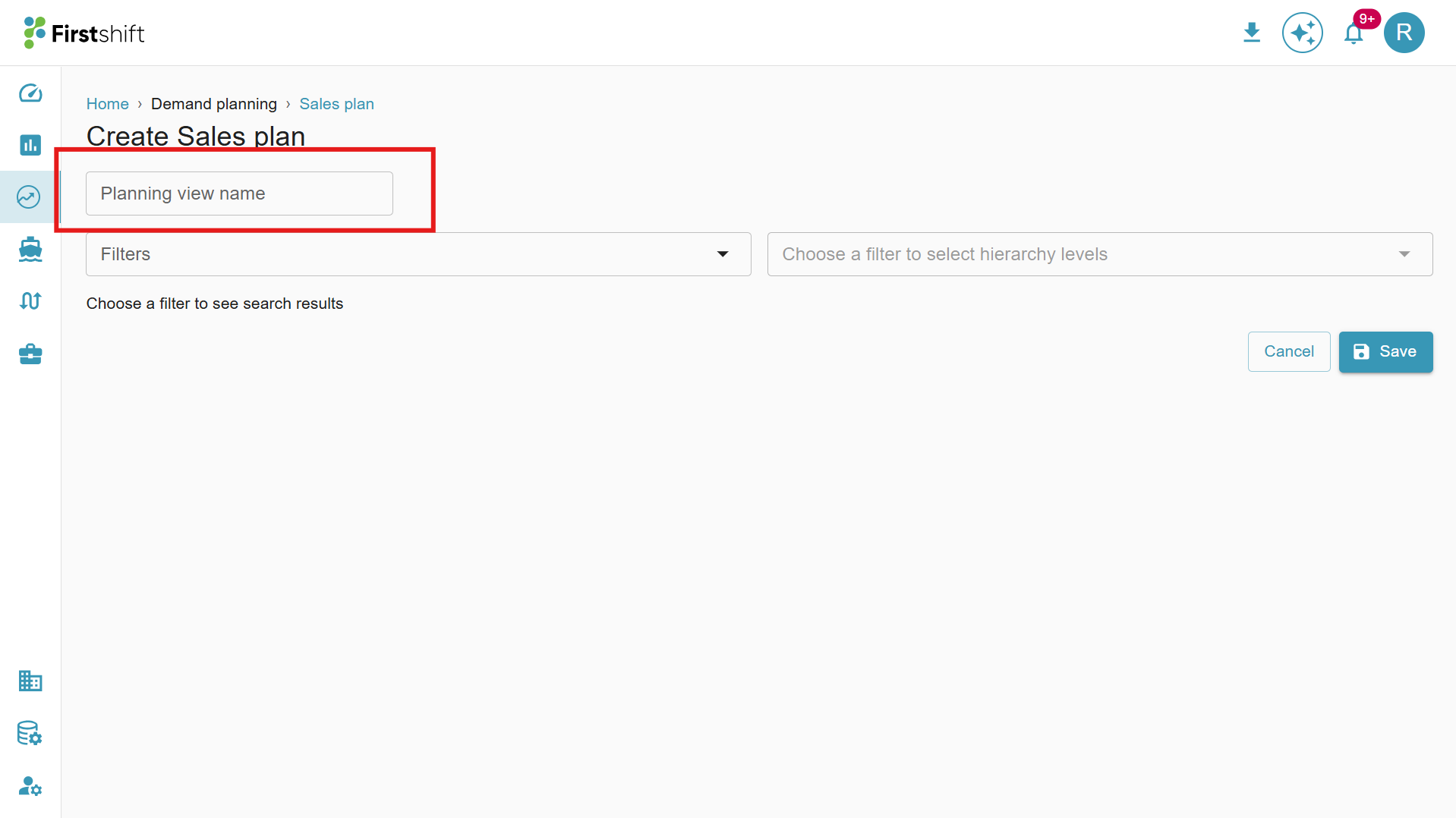
Step 2: Data Filter
To create a Planning View, you need to select the items for data analysis. You can either add a new data filter or use an existing one.
Click on filters to add the data filter to the planning view. Once clicked filters prompt will appear on the screen. You can select the existing data filter or select the new items from the selected attributes to create a planning view.
Case 1: Select the existing data filter
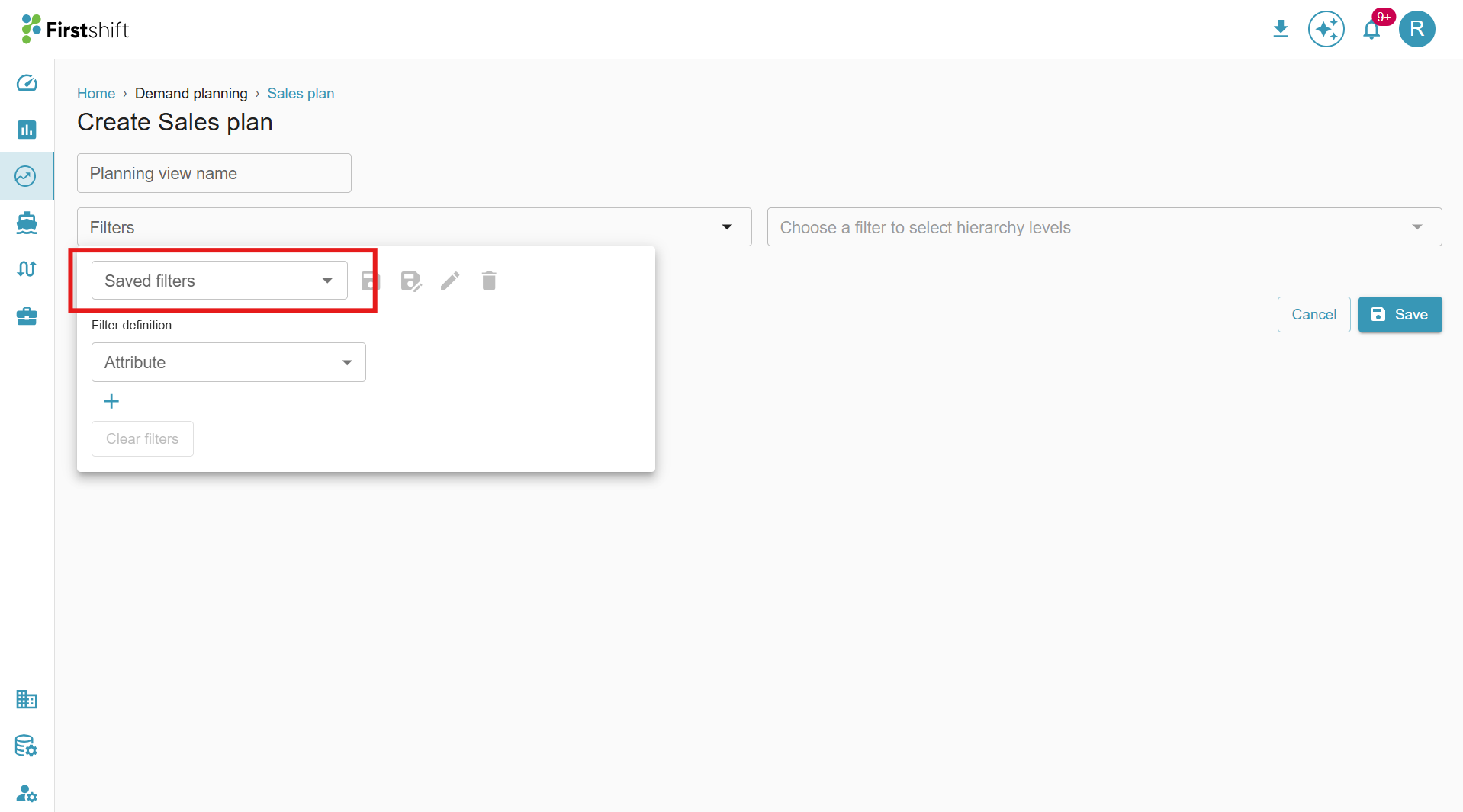
- Click the saved filters to see all the private and public filters.
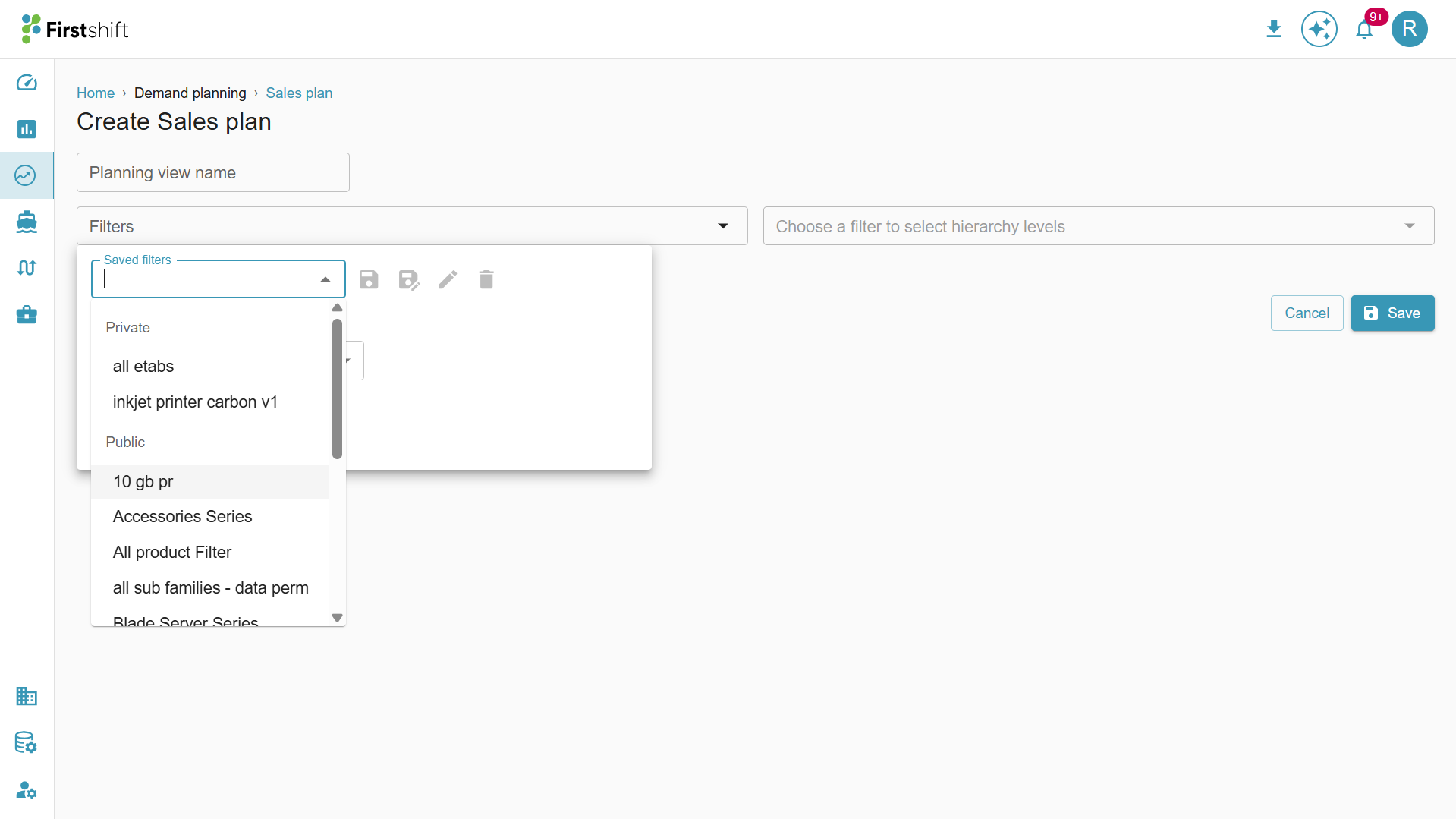
- Select the required data filter for the planning view creation.
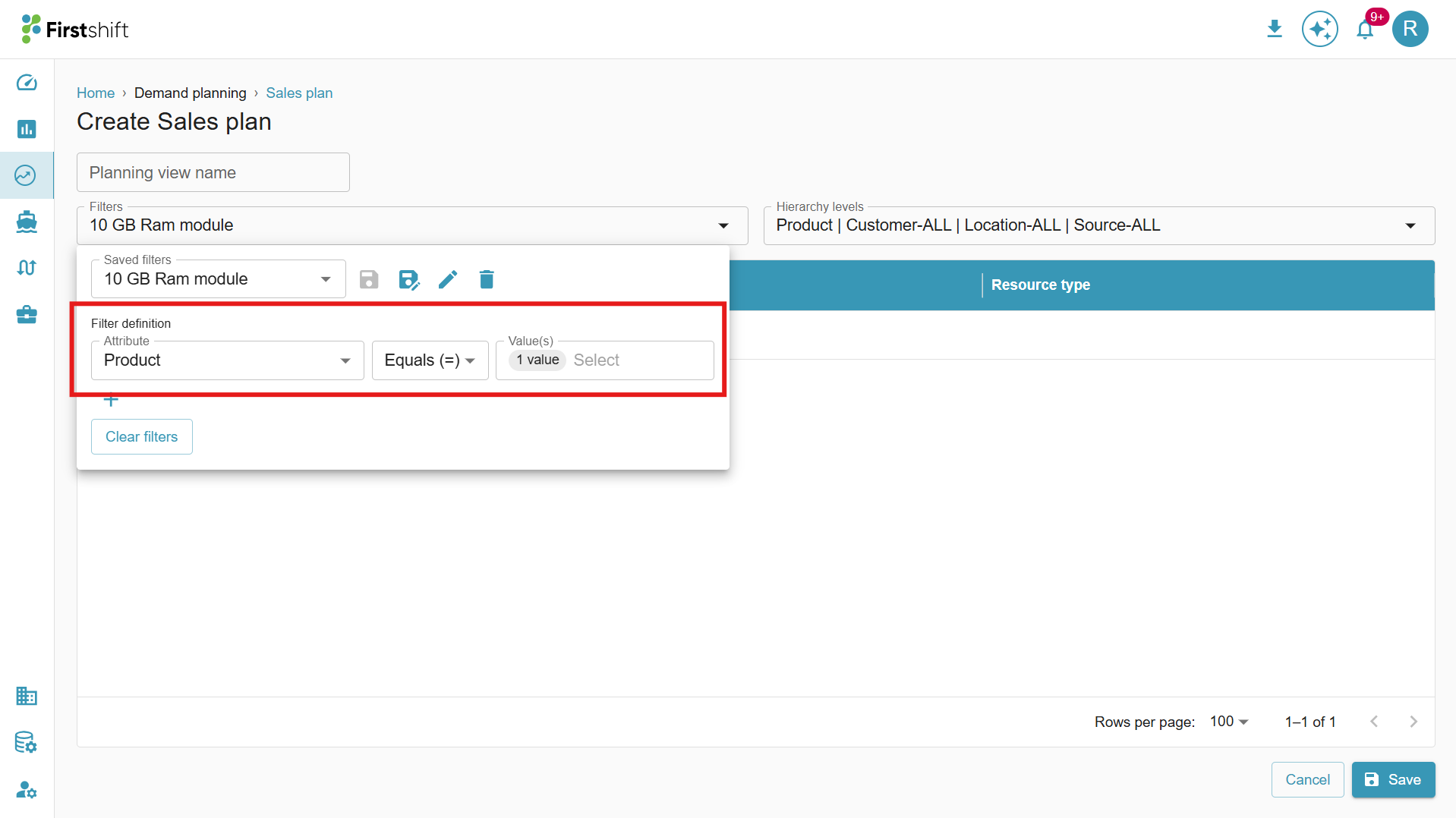
- After selecting the data filter, items selected will appear on the screen automatically.
- The hierarchy level will also get auto-selected based on the selected data filter.
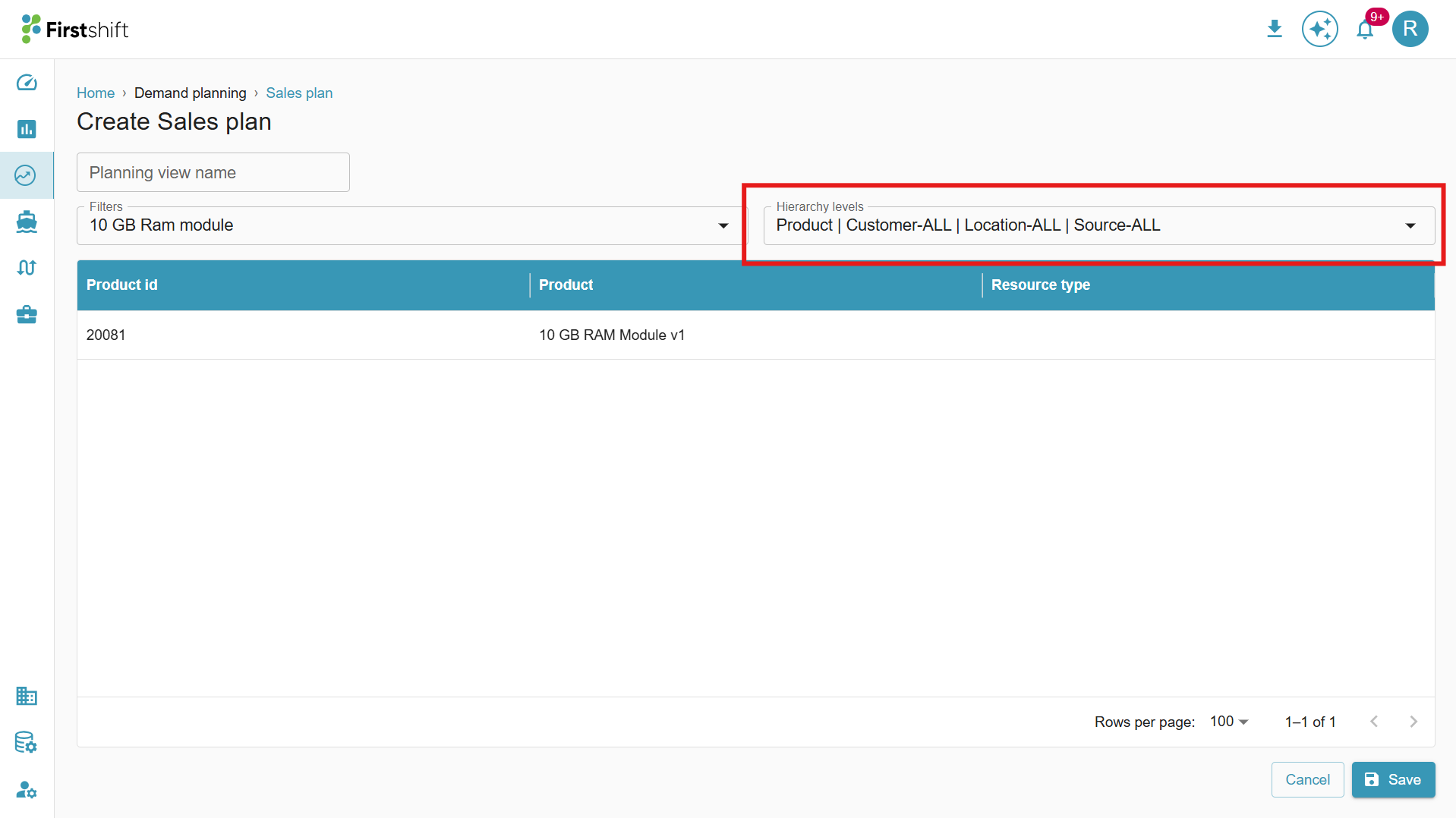
The table will show the selected items along with the description right after selecting the data filter from the filters section.
Case 2: Select the items for the planning view.
You can select the items from "Product, Customer, Location, and Source" attributes. These selections help refine the data for your planning view, ensuring a more targeted analysis.
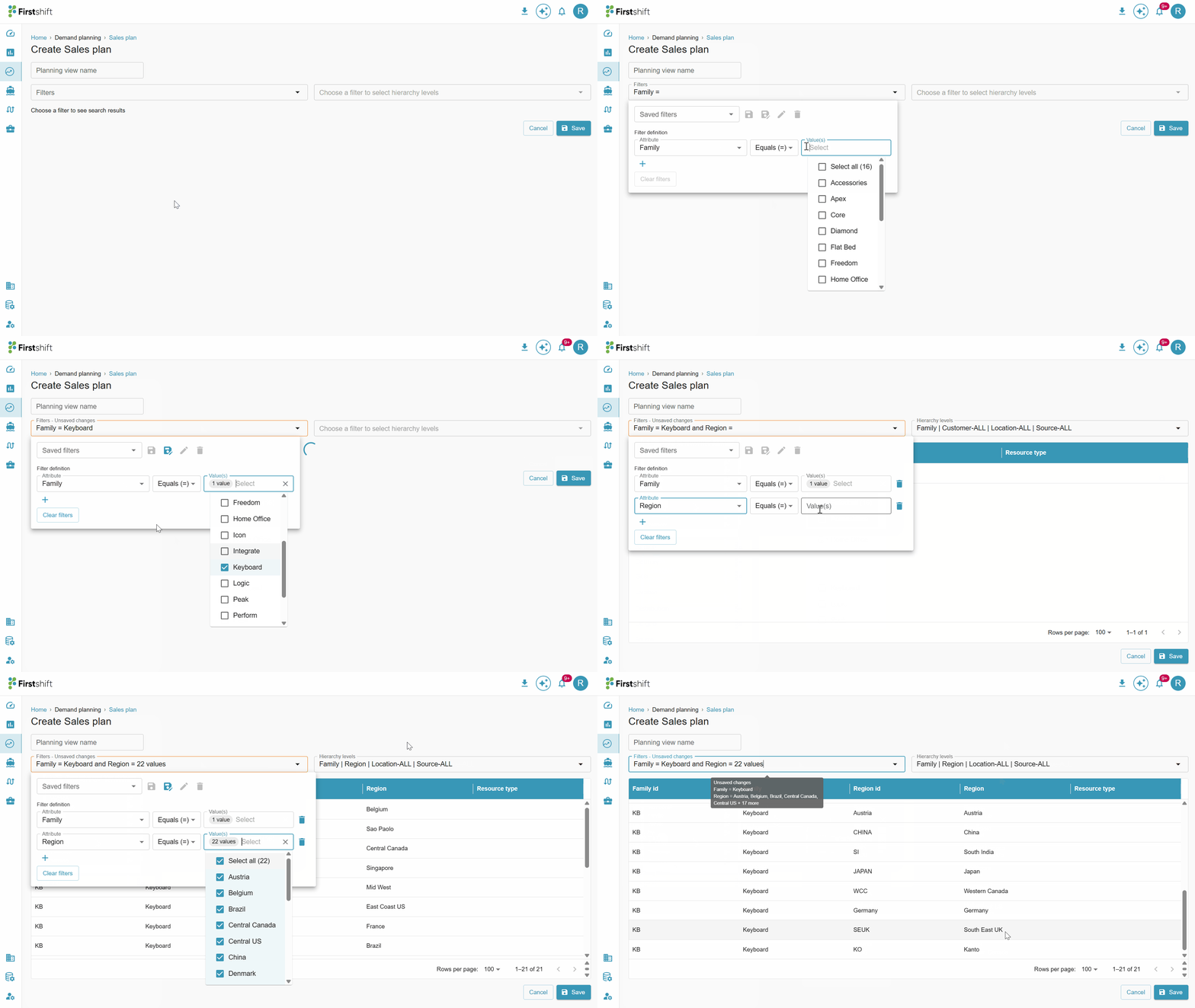
The application will automatically update the hierarchy level and results based on the selection made in the filters section.
Note:
1. You can save the selected items as a data filter, as a public and private one for future use, or create the planning view without saving the selected criteria.
2. You can select only 1000 items per attribute by clicking on the Select all button in the attribute dropdown; the application selects the first 1000 items by default.
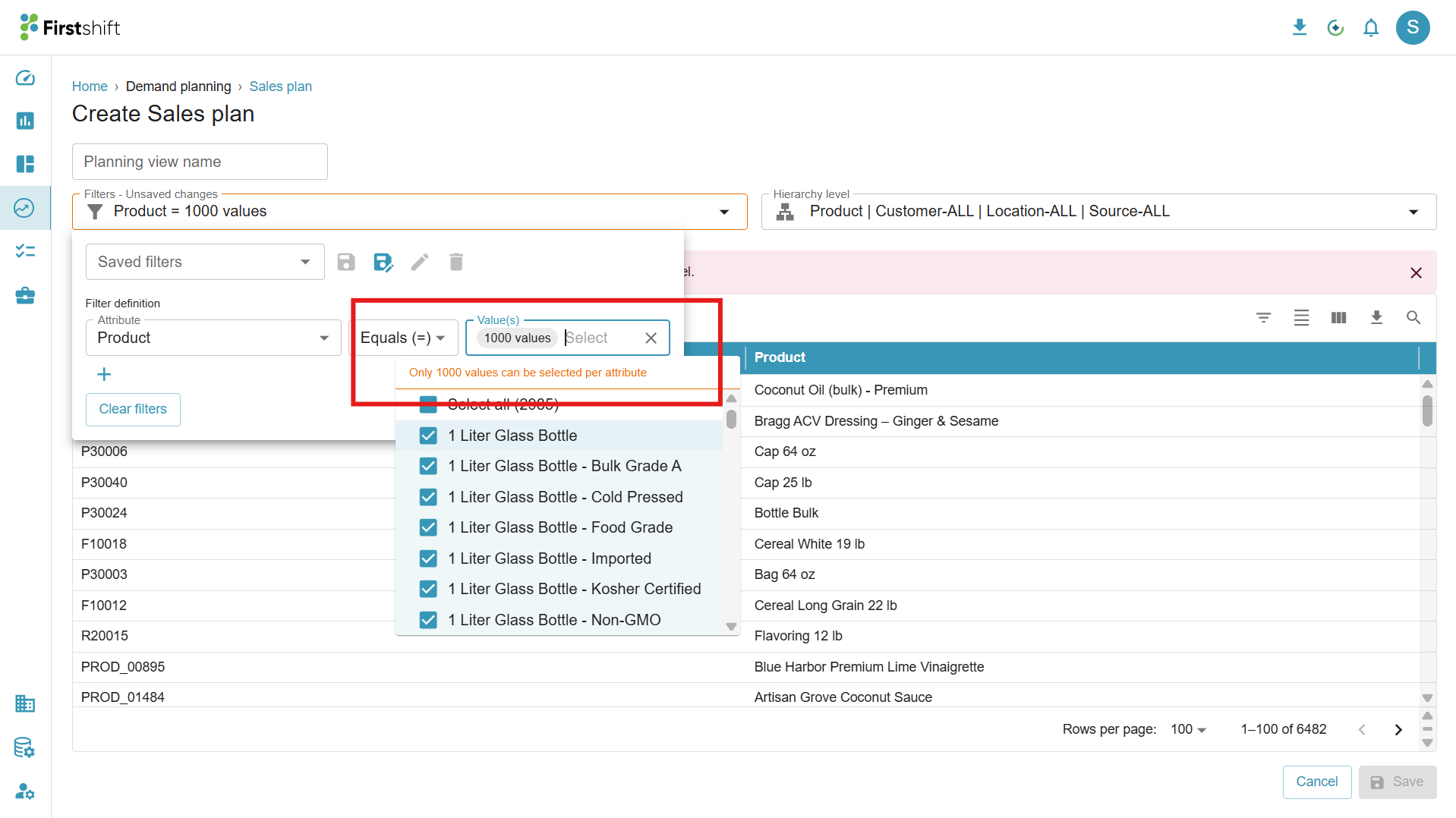
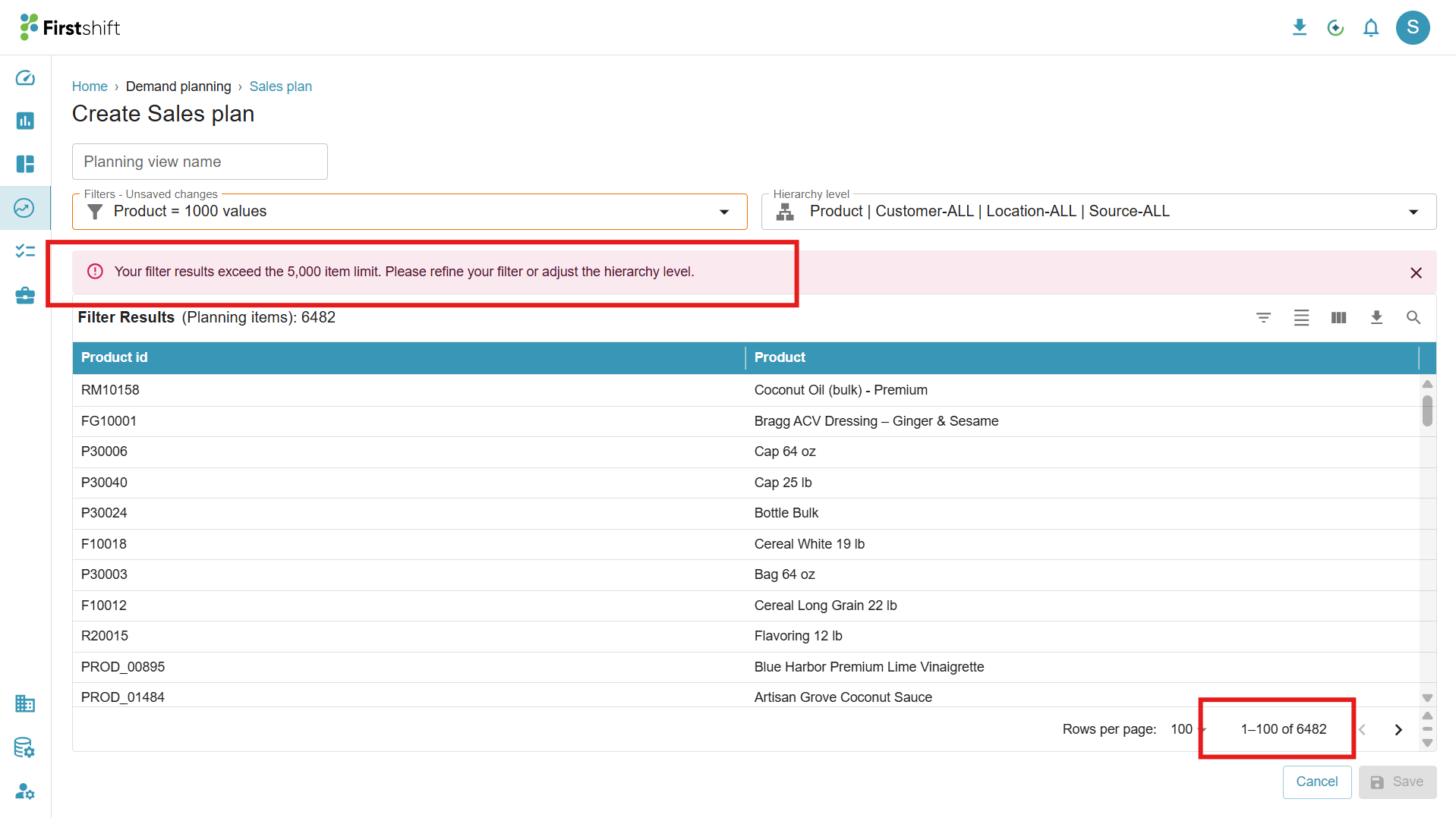
3. The hierarchy level will be auto-updated based on the selected criteria. If the total number of planning items exceeds 5,000, the application displays a warning message: "Your filter results exceed the 5,000 item limit. Please refine your filter or adjust the hierarchy level," and the Save button becomes disabled.
Step 3: Click the Save button
After entering a unique name and selecting the required planning items, click the Save button to create the planning view. Once saved, the newly created planning view will appear in the list screen, as shown below.
After creation, the status of the planning view will be shown as "Not started" state. To see the latest status, click the refresh button.
Was this article helpful?
That’s Great!
Thank you for your feedback
Sorry! We couldn't be helpful
Thank you for your feedback
Feedback sent
We appreciate your effort and will try to fix the article