TABLE OF CONTENTS
Overview
This article helps you understand how to delete an existing role from the system. Deleting a role permanently removes its associated permissions and access configurations. This action is typically performed when a role is no longer required.
Deleting a Role
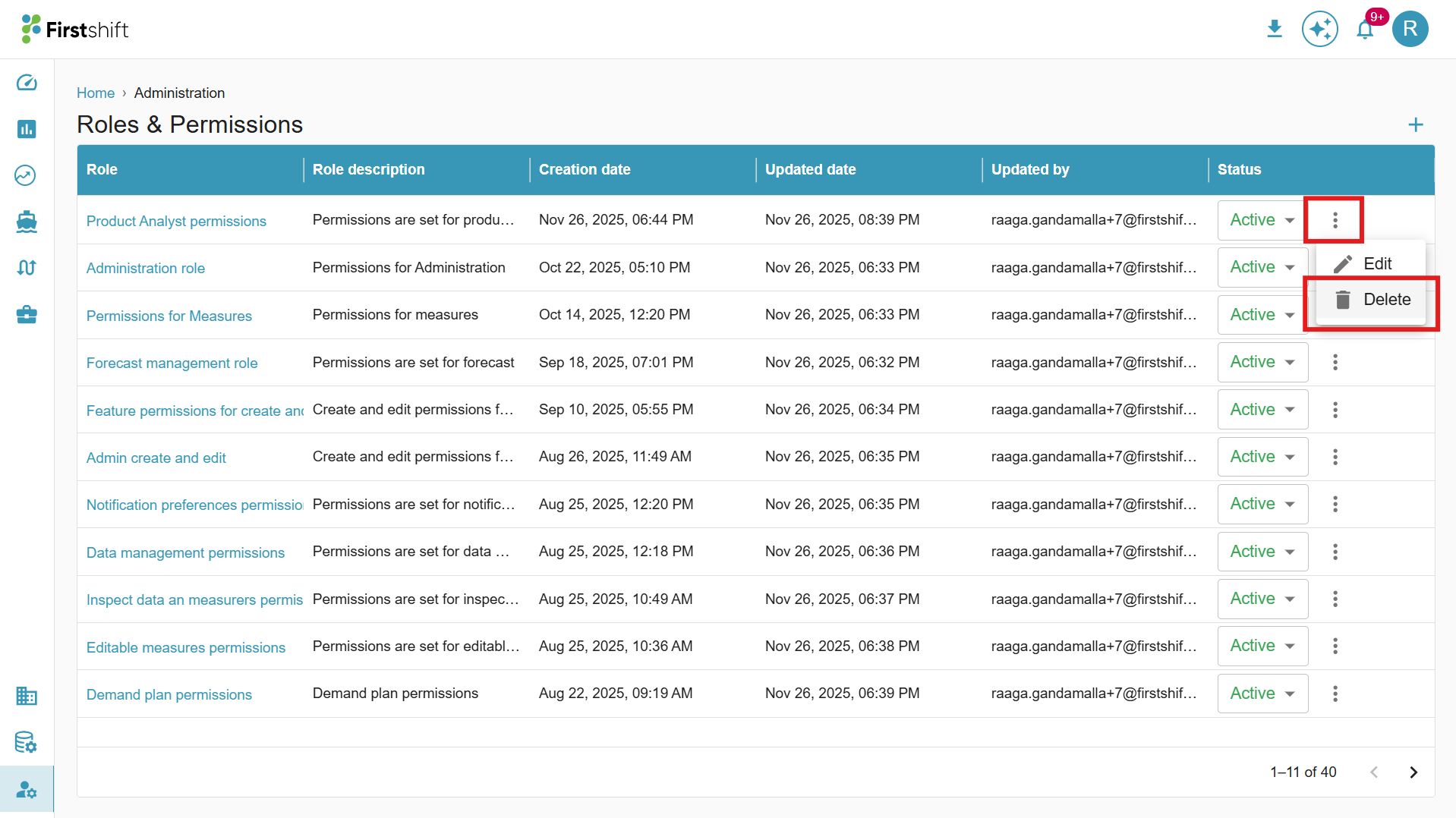
You can remove the role by clicking the Remove button located in the More options beneath the Edit button.
What happens if the user is created with the Role?
When you attempt to delete a role that is currently assigned to one or more users, the system prevents the deletion to ensure that no user is left without the necessary access permissions. In such cases, the application displays a clear warning message indicating that the role is still in use and cannot be deleted until all associated users are reassigned.
The system will guide you to review all users linked to the role and update their assignments. You must assign a different role to each of those users—or remove their existing role association—before proceeding with the deletion.
This validation ensures that access control remains secure and consistent, preventing accidental removal of roles that could impact user access, workflow execution, or system operations.
Points to remember
- If a role is still assigned to any user, the deletion process will be blocked, and the system will prompt you to reassign or remove those users before continuing.
- A role can only be deleted after all associated users have been fully disassociated from it.
- Once all user assignments are cleared, you can proceed, and the system will permanently remove the role along with its feature and measure permissions.
Refer to the illustration below for a detailed walkthrough of how the system validates user-role associations and the steps required to successfully delete a role.
Was this article helpful?
That’s Great!
Thank you for your feedback
Sorry! We couldn't be helpful
Thank you for your feedback
Feedback sent
We appreciate your effort and will try to fix the article