TABLE OF CONTENTS
- Introduction
- What you can do with a bookmark
- Save a bookmark
- Edit a bookmark
- Delete a bookmark
- Who can do what
- Related articles
Introduction
A bookmark saves your Planner Workbench view exactly the way you set it up, so you can come back to it later with one click instead of rebuilding it each time. This article explains how to save a bookmark, how to change it afterwards, how to delete it, and who is allowed to do each of these things.
What you can do with a bookmark
Here is the short version. The sections below explain each action step by step.
| Action | What it does | Who can do it |
|---|---|---|
| Save as | Saves your current view as a new bookmark. | Any user who is allowed to create bookmarks. You can use it on your own bookmarks and on bookmarks that other people shared. |
| Save | Updates the bookmark you have open with your latest changes. | Only the person who created the bookmark. |
| Rename | Changes the name of a bookmark. | Only the person who created the bookmark. |
| Delete | Removes the bookmark permanently. | Only the person who created the bookmark, and only when it is not the bookmark you currently have open. |
Save a bookmark
When you have the view you want, you can save it as a bookmark. Once you have changed the filters, hierarchy level, measures or any other setting of a bookmark, an asterisk (*) appears next to its name. That asterisk tells you there are changes that are not saved yet.
Steps
- Set up the view you want in Planner Workbench.
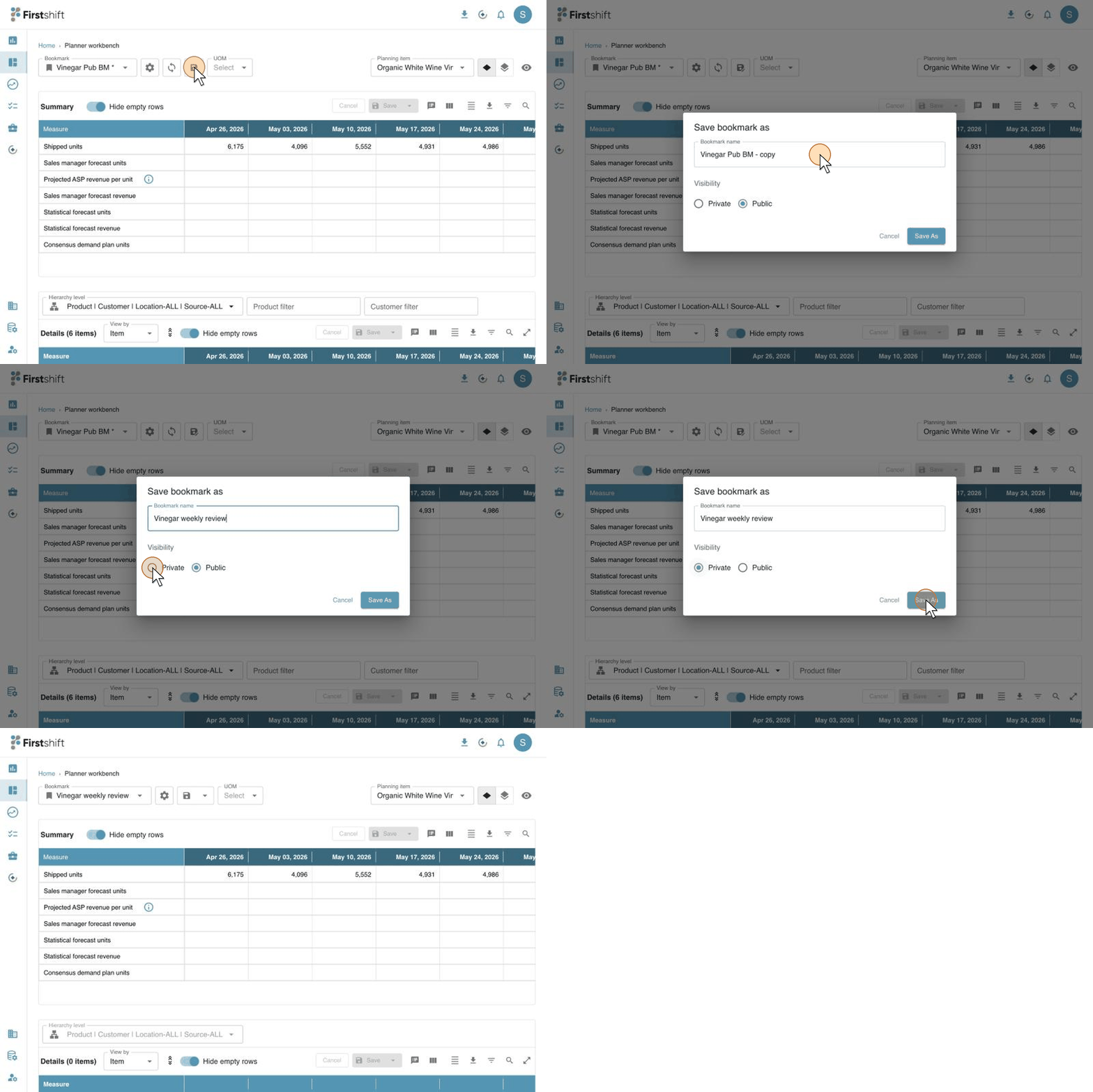
- Select the Save as icon next to the bookmark name. A Save bookmark as pop-up opens.
- In Bookmark name, type a name. You can use up to 40 characters. If you started from an existing bookmark, the name is filled in for you with "- copy" at the end, so you can keep it or type your own.
- Under Visibility, choose Private or Public (see below).
- Select Save As. The pop-up closes after a few seconds and the new bookmark opens with its new name.
Public or private?
- Public – everyone in your organisation can see it in the Public bookmarks list. The name must be different from every other public bookmark, no matter who created it. Other people can open and use a public bookmark, but they cannot change it. They can only save their own copy with Save as.
- Private – only you can see it, in your Private bookmarks list. The name only has to be different from your own private bookmarks, so you and a colleague can both have a private bookmark called, for example, "Weekly review".
Note: If your access is limited by data permissions, you can only save private bookmarks. The Public option is not offered, and you cannot see or use public bookmarks.
What gets saved
A bookmark stores the filters, the hierarchy level, the measures, the metrics, the attributes and the time range of your view. When you open the bookmark again, the view comes back the way you left it.
Edit a bookmark
You can open any bookmark from the bookmark list, change the view, and then save it. What you can do after making changes depends on who created the bookmark.
Your own bookmark
Open the bookmark and make your changes. The Save icon becomes available, with a small arrow next to it.
- Save – updates the existing bookmark with your changes.
- Save as (from the arrow) – saves your changes as a new bookmark and leaves the original as it was.
A bookmark someone else created
When you open a public bookmark that another user created, only Save as is available, even after you change the view. This protects the original, and it lets you keep your own version. The copy is yours, and you decide whether it is private or public.
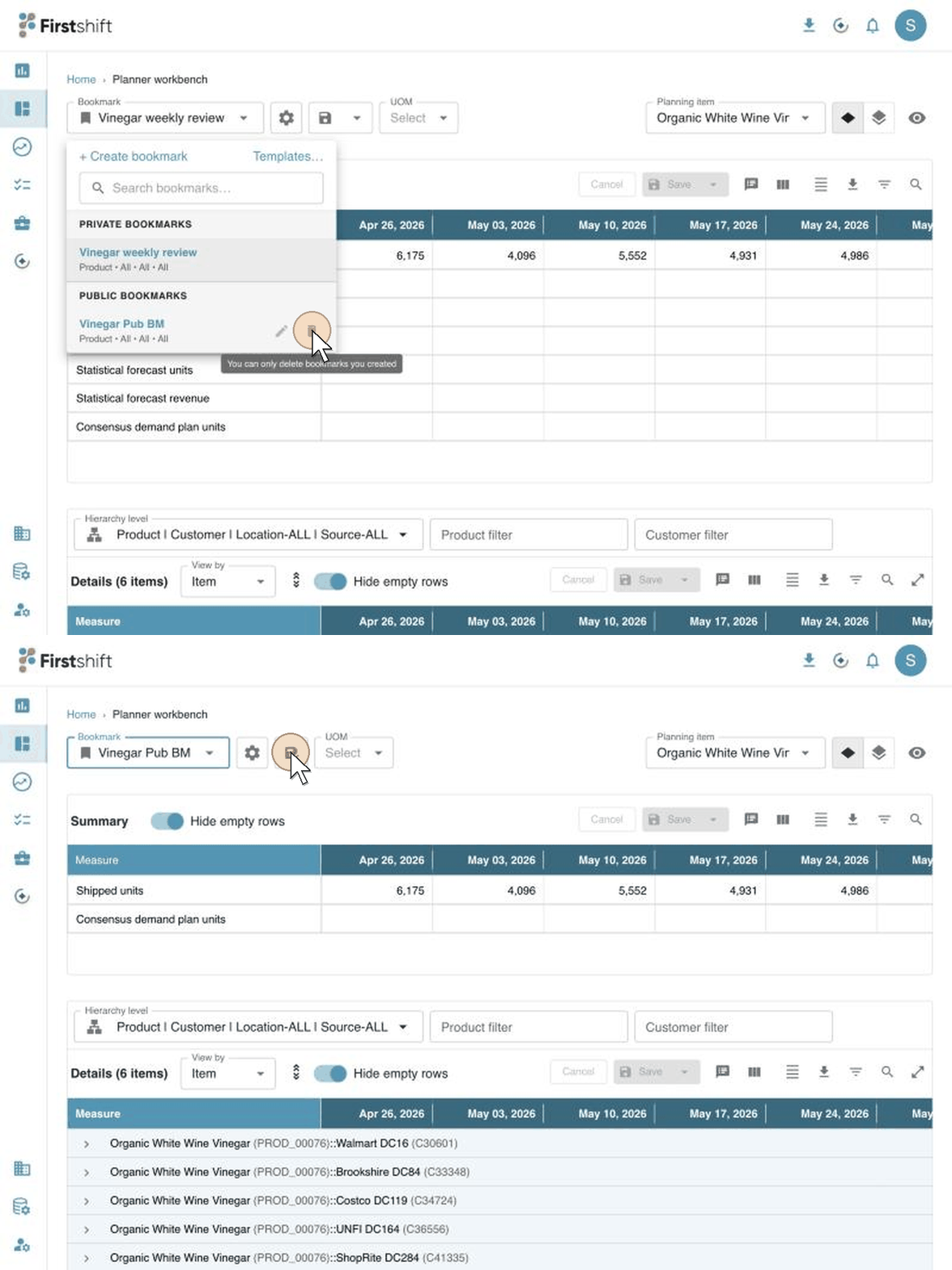
Note: After you use Save as, your changes move to the new bookmark. The old bookmark keeps showing what it showed before.
Rename a bookmark
Open the bookmark list and point to the bookmark. Select the pencil icon (Rename bookmark) to change its name. The pencil is greyed out for bookmarks you did not create, and when you point to it you see "You can only rename bookmarks you created".
Delete a bookmark
If you no longer need a bookmark, you can delete it.
- Open the bookmark list.
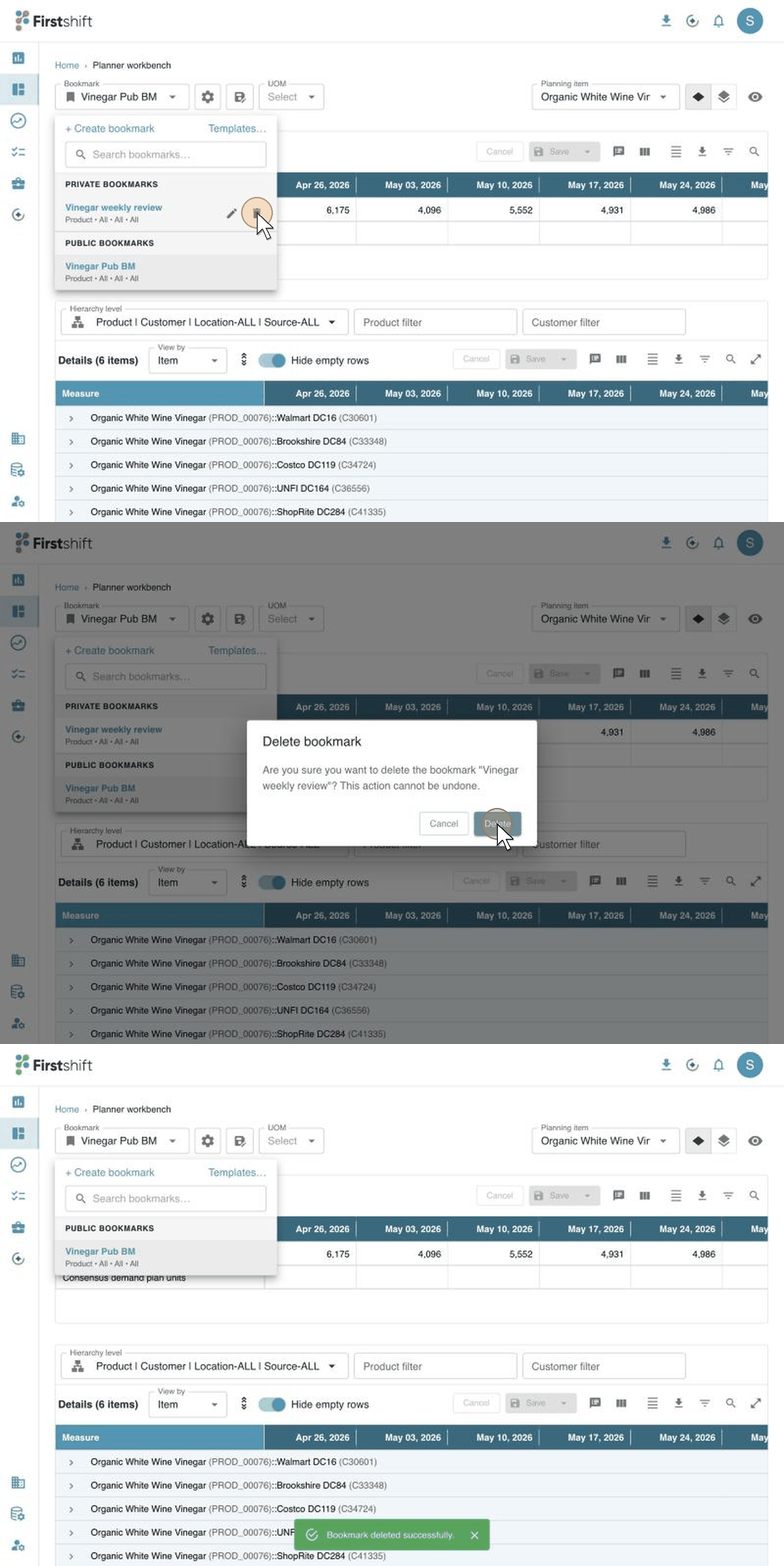
- Point to the bookmark you want to remove and select the bin icon.
- A pop-up asks: "Are you sure you want to delete the bookmark…? This action cannot be undone." Select Delete to confirm, or Cancel to keep the bookmark.
- You see the message Bookmark deleted successfully and the bookmark disappears from the list.
A few things to keep in mind:
- You can only delete bookmarks that you created. For bookmarks created by someone else the bin is greyed out, and the tip says "You can only delete bookmarks you created".
- You cannot delete the bookmark you currently have open. The tip says "Cannot delete the currently open bookmark". Open a different bookmark first, and then delete this one.
- Deleting cannot be undone. If you delete a public bookmark, it is removed for everyone who could see it.
Who can do what
| Bookmark you created | Public bookmark created by someone else | |
|---|---|---|
| Open and use | Yes | Yes |
| Save (update) | Yes | No |
| Save as (new copy) | Yes | Yes |
| Rename | Yes | No |
| Delete | Yes, unless it is the one you have open | No |
On top of this, your administrator decides through roles and permissions which users are allowed to create, edit, view and delete bookmarks at all. If an option is missing for you, check with your administrator. Users who only have data permissions work with private bookmarks only, as described above.
Related articles
Was this article helpful?
That’s Great!
Thank you for your feedback
Sorry! We couldn't be helpful
Thank you for your feedback
Feedback sent
We appreciate your effort and will try to fix the article