TABLE OF CONTENTS
- Introduction
- Save options
- The Save with Reason pop-up
- Reuse the same reason for the whole session
- Related articles
Introduction
After you override values in Planner Workbench, you save them. When you save, you can add a reason, so your team can see later why a value was changed. This article explains the two ways to save, the reason pop-up, and how to reuse the same reason for all the edits you make in a session.
If you have not overridden any values yet, start with Override values in Planner Workbench.
Save options
After overriding an editable measure value, you can submit the override using the Save action. The Save action offers two ways to save an override — with a reason or without one — so you can choose the level of detail captured for each change.
Save with reason or Save
The Save option supports two options, available from a dropdown next to the Save button:
- Save with Reason (default option) — opens the reason details pop-up before the override is saved.
- Save — saves the override directly, with no reason pop-up.
- Clicking the Save button without clicking the dropdown icon will open the reason details pop-up as it is the default option selected.
Note: Save with Reason remains the default so that reason capture stays the expected behavior unless a planner deliberately chooses otherwise.
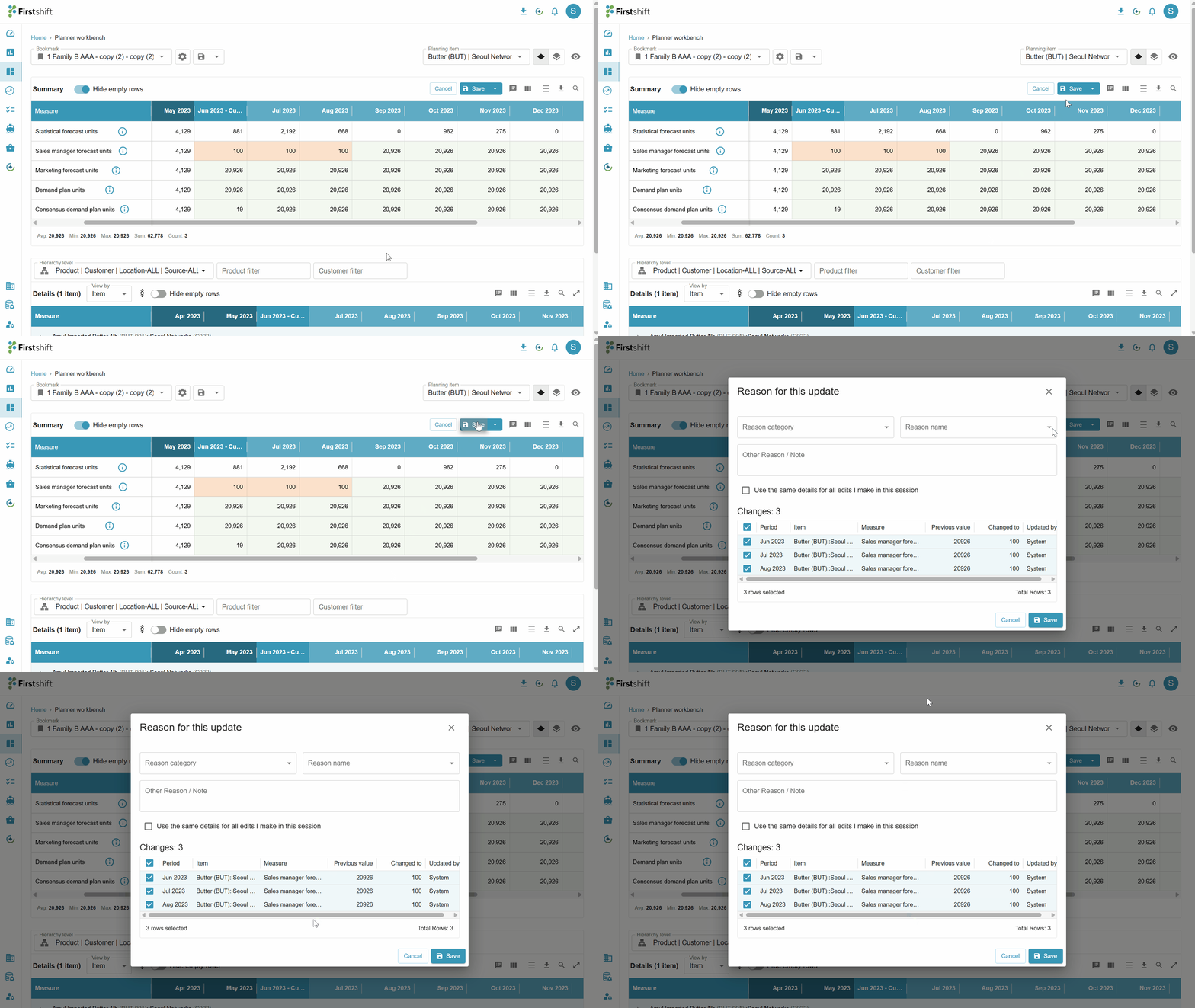
Use the Save dropdown
After performing a single-cell edit, multi-cell edit, or any other override, use the dropdown on the Save action to choose how the override is saved.
- Click the arrow next to the Save button to open the dropdown.
- Choose one of the two options:
Select Save to save the override immediately. No pop-up appears, and you don't need to provide a reason.Select Save with Reason to open the reason details pop-up before saving the override. - If you selected Save with Reason, complete the pop-up (see below) and click Save to confirm.
- If you selected Save, the override is submitted directly. A processing icon appears while the override saves, and the application refreshes the values once the save completes.
- Use the same details for all edits I make in this session details for the session. The Save with Reason pop-up includes an additional option:
The Save with Reason pop-up
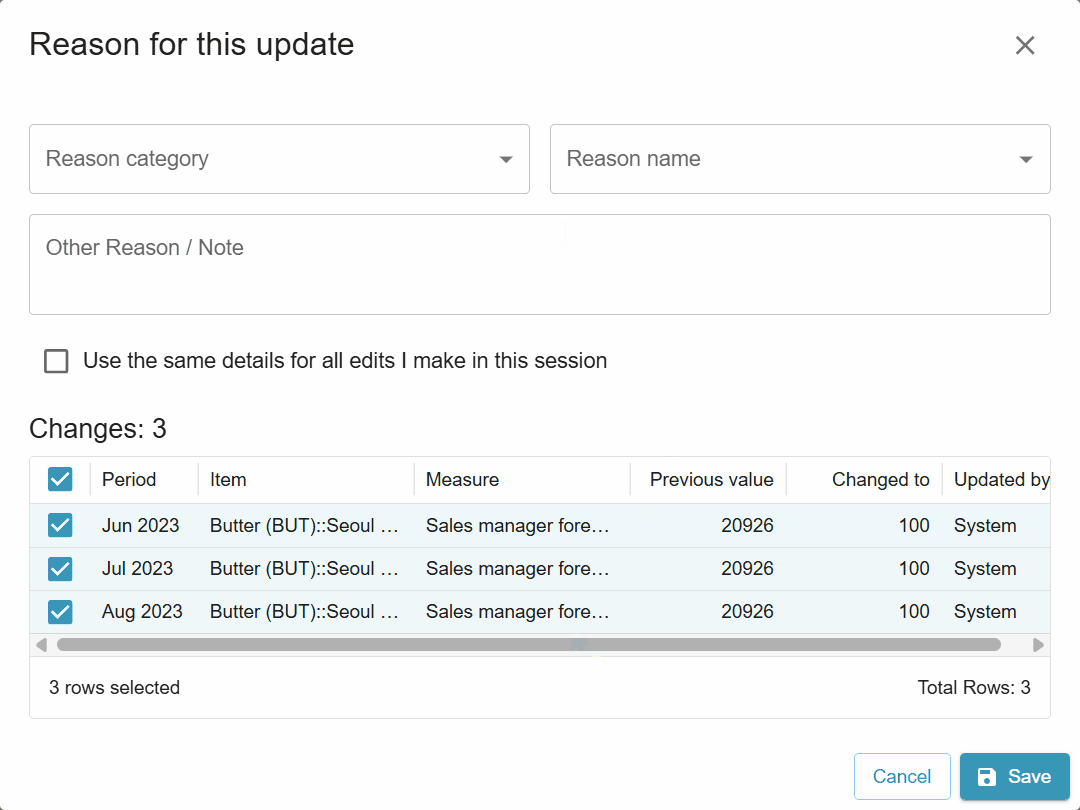
Selecting Save with Reason opens the same reason details pop-up. It supports:
- Reason category
- Reason name
- Other Reason / Note
- Use the same details for all edits I make in this session
Complete the fields that apply to your override and click Save to save the change. Click Cancel to close the pop-up without saving.
Example: A planner overriding an upcoming promotion activity might select Reason category = Promotion, Reason name = Price change, and add a note explaining the adjustment before submitting.
The reason you enter is shown later in the Audit trail for that cell.
Reuse the same reason for the whole session
The pop-up has one more option:
“Use the same details for all edits I make in this session”
When this option is selected:
a. The Reason category, Reason name, and Other Reason / Note you entered are retained for the remainder of your current Planner Workbench session.
b. For every subsequent override you save during the session, the application automatically sends the same reason information to the backend with the override — you are not asked to re-enter it.
What clears the retained reason
- Switching to a different bookmark and refreshing the page clears the selected reason. You will need to set it again if you want it retained for the new bookmark.
What does not clear the retained reason
- Switching between single-item and multi-item view.
- Switching to a different planning item within the same bookmark.
Note: Session-level retention applies only to the active session. It does not permanently change your reason-code configuration or any other saved preferences.
Related articles
- Override values in Planner Workbench — edit one cell, many cells, or a time range
- Cell options — everything you can do when you right-click a cell
- Reset action — undo an override
- View Audit trail in Planner Workbench
Was this article helpful?
That’s Great!
Thank you for your feedback
Sorry! We couldn't be helpful
Thank you for your feedback
Feedback sent
We appreciate your effort and will try to fix the article