TABLE OF CONTENTS
Introduction
An override replaces a system-calculated value with your own. In Planner Workbench you can override one cell, many cells at once, or a whole time range for an item. This article explains each way, how the Split options work, and the rules that apply.
After you change values, you save them. To learn how to save with a reason, see Submit overrides with a reason.
Which cells you can edit
Based on the time-series configuration and the permissions set, values can be edited directly in the results table. Editable measures are visually distinguished with color differentiation so you can quickly identify which fields can be modified.
Example: If Sales manager forecast revenue is configured as editable for historical and future periods, you can edit the past, current, and future time buckets for that measure.
Single-cell edit
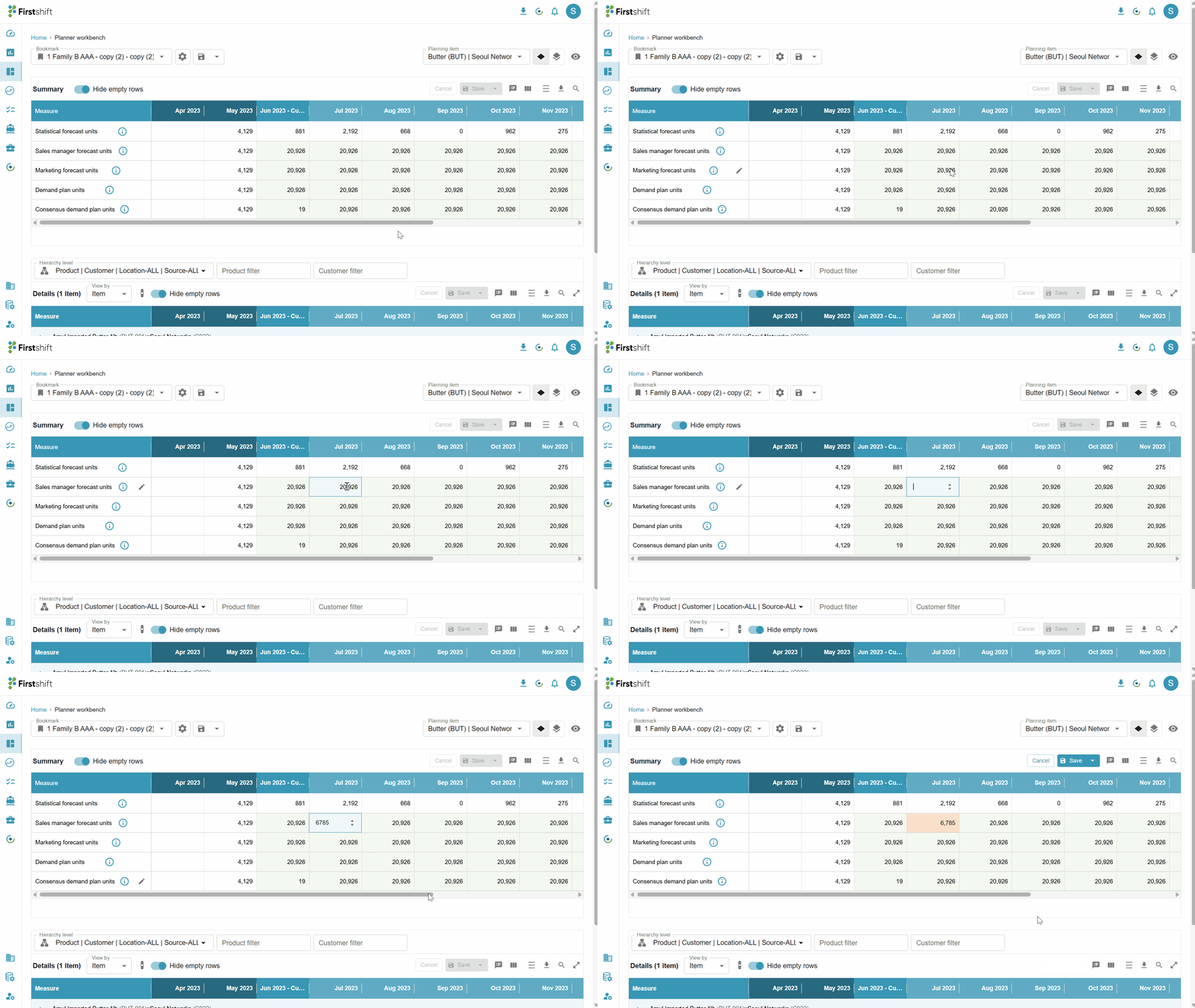
Double-click a cell to edit its value. Only numeric values are accepted. You can also right-click the cell, choose Edit, and enter the new value in the Multicell edit dialog that opens.
Multicell edit
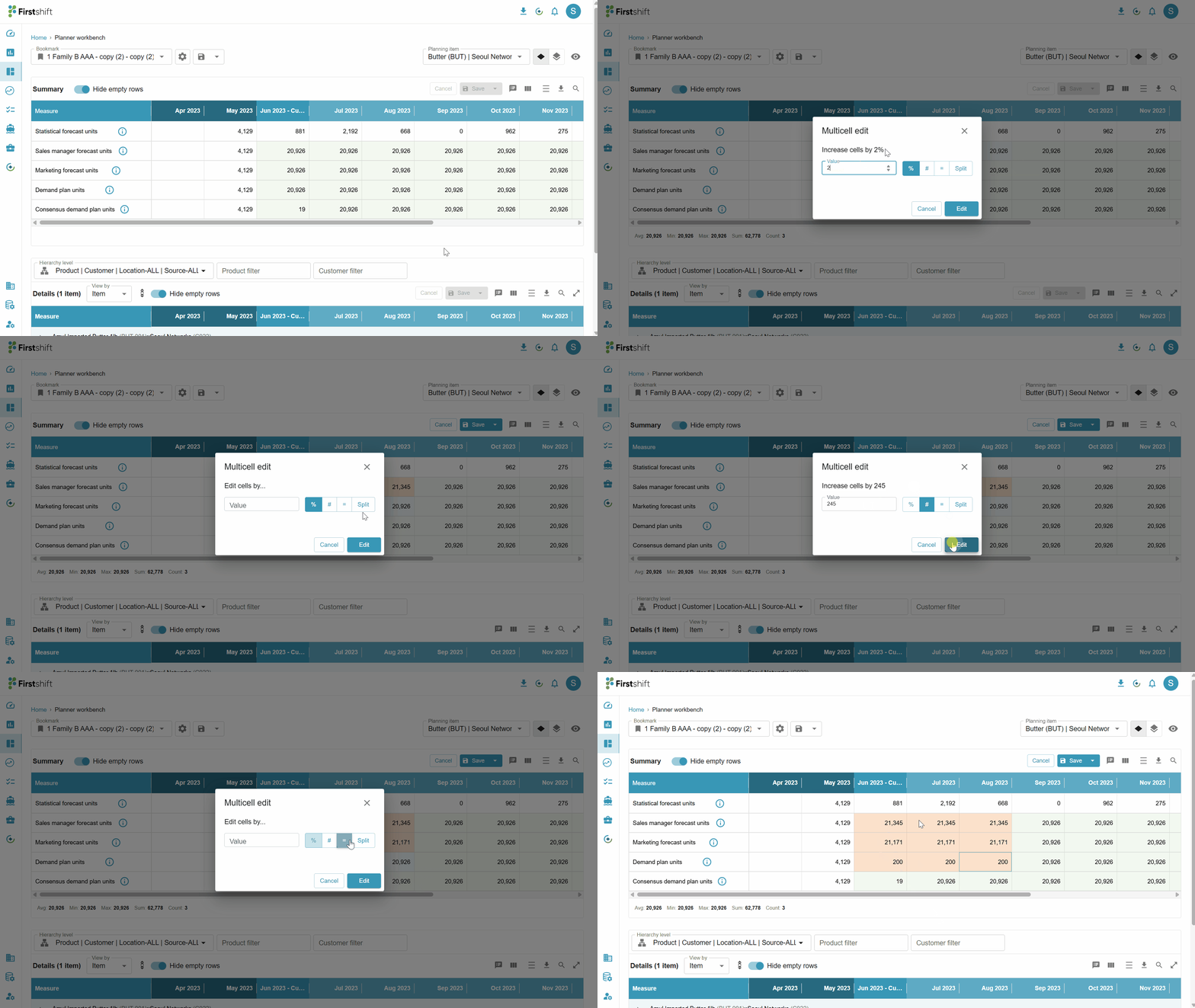
Select one or more cells belonging to a single measure and right-click to choose Edit. This opens the Multicell edit dialog with four operations: % (percentage), # (increment), = (set to the same value), and Split.
1. Percentage (%): Increases every selected cell by the entered percentage. Example: actual value 150, entered 10% → updated value 165 (rounded).
2. Increment (#): Increases every selected cell by the entered amount. Example: actual value 150, increase by 50 → updated value 200.
3. Same value (=): Sets every selected cell to the entered value. Example: entering 50 sets all selected cells to 50.
Split
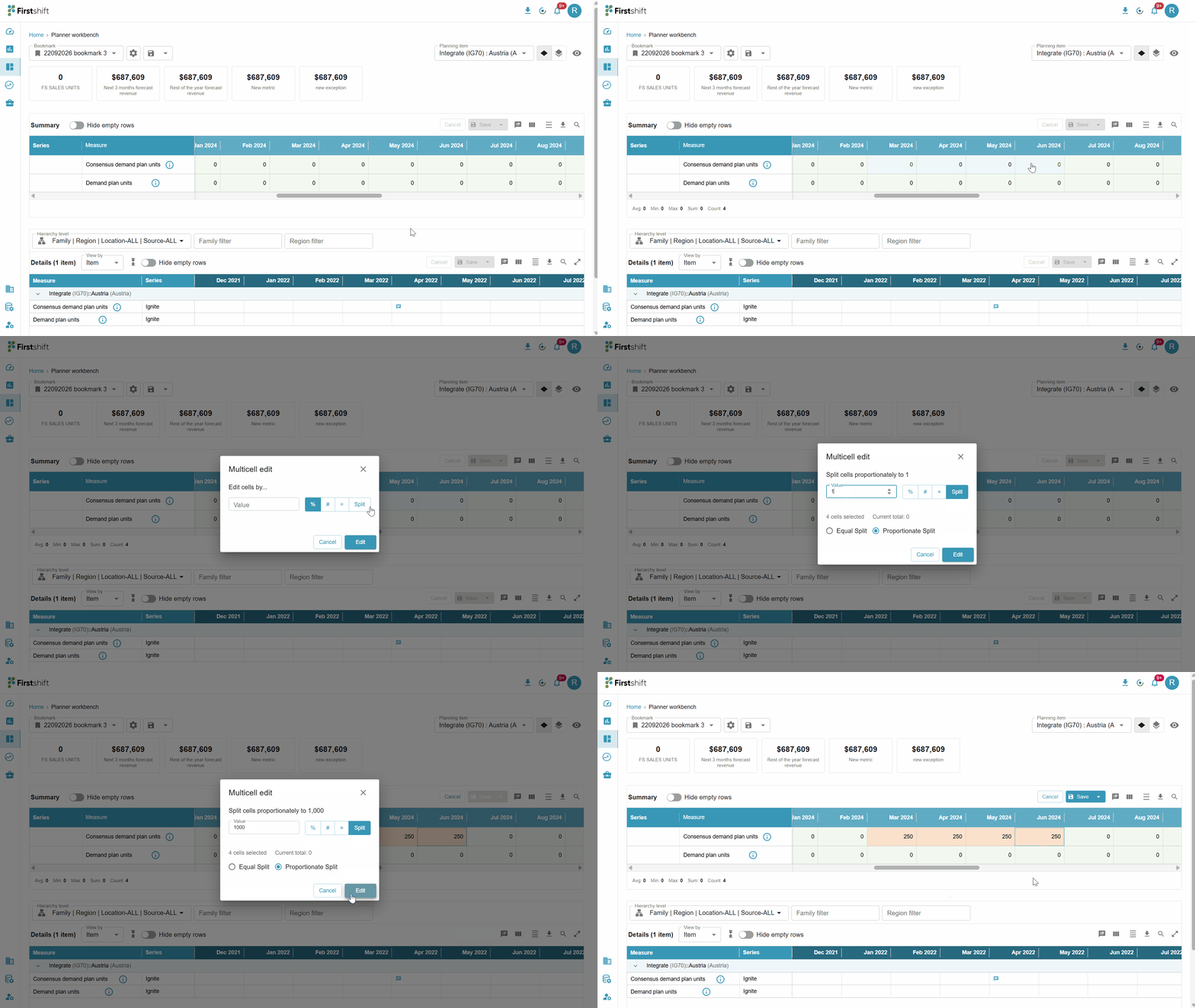
Selecting Split reveals two radio options below the value field — Equal Split and Proportionate Split. When the selected cells already have values, Proportionate Split is pre-selected; choose Equal Split if you want every cell to get the same share. Only one is active at a time, and these radios are shown only while Split is selected.
As soon as you select Split, the dialog shows:
- Cells selected — the count of editable cells in the current selection (e.g. "5 cells selected").
- Current total — the sum of the current values of the selected cells, formatted with thousands separators (e.g. "Current total: 12,500").
The dialog's descriptive label updates live as you type, reflecting the active mode: "Split cells equally to <value>" or "Split cells proportionately to <value>."
How Equal Split works
“Each cell = Entered value ÷ Number of editable cells”
Example: entered value 120, 4 cells selected → each cell becomes 30.
How Proportionate Split works
“Each cell = Entered value × (cell's current value ÷ sum of selected cells' current values)”
Example: cells hold [100, 200, 300, 400] (sum 1,000). Entered value 500 → cells become [50, 100, 150, 200]. Entered value 2,500 → cells become [250, 500, 750, 1,000]. The entered value may be greater than, less than, or equal to the current total — the application preserves the existing proportional relationship in every case.
Zero-sum fallback
If every selected cell's current value is zero, Proportionate Split cannot calculate proportions, so it automatically falls back to Equal Split — no error is shown.
Blank cell handling
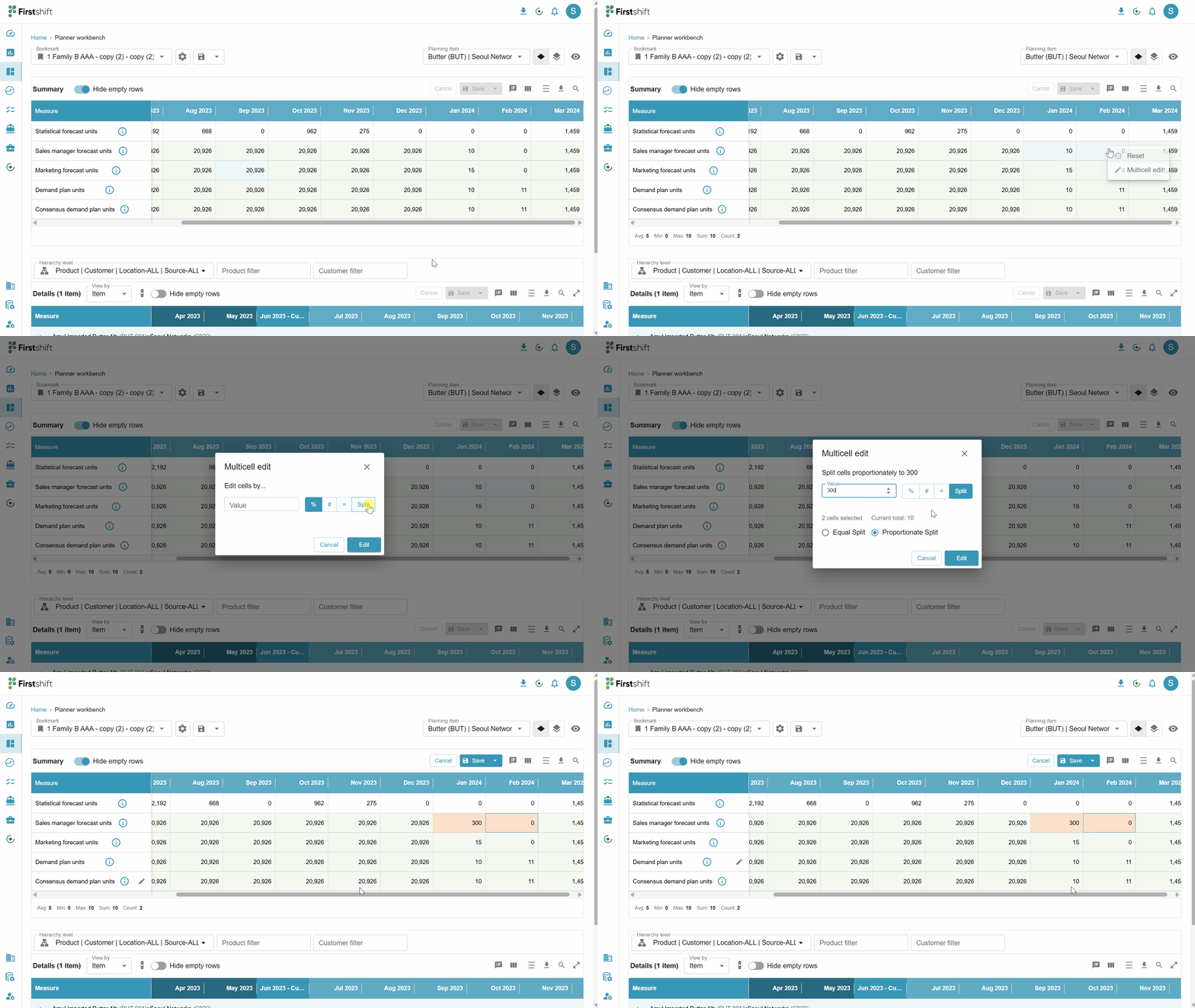
Blank/null values count as 0 for the Current total and all split calculations. Under Proportionate Split, a blank cell has a weight of 0 and receives 0 after the split (unless the zero-sum fallback applies, in which case every cell gets an equal share).
Selecting historical and non-editable periods
You can select a range spanning historical, current, and future buckets, even though historical buckets may be non-editable.
- Editable historical periods participate in the split exactly like future cells.
- Non-editable historical periods remain unchanged and are excluded from the calculation entirely — their existing total is subtracted from the entered value first, and only the remainder (the Allocatable Amount) is distributed across the editable cells: Allocatable Amount = Entered value − Total of non-editable cells. If you select only non-editable cells, Multicell edit is not available.
- This non-editable-cell exclusion rule is not limited to Split — it applies the same way to Percentage (%), Increment (#), and Same value (=): non-editable cells are always left untouched and excluded from calculations, while editable cells update per the selected operation.
Example: Current period is Week 7; Weeks 1–6 are historical/non-editable, Weeks 7–12 are editable. Selecting Weeks 1–12 and running any Multicell edit operation leaves Weeks 1–6 unchanged and updates only Weeks 7–12.
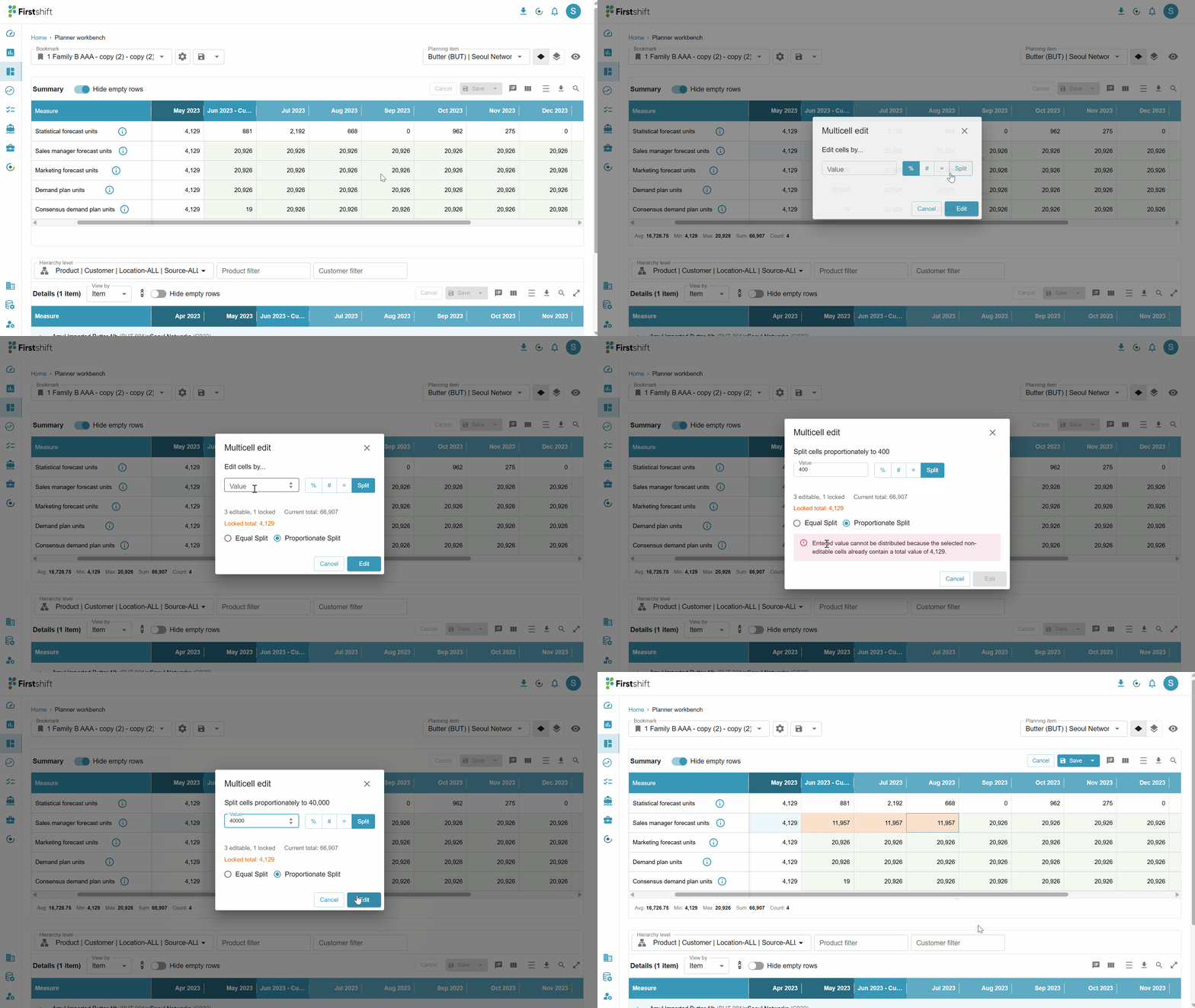
Locked and non-editable cells in the selection. When your selection includes cells that cannot be edited, the dialog shows how many are editable and how many are locked (for example “3 editable, 1 locked”), together with the Locked total. If the Locked total is larger than the value you entered, the dialog shows “Entered value cannot be distributed because the selected non-editable cells already contain a total value of 4,129” (with your own total), and Edit stays disabled until you enter a larger value.
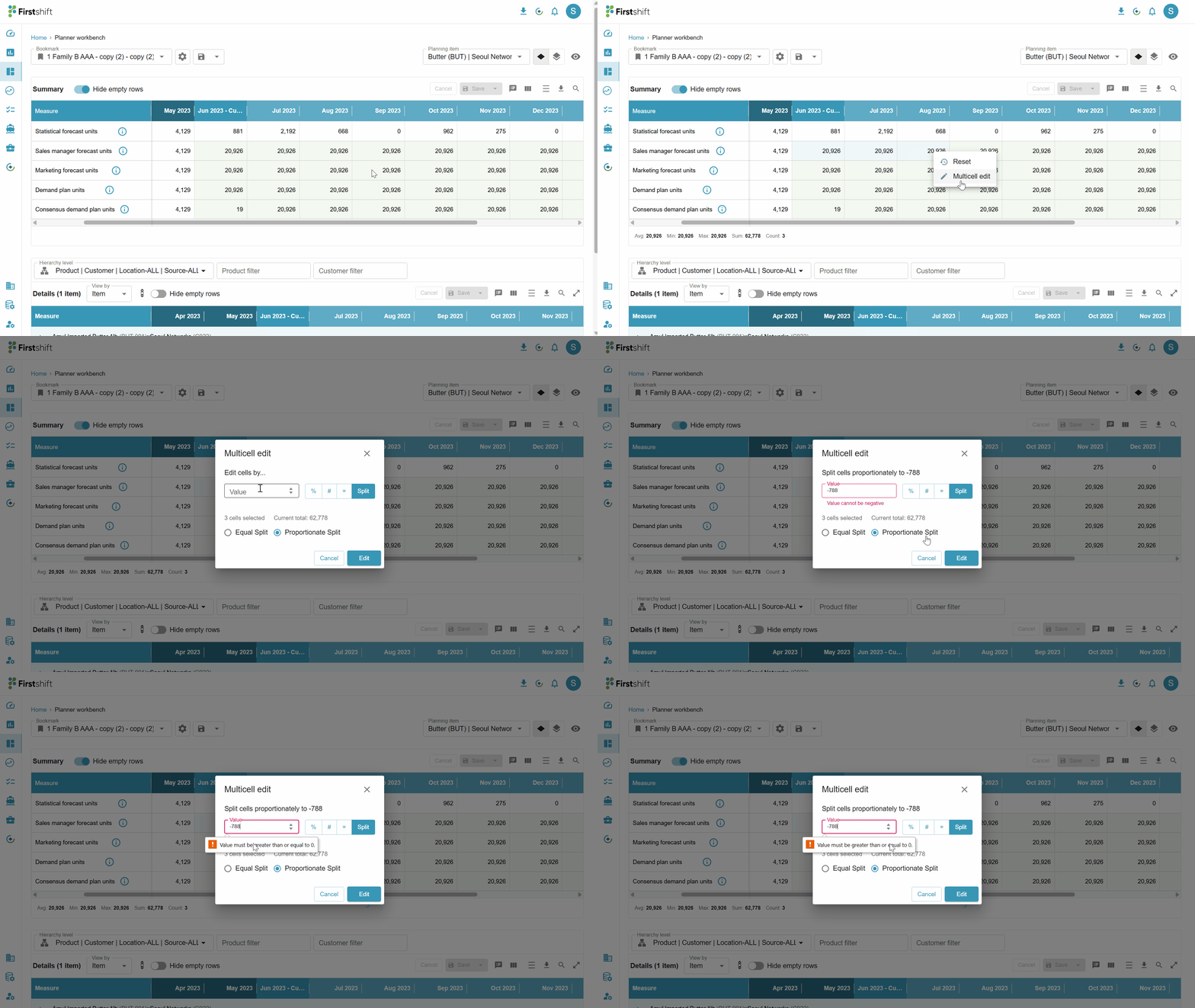
Negative values: Entering a negative value is restricted in Multicell edit. To override a cell to a negative value, use a single-cell edit instead.
Bulk time range edit
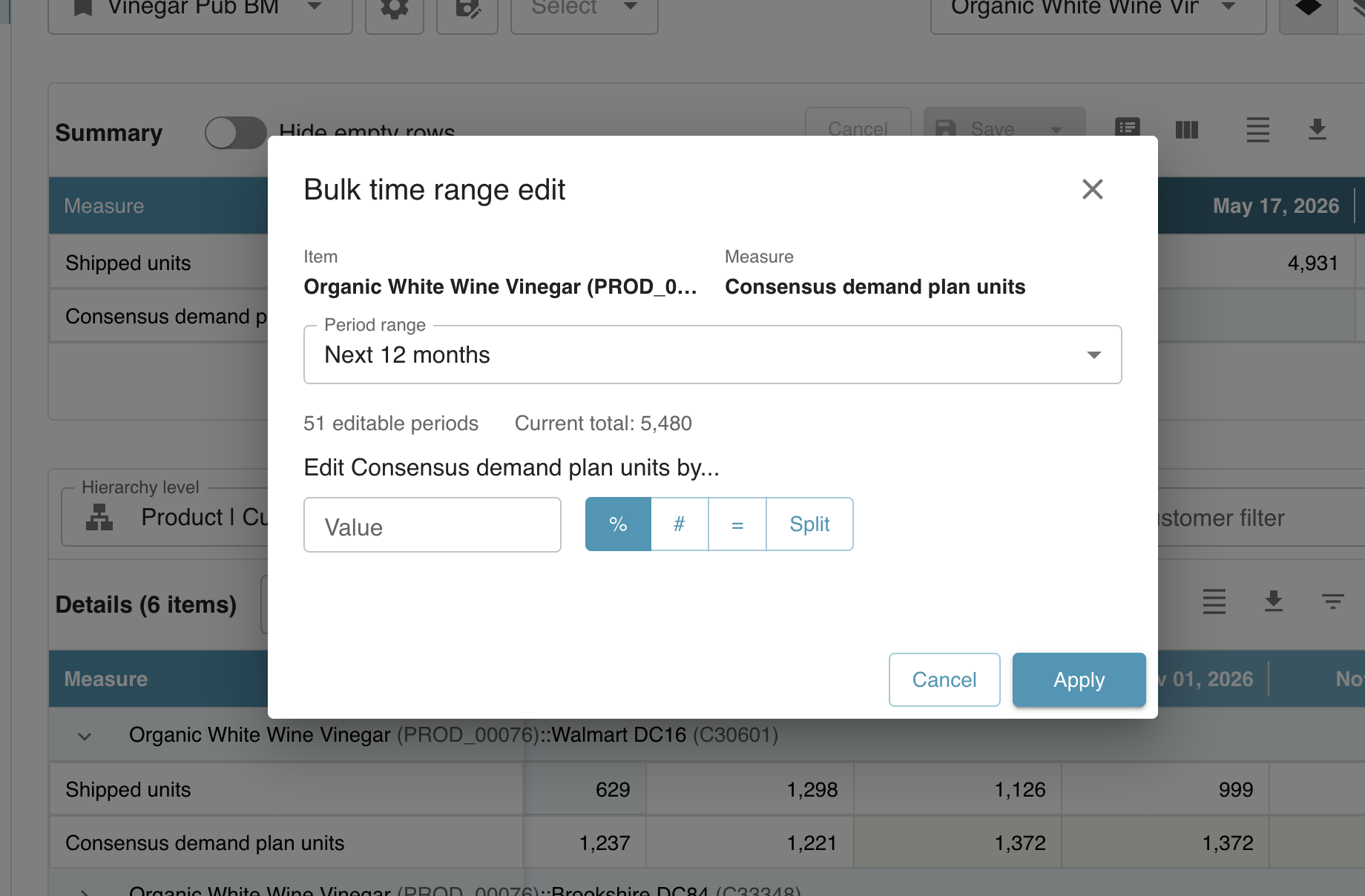
In addition to selecting cells manually, you can apply an edit across a time range for a single item and measure without selecting each cell. Select the pencil icon next to an editable measure name to open Bulk time range edit. The dialog shows the selected Item and Measure, and lets you choose:
- Period range — Next 12 months, Current fiscal year, or Custom. With Custom you also choose a Start period and an End period.
- Under the range, the dialog shows the number of editable periods and the Current total for that range. Both update when you change the range.
- Edit [measure] by… — enter a Value and choose % (percentage), # (increment), = (same value), or Split. With Split you choose Equal Split or Proportionate Split, exactly as in Multicell edit. Non-editable and locked periods are left out, as in Multicell edit.
- Select Apply to submit the change, or Cancel to close the dialog without changing anything.
Edit behavior and limitations
- Table-level restriction: Edits can be made in either the Summary table or the Details table, but not both at once in the same session.
- View-level restriction: Overrides can be applied in either the Single-Item View or the Multi-Item View, but not both at the same time — complete your updates in one view before switching.
- If you switch items, change currency, or switch views while unsaved changes exist, the application warns: "This action will discard your unsaved overrides. Do you want to continue?"
- Yes — proceeds with the switch and discards unsaved changes.
- Cancel — stays on the current view/currency and keeps the edits.
Note: When you perform an override in either the Summary table or the Details table, the save and cancel buttons remain hidden in the other table.
For example, if you perform an override in the details table in the single item view, the save and cancel buttons for the summary table remain hidden, and vice versa.
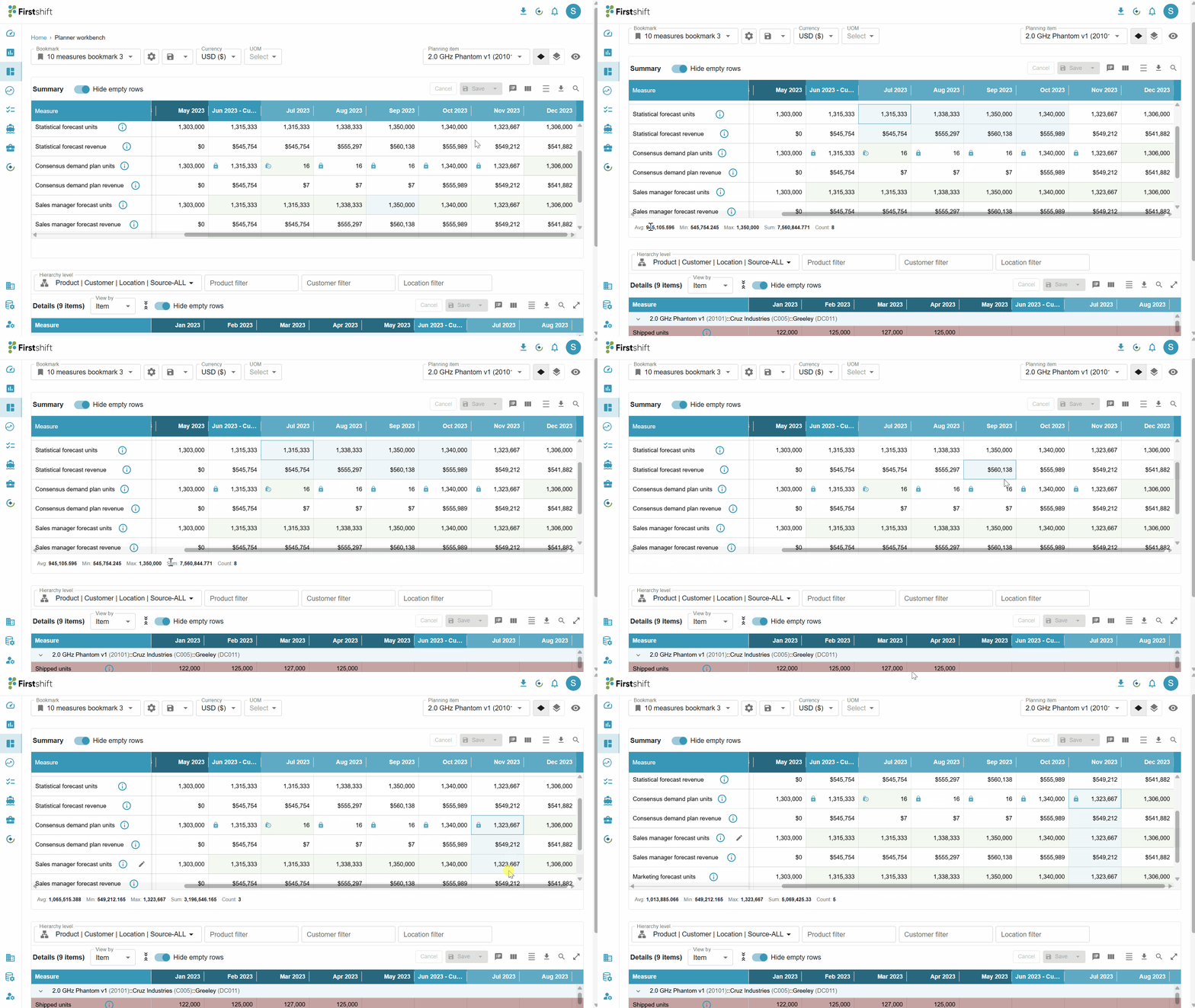
Excel-like summary statistics
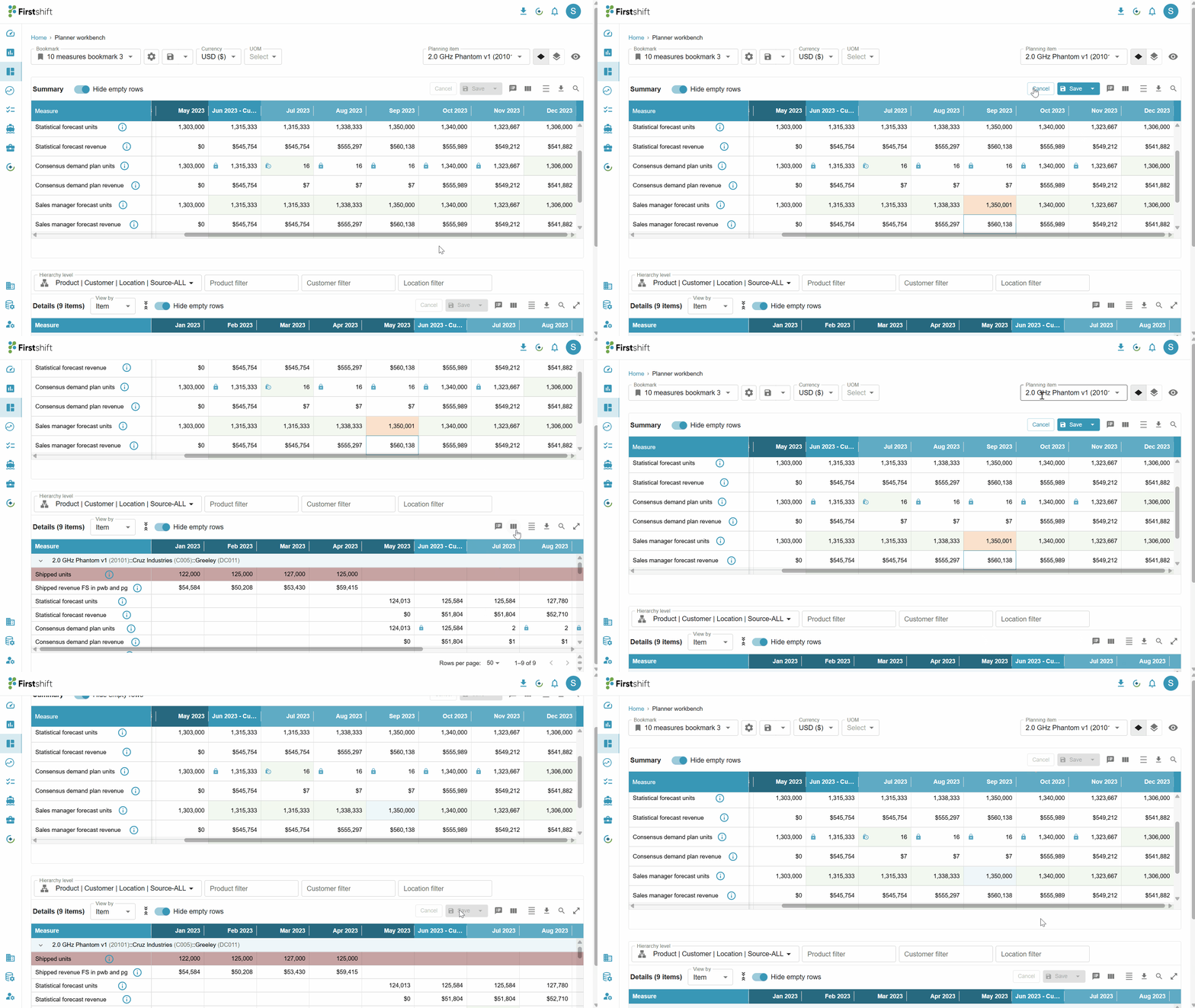
When you select multiple cells across different measures, the table displays the Sum, Average, Minimum, Maximum, and Count values for the selected cells.
These summary statistics are available in the Summary table and Details table in the Single item view, and in the Details table in the Multi item view.
Related articles
Before and after you override values:
- Cell options — all the options you get when you right-click a cell
- Submit overrides with a reason — save your overrides, with or without a reason
- Reset action — undo an override and go back to the system value
To understand how locks and splits behave across hierarchy levels:
Was this article helpful?
That’s Great!
Thank you for your feedback
Sorry! We couldn't be helpful
Thank you for your feedback
Feedback sent
We appreciate your effort and will try to fix the article