TABLE OF CONTENTS
Introduction
Right-click a cell in the results table of Planner Workbench to open a menu of cell options. These options let you change values, undo changes, add comments, see how a value was built up, and protect values from changes. This article is a quick guide to the menu. Each option links to its own article, where you can find the full steps.
Which options you see
The options depend on the cell you right-click.
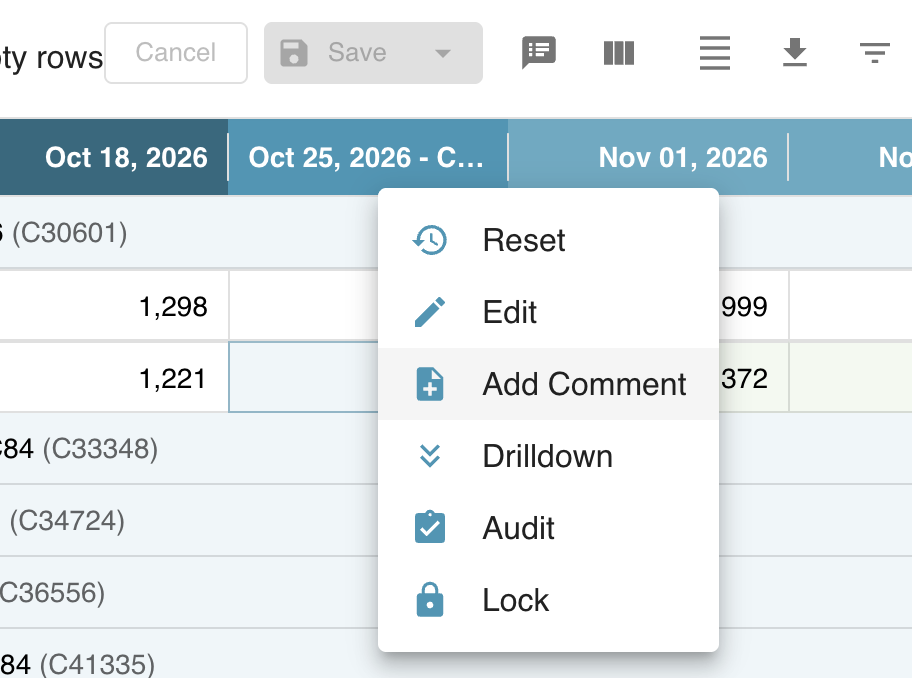
Editable cell. You see all six options: Reset, Edit, Add Comment, Drilldown, Audit, and Lock. Editable cells are the ones in future periods of an editable measure, shown with a light green background. A pencil icon also appears next to the name of an editable measure.
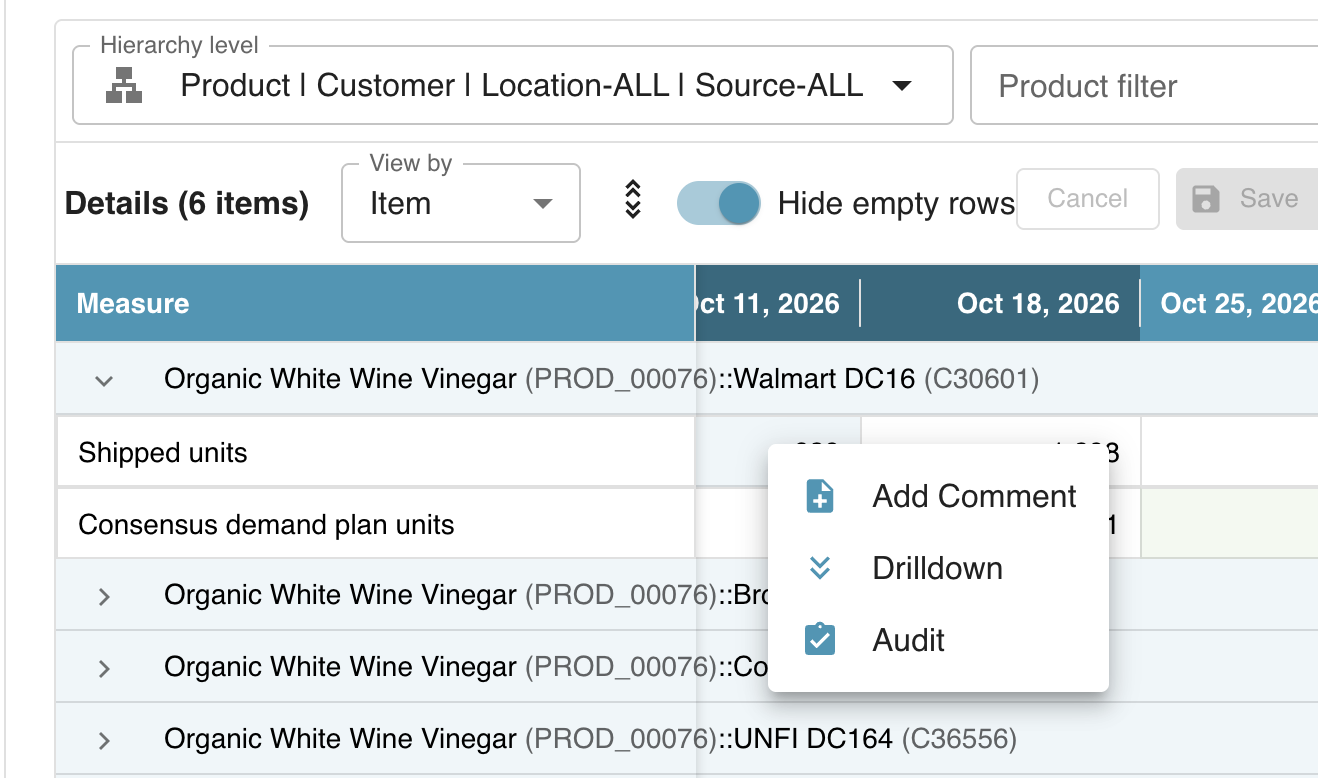
Empty or read-only cell. You see only Add Comment, Drilldown, and Audit. Reset, Edit, and Lock are available only on editable cells.
Note: Cell options are not available in the multi-item view aggregate table, because you cannot edit the aggregate value of the items.
The cell options at a glance
| Option | What it does | Read more |
|---|---|---|
| Edit | Change the value of one cell, many cells, or a whole time range, using % or # changes, the same value, or a split. | Override values in Planner Workbench |
| Save | Save your overrides, with or without a reason. You can reuse one reason for the whole session. | Submit overrides with a reason |
| Reset | Undo an override and go back to the system-calculated value. | Reset action |
| Add Comment | Add a comment to a cell and mention a colleague. | Adding & Viewing Comments in Planner Workbench |
| Drilldown | Break an aggregated value down into the Product, Customer, Location and Source values behind it. | Drilldown report in Planner workbench |
| Audit | See the full history of a cell: who changed it, when, and the values before and after. | View Audit trail in Planner Workbench |
| Lock | Protect a value so it is not changed by edits or by recalculation. | Lock edits feature in planner workbench |
Go deeper on locks
These articles explain how locks behave across hierarchy levels:
- Lock edits at aggregated level
- Lock edits at Lower level
- Lock an intermediate item
- Unlocking behavior and lock indicators
- Lock overrides & selective disaggregation - logic explanation
- Proportional Override and Integer Decimal Redistribution
Related articles
Was this article helpful?
That’s Great!
Thank you for your feedback
Sorry! We couldn't be helpful
Thank you for your feedback
Feedback sent
We appreciate your effort and will try to fix the article