TABLE OF CONTENTS
Introduction
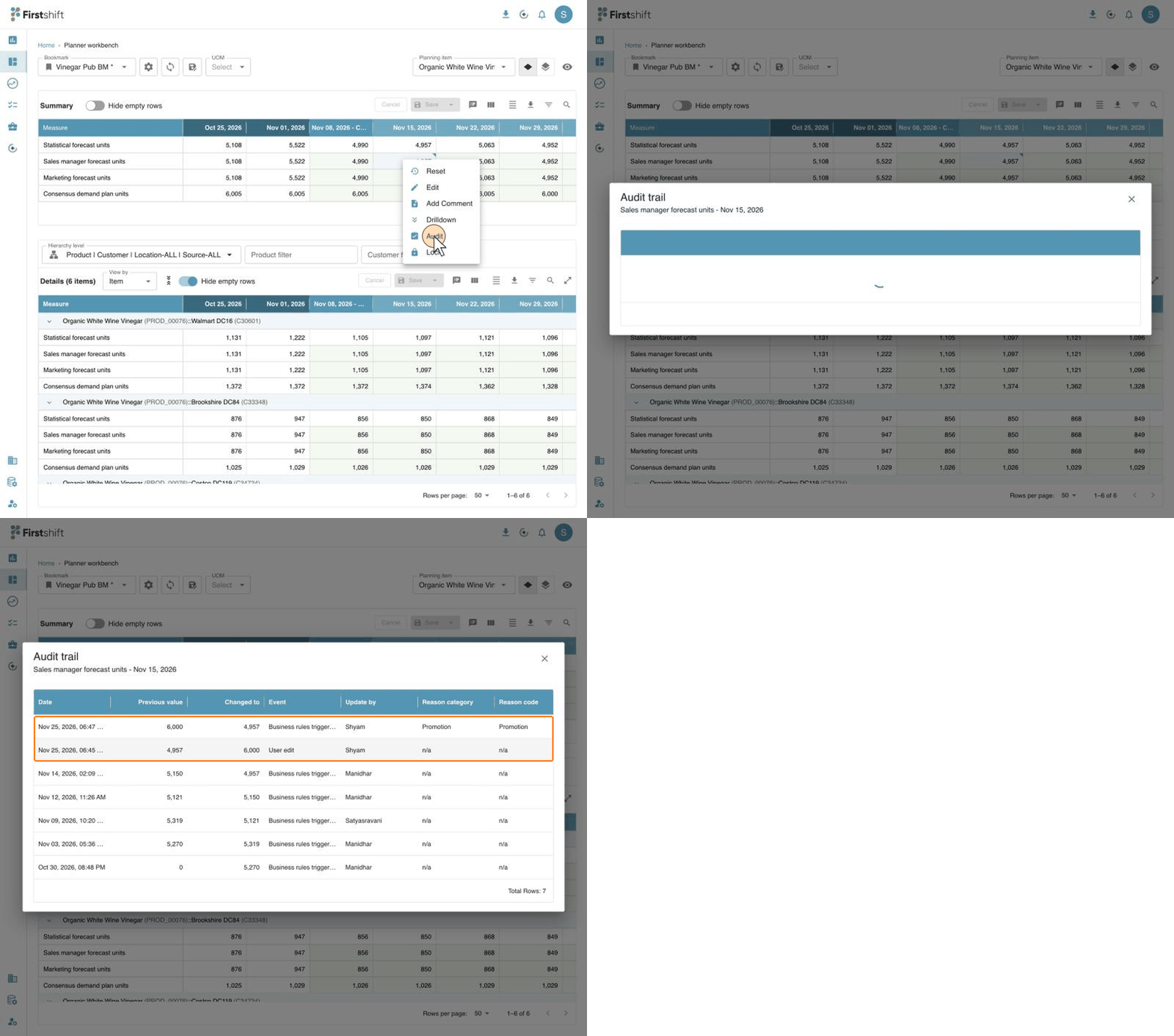
The Audit trail shows the history of a single cell in the Planner Workbench results: every time its value changed, who changed it, when, and why. Use it to see how a number got to where it is today, to check an override, or to confirm that a reset happened.
Open the Audit trail
- Right-click the cell you are interested in. You can do this on any cell, editable or read-only, in the Summary table or the Details table.
- Select Audit. A pop-up opens. Its title shows the measure and the period of the cell, for example Sales manager forecast units - Nov 15, 2026.
- Read the history in the table. The most recent change is at the top. If the table is wider than the pop-up, scroll to the right to see the remaining columns.
- Select the close icon (X) at the top of the pop-up when you are done.
What the Audit trail shows
| Column | What it tells you |
|---|---|
| Date | The date and time of the change. |
| Previous value | The value before the change. |
| Changed to | The value after the change. |
| Event | What caused the change. See the list below. |
| Update by | The user the change is recorded against. |
| Reason category | The reason category the user chose when saving. It shows n/a when no reason was given. |
| Reason code | The reason name the user chose. It shows n/a when no reason was given. |
| Comment | The note the user typed in the Other Reason / Note box. |
At the bottom of the pop-up, Total Rows tells you how many changes are recorded for the cell.
Events you may see
- User edit — a person overrode the value, for example with Edit or Multicell edit.
- Business rules triggered from user edit — the application recalculated the cell after an edit or a reset. A reset is recorded this way, with the reason and comment that the user entered.
- Business rules triggered from forecast — the cell was updated because a forecast ran, for example when the statistical forecast was refreshed.
Example
Sales manager forecast units for Nov 15 was 4,957. A planner overrode it to 6,000 because a promotion was planned, and later reset it when the promotion was cancelled. The Audit trail of that cell shows both changes:
| Event | Previous value | Changed to | Update by | Reason | Comment |
|---|---|---|---|---|---|
| Business rules triggered from user edit (the reset) | 6,000 | 4,957 | Shyam | Promotion | Promotion | Promotion cancelled |
| User edit (the override) | 4,957 | 6,000 | Shyam | n/a | Promotion planned for November |
Read from the bottom up, the story is: the value was overridden to 6,000, then reset to the system value of 4,957.
Good to know
- The Audit trail is for viewing only. You cannot change or delete its entries.
- It shows the history of the one cell you selected. To see another cell or another period, close the pop-up and right-click that cell.
- Choosing a reason when you save an override or a reset is what fills the Reason category, Reason code, and Comment columns, so it is worth adding one.
Related articles
- Reset action — undo an override and go back to the system value
- Override values in Planner Workbench — change one cell, many cells, or a time range
- Submit overrides with a reason — add the reason that shows up here
- Cell options — everything you can do when you right-click a cell
Was this article helpful?
That’s Great!
Thank you for your feedback
Sorry! We couldn't be helpful
Thank you for your feedback
Feedback sent
We appreciate your effort and will try to fix the article