TABLE OF CONTENTS
The results in the planning view can be edited based on specific requirements.
Key editing rules
Only current and future cells are editable; past data remains unchanged.
Changes apply only to the selected plan and do not impact other plans.
Editable cells allow you to update forecasts, adjust demand, or modify revenue figures when needed.
In the planning view, editable fields are visually distinguished by a unique color, making it easy for you to identify the values they can modify. This visual cue helps prevent confusion between editable and non-editable data. You can update the values in these colored cells directly within the table. To edit the planning view results, click on Expand All to view the editable cells in the table.
Check the image below for a proper understanding of the editable cells.
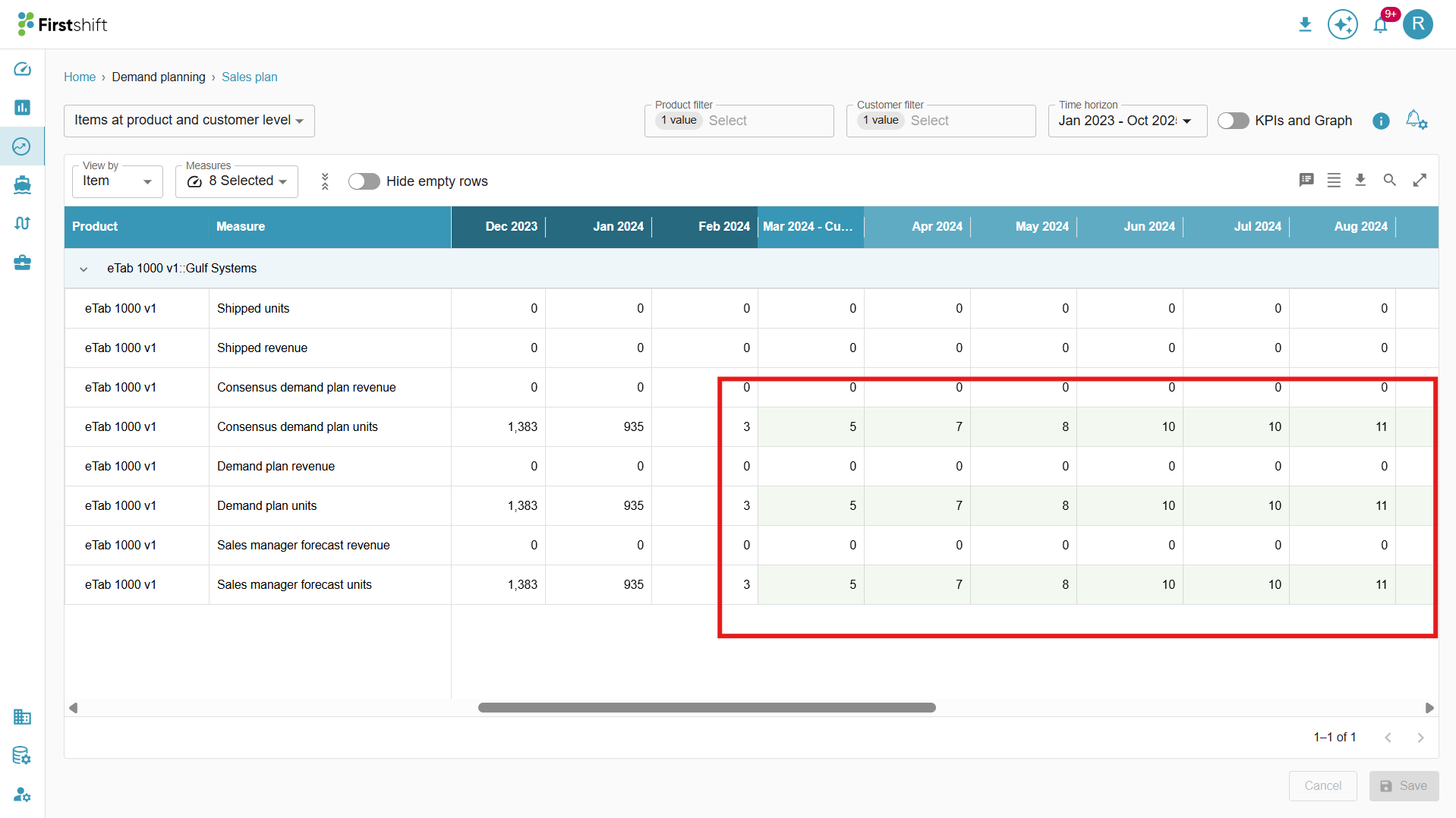
You can perform either a single-cell or multi-cell edit based on your requirements. Single-cell editing allows you to modify one value at a time, while multi-cell editing enables updating multiple values simultaneously, making bulk adjustments more efficient.
Single-cell edit
To perform a single-cell edit, double-click the cell to edit its value. Only numeric values can be entered in the cell.
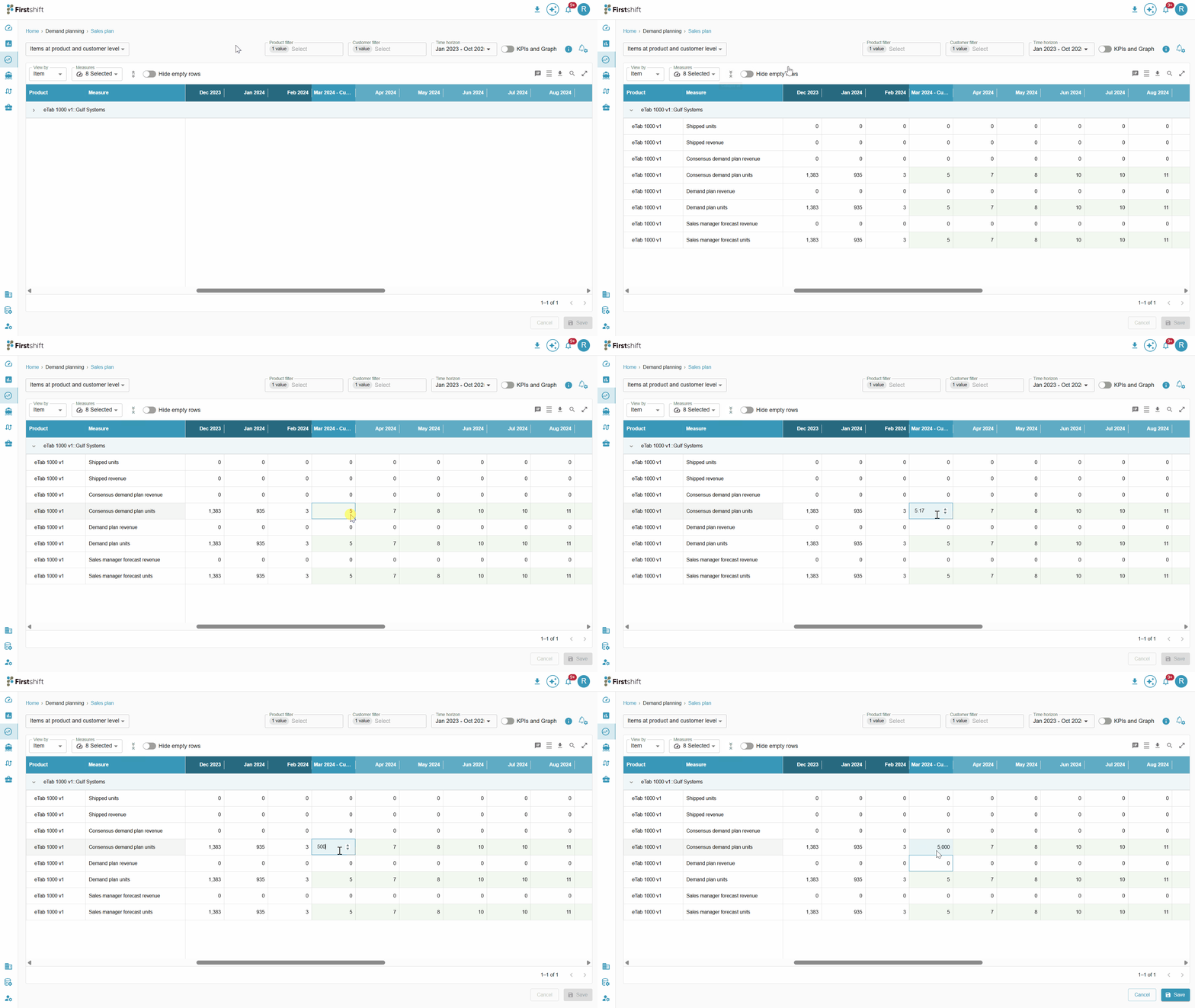
After editing the value, the cell changes to a different color, indicating that it has been edited, but the changes have not been saved.
The save and cancel buttons will be enabled. Check the image below.
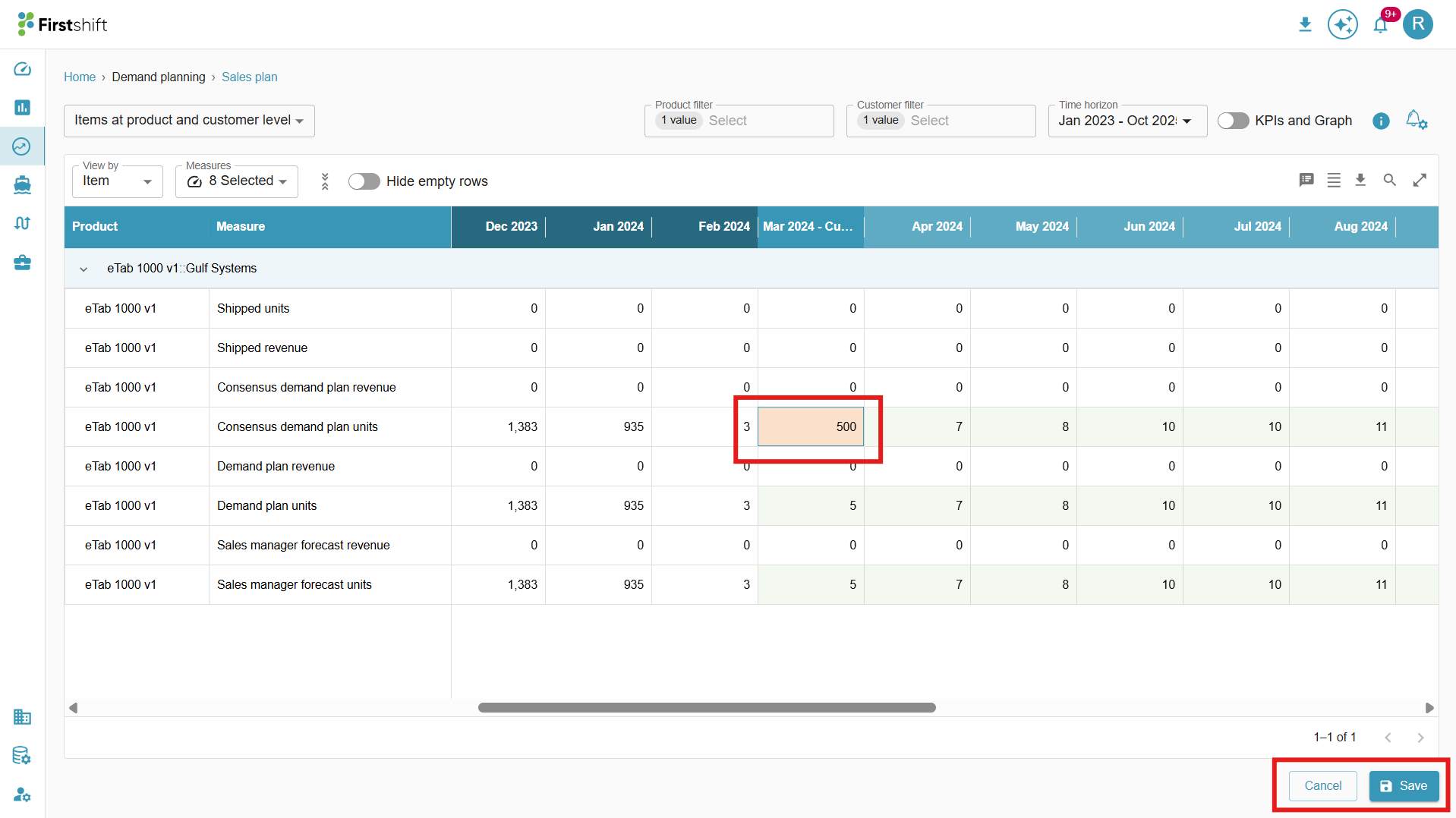
Clicking the save button will submit the edited value of the single cell.
Multi-cell edit
To perform a multi-cell edit, select the cells that belong to a single measure and right-click to see the multi-cell edit option.
You can select multiple cells or select a single cell.
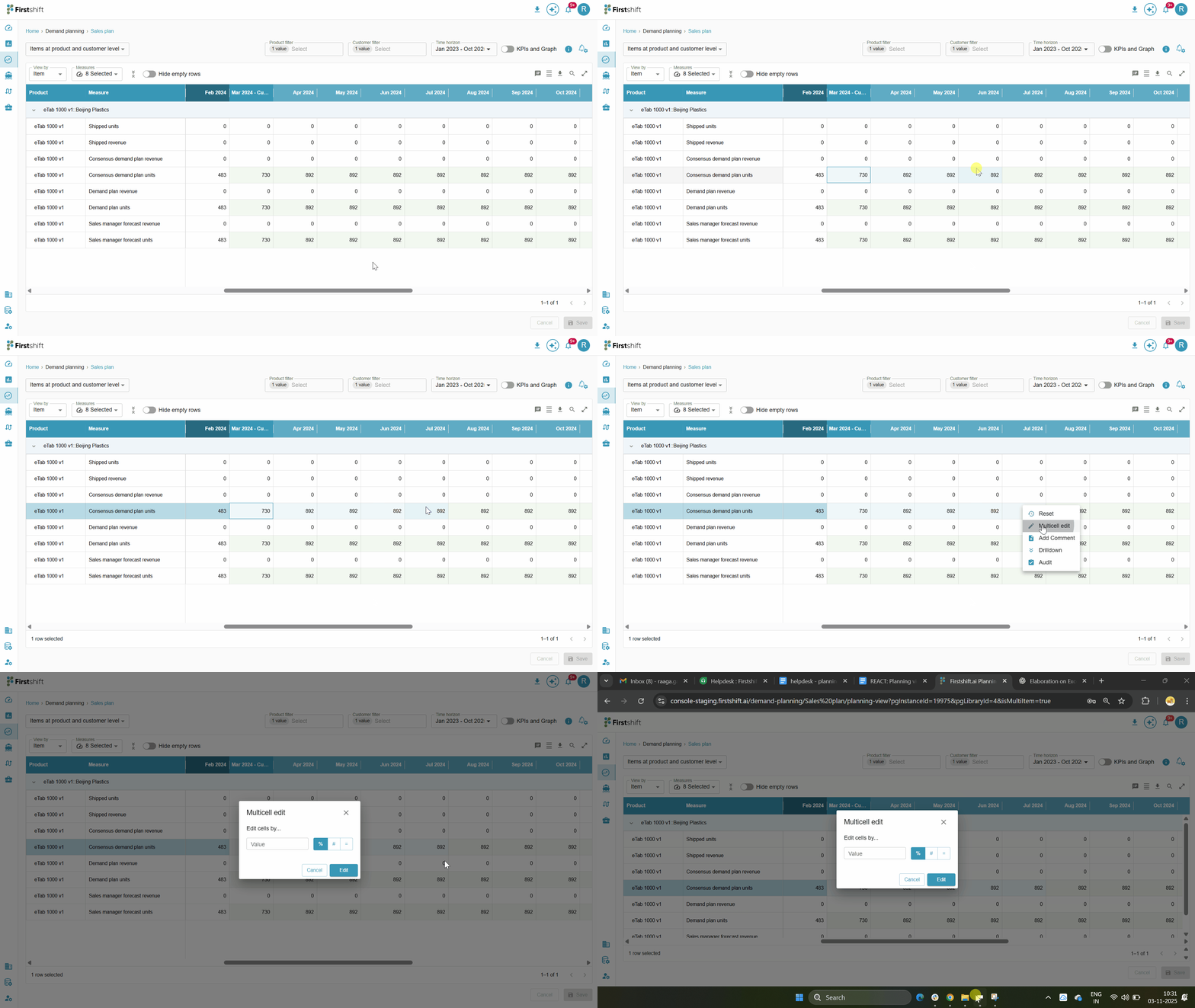
Clicking Multi-cell edit opens a pop-up like the one below, allowing you to update multiple values simultaneously.
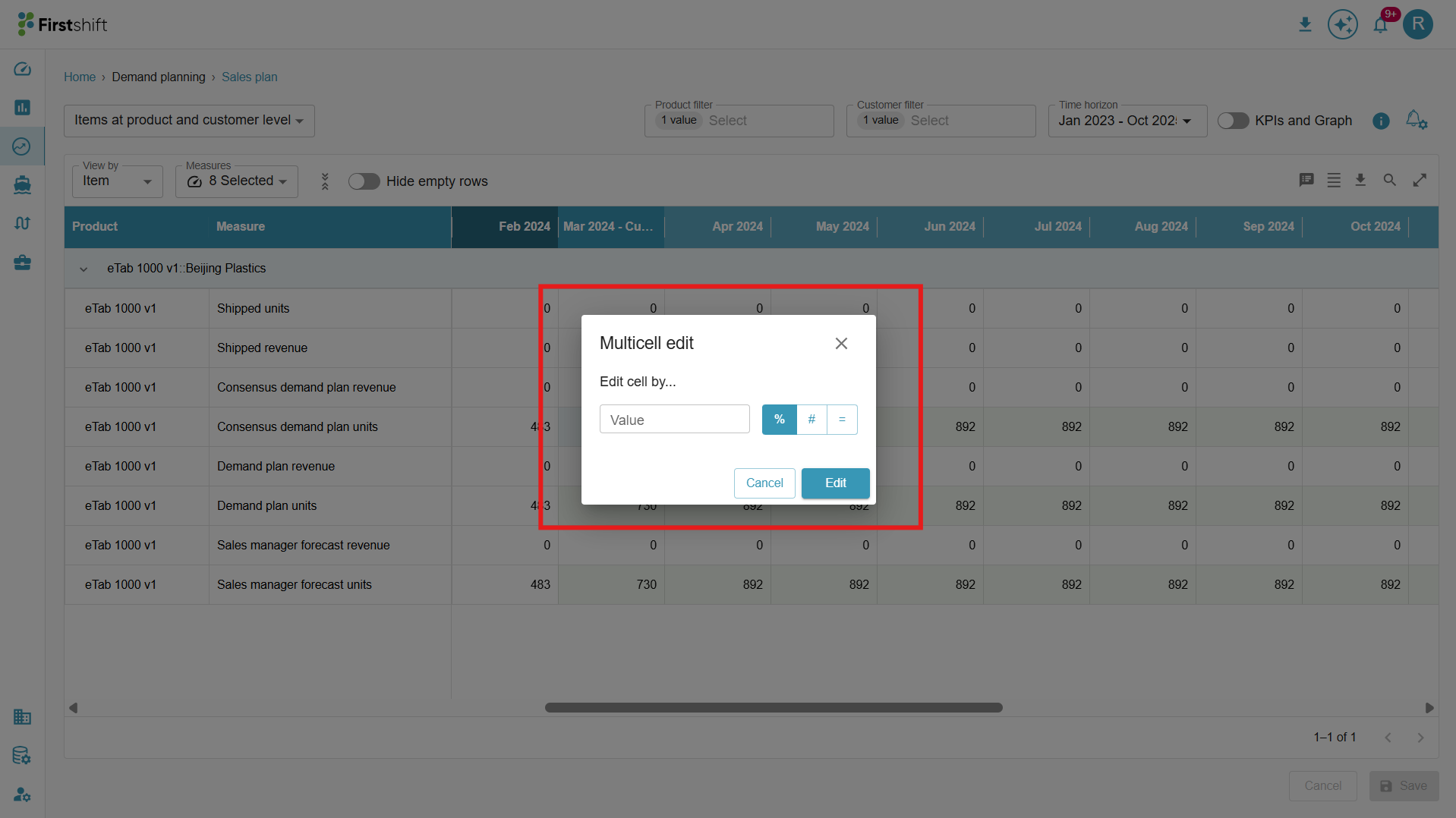
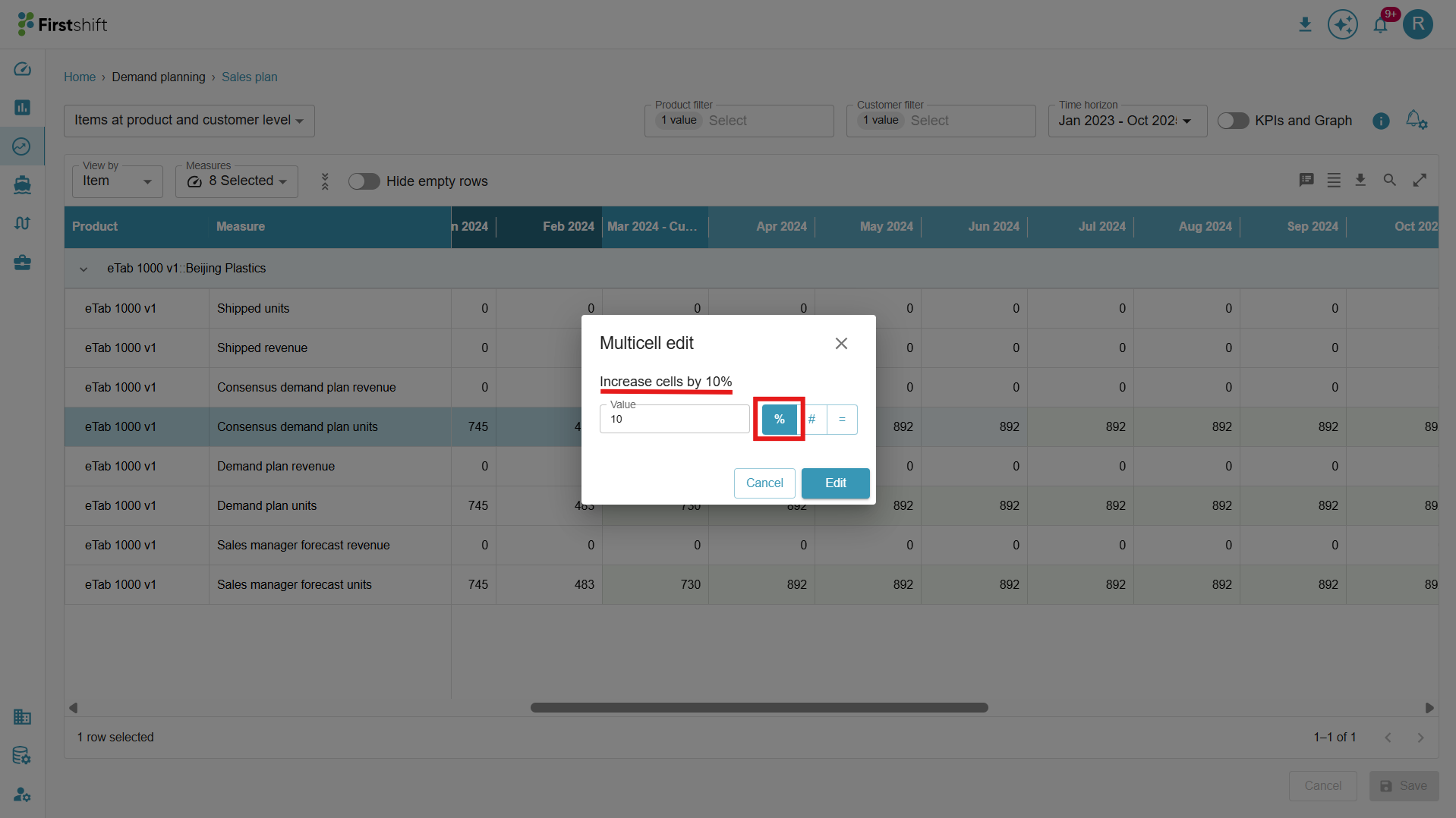
Percentage value
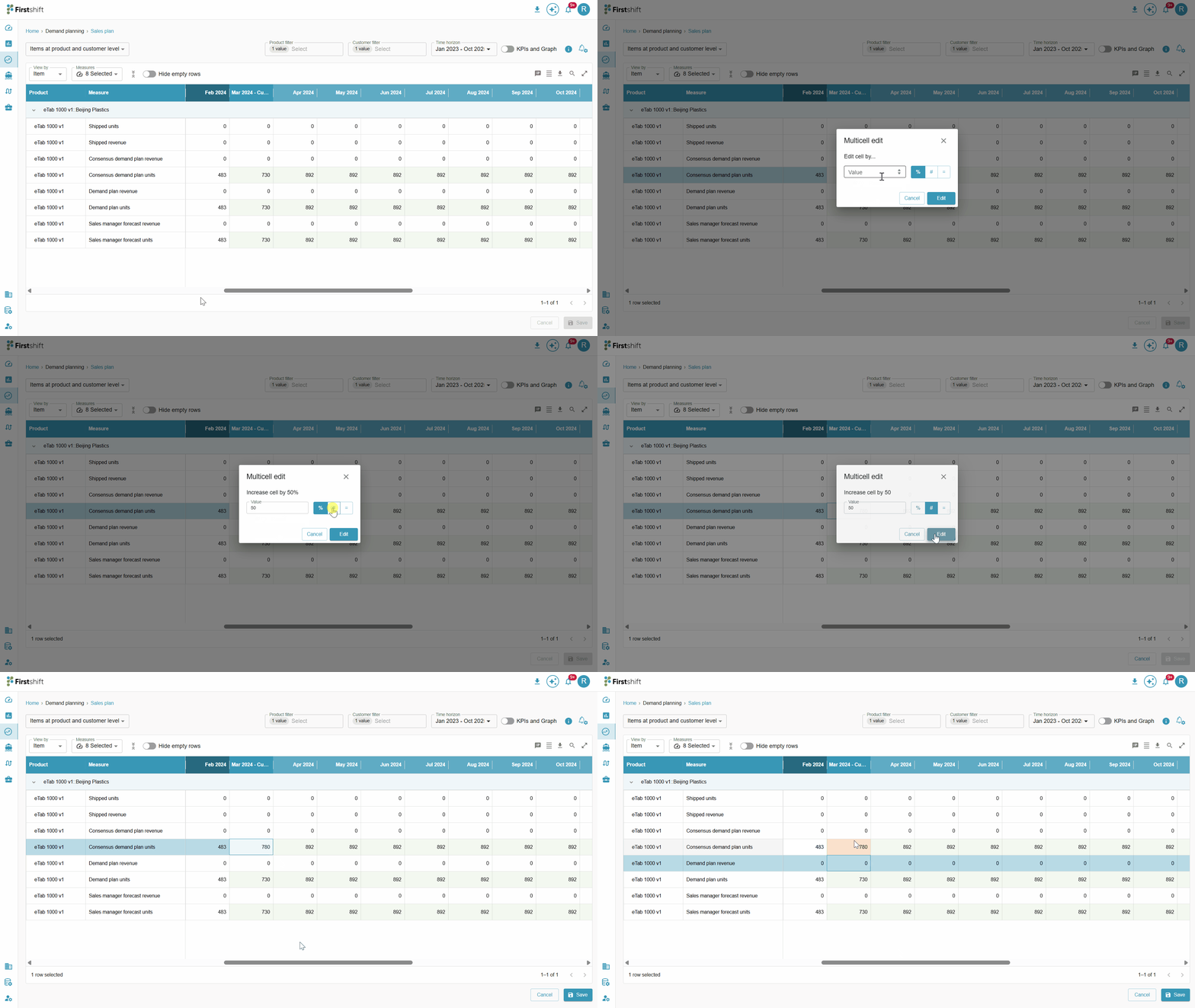
The entered value is 10, and the selected percentage value indicates the actual value will increase by 10%.
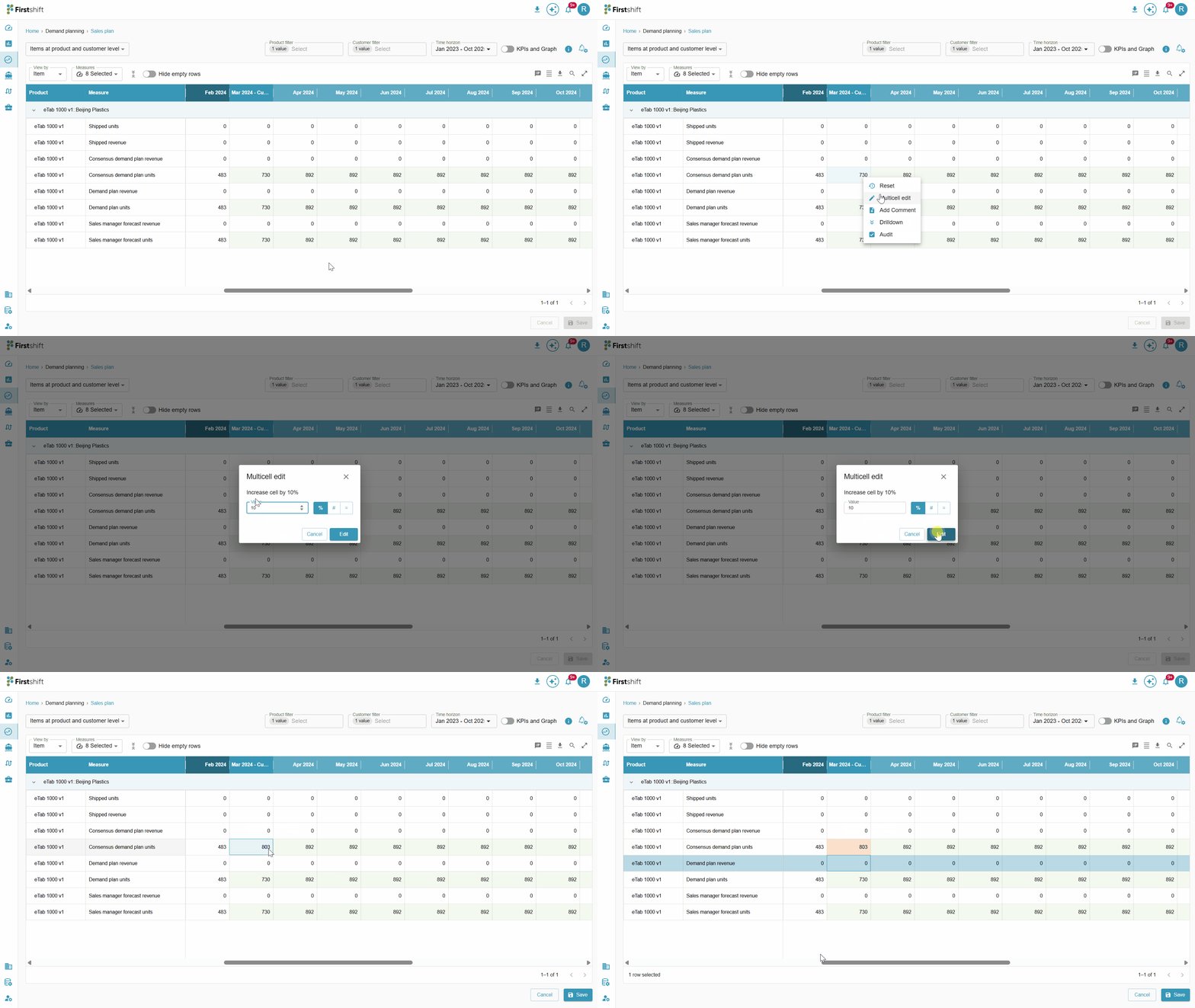
Example: The actual value before the cell edit was 730. If you enter a value of 10 and select the percentage option, the editable cell value will increase by 73, and the updated value will be 803. The cell will show round-off values. Clicking the edit button displays the updated values in the selected cells.
Increment value
Selecting an increment option after entering a value in the field will increase the actual value by that amount.
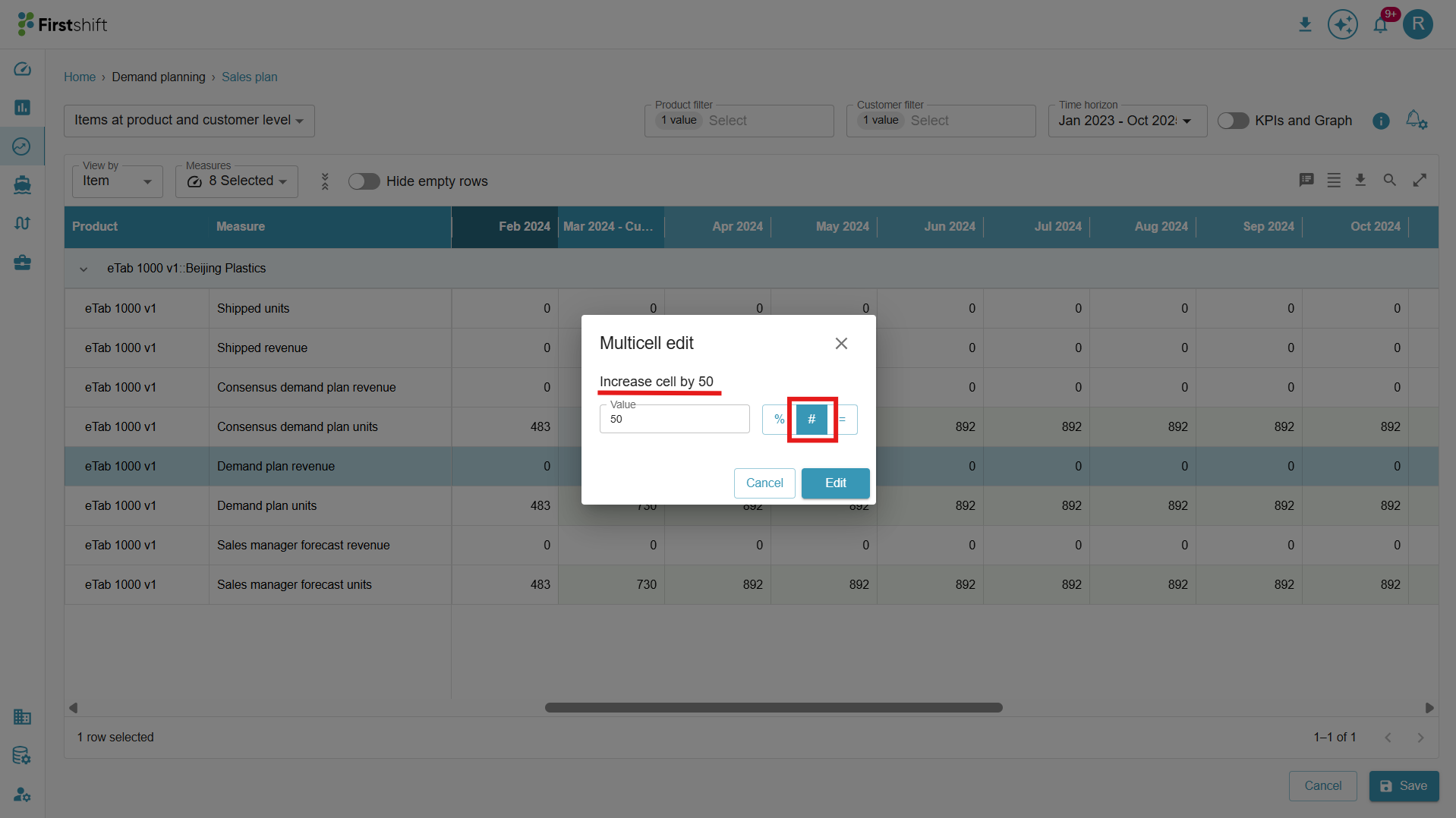
Example: If the actual value is 730, increase it by 50, and the updated value will be 780. Clicking on the edit button will update the exact values with the updated values.
Same value
Selecting the same value option after entering a value will copy it to all selected cells.
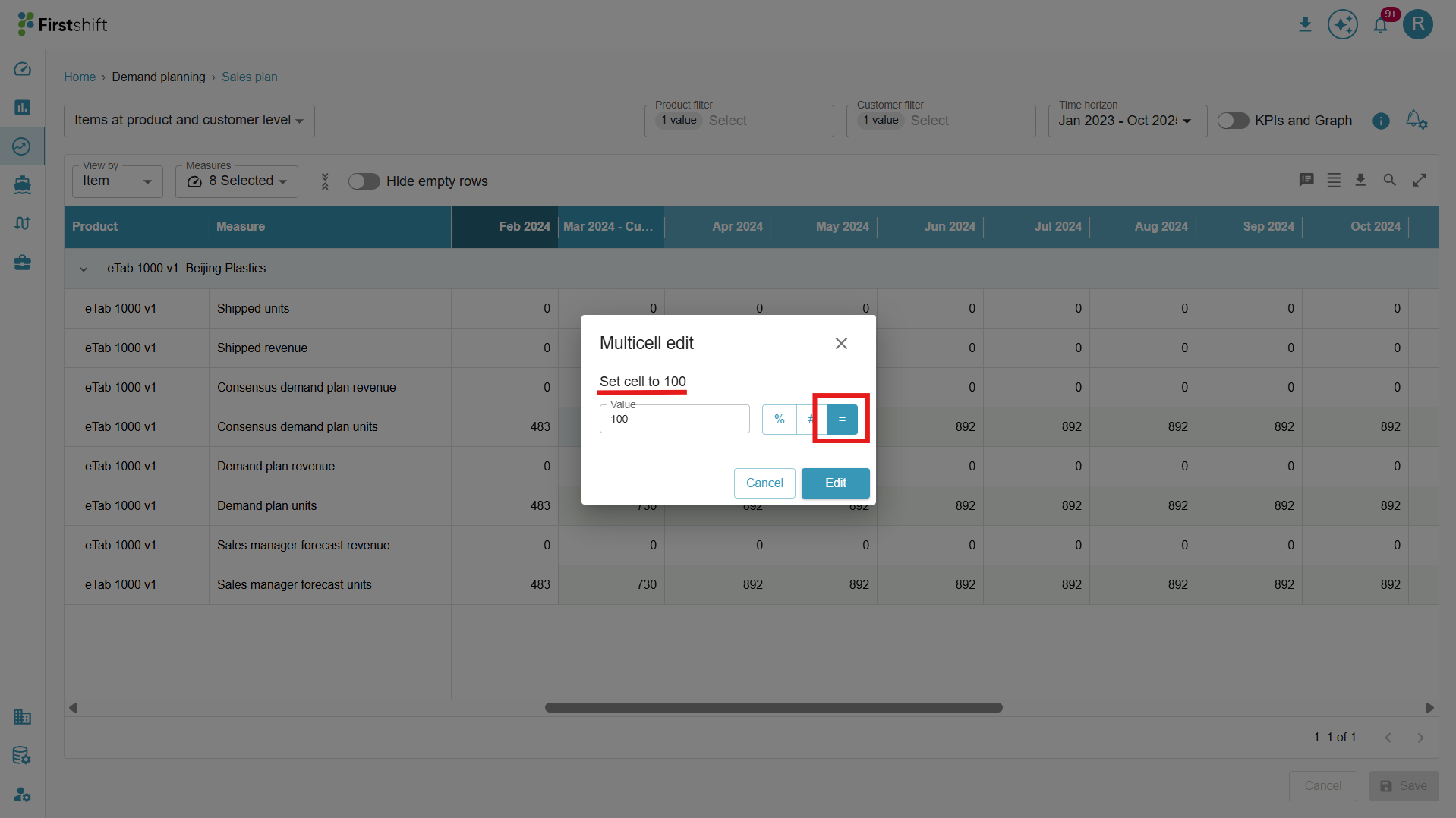
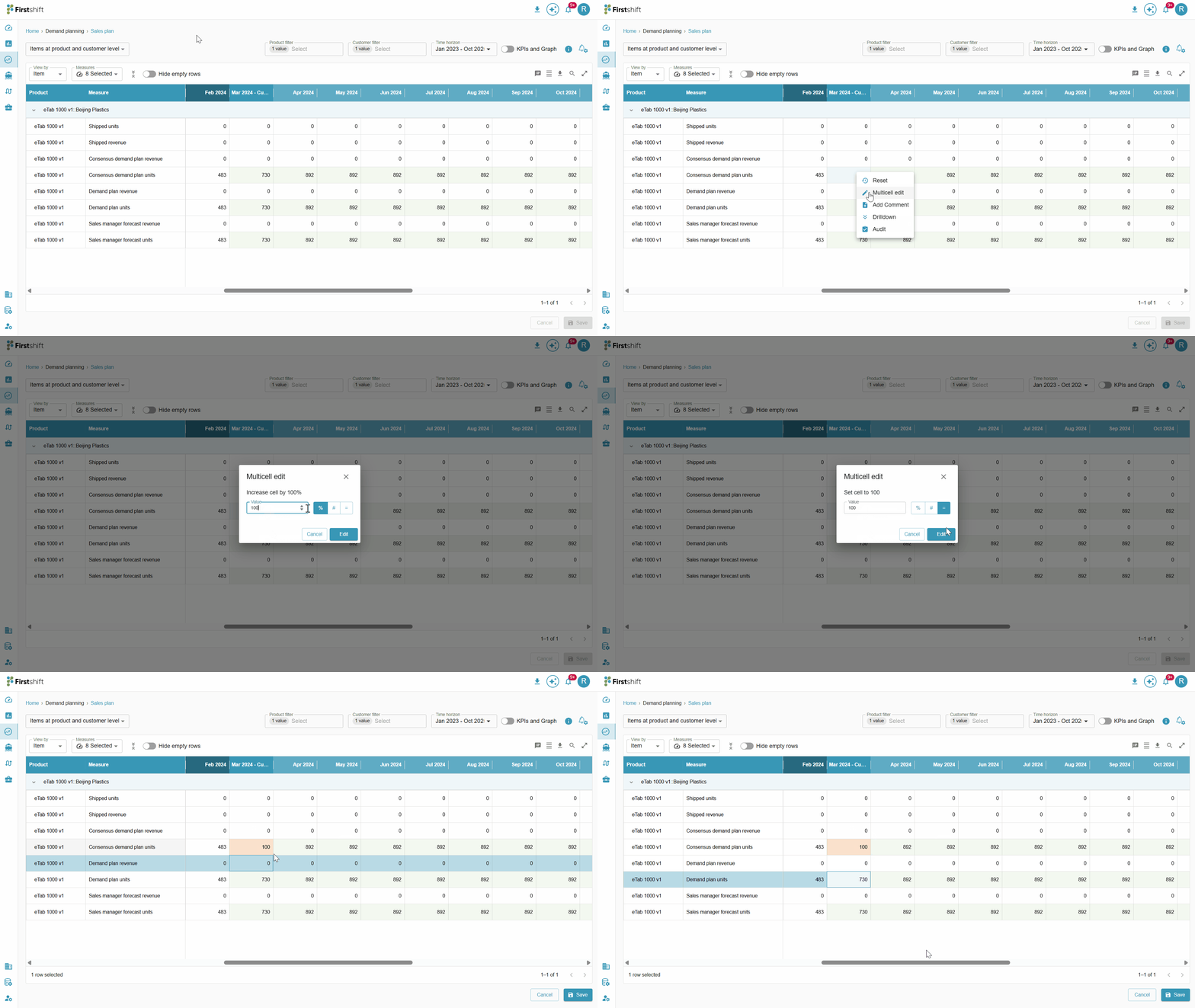
Example: If the value entered was 100 and the same value was selected, the cells will be updated with that value.
Clicking the edit button updates the cells with the latest value.
Submit cell edits
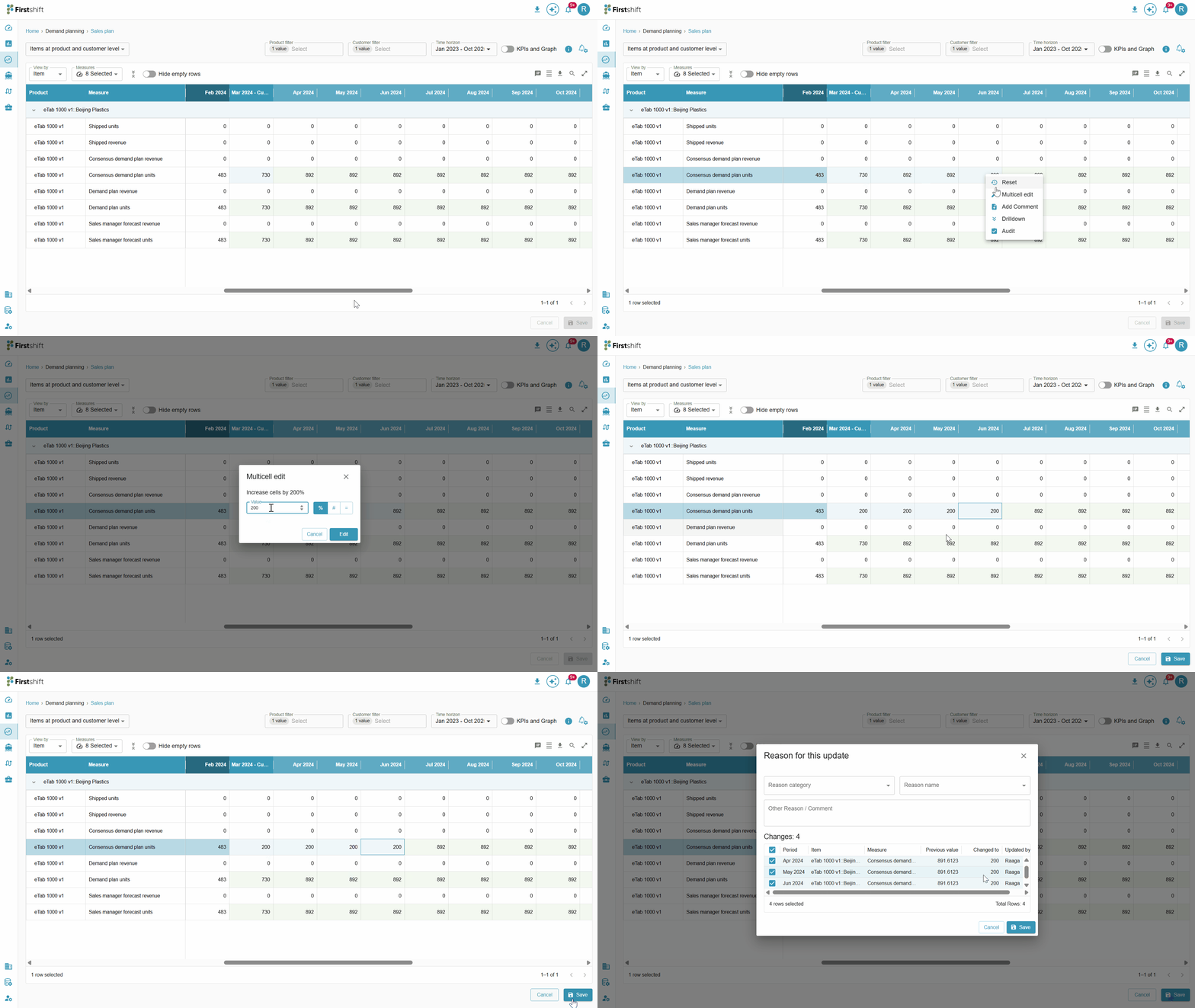
After making changes to the editable cells, you must click the Save button to submit them. Only the modified cells will be saved. This action confirms the edits and updates the planning data accordingly.
After clicking the save button, a prompt will appear with the changes made to the editable cells.
Check the illustration below for proper guidance on submitting cell edits.
Reason for cell updates
Providing the Reason category, name, and comment is optional; doing so will help clarify the purpose of cell edit actions.
Reason category: This dropdown contains the different categories. Some reason categories include Demand, supply, capacity concerns, etc. You can select any one of the reason categories.
Reason name: This sub-reason will be based on the selected reason categories, and the reason names will appear in the dropdown.
Ex: If the reason category is selected as capacity concerns, then Product, Tool, and Workforce capacity are the configured reason names. The implementer can add or modify Reason categories and names as needed.
Other reason/ Comment: In addition to the reason category and name, you can also provide a specific reason for submitting the overrides by providing a comment or mentioning the specific reason.
Check the illustration below.
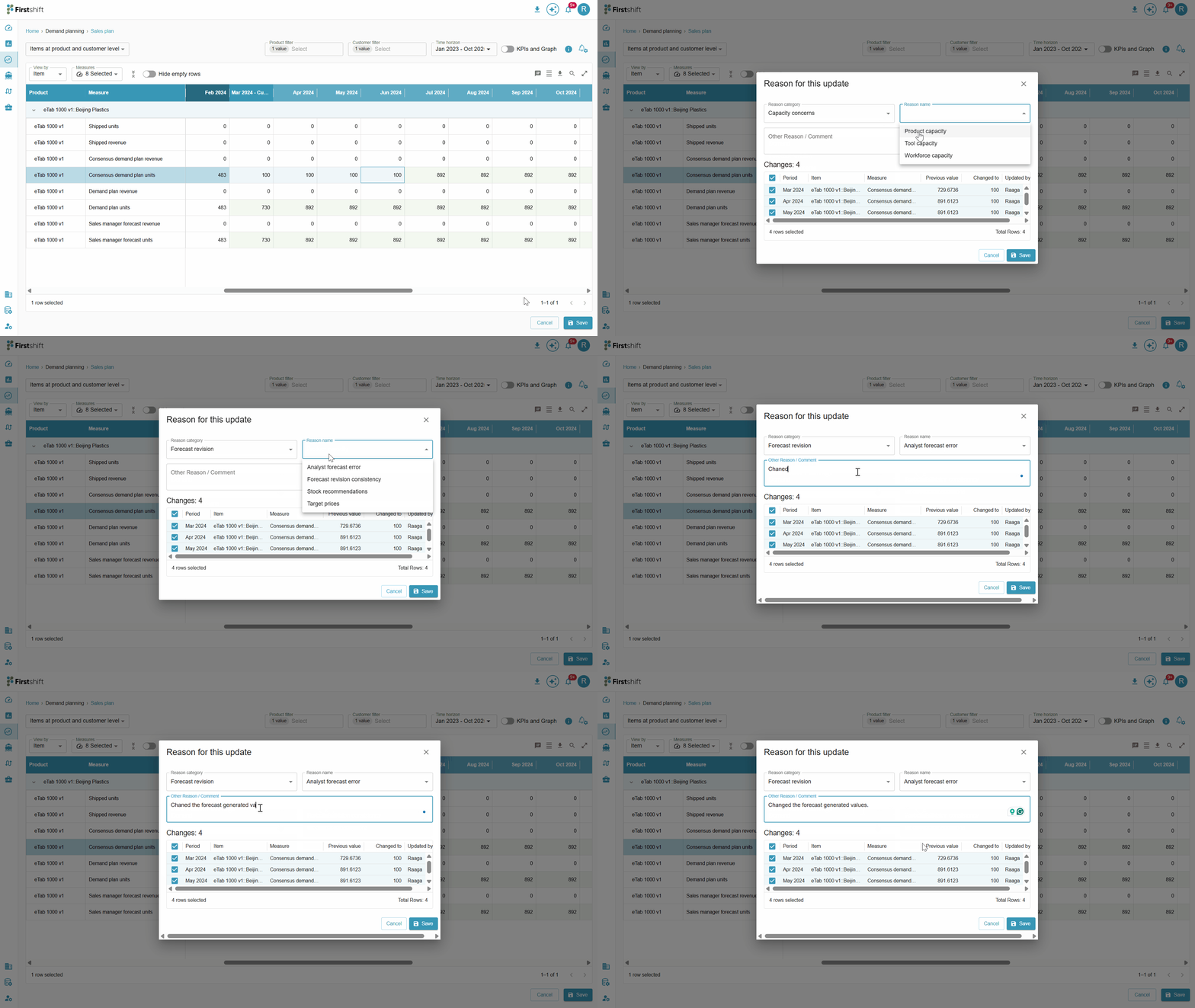
When saving the updates, the Reason Prompt displays a summary of all changes made to the editable cells.
In this example, four changes have been detected. Each modified cell is listed, allowing you to review the overrides before submission.
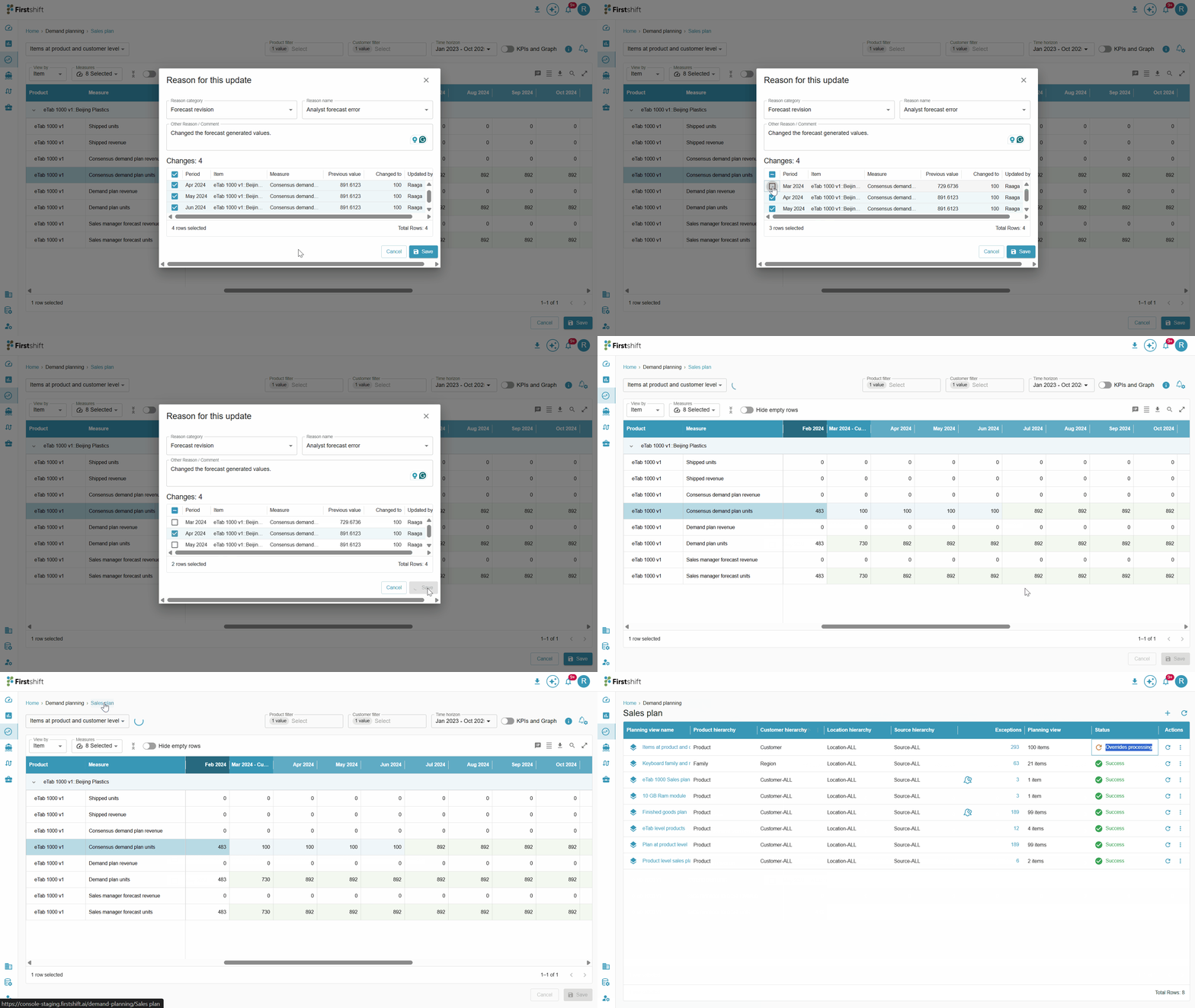
You may deselect specific cells in the prompt if you do not want to submit specific overrides. Only the selected changes will be saved, giving you flexibility and control over which edits are applied.
After clicking the Save button, the application displays an override processing icon on the results screen, indicating that the submitted changes are being processed successfully.
During this time, the status of the planning view updates from “Success” to “Overrides Processing.”
This helps you understand that the system is actively applying its overrides and updating the relevant planning data.
Once processing is complete, the status will update accordingly, and the latest results will be available for review.
Click the save button to submit the changes made to the cells. Check the illustration below.
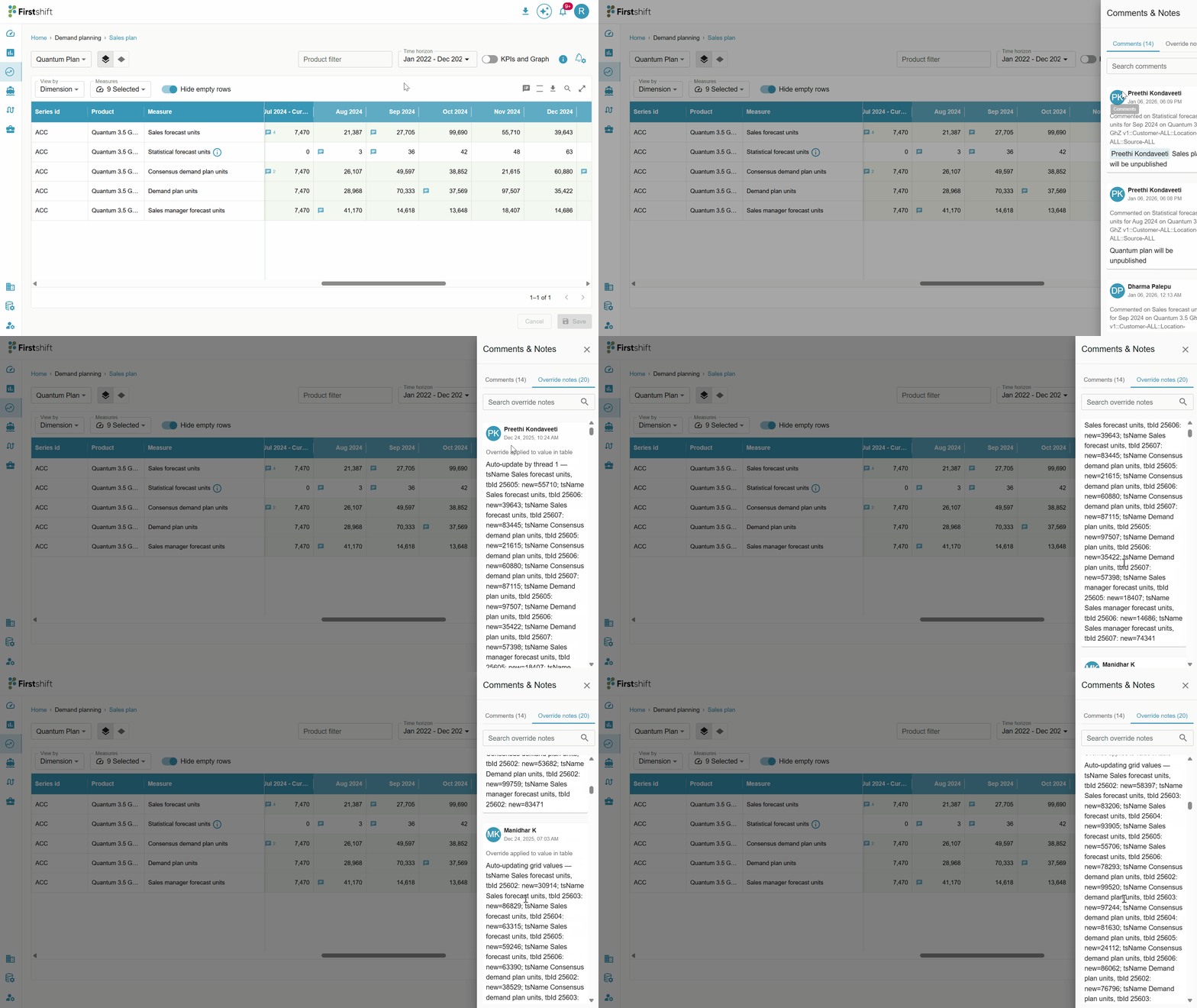
The history of all single and multi-cell overrides for the planning item is recorded in the overrides notes. To access the override notes, click the comments icon and select the override notes.
Was this article helpful?
That’s Great!
Thank you for your feedback
Sorry! We couldn't be helpful
Thank you for your feedback
Feedback sent
We appreciate your effort and will try to fix the article