TABLE OF CONTENTS
Overview
The Lock feature in Planning Views provides you with control over how data behaves during aggregation, disaggregation, and manual edits. It ensures that specific values remain protected and are not unintentionally changed by system-driven calculations or other inputs.
Lock at the aggregated level
Steps:
Once the locked measure “Sales forecast units” is added to the planning grid in the admin application, “Sales planning”.
The lock will be visible in the sales forecast units measure on the planning views results page.
Right-click on the Sales Forecast Units measure to view the lock option.
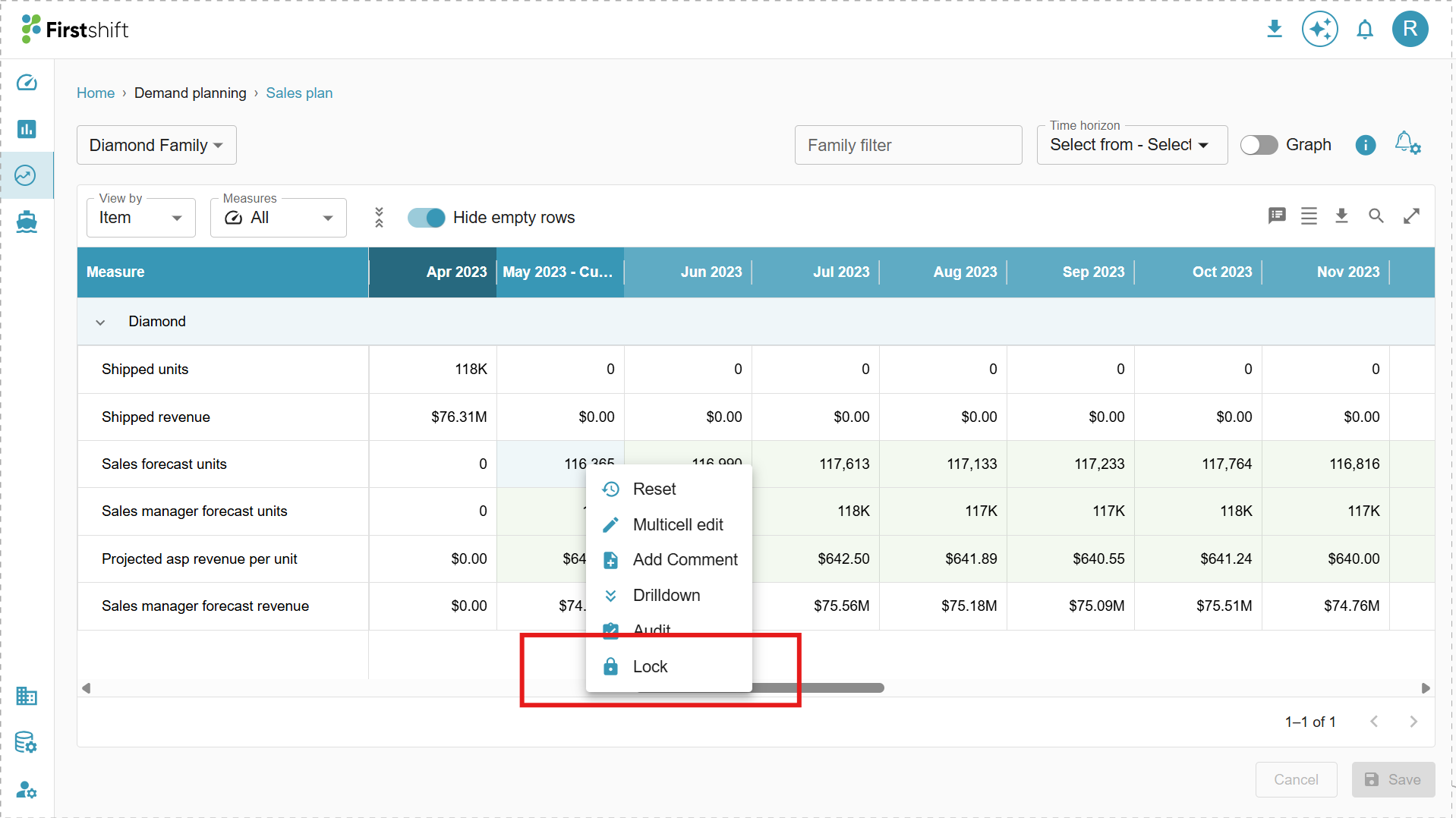
You can lock a single cell or multiple cells and click the lock option.
A confirmation pop-up will appear as shown below.
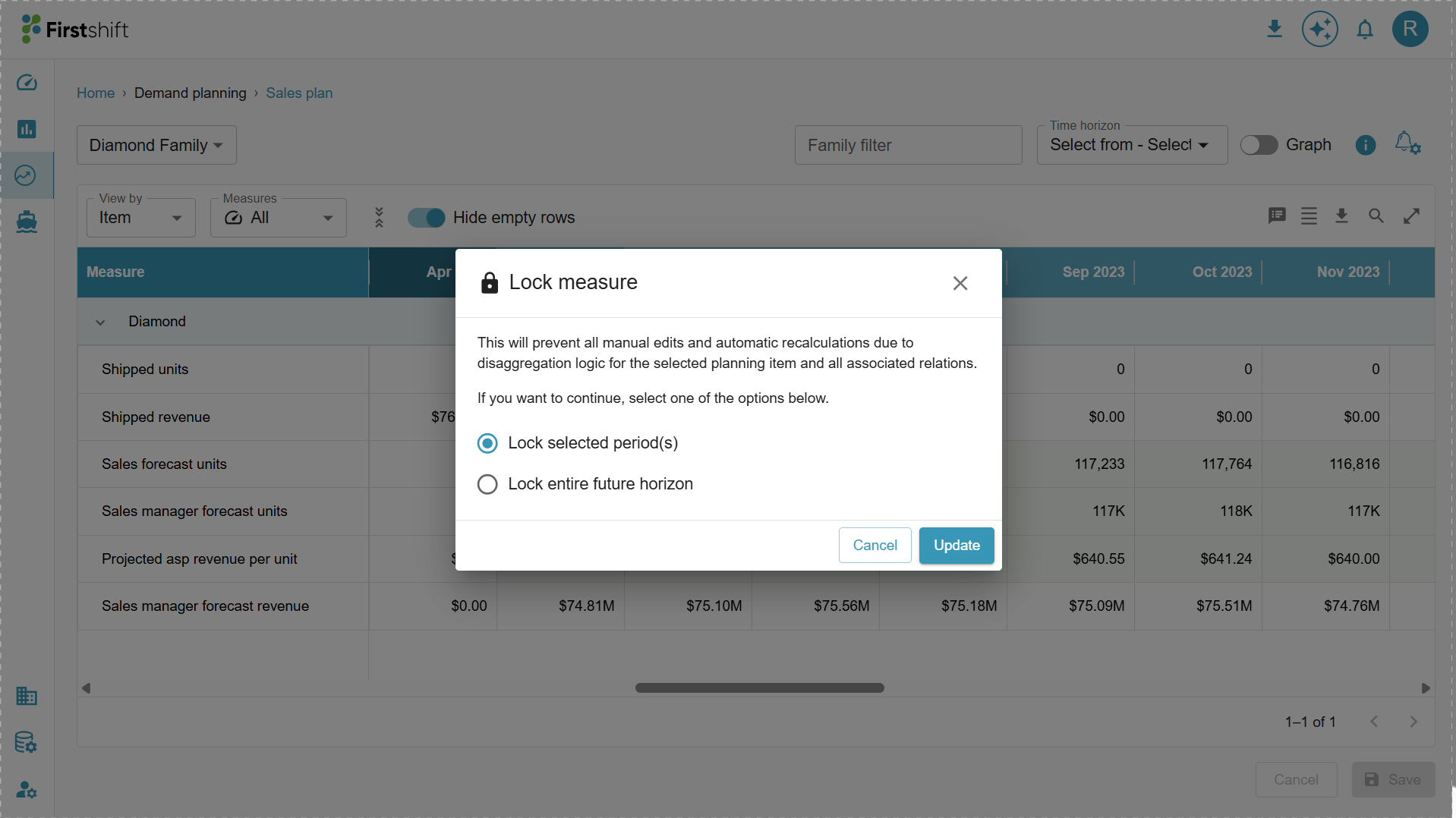
You can select the required option.
Lock selected period(s): Select this option and click 'Update'; only the chosen cells will be locked.
Lock entire future horizon: Select this option, click the update, and all the future cells of the measure will be locked.
Select the “Lock selected period(s)” option and click the update button.
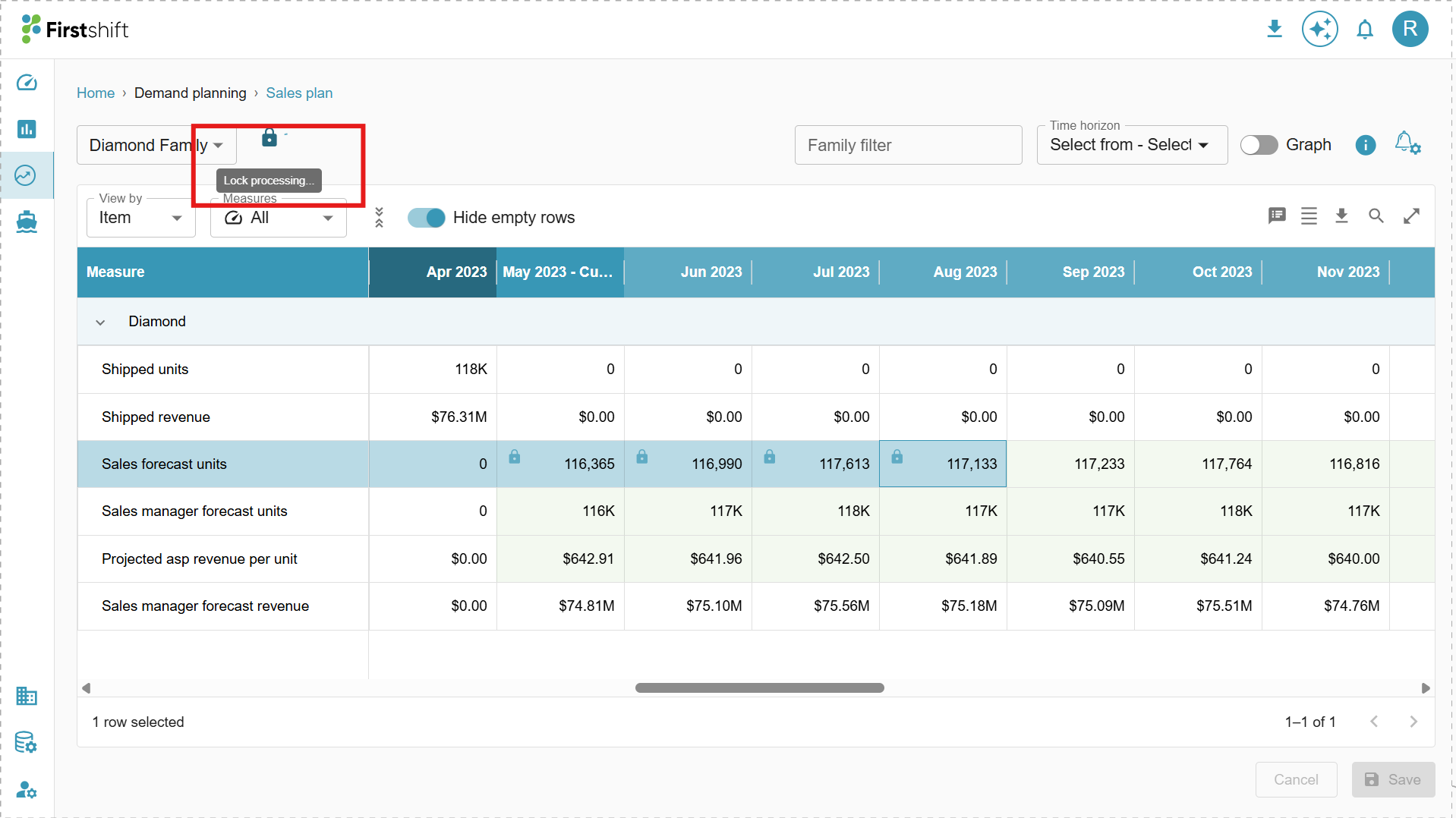
Immediately after clicking the update button, the application will begin updating the cell and display the indicator “Lock processing.”
Only the selected cells will be displayed as locked, as shown in the image below.
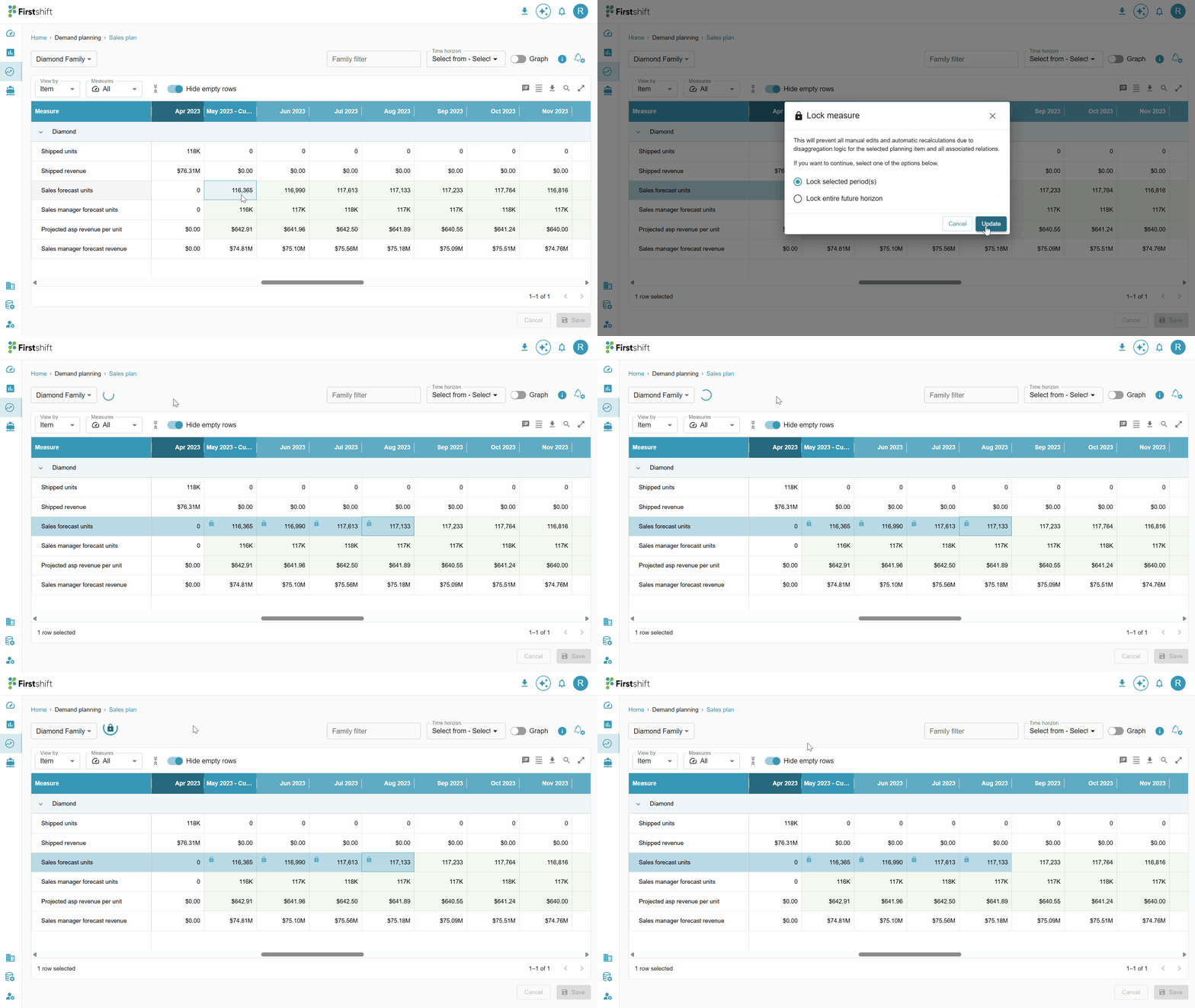
Once the lock process is completed, the planner will no longer be able to edit the locked cells. Check the below gif.
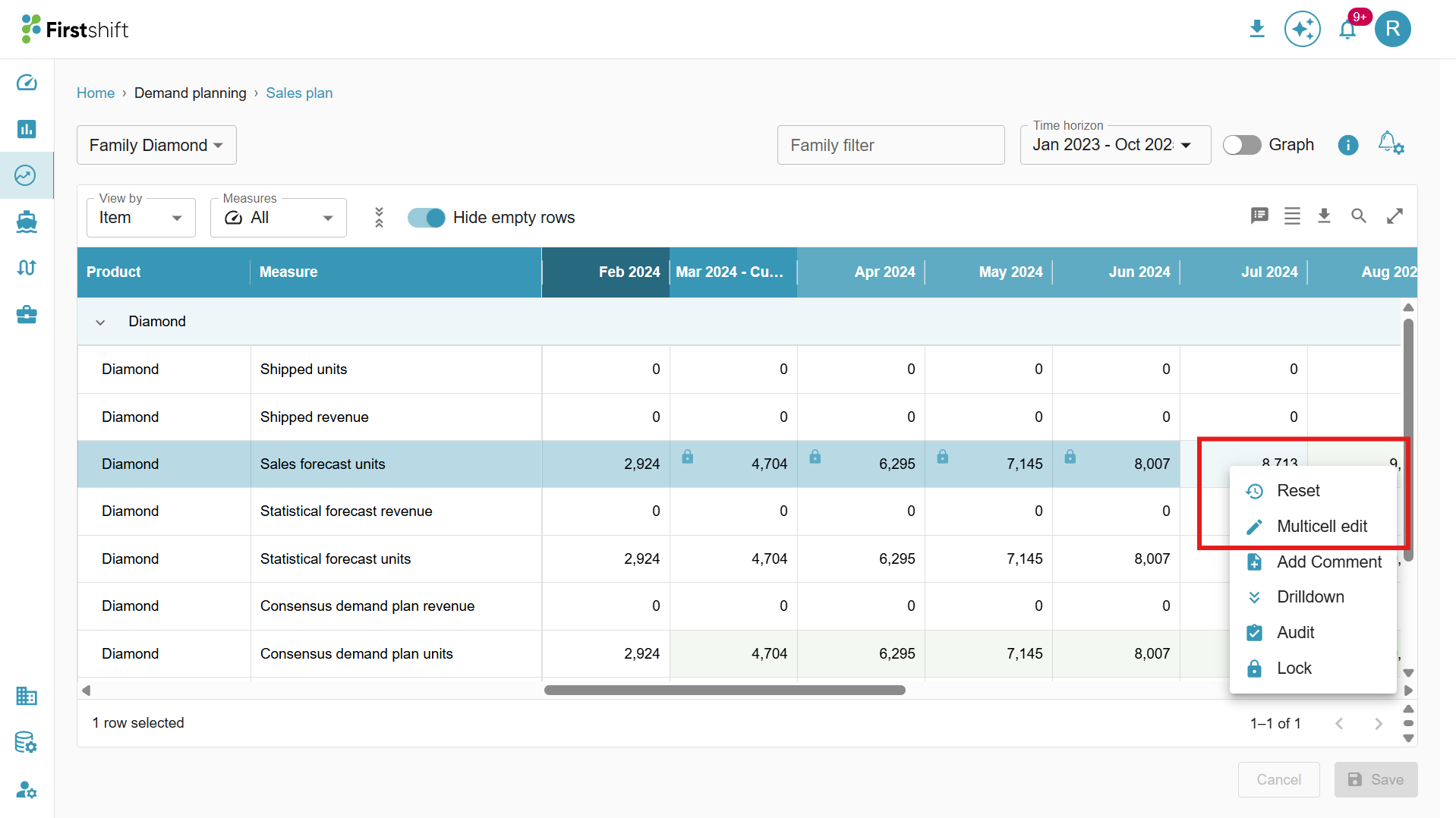
Reset and Multi-cell edit options
- Reset, and the multi-cell edit option will no longer be available for locked cells. The application will also not display any indicators for editing locked cells.
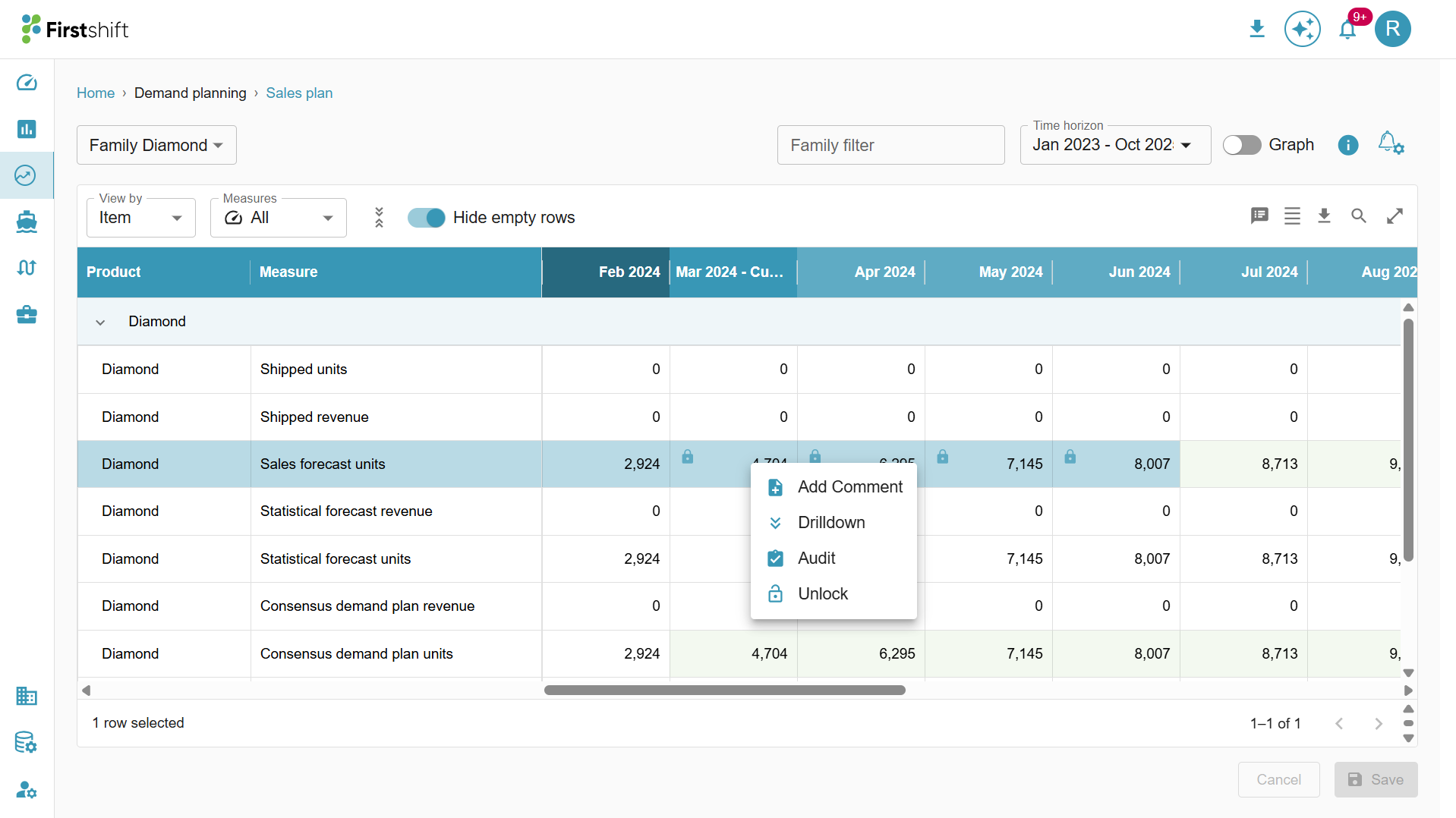
- Reset and multi-cell edit options will appear only for the unlocked cells, as shown below.
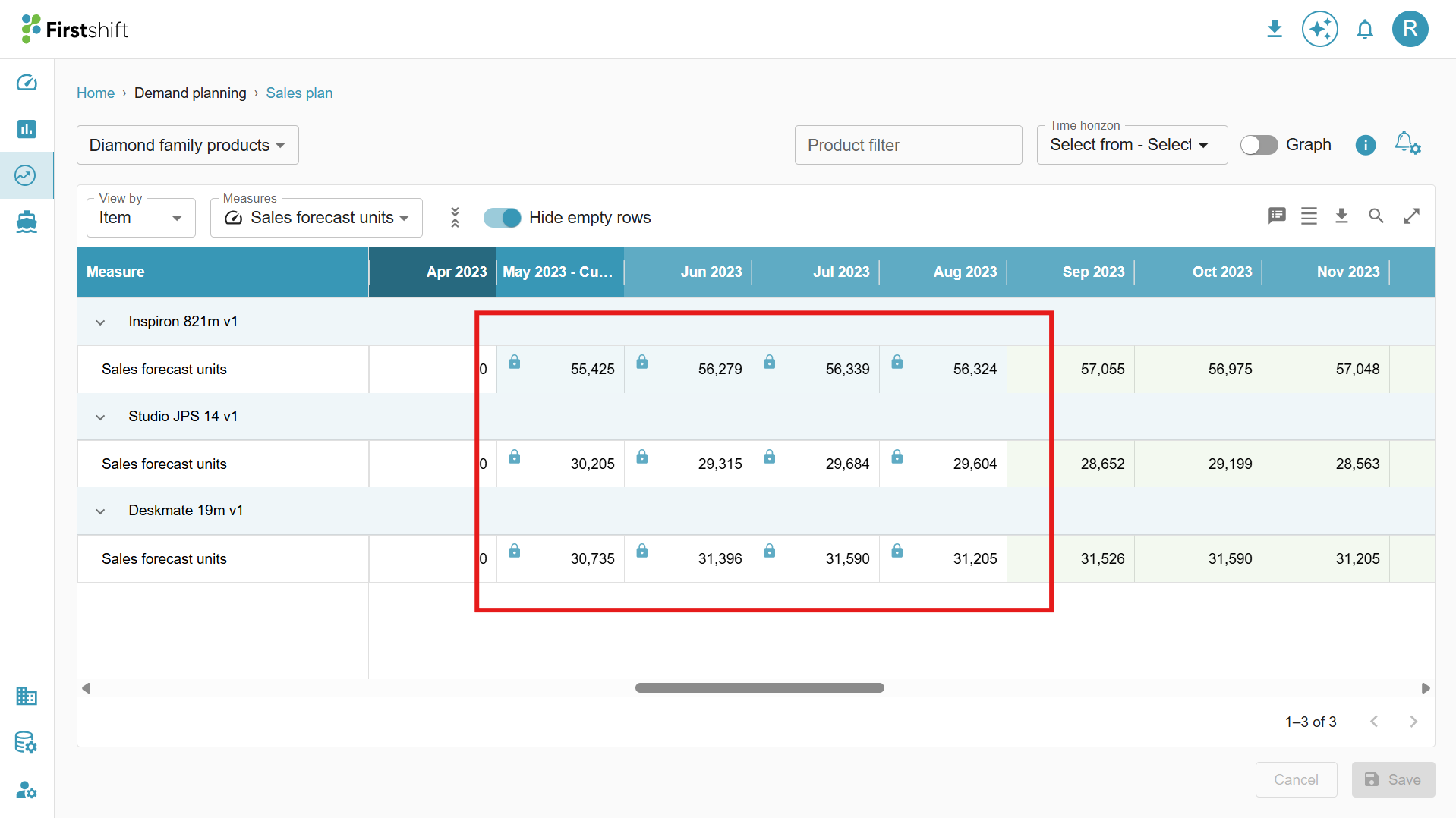
Locked cells at the disaggregated level (lower level)
In the above example, the lock is performed at the family level (aggregated level) “Diamond”. When a lock is applied at the aggregate level, the system automatically locks all disaggregated items under that hierarchy.
The products under Family “Diamond” (“Deskmate 19m v1, Studio JPS 14 v1, and Inspiron 821m v1”) will be locked for the selected cells.
When the plan is created with disaggregated products, a lock icon will be displayed in the planning views for those products, indicating that their values cannot be modified.
The Edit option is disabled for these locked cells at the disaggregated product level.
Was this article helpful?
That’s Great!
Thank you for your feedback
Sorry! We couldn't be helpful
Thank you for your feedback
Feedback sent
We appreciate your effort and will try to fix the article