TABLE OF CONTENTS
Introduction
This article helps you understand the Lock feature in the Planner Workbench which allows you to restrict editing of planning data at different hierarchy levels. By applying a lock, you can prevent changes to specific cells or entire sections of the planning grid, ensuring data consistency and control during the planning process.
Locks can be applied at various hierarchy levels, and the application automatically manages how the lock is reflected across higher and lower levels. This helps maintain alignment across aggregated and disaggregated data while avoiding unintended modifications.
Lock
The Lock feature helps you with control over how data behaves during aggregation, disaggregation, and manual edits. It ensures that specific values remain protected and are not unintentionally changed by system-driven calculations or other inputs.
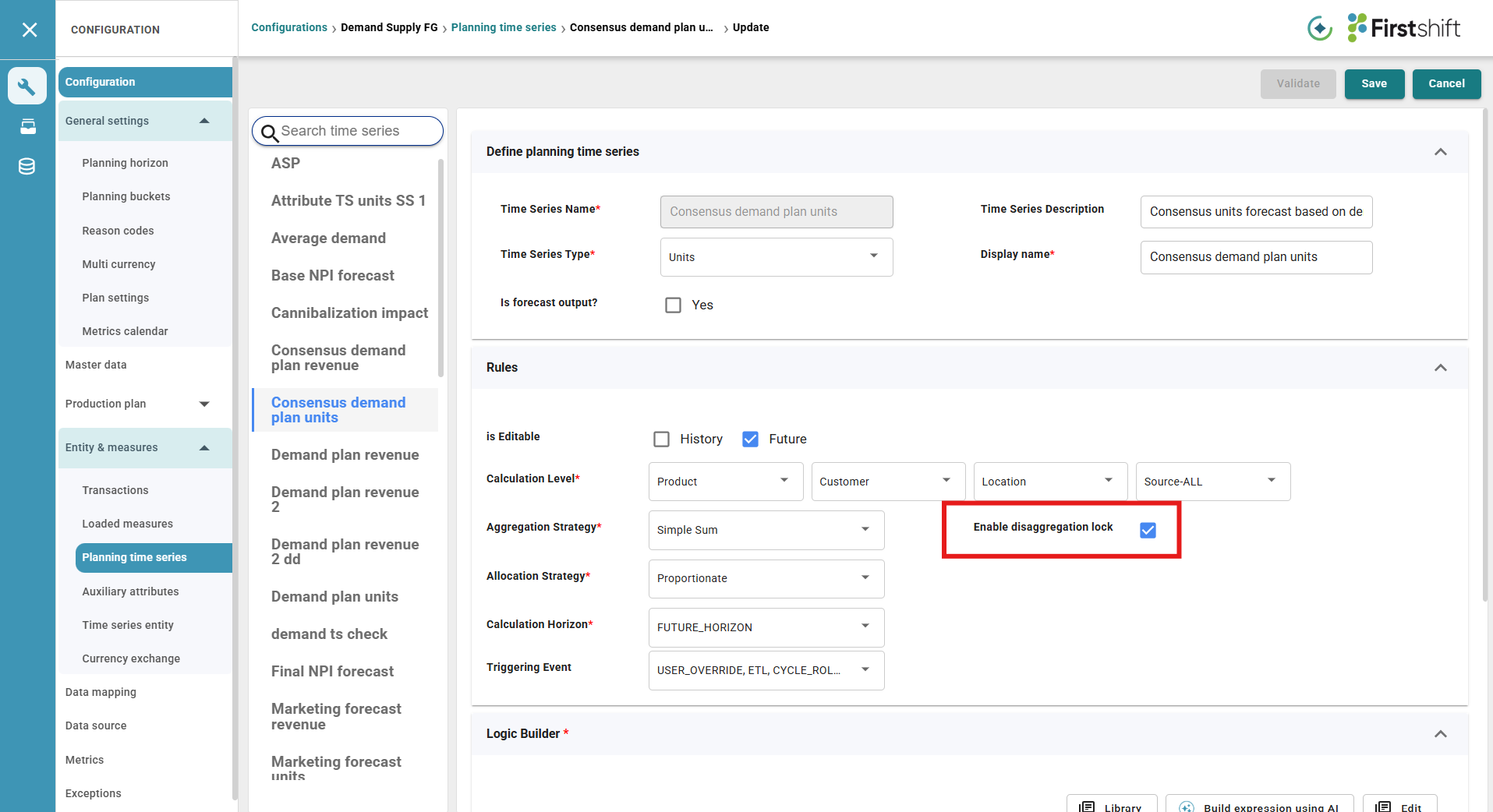
To lock the values for any measure, lock disaggregation should be enabled in the admin application.
For example, consider the measures “Consensus demand plan units” for which the lock feature is not displayed in the cell options context menu.
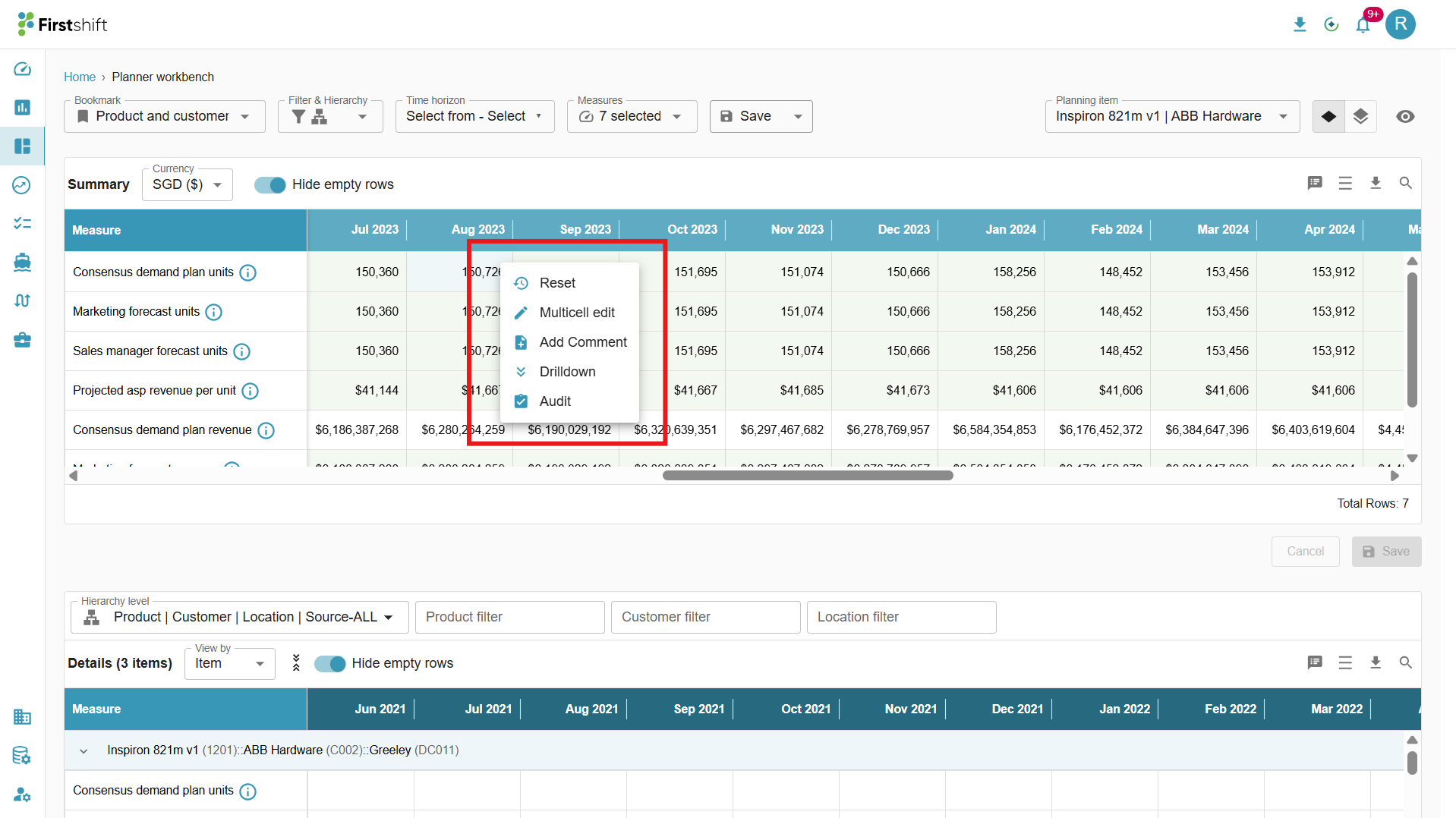
The lock option for the measure can be enabled in the admin application, as shown below.
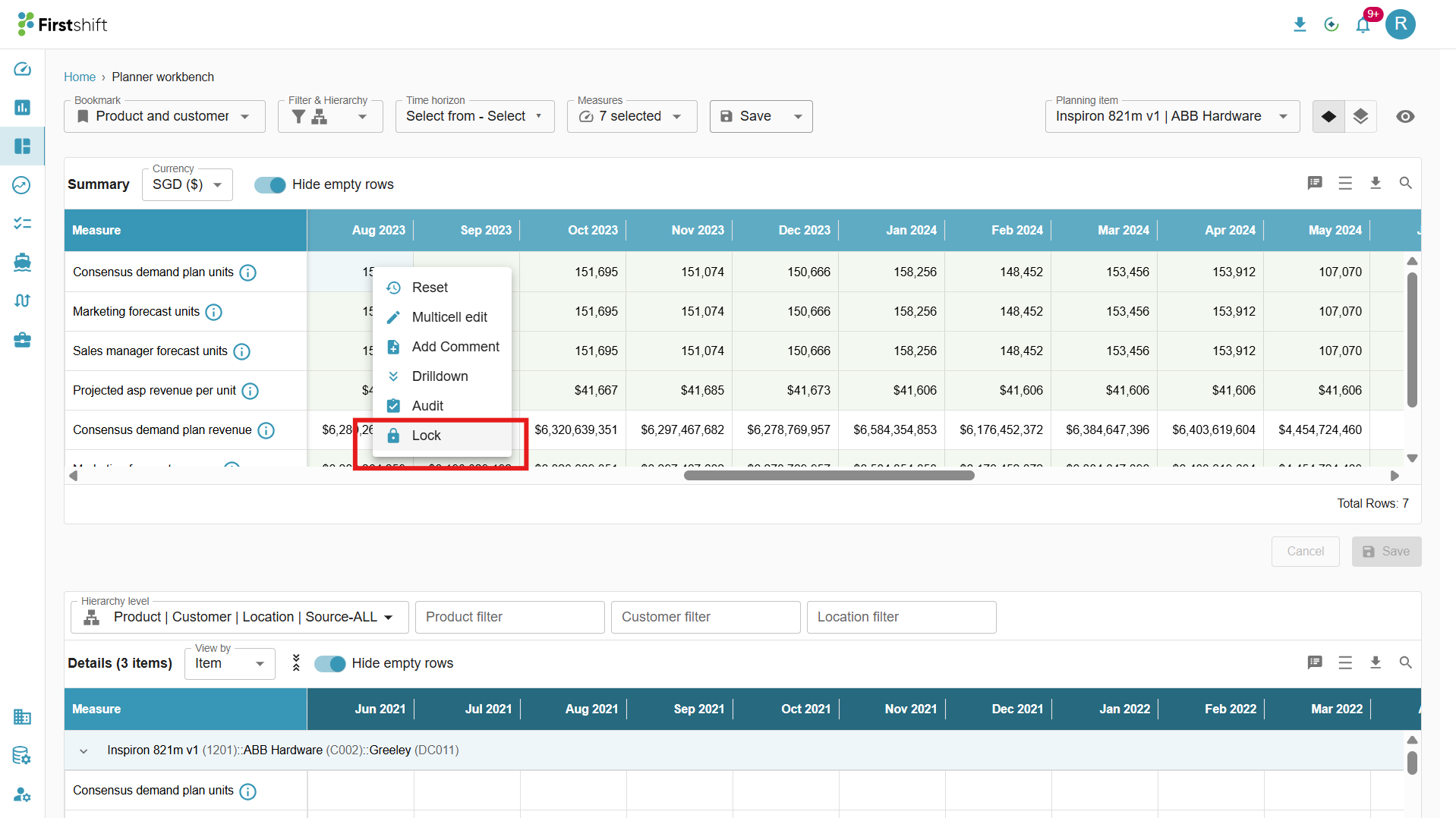
Once the disaggregation lock is enabled for the measure, the UI will show the lock feature in the cell options context menu, as shown below.
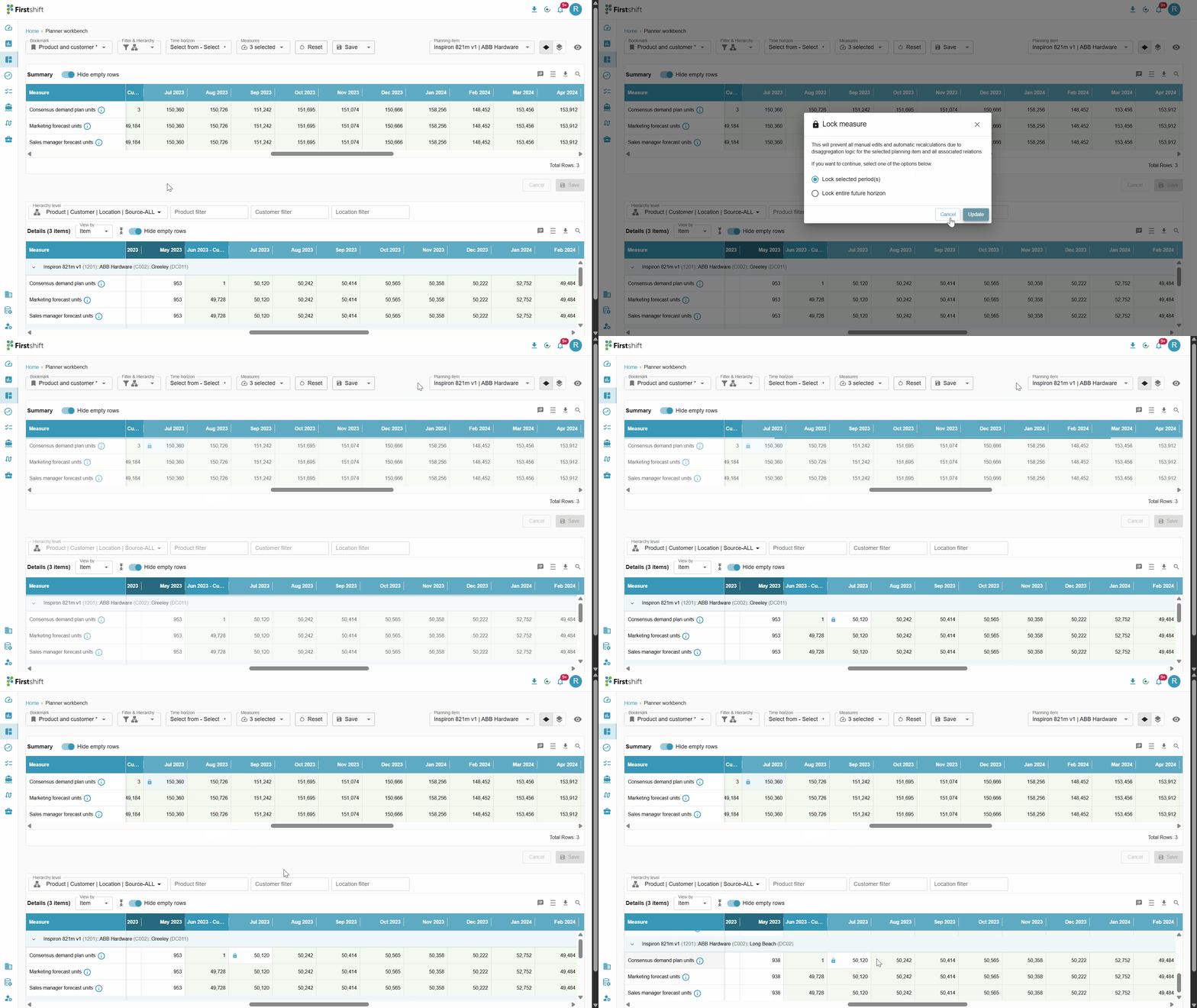
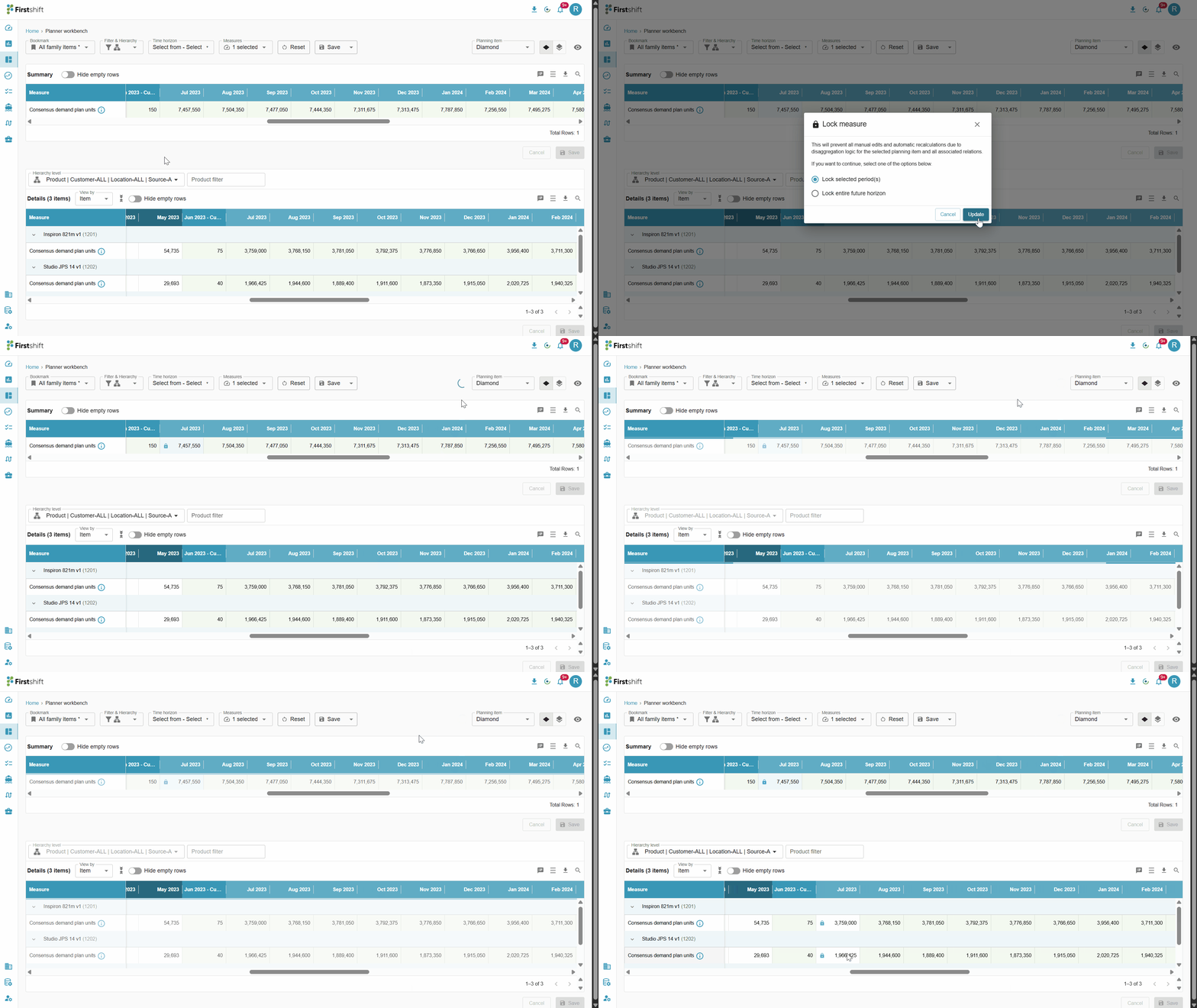
The application displays a pop-up window right after clicking the lock option, where you can select whether to apply the lock for the selected period or the entire horizon.
Lock Behavior Across Hierarchy Levels
When a lock is applied at a higher or intermediate hierarchy level, the application automatically applies locks to all related hierarchy levels.
Higher Level: Displays a partial lock, indicating that some of its lower-level items are locked.
Selected (Intermediate) Level: Displays a full lock, as the lock is directly applied at this level.
Lower Levels: All underlying hierarchy levels are fully locked automatically.
Example
If a lock is applied at an intermediate level, the application:
Shows a partial lock at the higher level
Applies a full lock at the selected level
Applies a full lock to all lower levels under that hierarchy
Behavior:
Case 1. Unlocking a Parent
When a parent (aggregate) is unlocked, all of its children are automatically unlocked.
This restores full editability across the parent and child levels.
Overrides or adjustments at higher levels will disaggregate across all child items.
Example:
Family = Diamond (parent) is locked.
Unlocking Diamond also unlocks Deskmate 19m v1, Studio JPS 14 v1, and Inspiron 821m v1.
Edits are again possible at both family and product levels.
Case 2. Unlocking a Child
If a child is unlocked while the parent remains locked:
The parent no longer represents a full lock; it shifts to a partial lock state.
You regain the ability to make edits at the parent level.
Parent-level changes affect only the unlocked children, while locked children remain unchanged.
Example:
Family = Diamond is locked, which locks all three products.
Planner unlocks Studio JPS 14 v1.
Family = Diamond now shows partial lock.
Parent-level edits are allowed and disaggregated only to Studio JPS 14 v1 (unlocked), while Deskmate 19m v1 and Inspiron 821m v1 remain unchanged.
Case 3. Unlocking Multiple Children
You may unlock more than one child while others remain locked.
The parent remains in a partial lock state.
Edits at the parent level are distributed only to unlocked children.
Locked children retain their original values.
Lock indicators
Lock indicators provide clear visual cues on the cell's lock status at different hierarchy levels. These indicators help you quickly determine whether a cell is fully locked, partially locked, or available for editing.
Full lock
A Full Lock occurs when a planning item at a higher level and all of its disaggregated child items are locked. This means no edits can be made at any level of the hierarchy for the locked cells.
Example:
Family = Diamond has three products (Deskmate 19m v1, Studio JPS 14 v1, Inspiron 821m v1).
If the Family = Diamond cells are locked, then all the products under the same family show the Full Lock indicator.
All the disaggregate levels will show the lock icon for the locked periods, as shown below.
Partial lock
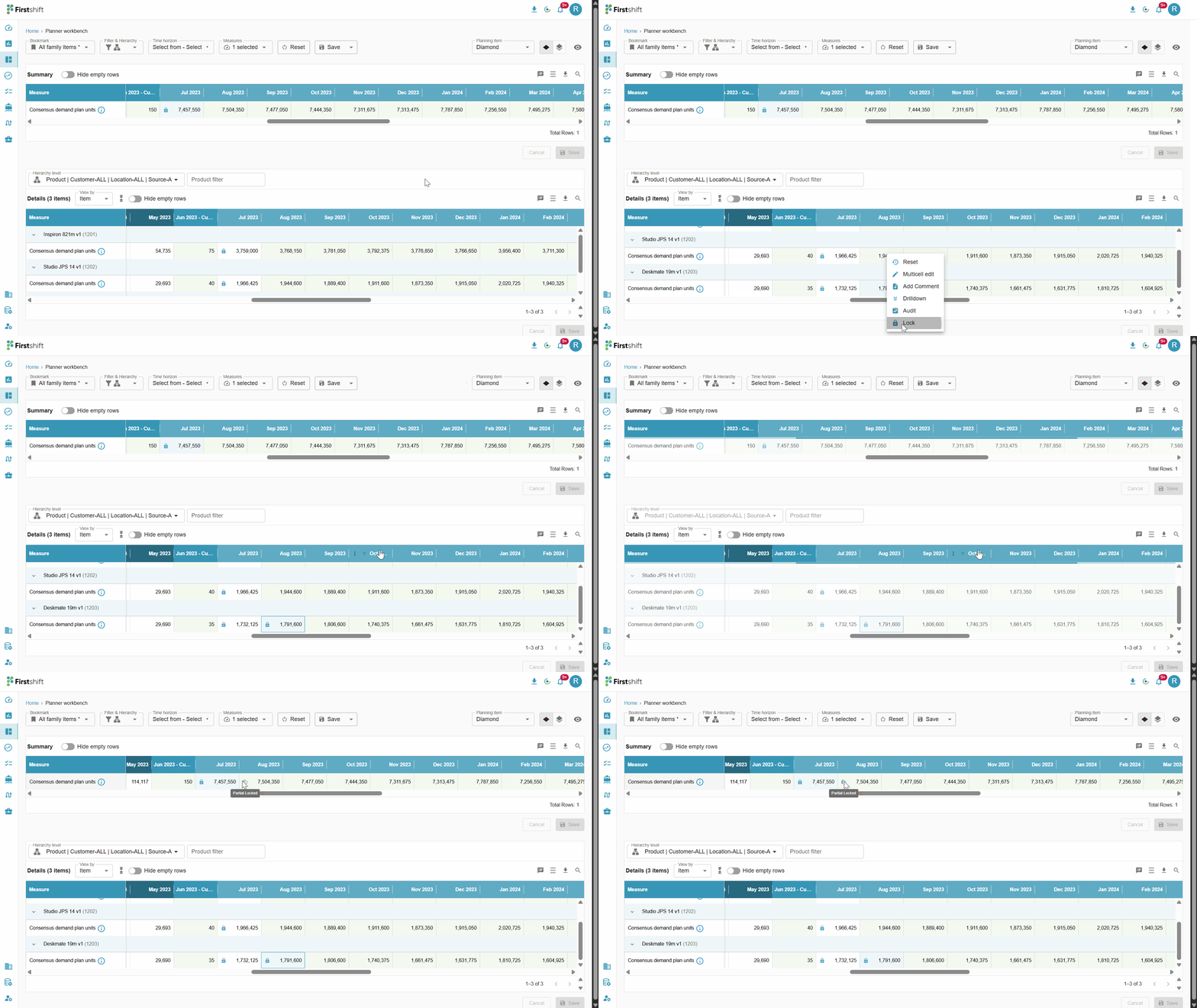
A Partial Lock icon is displayed at the aggregate level when some disaggregated items are locked while other items remain editable.
Example:
Family = Diamond has three products.
Deskmate 19m v1 is unlocked at the disaggregated level, but Studio JPS 14 v1 and Inspiron 821m v1 remain locked.
Then Family = Diamond cell shows the Partial Lock indicator.
Was this article helpful?
That’s Great!
Thank you for your feedback
Sorry! We couldn't be helpful
Thank you for your feedback
Feedback sent
We appreciate your effort and will try to fix the article