TABLE OF CONTENTS
- Introduction
- What a template holds
- Open the Templates list
- Create a template
- View a template
- Edit a template
- Share a template
- Duplicate a template
- Delete a template
- Create a bookmark from a template
- Who can do what
- Messages you may see
- Related articles
Introduction
A bookmark template is a ready-made starting point for bookmarks. It stores a set of measures (with their order and number formats), attributes, metrics, and a time horizon, so planners do not have to pick the same things again each time. Templates help a team start from the same setup, and they make creating a new bookmark quicker.
Templates belong to a dataset and can be used only in that dataset.
A bookmark you create from a template gets its own copy of the settings. If someone changes the template later, existing bookmarks stay exactly as they are, unless you choose to update them (see Edit a template).
What a template holds
| Saved in a template | Not saved in a template (you choose these when you create the bookmark) |
|---|---|
|
|
Open the Templates list
- Open the bookmark list in Planner Workbench.
- Select Templates… at the top of the list. The Templates list opens full screen. Use the arrows icon to expand or collapse it, and the X to close it.
The list shows one row per template:
| Column | What it shows |
|---|---|
| Name | The template name. Long names are shortened with dots. Select the name to open the template. |
| Description | The description, shortened if it is long. |
| Measures | How many measures the template has. |
| Attr. / Metrics | How many attributes and how many metrics it has. |
| Time horizon | The time horizon, for example, the next 12 months. |
| Shared with | Public template, or the roles it is shared with. |
| Modified by | Who last edited or shared the template. |
| Updated | When it was last changed. |
| Actions | Edit, Share, Duplicate, and Delete icons. Point to an icon to see its name. |
Use the search box to find a template by name or description. If you are not allowed to do an action, its icon is greyed out, and pointing to it explains why (see Who can do what).
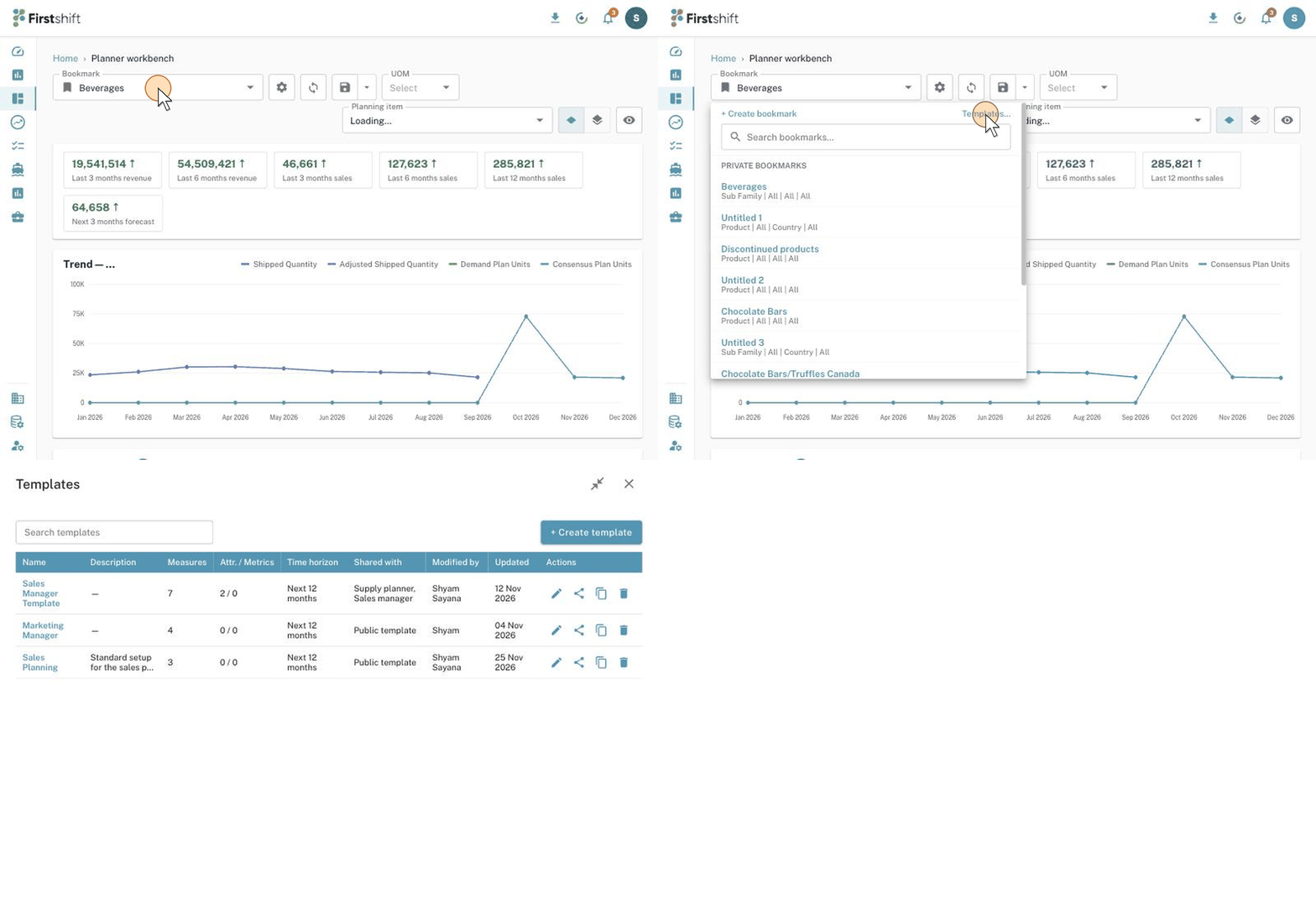
Note: If you do not have the View permission, you will not see Templates… or the Start from template option.
Create a template
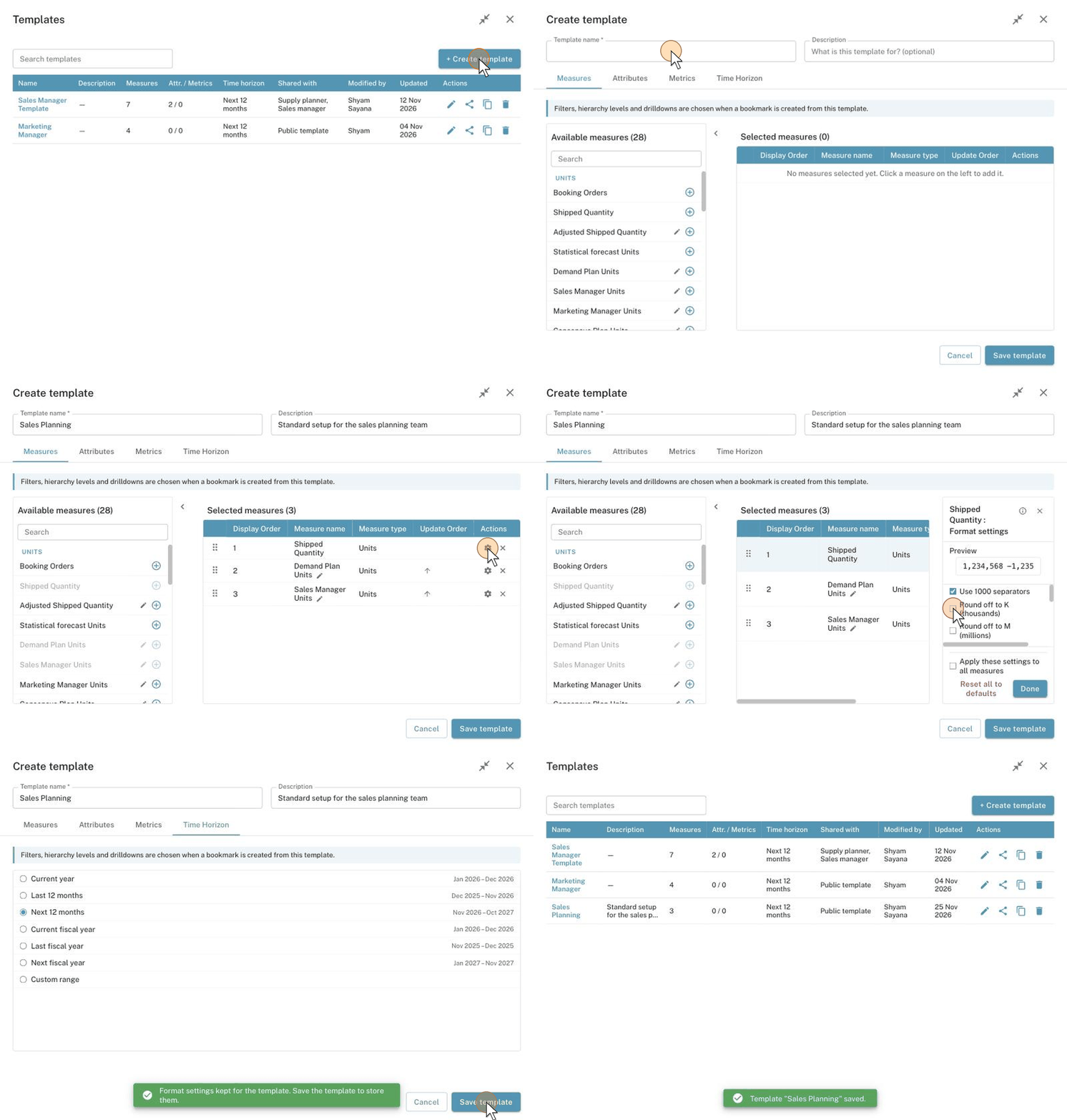
- In the Templates list, select + Create template. The Create template screen opens full screen.
- Enter a Template name (required, up to 60 characters, and different from every other template name). Optionally add a Description (up to 160 characters).
- On the Measures tab, choose the measures and set their order and formats (see below).
- Optionally, choose Attributes and Metrics on their tabs.
- Optionally, choose a Time horizon.
- Select Save template. You see the message Template “X” saved, and you return to the Templates list. Select Cancel to leave without saving.
Note: The Save menu of a bookmark only offers Save as. Templates are created only from the Templates list.
Measures tab
- Pick measures from the grouped Available measures list on the left. Use the search box to find one.
- The Selected measures table shows each measure with its Display Order, name, and type. Drag a measure, or use the arrows in Update Order, to change its position. Select the X to remove a measure.
- Select the gear icon of a measure to open its Format settings. A live preview shows the result as you change the options.
In Format settings, you can set:
- Use 1000 separators.
- Round off to K (thousands) or to M (millions). You can choose one, not both.
- Decimals: round off from 0 to 10.
- Negative numbers format: -1234 or (1234).
- Show negative numbers in red color.
- Background color.
Select Apply these settings to all measures to copy the format to every selected measure, or Reset all to defaults to clear all formats. Select Done when you are finished. Only formats that differ from the default are saved in the template.
Attributes tab
Use the search box to find attributes, and select the ones you want. Attributes are grouped by Product, Customer, Location, and Source. By default you see the basic attributes. Select Show all attributes to also see the advanced attributes. The tab tells you how many attributes are selected. Choosing attributes is optional.
Metrics tab
Metrics are listed by type, with a search box. Select the metrics you want, or none. The tab tells you how many are selected.
Time horizon tab
Choose one of: Current year, Last 12 months, Next 12 months, Current fiscal year, Last fiscal year, Next fiscal year, or Custom range. Each choice shows its dates. For a Custom range, pick a start and an end period; the periods follow your tenant calendar. If you choose nothing, bookmarks created from the template keep their default time horizon.
Checks when you save
- The name is required: Enter a template name.
- At least one measure is required: Select at least one measure.
- A custom range needs both a start and an end, and the end cannot be before the start.
- The name must be unique: A template named “X” already exists.
View a template
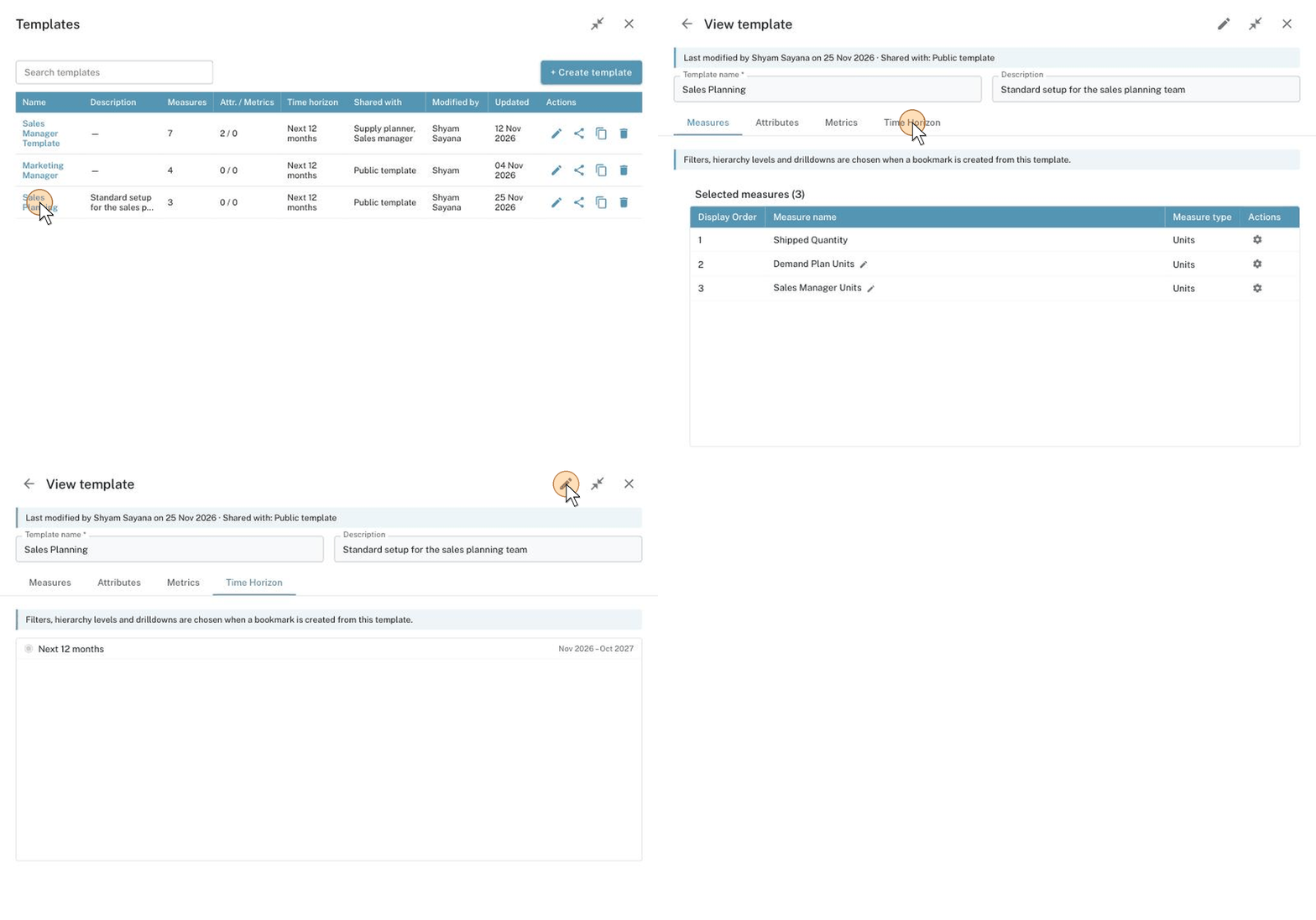
Select a template name in the list to open it in read-only mode. You see its name and description, who last modified it and when, who it is shared with, the selected measures in order with their formats, the attributes, the metrics, and the time horizon. Use the back arrow to return to the list. If you are allowed to edit the template, a pencil icon switches you to Edit mode.
Edit a template
Select the pencil icon in the list, or in the View screen. The Edit screen is the same as Create template. A banner reminds you that editing a template does not change bookmarks that were already created from it. You can close the banner, and it appears again each time you open Edit.
If a measure, attribute, or metric in the template is no longer available in the dataset, it is left out of the Edit screen and you see a notification. When you save, it is removed from the template for good.
Change only the name or description
The change is saved straight away, without a question. Existing bookmarks are not touched. You see Template “X” updated. Existing bookmarks were not changed.
Change what the template contains
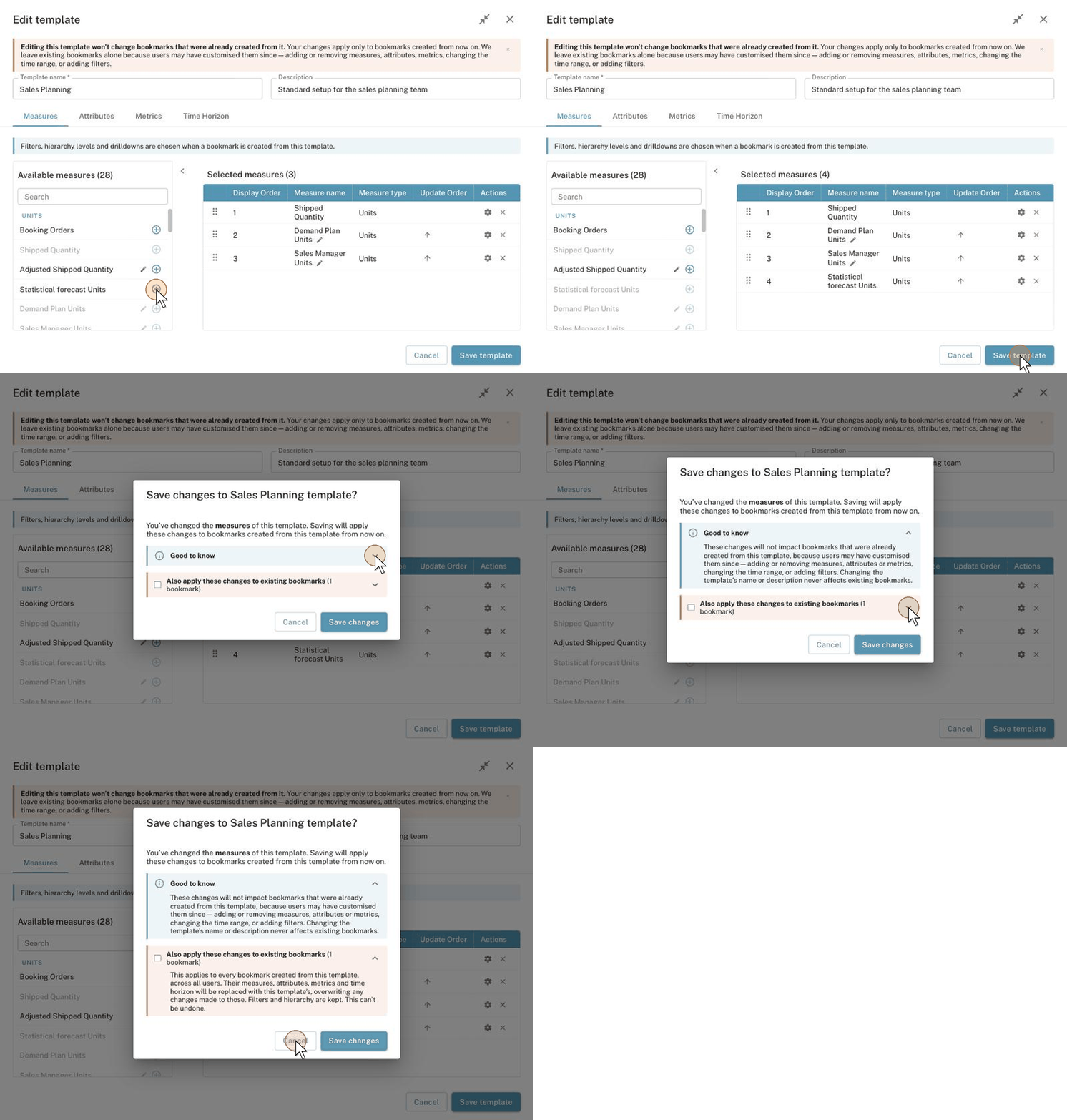
When you change the measures, measure formats, attributes, metrics, or time horizon and select Save template, a pop-up titled Save changes to X template? lists what you changed and asks how to proceed. It has two sections that you can open:
- Good to know — explains that the change does not affect bookmarks that already exist, because people may have customised them since.
- Also apply these changes to existing bookmarks (N bookmarks) — lets you push the change to the bookmarks created from this template. The count covers all users. The box is not selected by default.
Select Save changes to save. Select Cancel to go back to the Edit screen with your changes still there.
The application treats these as changes: a different measure order, a different measure or format, and a different time horizon. A different order of attributes or metrics, or a format that equals the default, does not count as a change.
Apply the change to existing bookmarks
If you leave the box cleared, only the template changes. Existing bookmarks stay as they are, and bookmarks created afterwards use the updated template. You see Template “X” updated. Existing bookmarks were not changed.
If you select Also apply these changes to existing bookmarks, every bookmark created from this template is updated, whoever owns it and whether it is public or private. Be careful: this overwrites any customisation in those bookmarks and cannot be undone. You see Template “X” updated. N existing bookmarks reset.
| Replaced in the bookmarks | Kept in the bookmarks |
|---|---|
|
|
- Only bookmarks that were created from this template are updated. Bookmarks you created without a template, bookmarks where the template was cleared, and bookmarks created before templates existed are never touched.
- The bookmark list refreshes after the update. If the bookmark you have open is one of them, it reloads with the new settings, and any unsaved changes in it are replaced.
- People who already have a bookmark open see the change when they select the bookmark again or refresh the page.
Share a template
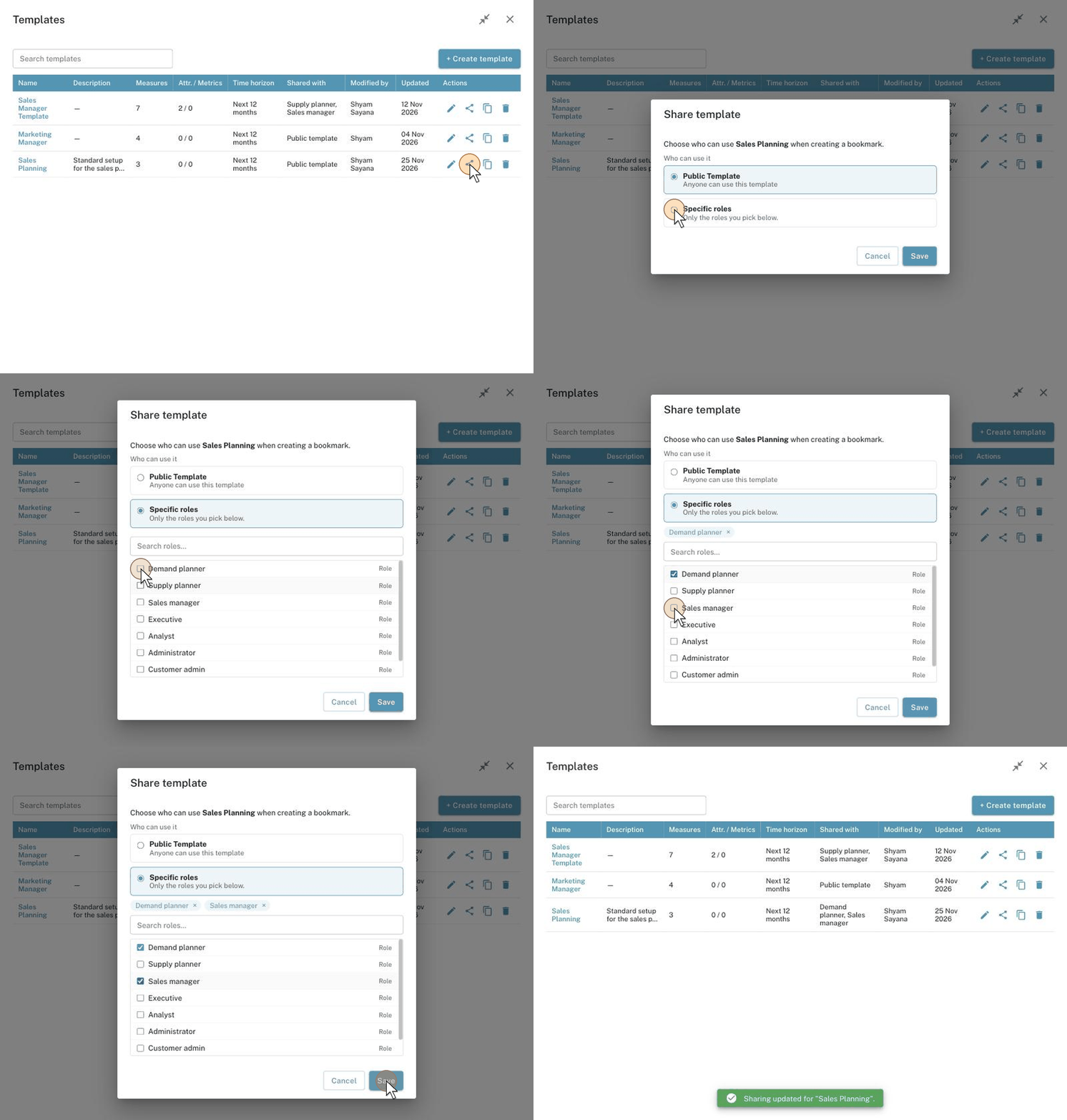
Select the share icon in the list. The pop-up asks who can use the template when creating a bookmark:
- Public template — anyone can use it.
- Specific roles — only the roles you choose. Search for roles, select one or more, and they show as chips that you can remove. You must choose at least one role.
Select Save. You see Sharing updated for “X”, and the Shared with column shows the new setting. Users in the roles you chose can now start bookmarks from the template.
Duplicate a template
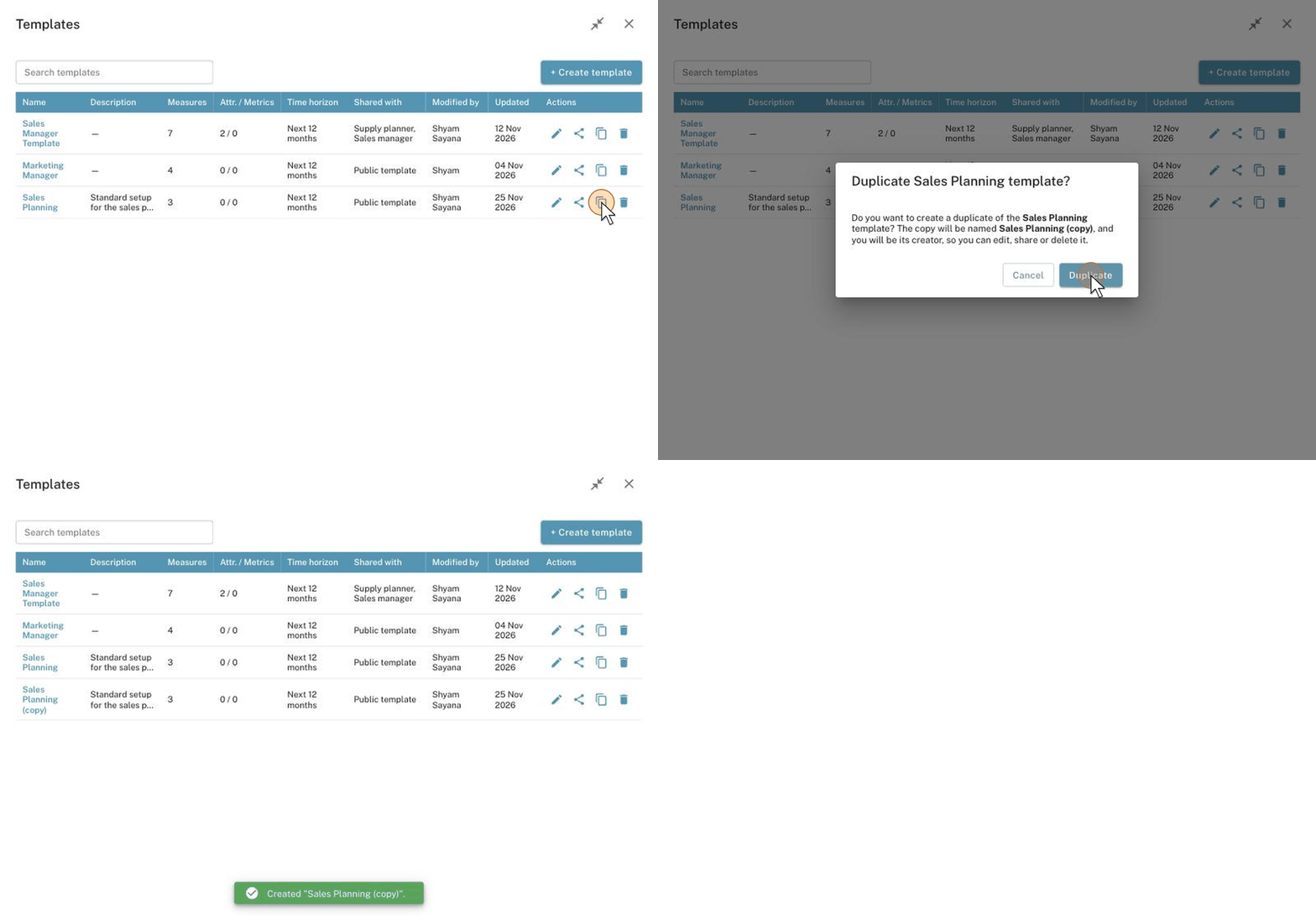
Select the duplicate icon, then Duplicate in the pop-up. The copy is named X (copy), or X (copy 2), X (copy 3) if that name is taken. It keeps the original measures, formats, attributes, metrics, time horizon, and description. You become its creator, so you can edit, share, or delete it. The copy is independent of the original. You see Created “X (copy)”.
Delete a template
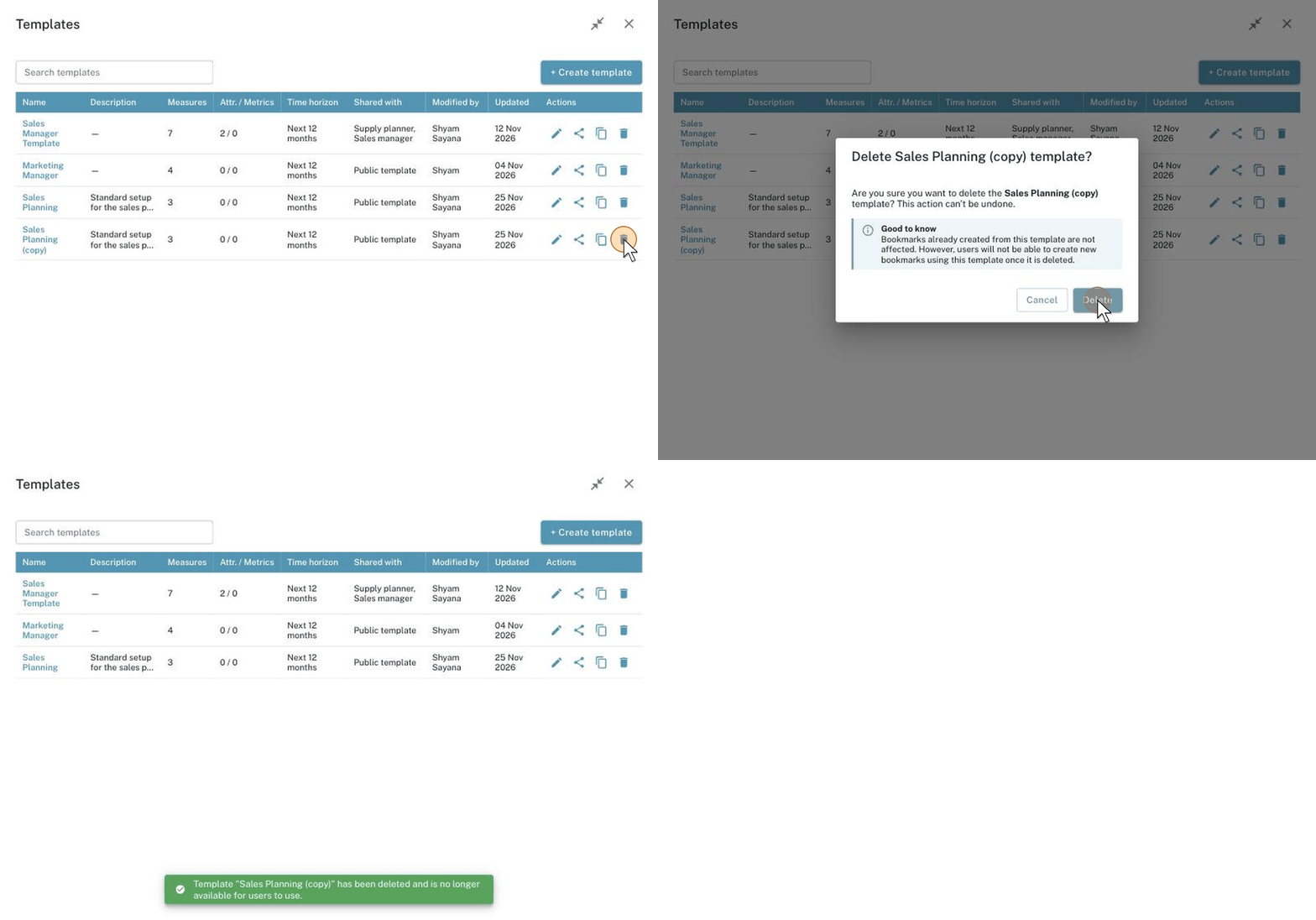
Select the bin icon. The pop-up Delete X template? says the action cannot be undone. Select Delete to confirm or Cancel to keep the template.
- Bookmarks already created from the template are not affected. They keep their settings.
- Nobody can create new bookmarks from the deleted template, and it can no longer be used to update existing bookmarks.
- Copies you made with Duplicate are not affected.
- A deleted template cannot be restored.
You see Template “X” has been deleted and is no longer available for users to use.
Create a bookmark from a template
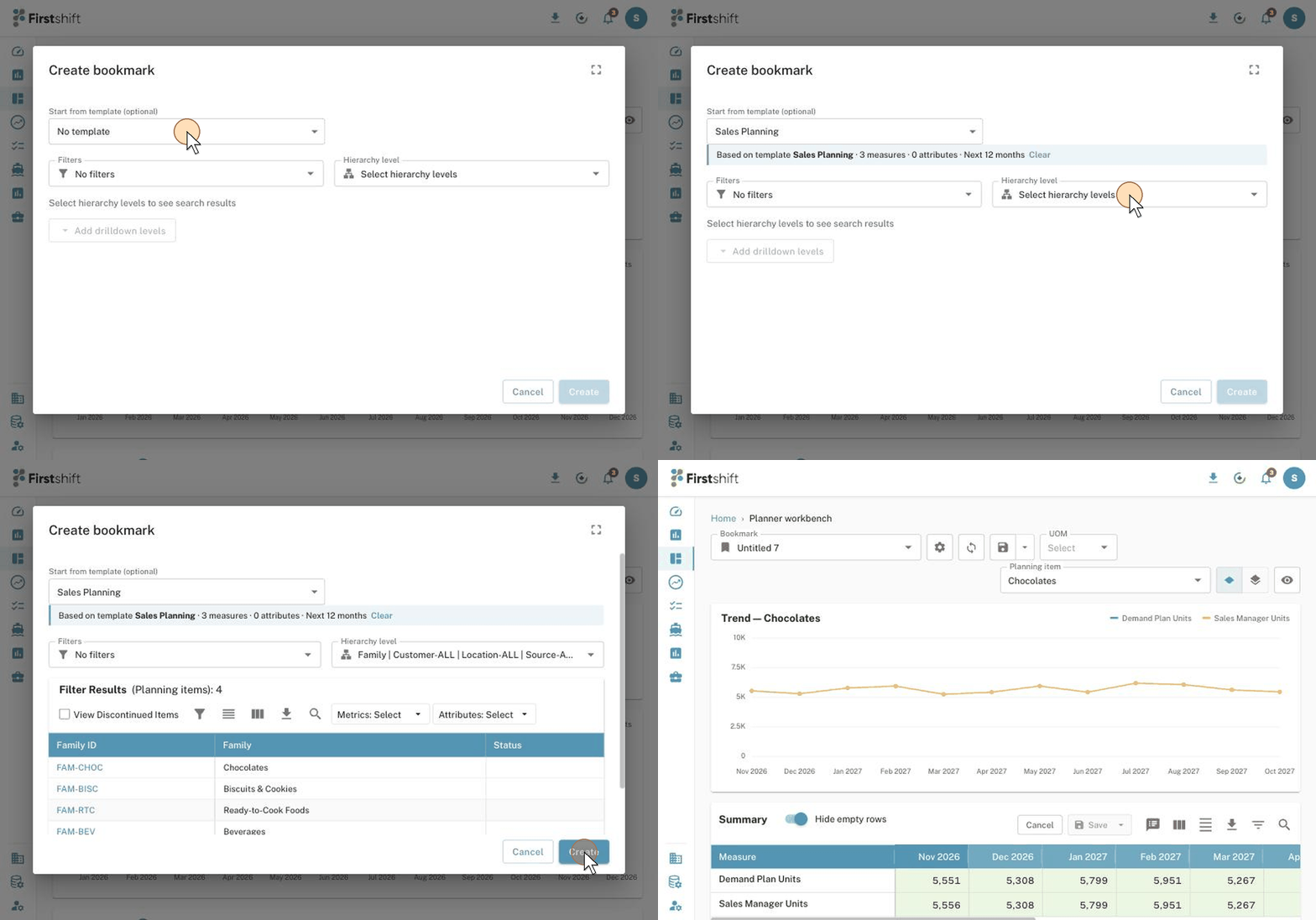
- Select + Create bookmark in the bookmark list.
- In Start from template (optional), choose a template. The dialog fills in the measures in their order, the number formats, the attributes, the metrics, and the time horizon. A line shows the template name and a short summary, for example Based on template Sales Planning · 3 measures · 0 attributes · Next 12 months.
- Choose the filters and hierarchy levels, as you always do.
- Select Create.
- Choosing a template is optional. Without one, you create a bookmark the way you always did.
- Select Clear next to the summary to remove the template. This also removes everything it filled in.
- You can change anything the template filled in before you create the bookmark. The bookmark keeps its own copy of the settings.
- Measures and metrics that your role is not allowed to see are skipped.
- Start from template does not appear when you edit an existing bookmark.
Who can do what
Administrators set template permissions in Role Management, under Bookmark templates: View, Create, Edit, Delete, and Share. The server checks them every time, so a hidden or greyed-out action cannot be done in another way.
| What you want to do | Permission you need |
|---|---|
| Open the Templates list, view a template, use Start from template | View. It is required for everything else. |
| Create or duplicate a template | View and Create |
| Edit a template, and update its existing bookmarks | Edit (or View and Create, for templates you created) |
| Share a template | Share (or View and Create, for templates you created) |
| Delete a template | Delete (or View and Create, for templates you created) |
If you have View and Create but not Edit, Share, or Delete, you can edit, share, delete, and update the bookmarks of your own templates. You can still view, use, and duplicate templates other people created, but their Edit, Share, and Delete icons are greyed out. Pointing to one shows: You can edit only the templates you created. Your role does not have Edit permission for other users’ templates. The Edit icon on the View screen is hidden in the same way.
If you try an action your role does not allow, you see: Your role doesn’t have permission to [action] templates. Ask an administrator to grant it in Role Management.
Messages you may see
| After you… | You see |
|---|---|
| Create a template | Template “X” saved. |
| Edit, and leave existing bookmarks as they are | Template “X” updated. Existing bookmarks were not changed. |
| Edit, and apply the change to existing bookmarks | Template “X” updated. N existing bookmarks reset. |
| Duplicate a template | Created “X (copy)”. |
| Change who a template is shared with | Sharing updated for “X”. |
| Delete a template | Template “X” has been deleted and is no longer available for users to use. |
Related articles
Was this article helpful?
That’s Great!
Thank you for your feedback
Sorry! We couldn't be helpful
Thank you for your feedback
Feedback sent
We appreciate your effort and will try to fix the article