TABLE OF CONTENTS
Introduction
This feature allows you to add comments and tag a user for a particular cell. This helps in providing context or explanations for the changes made, making it easier to understand the reasons behind the modifications. This functionality is available in both Single-item and Multi-item views.
How to Add a Comment
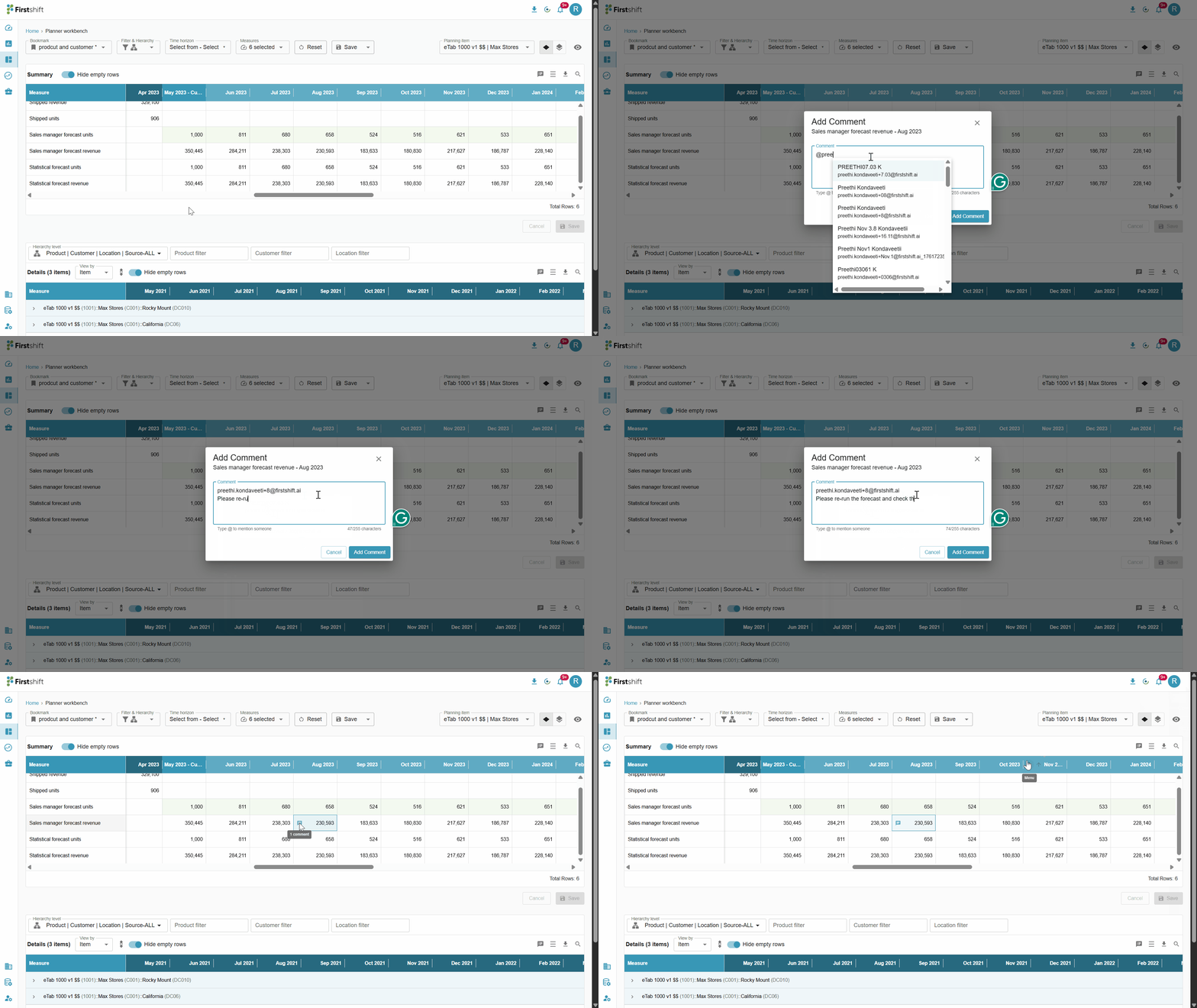
Right-click on any cell in the planner workbench results table.
Click "Add Comment" to open the Comment Prompt.
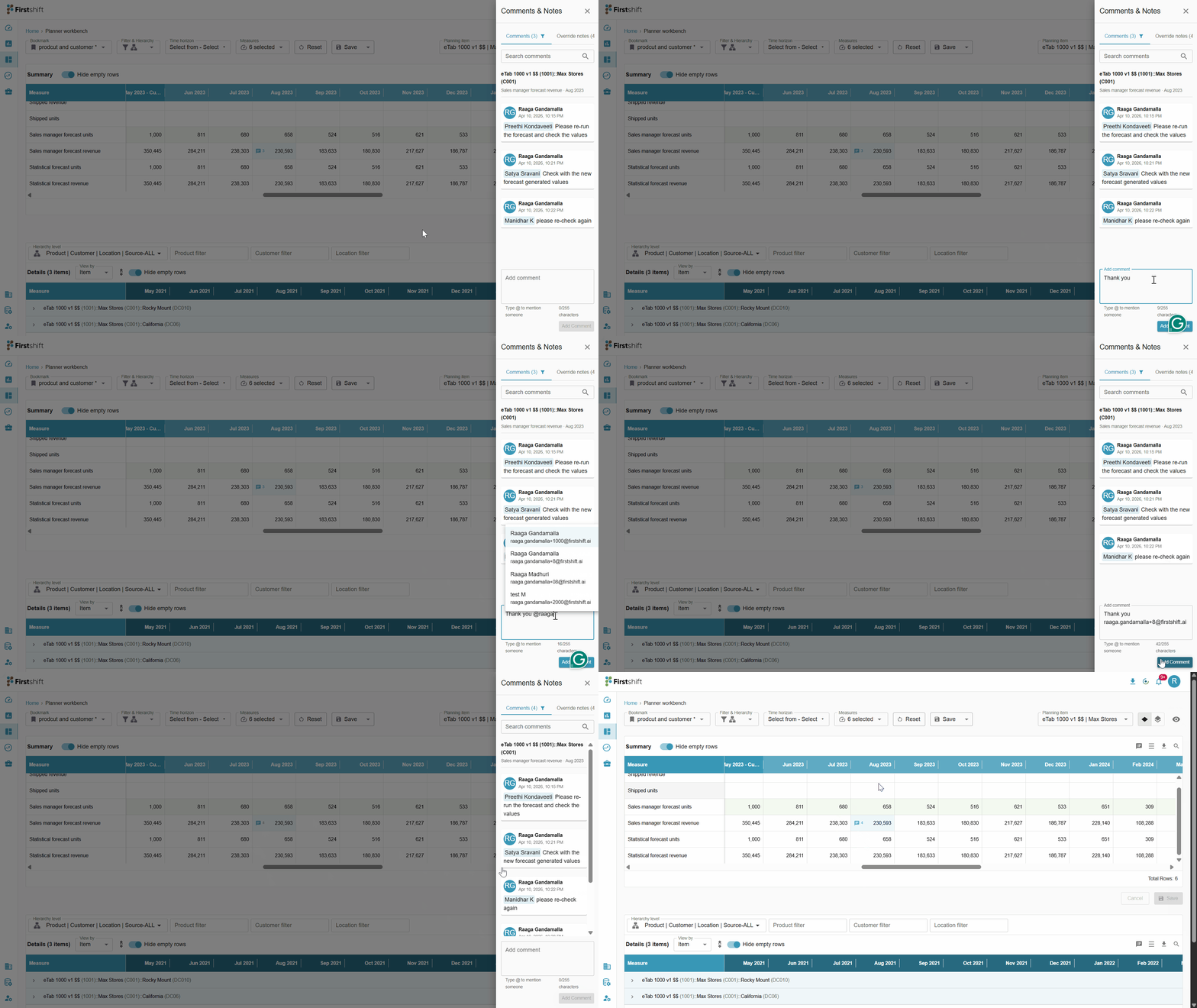
Tagging/Mentions: Within the text area, you can tag the users by typing @ followed by a username. The application displays a list of users based on the entered text. Select the user and enter the comment.
You can simply add a comment for a cell, without tagging the user.
You can also tag multiple users to the Notes panel; however, the total number of characters should not exceed 200.
Submit: Click Submit to save. The comment count for that bucket will update immediately.
The tagged user's receives an in-app and email notifications based on the notification preferences.
What happens after adding the comment
- The application displays a visual indicator for the cell for which the comment is added.
- If there are multiple comments added to the cell, then the application shows the number of comments added to the cell.
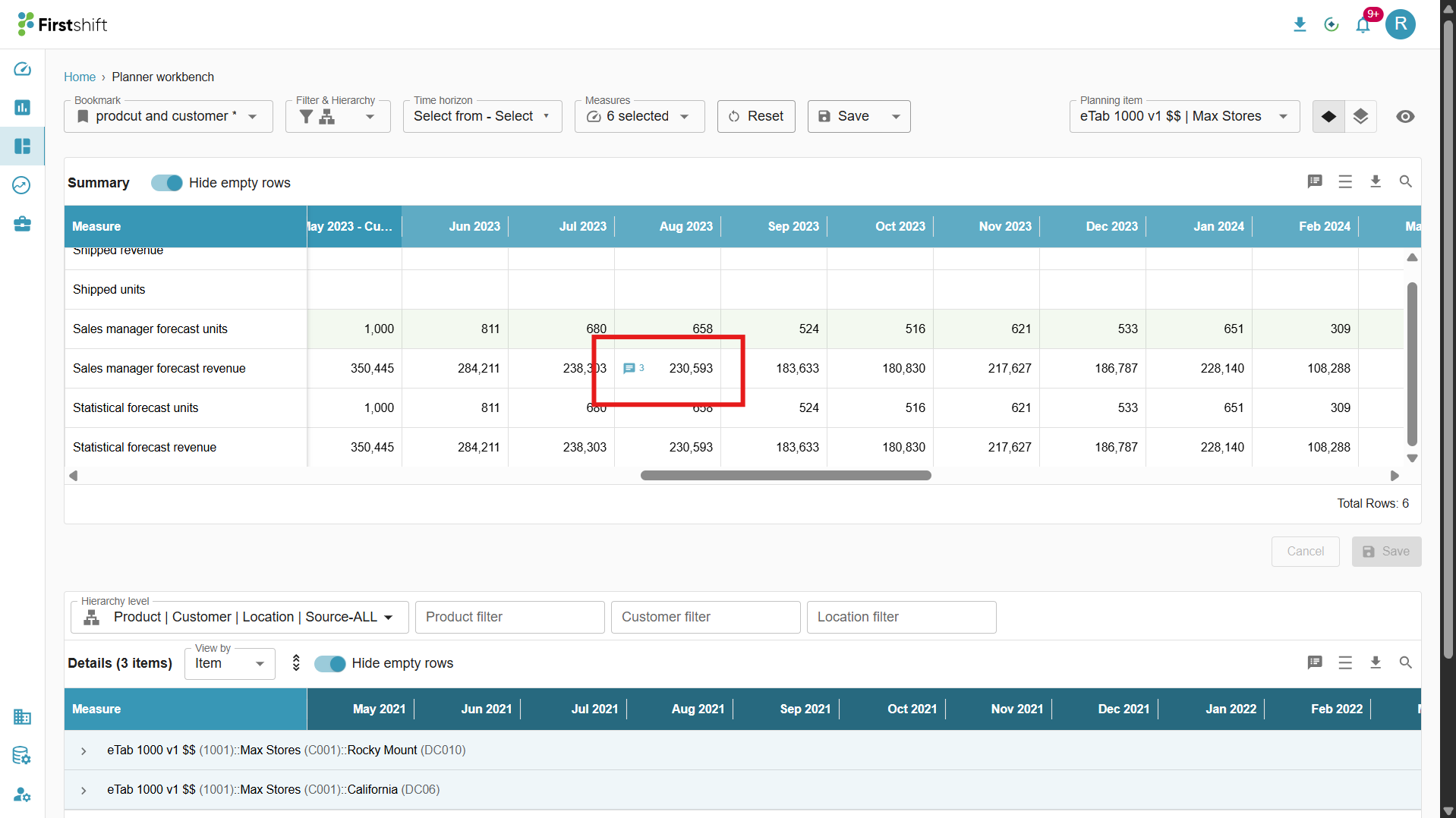
- The tagged user receives an in-app notification and an email notification when they are tagged in the comment, based on the notification preferences they set.
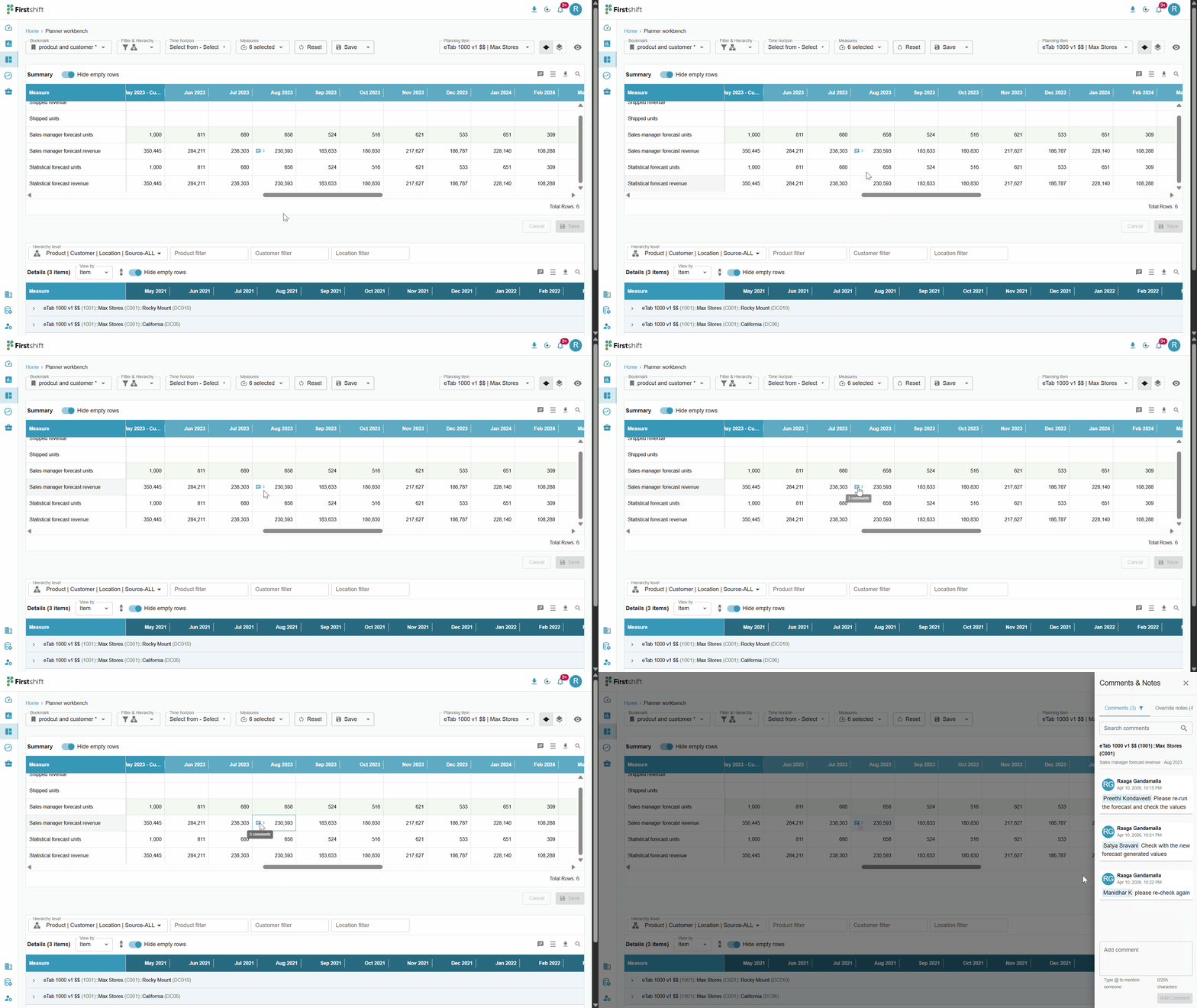
Comment icon: Clicking on the comment icon in the cell opens a right panel where the application displays the comments added to that particular cell.
The application displays the context details like item name and measure name at the top of the list and all comments added to that particular cell appears as a list.
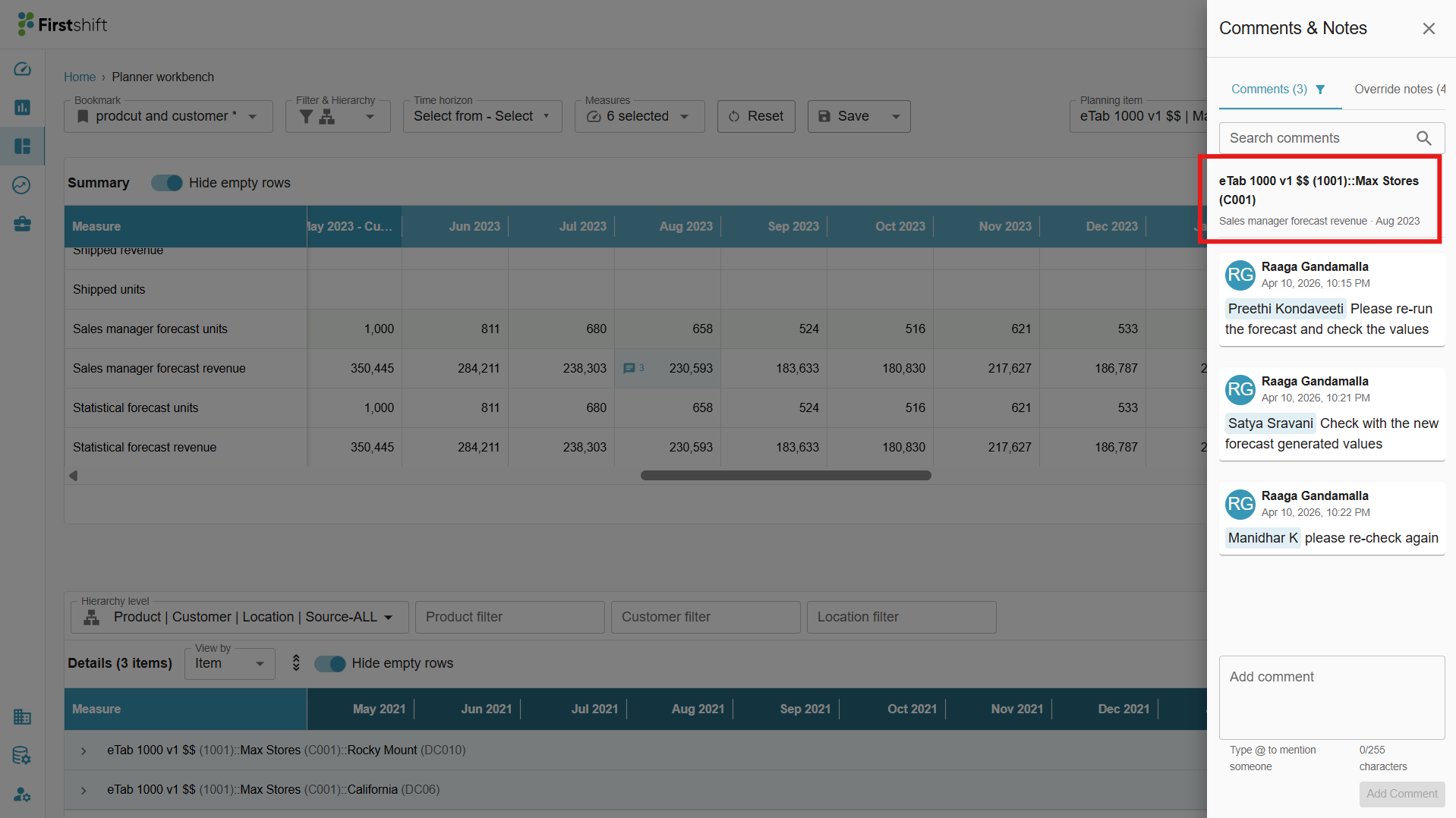
The application allows you to add comment directly in the right panel without going back to the cell and adding comment.
Click on ‘Add comment’ filed and tag a user or add a comment directly. As soon as the comment is added to the cell, the application updates the number of comments to the cell and the tagged user receives a notification.
Was this article helpful?
That’s Great!
Thank you for your feedback
Sorry! We couldn't be helpful
Thank you for your feedback
Feedback sent
We appreciate your effort and will try to fix the article