TABLE OF CONTENTS
Introduction
This article explains the available cell-level actions in the Planner Workbench results, including options such as edit, multi-cell edit, reset, audit, drilldown, comment, and lock. These options enable you to modify, analyze, and track changes to planning data directly within the grid, supporting efficient planning and decision-making.
Edit
Based on the time series configuration, the values in the UI can be edited. The application allows planners to update values for editable measures directly within the results table.
For example, consider the sales manager forecast revenue as a historical and future editable measure. Then the UI allows us to perform the edit action for the past, current, and future time buckets.
Editable Measures
Editable measures are visually distinguished using color differentiation in the results table, as shown below.
This helps you quickly identify which fields can be modified.
You can perform a single-cell edit or a multi-cell edit based on the requirement.
Single cell edit: To perform a single-cell edit, double-click on the particular cell to edit the value. Only numeric values are allowed to edit the cell.
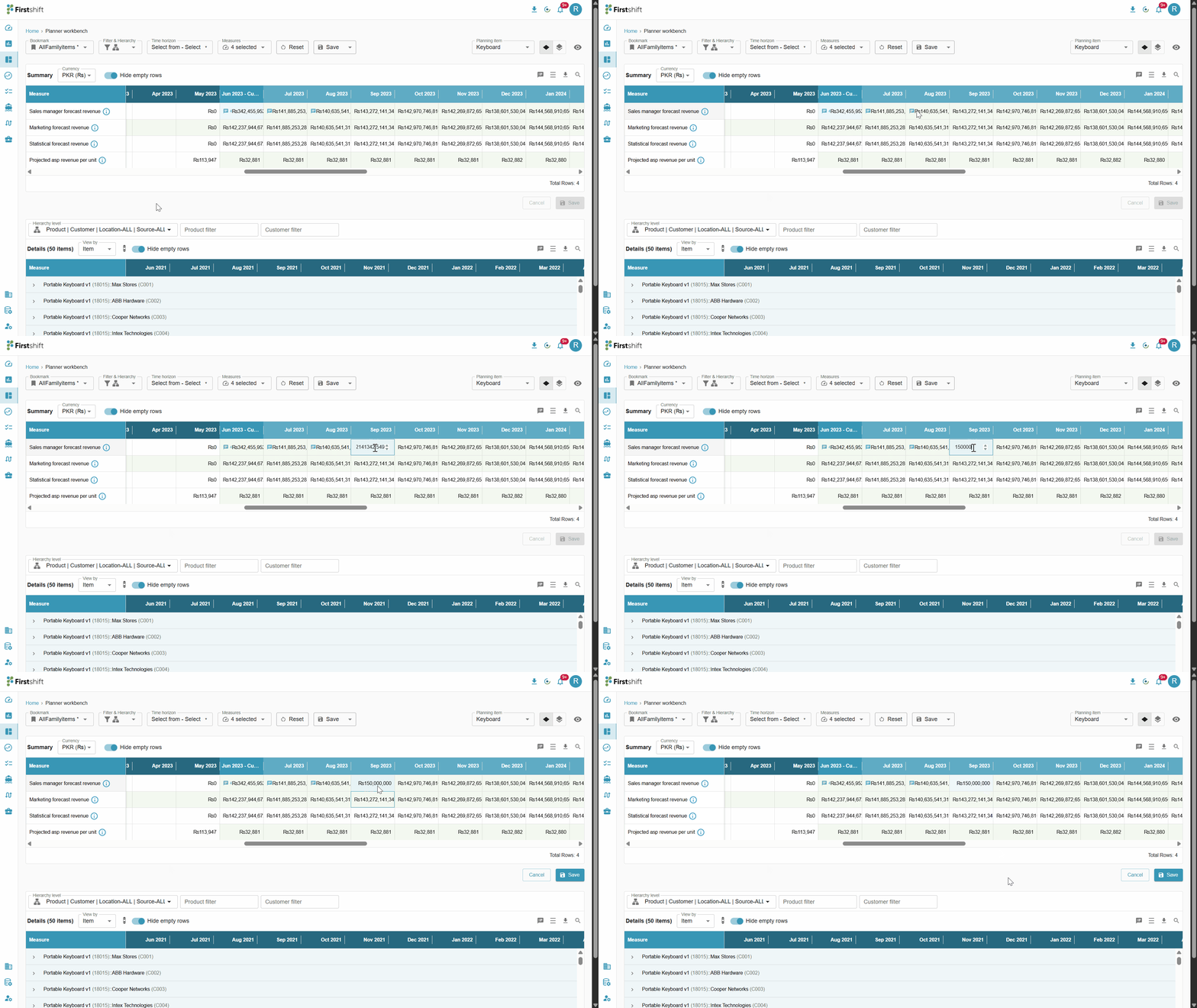
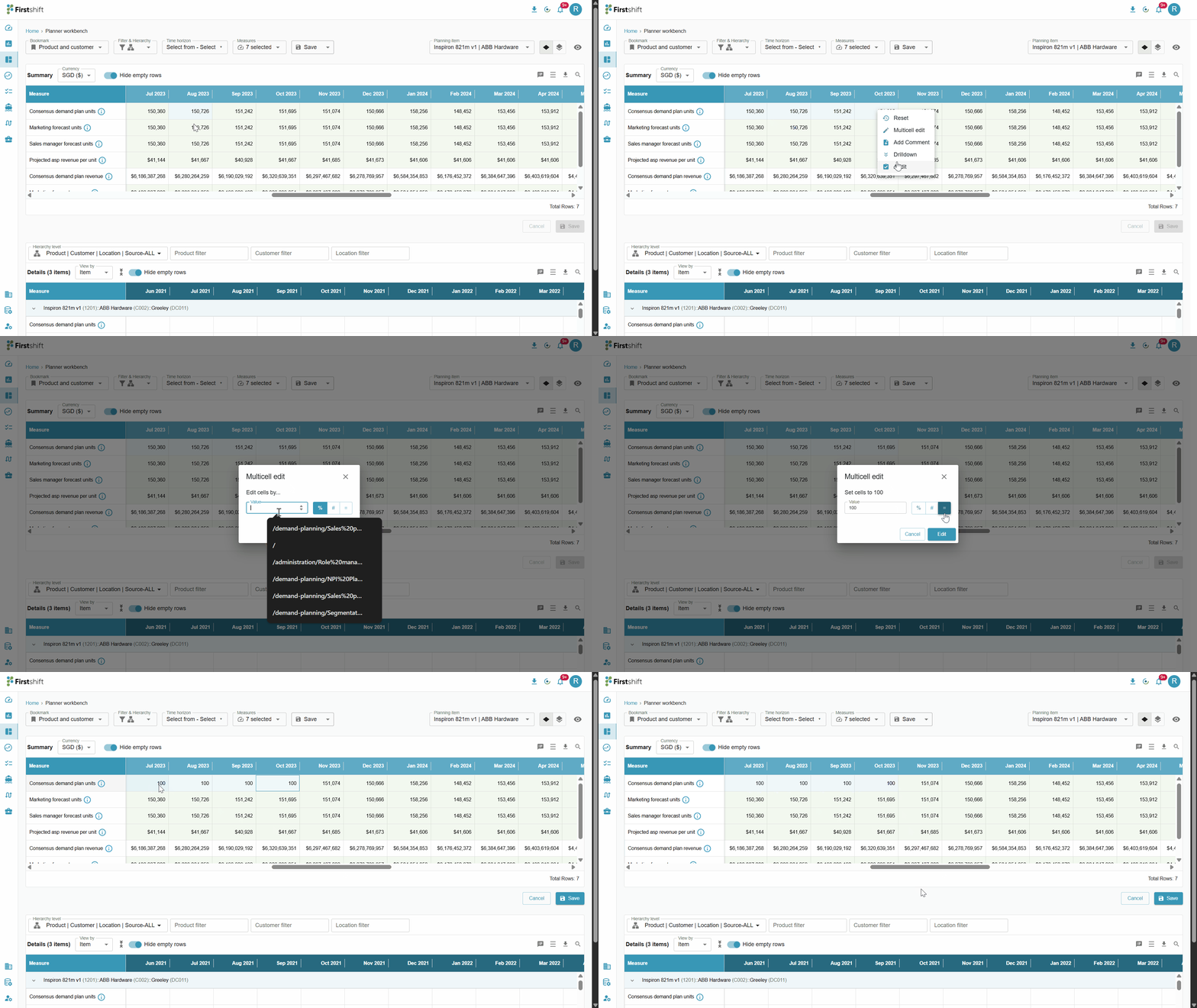
Multi-cell edit: To perform a multi-cell edit, select the cells that belong to a single measure and right-click to see the multi-cell edit option. Clicking on Multi-cell edit will open a pop-up like the one below, allowing users to update multiple values simultaneously.
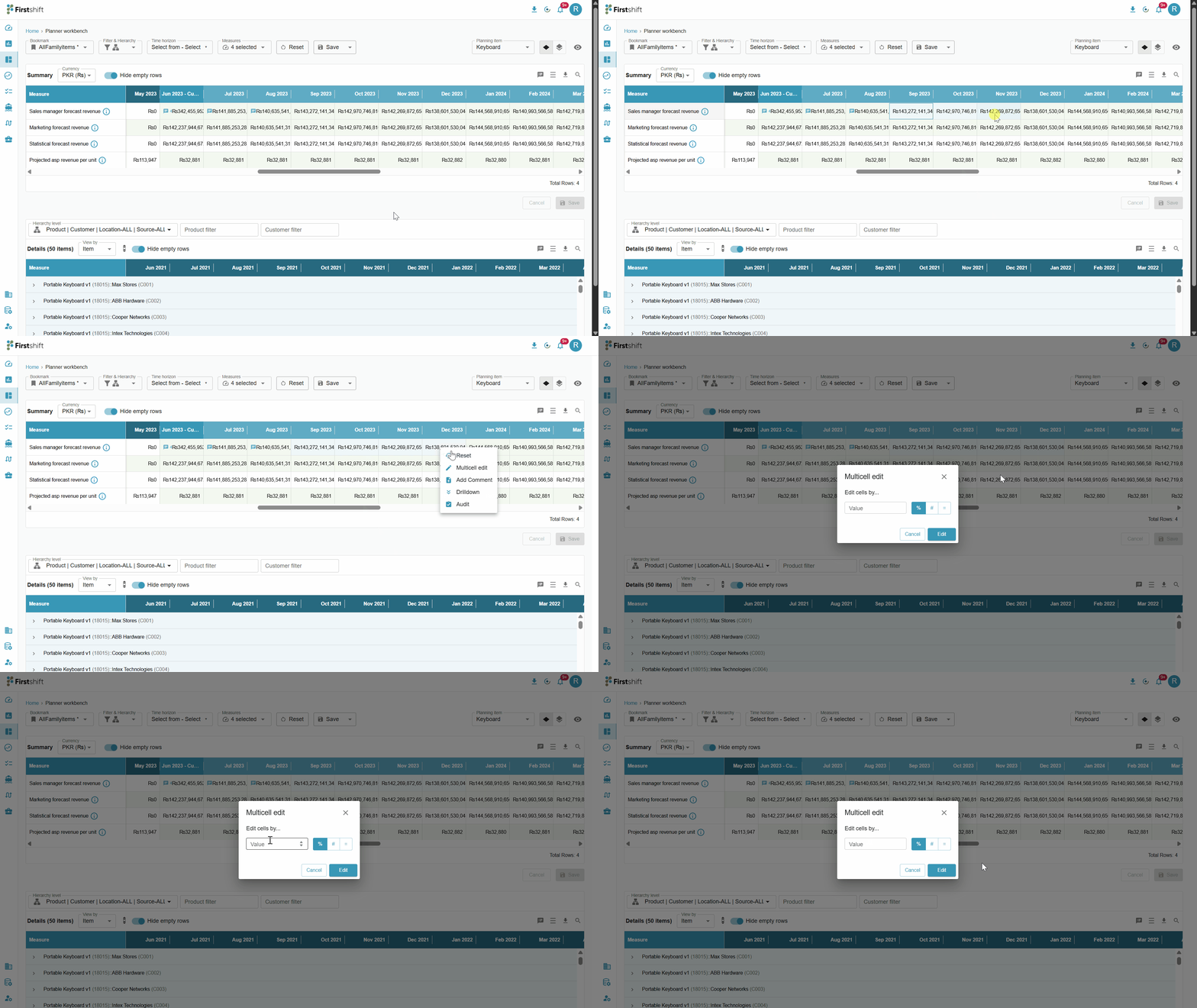
Once you click on multi-cell edit, you can see options like percentage, increment, and exact values.
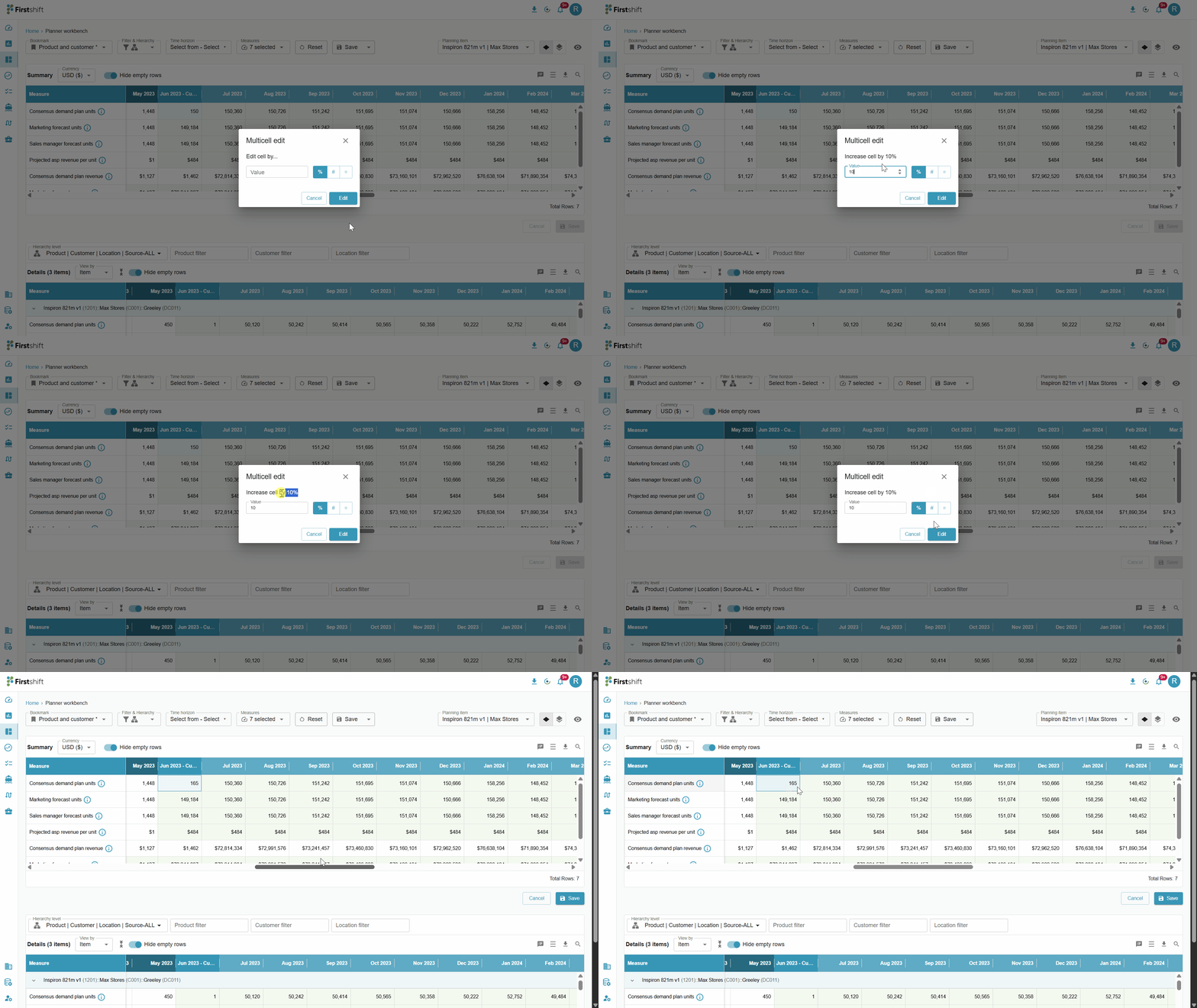
Percentage value: The entered value is 10, and the selected percentage value means the actual value will be increased by 10%.
Example: The actual value before the cell edit was 150. If you select a percentage value of 10%, the editable value will increase by 15, and the updated value will become 165. The cell will show round-off values. Clicking on the update will show the updated values in the selected cells.
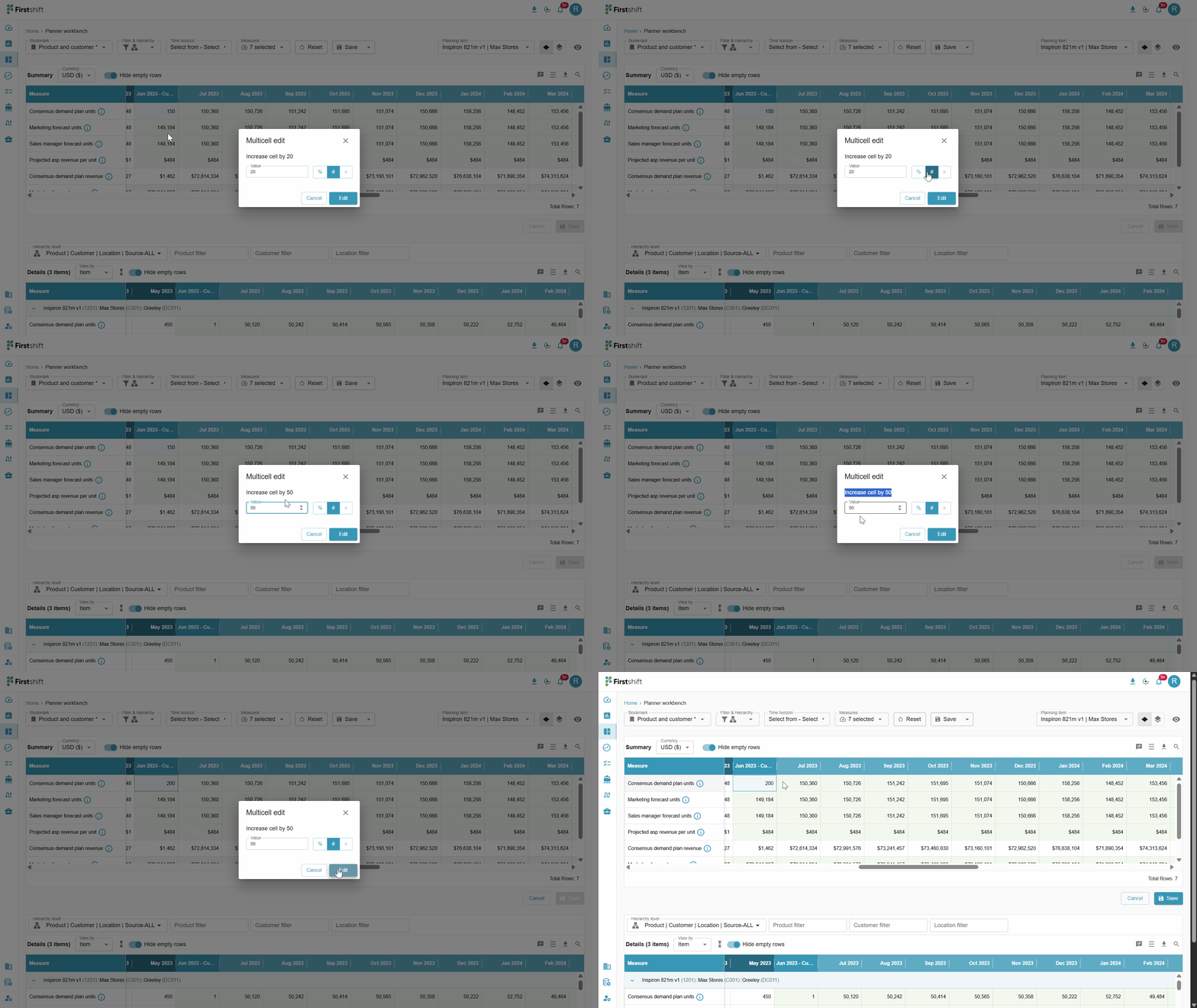
Increment value: Selecting an increment value after entering a value in the field will increase the actual value by the entered value.
Example: If the actual value is 150, increase the value by 50, and the updated value will become 200. Clicking on the update button will update the exact values with the updated values.
Same value: Selecting the same value option after entering the value will copy the same value for all the selected cells.
Example: If the value entered was 50 and the same value was selected, then the cells will be updated with the updated value.
Clicking on the update button will update the cells with the latest value.
Save the overrides
Once you edit the cell, Save and cancel options gets enabled. You can click on Cancel to discard the cell edits. To apply the changes made to the cell, click on the Save button. This will open a pop-up where you can submit overrides. Once confirmed, the updated values will be reflected in the planning view, ensuring that modifications are successfully applied.
In the pop-up, selecting the Reason Category, Reason Name, and adding a Comment are optional. To save the changes made, click the Submit button or cancel to terminate.
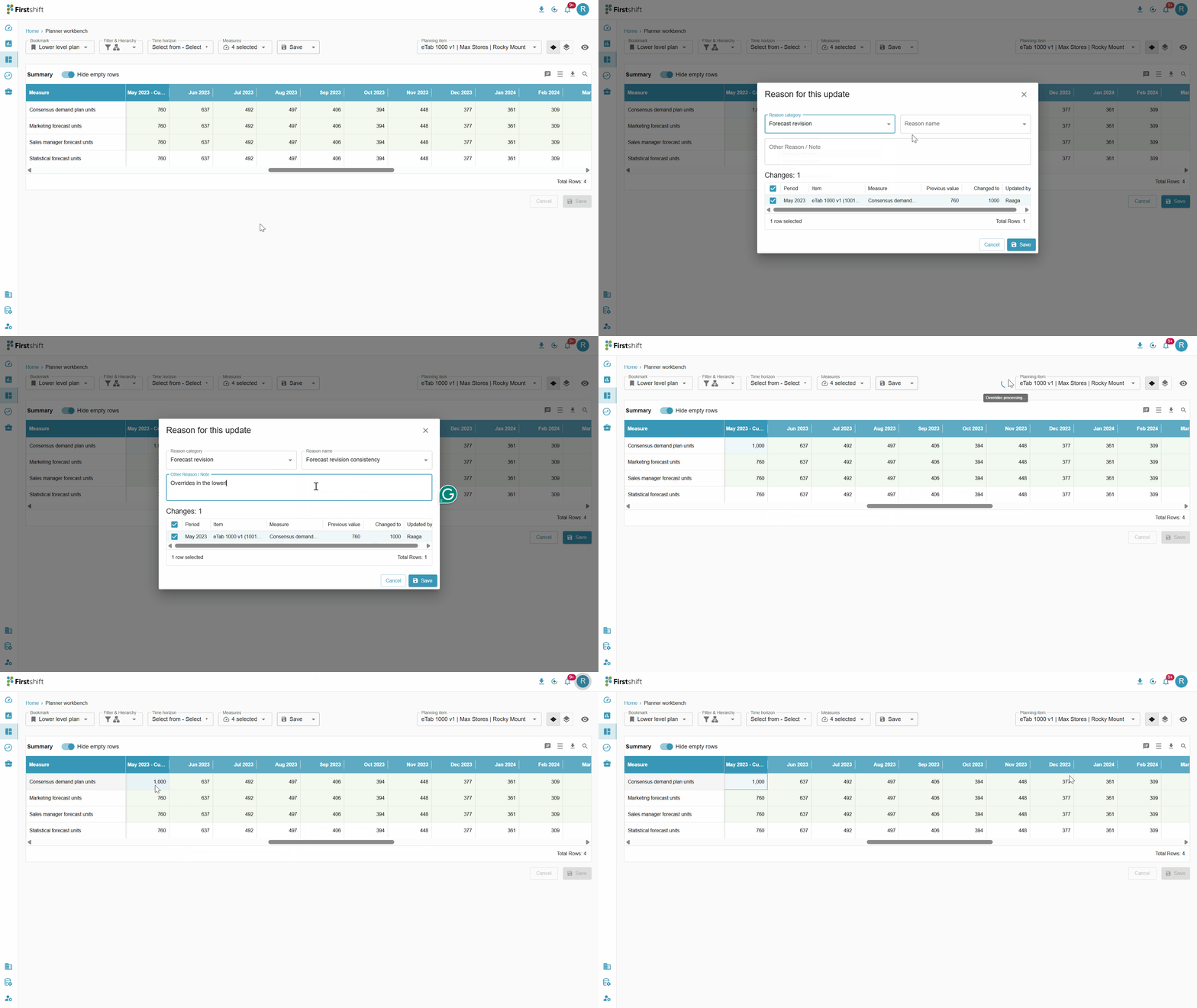
Clicking the Submit button will successfully submit the overrides, and a processing icon will appear on the screen indicating that the overrides are being processed. This icon will remain visible until the overrides are completed successfully.
After successful completion of the overrides, the application automatically refreshes the values and updates all dependent measures, upstream and downstream values.
Edit Behavior and Limitations
In the Planner Workbench bookmark, editing and override actions are subject to the following constraints:
Table-Level Editing Restriction: Edits can be performed either in the Summary Table or in the Details Table, but not in both simultaneously within the same session.
This ensures consistency and prevents conflicting updates across different aggregation levels.View-Level Editing Restriction: Overrides can be applied either in the Single-Item View or in the Multi-Item View, but not in both at the same time.
Users must complete their updates within one view before switching to another.
These restrictions help maintain data integrity and ensure that updates are applied in a controlled and consistent manner.
When the changes made to the cell are not saved and switching to other items, or changing the currency, or switching to another view, the application alerts you saying, ‘This action will discard your unsaved overrides. Do you want to continue?
Yes→ currency switches, or switches to another view, or changes the item, and unsaved changes are discarded
Cancel → stay in current currency, retain edits.
Was this article helpful?
That’s Great!
Thank you for your feedback
Sorry! We couldn't be helpful
Thank you for your feedback
Feedback sent
We appreciate your effort and will try to fix the article